1. Course Management
1.3. How To Export Course Database
User can export the course database to users device or transfer to other website.
There are 4 Steps to Export Course Database:
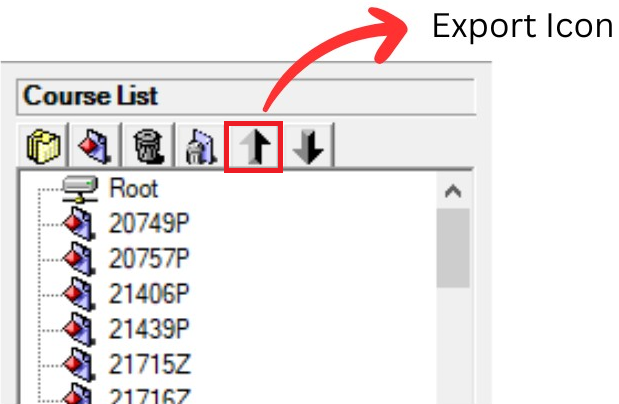
Diagram 1.3.1: Location of Export Icon
Step 1: Click the Export Icon  to export Course list
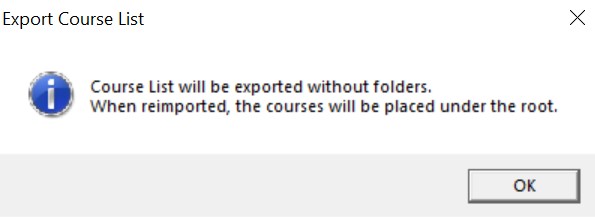
Diagram 1.3.2: Confirmation window to Export Course List
Step 2: Click OK to export room list to your computer. It will be exported without folders. When reimported, the courses will be placed under the root.
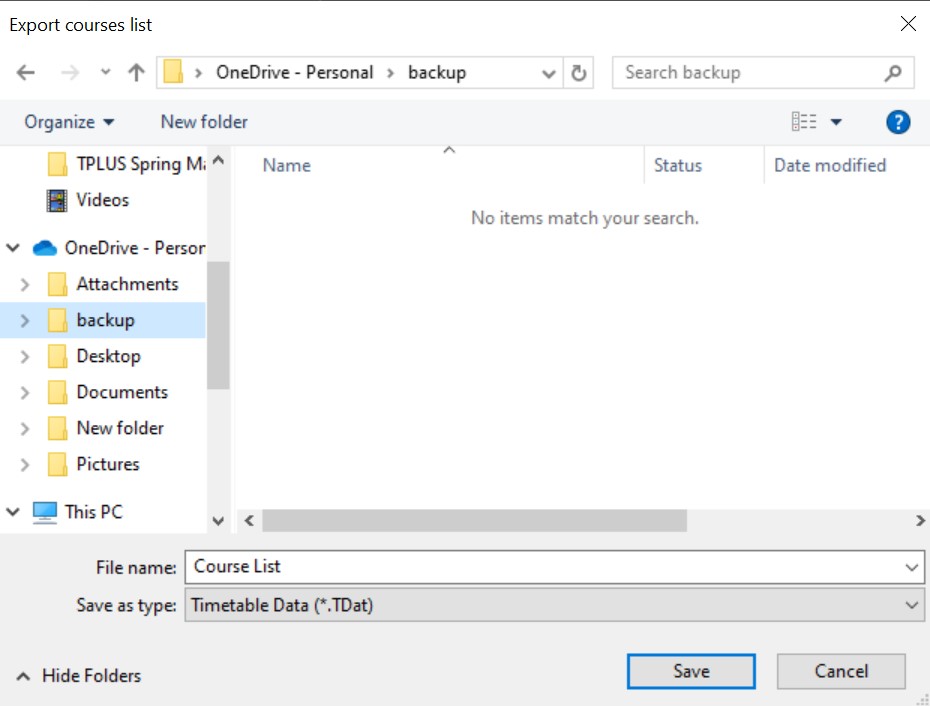
Diagram 1.3.3: Save Course list pop-up window
Step 3: Select the desired location to save the folder. For example, in backup file
Step 4: Click save and exporting the database is complete and user may change the file name.
Example :Course list
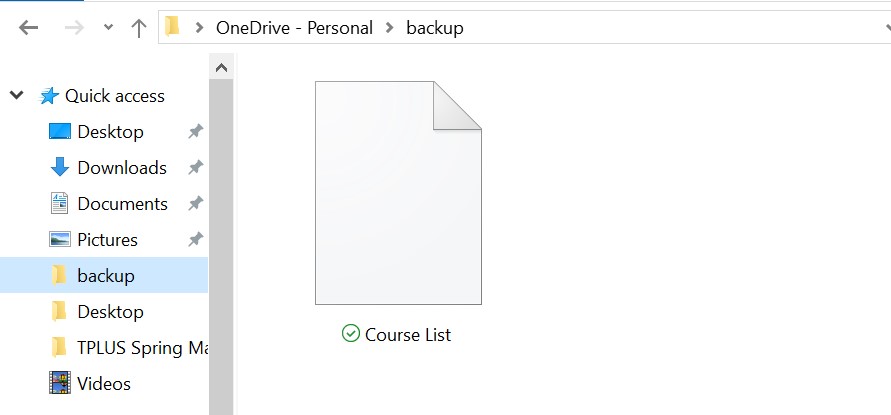
Diagram 1.3.4: Location of the saved files
Once user saved user may locate the saved files in the location that user choose. For example, in backup file