1. Analysis
1.5. Highlighting
Before performing the Manual Slot in, User need to know on WHY you use highlight. Highlight is used to locate the slot of the batch and to avoid clashing when doing the manual allocation.
There are 2 important highlighting to prevent clashing:
- Batch Grouping
- Lecturers
There are few Locations you can do highlighting:
- Course Status
- Tree Structure
- Course List
- Batch Grouping
- Lecturer List
Highlight Section/Group
1. Course Status
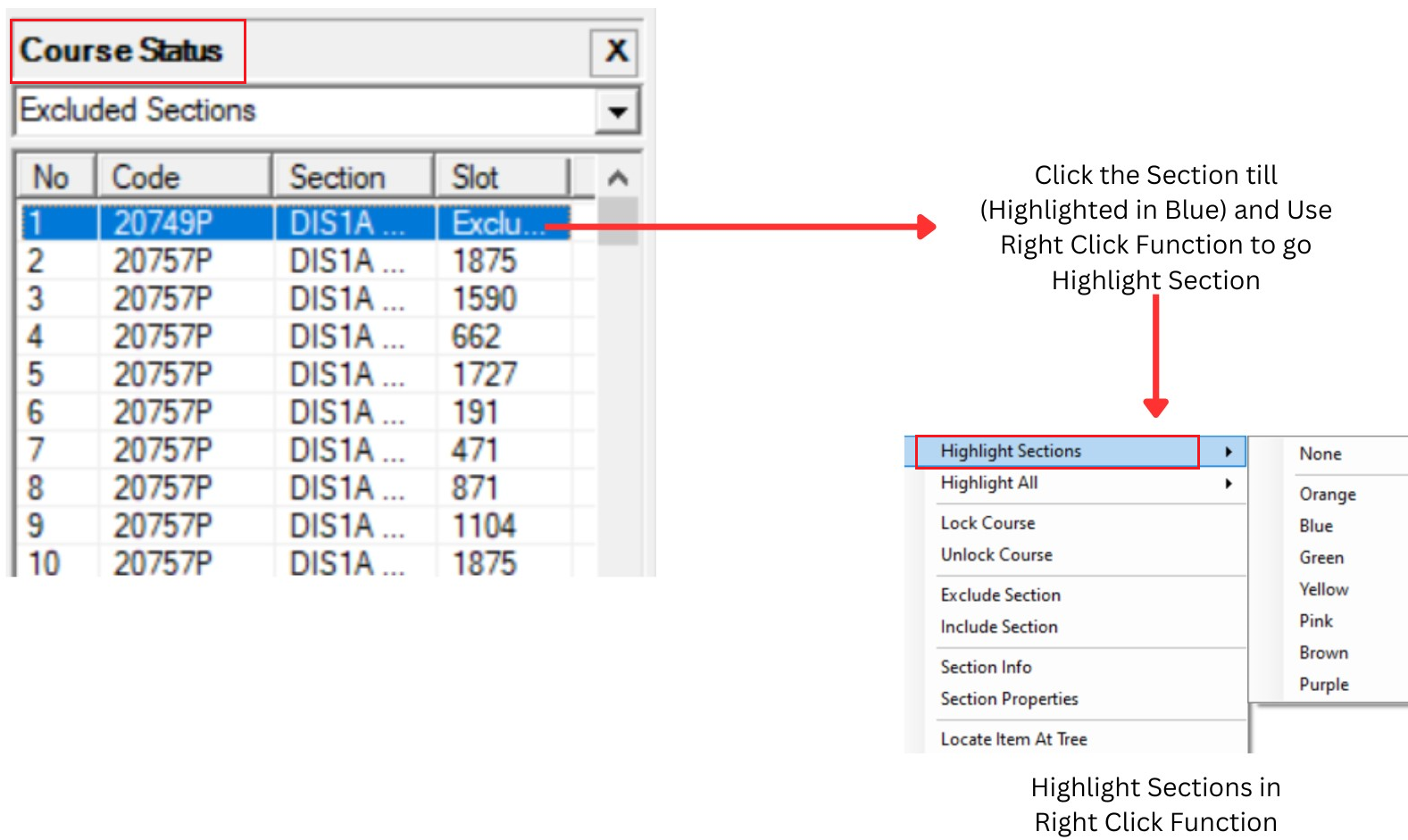
Diagram 1.5.1 : Highlight at Course Status
2. Highlight Group Folder or Section at Tree Structure
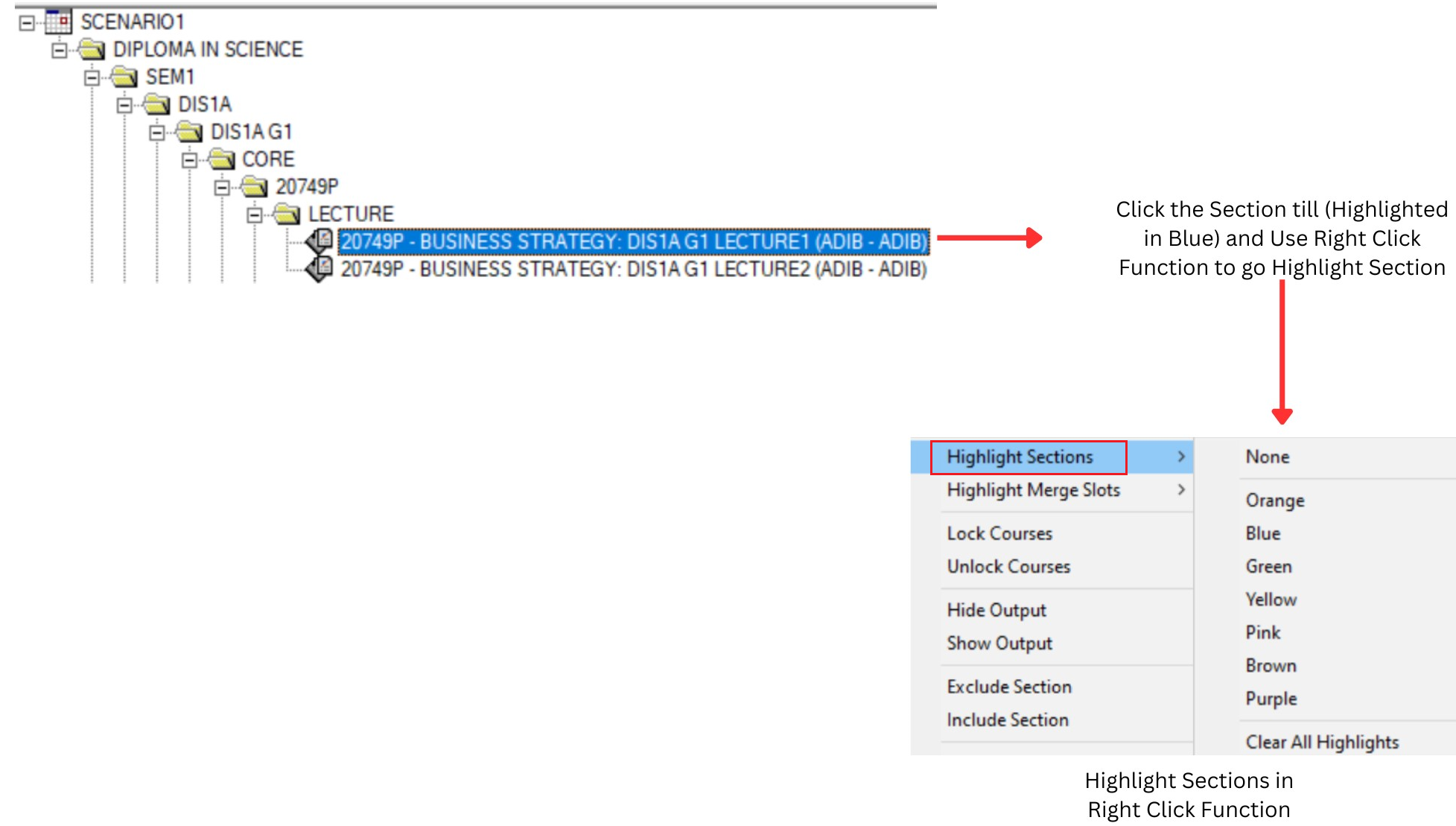
Diagram 1.5.2 : Highlight at Tree Structure
3. Highlight from Course List
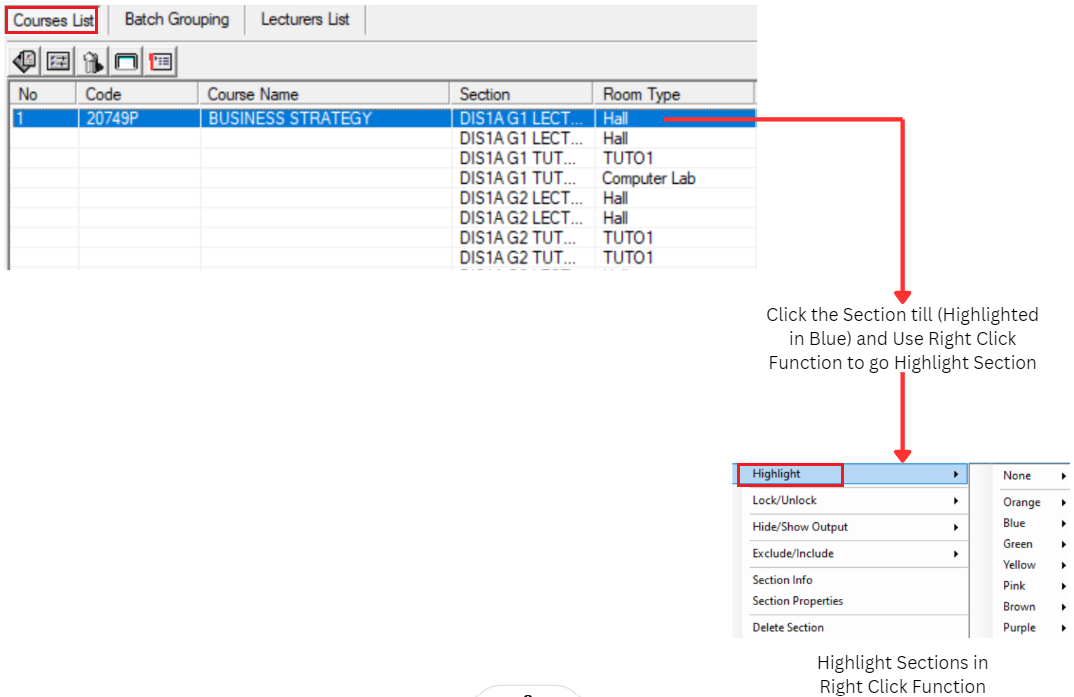
Diagram 1.5.3 : Highlight at Course List
4. Highlight at Batch Grouping
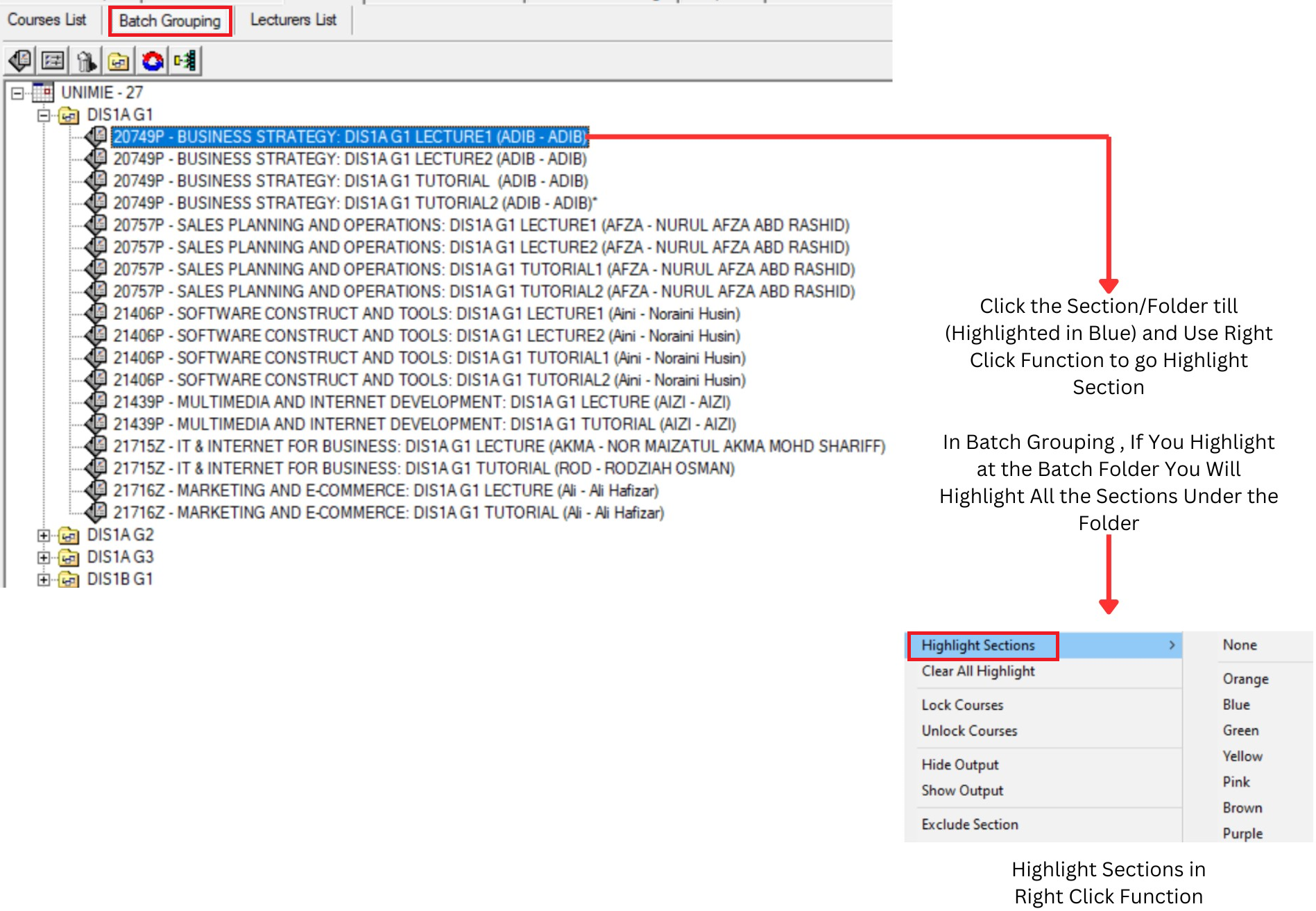
Diagram 1.5.4 : Highlight at Batch Grouping
5. Highlight at Lecturer List
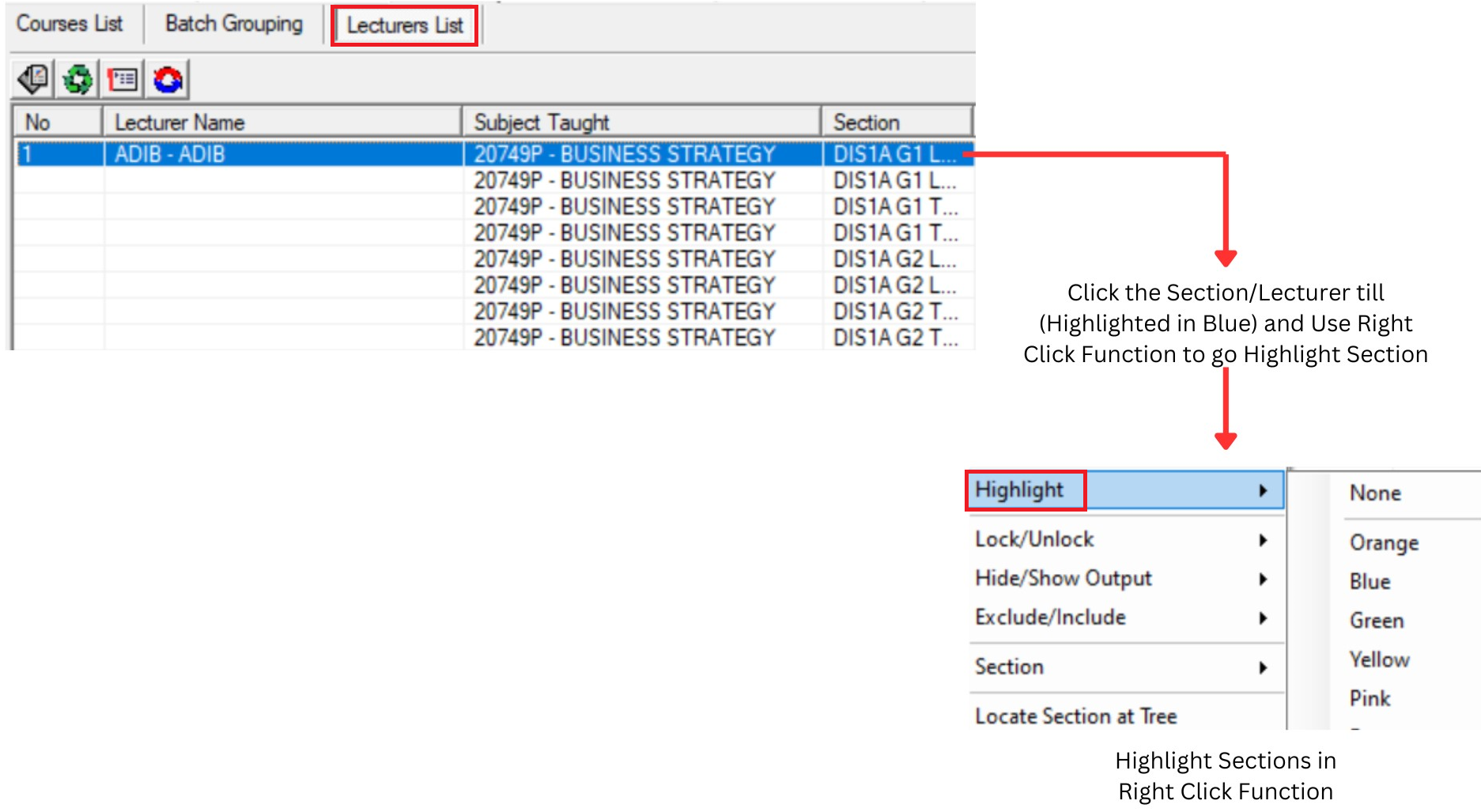
Diagram 1.5.5 : Highlight at Lecturer List
After you click a highlight button, you can choose any colour to highlight. It is advisable to highlight different colours for each selected highlight choice.
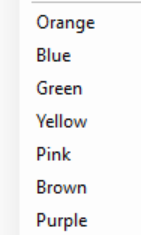
Diagram 1.5.6 : Highlight Colours
The best practice is Highlight the Batch and then Highlight Lecturer and use different colour.
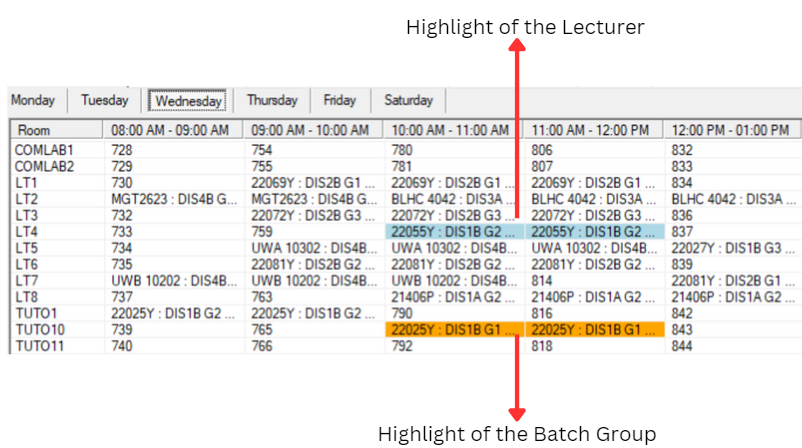
Diagram 1.5.7 : Batch and Lecturer Highlighted
Clear Highlight
Too many colour can be confusing. It is
advisable to analyze/highlight one at a
time. Clear previous colour before highlighting
other folders/sections by using Clear All
Highlight at Timetable Menu or Right
Click Highlight function.
Recommended way to Clear All Highlight is Click Timetable at menu bar then Click Clear All Highlight
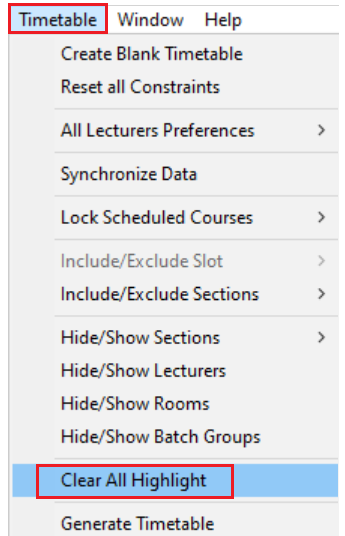
Diagram 1.5.8 : Location of Clear All Highlight