1. Before Auto Generate
1.1. Exclude All Section
Exclude All Sections. The easiest way is to go to Timetable Menu and Click Include/Exclude Sections and then Exclude All Section.
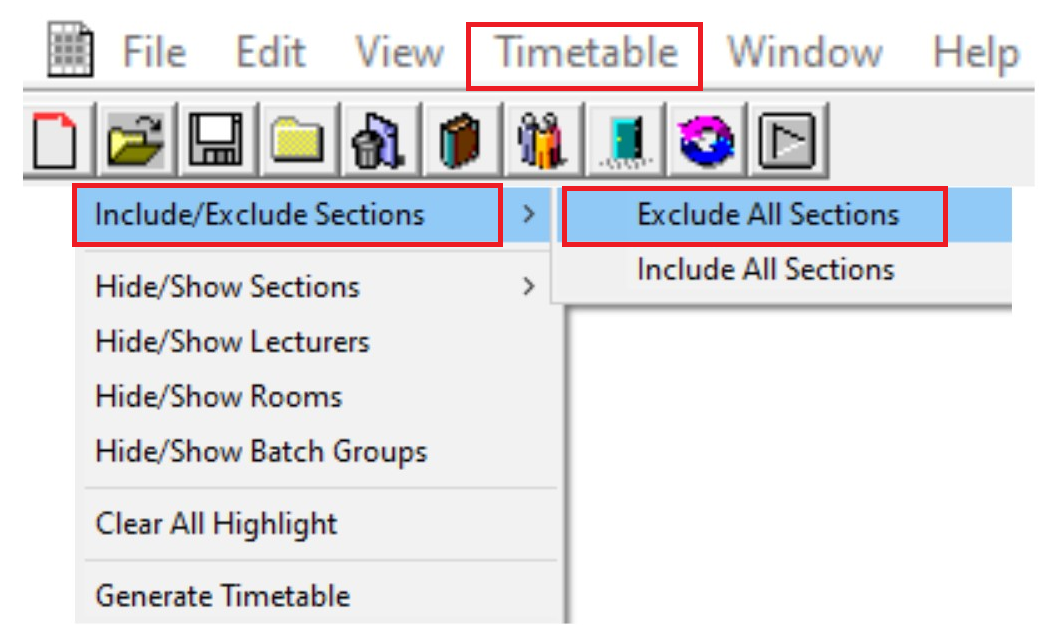
Diagram 1.2.1: Exclude All Section
Note:
- Include Sections has Black Colour font and Ready to be slotted in the Timetable
- Exclude Sections has Blurry font and will not be slotted into the Timetable
This is how it will looks like at tree before and after you Exclude All Sections
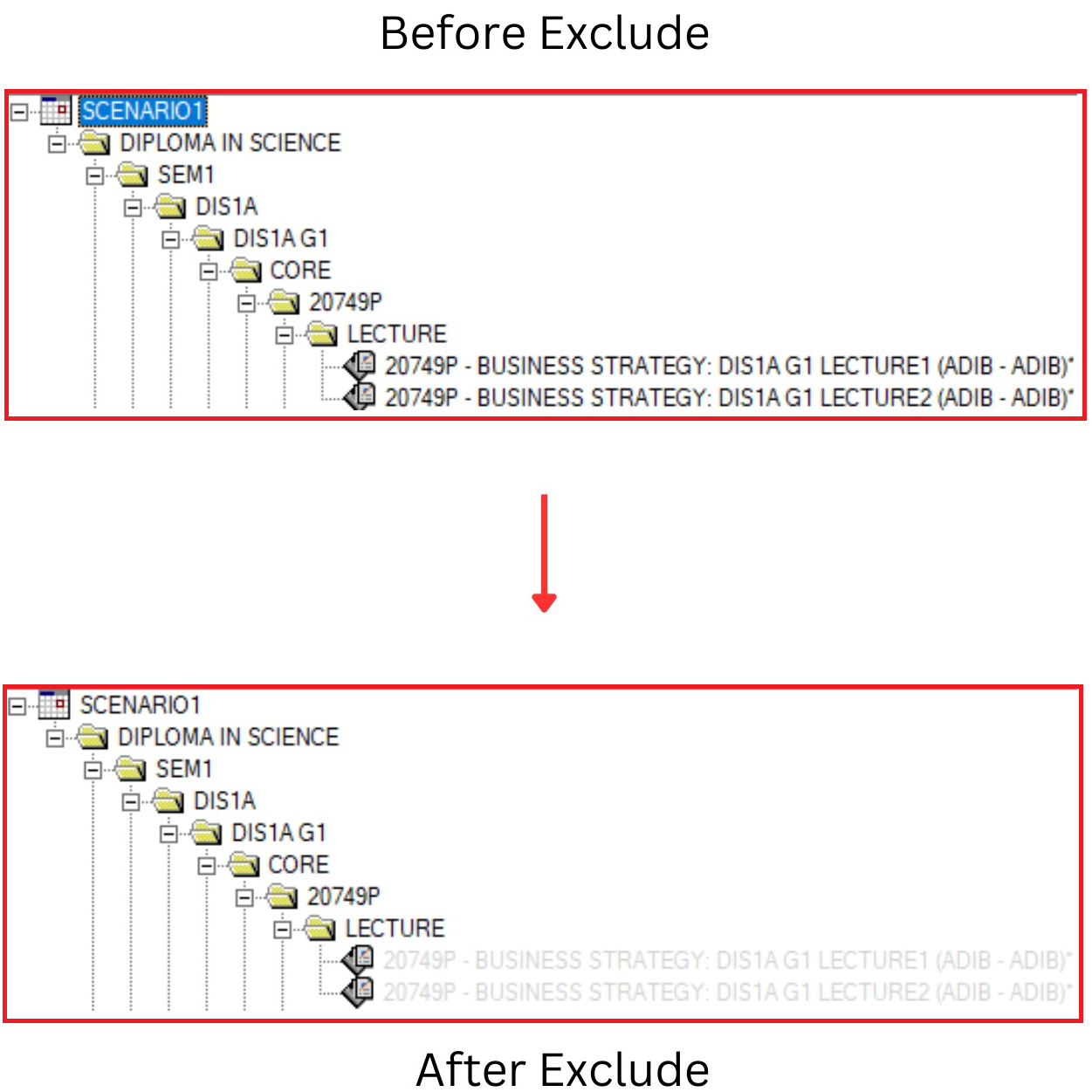
Diagram 1.2.2 : Before and After Exclude Looks at Tree Structure
By default, all the sections is Included
and can be seen Black Colour or at the
Course Status stated “Not Assigned”.
This is how it will looks like at Course status before and after exclude all sections.
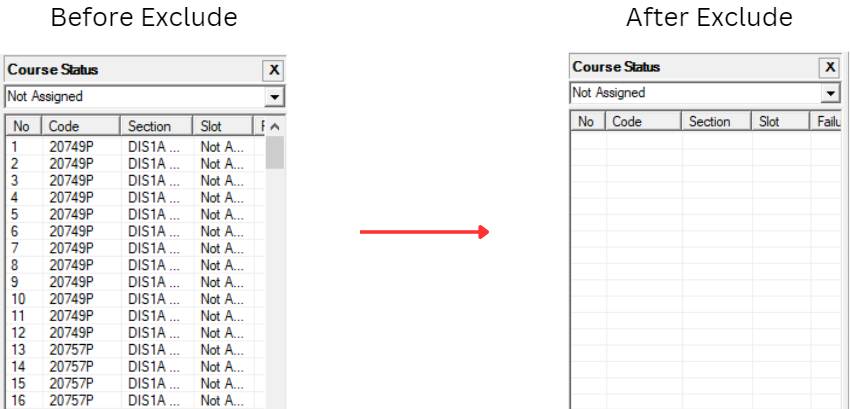
Diagram 1.2.3 : Before and After Exclude Looks at "Not Assigned" Status
User can also double check at Course
Status that no Section is being Excluded
by changing the Status ”Not Assigned” to
“ Excluded Sections”.
If there is no Section at the “Excluded
Section” Status, it means that all Sections
have been Included.
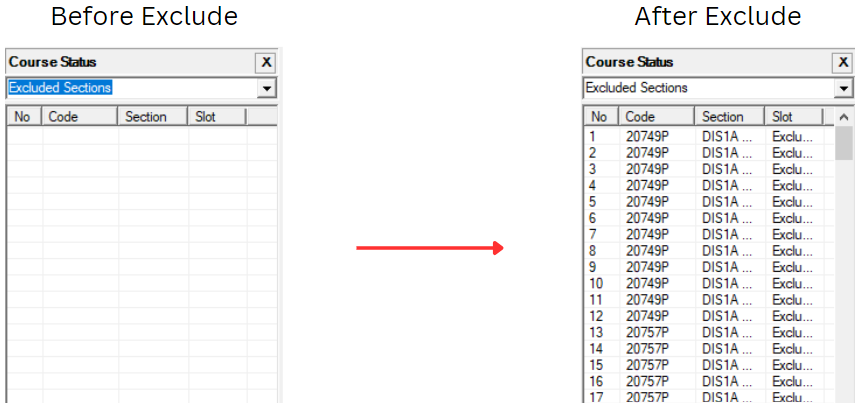
Diagram 1.2.3: Before and After Exclude Looks at "Exclude Section" Status