3. Data Entry Analysis & Editing
3.2. Batch Grouping
Batch Grouping allow user to analyze Grouping:
- Group Status of each Sections
- Group Name

Diagram 4.2.1: Data Batch Grouping Tab
Click Data and then Click Batch Grouping to open up Data Batch Grouping
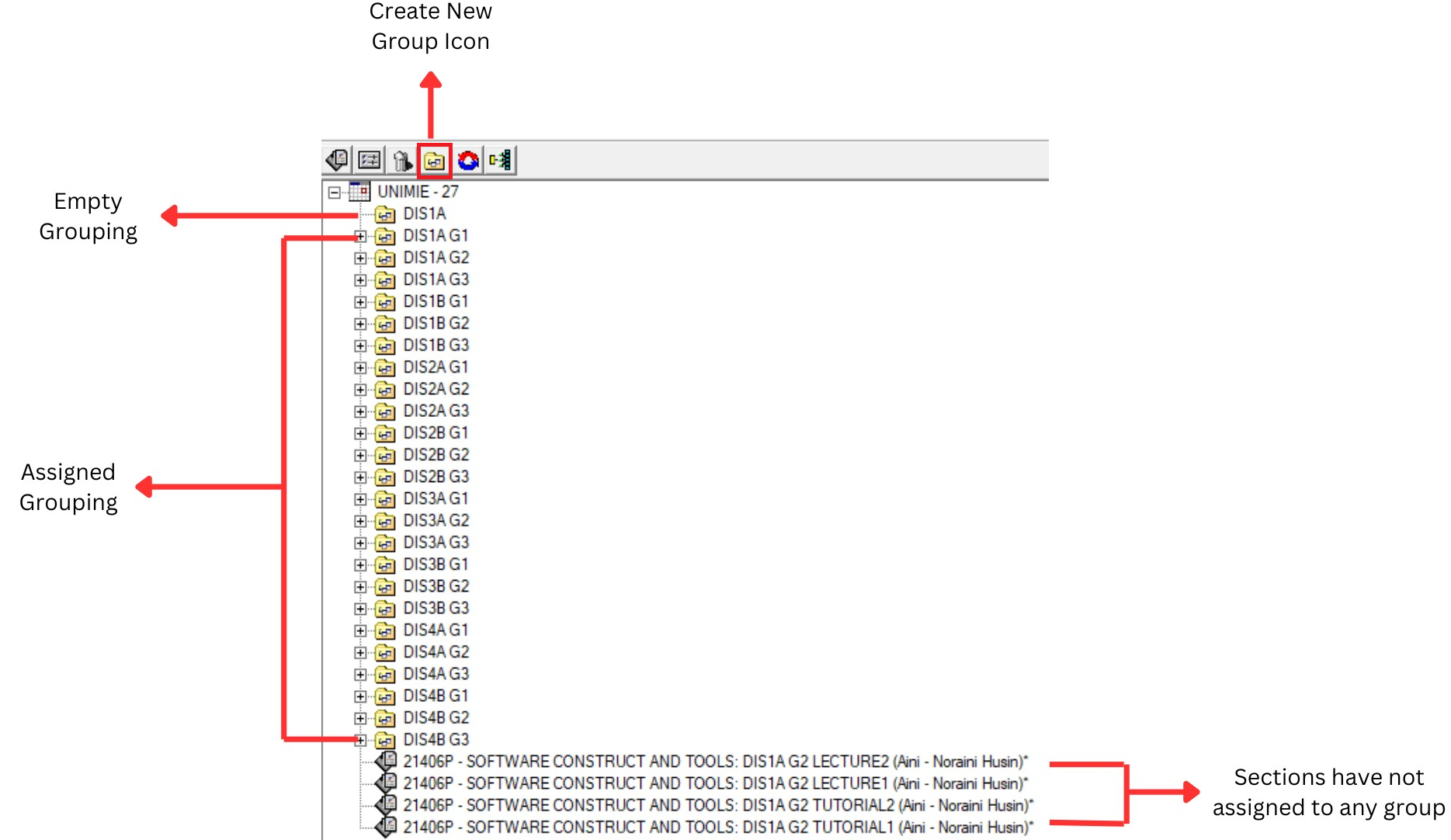
Diagram 4.2.2: Data Batch Grouping
Editing Process
In Oder to assign Group to the Ungrouped Sections, user can choose 3 alternative methods:
- Dragging
- Double-Click
1. Dragging Method
Drag unassigned Sections into appropriate Grouping Folder
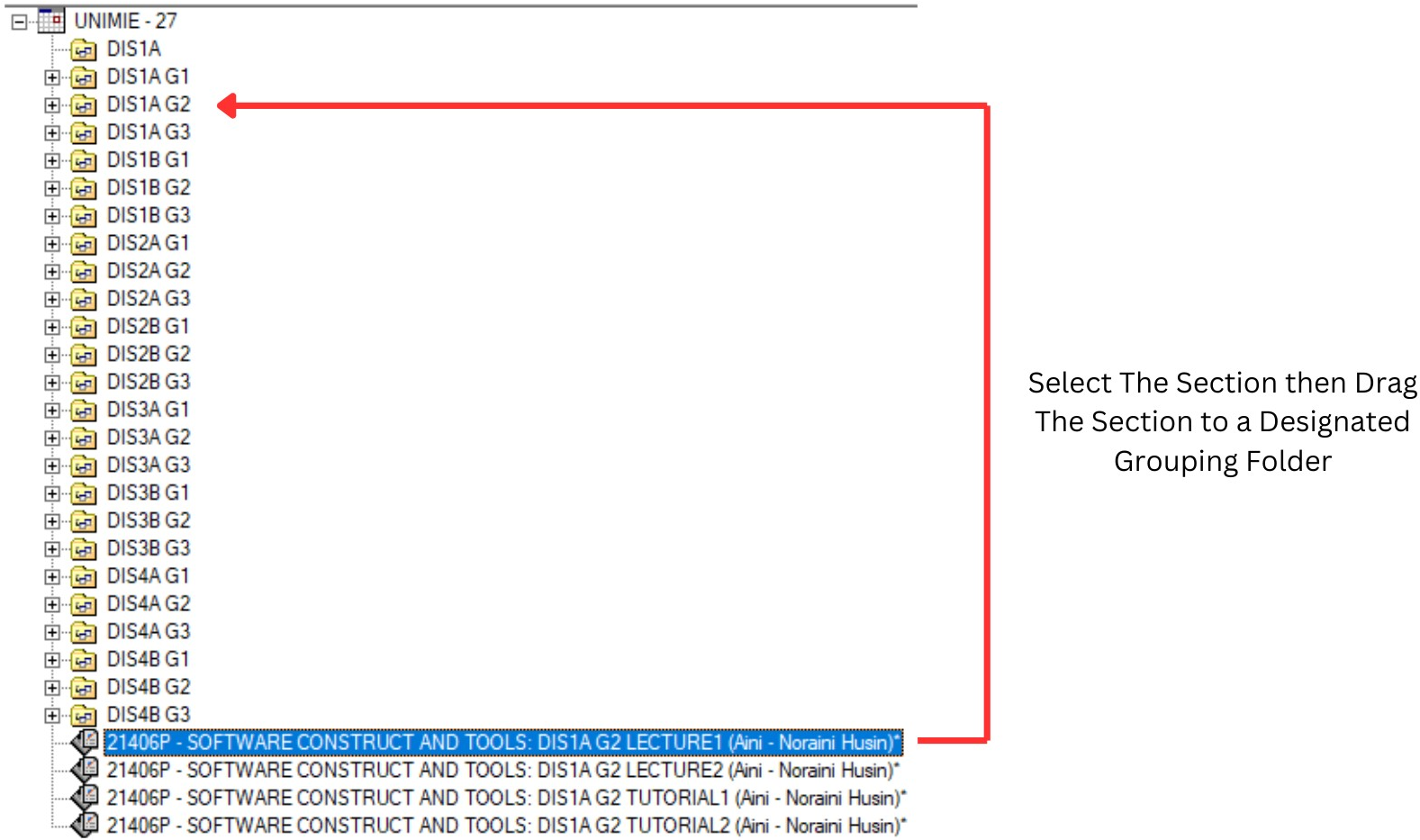
Diagram 4.2.3: Drag a Section to Grouping Folder
- To drag a Section into a Grouping Folder user need to select the particular section then hold the selected Section move the cursor into a designated Grouping Folder
- Once selected Section released then the Section will move into Grouping Folder where user releases the section.
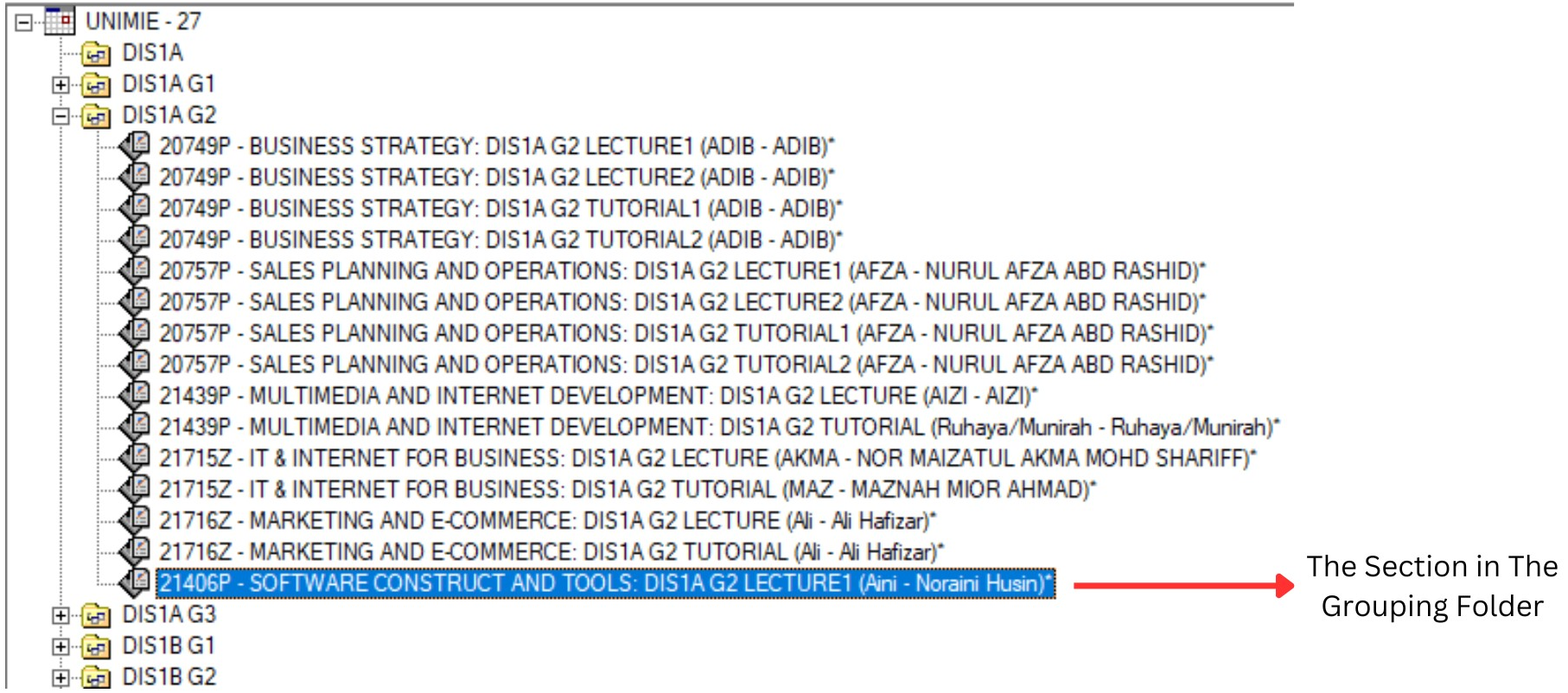
Diagram 4.2.4: The section under a folder
2. Double Click Method
Step 1: Double click at Selected Section
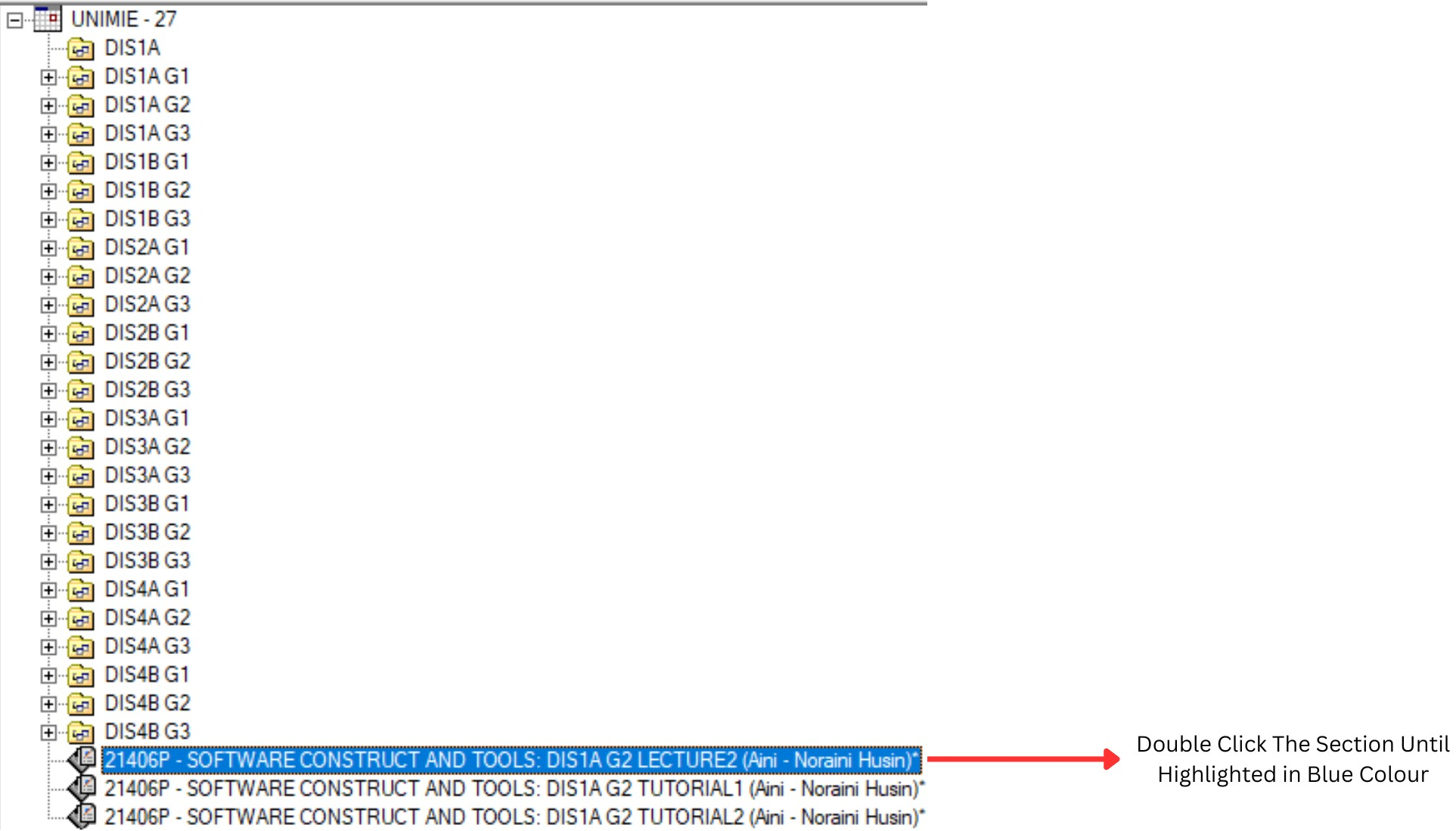
Diagram 4.2.5: Double click the section
Step 2: Assign the appropriate Group in Section Properties window (Example: DIS1A G2)
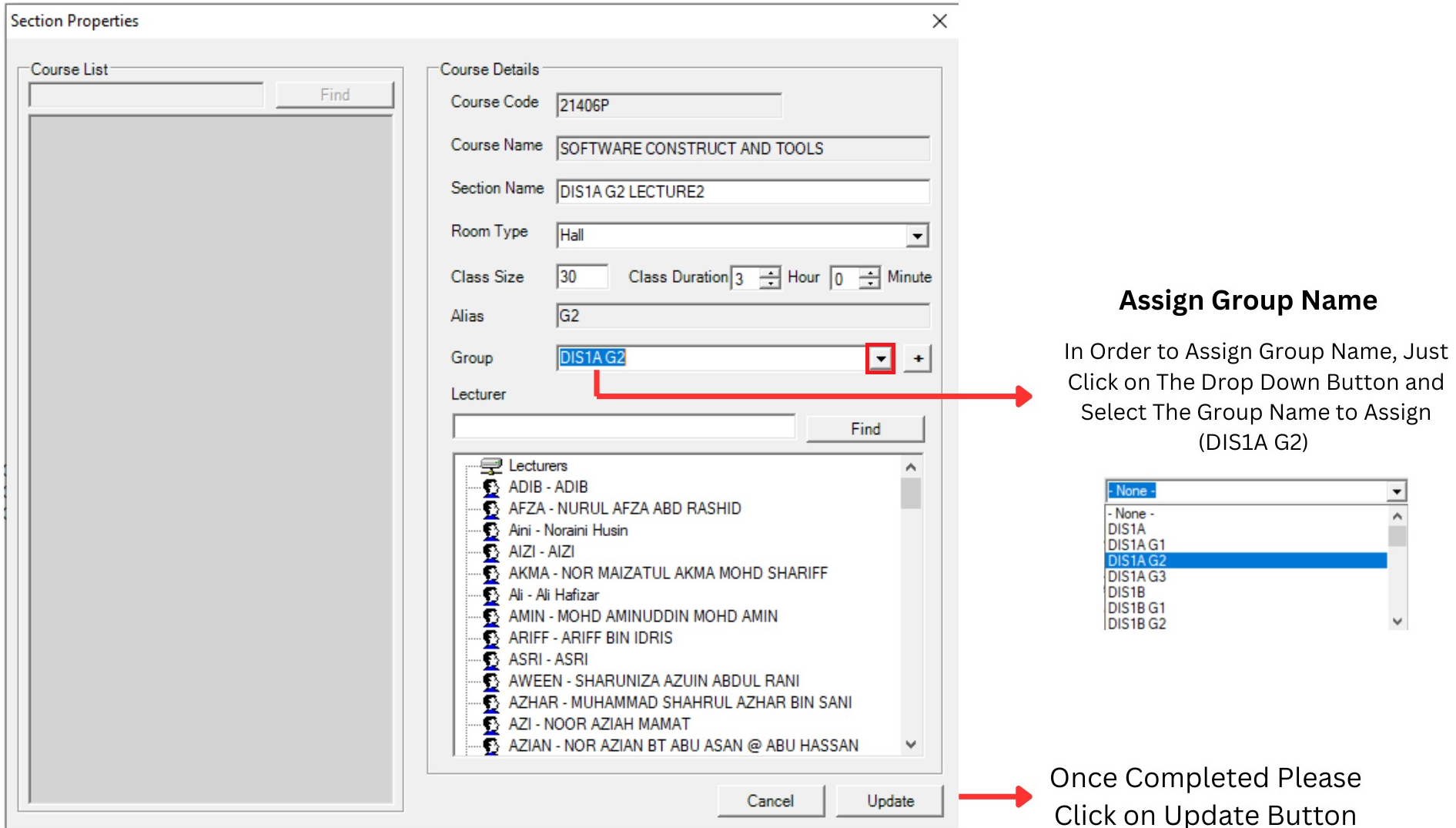
Diagram 4.2.6: Assign group name