4. Customize Tree Structure
You will use your creativity to re-arrange the Tree
Structure according to your demands. The normal practice is to create additional Yellow Folder (Group
Folder) for any kind of demand like:
- Merging class (combine class)
- Same time class (Usually in Pre-requisite subjects)
Merging Class
Let say all 20749P Lecture 1 merge in the same class (same time same room)
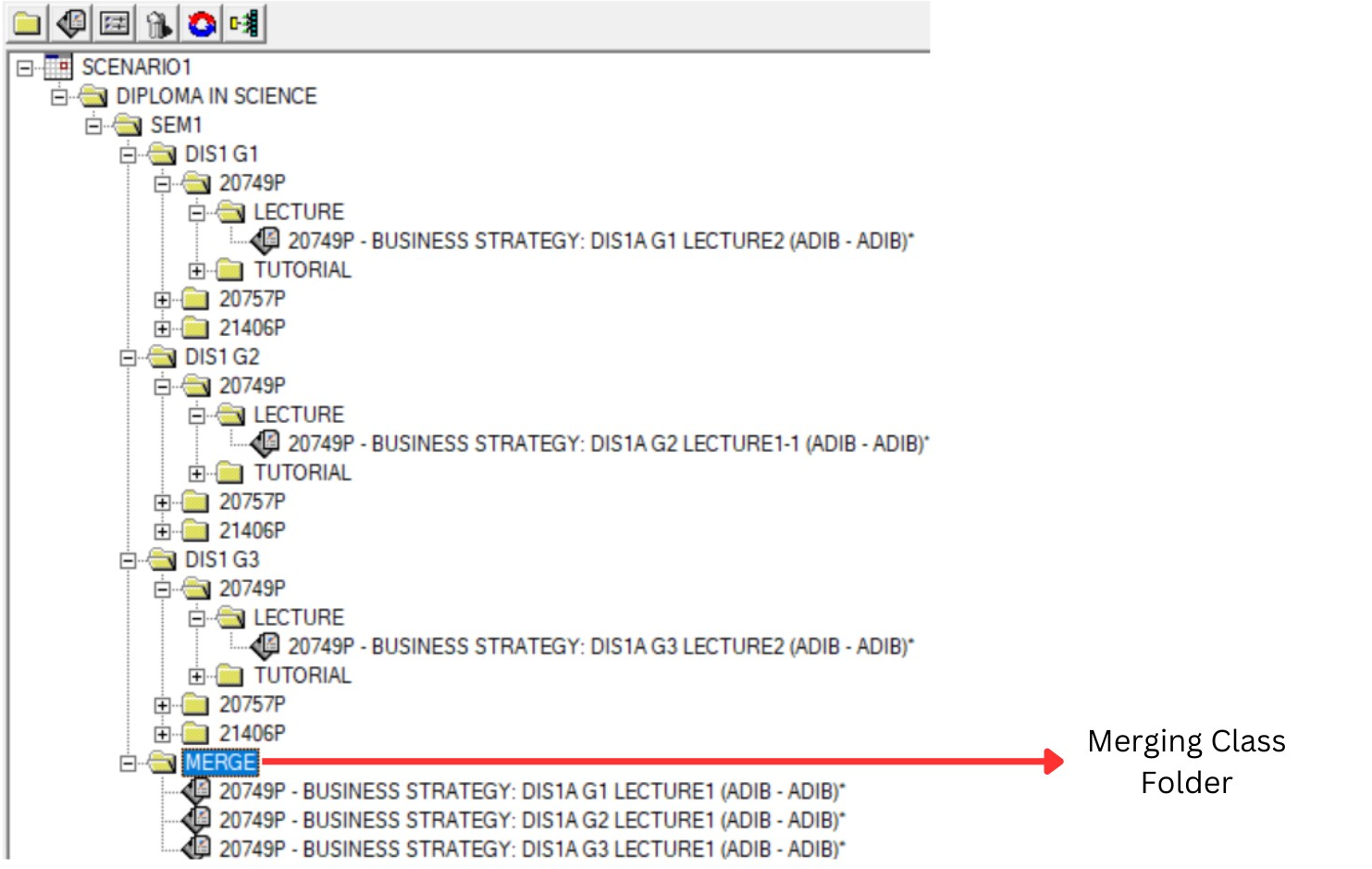
Diagram 5.1: Merging Class Folder
Step 1 : Click at SEM1 to add new group constraint
Step 2 : Select New Constraint Group you create and Rename to MERGE
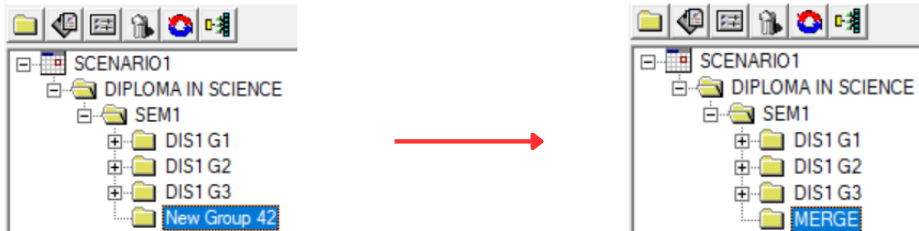
Diagram 5.2 : Merge Folder Created
Step 3 : Select Section (20749P LECTURE 1) and Drag or Cut and Paste (Right Click Function) to the MERGE Folder
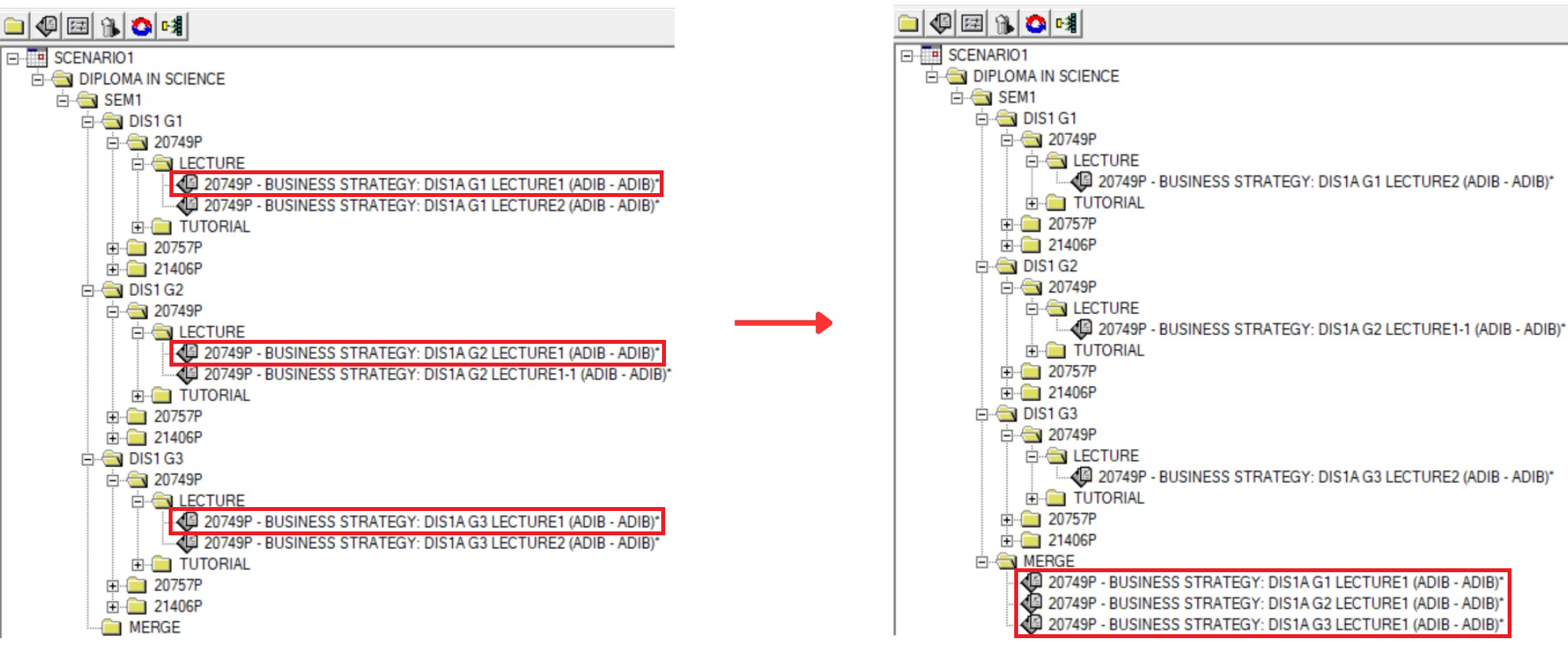
Diagram 5.3: All 20749P LECTURE 1 under MERGE Folder
Same Time Class
Let say 21406P TUTORIAL is Same Time with 20757P TUTORIAL (Only Group 1) but in different Class Room (Same Time Only)
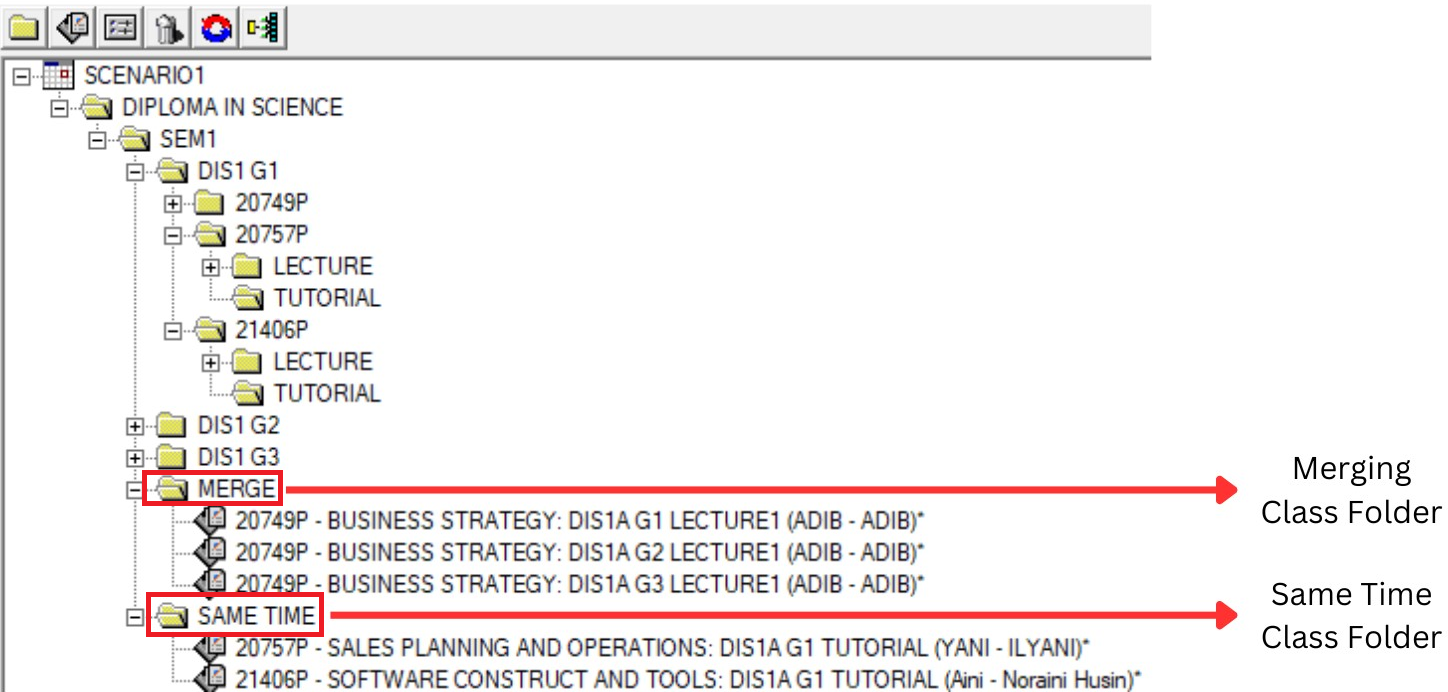
Diagram 5.4: Same Time Class Folder
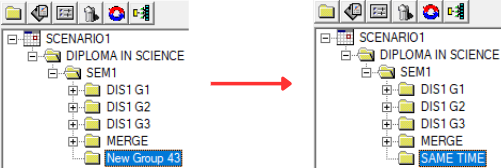
Step 1 : Click at SEM1 to add new group constraint
Step 2 : Select New Constraint Group you create and Rename to SAME TIME
Step 3 : Select Section (20757P TUTORIAL & 21406P TUTORIAL) and Drag or Cut and Paste (Right Click Function) to the SAME TIME Folder
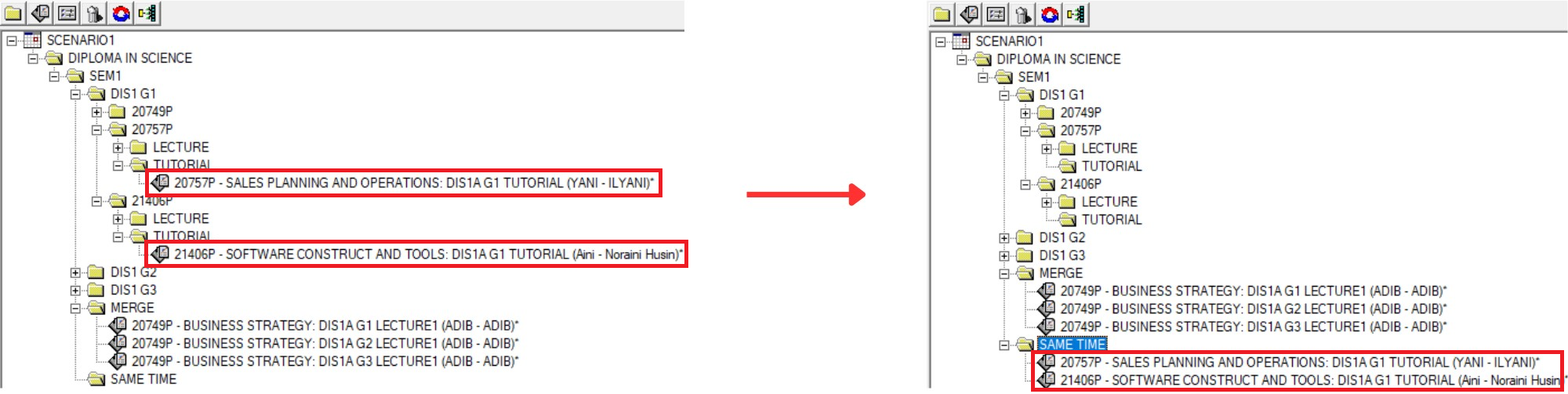 Diagram 5.6: Final result of customized tree structure