2. Getting To Tree Structure
2.1. Grouping
After the completion of Tree Structure, the next important step is GROUPING by identifying the
Batch of Student / Group of Student.
There are 3 Important REASONS for completing the GROUPING Batch of Student:
- For Printing Purpose
- Auto Generate: Don’t Allow Clashing with the Same Batch of Student
- Manual Allocation: Detect Clashing (Reminder) for the Same Batch of Student
Creating group in Tree structure
Let say we continue the SCENARIO 1 but we add 2 groups of student under Semester 1
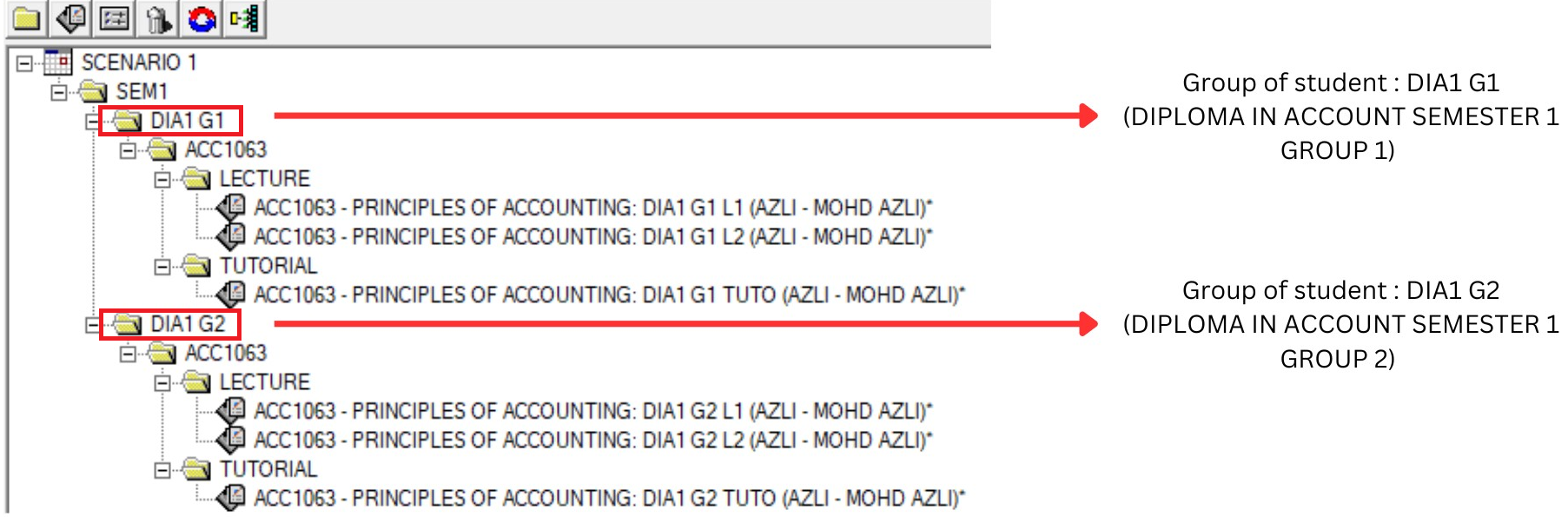
Diagram 3.1.1: 2 groups added under SEM1
Grouping can be assigned by Individually-Assigned group name in the section properties.
User can fill in the Group Name (Batch of Student) at each Section at the Group field as shown below.
Step 1 : You need to double click the section or click section and click properties icon  to open up Section Properties
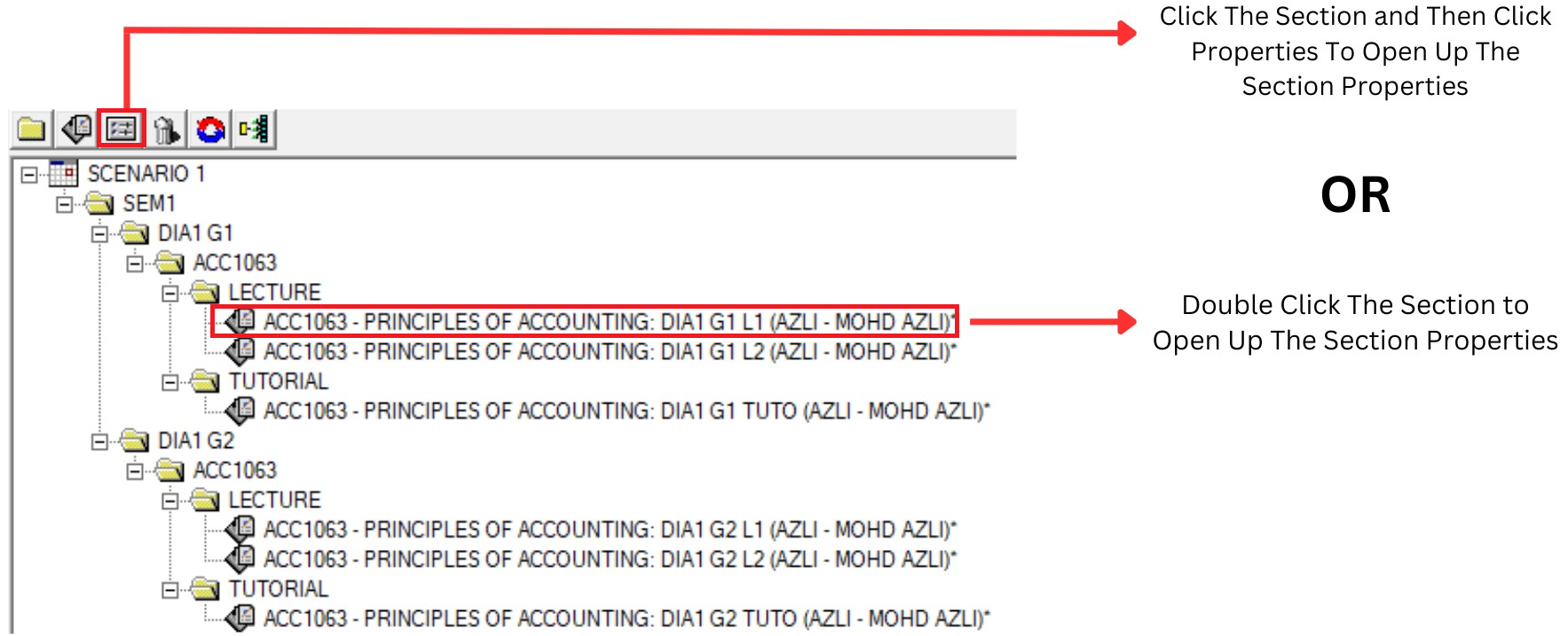
Diagram 3.1.2: Step to open up The Section Properties
Step 2A : Assign new group in section properties and Update
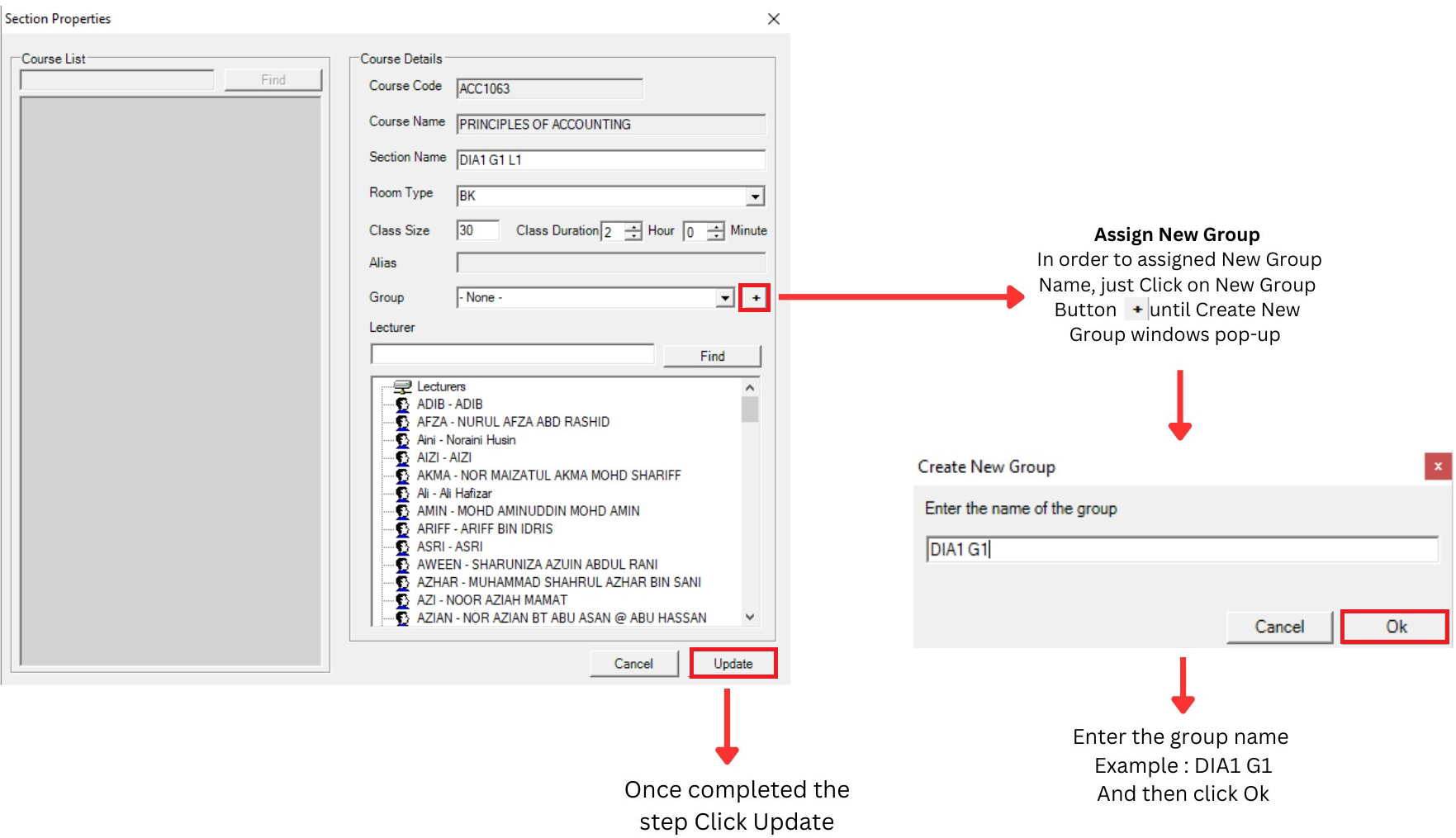
Diagram 3.1.3: Assign group in Section Properties