2. Getting To Tree Structure
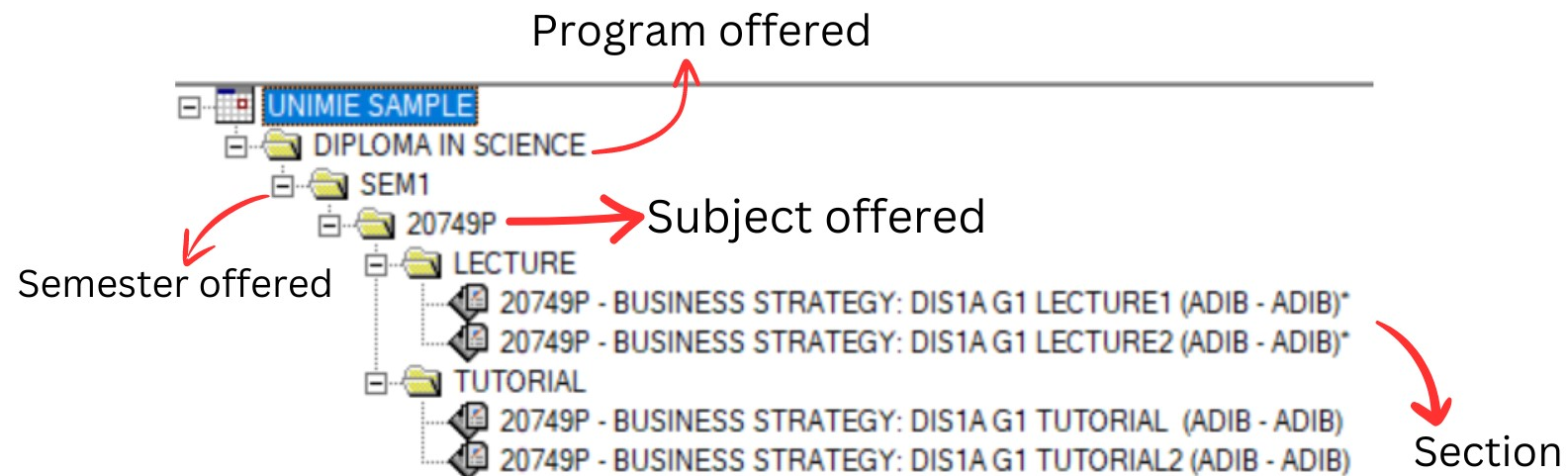
Diagram 2.1: Sample of tree structure
Every timetable coordinator needs to construct a Tree Structure which usually consists of the following data:
a) All The Programs Offered
b) Number of Semester Offered in each program
c) Number of Subjects Offered for each semester
d) Section : Who teach what subjects, class duration & class offered per week
Creating New Tree Structure
Let say we have a Scenario 1:
- 1 Program offered
- 1 Semester offered
- 1 subject offered
- 3 class per week: 2 lectures and 1 tutorial
Step 1.a : Click New timetable icon  to create new timetable
Step 1.b : Click Save schedule content icon  to rename the file and save it.
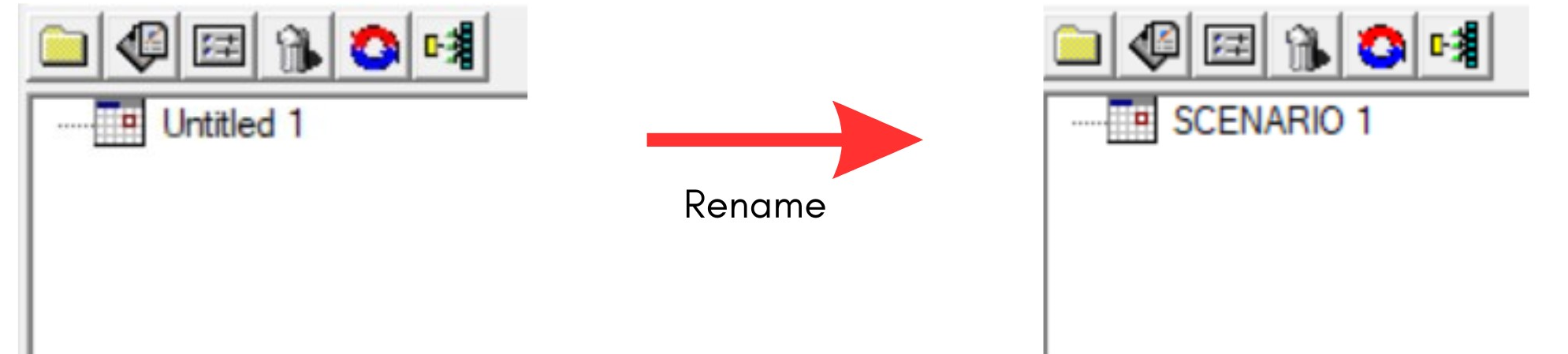
Diagram 2.2: File named as Scenario 1
Step 2.a : Click at Scenario 1 to add New constrain group 
Step 2.b : Select New constraint group you created and rename to Program offered ( DIPLOMA IN ACCOUNT )
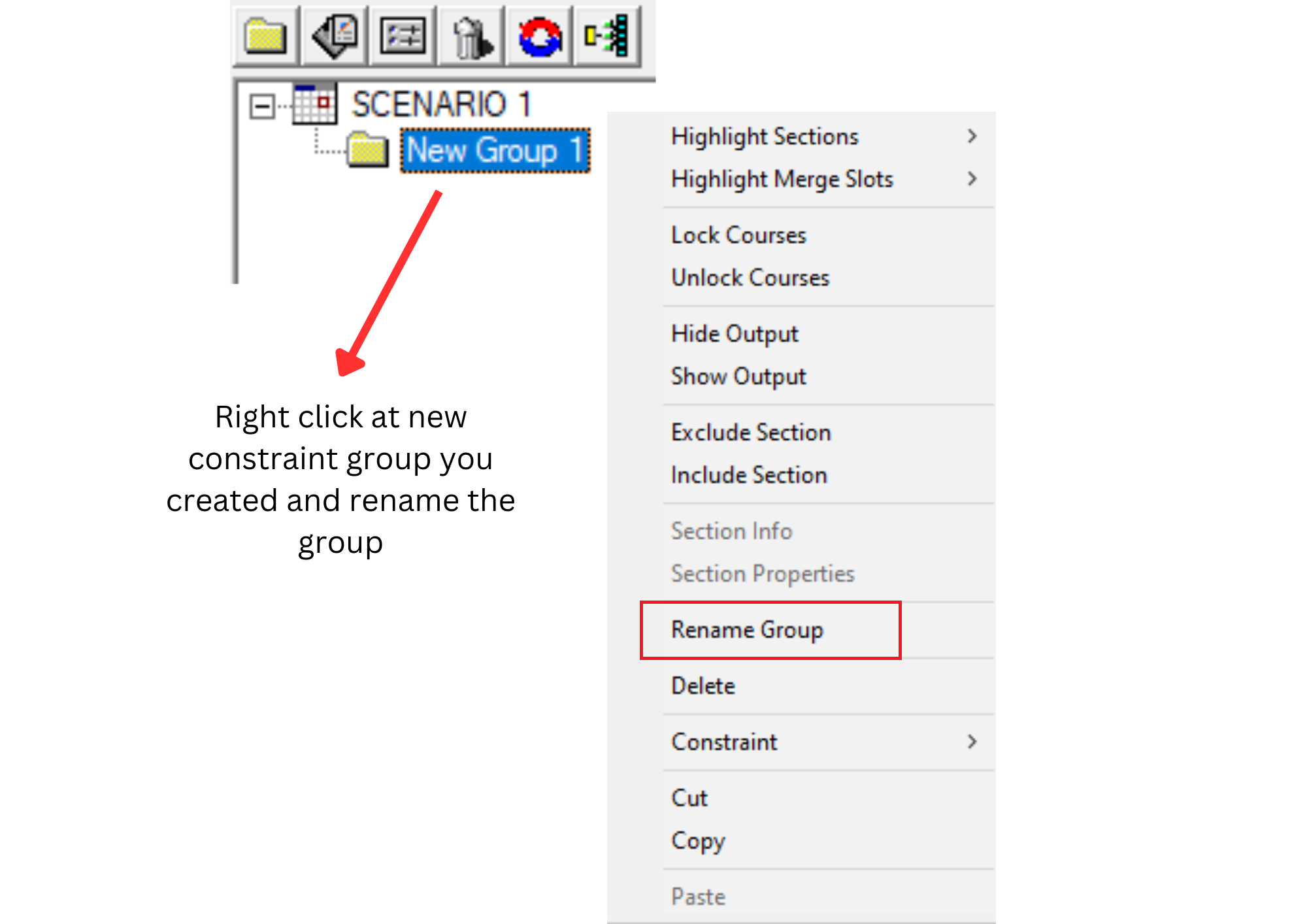
Diagram 2.3: Right click function to rename group 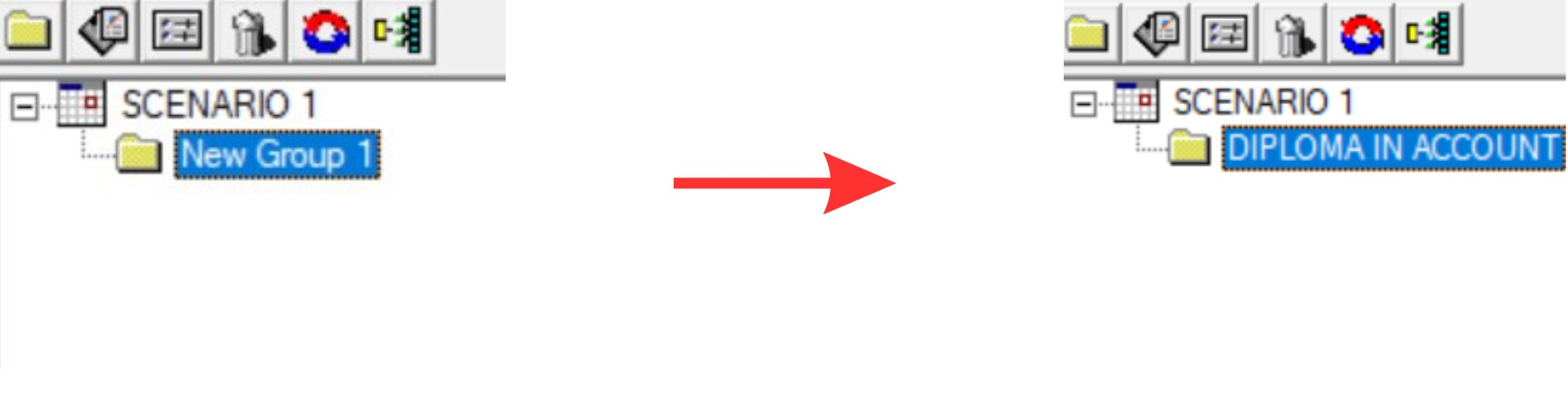
Diagram 2.4: New constraint group renamed to program offered
Step 3.a : Click at DIPLOMA IN ACCOUNT to add New constraint group
Step 3.b : Select New constraint group you created and rename to Semester offered ( SEM1 )

Diagram 2.5: Under Account program has 1 Semester
Step 4.a : Click at SEM1 to add New constraint group
Step 4.b : Select New constraint group you created and rename to subject offered ( ACC1063 )
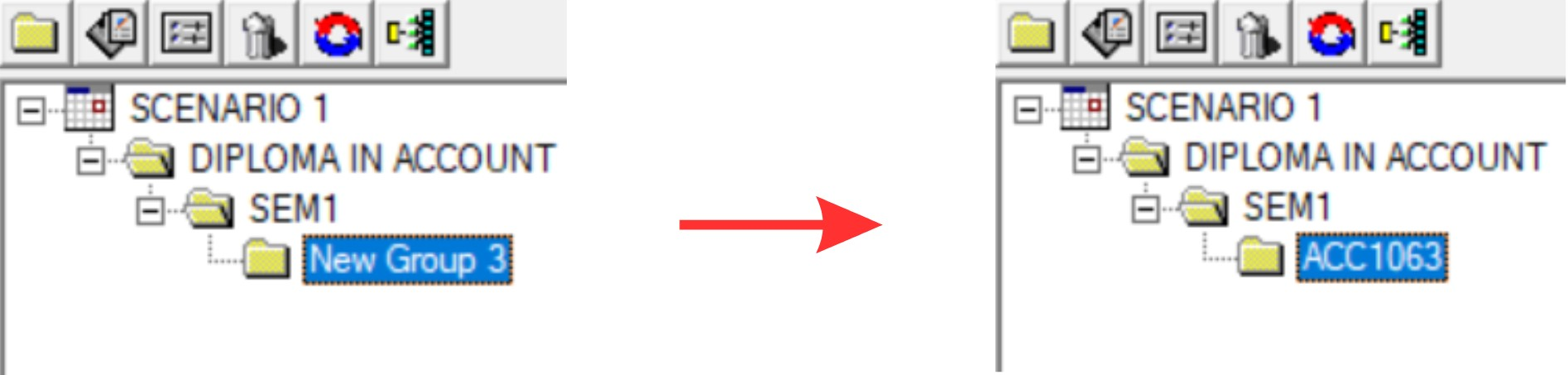
Diagram 2.6: 1 subject offered under SEM1
Step 5.a : Click at ACC1063 to add two New constraint group
Step 5.b : Select New constraint group you created rename to class offered ( Lecture and Tutorial )
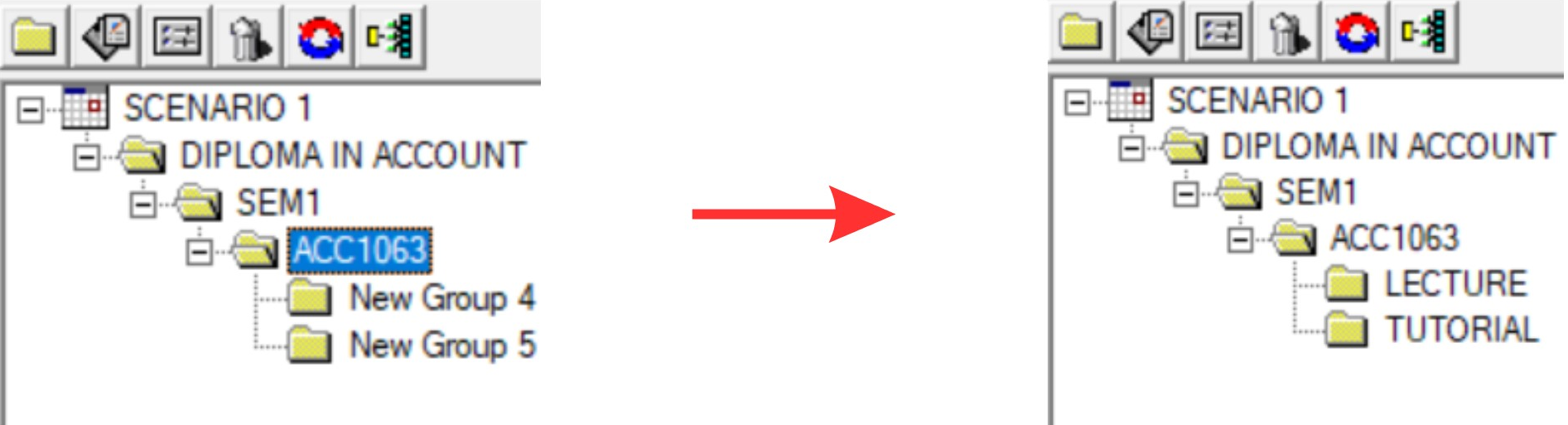
Diagram 2.7: Classes under Subject offered
Step 6.a : Click at LECTURE to add 2 Section and TUTORIAL 1 Section 
Step 6.b : Fill up the section properties
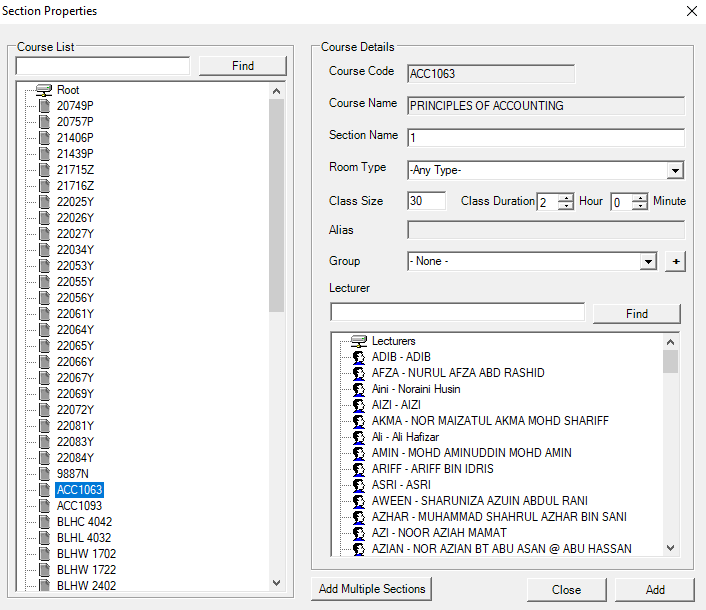
Diagram 2.8: Section Properties Window
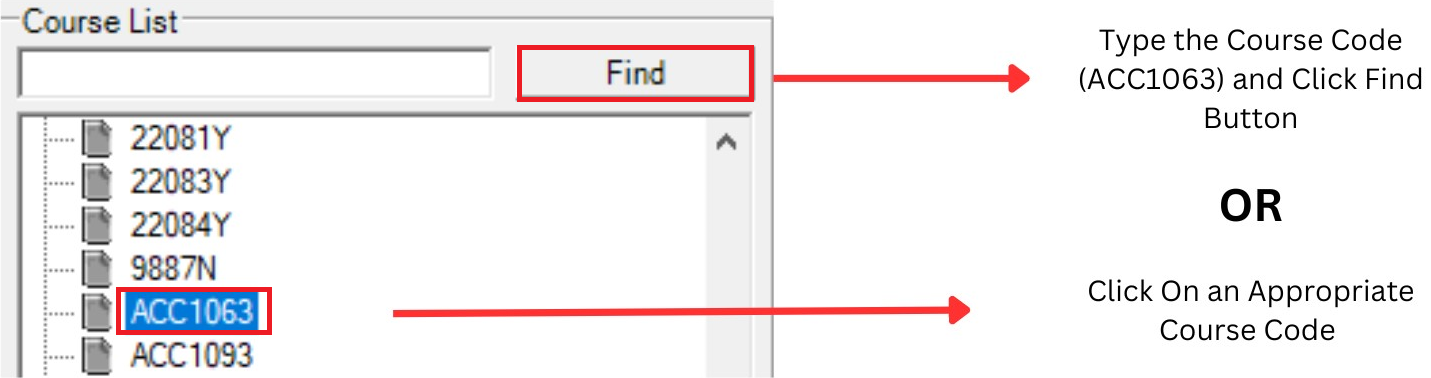
Diagram 2.8.a: Fill up the course list in section properties
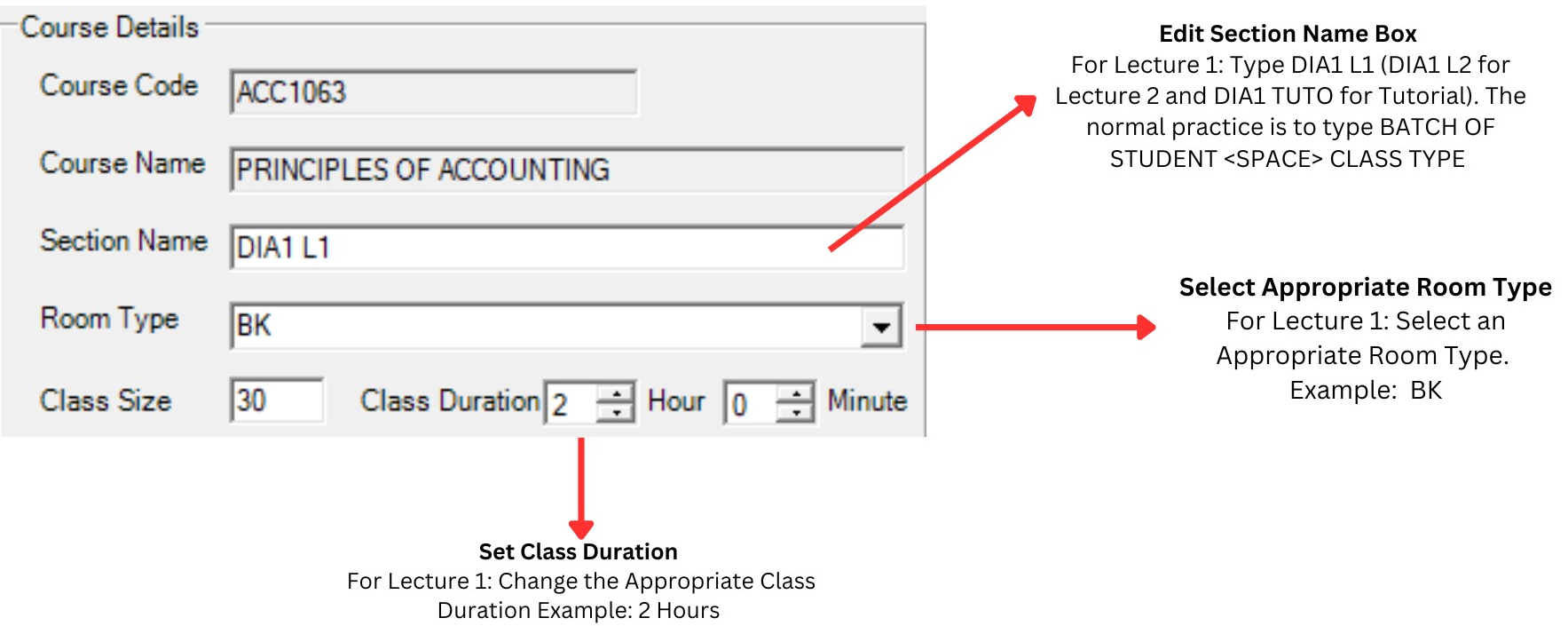
Diagram 2.8.b : Fill up the course details
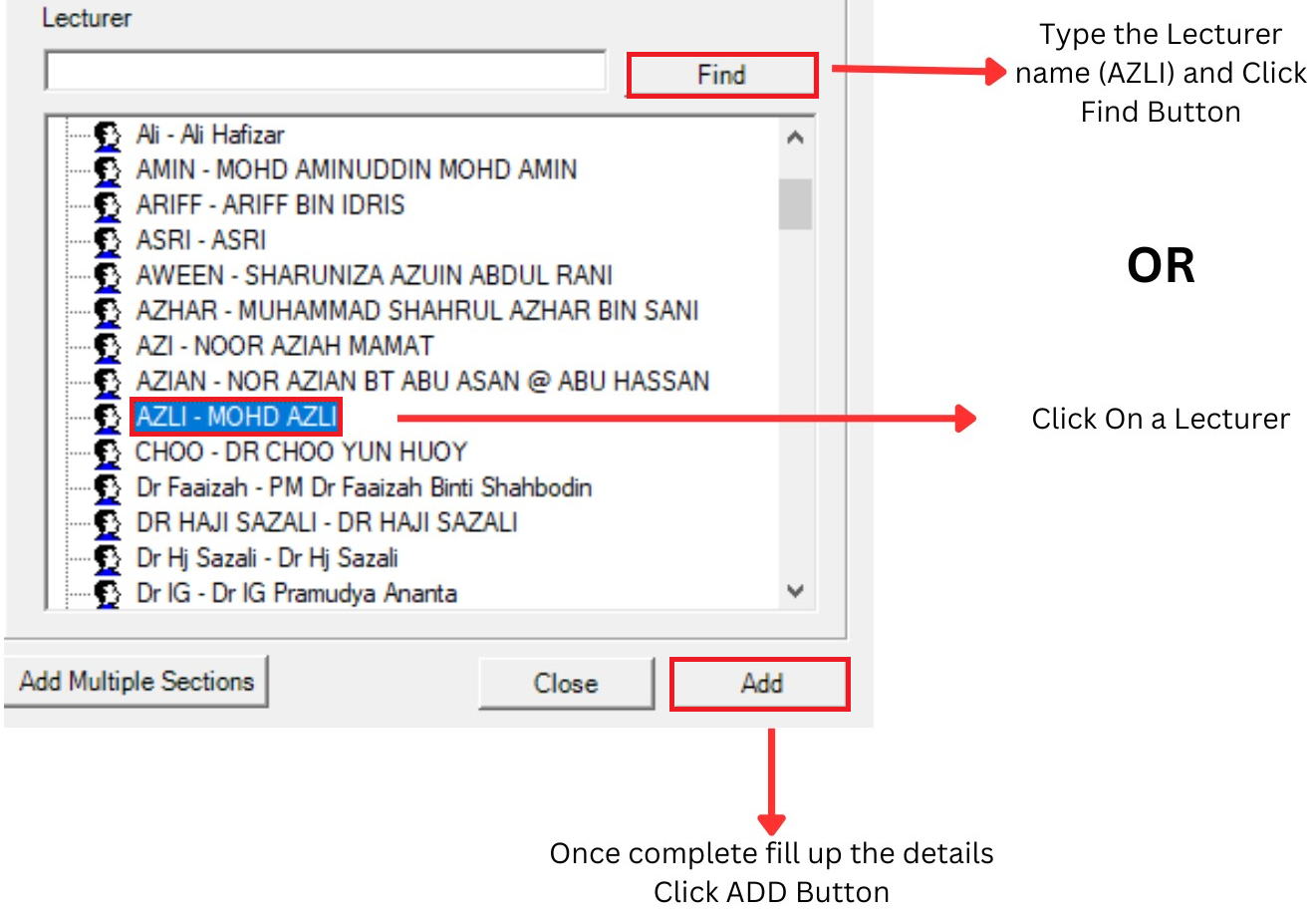
Diagram 3.8.c: Find a lecturer to teach the class
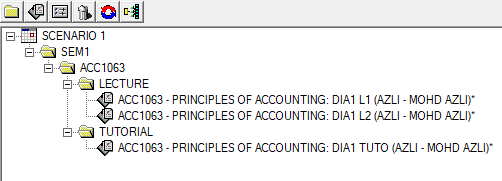
Diagram 2.9: Sections under classes offered