2. Import Database
2.2. Import From Peers
There are 2 ways of importing from peers.

Diagram 2.2.1 Location of Import Data in Database Menu
Below is the sample of Excel  for Alternative 1.

Diagram 2.2.2 Sample Database Excel Template
ALTERNATIVE 2: You may import one by one database by simply choose any under Database and click Import Data Icon. 

Diagram 2.2.3 Location of Import Data under Database
Note that, the data in the excel fileneed to be filled as below.
For the Alternative 1, you may combine all data below into ONE excel.
1. COURSE MANAGEMENT
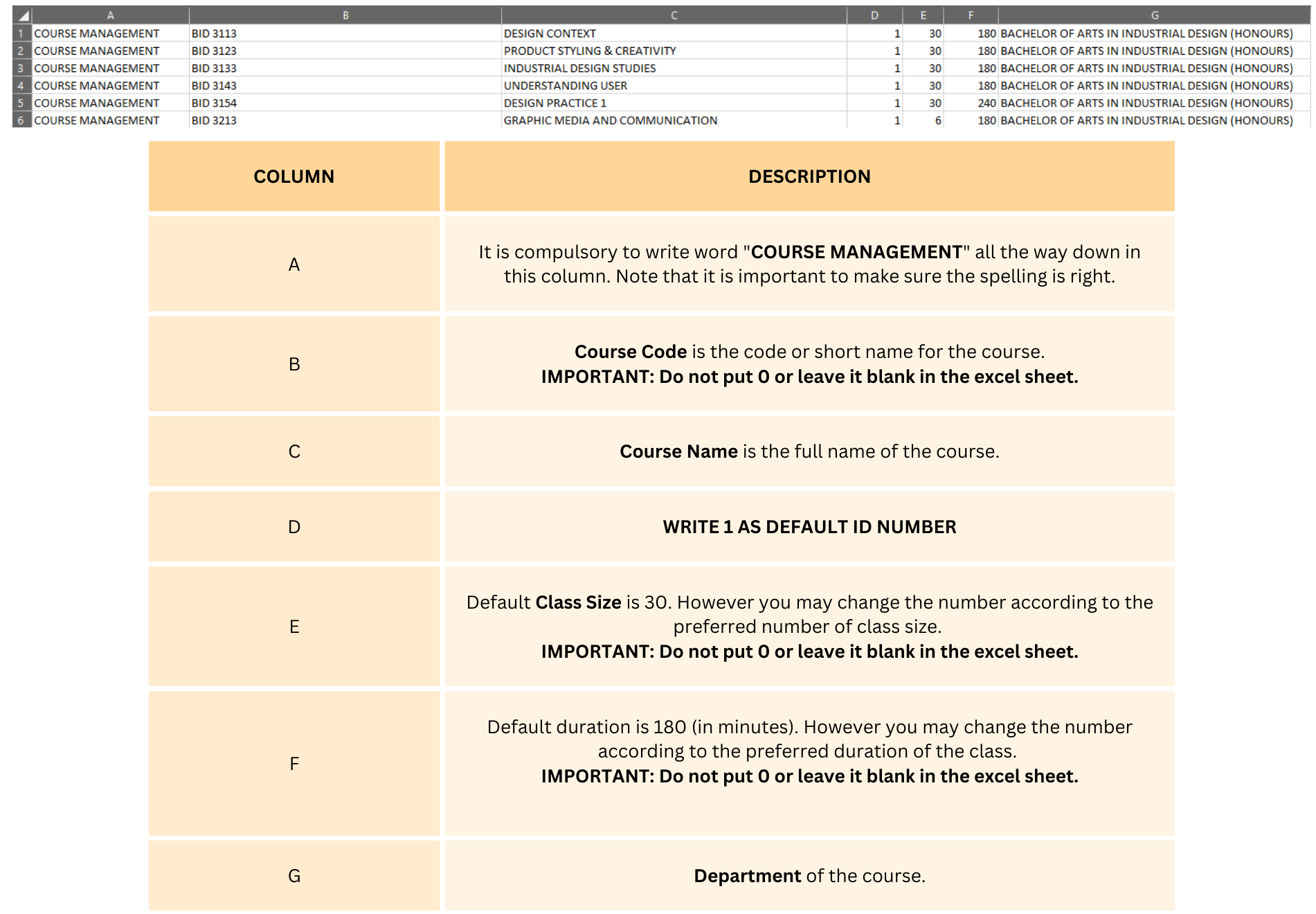
Diagram 2.2.4 Sample of Course Management Excel Template
2. ROOM MANAGEMENT
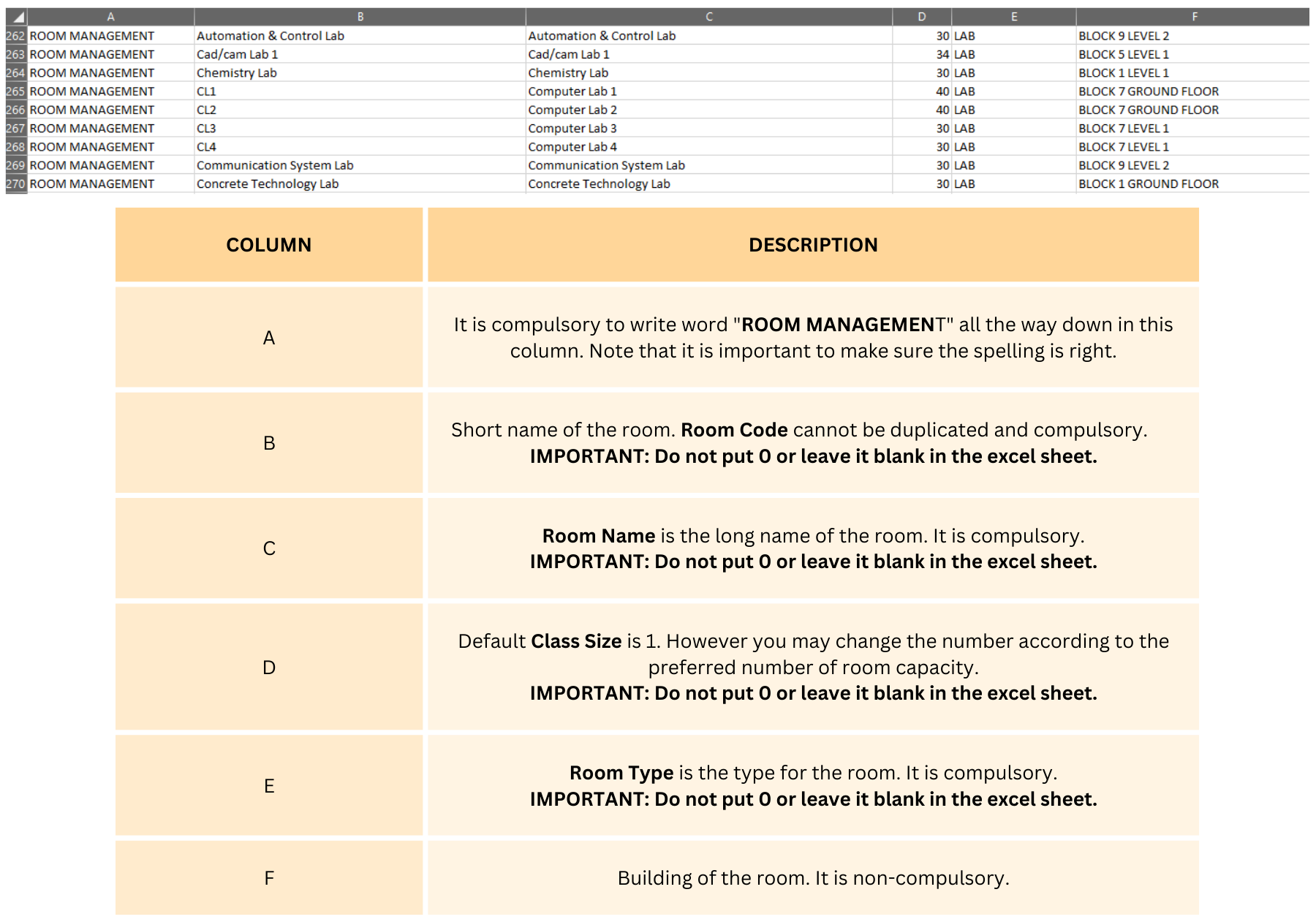
Diagram 2.2.5 Sample of Room Management Excel Template
3. LECTURER MANAGEMENT
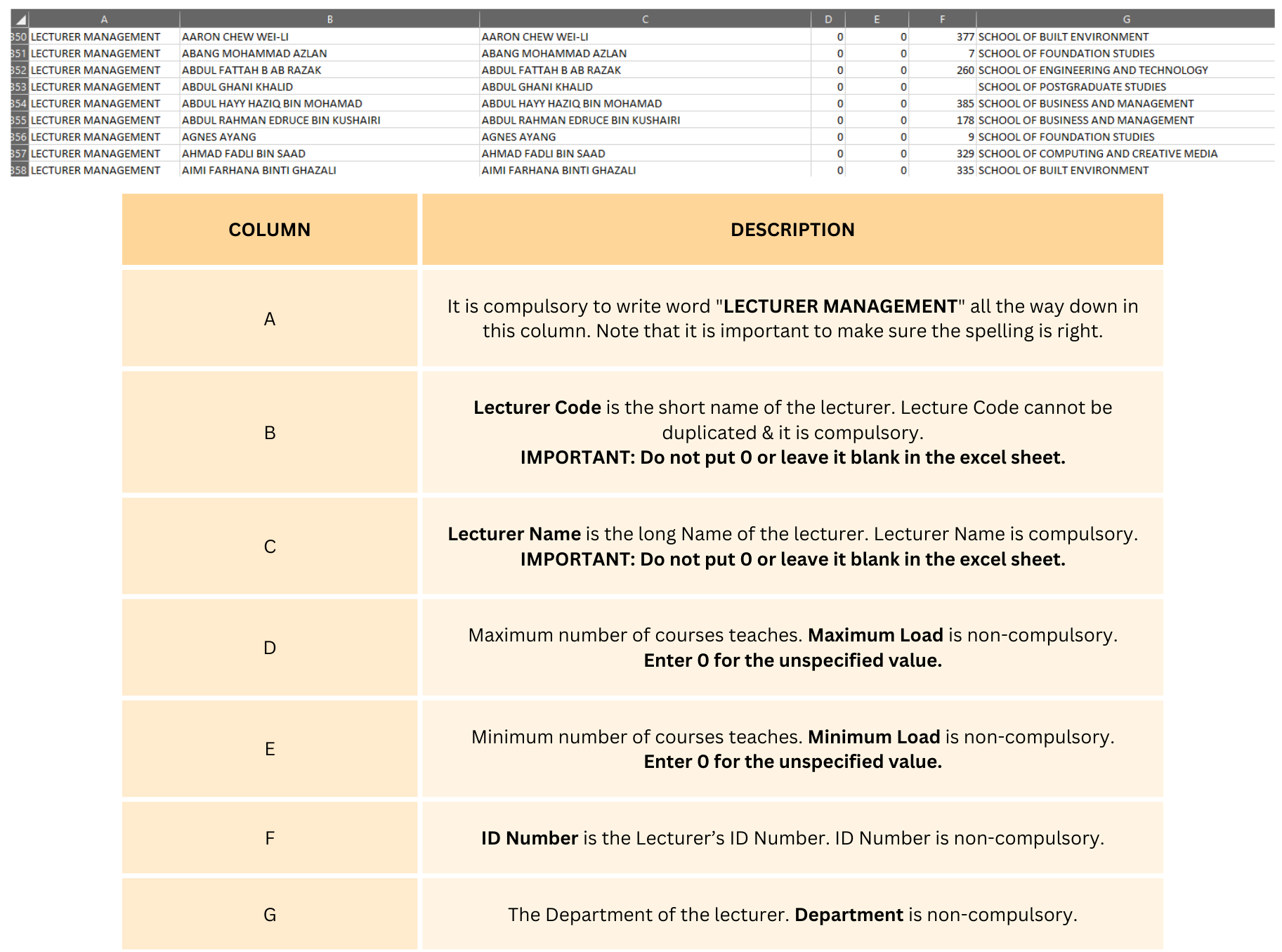
Diagram 2.2.6 Sample of Lecturer Management Excel Template
4. BATCH MANAGEMENT

Diagram 2.2.7 Sample of Batch Management Excel Template
5. CLASS TYPE MANAGEMENT
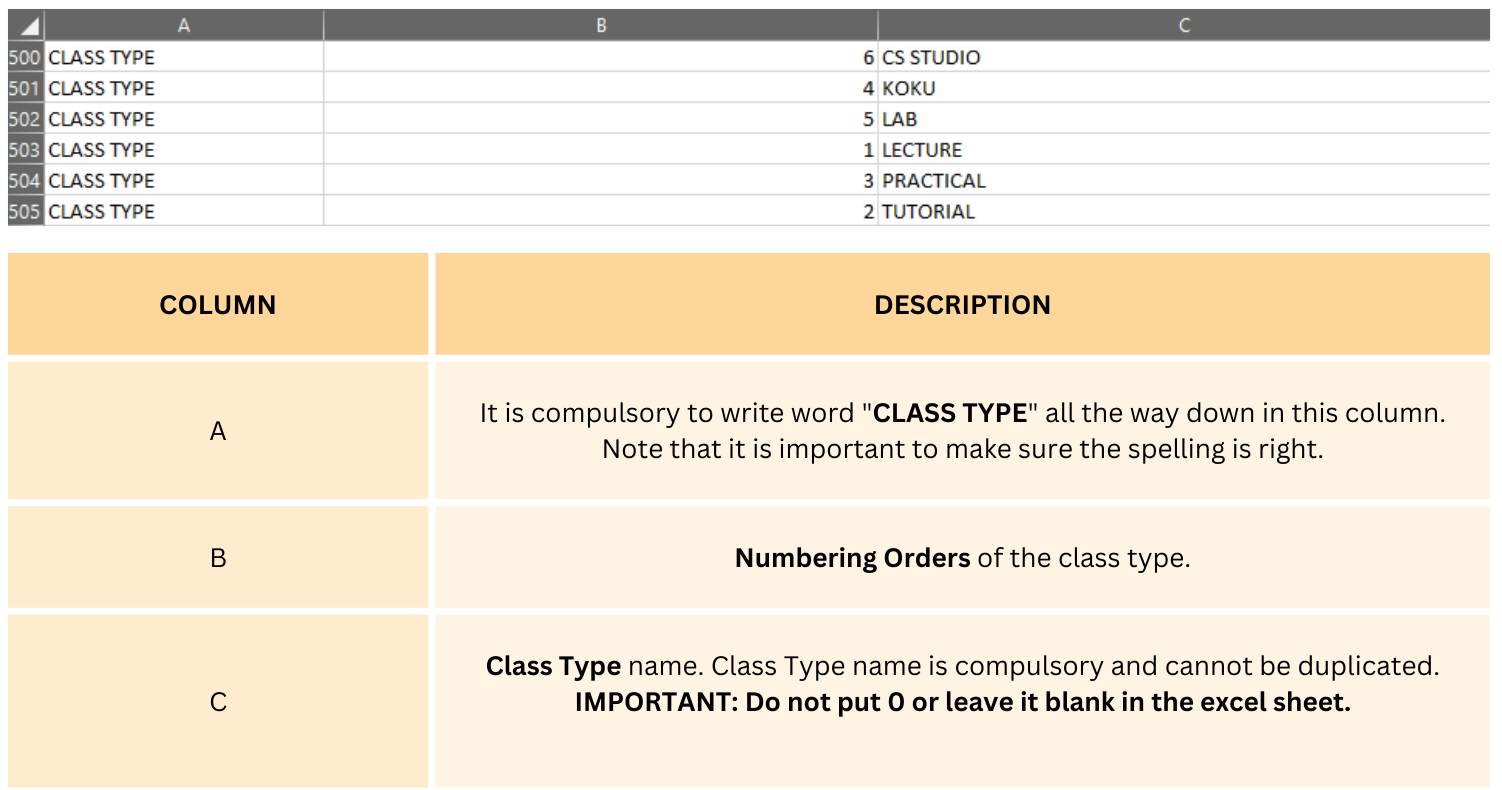
Diagram 2.2.8 Sample of Class Type Management Excel Template
6. ROOM GROUP MANAGEMENT

Diagram 2.2.9 Sample of Room Group Management Excel Template
7. COURSE UNDER LECTURER MANAGEMENT

Diagram 2.2.10 Sample of Course of Lecturer Management Excel Template
8. COURSE-BATCH MANAGEMENT
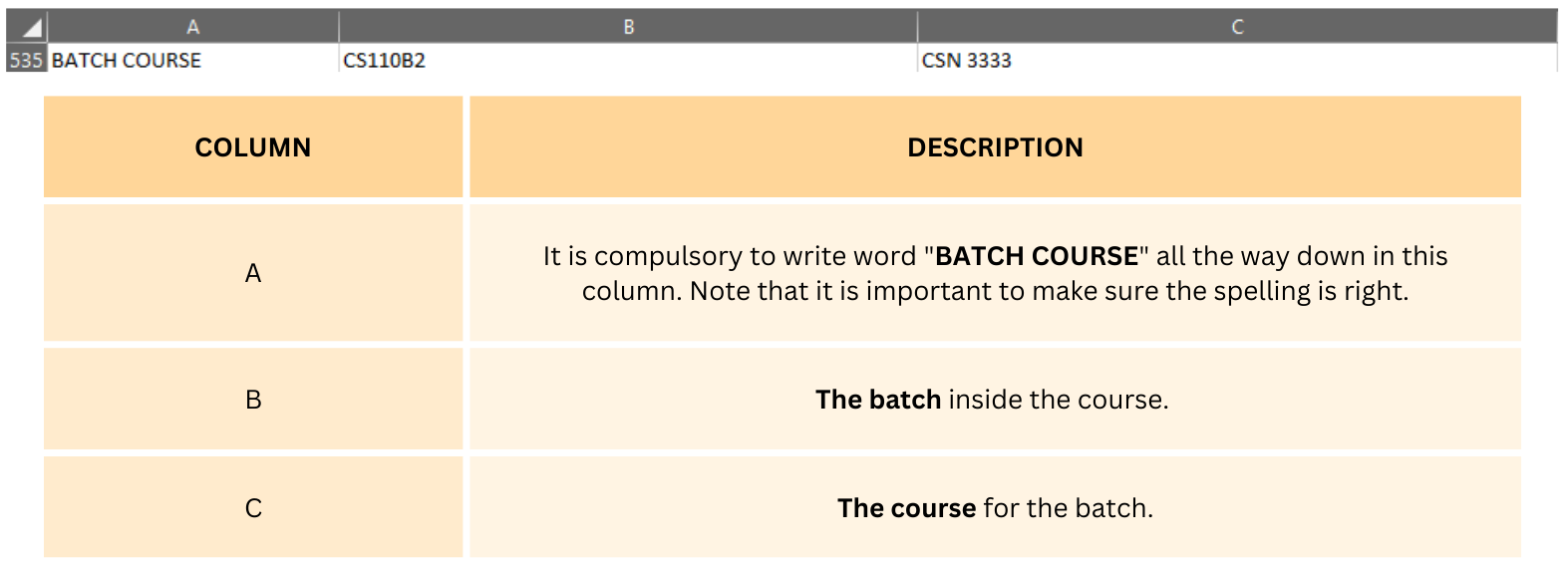
Diagram 2.2.11 Sample of Course-Batch Management Excel Template
9. DEPARTMENT

Diagram 2.2.12 Department Excel Template
10. GROUP MANAGEMENT

Diagram 2.2.13 Sample of Group Management Excel Template
11. COURSE-TEACH MANAGEMENT
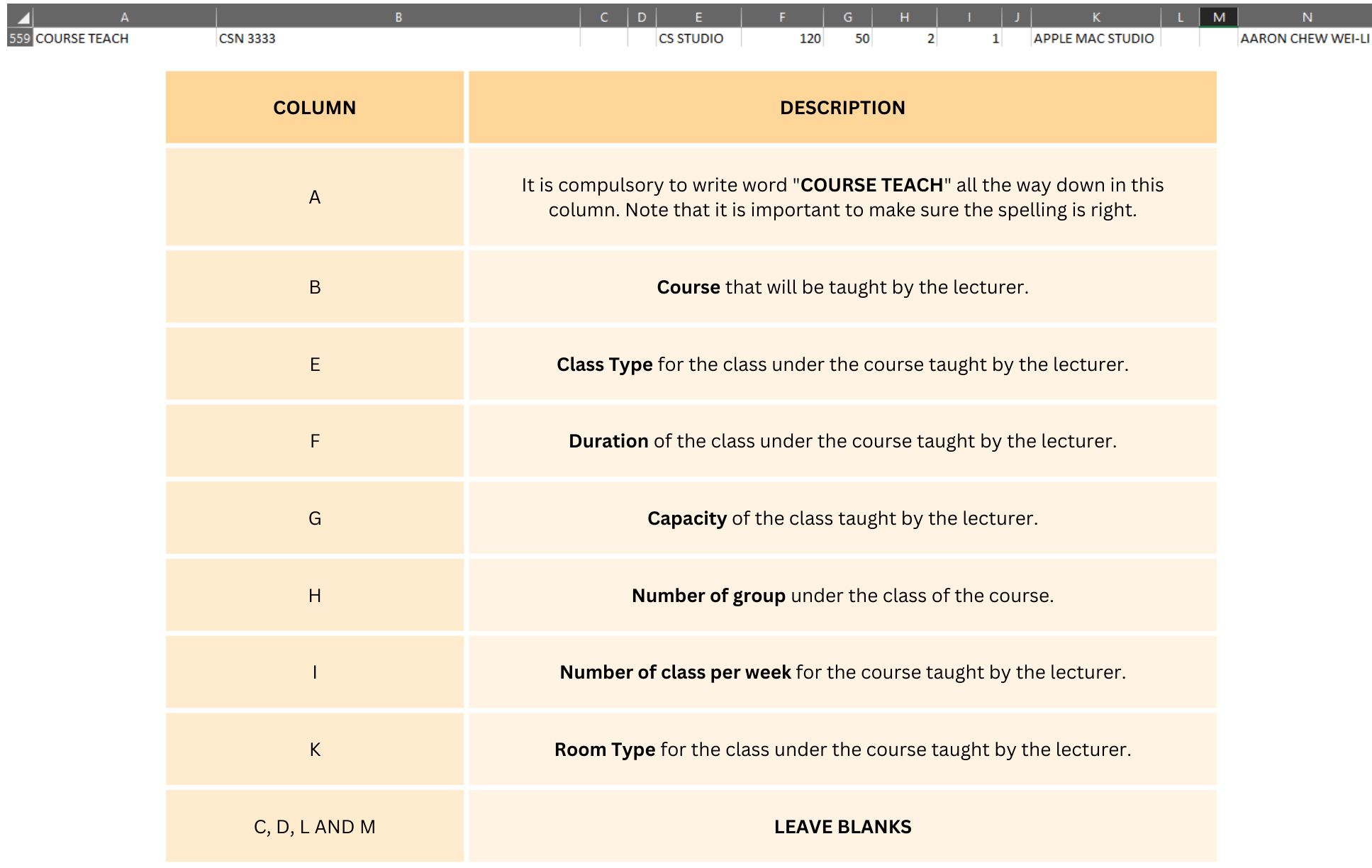
Diagram 2.2.14 Sample of Course-Teach Excel Template