1. Class Timetable
The Class Timetable Card in Timetable Plus Campus allows administrators and faculty to view timetables in different formats and manage class schedules. This section is accessible from the main dashboard after logging in.
Step-by-Step Guide for Class Timetable Card
1. Accessing Class Timetable
Purpose: Open the timetable viewing options.
Steps:
- Log in to Timetable Plus Campus using your admin credentials.
After logging in, you will be directed to the Dashboard and locate the Class Timetable card on the dashboard.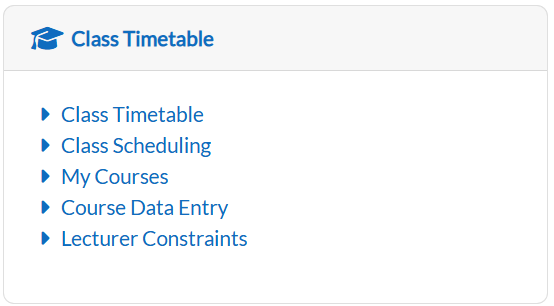
-
Click on the Class Timetable button.
-
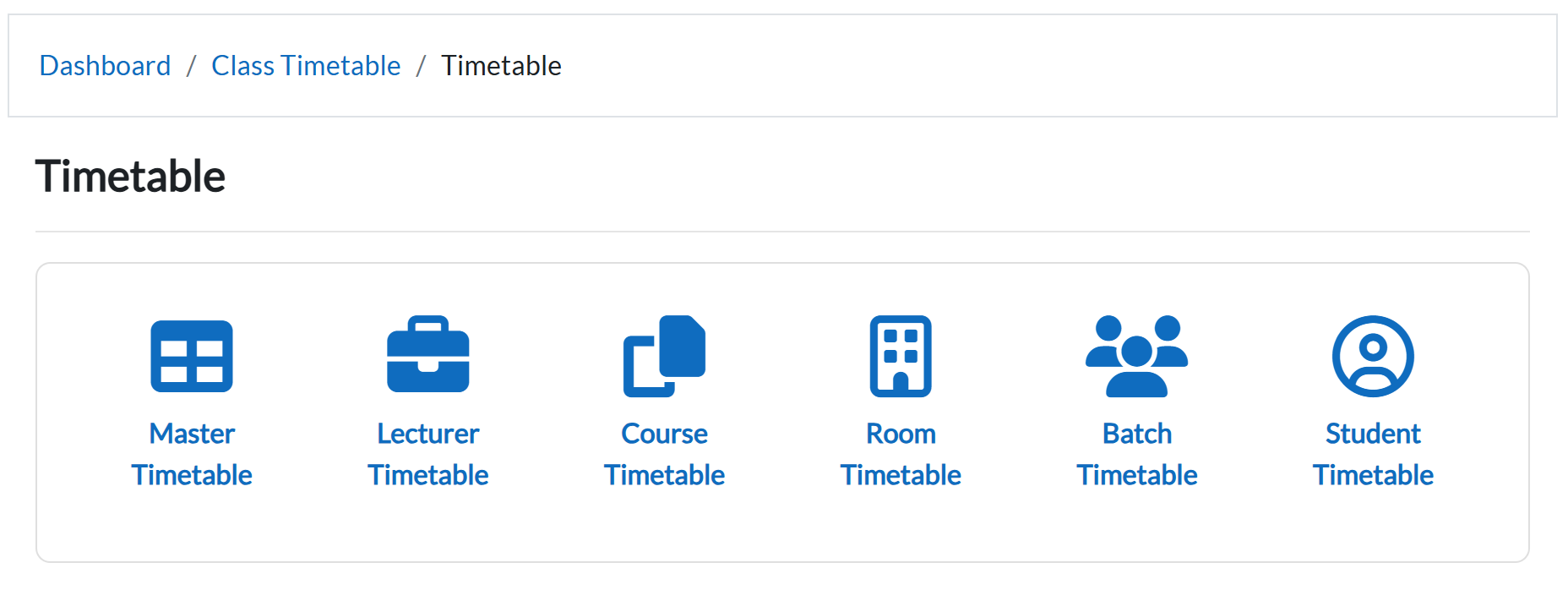
The system will display six viewing options:
-
Master Timetable
-
Lecturer Timetable
-
Course Timetable
-
Room Timetable
-
Batch Timetable
-
Student Timetable
-
A. Master Timetable
Purpose: View the complete timetable for all classes.
Steps:
-
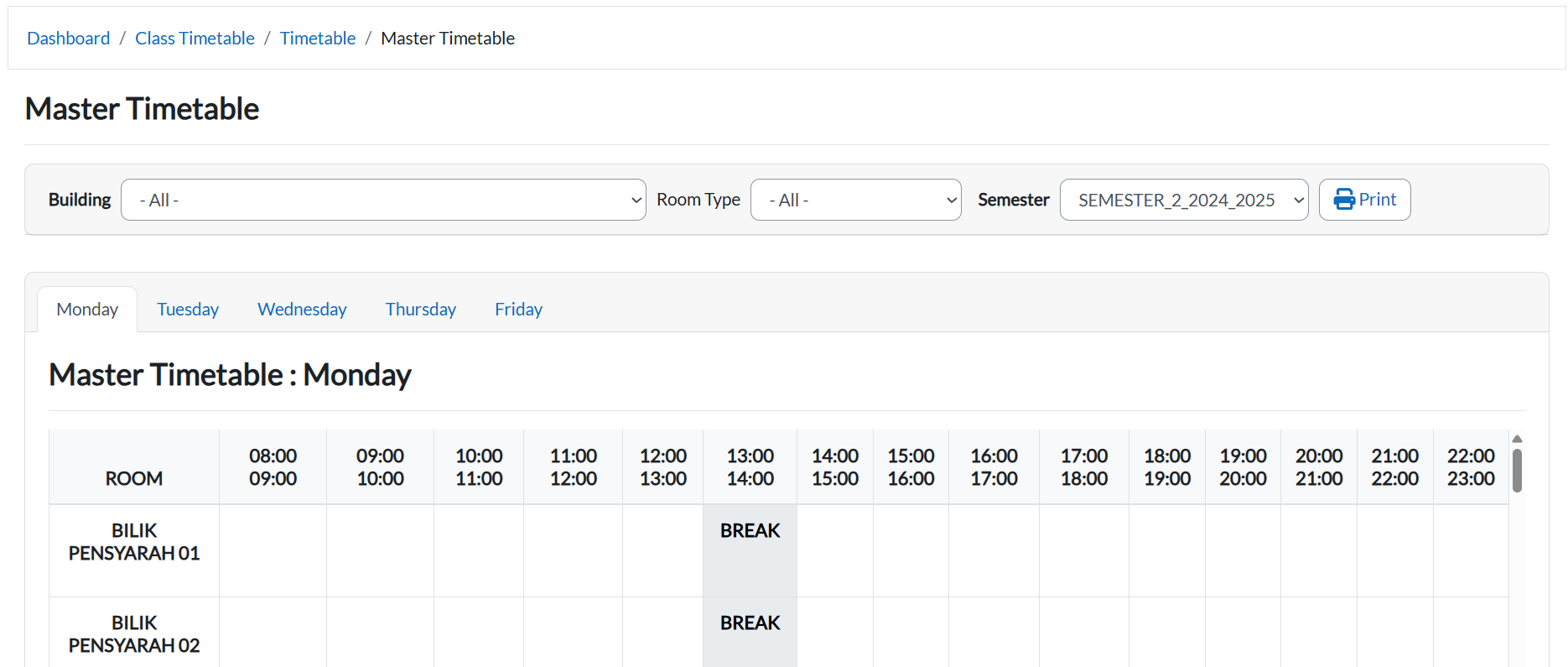
Select Master Timetable under the Class Timetable menu.
-
Use the Semester dropdown to switch between semesters.

-
Use the Building and Room filters to quickly locate a specific room.

-
To save/print, click the Print button. In the new tab, press Ctrl + P → Select Save as PDF.

B. Lecturer Timetable
Purpose: View the timetable and workload of a specific lecturer.
Steps:
-
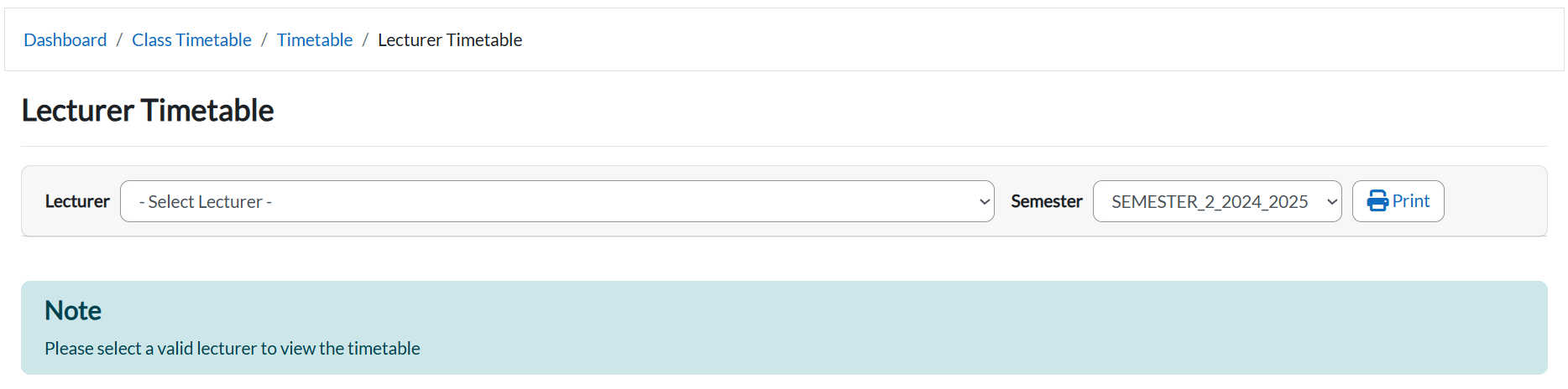
Select Lecturer Timetable from the Class Timetable menu.
-
Choose a lecturer from the Lecturer dropdown.

-
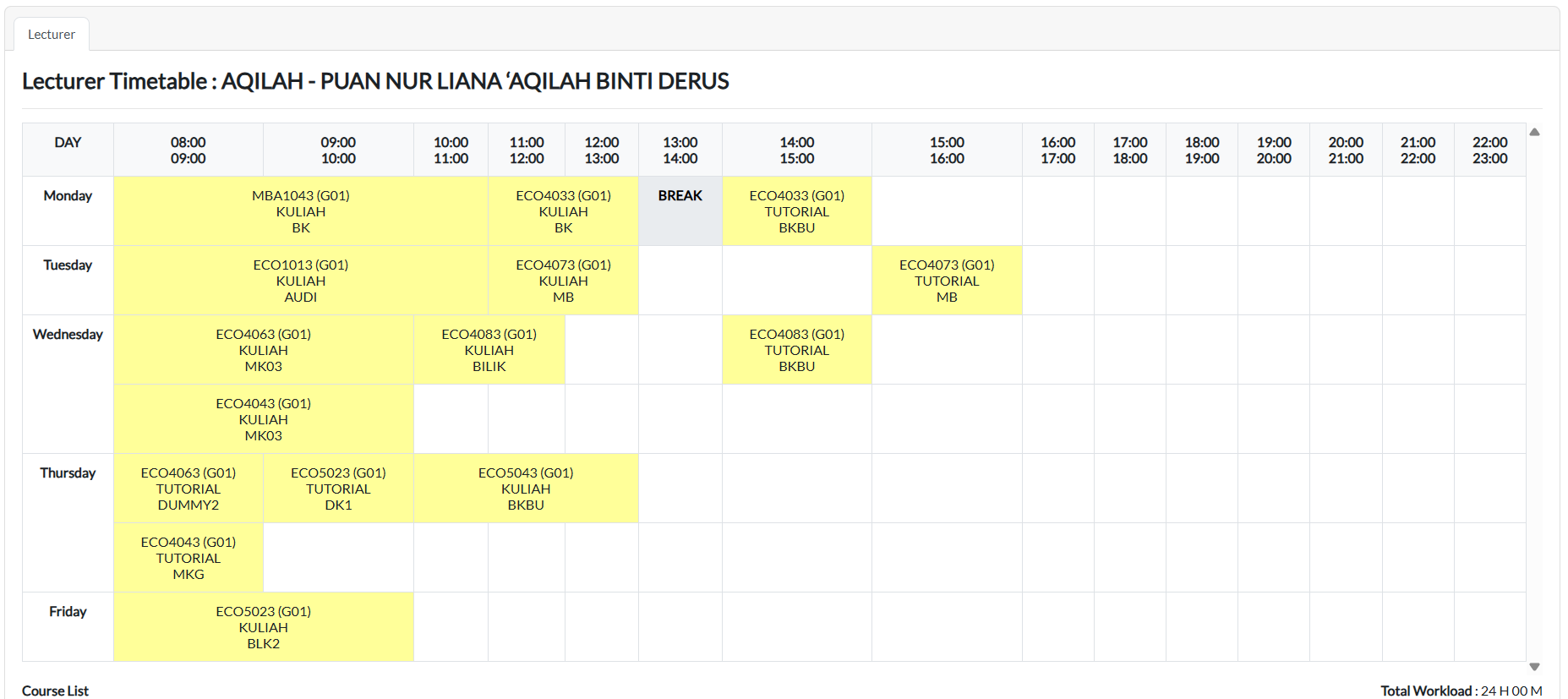
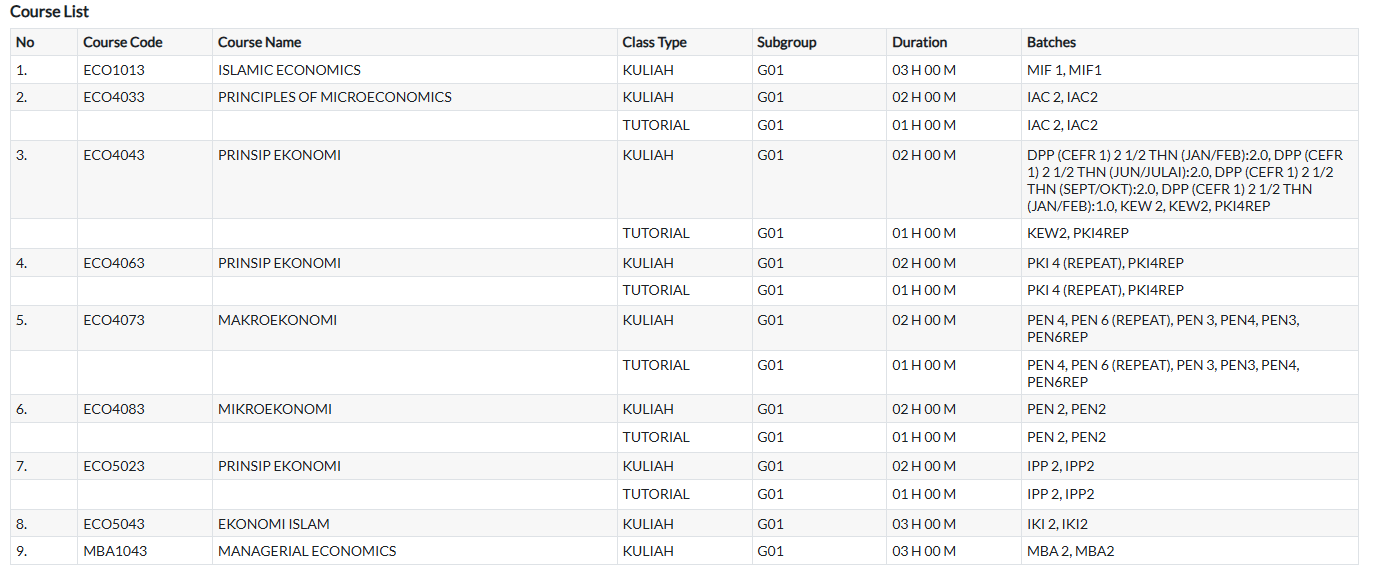
The timetable will appear along with total workload hours and a Course List (course code, name, type, subgroup, duration, batch).
-
Use the Print button to save as PDF.

C. Course Timetable
Purpose: View the timetable for a selected course.
Steps:
-
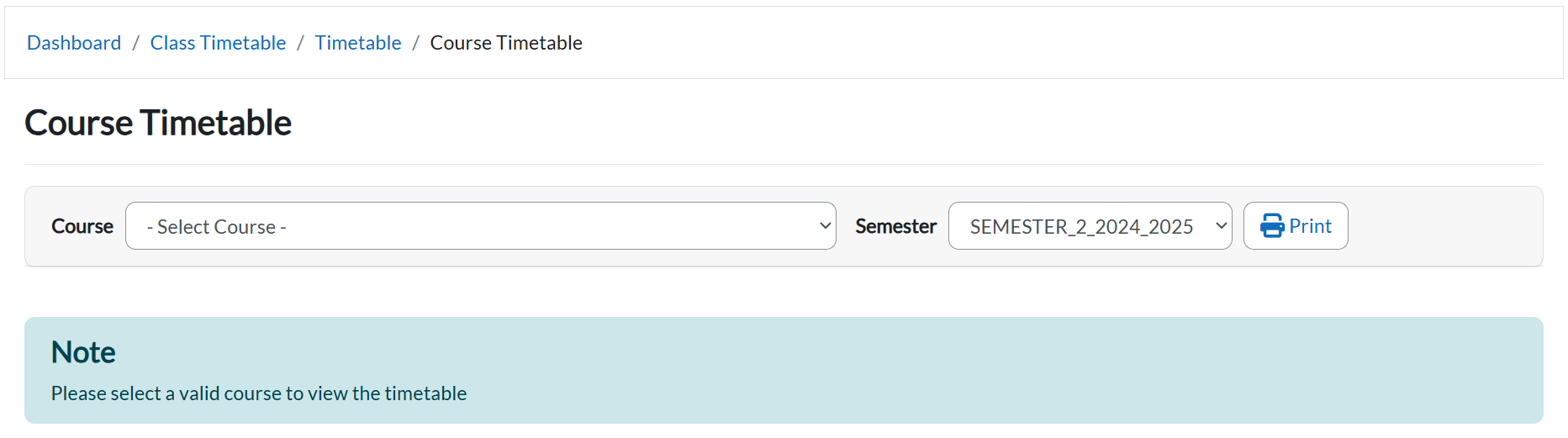
Select Course Timetable from the Class Timetable menu.
-
Choose a course from the Course dropdown.

-
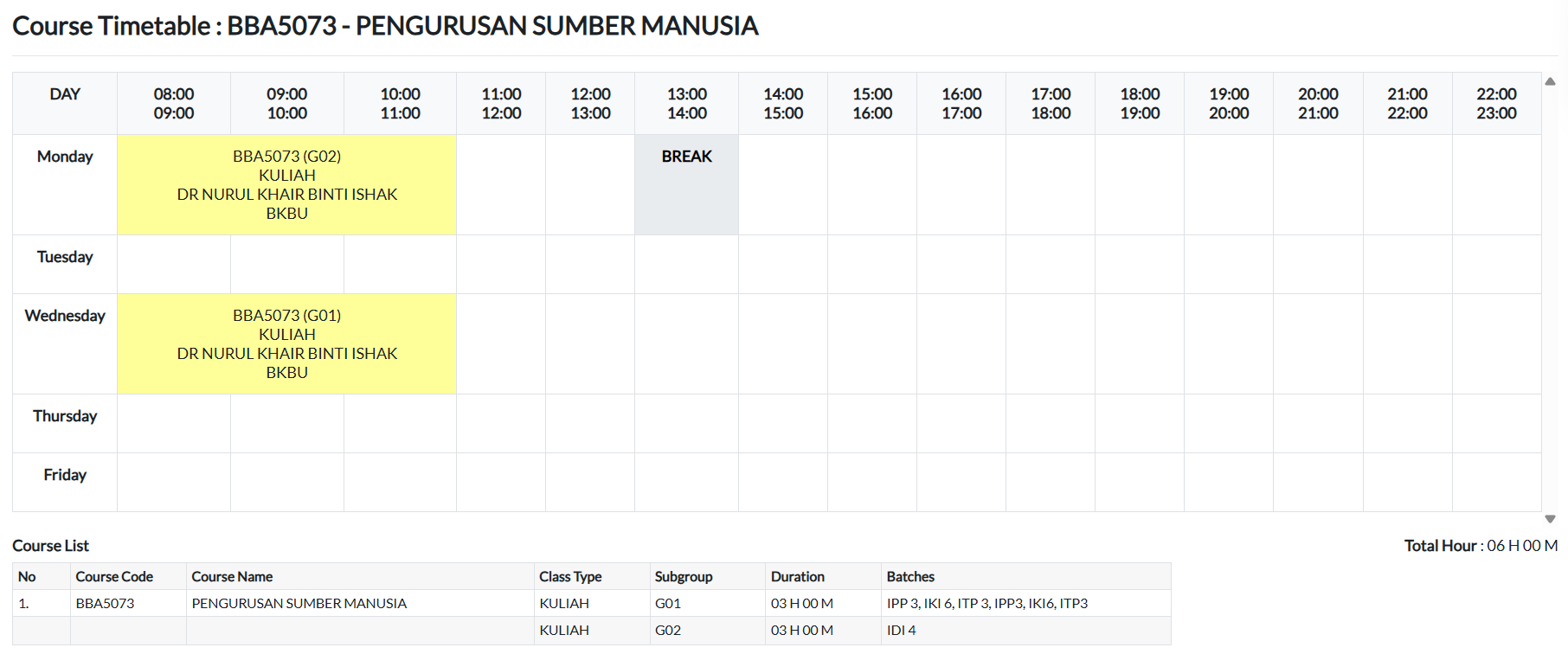
The timetable, course list, and total hours will display.
-
Use the Print button to save as PDF.

D. Room Timetable
Purpose: View the schedule of classes for a selected room.
Steps:
-
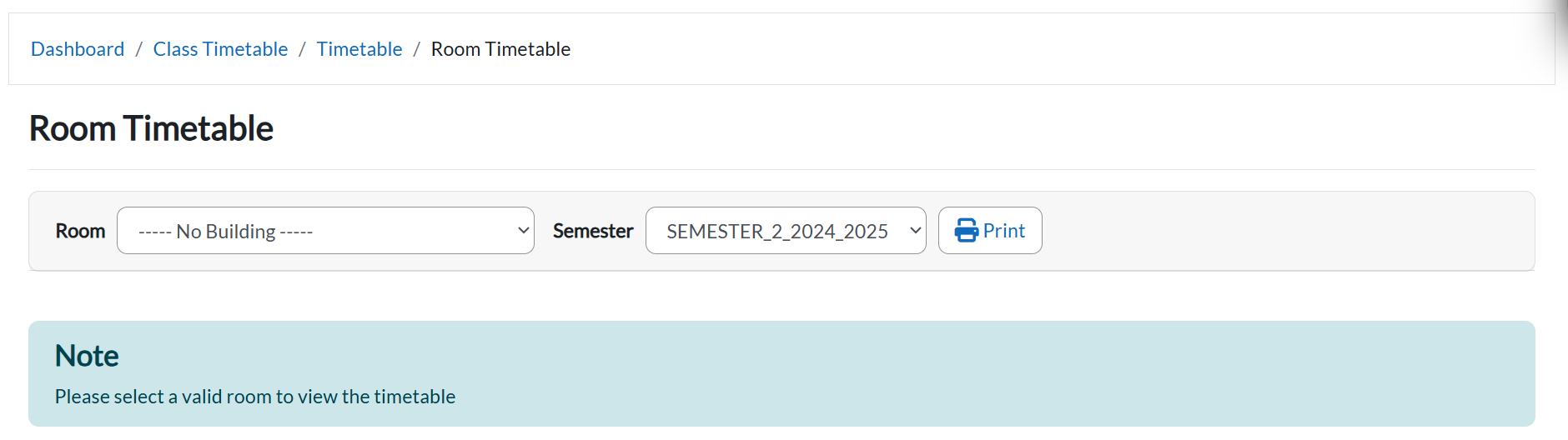
Select Room Timetable from the Class Timetable menu.
-
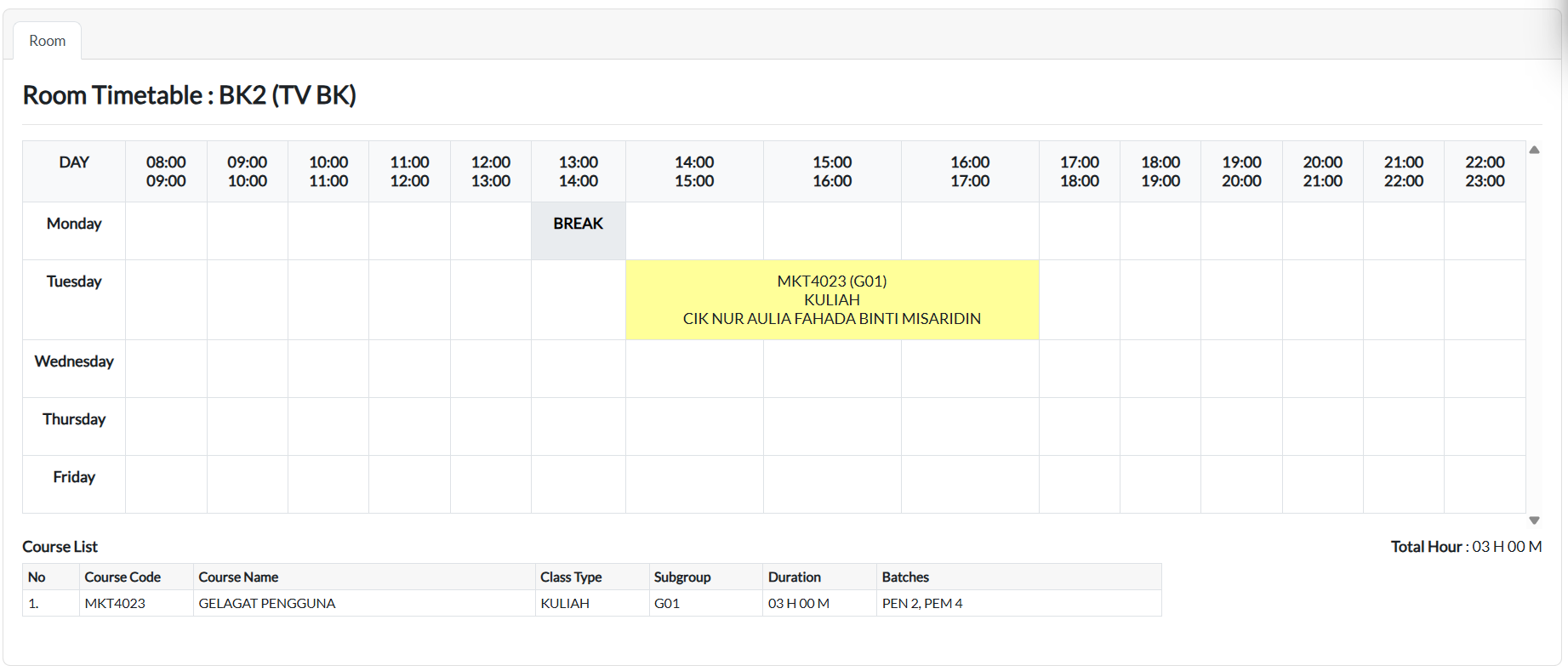
Choose a room from the Room dropdown.

-
The timetable, course list, and total hours will appear.
E. Batch Timetable
Purpose: View the timetable for a batch of students.
Steps:
-
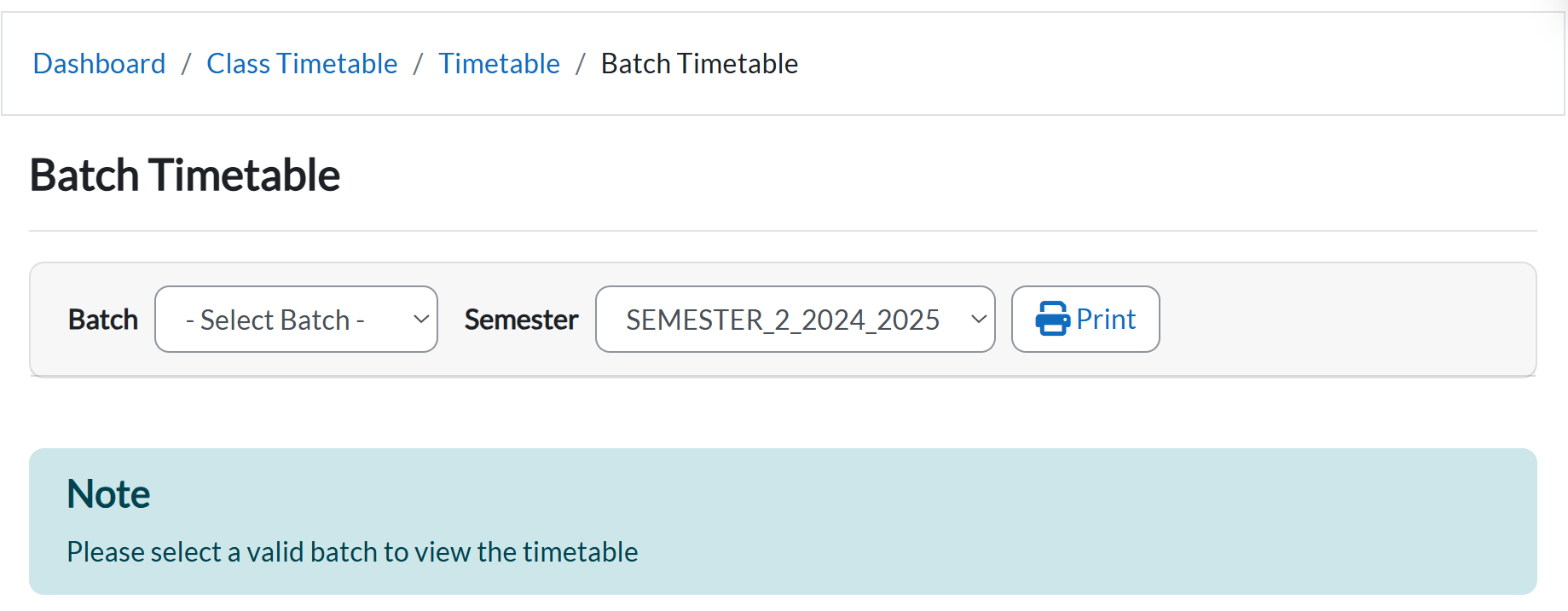
Select Batch Timetable from the Class Timetable menu.
-
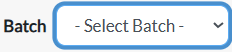
Choose a batch from the Batch dropdown.
-
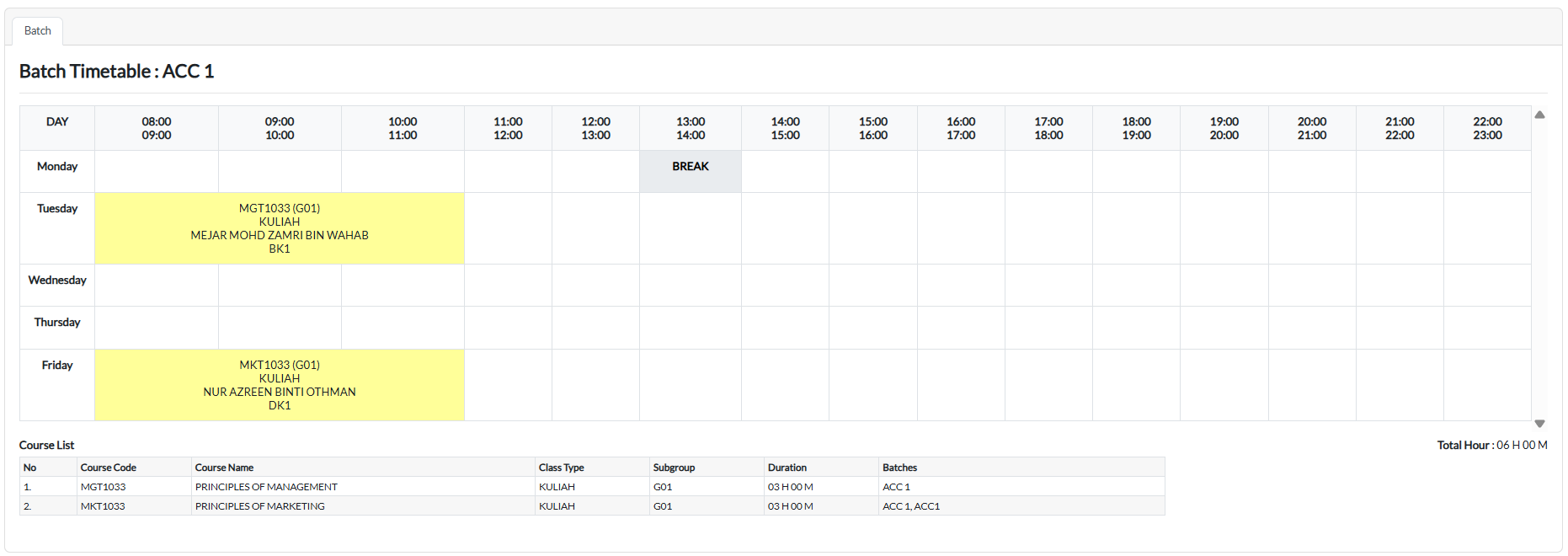
The timetable, course list, and total hours will display.
F. Student Timetable
Purpose: View the personal timetable for an individual student.
Steps:
-
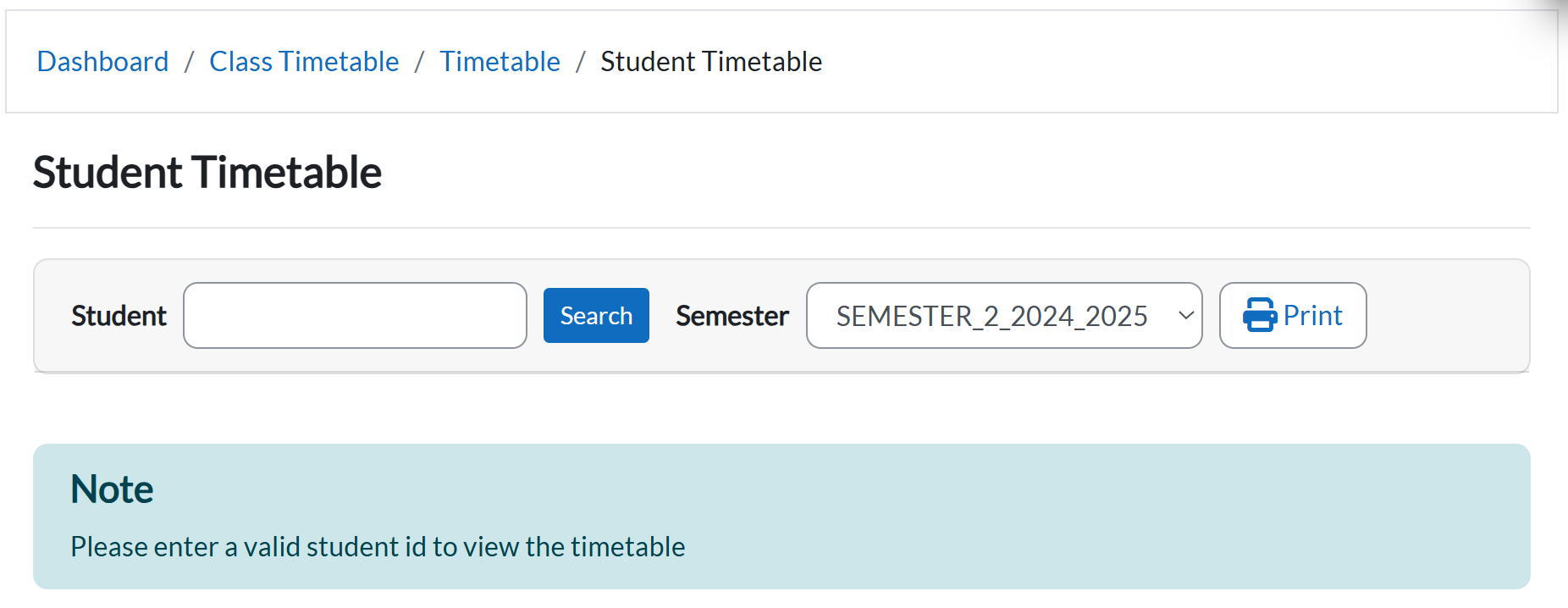
Select Student Timetable from the Class Timetable menu.
-
Enter the Student ID to view their timetable.
