1. Before Auto Generate
1.2. Include sections to Generate/Slot into
Include only those Sections that want to be prioritize to be slotted into the Timetable Output. You can Include Sections by Right Click via Tree, Course List, Lecturer List, Batch Group/List and Merge Group/List. Another way of Include Section function is at Custom Section Action under Timetable Menu.
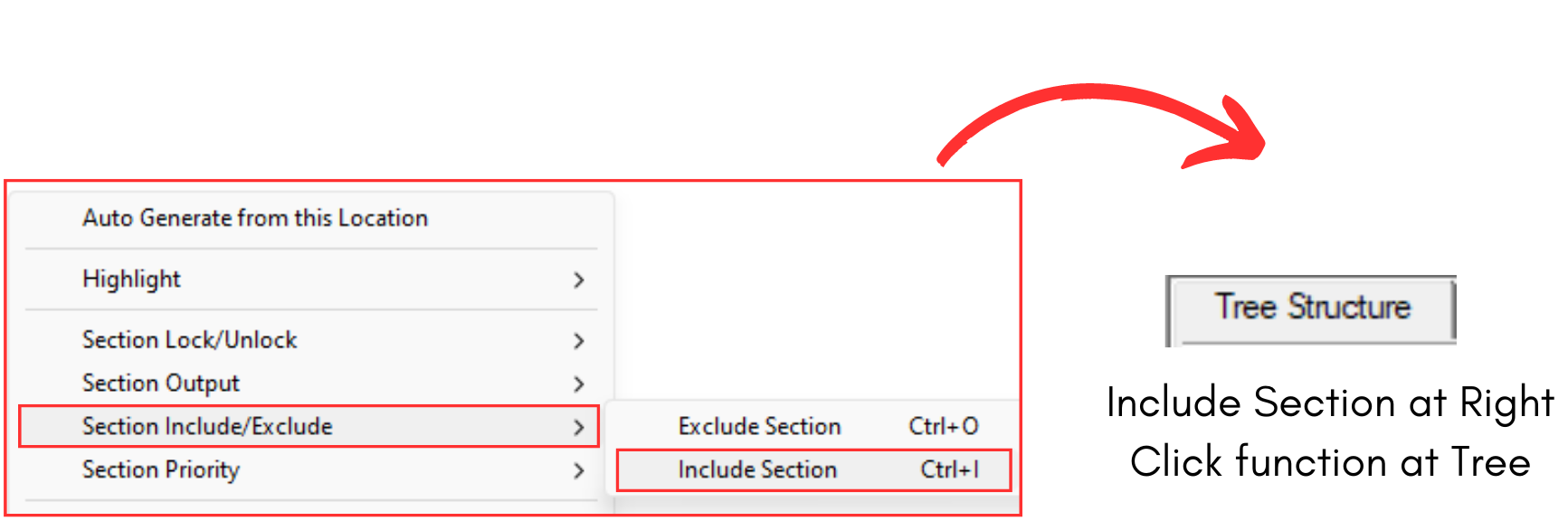
Diagram 1.2.1 Include Funtion at Tree Structure
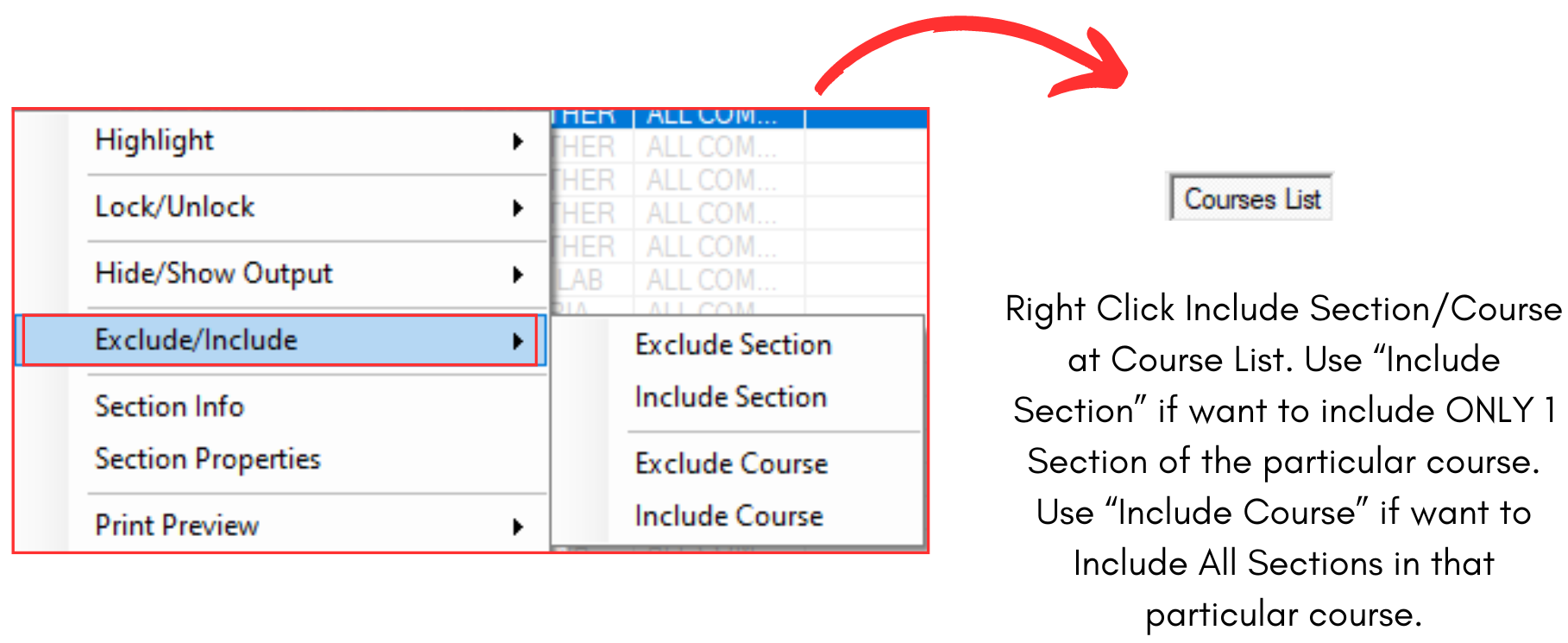
Diagram 1.2.2 Include Funtion at Course List
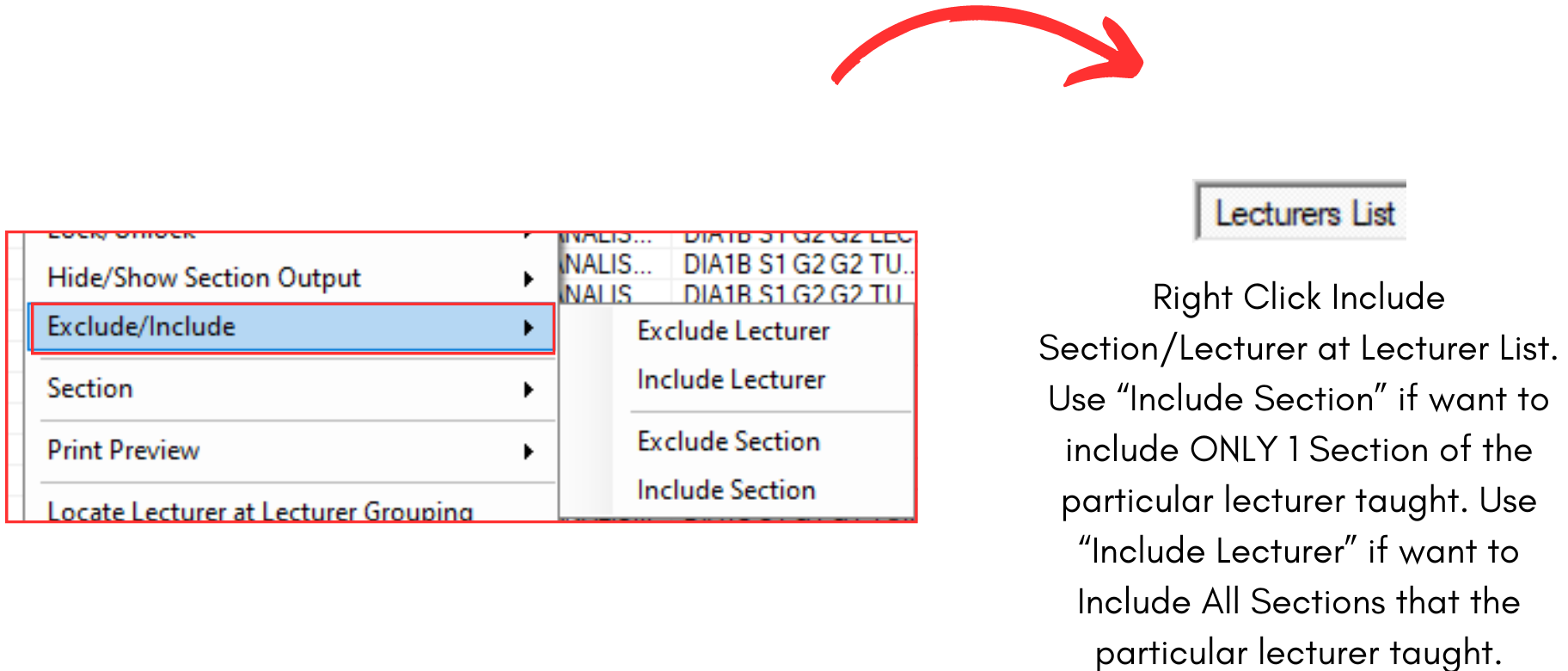
Diagram 1.2.3 Include Function at Lecturer List
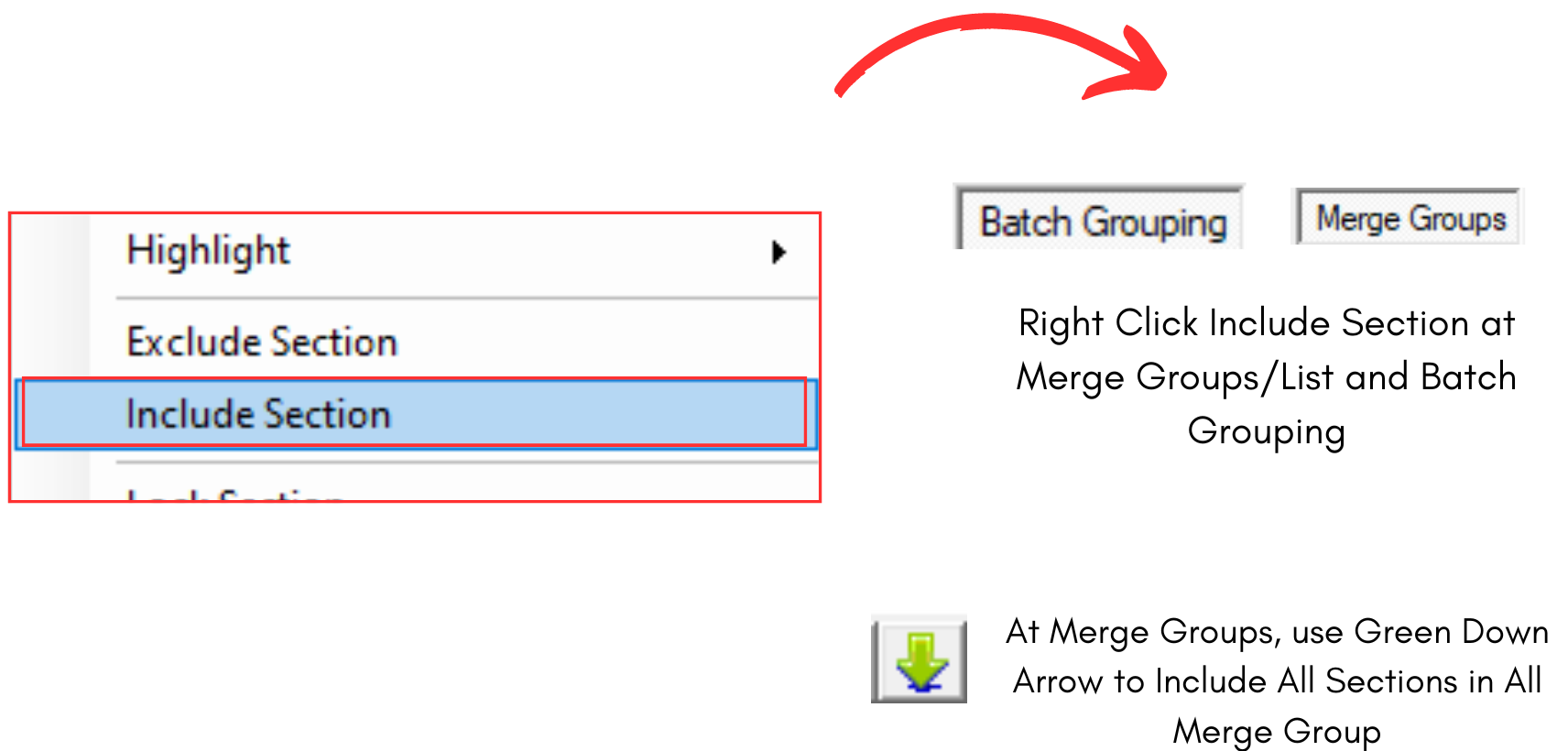
Diagram 1.2.4 Include Function at Merge Group and Batch Grouping
You can Include Sections based on the criteria example Include Sections that are 4 hours in duration OR Include Section with Class Type: LAB. Therefore, user can use Custom Section Actions under the Timetable Menu.
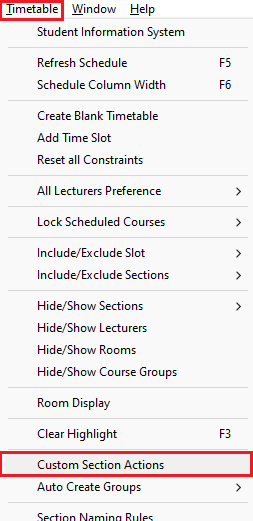
Diagram 1.2.5 Location of the Custom Section Actions
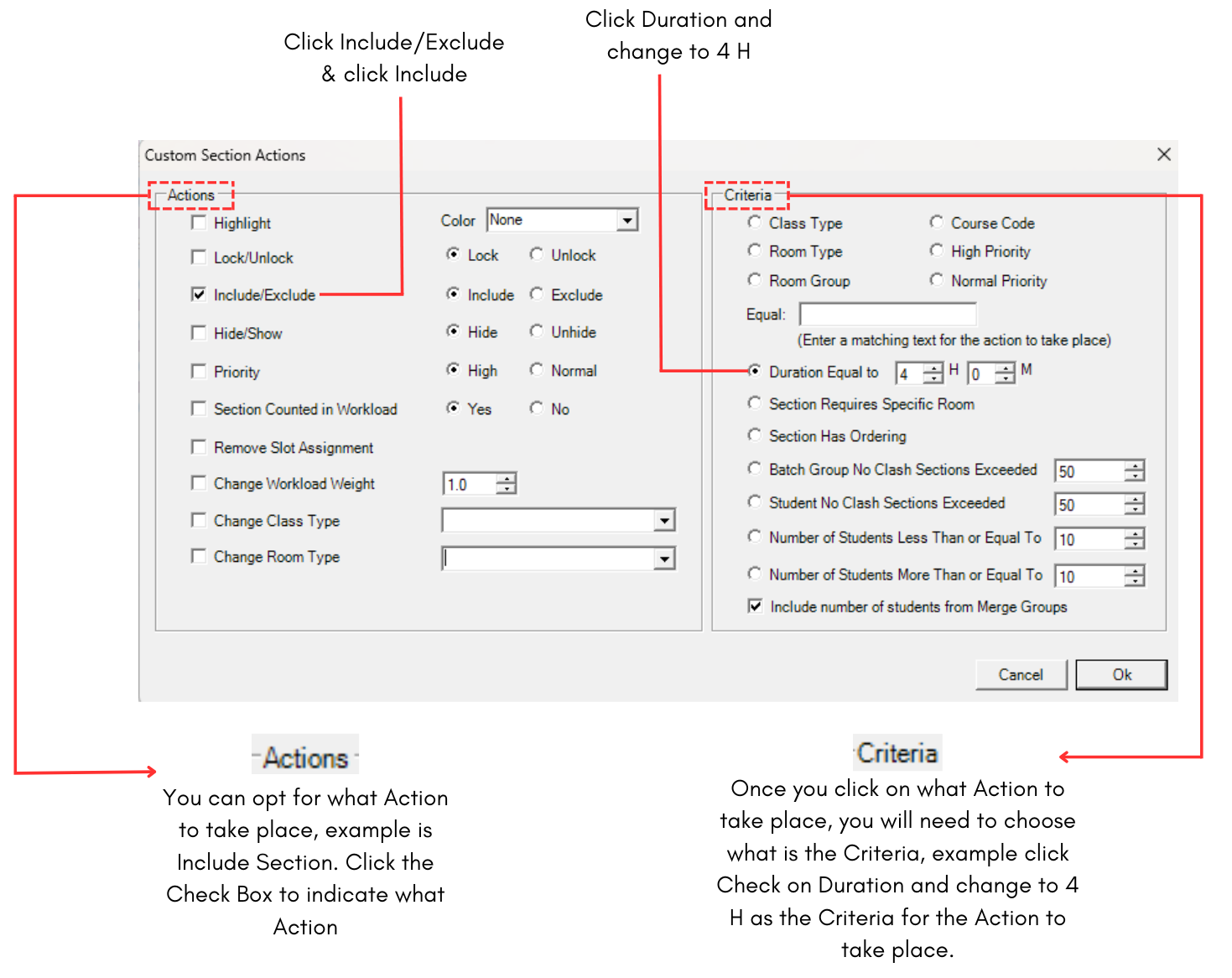
Diagram 1.2.6 Custom Section Actions Window
Note that Actions and Criteria can ONLY TAKE PLACE ONE AT A TIME. Meaning to Include Sections that are 4 Hours and 5 Hours, you need to perform the Criteria for 4 Hours first and Click OK. After the Action has been completed, then you can change to 5 Hours and click OK again.
Double Check Section Status
Before Auto Generate or Manual Allocation, you are advised to check the Section Status to see the status of Locked, Unlocked, Exclude, Include Sections. Important is to confirm if the Unlocked Sections need to Locked and vice versa before Auto Generate process.
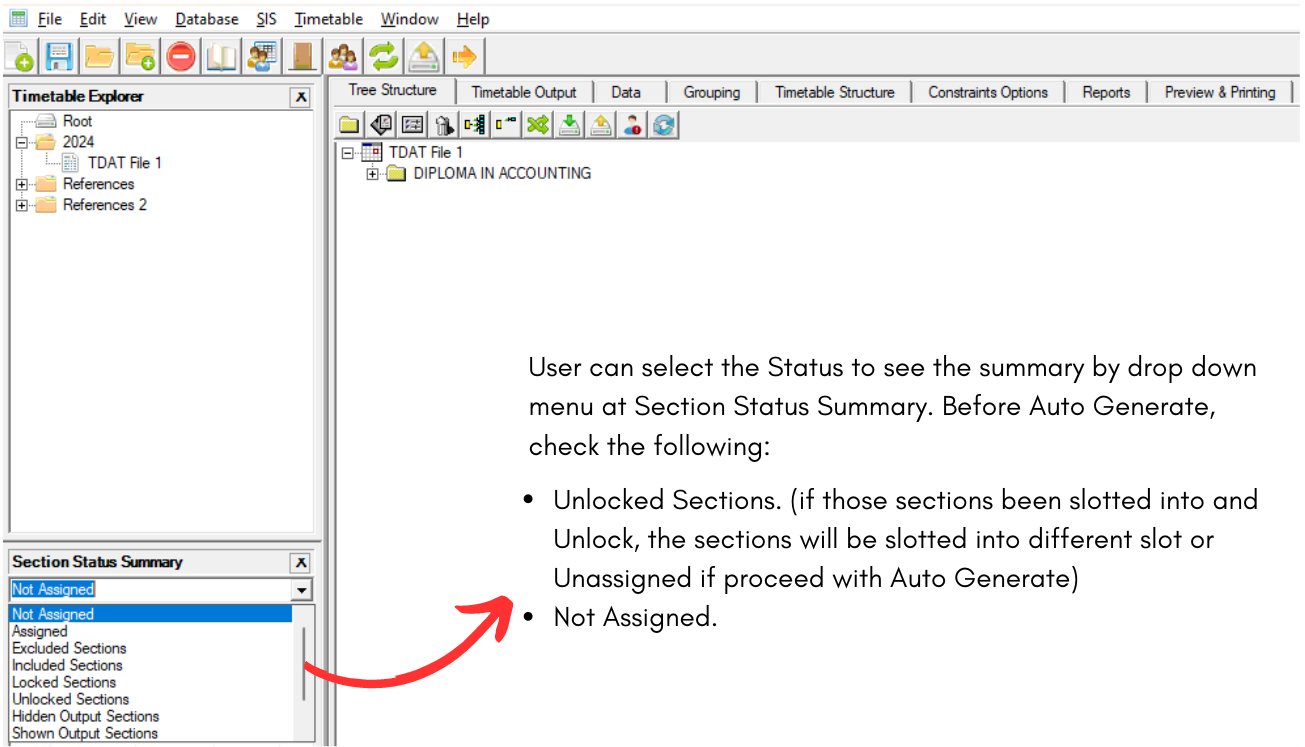
Diagram 1.2.7 Double Check Section Status