1. Set Constraints
1.7. Batch Grouping Constraints
You can set constraints at Batch Grouping under the Grouping.

Diagram 1.71 Location of Batch Grouping

Diagram 1.7.2 Double Click the Batch Group
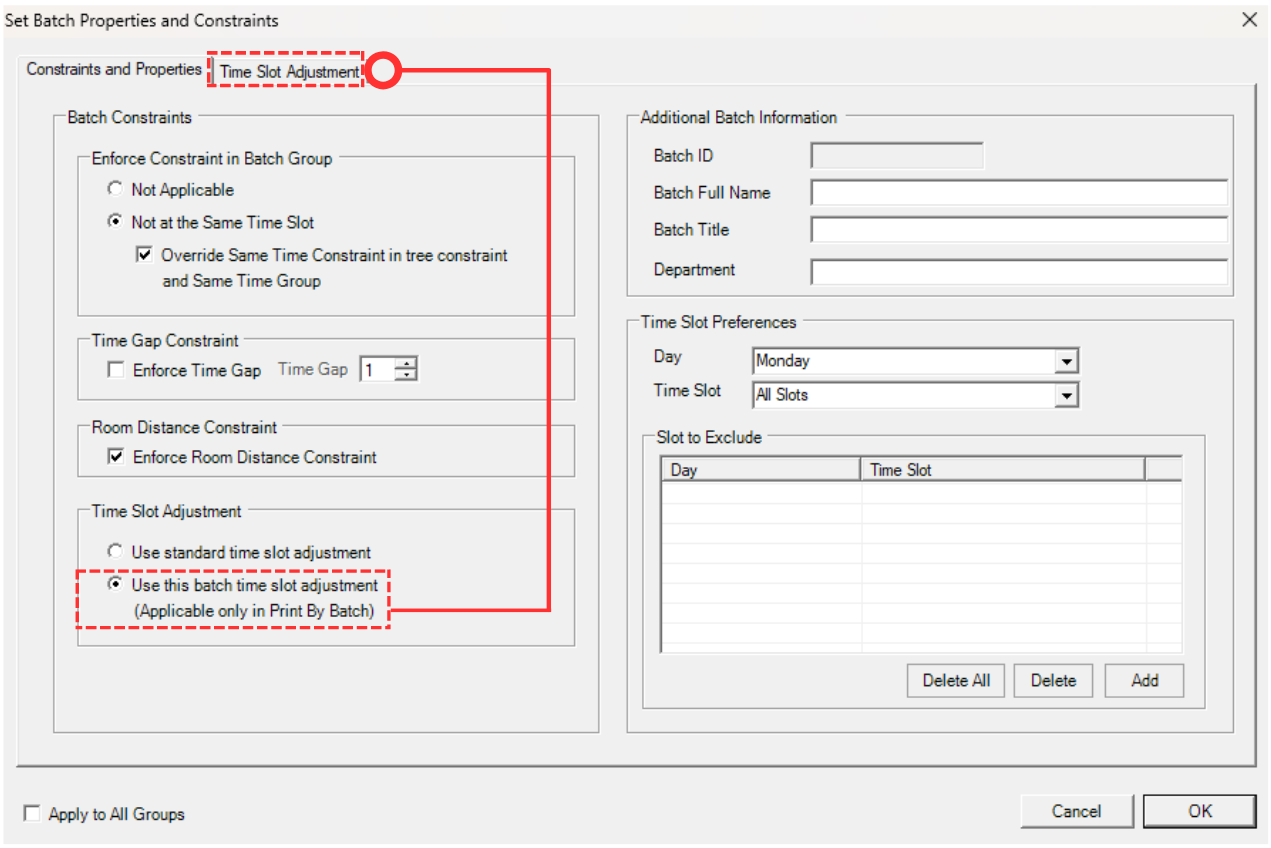
Diagram 1.7.3 Set Batch Properties and Constraints
To do the Batch Time Slot Adjustment for the selected batch, please tick Use This Batch Time Slot Adjustment.
Note that Use Standard Time Slot Adjustment will use the Time Slot Adjustment under Timetable Structure.
Below is the Time Slot Adjustment window at the Batch Grouping.
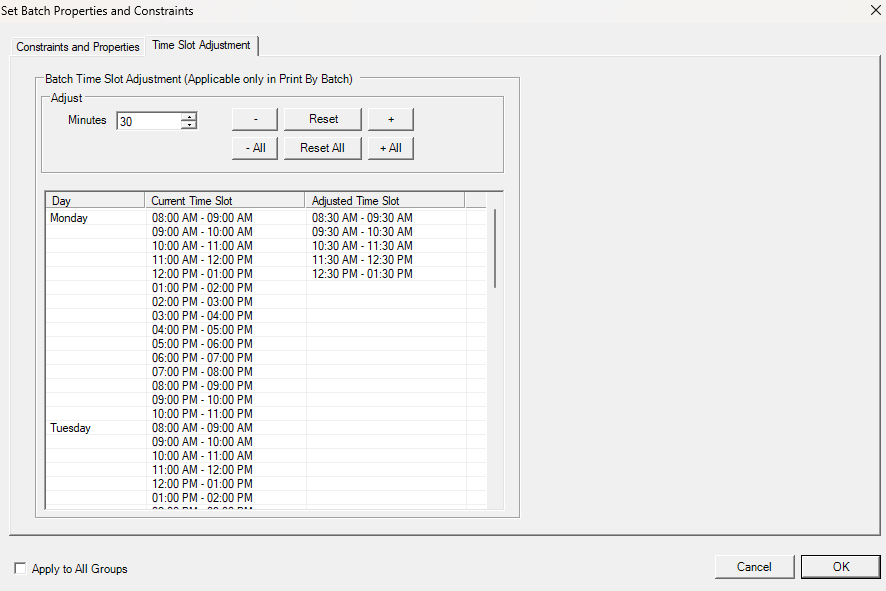
Diagram 1.7.4 Batch Time Slot Adjustment
Step by Step on how to input Time Slot Adjustment:
Step 1: Click on the a particular slot (e.g Monday 08.00 AM- 0900 AM)
Step 2: Go to Adjust column and input the X Minutes to adjust (e.g 30 Minutes) (If press then the adjusted time is 0830 -0930)
Step 3: Click either  or
or  (If press then the adjusted time is 0830 -0930)
Step 4: Tick Apply to All Groups if ONLY all Batch Group to follow the constraints settings
Note that, when you open Batch Grouping window, you will see sections on the right side of the window.
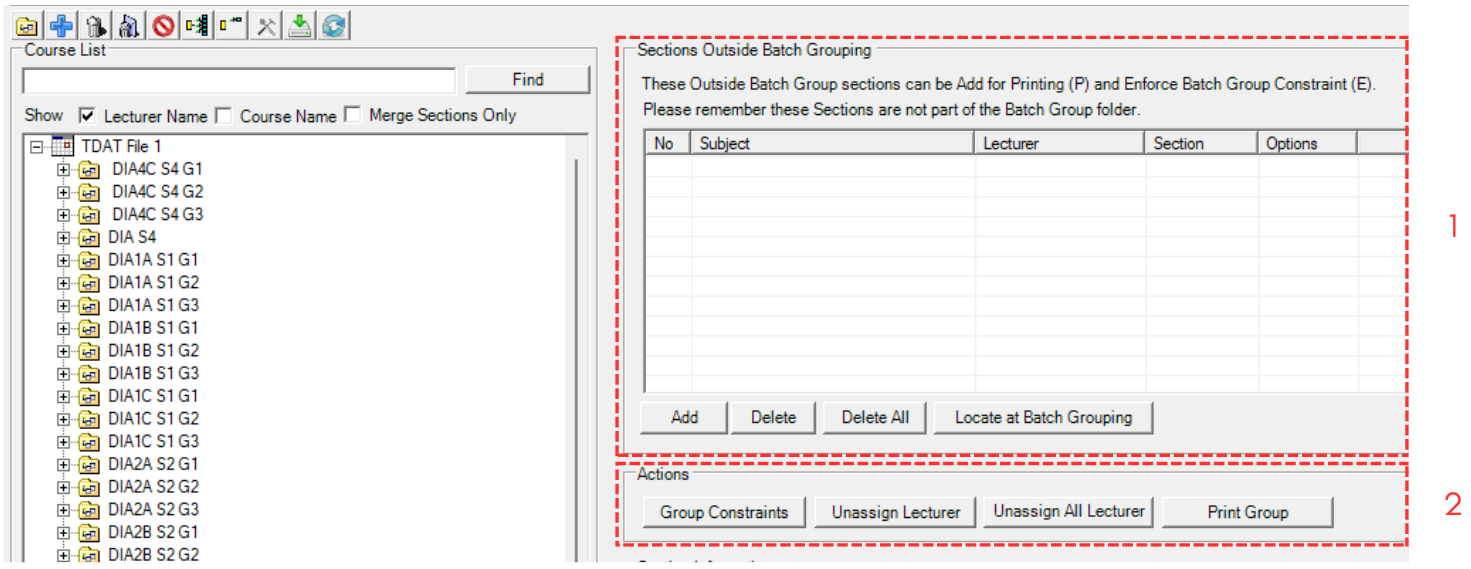
Diagram 1.7.5 Buttons and Sections on Right Side of Batch Grouping Window
1. Sections Outside Batch Grouping
You can add any section/course to have the Printing or Enforce Group Constraint but it is not part of the Batch.
For example, when student has elective subjects or pre-requisite subjects need to be shown in the printing for that particular Batch so that students able to know the timetable of the elective subjects or pre-requisite subjects.
Another options is that these subjects do not want to be shown in Printing but just want to be Not Clash (as part of Batch Constraint).
If you click on Add button  , you may select a section that is not in any batch group to be included.
A window for adding section will appear.
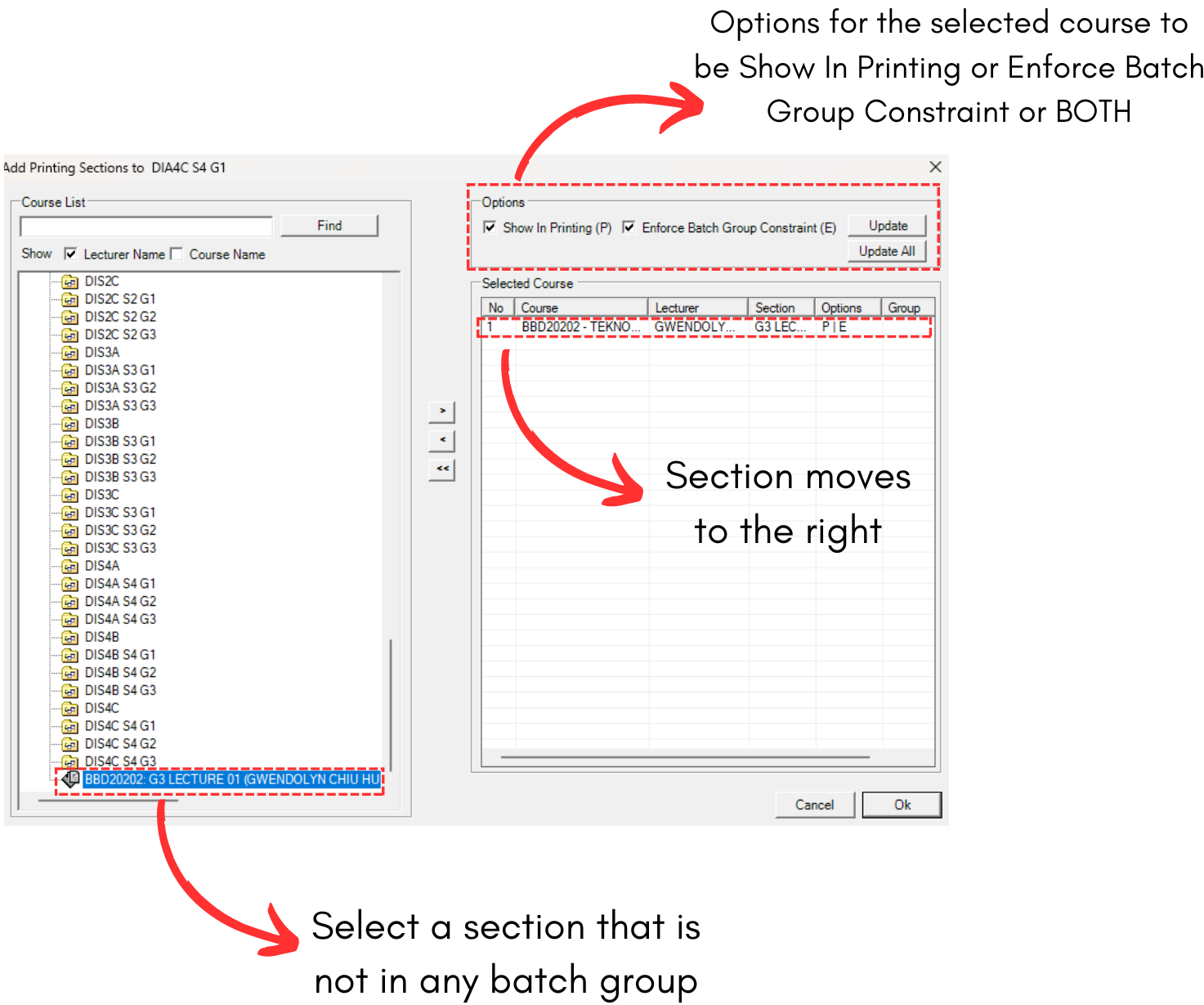
Diagram 1.7.6 Add Sections to the Right Side
2. Actions
Actions buttons are dedicated to the batch groupings on the left side. To understand the buttons, refer to the table below.
|
Group Constraints |
This button will open the Batch Grouping Constraints Window.
|
|
Unassign Lecturer |
This button will unassign lecturer on the selected section under the selected batch group. |
|
Unassign All Lecturer |
This button will unassign all lecturers in the selected batch group. |
|
Print Group |
This button will print the selected batch group ONLY. |
Table 1.7.1 Action Button Explained