1. Set Constraints
1.5. Merge Group Constraints
You can set constraints to Merge Group under the Grouping.

Diagram 1.5.1 Location of Merge Groups

Diagram 1.5.2 Double Click the Merge Group
Merge Group Constraints Window will appear.
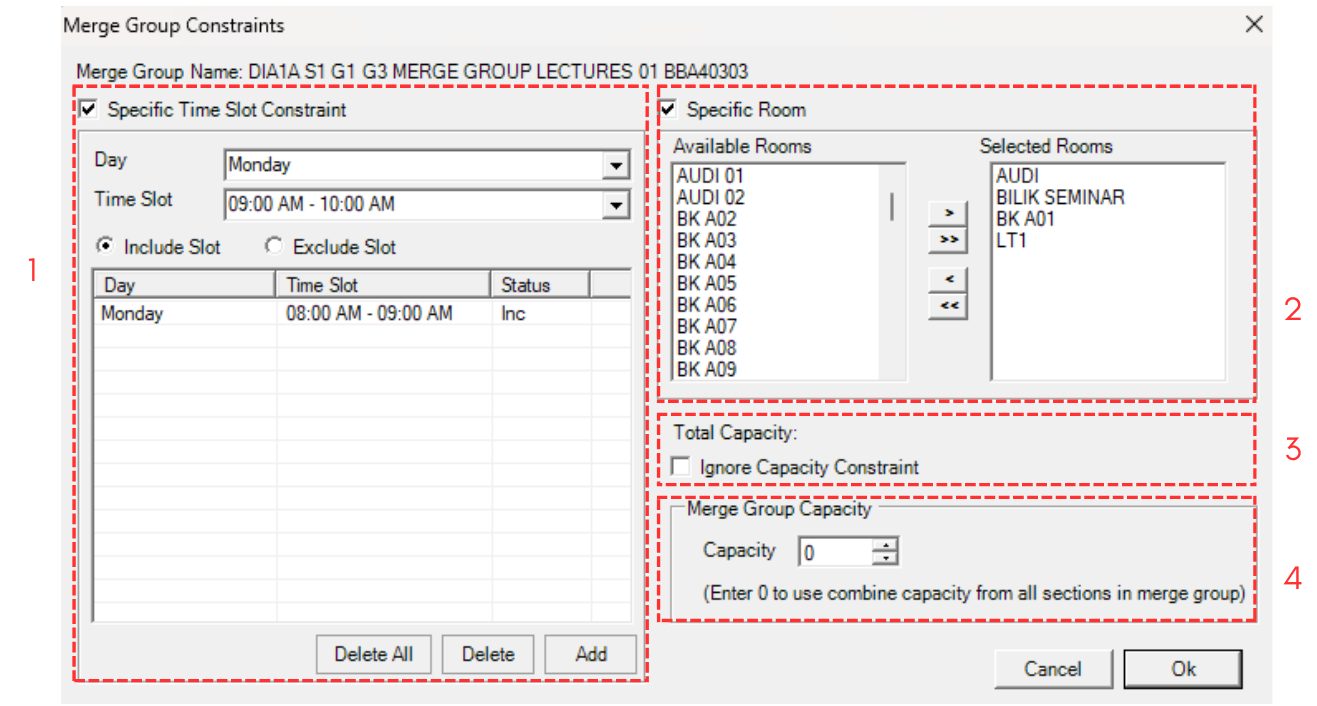
Diagram 1.5.3 Merge Group Constraints Window
Sections has been divided into below.
1. Specific Time Slot Constraint
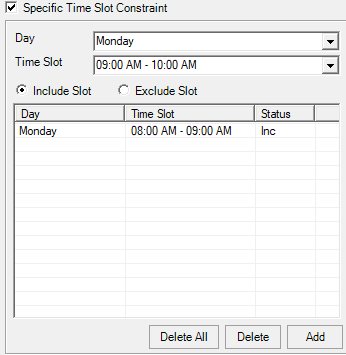
Diagram 1.5.4 Specific Time Slot Constraint
Choose the Day and Time Slot and Click Add
2. Specific Room

Diagram 1.5.5 Specific Room
Choose the room from Available Room (Left) and click Right Indent Arrow.
3. Total Capacity
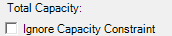
Diagram 1.5.6 Total Capacity
Check the Ignore Capacity Constraint if want to ignore the total sum of all sections capacity in the same merge group.
4. Merge Group Capacity
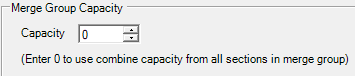
Diagram 1.5.7 Merge Group Capacity
You can set the capacity of the Merge Class which will override the total sum of all sections capacity in the same merge group.
Note that when you select a group on Merge Group, you will be able to see buttons on right side of the Merge Group Window.

Diagram 1.5.8 Buttons on Right Side of Merge Group Window
To use the buttons, select a section under it first.
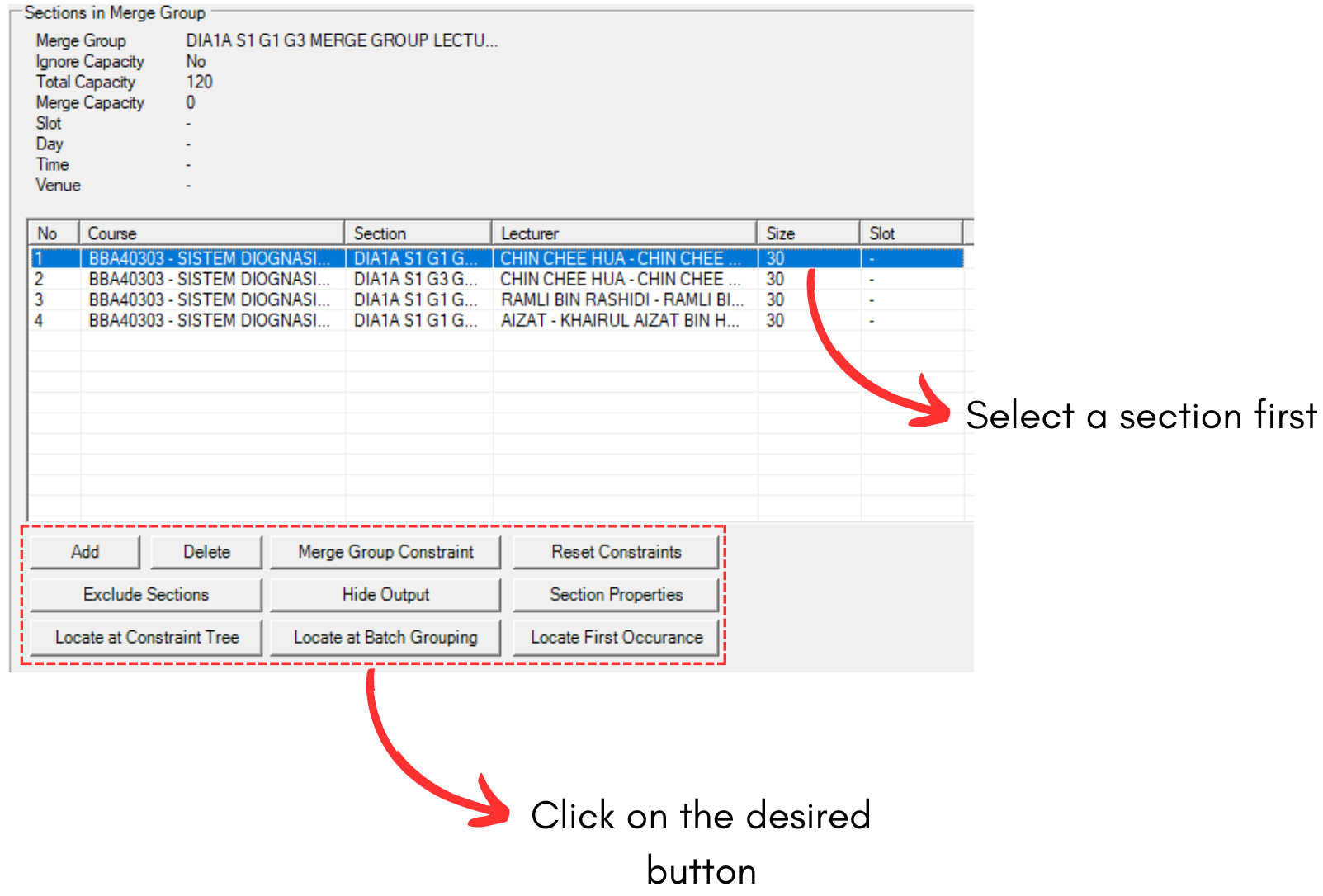
Diagram 1.5.9 Steps on How to Use the Buttons
Refer to the table below to understand the buttons.
|
Add and Delete |
Add button will let you add more sections into the merge group while delete will delete a selected section in the group.
|
|
Merge Group Constraint |
This button will open the merge group constraint window. |
|
Reset Constraint |
This button will reset constraint for the selected merge group. |
|
Exclude Sections |
This will exclude all the sections under the selected merge group. To include, the button will be changed to |
|
Hide Output |
This button will hide the output of the sections on timetable. |
|
Section Properties |
This button will open section properties for the selected section. |
|
Locate at Constraint Tree |
This button will bring you to the location of selected section in Tree Structure. |
|
Locate at Batch Grouping |
This button will bring you to the location of selected section in Batch Grouping. |
|
Locate First Occurance |
This button will bring you to the location of selected section's first event in Tree Structure. |
 and you can include sections back.
Table 1.5.1 Buttons Explanation