1. Set Constraints
1.3. Lecturer Constraint
You can set constraint OR preferences for lecturers at Lecturer List under the Data.

Diagram 1.3.1 Location of Lecturer List

Diagram 1.3.2 Double Click the Lecturer
Lecturer Constraints Window will appear.
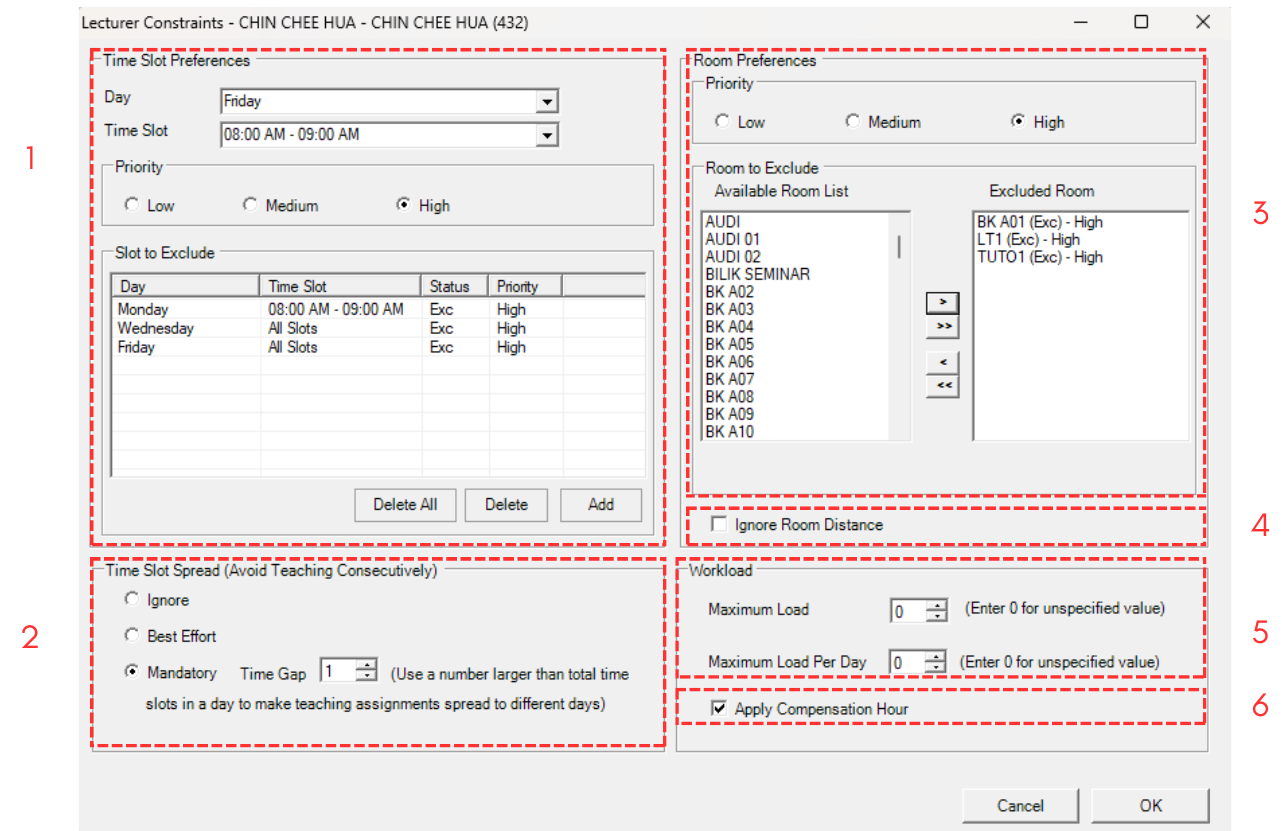
Diagram 1.3.3 Lecturer Constraints Window
1. Time Slot Preferences
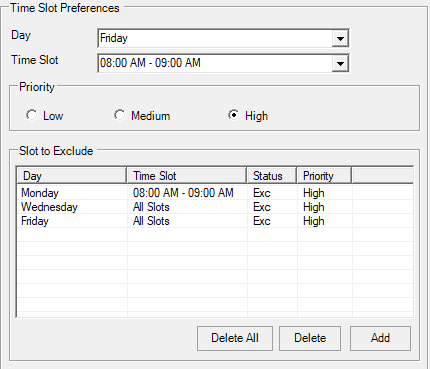
Diagram 1.3.4 Time Slot Preferences
You can choose Day and Time Slot and Click Add to list the Day and Time that want to be EXCLUDED.
2. Time Slot Spread
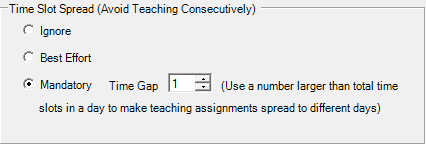
Diagram 1.3.5 Time Slot Spread
You have the Option to Ignore, Best Effort and Mandatory with Time Gap to Avoid Teaching Consecutively. Use Mandatory option if you do not want the lecturer to have Back to Back classes.
Alternatively, you can apply the constraint of Time Slot Spread to All Lecturers at Constraint Option tab.
3. Room Preferences
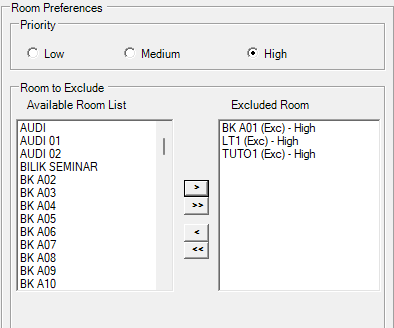
Diagram 1.3.6 Room Preferences
You can choose by click on the Available Room List (left) and click the right intended arrow  to move to the Excluded Room List (right). Double arrow is to move all in the list. Only move room to be EXCLUDED.
4. Ignore Room Distance

Diagram 1.3.7 Ignore Room Distance
You can allow lecturer to follow the constraints set at the Room Grouping for distance between One Room to another Room. Normally applies for big campus.
5. Workload
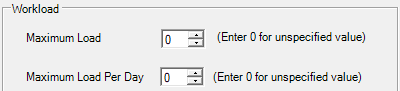
Diagram 1.3.8 Workload
You can set the Maximum Load (Total) or Maximum Load per day. Load means the number of classes.
6. Apply Compensated Hours

Diagram 1.3.9 Apply Compensated Hours
Setting at the Constraints Option Tab, user can opt which lecturer to follow the settings for Compensated Hour.