1. Set Constraints
1.2. Group Constraints
You can set constraints at the Data Entry. There are 2 types of constraints; Group Constraints and Generate Constraints.
1. Group Constraints
You can set constraints from Parent folder to child folder in which settings set at Parent will automatically inherit by the child folder.
To open Group Constraints, double click on a constraints folder under the tree structure.

Diagram 1.2.1 Double Click the Constraints Folder
Set Constraints Window will appear.
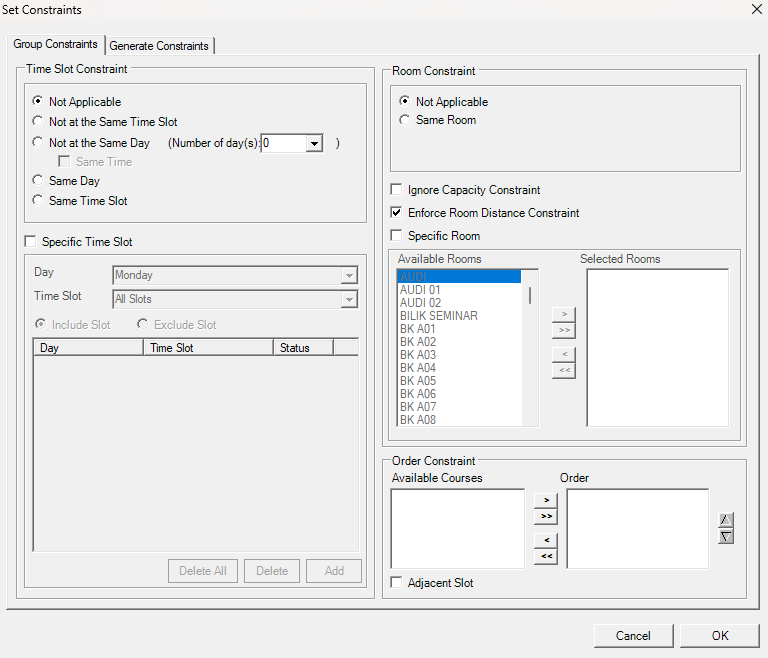
Diagram 1.2.2 Group Constraints Window
Refer to the table below to know on IMPORTANT constraint setting at group constraints.
|
Not at the Same Day |
User normally set these constraints for courses that prefer to have the classes in different days. Example, 1st Lecture and 2nd Lecture prefer to be in different days. |
|
Same Time + Same Room + Ignore Capacity Constraint |
User normally check these 3 settings for team teaching. Alternatively, user can set team teaching at Merge Group. |
|
Specific Time Slot |
You can use this constraint for specific day and time or range of days and time slots for group of courses (Parent) or single section of a course (child). |
|
Same Room |
You can use this constraint setting if group of courses prefer to be slotted into same room (Parent). |
|
Specific Room |
You can specify a single room or range of rooms for group of courses (Parent) or single section of a course (Child). |
Table 1.2.1 Important Constraints Settings Explanation
2. Generate Constraints
User can set how a group of courses (Parent) or a single section of a course (Child) to be auto generated.
Generate Constraints is located right next to Group Constraints.
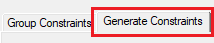
Diagram 1.2.3 Location of Generate Constraints
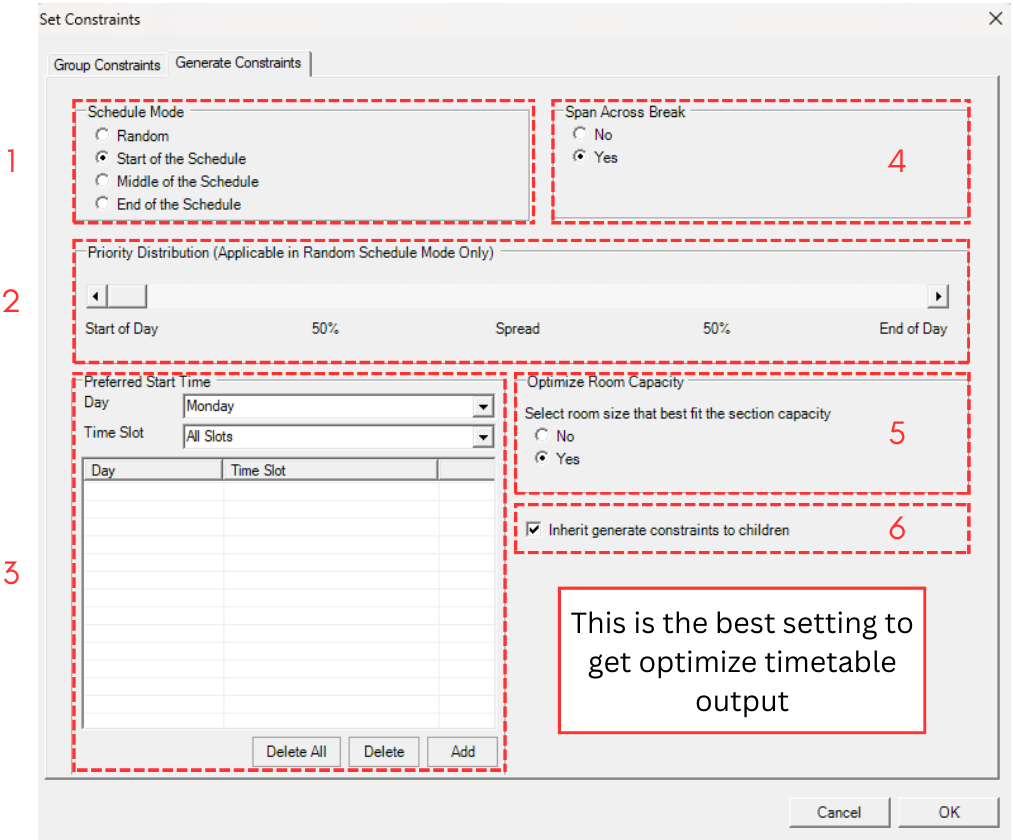
Diagram 1.2.4 Generate Constraints Window
Sections has been divided into below.
1. Schedule Mode
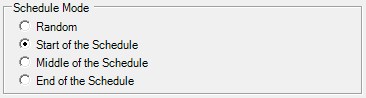
Diagram 1.2.5 Schedule Mode
- Random: Courses will be assigned randomly across the week.
- Start of the Schedule: Courses will be priority assigned at the Start of the week/schedule.
- Middle of the Schedule: Courses will be priority assigned at Middle of the week/schedule.
- End of the Schedule: Course will be priority assigned at the end of the week/schedule.
2. Priority Distribution

Diagram 1.2.6 Priority Distribution
Priority Distribution only applicable if you select Random Schedule Mode.
You can set the range of distribution which reflect the Start Time and End Time setting at Timetable Structure. The Start of the Day will prioritize assigning of courses at the Start Time and the range will end at the End of the Day which reflect the End Time.
3. Preferred Start Time
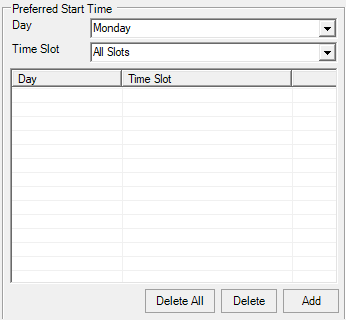
Diagram 1.2.7 Preferred Start Time
You can set the range of Preferred Start Time according to specific day. Note that if the Preferred Start Time is set, the system will override the settings at Schedule Mode and Priority Distribution.
4. Span Across the Break
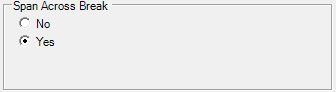
Diagram 1.2.8 Span Across Break
You can use this setting to allow 2 hours of more duration courses to span across the Break Time set at the Timetable Structure. Courses will be slot before and after the Break Time.
5. Optimize Room Capacity
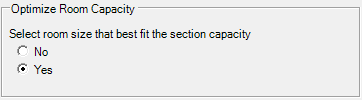
Diagram 1.2.9 Optimize Room Capacity
The system will slot courses into the rooms according to the capacity of the room. The system will try its best to find the nearest capacity of the room against the capacity of the section.
6. Inherit

Diagram 1.2.10 Inherit
Click this Inherit if all the Child folders want to follow the parent. Normally user can set at the Root or Main Parent folder and click Inherit for all the folders to follow the settings. Unlike Group Constraint settings whereby Child will automatically follow Parent settings, Generate Constraints settings are not compulsory for the Child folder to follow the Parent folder.