1. Set Constraints
1.1. Constraint Options
Go to Constraints Options next to Timetable Structure.

Diagram 1.1.1 Location of the Constraint Options
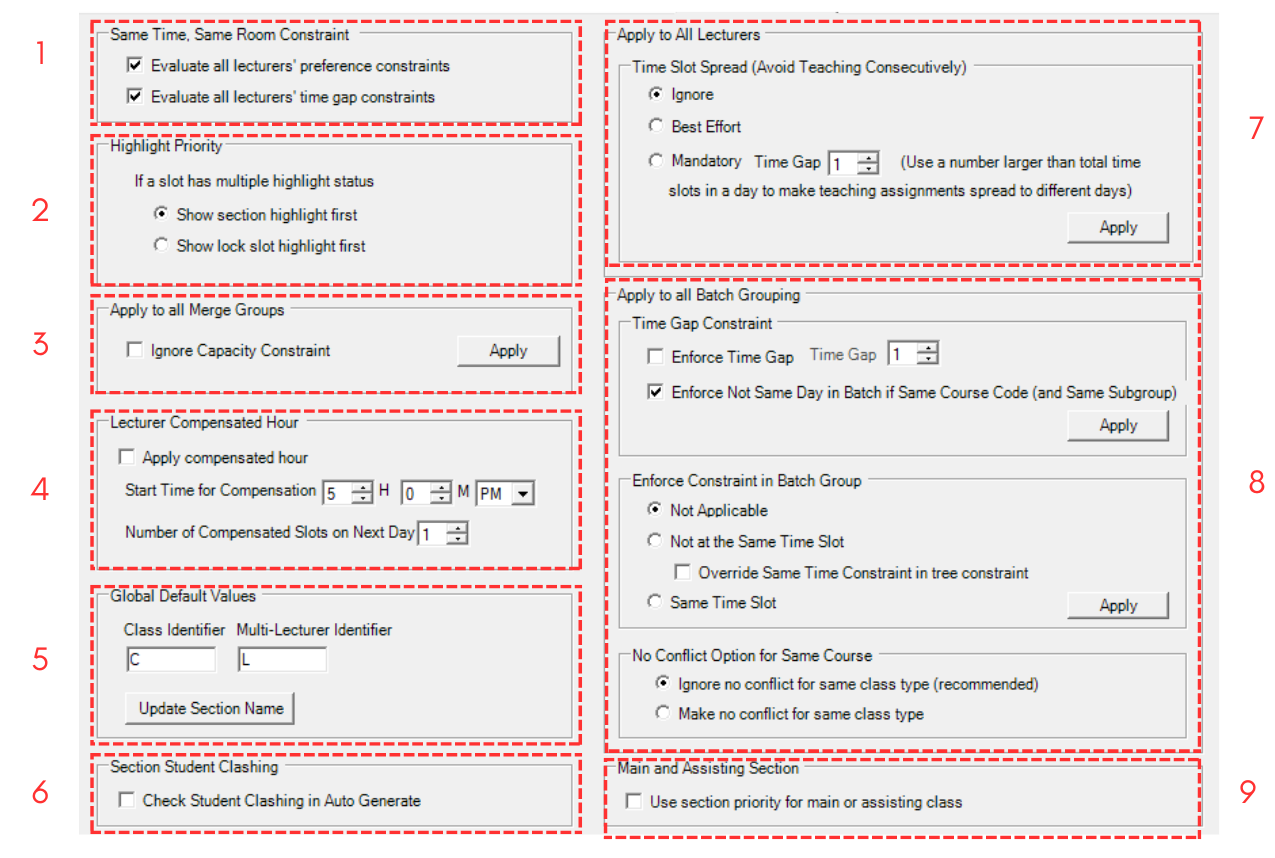
Diagram 1.1.2 Constraints Options Window
Fill in all the sections. Sections has been divided into below.
1. Same Time, Same Room Constraint
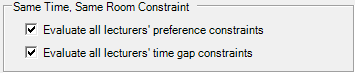
Diagram 1.1.3 Same Time, Same Room Constraint
Evaluate all lecturer's time gap constraints is important to avoids section being placed into slots that clashing with lecturer's time gap for same time and same room.
2. Highlight Priority
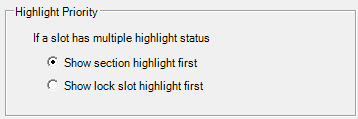
Diagram 1.1.4 Highlight Priority
3. Apply to all Merge Group
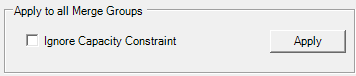
Diagram 1.1.5 Apply to all Merge Group
You can OPT (tick) to Ignore the total sum of the capacity of all sections in the merge group. Please click Apply afterwards.
4. Lecturer Compensated Hours
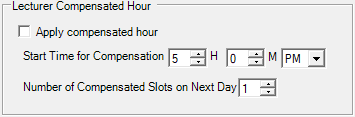
Diagram 1.1.6 Lecturer Compensated Hours
You can OPT (tick) Apply compensated hour by stating the Start Time (example 5:00 pm) and the number of compensated slot. If you put 1 for the number of compensated slot on Next Day, what it means is that if the start time is at 8:00 am, then those that have classes from 5:00 pm onwards will have the assigned class after 9:00am the next day.
5. Global Default Values
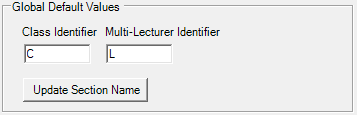
Diagram 1.1.7 Global Default Values
You can set a default identifier for in the section naming; Class is for those without Class Type and Multi-Lecturer is for Team Teaching courses so that user can know who is L1 or L2 (if use L as the identifier).
For example, If there is section that has no Class Type, it will shows C on the Section and if there is team teaching, it will assign first lecturer as L 01 while second lecturer as L 02
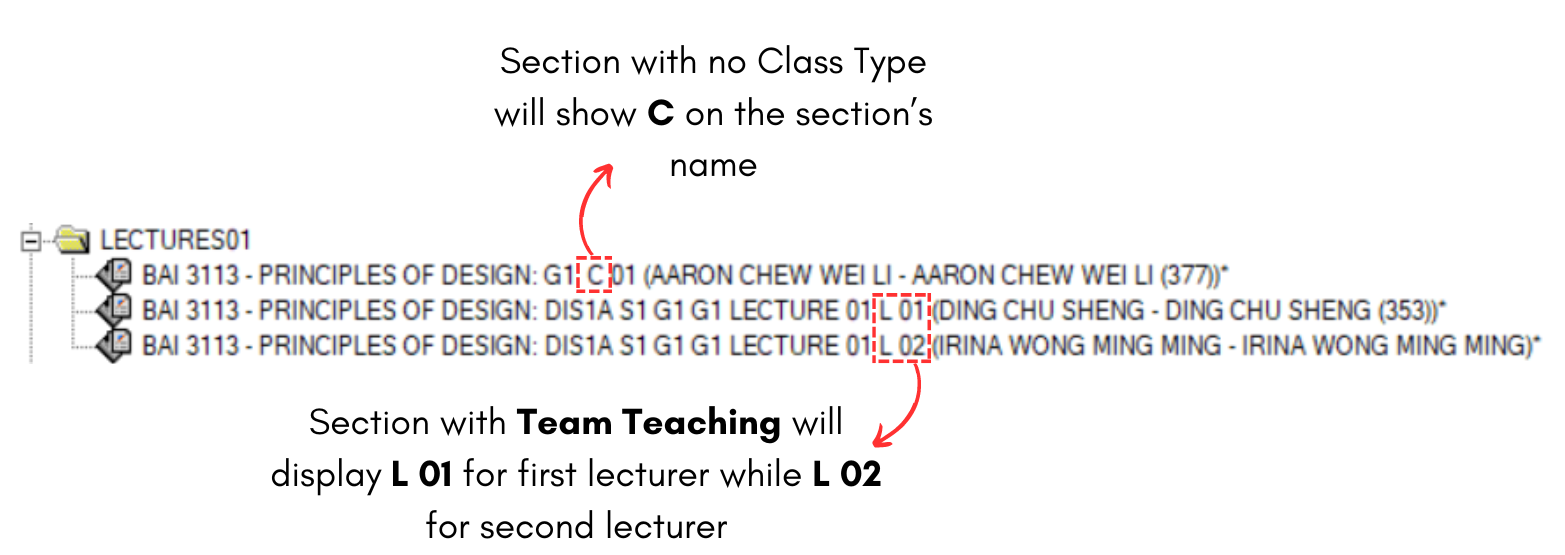
Diagram 1.1.8 Global Default Value Example
6. Section Student Clashing

Diagram 1.1.9 Section Student Clashing
You can OPT (Tick) for the system to check clashing of each student course registration clashing. Once you OPT for this constraint, the system will not check for Batch Clashing during Auto Generate or Manual Allocation
When you tick this option, you will be able to see Total Student No Clash Section will appear in Section Details at Tree Structure. A popup will appear showing what will happen when you tick this.

Diagram 1.1.10 Check Student Conflict Popup
Below is how it will be shown in Section Details at Tree Structure.

Diagram 1.1.11 Section Details at Tree Structure
7. Apply to All Lecturers

Diagram 1.1.12 Apply to All Lecturers
You can choose to either Ignore, Best Effort or Mandatory setting for Avoid Teaching Consecutively. If you set Best Effort, the system will try its best to Avoid Teaching Consecutively at least with 1 slot.
8. Apply to All Batch Grouping

Diagram 1.1.13 Apply to All Batch Grouping
A. Time Gap Constraints
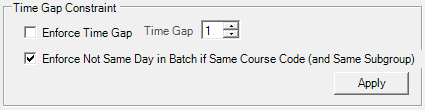
Diagram 1.1.14 Time Gap Constraint
Enforce Not The Same Day will be beneficial and should be tick if the same course code with same Batch and different class need to be placed on different days. If you tick the Enforce Not Same Day, you do not need to tick the Not the Same Day Constraints at the Tree Structure.
B. Enforce Constraints in Batch Group
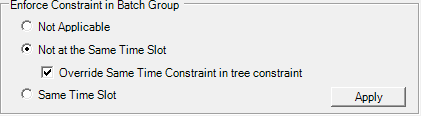
Diagram 1.1.15 Enforce Constraints in Batch Group
You has the option to enforce constraints for ALL Batch Grouping rather than setting the constraints individually (each Batch Group) at Batch Grouping tab. In order to avoid clashing use the Not at the Same Time Slot.
Tick the Overwrite as to make sure that the Same Time Constraints that is set at Tree ONLY will be overwrite. It will not overwrite the sections at Same Time Grouping. Please uncheck the Student Clashing for the Batch of Student Clashing to be functional.
C. No Conflict Option for Same Course

Diagram 1.1.16 No Conflict Option for Same Course
You can use this function is you opt to no clash or conflict for same class type.
9. Main and Assisting Section

Diagram 1.1.17 Main and Assisting Section
User can use this function for team teaching and the lecturer who is the Main or Head lecturer can be defined as High and those assist can be define as Normal. The main purpose is that lecturer tagged as High will have their constraints setting to be considered as High Priority during Auto Generate.