5. Lecturer Constraints
The Lecturer Constraints tool allows administrators to set restrictions on lecturer availability (time slots) and room usage. This ensures that class scheduling does not conflict with a lecturer’s working hours or room assignments.
Step-by-Step Guide for Lecturer Constraints
1. Accessing Lecturer Constraints
Steps:
-
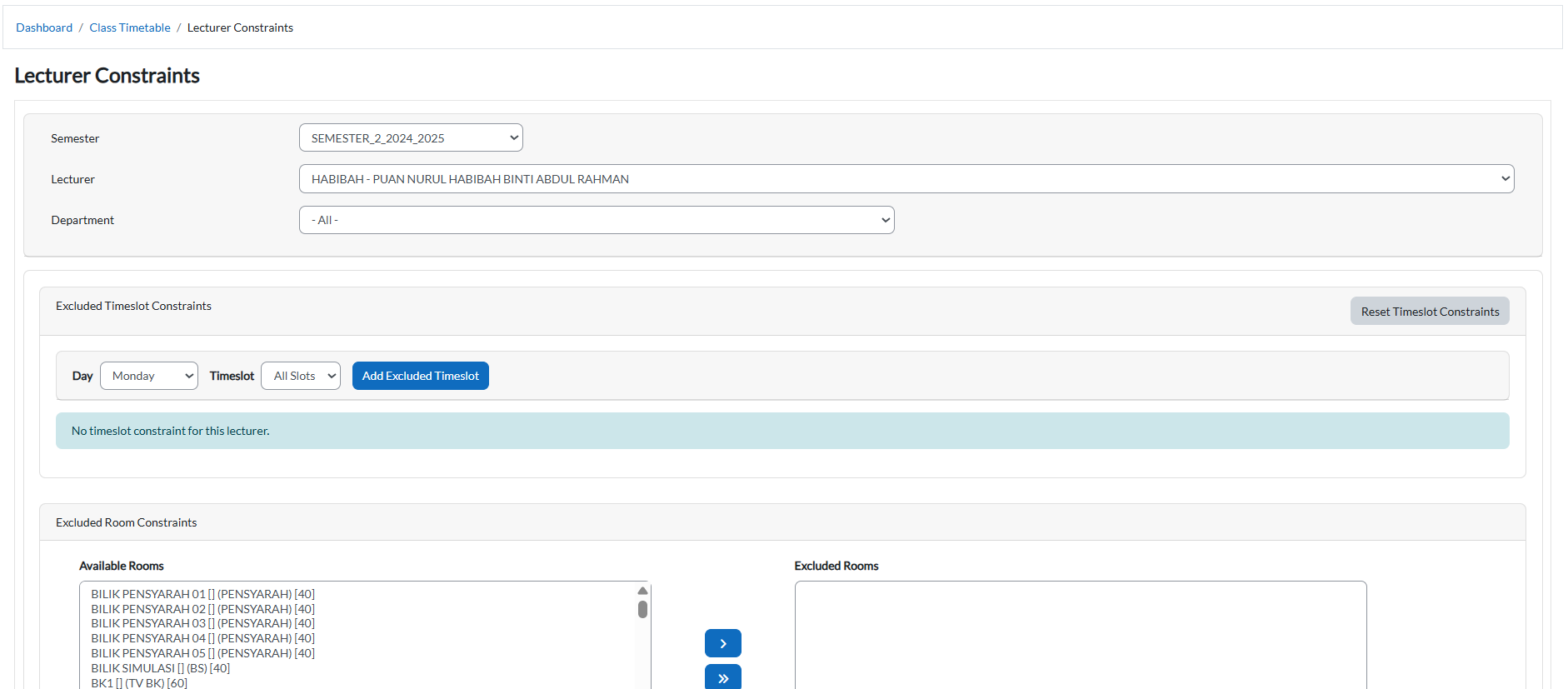
From the Dashboard, click Class Timetable > Lecturer Constraints.
-
The page will display options to select Semester, Department, and Lecturer, as well as panels for Available Timeslots and Available Rooms.
2. Selecting Lecturer and Semester
-
Semester Dropdown: Choose the semester to apply constraints.
-
Department Dropdown: Helps filter lecturers by department for easy search.
-
Lecturer Dropdown: Select the lecturer whose availability you want to configure.

3. Adding Excluded Timeslots
Purpose: Block certain time periods where the lecturer cannot teach.
Steps:
-
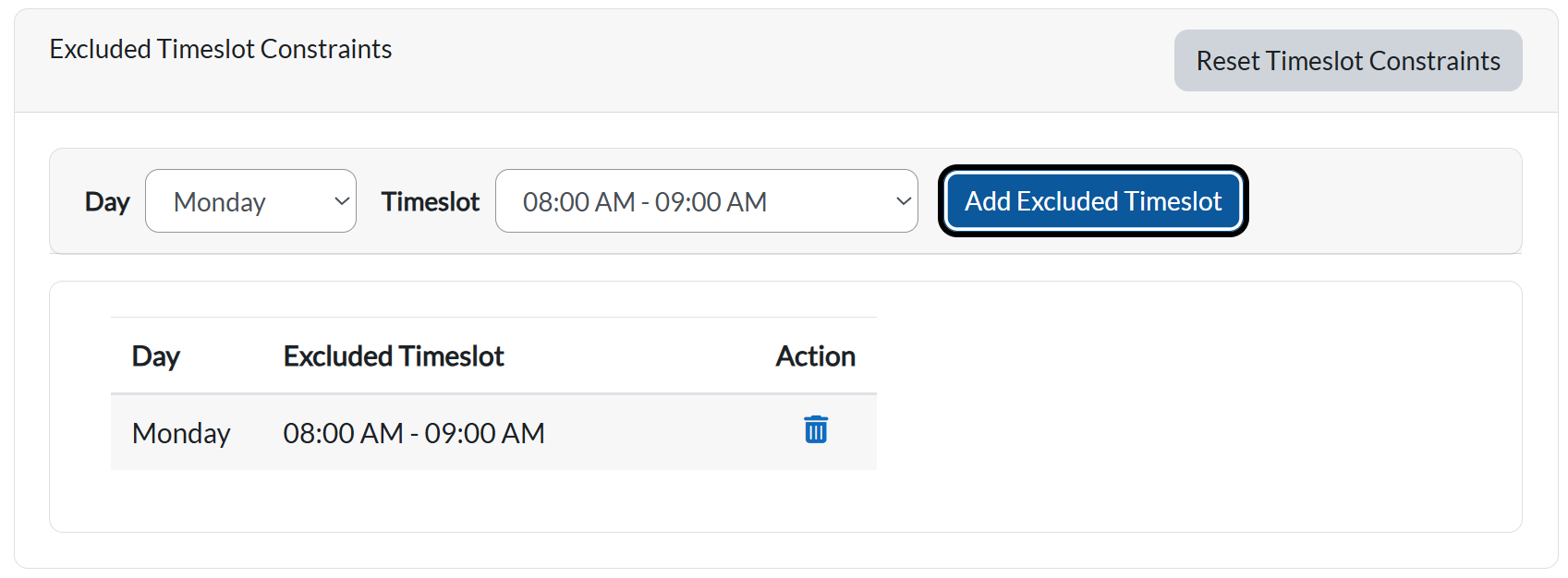
Select a Day (e.g., Monday).
-
Select a Timeslot (e.g., 8:00 AM – 9:00 AM).
-
Click Add Excluded Timeslot (Blue button).
-
Function: Adds the selected time to the lecturer’s excluded list.
-
Once added, the timeslot will appear in the Excluded Timeslot Table below.
-
4. Resetting Timeslot Constraints
-
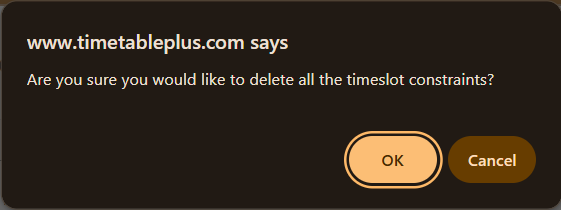
Reset Timeslot Constraints (Grey button):

-
Function: Clears all excluded timeslots for the selected lecturer, restoring their full availability.
-
Use this if you want to start fresh or remove restrictions.
-
5. Excluding Rooms
Purpose: Prevent a lecturer from being assigned to specific rooms.
Steps:
-
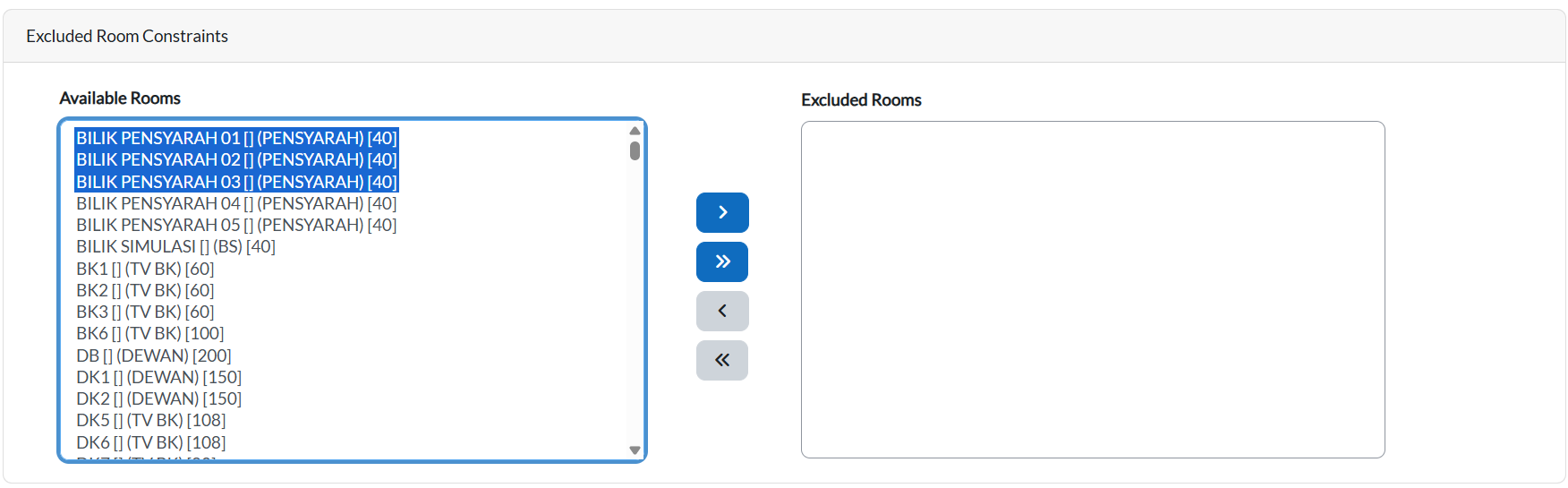
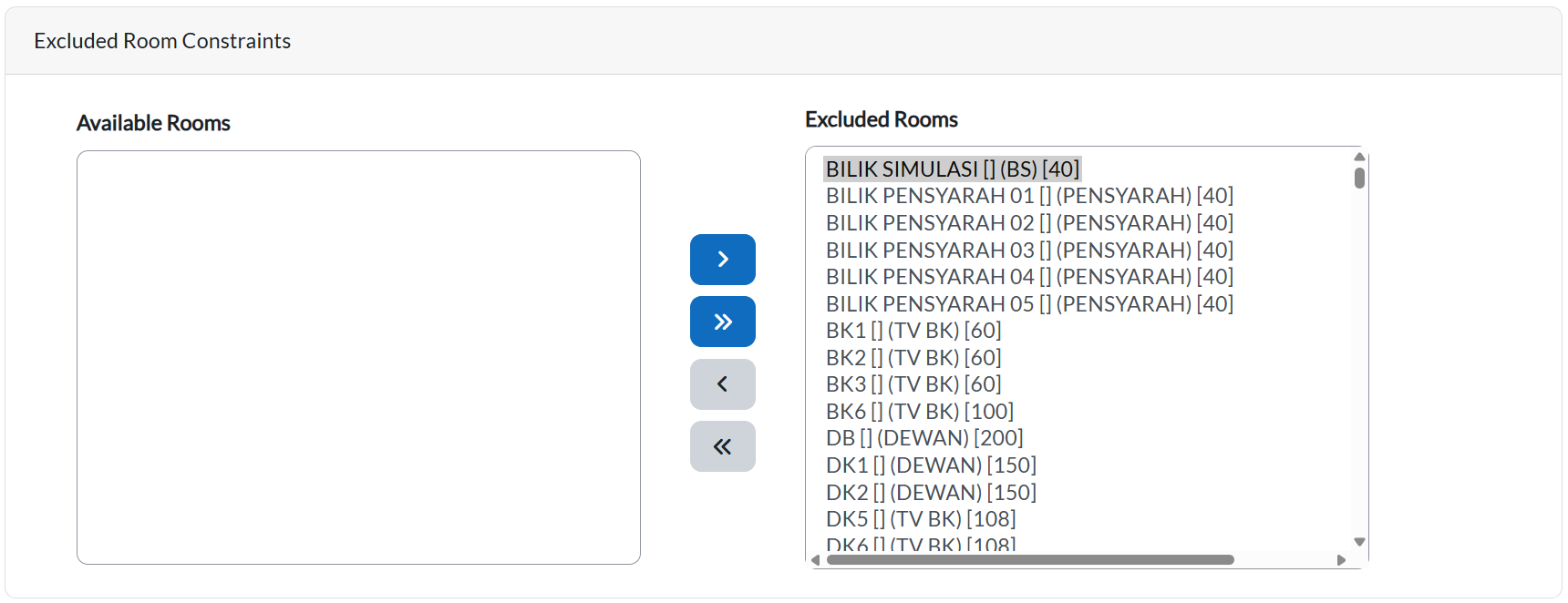
In the Available Rooms list (Left panel), select the room(s) to be excluded.
-
Highlight turns blue when selected.
-
-
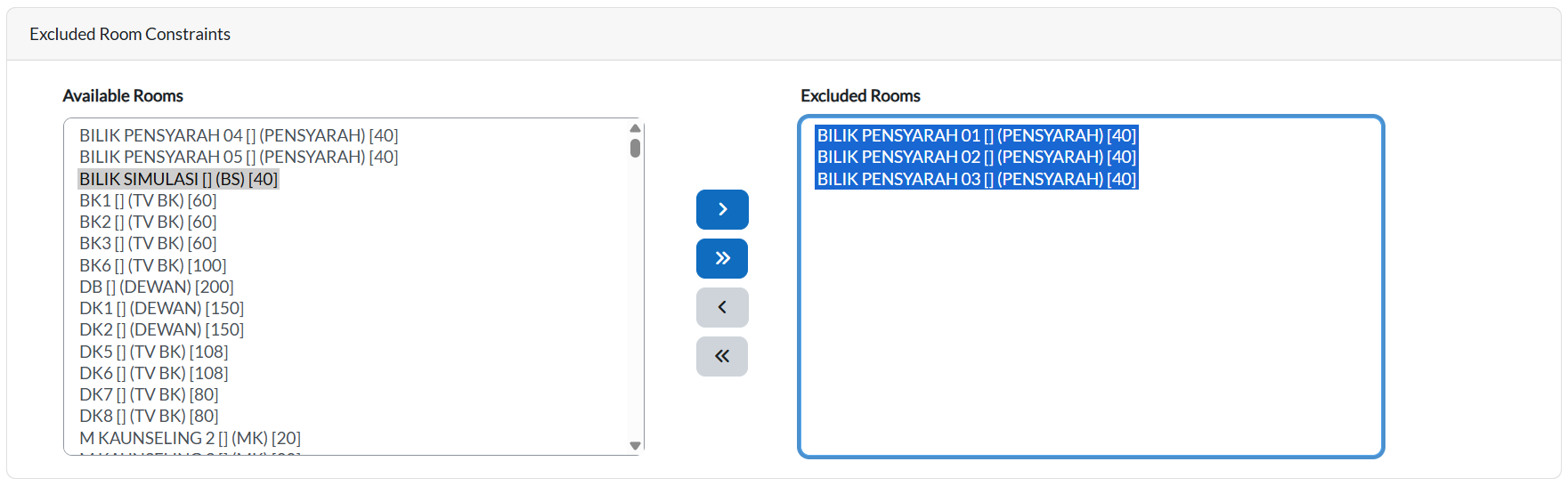
Use the Single Arrow Blue Button ( > ) to move the selected room to Excluded Rooms (Right panel).
-
Function: Excludes the chosen room from being scheduled for this lecturer.
-
-
Use the Double Arrow Blue Button ( >> ) to move all rooms at once.
-
Function: Excludes every room for that lecturer.
-
-
To remove exclusions:
-
Single Arrow Grey Button ( < ): Moves one room back from Excluded Rooms to Available Rooms.
-
Double Arrow Grey Button ( << ): Moves all rooms back at once.
-