3. How to Input Data?
3.6. Step 6
Lecturer Constraints
Purpose: Define limitations for lecturers, including their unavailable timeslots and preferred teaching rooms, to prevent scheduling conflicts.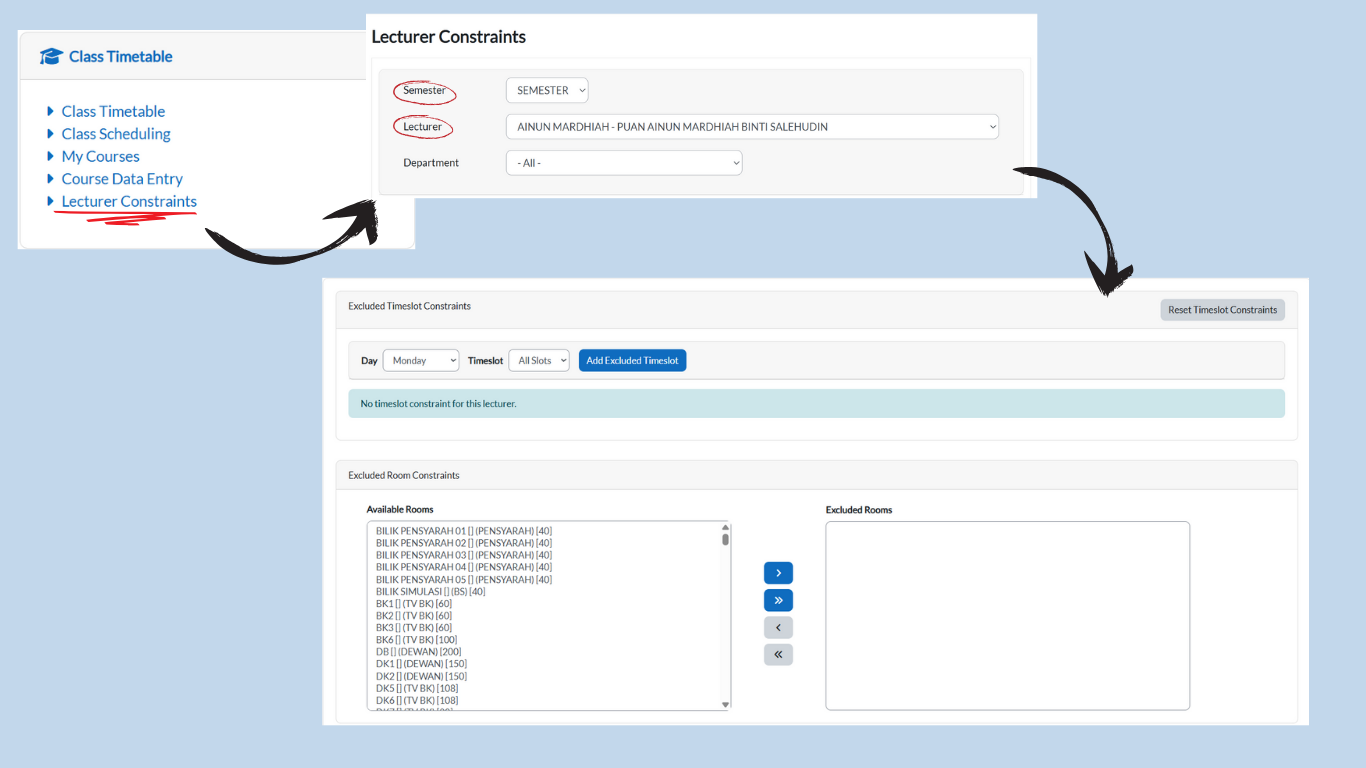
A. Excluded Timeslot
-
Access Constraints Menu:
-
Go to Class Timetable card → Lecturer Constraints.
-
-
Select Semester & Lecturer:
-
Use the dropdown menus to choose:
-
Semester
-
Lecturer
-
-
-
Add Excluded Timeslots:
-
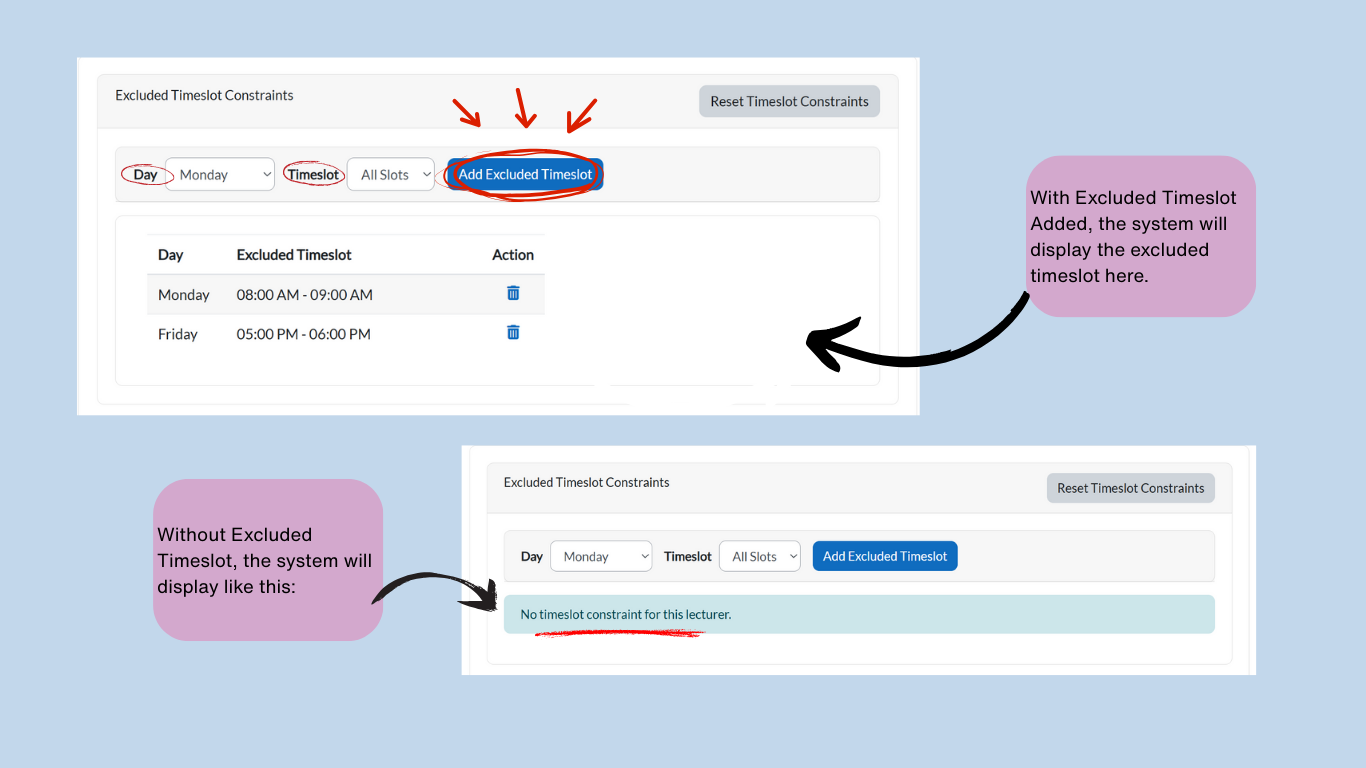
Under 'Excluded Timeslot Constraints':
-
Select a Day
-
Choose a Timeslot (reflects those created in Step 2: Setting Up Time)
-
-
Click Add Excluded Timeslot to save.
-
Repeat for multiple slots.
-
B. Excluded Room
-
Navigate to Room Constraints (inside Lecturer Constraints):
-
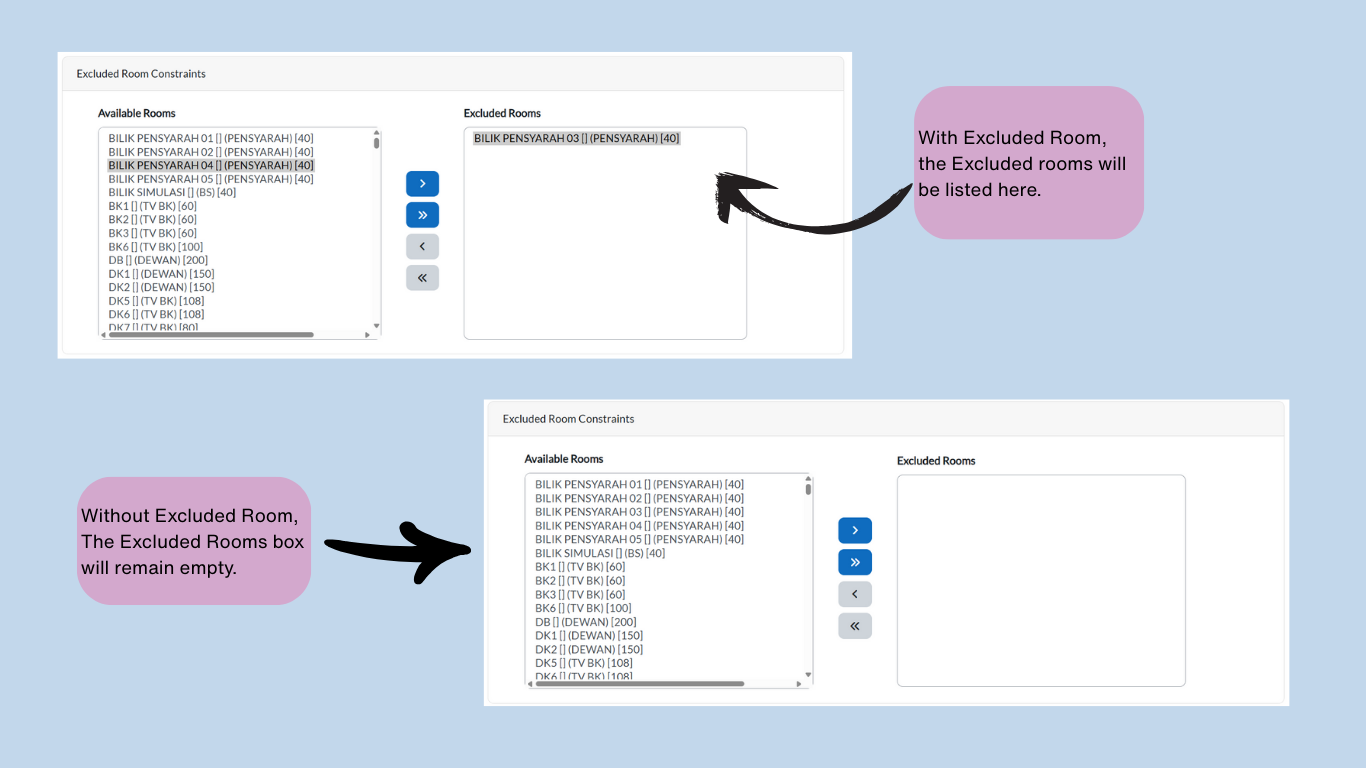
Still within the Lecturer Constraints page, go to 'Excluded Room Constraints'.
-
-
Exclude Rooms:
-
Available Rooms (Left): Lists all rooms
-
Click a room to highlight it blue.
-
Click the > button to move it to Excluded Rooms (Right).
-
Use >> to exclude all rooms at once.
-
-
Reallow a Room:
-
Select a room in Excluded Rooms (Right).
-
Click the < button to return it to Available Rooms.
-
Key Notes
-
Excluded Timeslot Constraints: Use this to block periods when the lecturer is unavailable.
-
Excluded Room Constraints: Use this to exclude rooms that the lecturer does not prefer for teaching.
-
Verification: Always double-check lecturer constraints before generating the timetable to avoid conflicts.