3. How to Input Data?
3.4. Step 4
Merge
After assigning courses and lecturers in Step 3, the next step is to merge subgroups that should be taught together at the same time.
This is especially useful when:
-
Different groups are taking the same course under the same lecturer.
-
Different course codes exist but the course name is the same, and they are taught together in the same session.
Merging Subgroups
-
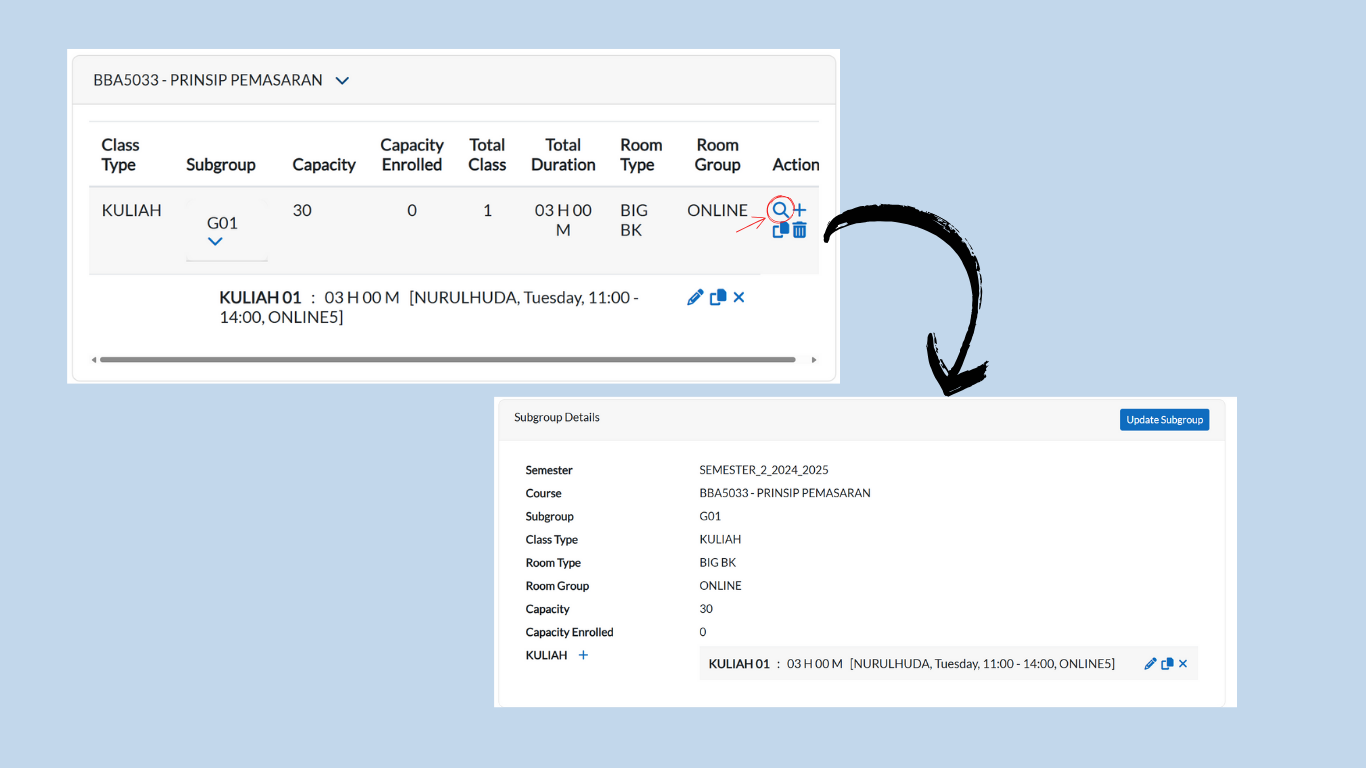
Still in the Subgroup List tab, locate the subgroup you want to merge.
-
Click on the magnifying glass icon next to the subgroup.
-
You will be redirected to the Subgroup Details page.
Using the Merge Group Tab
-
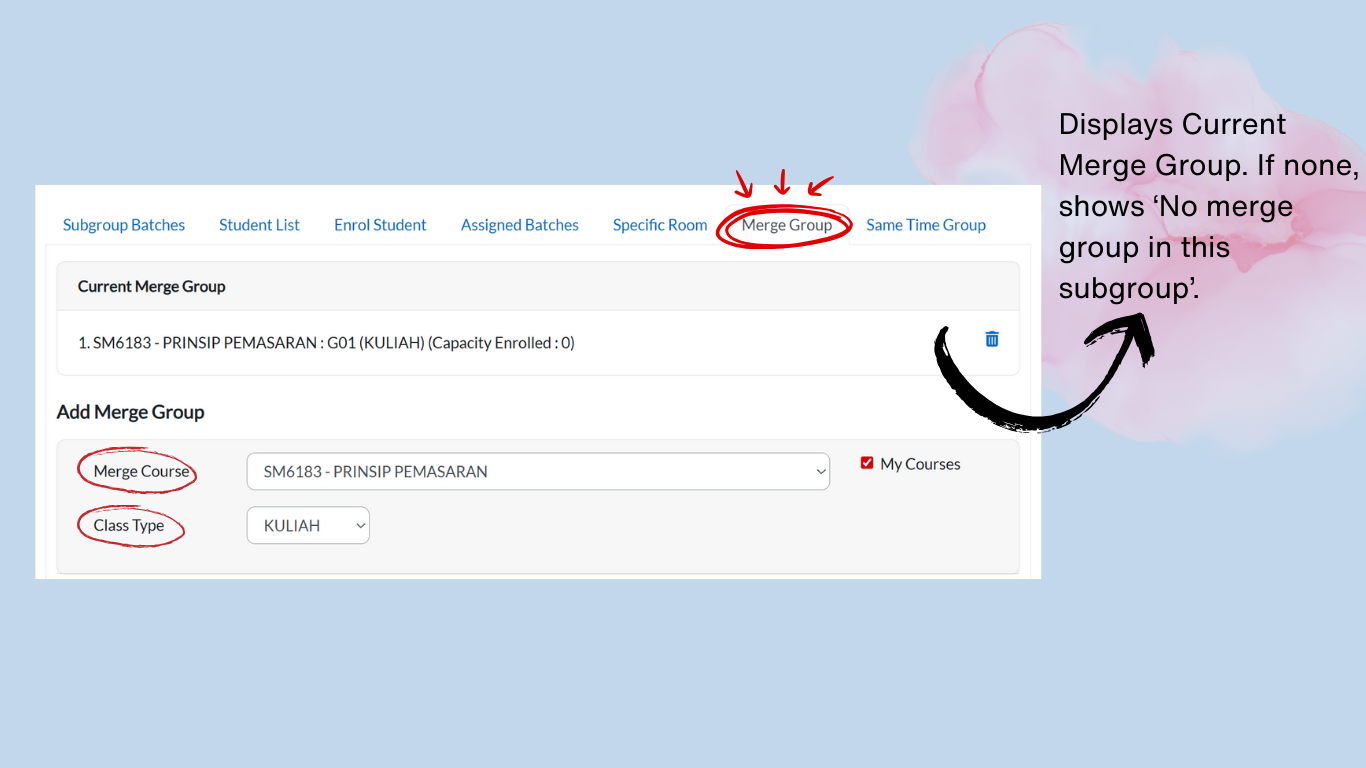
On the same page, go to the Merge Group tab.
-
Under Merge Course, click the dropdown button and select the course(s) you want to merge.
-
Under Class Type, click the dropdown button and select the appropriate class type.
Assigning Subgroups to Merge
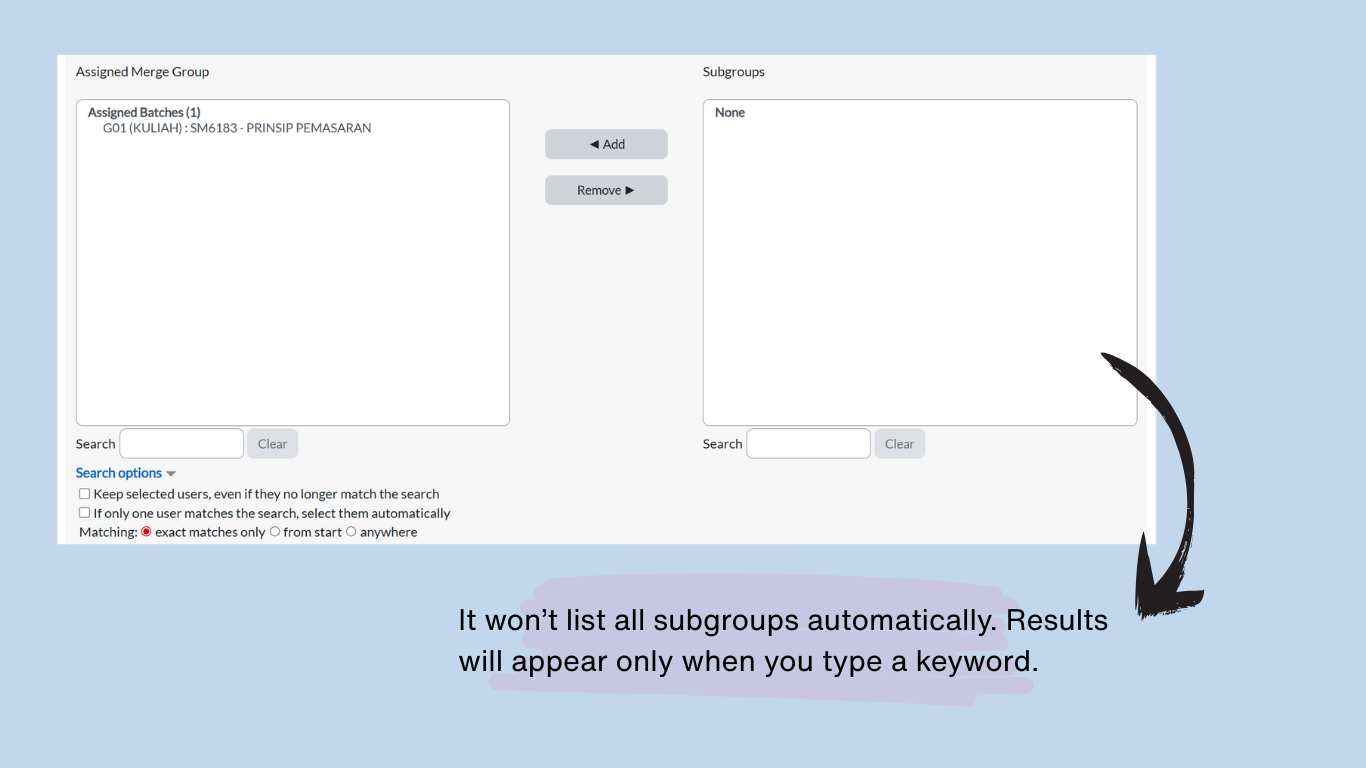
Below the dropdowns, you will see two boxes:
-
Left Box (Assigned Merge Group):
-
Displays subgroups already merged.
-
Use the Search field to find and remove subgroups.
-
-
Right Box (Unassigned Merge Group):
-
Displays available subgroups for merging.
-
Use the Search field to find and assign subgroups.
-
Steps to Assign/Remove Subgroups:
-
To Assign a Subgroup:
-
In the Right Box (Unassigned), search for the subgroup.
-
Click the subgroup name until it highlighted in blue.
-
Click Add — the subgroup will immediately move to the Assigned Merge Group (Left Box).
-
-
To Remove a Subgroup:
-
In the Left Box (Assigned), search for the subgroup.
-
Click the subgroup name until it highlighted in blue.
-
Click Remove — the subgroup will immediately return to the Unassigned Merge Group (Right Box).
-
Confirmation:
-
Changes apply automatically when you click Add or Remove.
-
Verify the Left Box contains only the subgroups you intend to merge.
Example of Merging
-
Courses with the following codes can be merged:
-
BBA5033 – Prinsip Pemasaran
-
SM6183 – Prinsip Pemasaran
-
-
Even though the course codes are different, the course name is the same, and both belong to Group 1, so they can be merged.
Reminder: Merging ensures that students from different groups but with the same subject will attend the class at the same time under the same lecturer, avoiding duplicate scheduling.
Note:
Do not merge groups if:
-
They have different lecturers.
-
They have different learning outcomes or syllabus coverage.
-
The subject name is similar but the content/structure differs.