3. How to Input Data?
3.3. Step 3
Course & Lecturer Assignment
Purpose: This step is where the admin assigns courses to lecturers and sets up class subgroups.
Accessing Course Data Entry
-
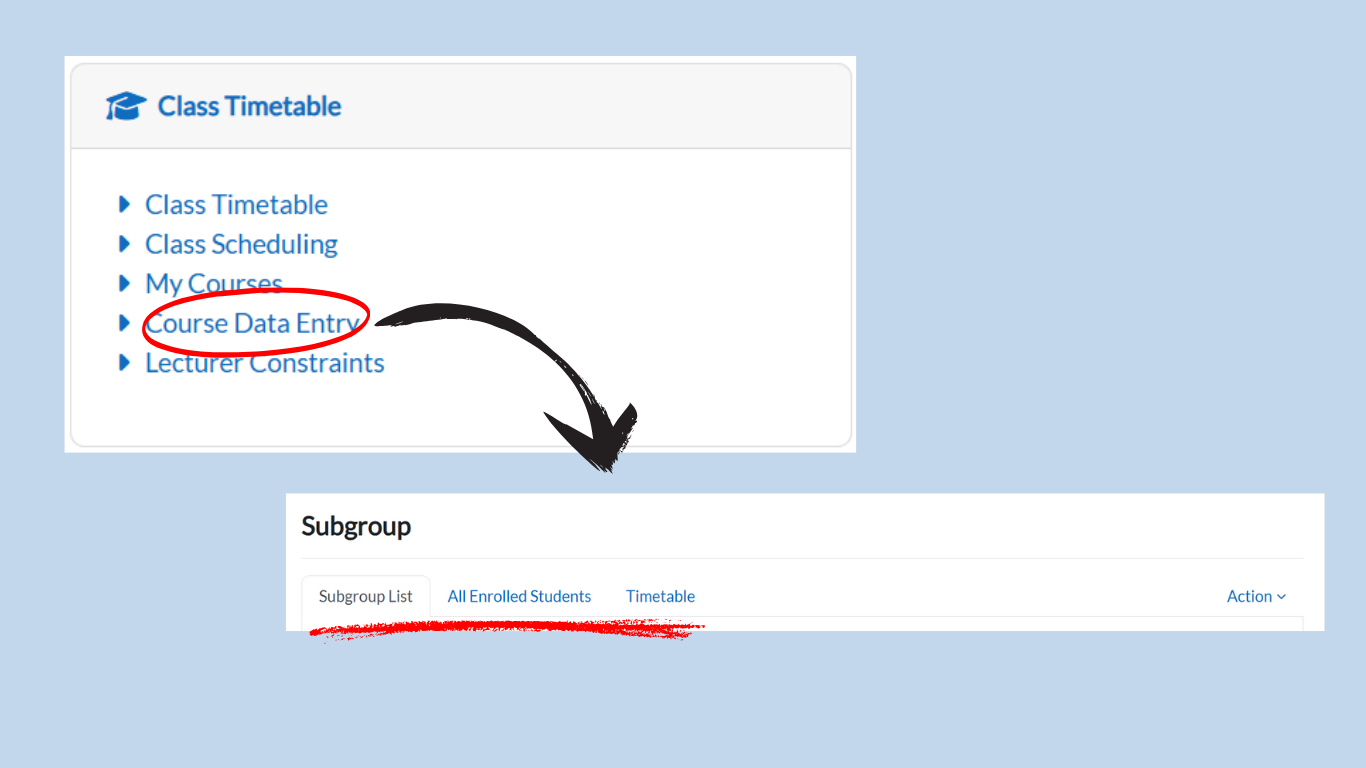
Under the Class Timetable card, click on Course Data Entry.
-
The system will display three tabs:
-
Subgroup List
-
All Enrolled Students
- Timetable
-
-
Begin with the Subgroup List tab.
Assigning Courses to Lecturers
-
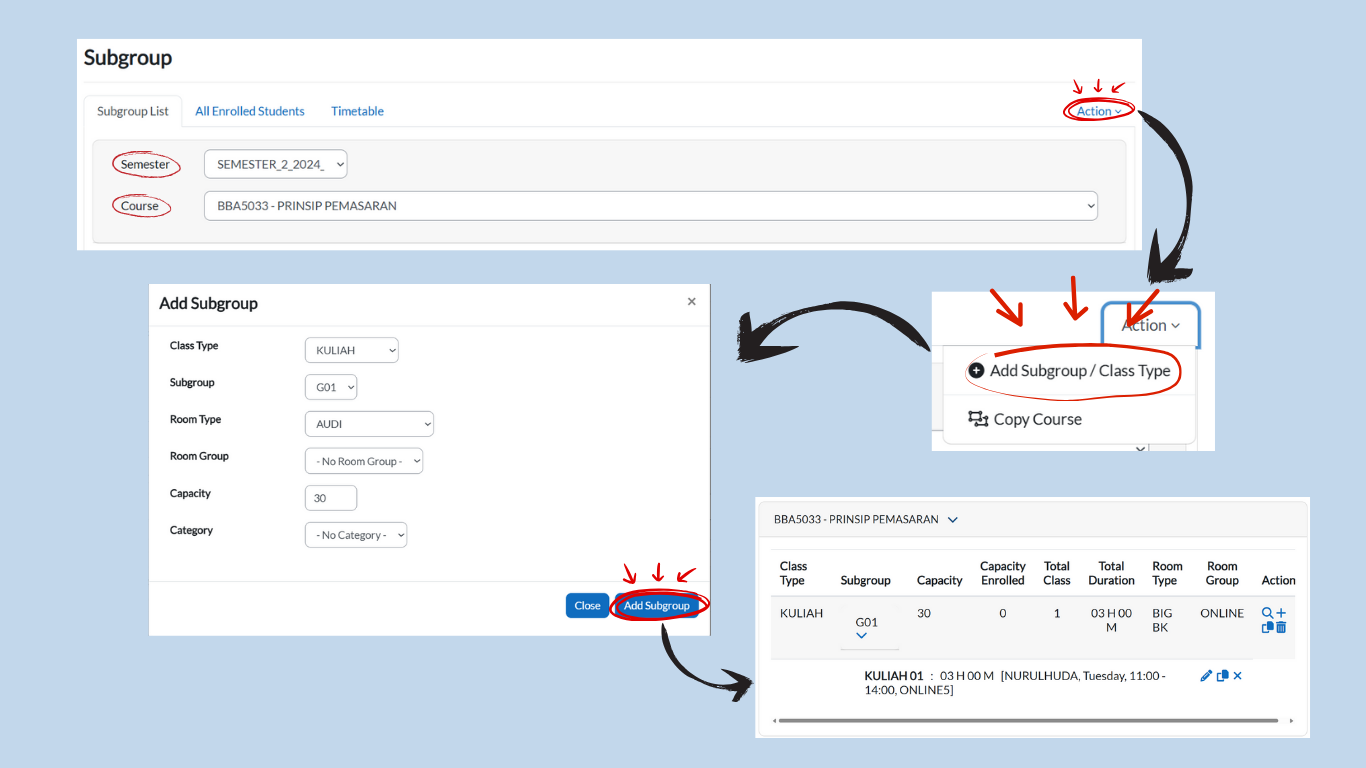
In the Subgroup List tab, select the semester from the dropdown menu.
-
Choose the relevant course.
-
Example: BBA5033 – Prinsip Pemasaran
-
Adding Subgroups / Class Types
-
Click on the Action dropdown button.
-
Select Add Subgroup / Class Type.
-
Fill in the required fields:
- Class Type
- Subgroup
- Room Type
- Room Group
- Capacity (enter the number of students manually)
- Category
-
The new subgroup will now appear in the list.
Editing Class Details
-
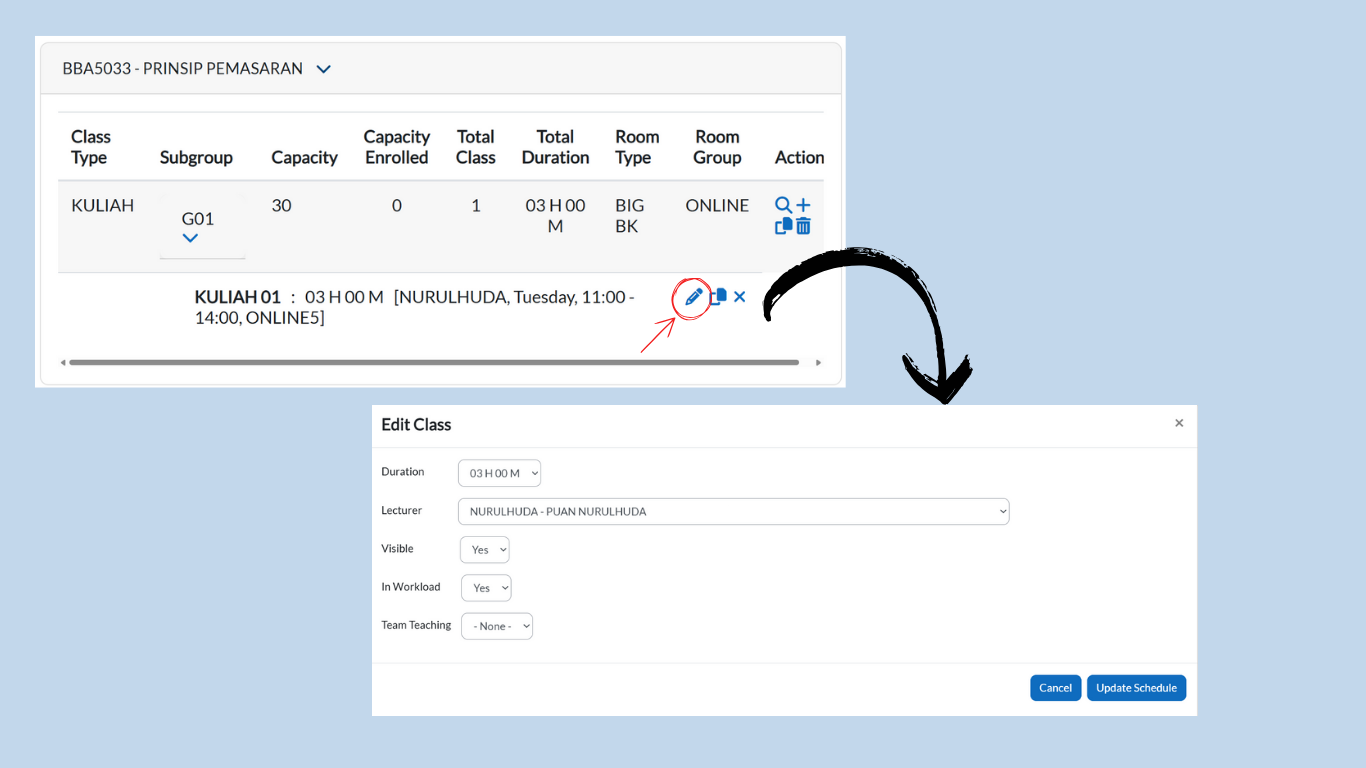
Click the pencil icon next to the created subgroup.
-
Update class details as needed:
-
Duration
-
Lecturer
-
Specific Room
-
Visible
-
In Workload
-
Team Teaching
-
-
Click the Update Schedule button to save the changes.
Repeat for All Courses
-
Continue this process for each course and lecturer until all assignments are complete.
Reminder: This step is critical for ensuring that lecturers, courses, and student groups are properly linked. Without completing this step, the timetable cannot be generated accurately.