5. Category Management
1. View Category List
- Navigate to the Category Management section.
- The system will display a table of all category records.
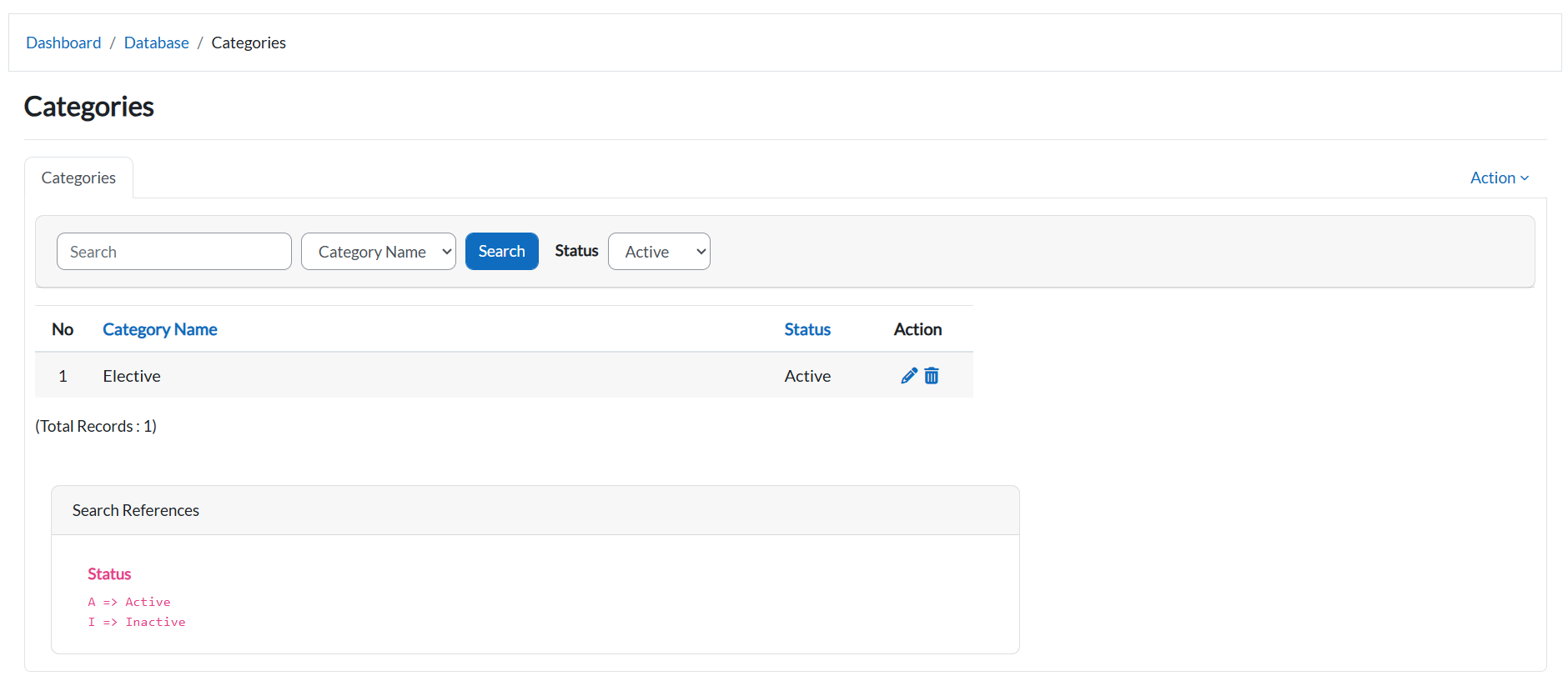
2. Filter by Category Name
- Click on the Category Name Dropdown button.
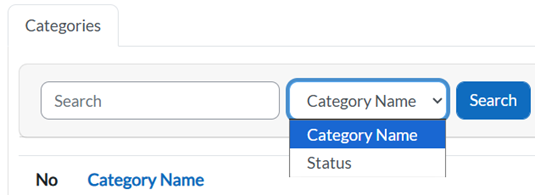
- Select a category from the list to filter and view its details.
3. Filter by Status
- Click on the Status Dropdown button.
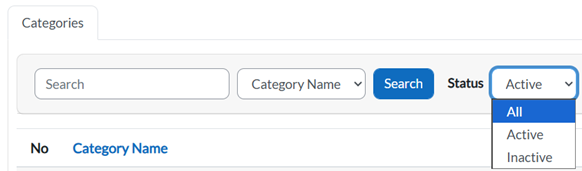
- Choose a status to display only categories with that status.
4. Edit Category Information
- Locate the category in the table.
- Click the Pencil Icon next to the category you want to edit.

- Update the details in the form.
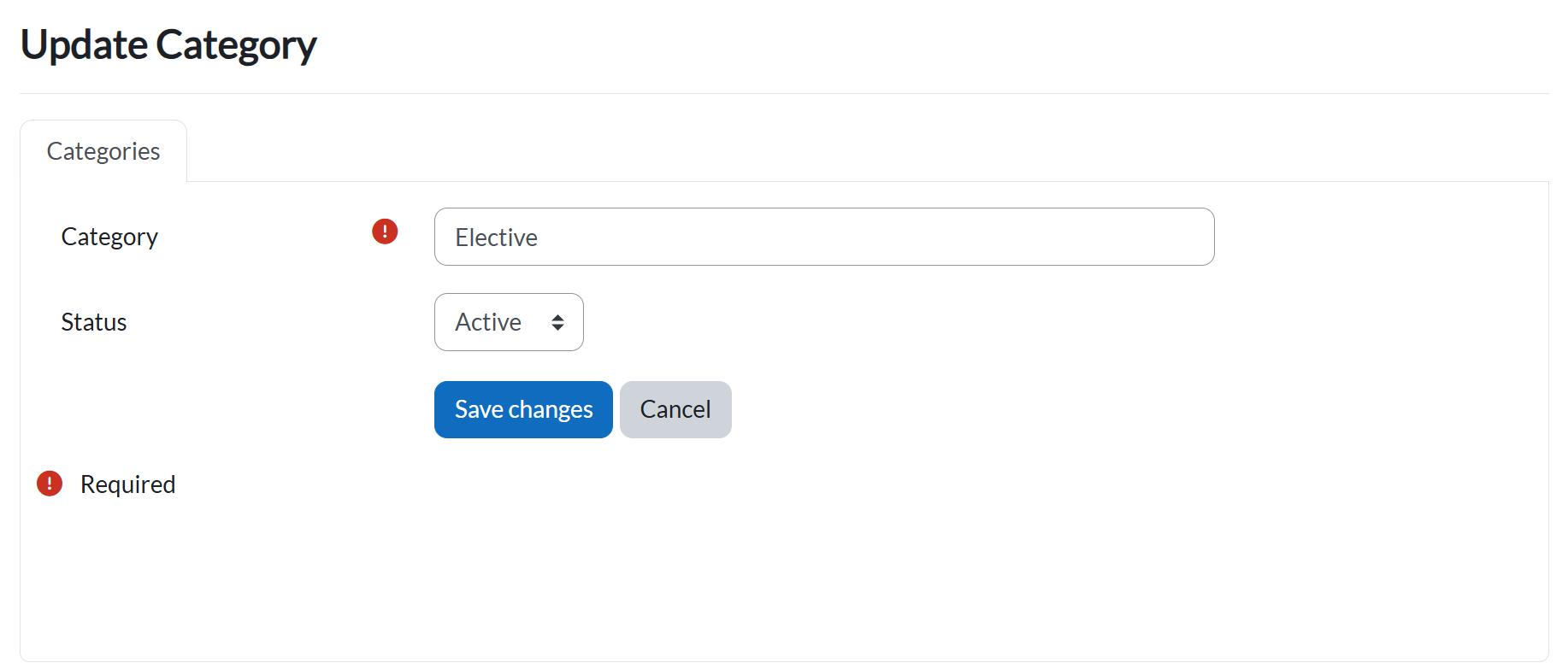
- Click:
- Save Changes to confirm.
- Cancel to discard.
5. Category Actions
- Click on the Action Button.
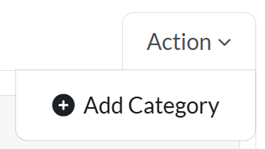
- Add Category button will be shown.
6. Add a New Category
- Click the Add Category button.
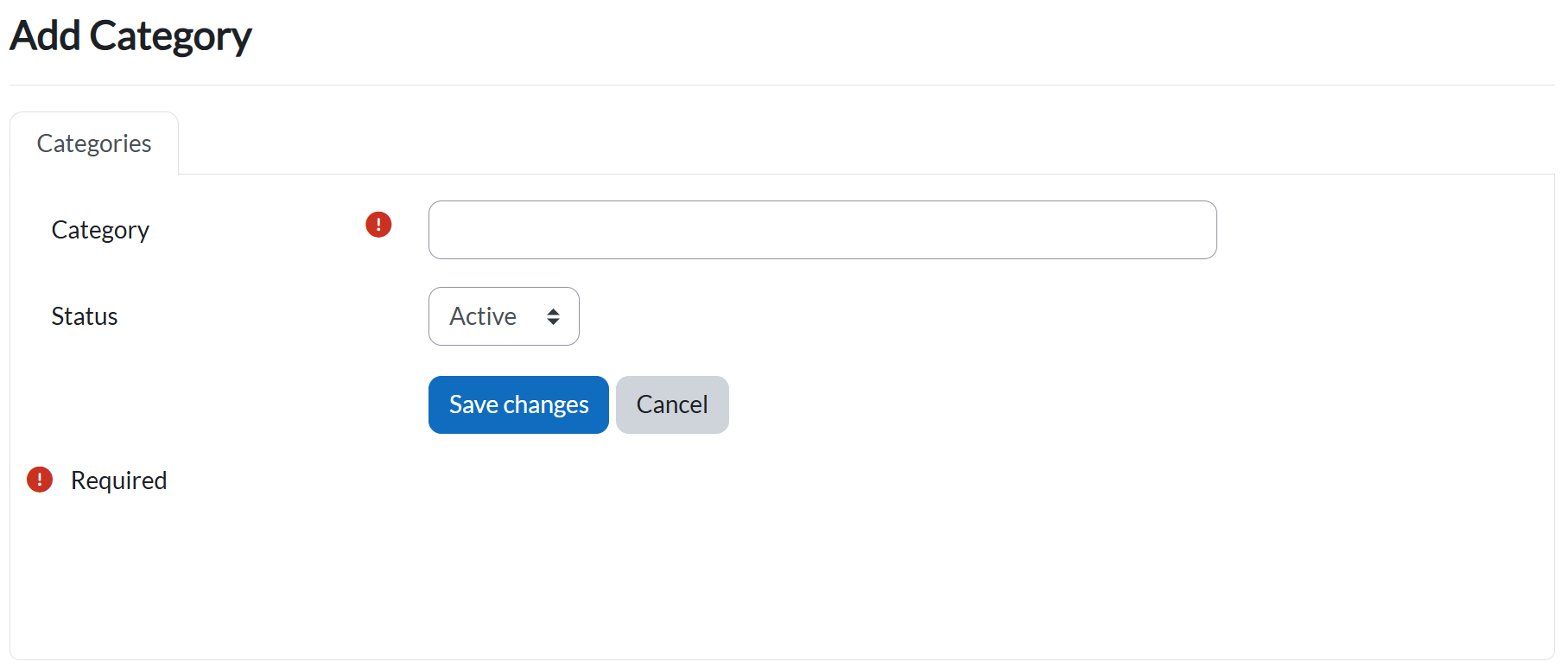
- Fill in all required fields (marked with !).
- Click:
- Save Changes to create the new category.
- Cancel to abort.
Key Notes
- Filtering: Use the dropdowns to quickly locate categories by name or status.
- Editing: Only users with admin privileges can update category details.