2. Auto Generated
2.3. Lock Assigned Sections After Generate
Once you have generated the timetable, it is important to lock assigned sections before you generate all or generate more included part to make sure the sections that has been assigned will not be generated again into another slot.
There are 3 simple steps to lock the assigned sections after generate.
STEPS 1: Right Click anywhere in the Timetable Output.
STEPS 2: Choose Lock Course and you may select to which slot to lock.
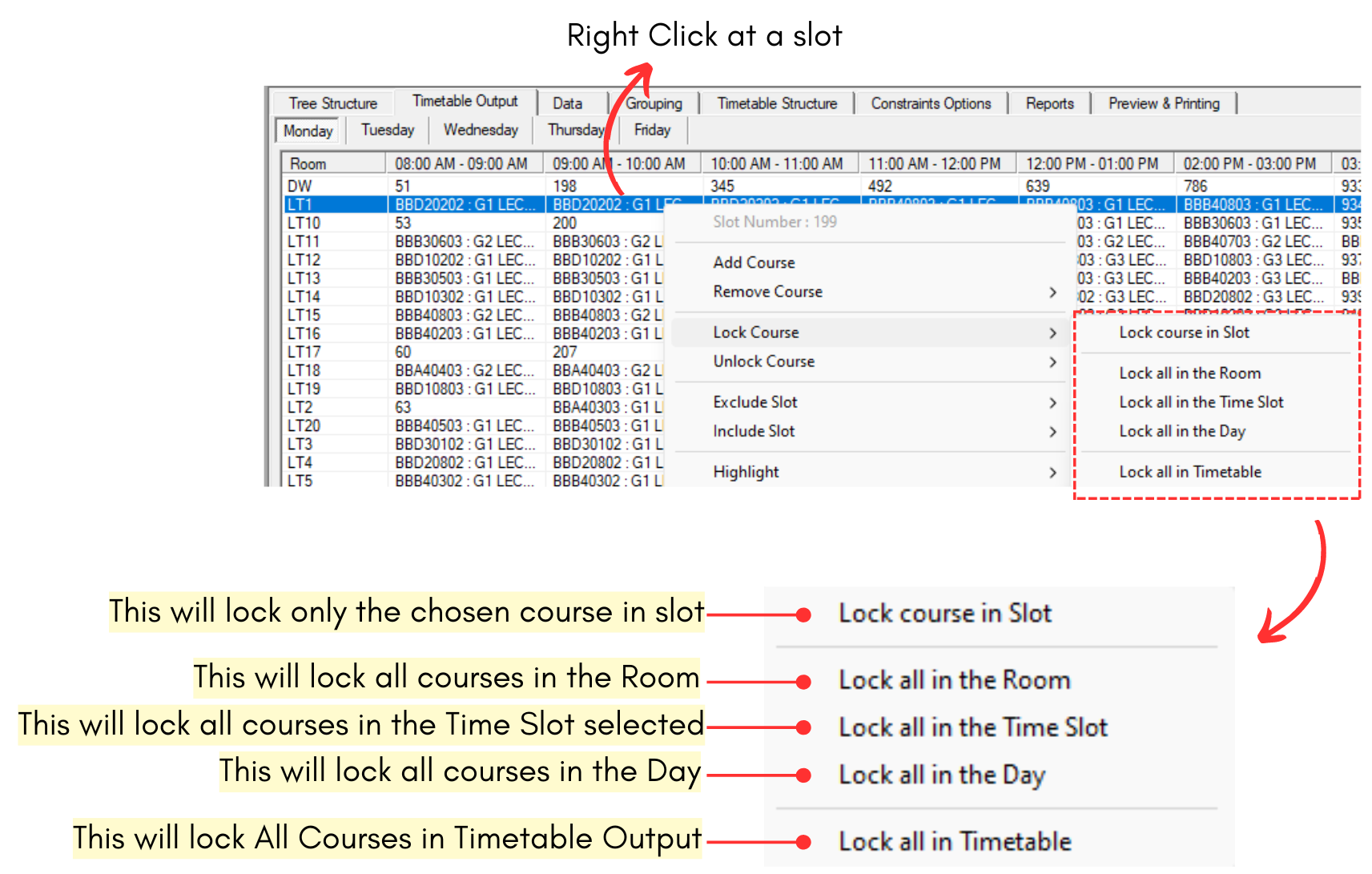
Diagram 2.3.1 Lock Section/Course in Timetable Output
STEPS 3: To Lock All, Click on Lock All in Timetable.
Now, locked sections in slot will be shown in grey and when you generate other sections, locked section wouldn't be generated again and will stay at the same slot.
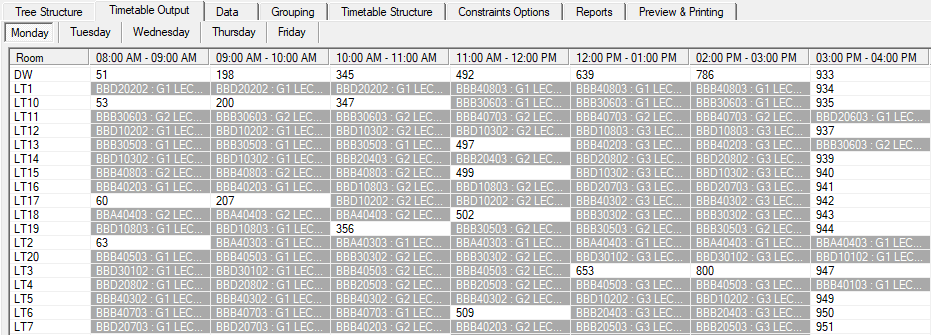
Diagram 2.3.2 Grey Colour Lock Section/Course in Timetable Output
You may repeat the step Include Section to Generate/Slot into to choose the next desired sections to generate first.
Or to Generate All, you go to Timetable and choose Include All Sections under Include/Exclude Sections.