1. Merge Group & Same Time Group Analysis & Editing
1.2. Same Time List
In Same Time List, there are few things you can analyze under the same time group which is:
- Group
- Section Name
- Room
- Class
- Lecturer
To locate the Same Time List, you may go to Data and select Same Time List.

1.2.1 Location of Same Time List in Data
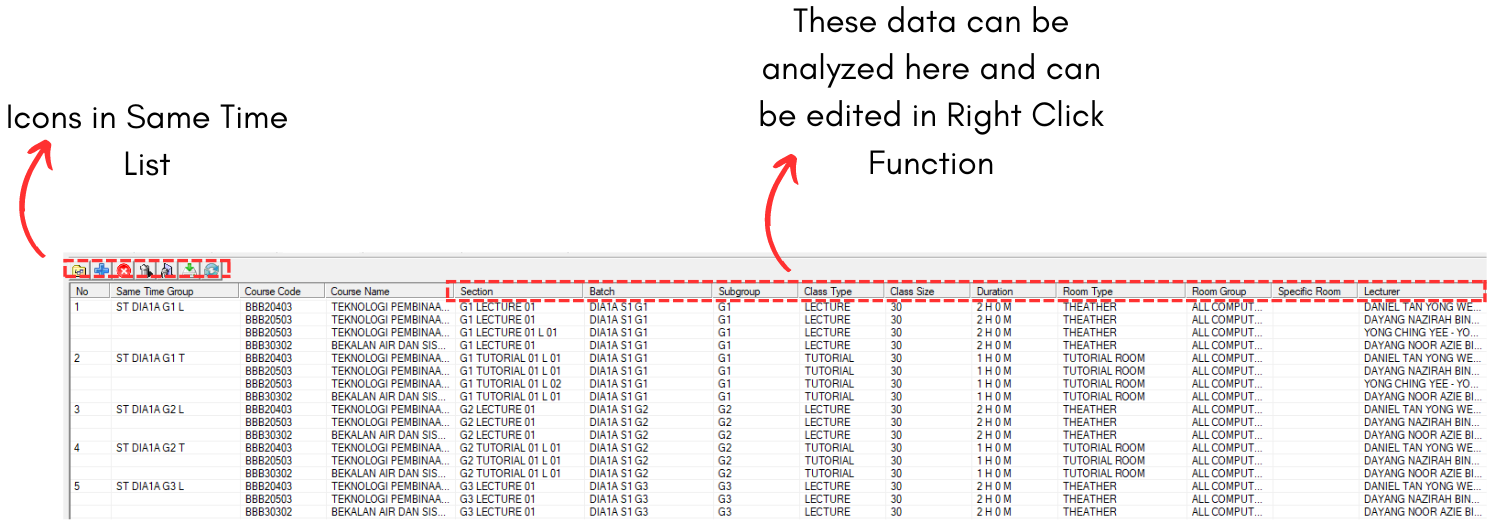
1.2.2 Data Same Time List Window
There are few icons that need to be studied in Same Time List Data.

 |
Click this icon to add new same time group. |
 |
Click this icon to add section to same time group. |
 |
Click this icon to delete section from same time group. |
 |
Click this icon to delete same time group. |
 |
Click this icon to delete all same time group. |
 |
Click this icon to import same time group from SIS. |
 |
Click this icon to refresh same time list. |
Analyze Same Time List Data
It is important to analyze the data that has been input typed in to avoid any further mistakes happening with the timetable output. Refer to the table and diagram below to know on how to analyze the same time list data.
|
Group |
Check if the Merge and Batch Group is correct |
|
Section Name |
Check if the section name is right and no typograpical error. |
|
Capacity |
Check if the merge group ignore capacity, the total capacity combine value and merge capacity value. |
|
Room |
Check if the room type is correct |
|
Class |
Check if the class size and class type is correct |
|
Lecturer |
Check if the lecturer's name is correct and if it placed under the right course. Check if the lecturer has been assigned to the course as well. |
Table 1.2.1 Same Time List Data Analyze
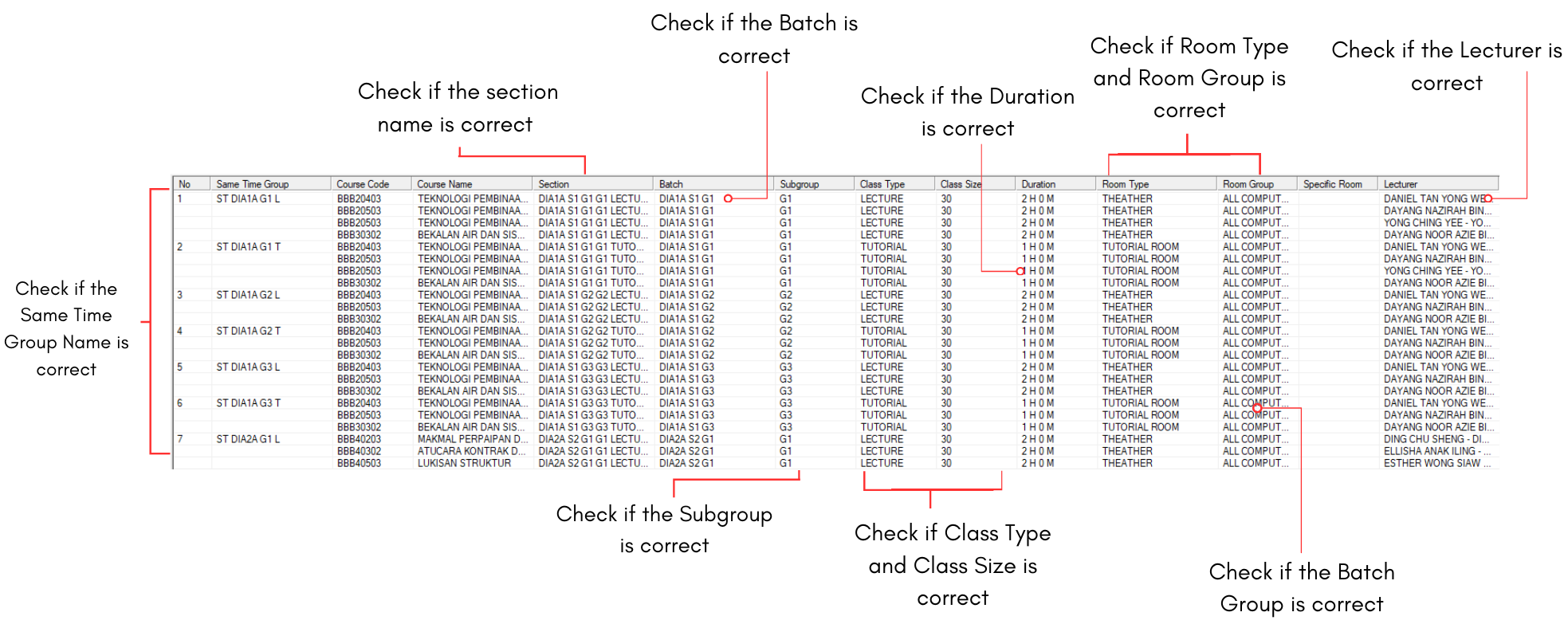
Diagram 1.2.3 Same Time List Data Analyzation
Editing The Same Time List Data
If there are incorrect input data in lecturer list, use right click function on the section and select Section Properties.
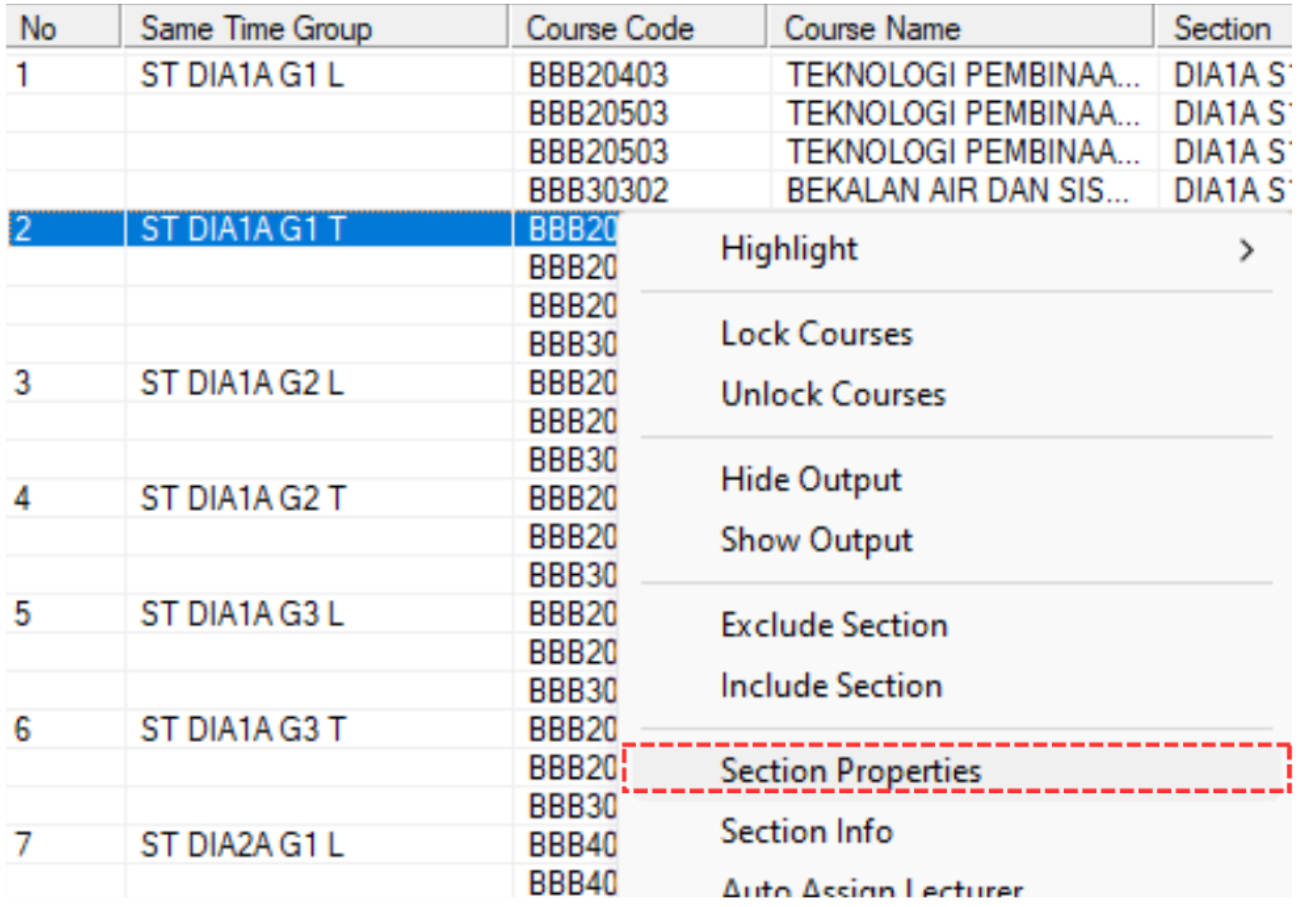
Diagram 1.2.4 Opening Section Properties
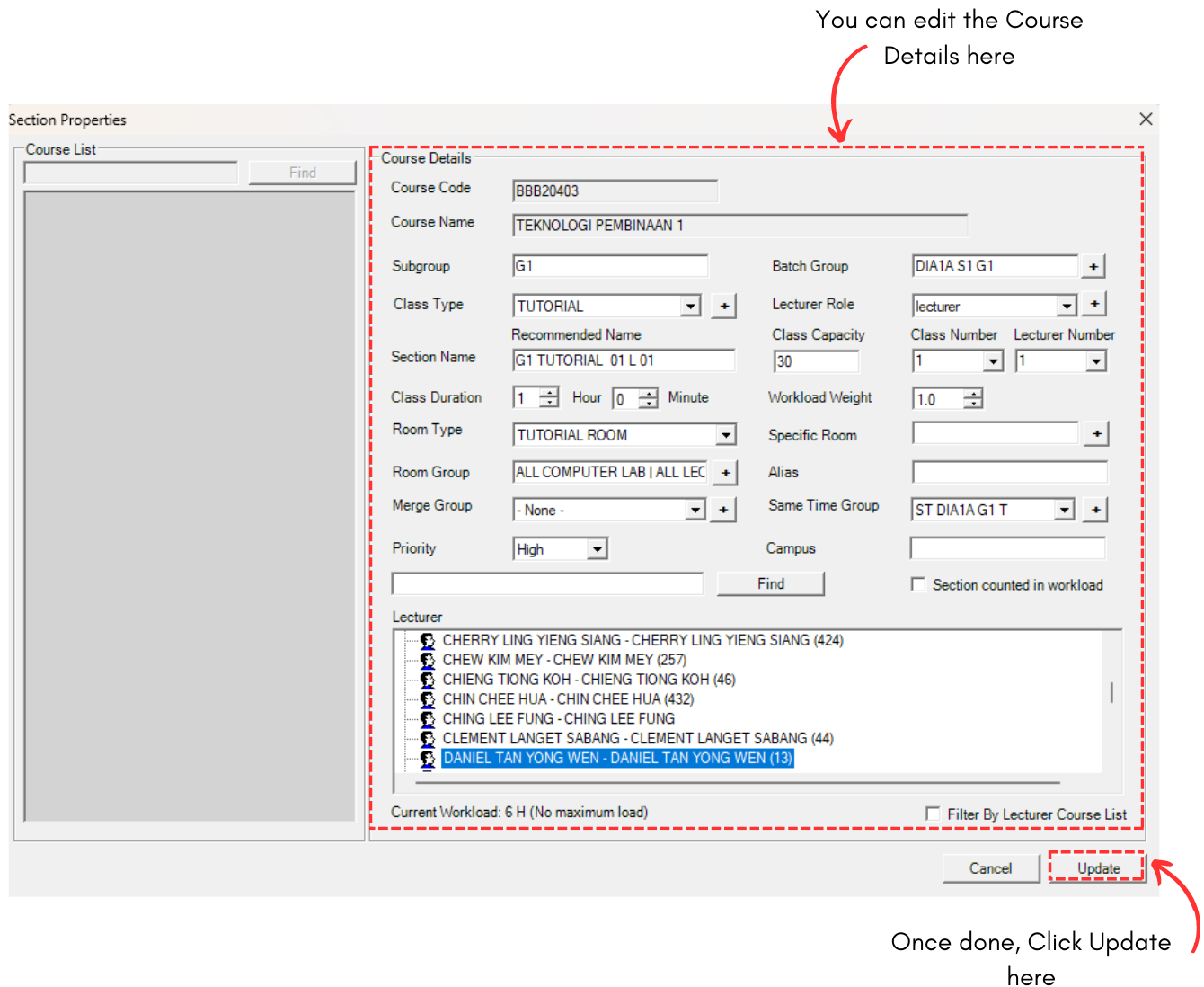
Diagram 1.2.5 Section Properties