3. Exclude and Include
3.2. Include Section at Custom Section Actions
You may include the preferred sections to generate the courses well. For example, we want to generate the courses or section with the largest amount of students first.
There are 4 simple steps to include section at Custom Section Actions.
STEPS 1: Go to Timetable Menu and Select Custom Section Action.

Diagram 3.2.1 Location of Custom Section Actions
Custom Section Actions window will appear.
STEPS 2: Fill in the Details in Custom Section Actions. Refer to the diagram below.

Diagram 3.2.2 Custom Section Action
Including the largest combined capacity is recommended. However, you may also choose to include your preferred section by other important criteria as well.
STEPS 3: Click Ok once done.
STEPS 4: A confirmation popup will appear. Click Yes.
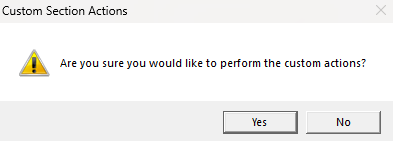
Diagram 3.2.3 Confirmation Popup
Once you have include the preferred section, you may view the Included Sections at Course Status - Included Sections.
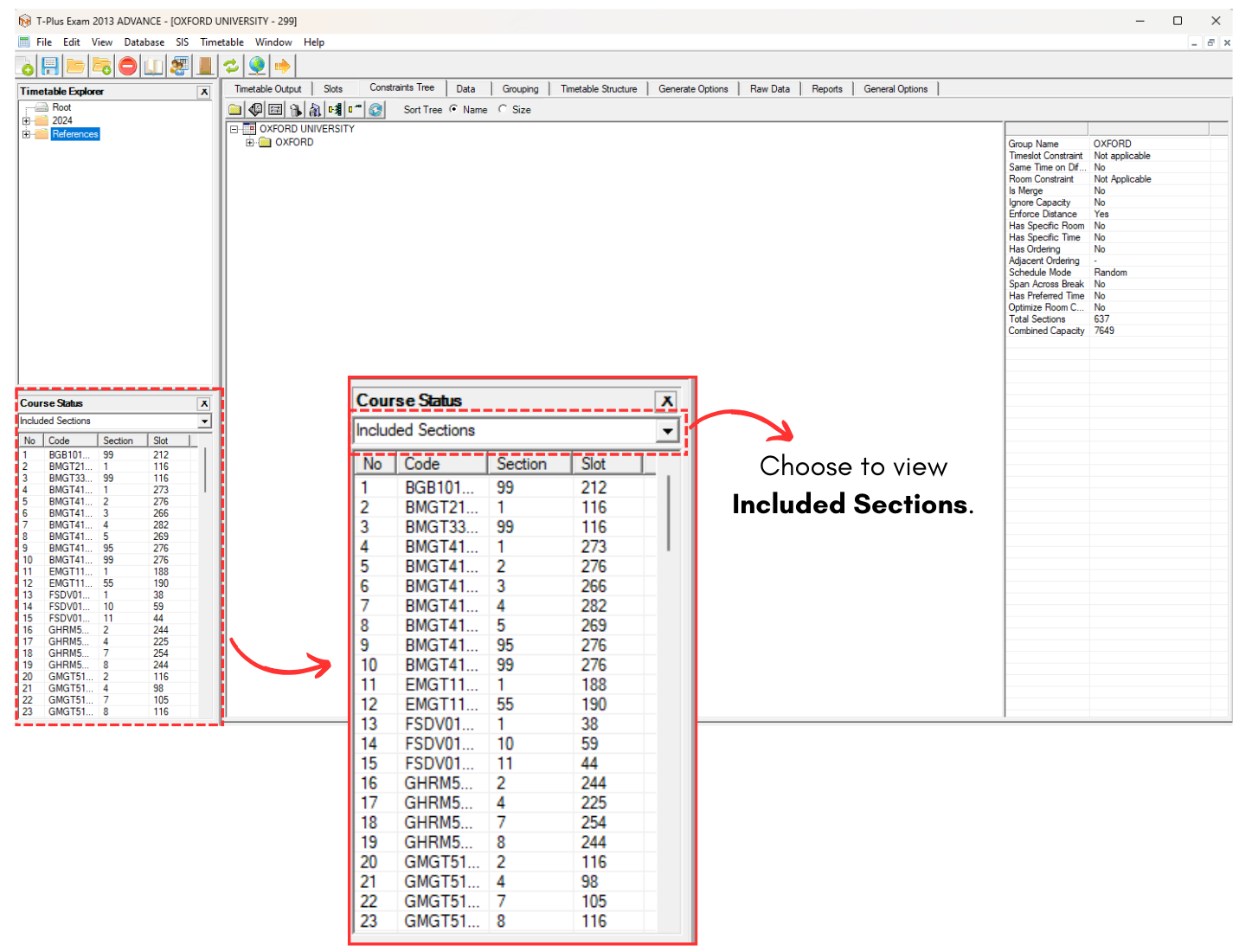
Diagram 3.2.4 Location of Course Status