1. Process Raw Data
1.2. Lecturer-Course Raw Data
In this Chapter you will learn about Process Lecturer Raw Data

Diagram 1.2.1 Location Of Lecturer Raw Data
Click Raw Data tab and then Click Lecturers Raw Data tab to open up Lecturer Raw Data window.
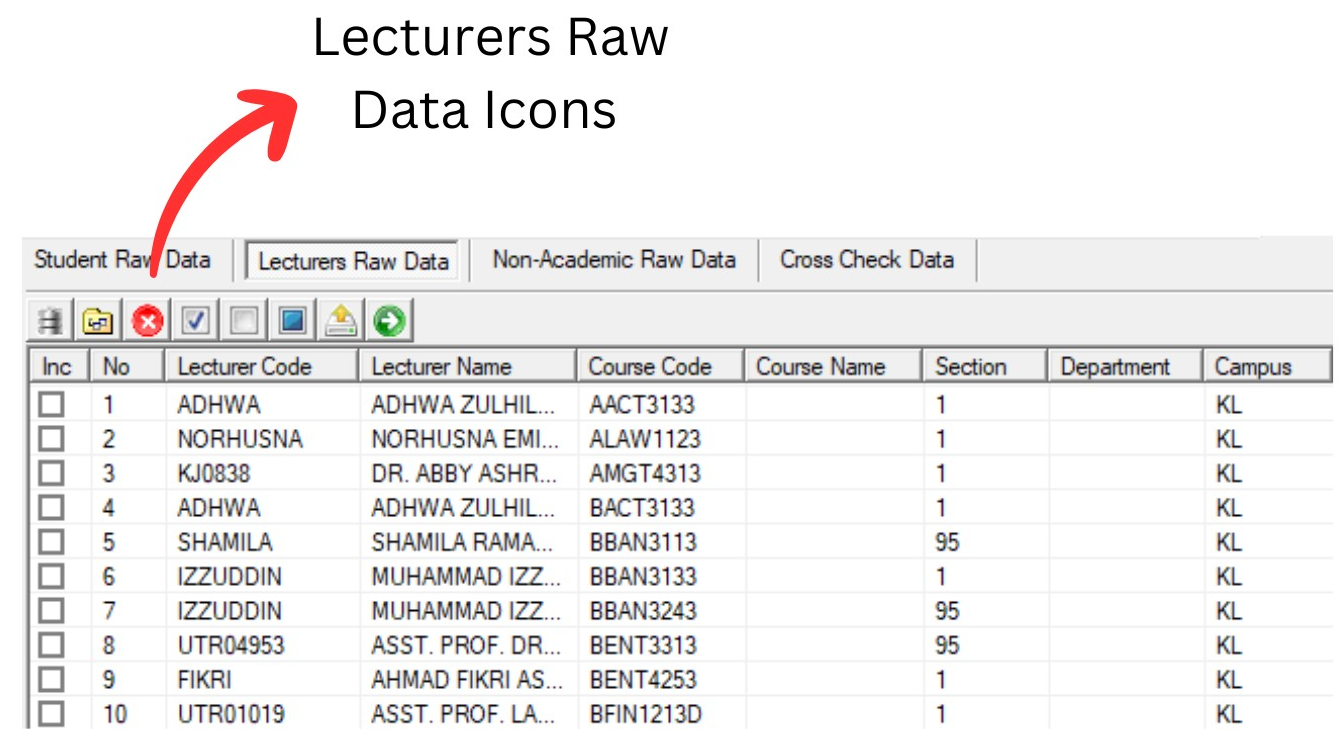
Diagram 1.2.2 Lecturers Raw Data Window
Inside Lecturers Raw Data window, you will be able to see icons on the top left side.

 |
Click this icon to import data. |
  |
Click this icon to delete checked data. |
  |
Click this icon to replace field text. |
  |
Click this icon to delete fields. |
  |
Click this icon to check All. |
  |
Click this icon to uncheck all. |
  |
Click this icon to toggle checked. |
 |
Click this icon to check by course code. |
There are 3 simple steps to process Lecturer Raw Data.
STEPS 1: Click Check All Icon
to Check All Lecturer Raw Data.STEPS 2: Click Convert to Invigilator Icon

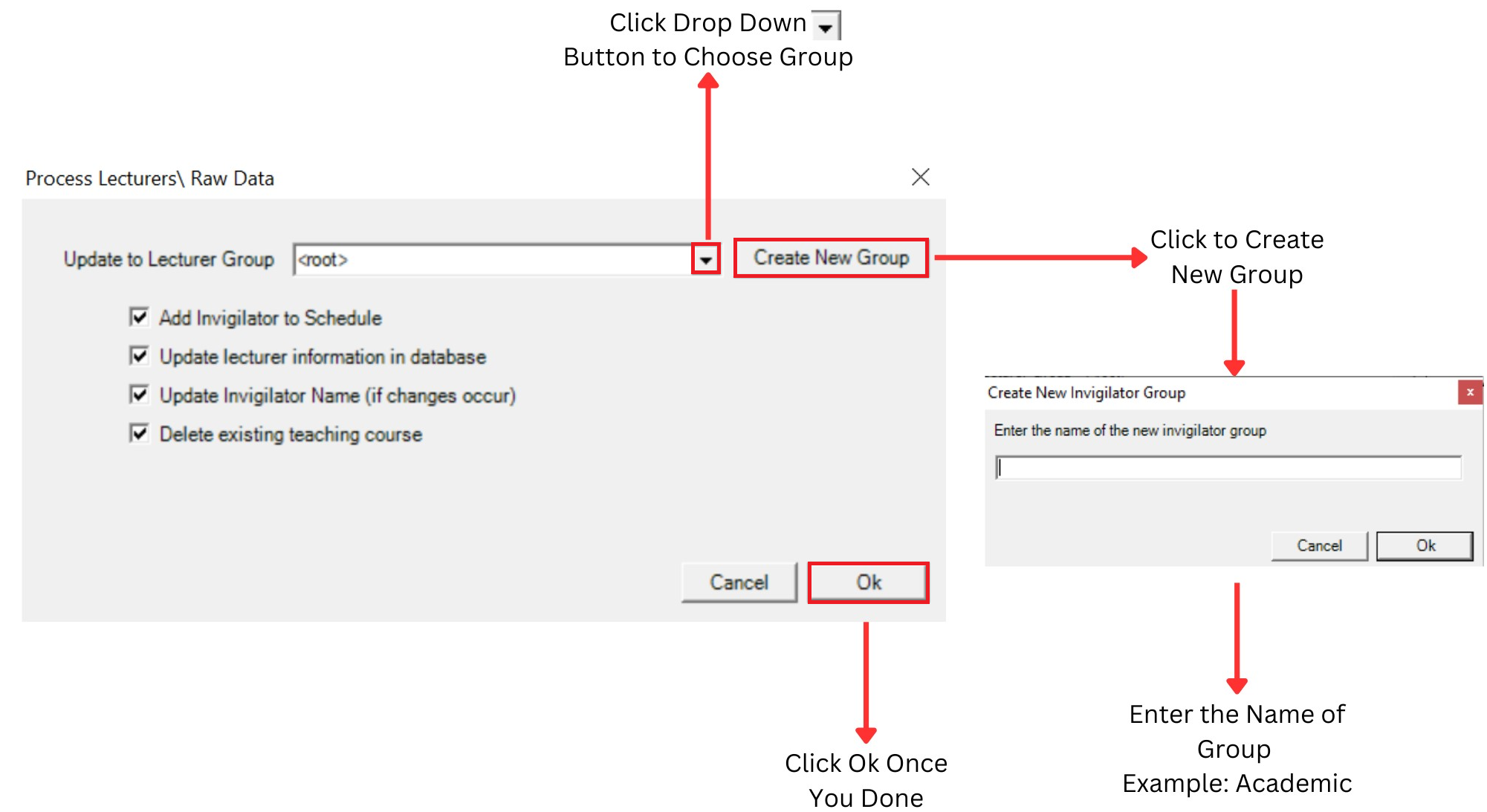
Diagram 1.2.3 Process Lecturers Raw Data
Create new group then Click drop down button to choose group that you want to Process.
- You can Tick to Add invigilator to schedule
- You can Tick to Update lecturer information in database
- You can Tick to Update Invigilator name (if there is any changes)
- You can Tick to Delete existing teaching course
STEPS 3: Click Ok to Start Process.