1. Set Constraint at Generate Option

Diagram 1.1 Location of Seating Arrangement in Generate options
Click Generate Option tab and then click Seating Arrangement to set Seating Arrangement Constraint.

Diagram 1.2 Seating Arrangement Window
1. Seat Numbering

Diagram 1.3 Seat Numbering
- Continuous = Continuous numbering from 1 to the last seat. For example the seat numbering would be : 1,2,3.....90.
- Excel Row-Colum Layout = The numbering will be based on the layout of Excel Row-Column. Please refer to the picture given as the sample.
2. Student Exam Venue Display
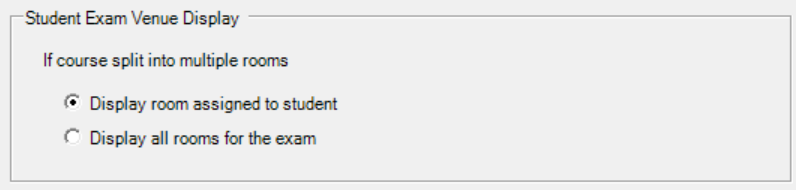
Diagram 1.4 Student Exam Venue Display
If the courses split into multiple rooms due to the capacity, you may choose to display room assigned to student or display all rooms for the exam. This can be seen at Slot and Course-Student List
3. Seating Arrangement Options

Diagram 1.5 Seating Arrangement Options
4. Numbering Gap Between Courses

Diagram 1.6 Numbering Gap Between Courses
5. Allocate and Reset Seat

Diagram 1.7 Allocate and Reset Seat
- Allocate Seat = Assign Seat to the student.
- Reset Seat = Reset or remove seat after has been assigned.