2. Editing
2.2. Auto Generate/Manually Slot
1. Auto Generate
For Auto Generate  , you may generate as many time as you wish. But reminder:
- Always AUTO GENERATE more than once OR stop AUTO GENERATE with minimal number of failures.
- You have 2 choices which are:
- LOCK ALL Assigned sections before proceed to generate more.
- Continue Generating WITHOUT locking the Assigned sections. (All the Assigned, Included, Not Assigned and even Unlocked Sections will be Auto Generated together with the possibility being assigned to new slots or Not Assigned)
Let's say you want to generate ONLY ONE SECTION/COURSE/GROUP. So you have to do Auto Generate From This Location at Tree Structure.
Right Click on the Course Folder OR Section that you want to generate at Tree Structure.
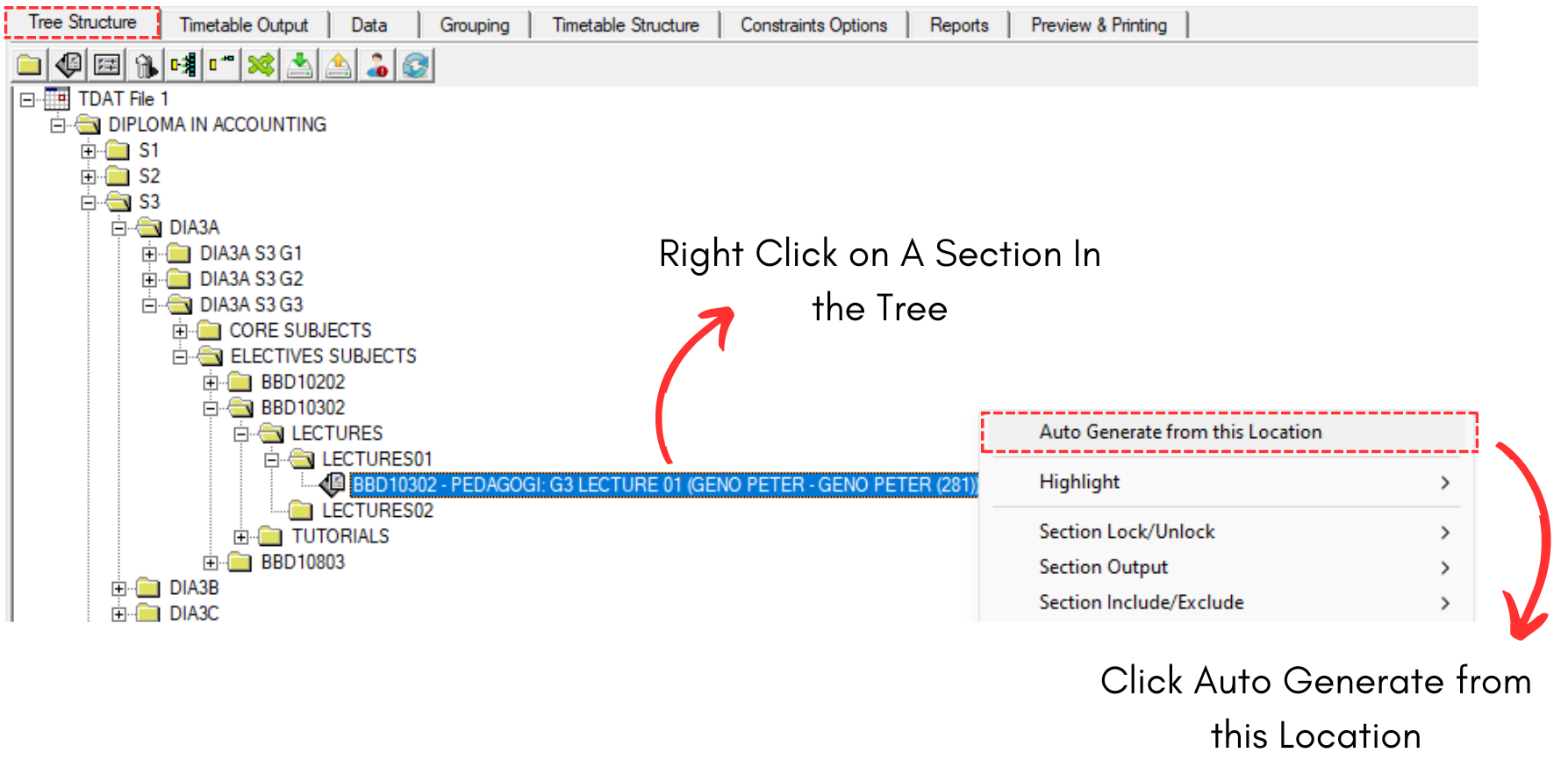
Diagram 2.2.1 Right Click Function
Generate Schedule Pop Up will appear.
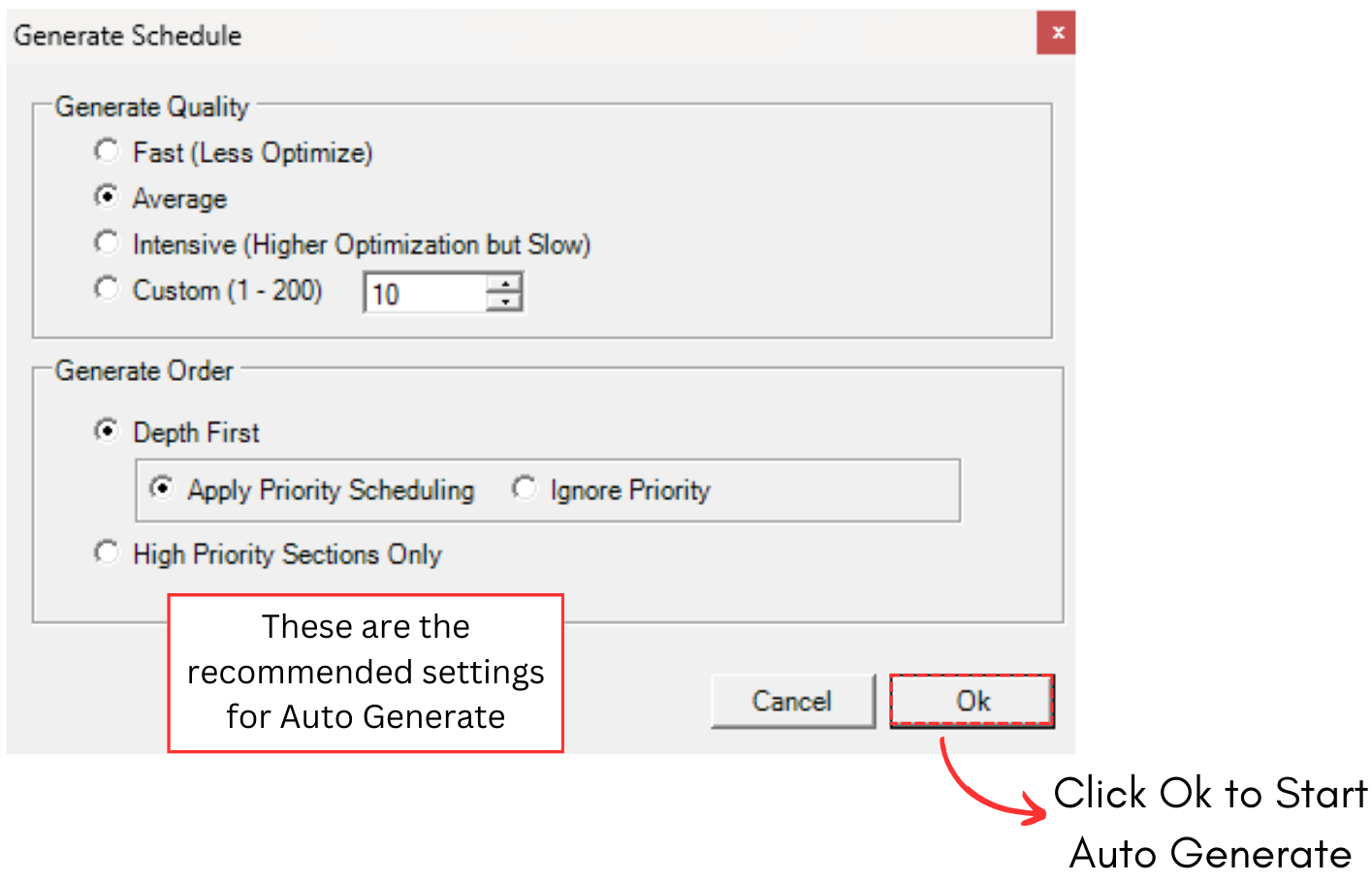
Diagram 2.2.2 Generate Schedule Popup
To know where does the section generated at, you may refer to the Section Details.
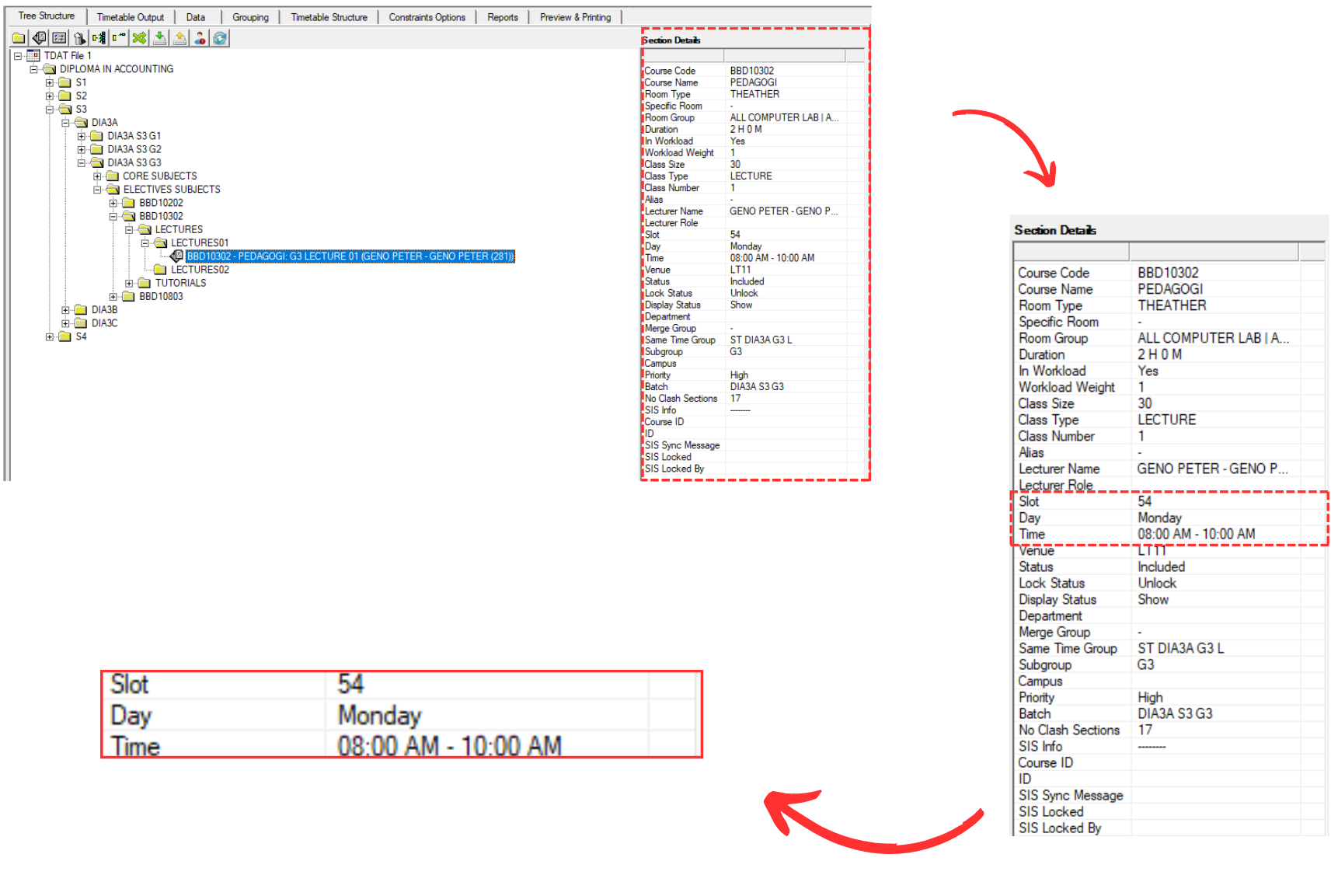
Diagram 2.2.3 Section Details
Note that, if you click on Folder to Auto Generate From This Location, it will ONLY generate the sections based on Parent and Child concept. Which means that ONLY sections under the folder selected will be generated into the timetable output.
2. Manually Slot
For Manually Slot, you may also refer to previous stage which is Stage 8: Auto Generate & Manual Allocation (Manual Allocation)
But for Manually Slot, it is advisable to do the highlight especially for Batch and Lecturer. You may refer to this stage which is Stage 9: Post-Generate Analysis & Editing (Highlight)