2. Editing
2.1. Remove of Course/Section
After generate, you might want to remove section in the slot. There are a few locations to remove section in the slot which is:
- Timetable Output
- Tree Structure
- Course List
- Batch Group
- Lecturer List
I. Remove From Timetable Output.
If you have the section locked on the slot, unlock the slot first.
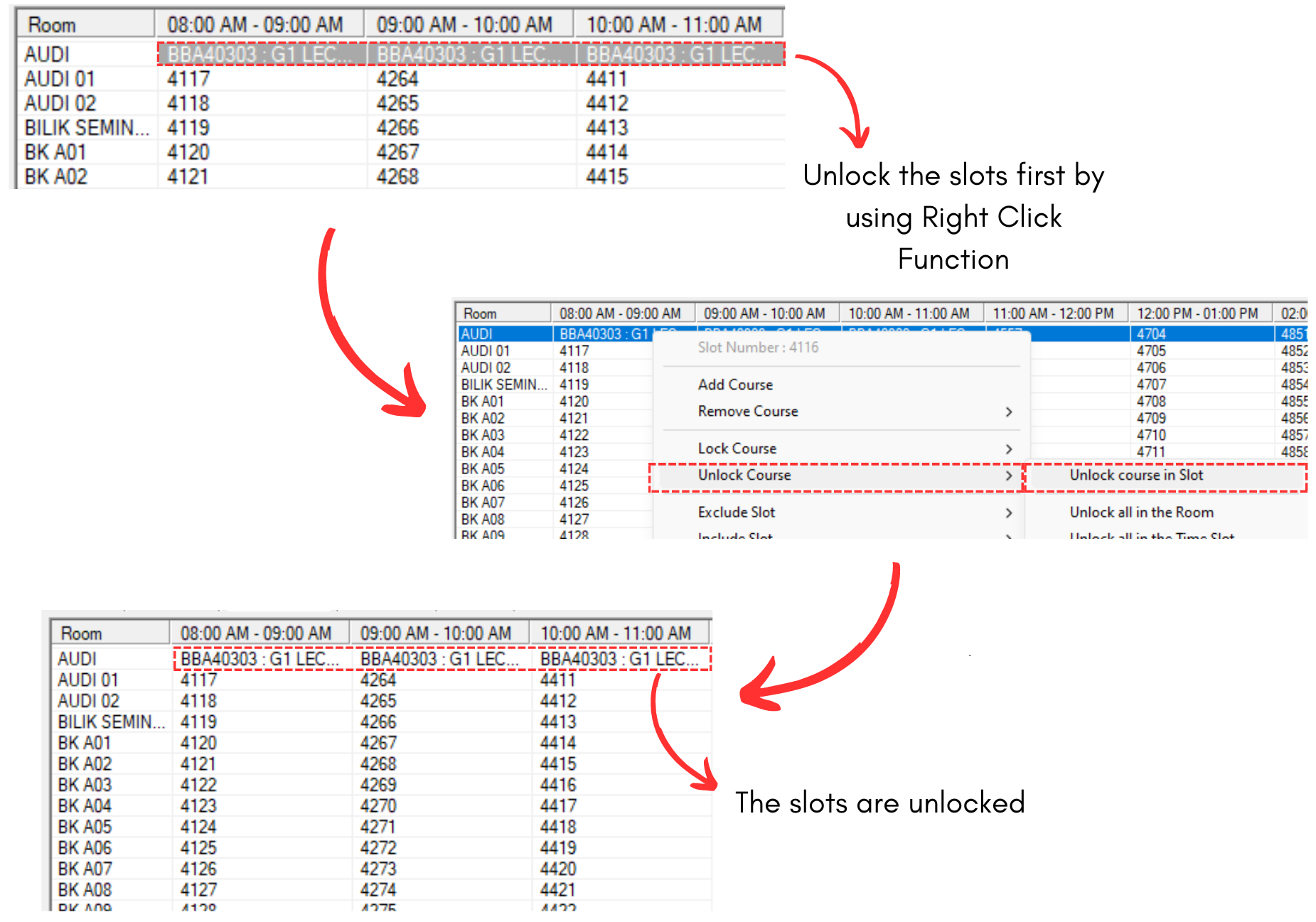
Diagram 2.1.1 Unlock the Slots
To remove a section from the slot, simply right click the section in the slot.
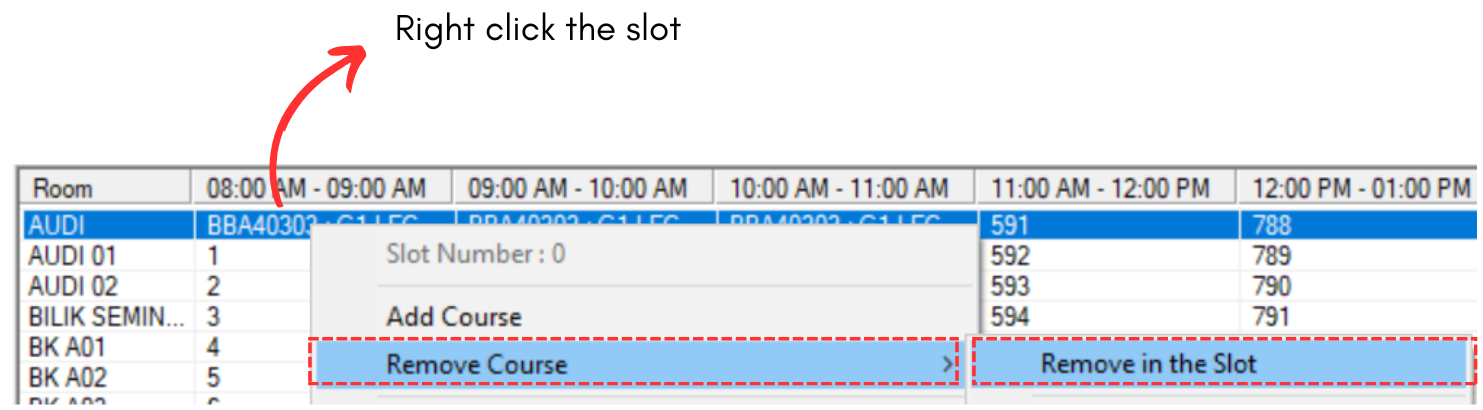
Diagram 2.1.2 Location of Remove in The Slot
If you have more than one sections in the slot, a Remove Course window will appear.
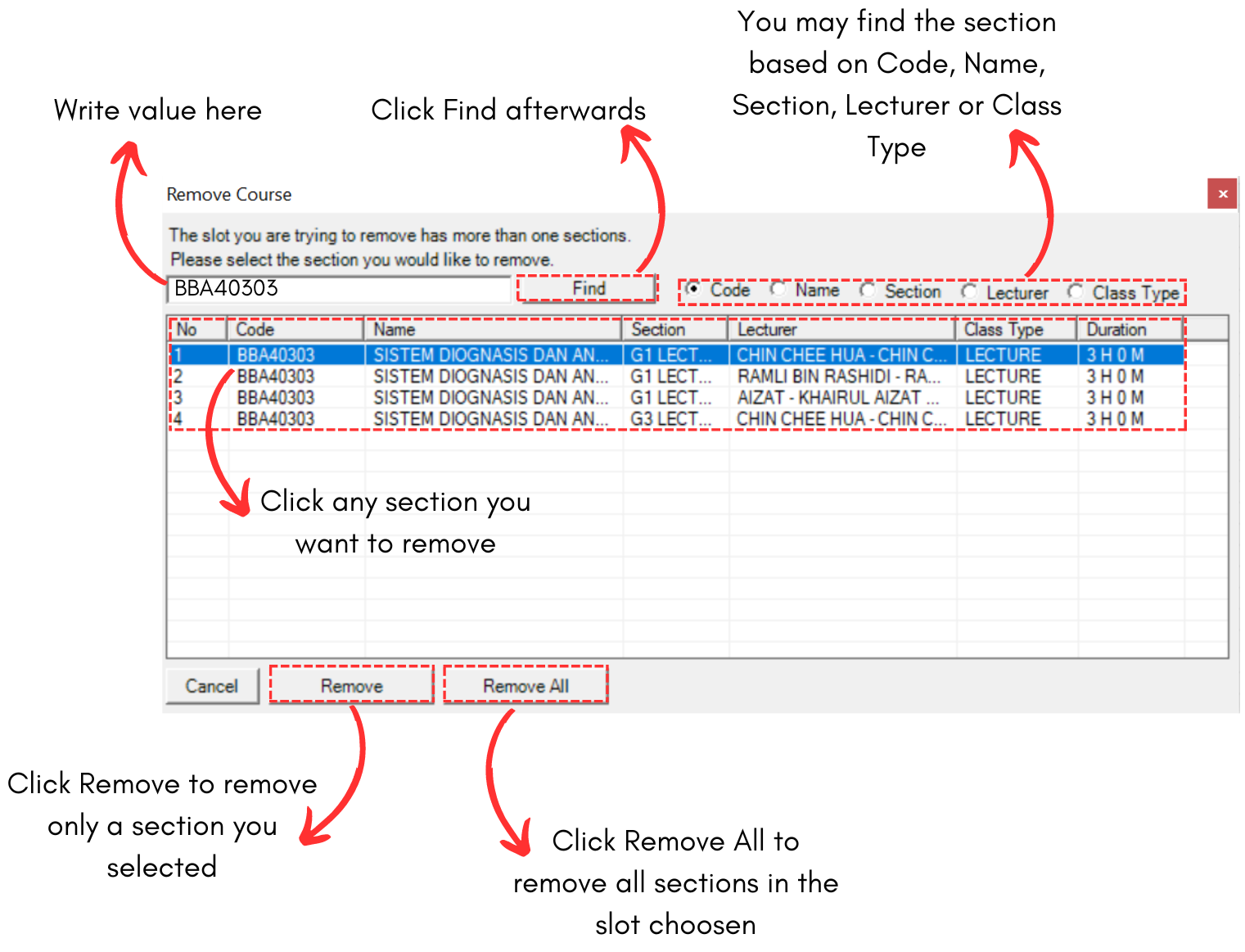
Diagram 2.1.3 Remove Course Window
A confirmation popup will appear. Click Yes.
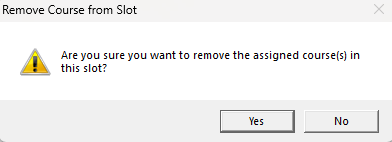
Diagram 2.1.4 Confirmation Popup
II. Remove From Tree Structure
If you have the section locked on the Tree Structure, unlock the section first.
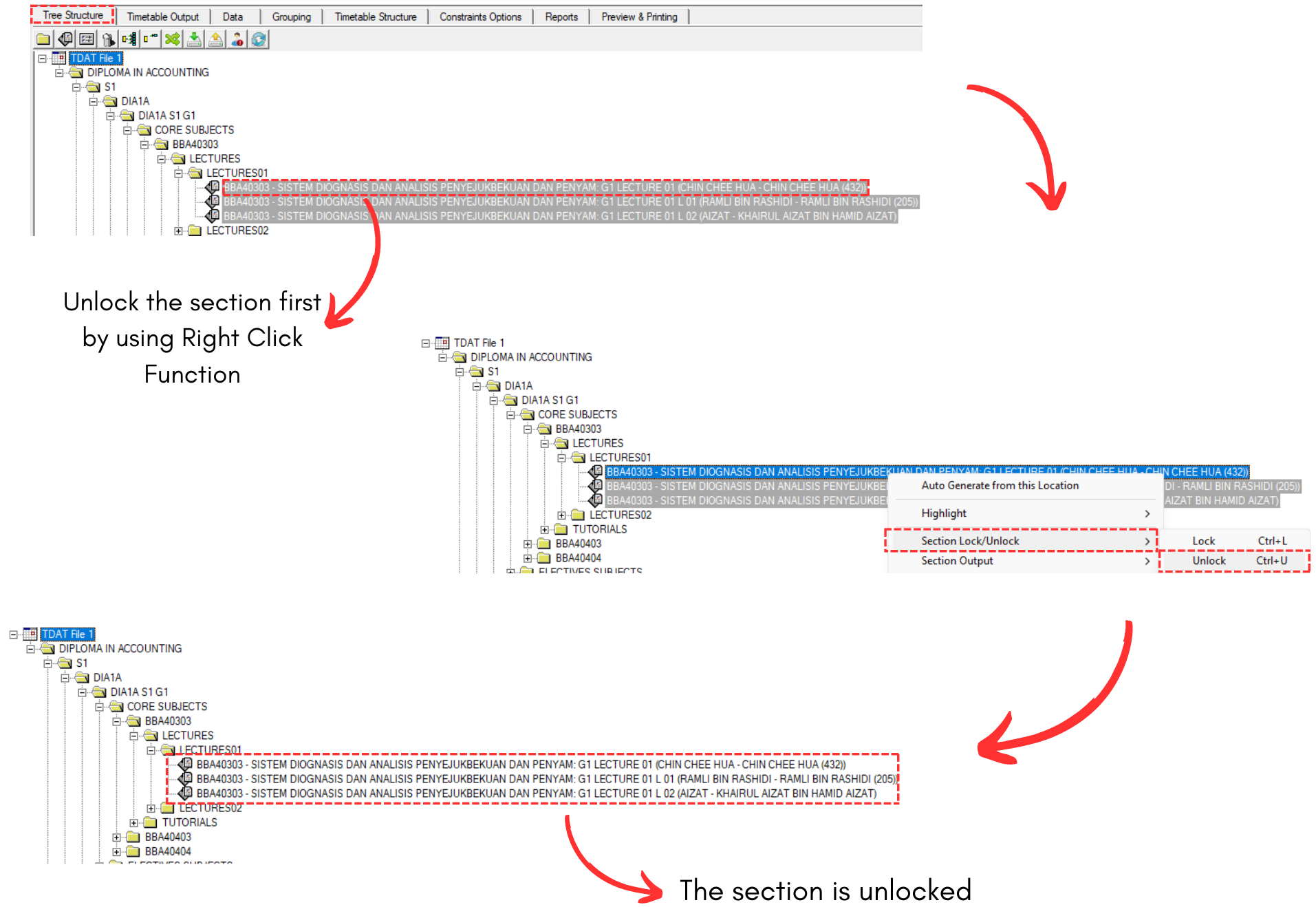
Diagram 2.1.5 Unlock the Slots
To remove a section from the slot, simply right click the section in the Tree Structure
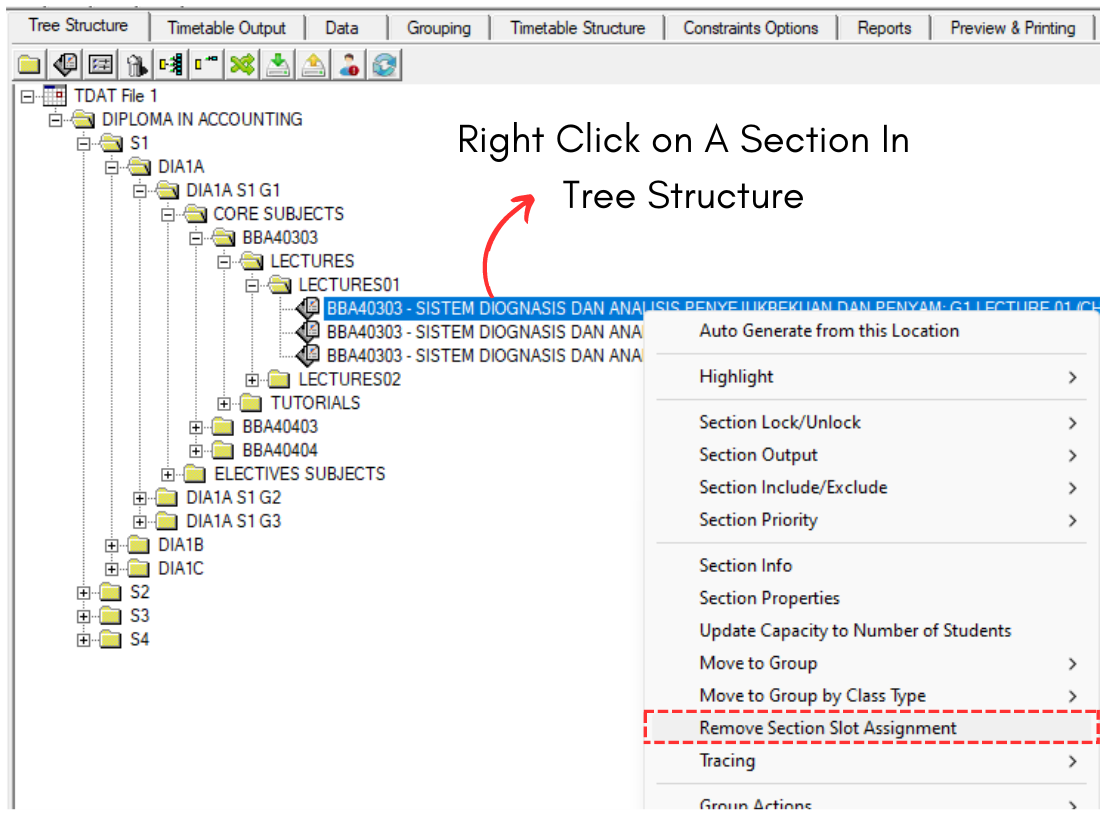
Diagram 2.1.6 Location of Remove in The Slot
A confirmation popup will appear. Click Yes.
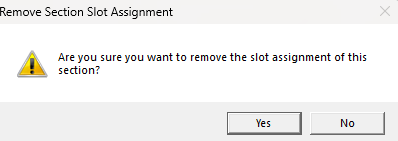
Diagram 2.1.7 Confirmation Popup
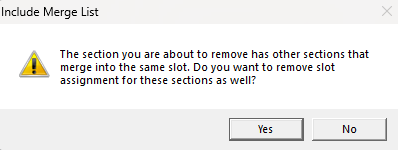
Diagram 2.1.8 Removing All Sections Confirmation Popup
If you have the section locked on the Course List, unlock the section first.
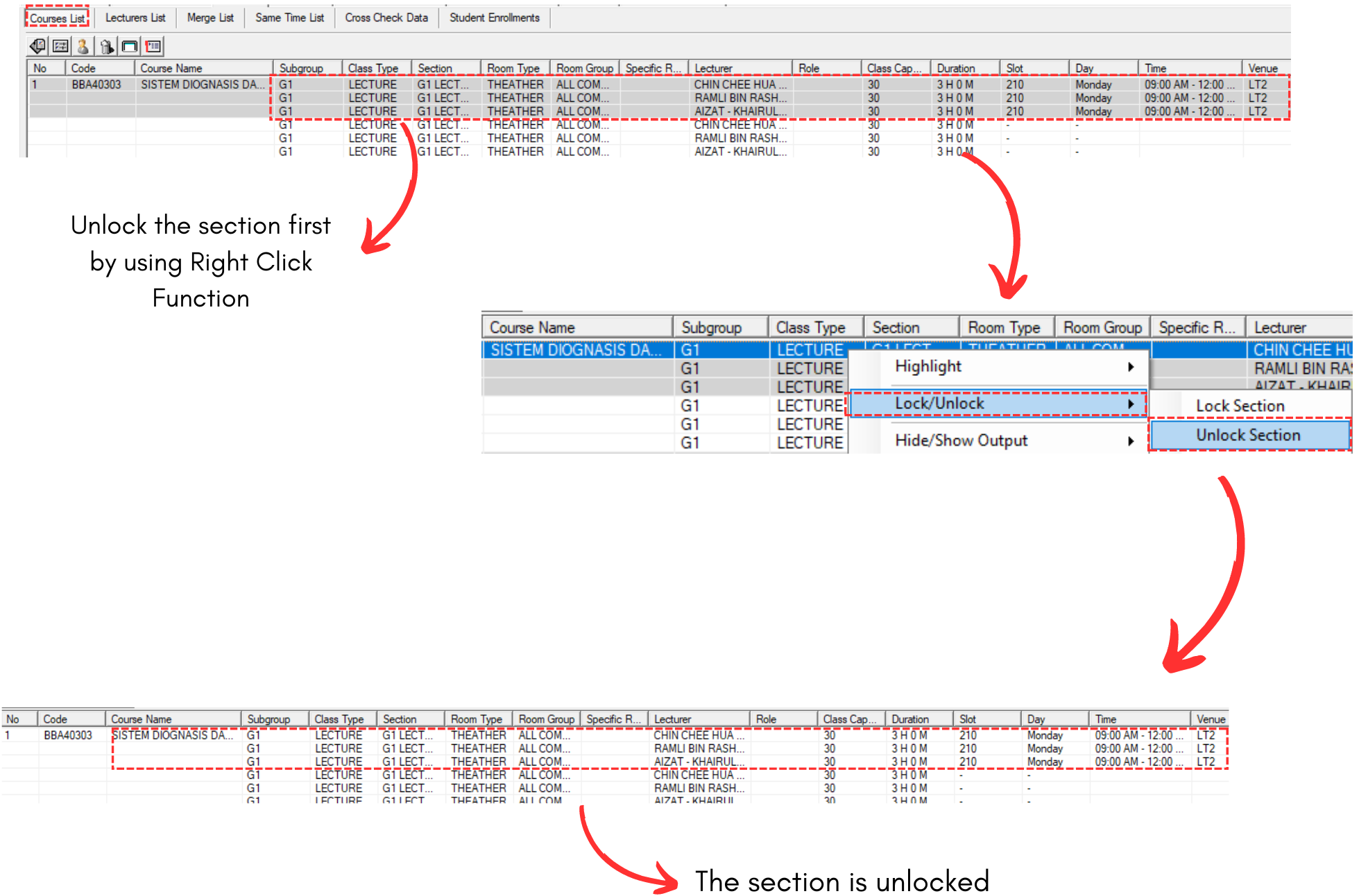
Diagram 2.1.9 Unlock the Slots
To remove a section from the slot, simply right click the section in the Course List.
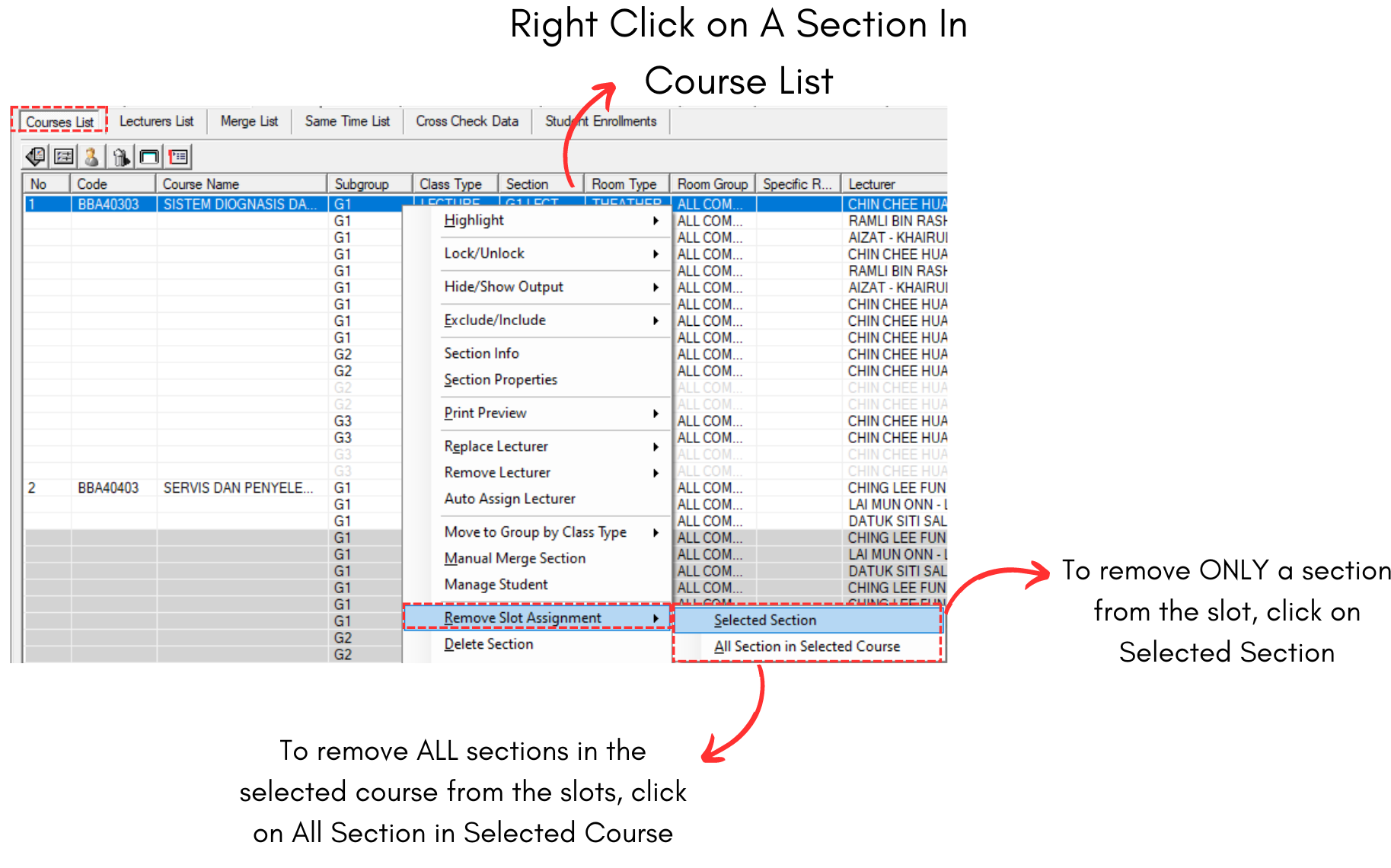
Diagram 2.1.10 Location of Remove in The Slot
A confirmation popup will appear. Click Yes.
Diagram 2.1.11 Confirmation Popup
Diagram 2.1.12 Removing All Sections Confirmation Popup
IV. Remove From Batch Group.
If you have the group locked on the Batch Group, unlock the group first.
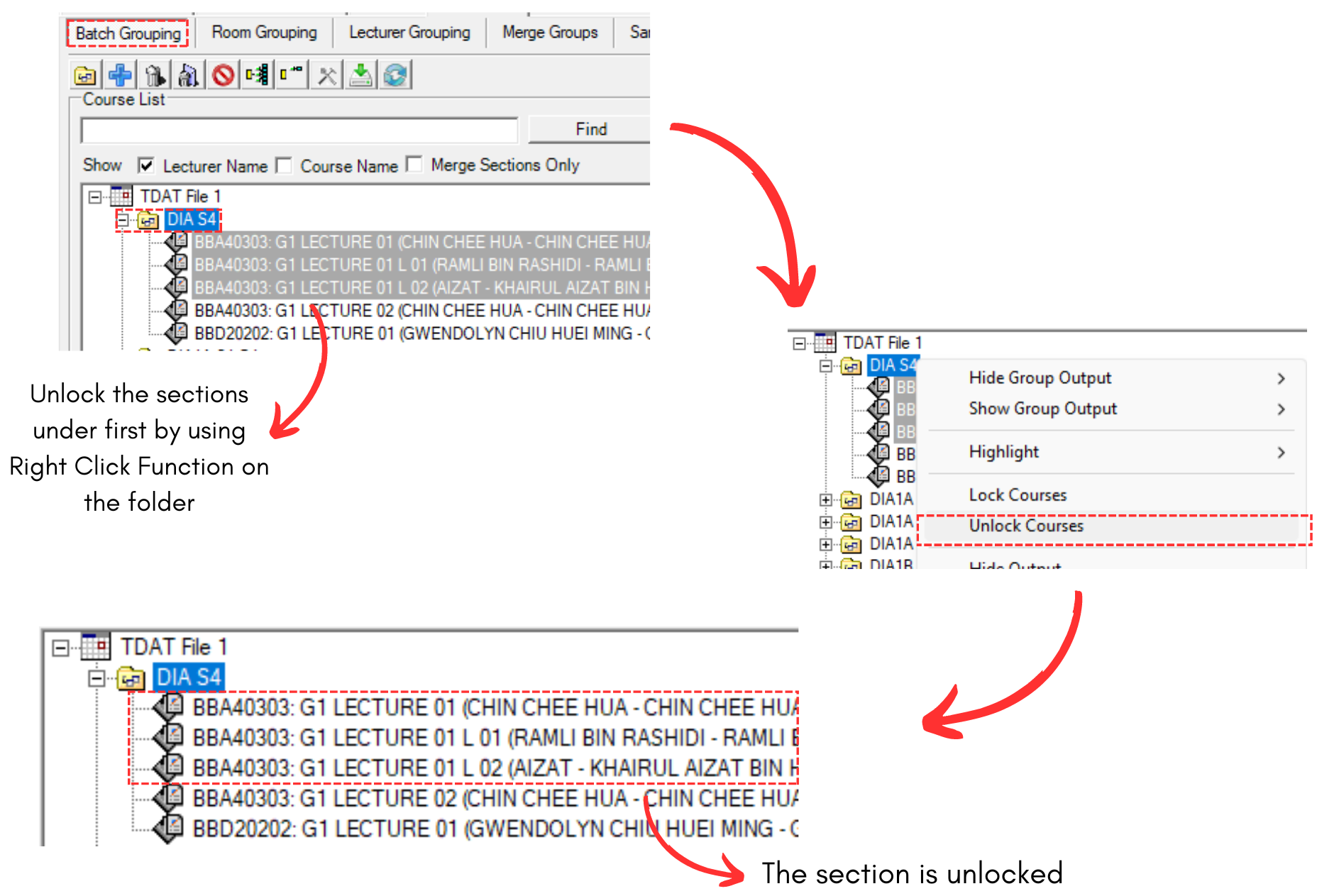
Diagram 2.1.13 Unlock the Slots
To remove a section/group from the slot, simply right click the group or any desired section under the group.
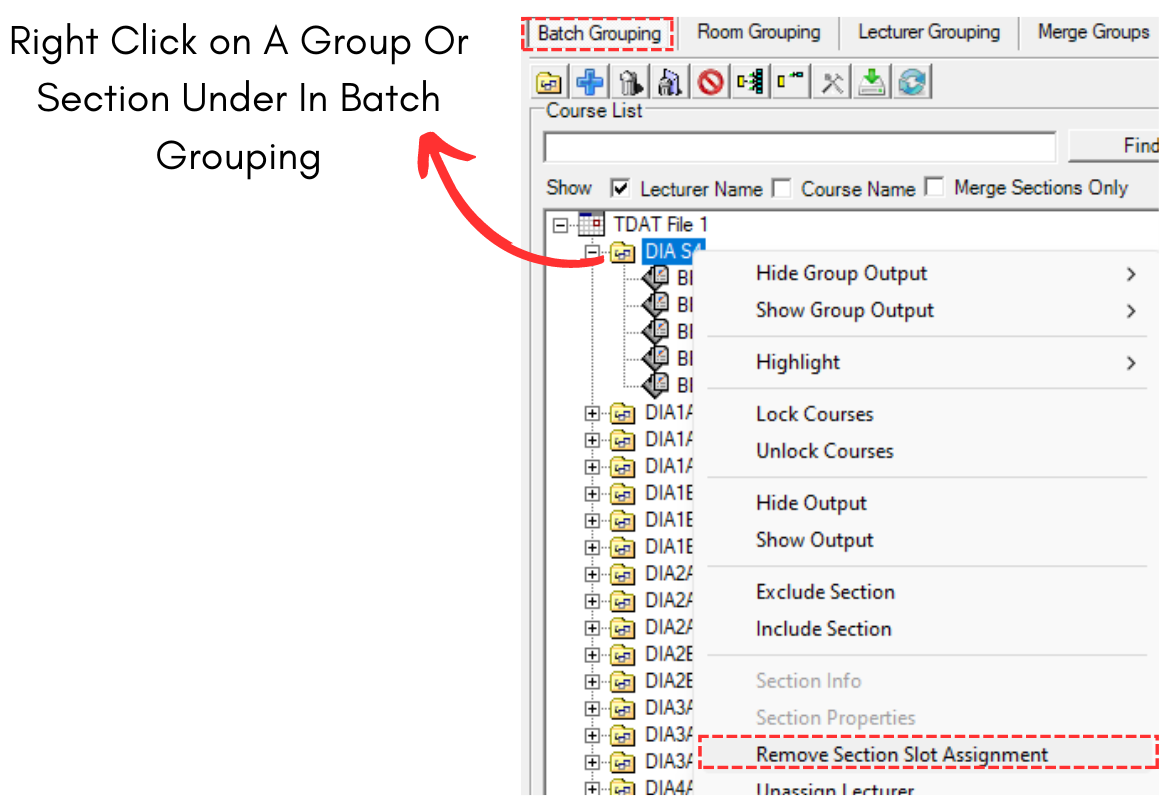
Diagram 2.1.14 Location of Remove in The Slot
A confirmation popup will appear. Click Yes.
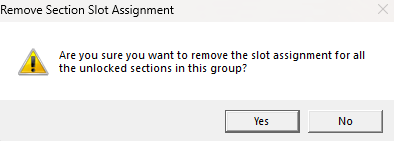
Diagram 2.1.15 Confirmation Popup
V. Remove From Lecturer List
If you have the section locked on the Lecture List, unlock the section first.
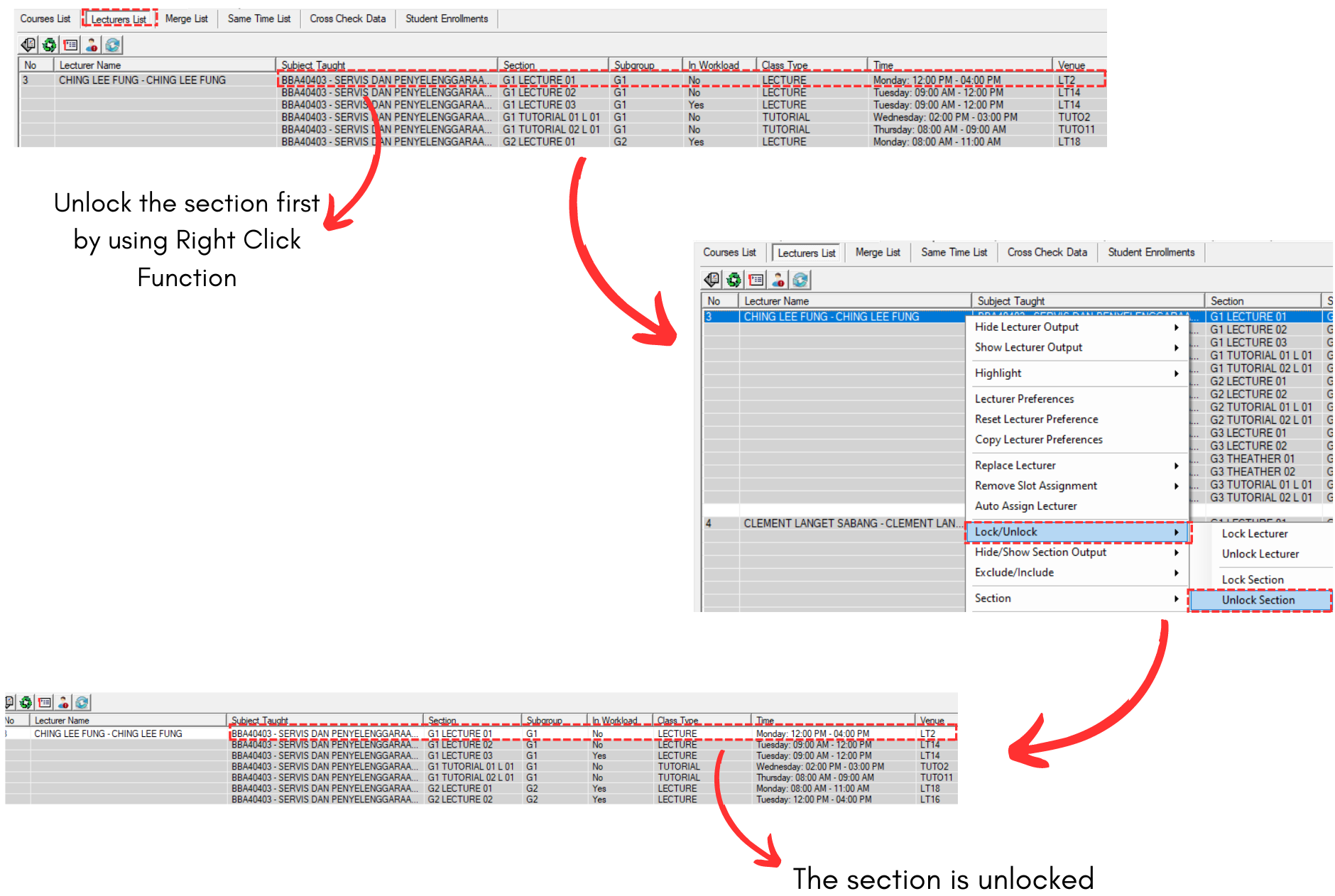
Diagram 2.1.16 Unlock the Section
To remove a section from the slot, simply right click the section in the Lecturer List.
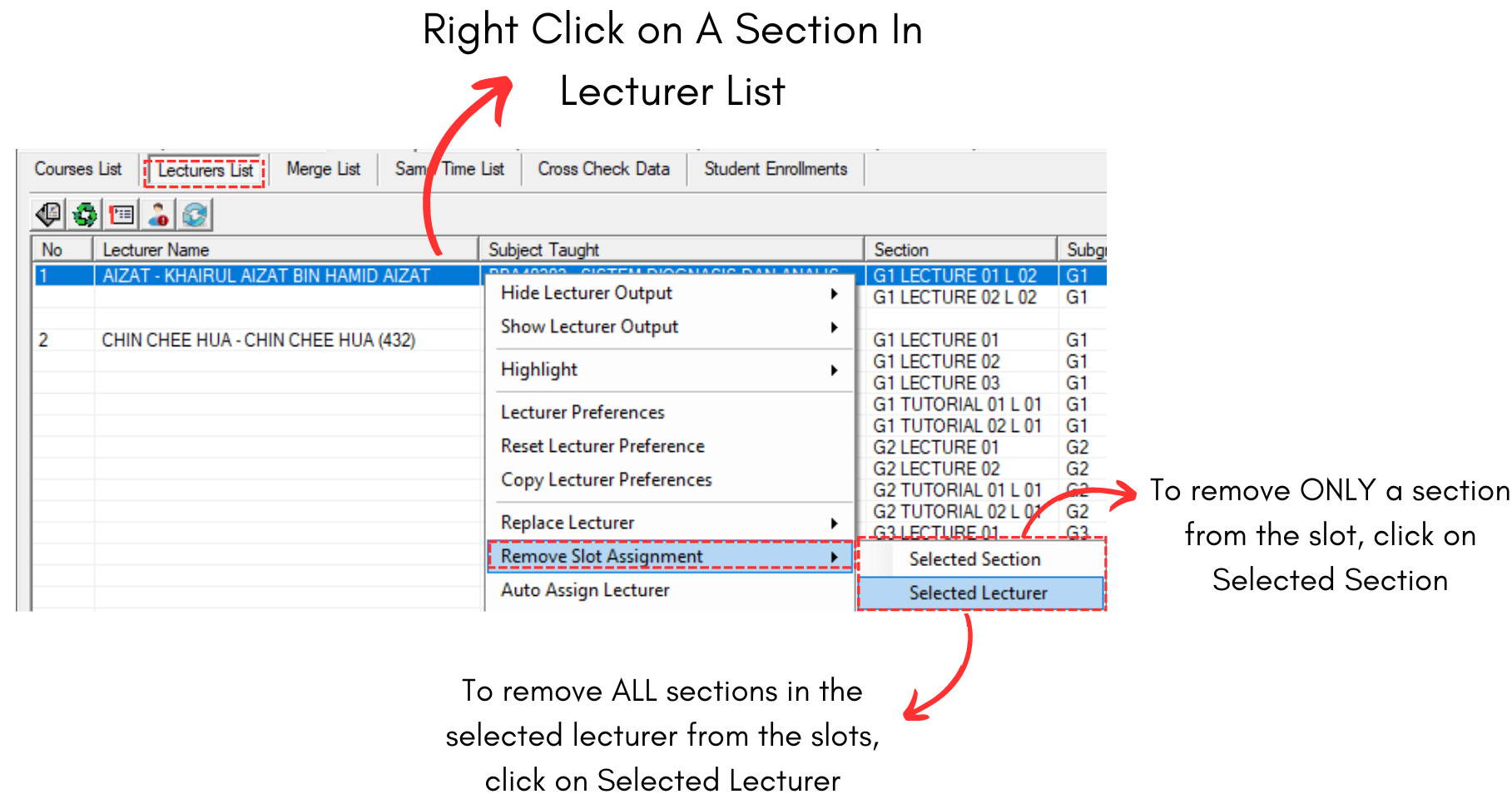
Diagram 2.1.17 Location of Remove in The Slot
A confirmation popup will appear. Click Yes.
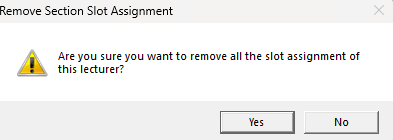
Diagram 2.1.18 Remove Course Window