1. Analysis
1.7. Highlighting
Before performing the Manual Slot in,
you need to know on WHY you use highlight. Highlight is used to locate the slot
of the batch and to avoid clashing when doing the manual allocation.
There are 3 important highlighting to prevent clashing:
- Batch Grouping
- Lecturers
- Students No Conflict Sections (Only apply if there are processed student at Student Enrolment tab under Data tab)
IMPORTANT NOTE: Please clear all highlights before proceed to highlight below. You will learn to Clear Highlight at the last part of this subchapter.
1. Highlight Section/Group
There are few ways to highlight:
I. Highlight from Section Status Summary
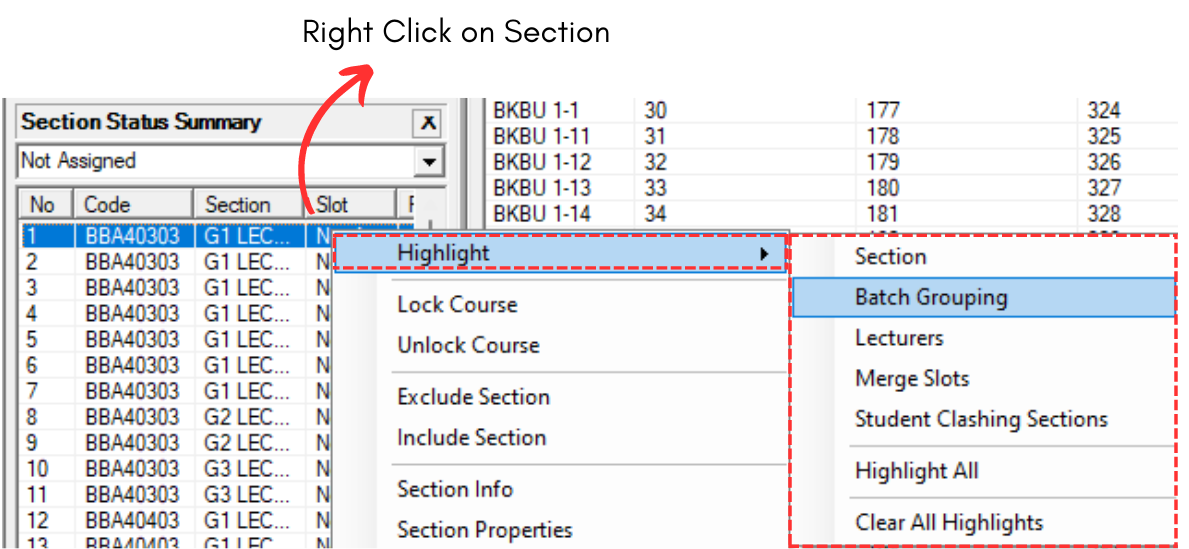
Diagram 1.7.1 Highlight Location at Section Status Summary
II. Highlight Group folder or Section from Tree Structure
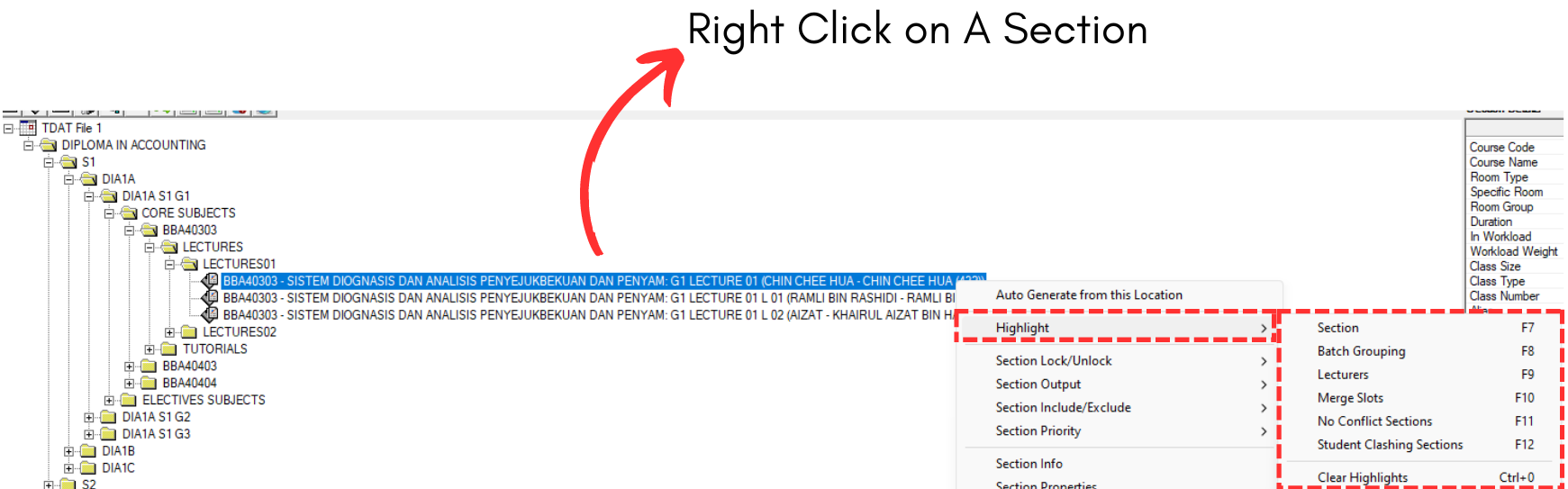
Diagram 1.7.2 Highlight Location at Tree Structure
III. Highlight from Course List
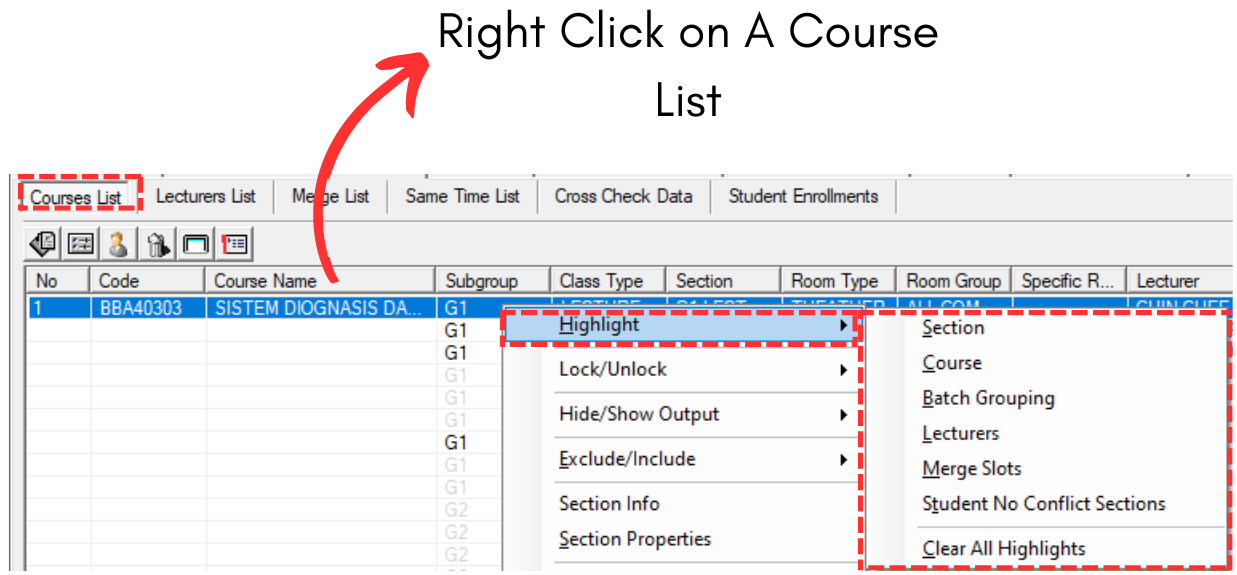
Diagram 1.7.3 Highlight Location From Course List
IV. Highlight from Lecturer List
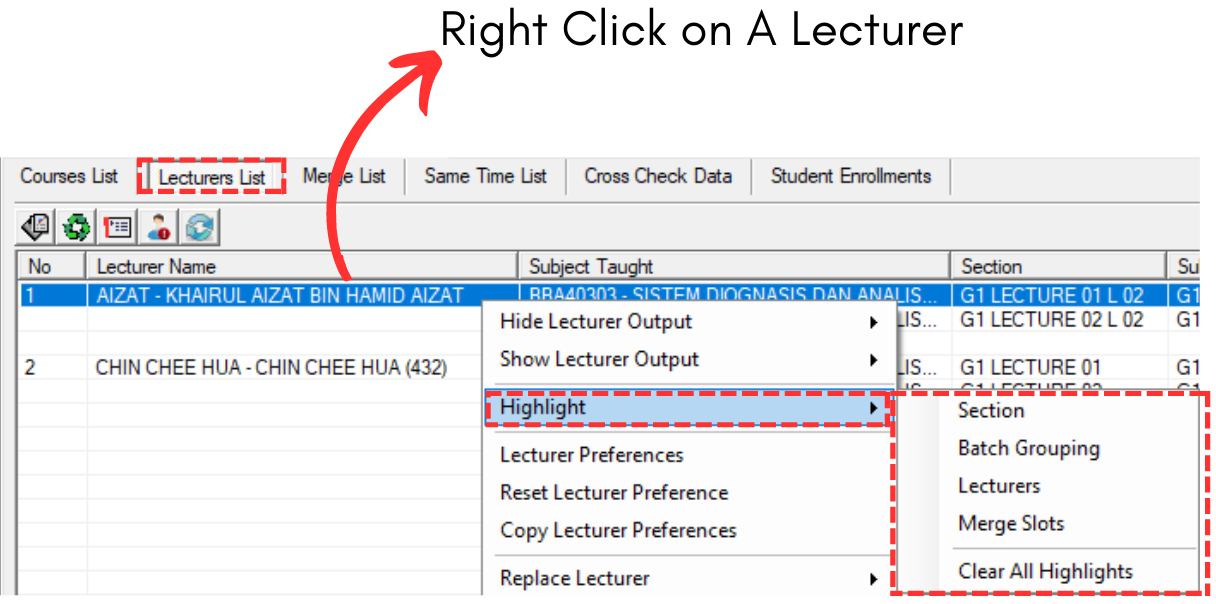
Diagram 1.7.4 Highlight Location From Lecturer List
V. Highlight from Batch Group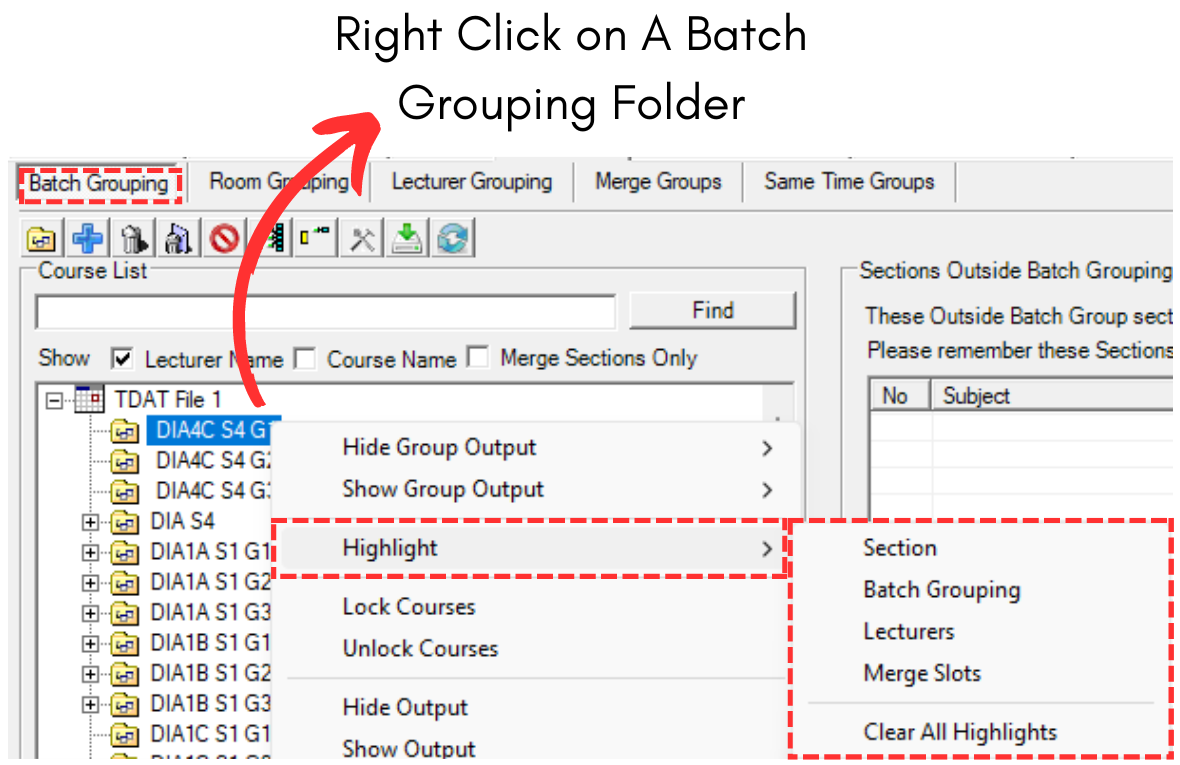
Diagram 1.7.5 Highlight Location From Batch Grouping
VI. Highlight Merge Group folder at Merge Group
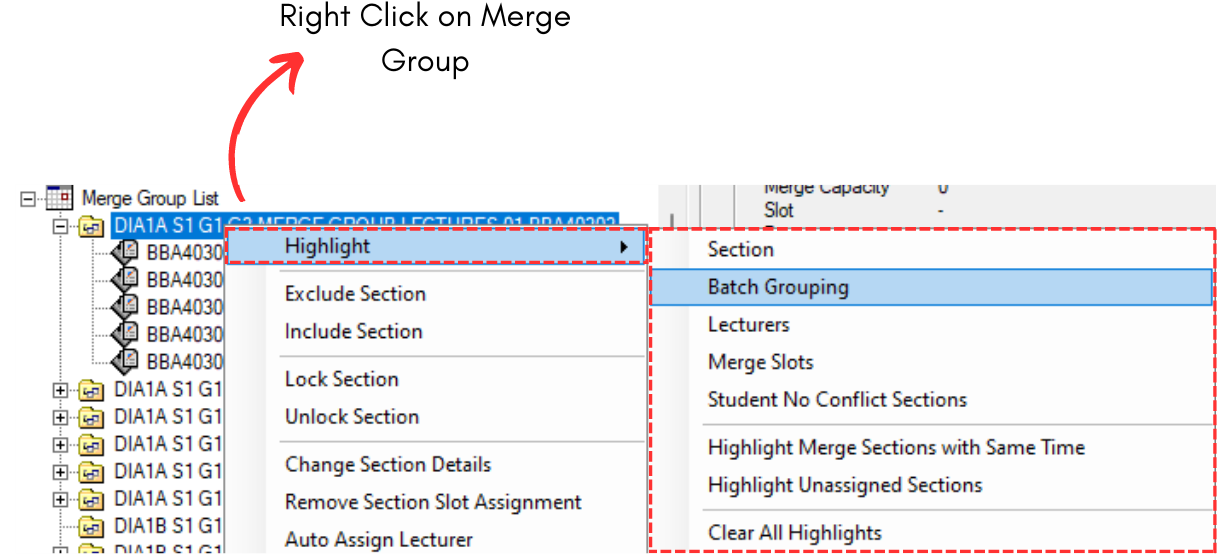
Diagram 1.7.6 Highlight Location at Merge Group
VII. Highlight from Same Time Group
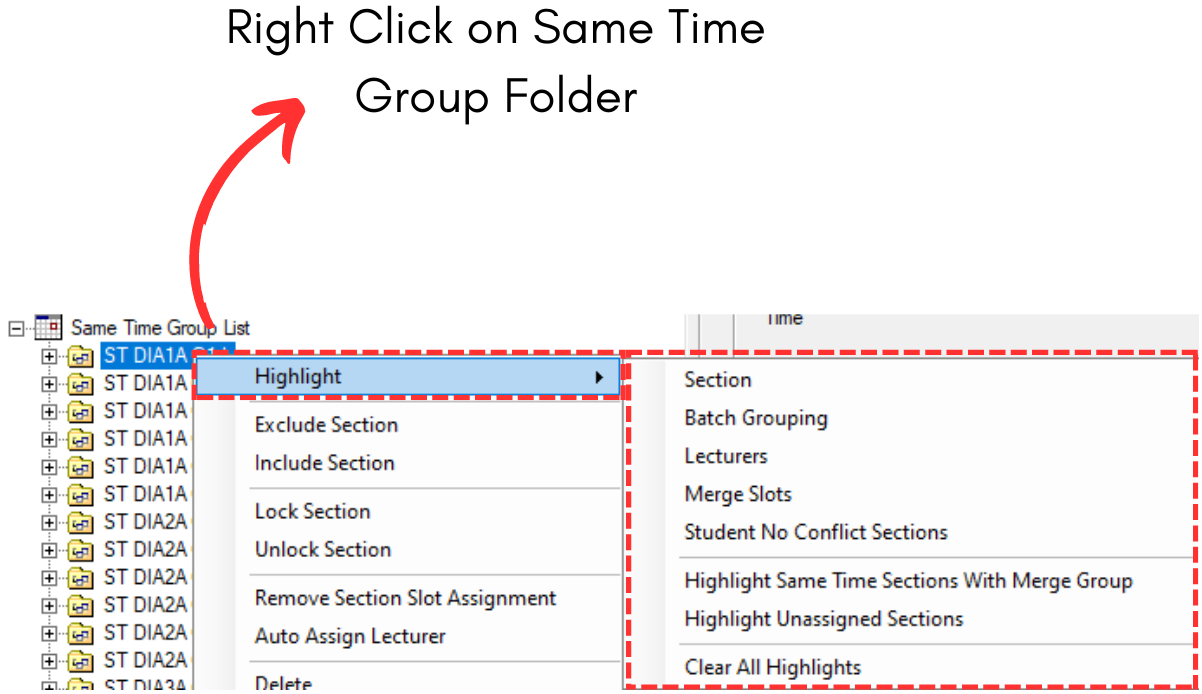
Diagram 1.7.7 Highlight Location From Same Time Group
VIII. Highlight in Timetable Output
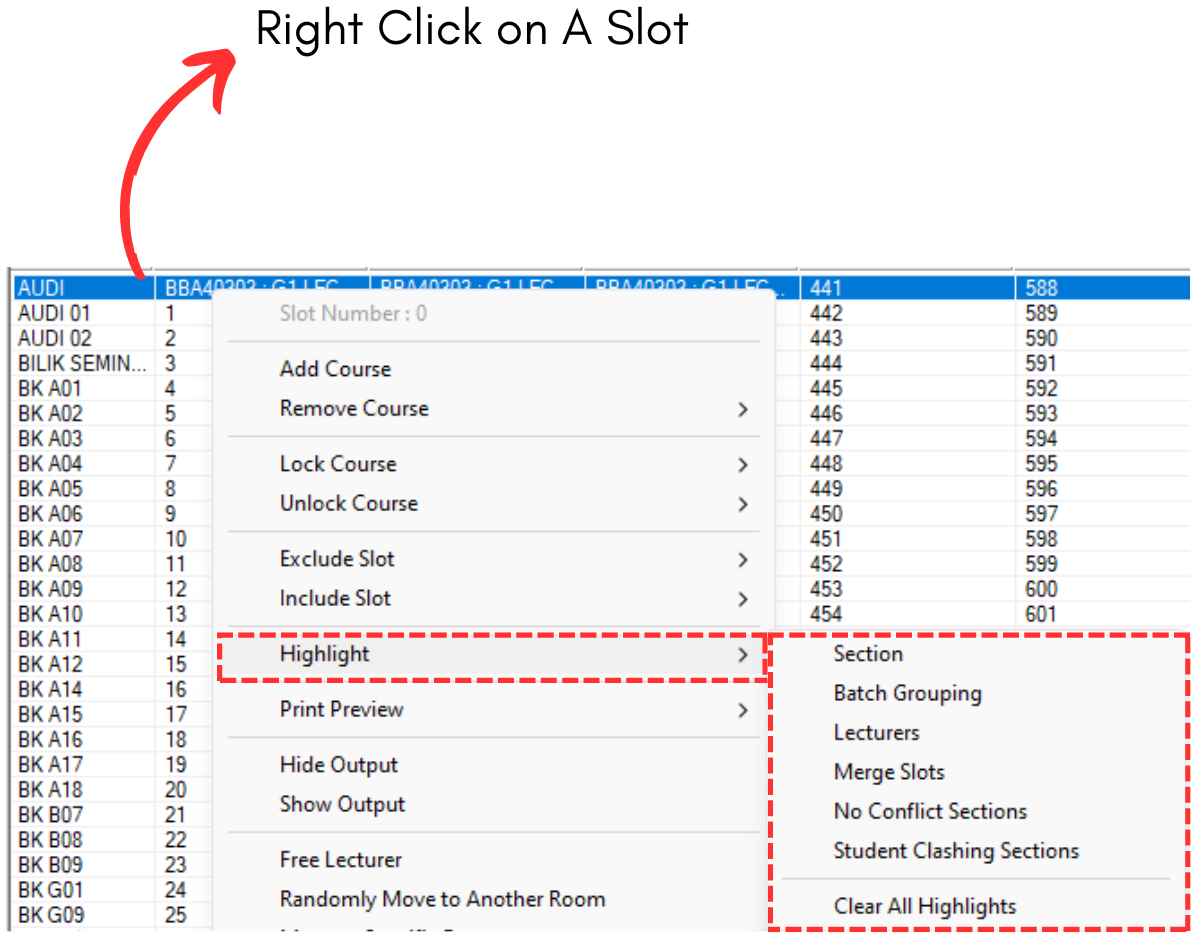
Diagram 1.7.8 Highlight Location From Timetable Output
IMPORTANT NOTE: In Timetable Output, you need to choose which section you want to highlight IF the slot has merging or more than one classes/sections.
After you click a highlight button, you can choose any colour to highlight. It is advisable to highlight different colours for each selected highlight choice.
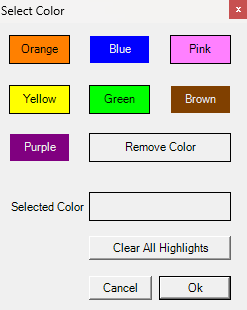
Diagram 1.7.9 Highlight Colours
You can also highlight more than one colour in the timetable output. For example, we highlight the Batch and Lecturer. But note that, you have to do one by one.
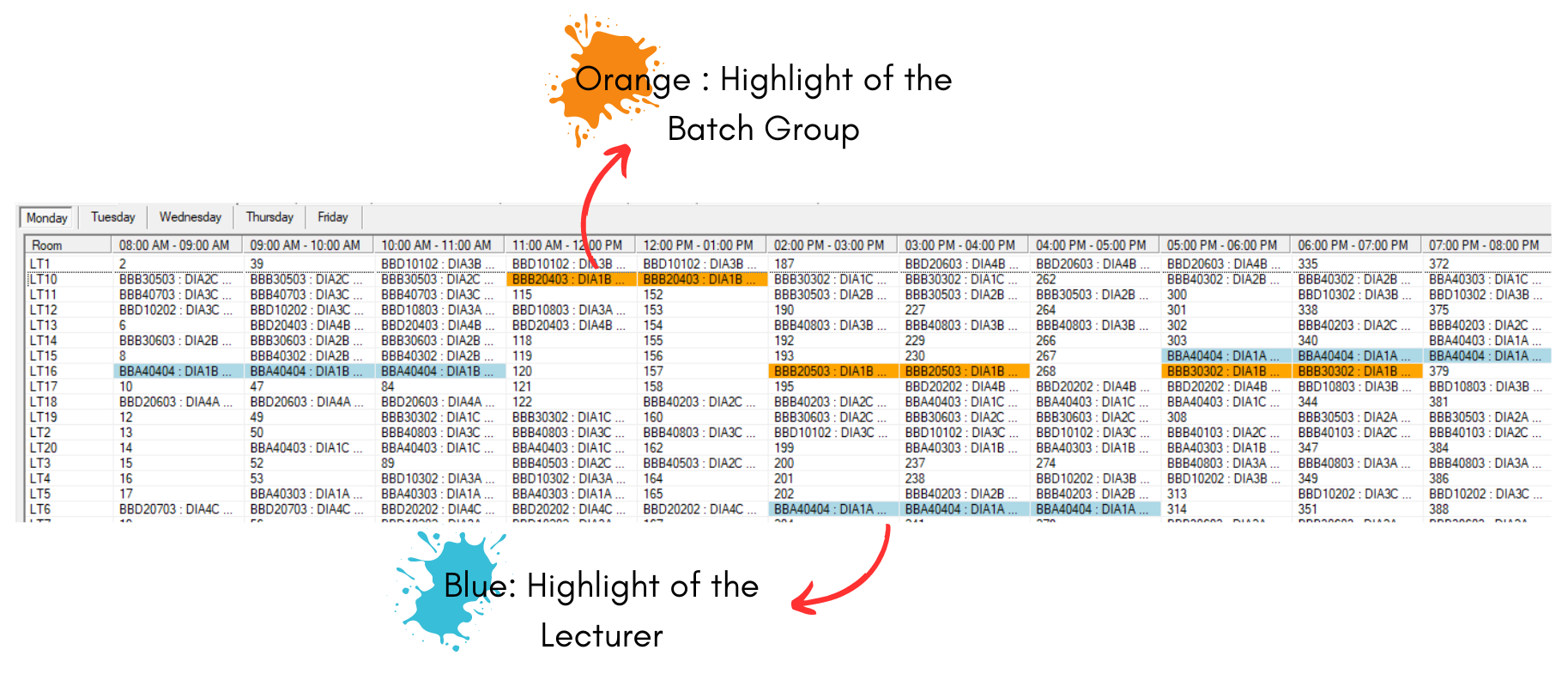
Diagram 1.7.10 Batch and Lecturer Highlighted
2. Manual Allocation after Highlight
Before you proceed with Manual Slot In/Allocation, you need to know where can you slot in the section between the highlighted sections. Refer to the image below.
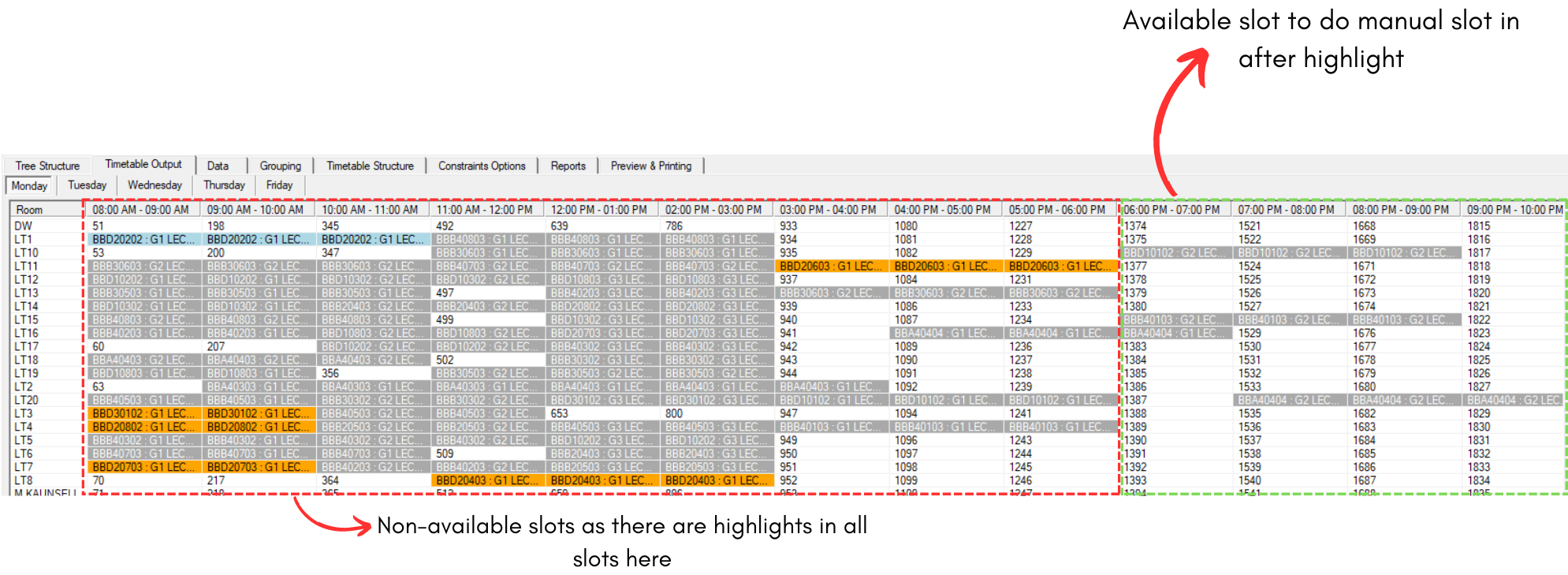
Diagram 1.7.11 Manual Allocation after Highlight
3. Clear Highlight
To CLEAR ALL HIGHLIGHT, you can simply do it from the right click function mentioned above OR you can go to Timetable Menu and Select Clear Highlight (F3).
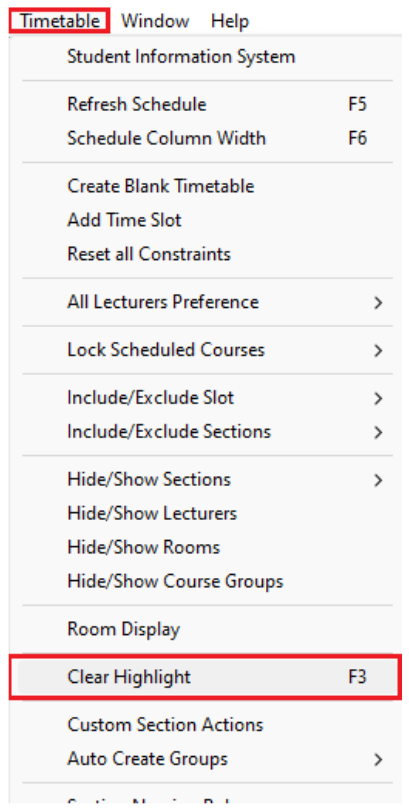
Diagram 1.7.12 Location of Clear All Highlight
WARNING! This will clear ALL HIGHLIGHT that have been done in Timetable Output.