4. Grouping
4.1. Room Grouping
To open Room Grouping, you may go to Grouping and select Room Grouping.

Diagram 4.1.1 Location of the Room Grouping
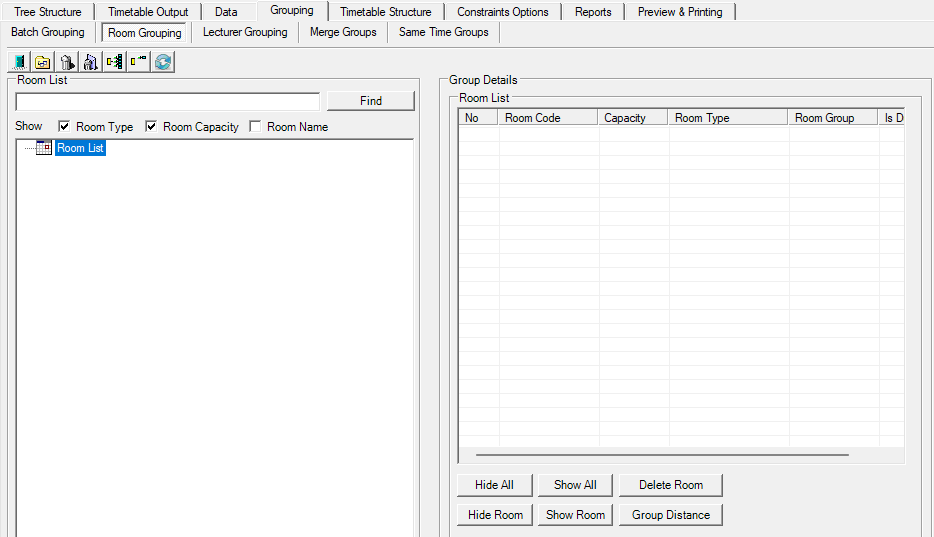
Diagram 4.1.2 Room Grouping
Add Room Grouping
To add room grouping, first you need to add rooms into the room grouping. Click add new room icon 
Room Management window will appear.
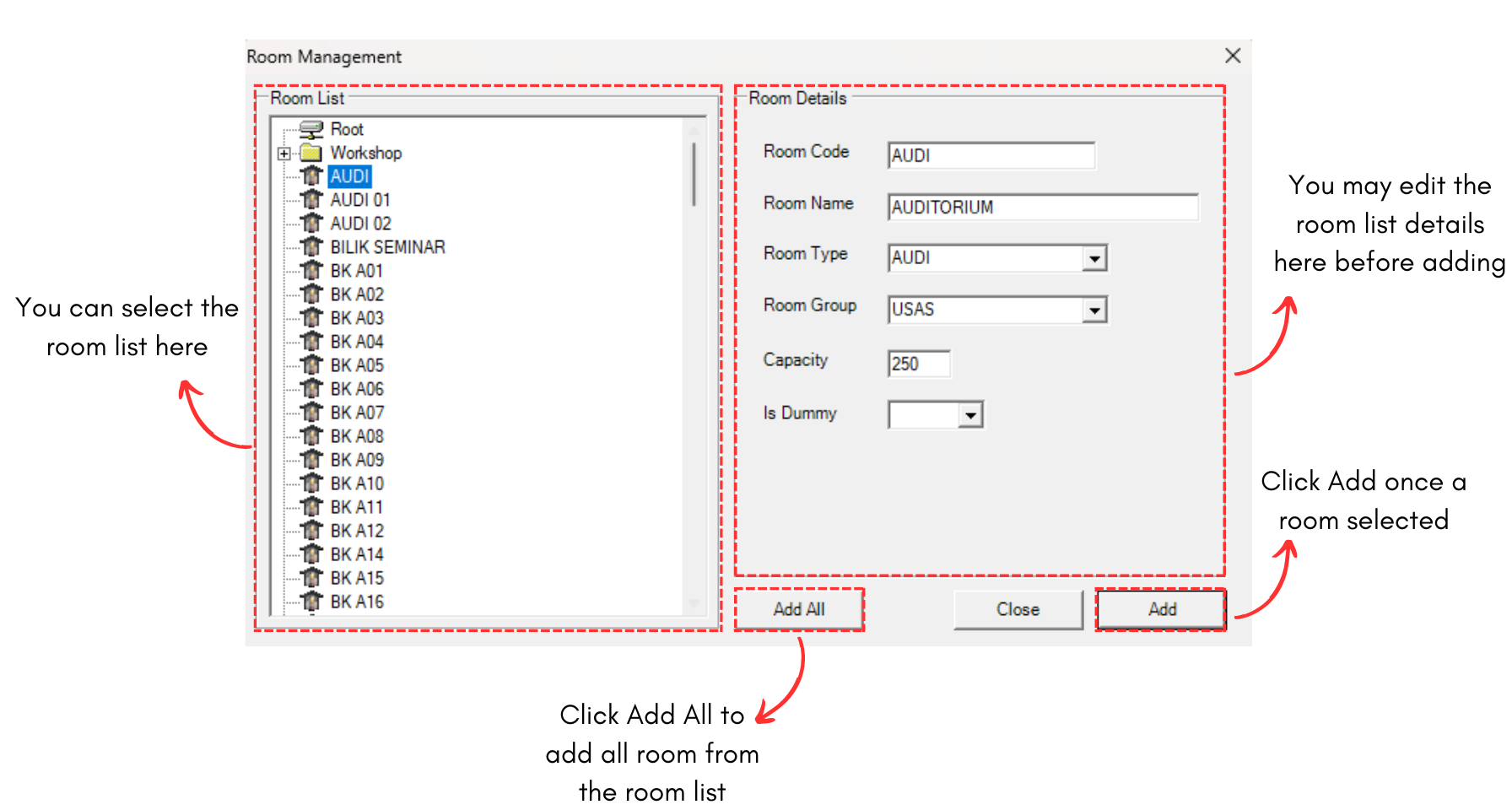
Diagram 4.1.3 Room Management Window
Below is the example room added into the room list.
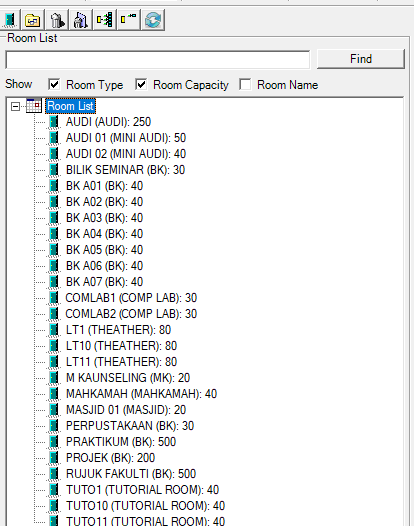
Diagram 4.1.4 Room Added in Room List
Now you may select the add room group icon 
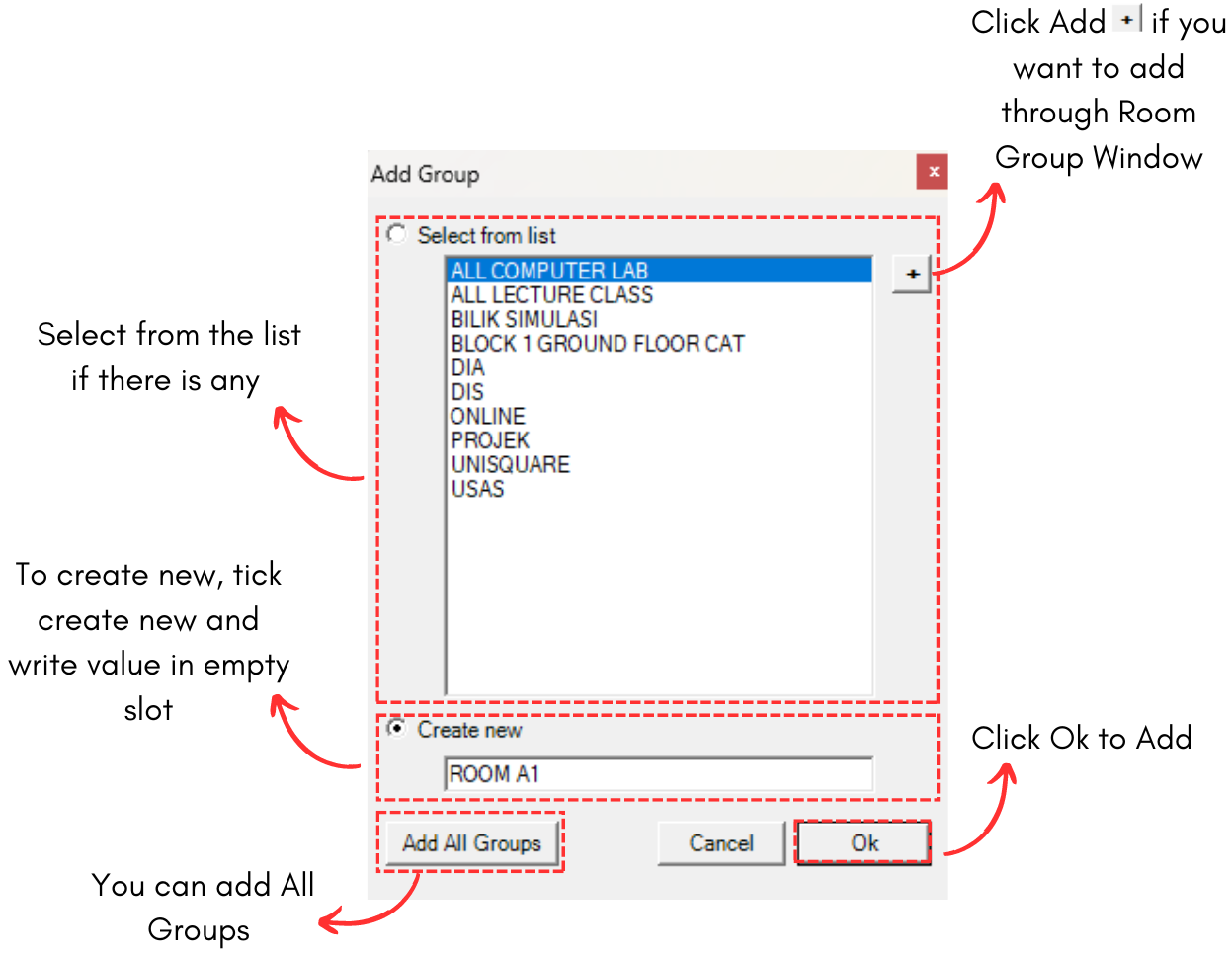
Diagram 4.1.5 Add Group Pop-up
Note that new group you created will automatically appear at the bottom list of room list or room group. When you reopening the Room Grouping section, the new group can be found in the list of room group or room list according to alphabetical order.
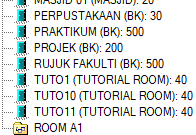
Diagram 4.1.6 New Room Group
To add the room into the room group, simply select your desired room.
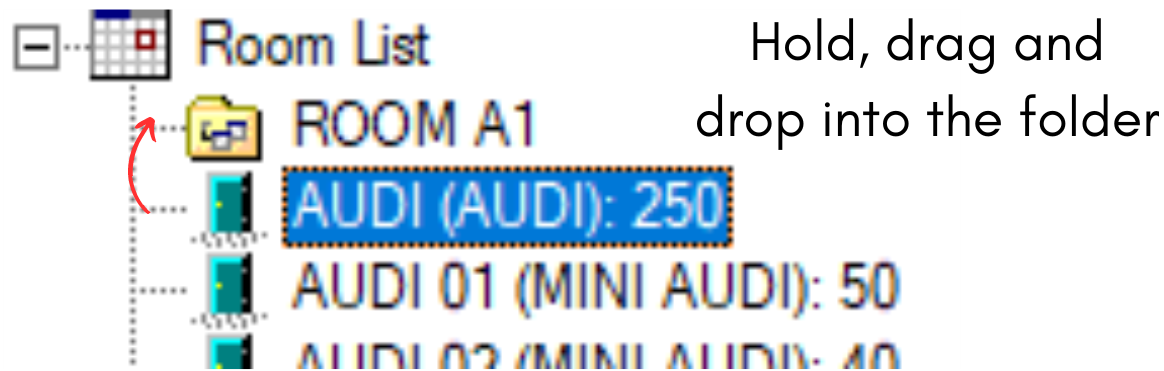
Diagram 4.1.7 Selected Room
Drag it to the folder and drop.
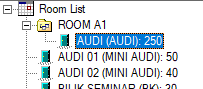
Diagram 4.1.8 Room Dragged into the Folder