2. Add in Tree Structure
2.2. Import from T-Plus Campus (Student Information System)
There are 2 simple steps to import from T-Plus Campus/Get Section from SIS.
STEPS 1: Click on Get Section from SIS icon.
icon.
A pop-up of SIS Import Data Option will appear.
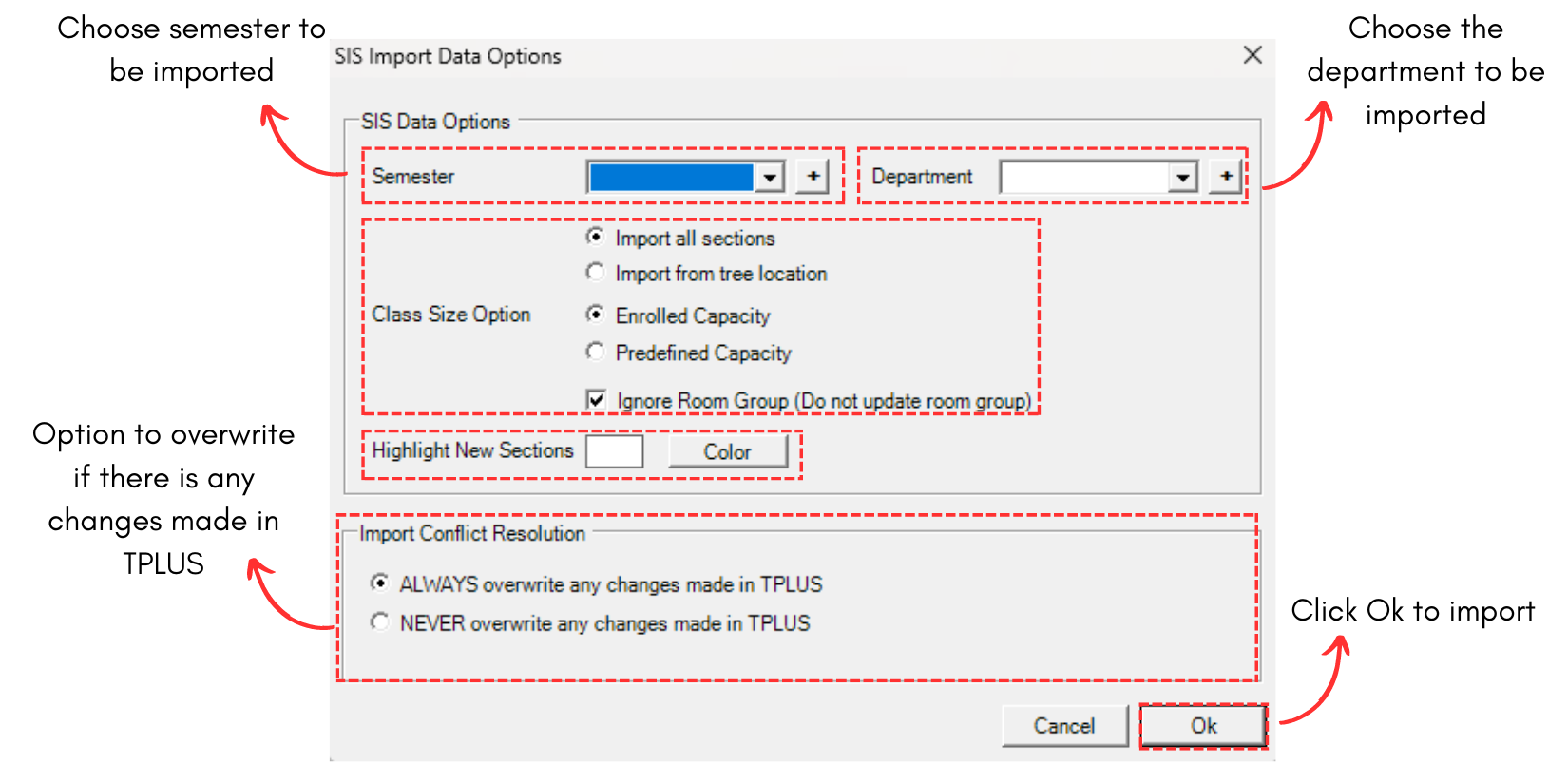
Diagram 2.2.1 SIS Import Data Option Window
STEPS 2: Once done fill in the slots, click Ok to import.
Once imported, a pop-up will appear showing that the data has been imported.
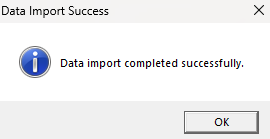
Diagram 2.2.2 Data Import Completed
You will be able to see your data in tree structure has been created and arranged accordingly. Refer to the example below.
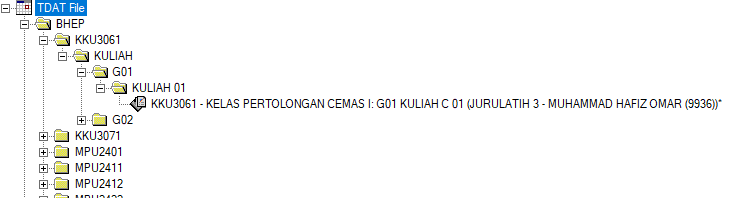
Diagram 2.2.3 Data Imported from SIS