2. Import Database
2.4. Import from Peers
Another way of importing database is you can go to the Database menu and select Import Database. Note that this will import the whole database into the T-Plus Class.

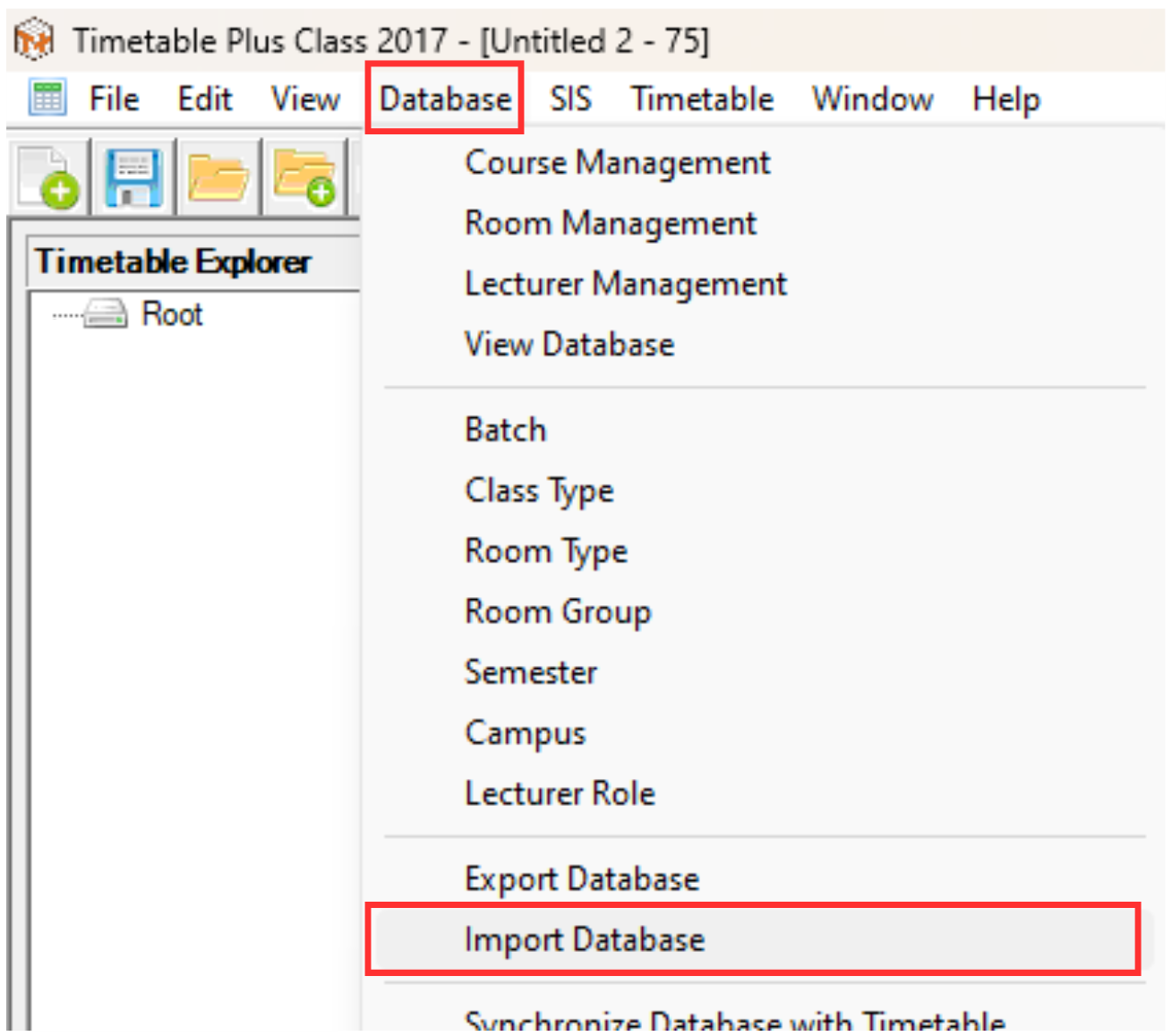
Diagram 2.4.1 Location of Import Database
A window pop-up will appear. Select the desired .csv file or .TDats and click Open to import the database.
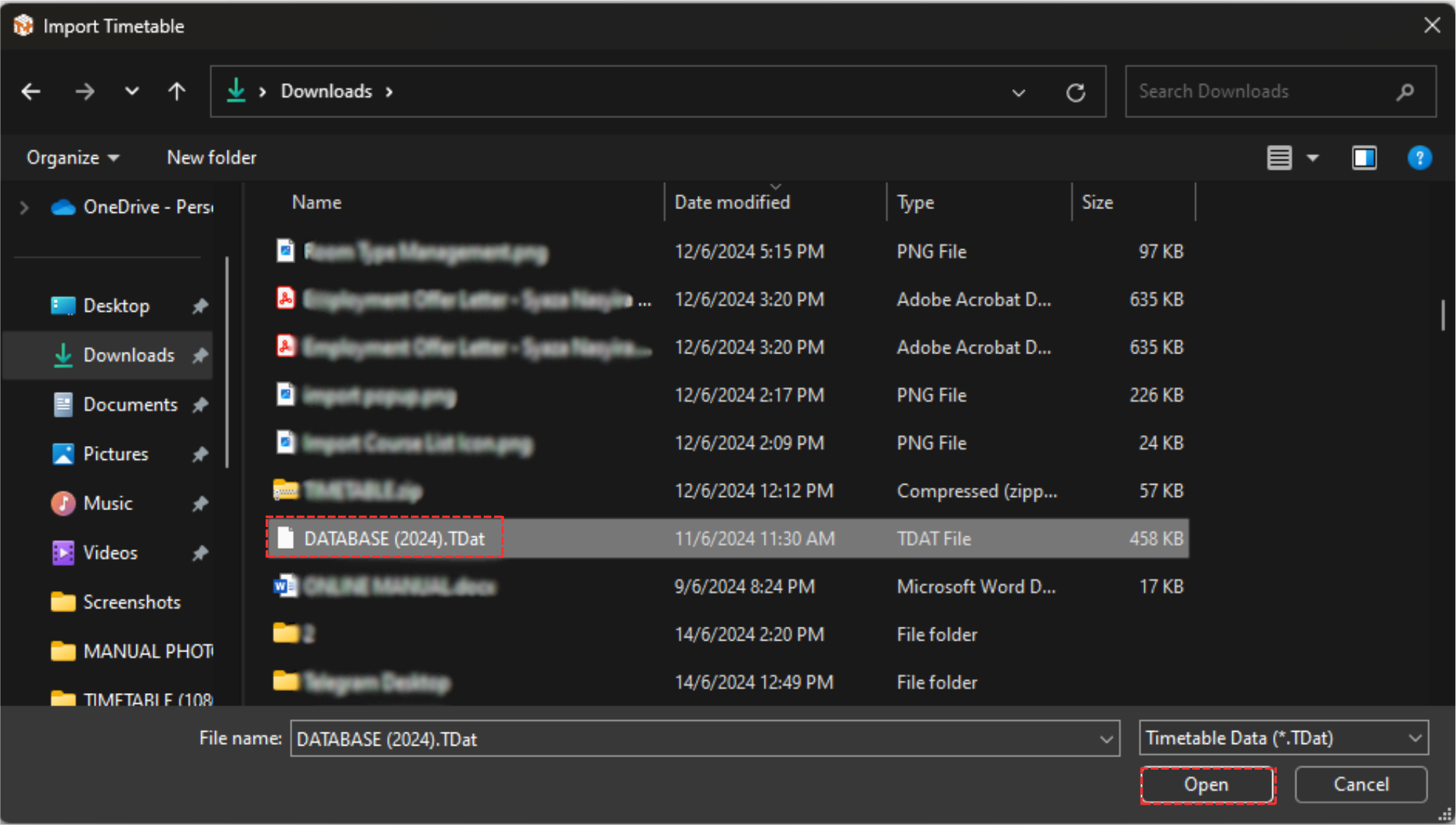
Diagram 2.4.2 Import Database Pop-up
Another confirmation pop-up window will apear afterward. Click Yes.

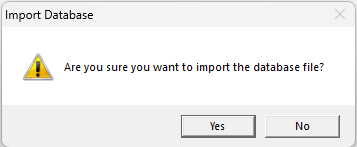
Diagram 2.4.3 Confirmation Pop-up Window
And another pop-up window will appear, showing it has been completed.
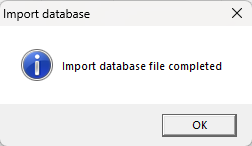
Diagram 2.4.4 Import Completed
After the database has been imported, you may view the database by clicking the Database Icons of your preferred. Below are the examples of database that has been imported.
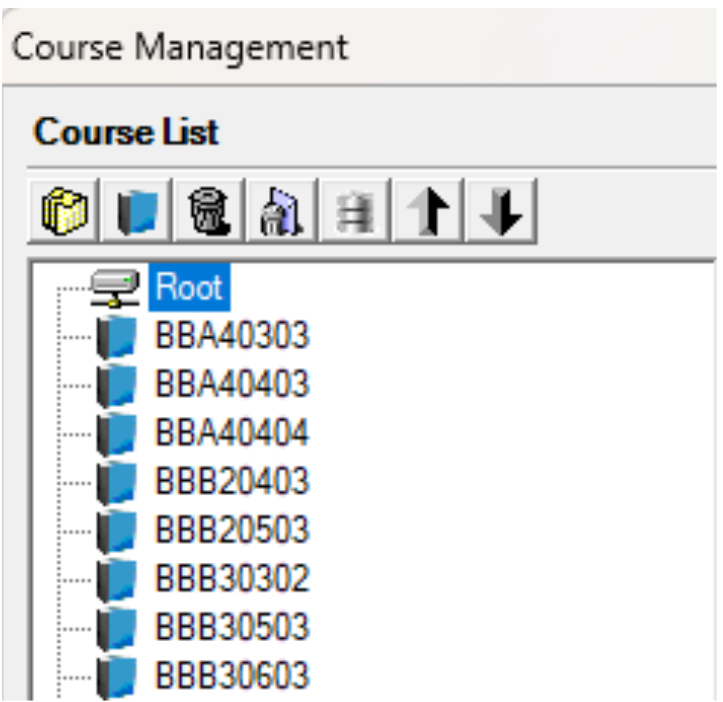
Diagram 2.4.5 Example of Imported Course Management Database
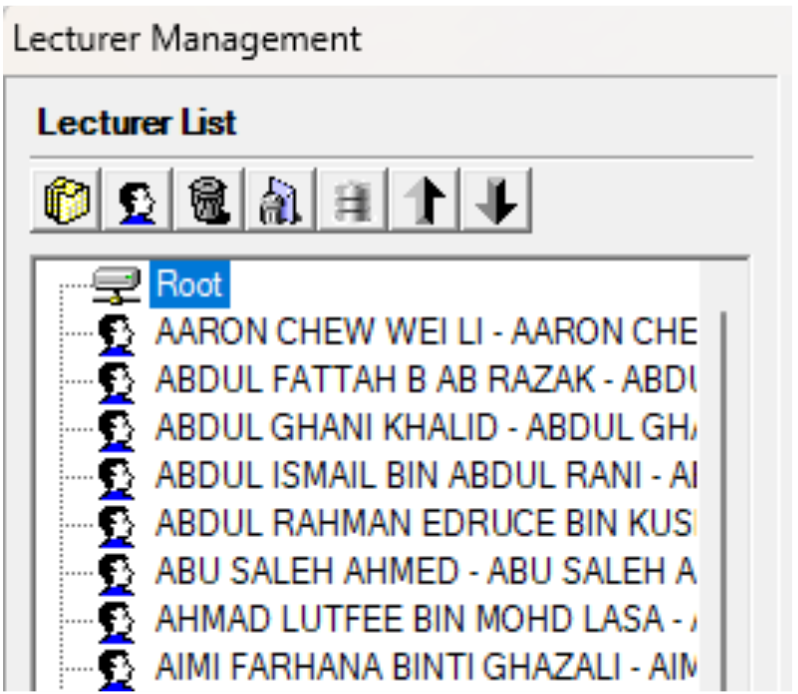
Diagram 2.4.6 Example of Imported Lecturer Management Database

Diagram 2.4.7 Example of Imported Room Management Database
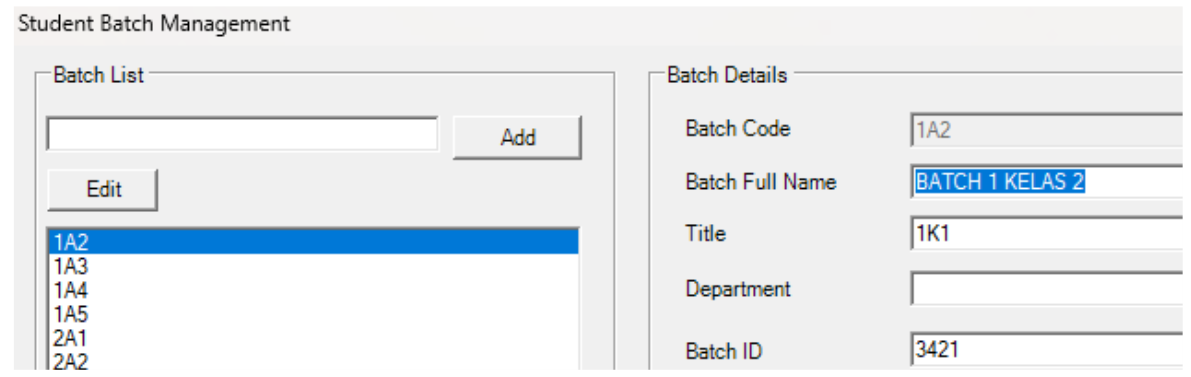
Diagram 2.4.8 Example of Imported Batch Database

Diagram 2.4.9 Example of Imported Class Type Database

Diagram 2.4.10 Example of Imported Room Group Database