2. Import Database
2.1. Import From Excel
You can import the database using excel  (with .CSV file extension). Note that, the data in the excel file need to be filled as below.
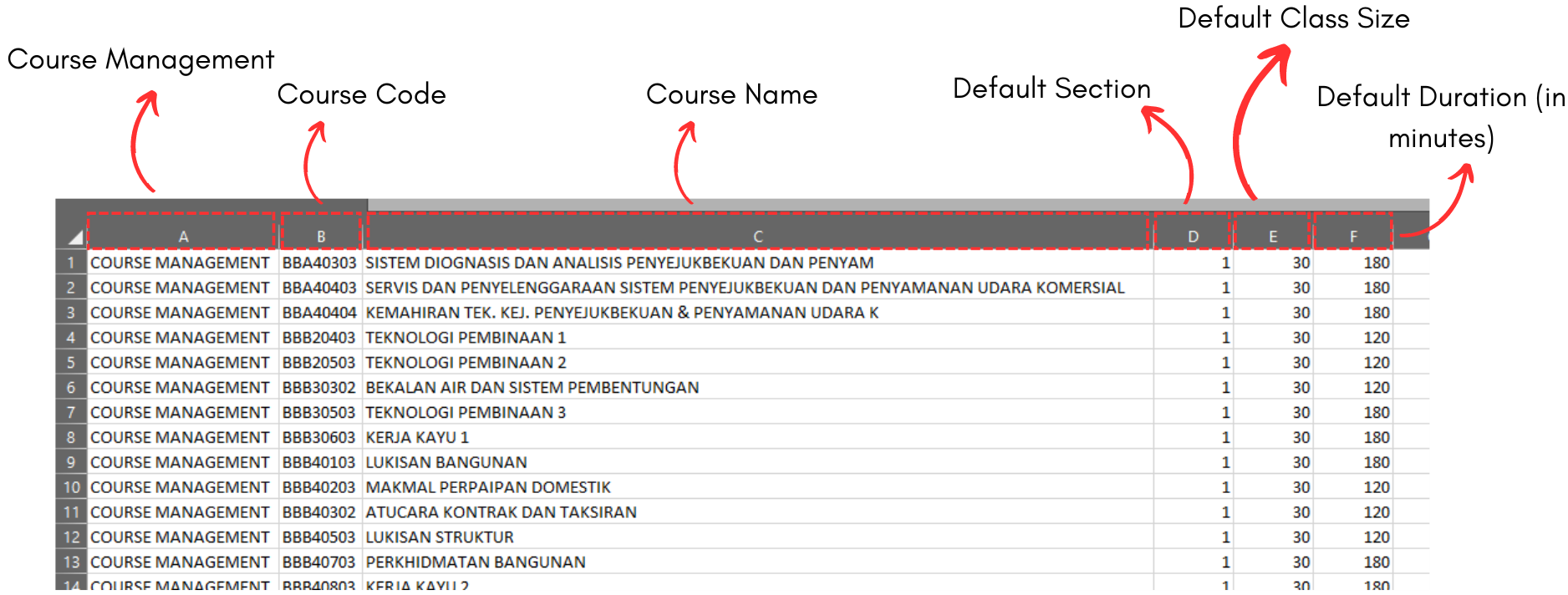
Diagram 2.1.1 Sample of the Course Management Excel Template
|
Course Management |
It is compulsory to write word "COURSE MANAGEMENT" all the way down in this column. Note that it is important to make sure the spelling is right. |
|
Course Code |
Course Code is the code or short name for the course. IMPORTANT: Do not put 0 or leave it blank in the excel sheet. |
|
Course Name |
Course Name is the full name of the course. |
|
Default Section |
Default section is 1. However you may change the number according to the preferred number of sections. IMPORTANT: Do not put 0 or leave it blank in the excel sheet. |
|
Default Class Size |
Default class size is 30. However you may change the number according to the preferred number of class size. IMPORTANT: Do not put 0 or leave it blank in the excel sheet. |
|
Default Duration |
Default duration is 180 (in minutes). However you may change the number according to the preferred duration of the class. IMPORTANT: Do not put 0 or leave it blank in the excel sheet. |
Table 2.1.1 Course Management Excel Explanation
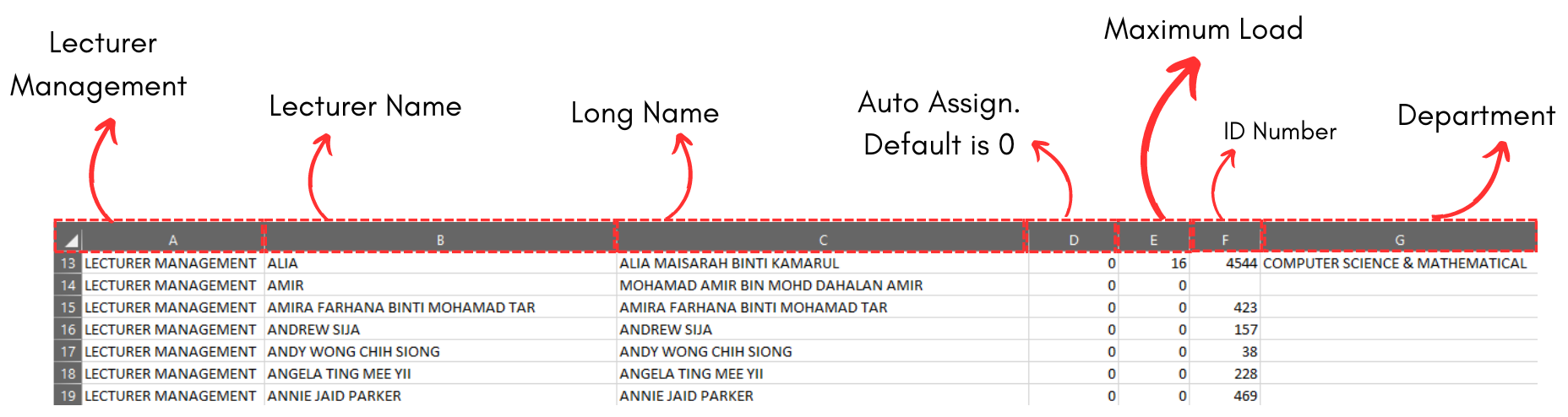
Diagram 2.1.2 Sample of the Lecturer Management Excel Template
|
Lecturer Management |
It is compulsory to write word "LECTURER MANAGEMENT" all the way down in this column. Note that it is important to make sure the spelling is right. |
|
Lecturer Name |
Short name of the lecturer. Lecture Name cannot be duplicated & it is compulsory. IMPORTANT: Do not put 0 or leave it blank in the excel sheet. |
|
Long Name |
Long Name of the lecturer. Long Name is compulsory. IMPORTANT: Do not put 0 or leave it blank in the excel sheet. |
|
Auto Assign |
Auto Assign the lecturer to the course. Default is 0 = No. 1 = Yes. |
|
Maximum Load |
Maximum number of courses teaches. Maximum Load is non-compulsory. |
|
ID Numbers |
Lecturer’s ID Number. ID Number is non-compulsory. |
|
Department |
The Department of the lecturer. Department is non-compulsory. |
Table 2.1.2 Lecturer Management Excel Explanation
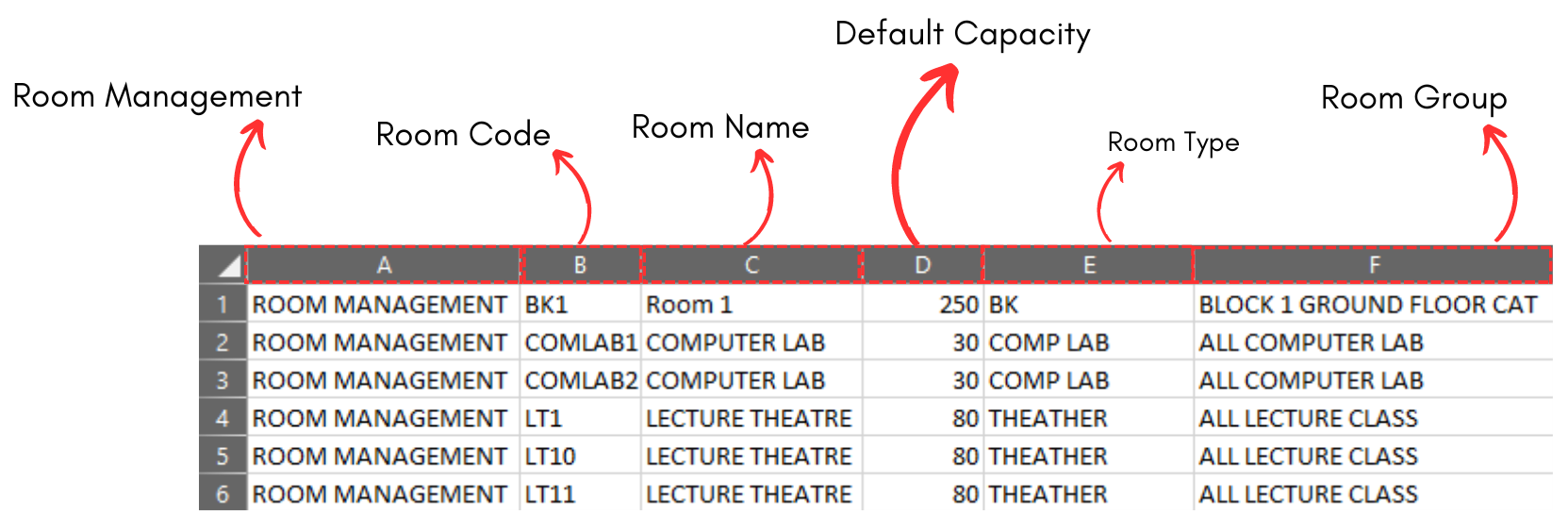
Diagram 2.1.3 Sample of the Room Management Excel Template
|
Room Management |
It is compulsory to write word "ROOM MANAGEMENT" all the way down in this column. Note that it is important to make sure the spelling is right. |
|
Room Code |
Short name of the room. Room code cannot be duplicated and compulsory. IMPORTANT: Do not put 0 or leave it blank in the excel sheet. |
|
Room Name |
Long name of the room. It is compulsory. IMPORTANT: Do not put 0 or leave it blank in the excel sheet. |
|
Default Capacity |
Default class size is 40. However you may change the number according to the preferred number of room capacity. IMPORTANT: Do not put 0 or leave it blank in the excel sheet. |
|
Room Type |
Type of room. It is compulsory. IMPORTANT: Do not put 0 or leave it blank in the excel sheet. |
|
Room Group |
Building of the room. It is non-compulsory. |
Table 2.1.3 Room Management Excel Explanation
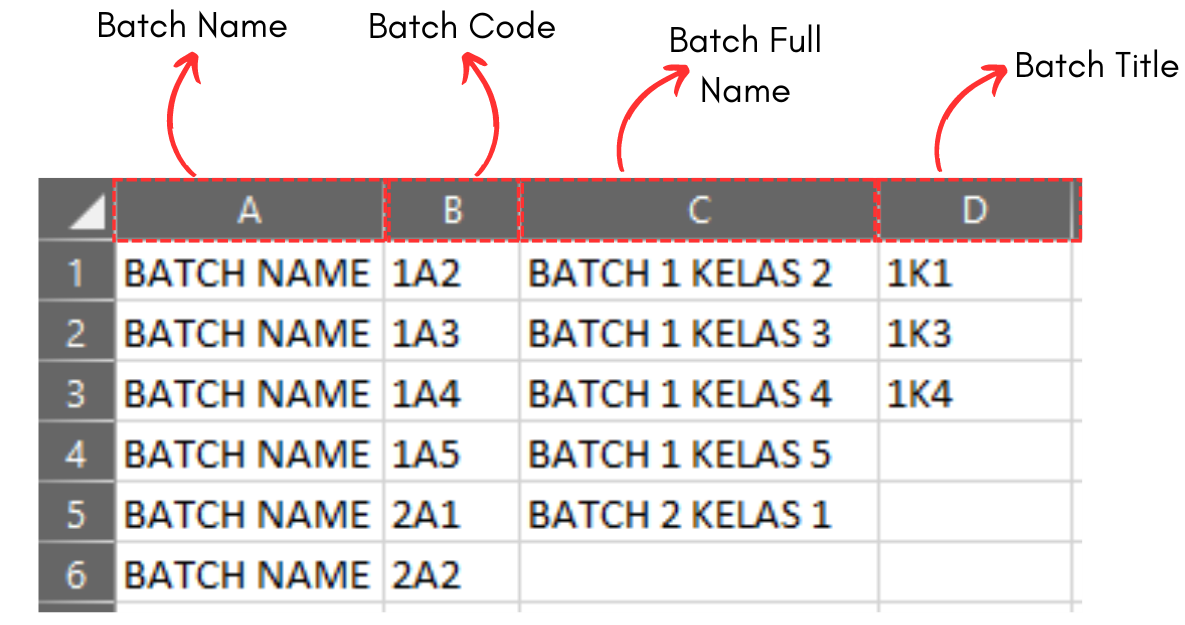
Diagram 2.1.4 Sample of the Batch Excel Template
|
Batch Name |
It is compulsory to write word "BATCH NAME" all the way down in this column. Note that it is important to make sure the spelling is right. |
|
Batch Code |
Short name of the batch. Batch code cannot be duplicated and compulsory. IMPORTANT: Do not put 0 or leave it blank in the excel sheet. |
|
Batch Full Name |
Long name of the batch. It is non-compulsory. |
|
Batch Title |
Title of the batch. It is non-compulsory. |
Table 2.1.4 Batch Excel Explanation
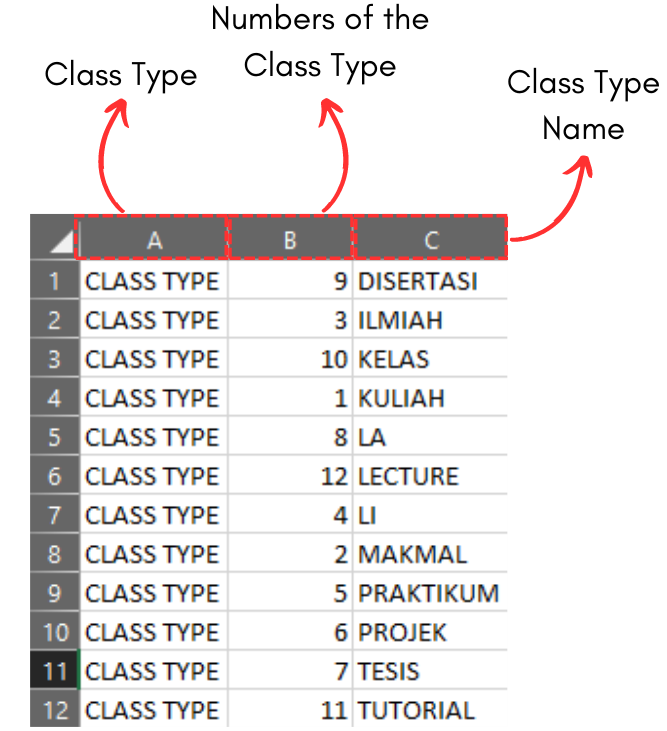
Diagram 2.1.5 Sample of the Class Type Excel Template
|
Class Type |
It is compulsory to write word "CLASS TYPE" all the way down in this column. Note that it is important to make sure the spelling is right. |
|
Number of Class Type |
Amount of the class type. Default is 1. IMPORTANT: Do not put 0 or leave it blank in the excel sheet. |
|
Class Type Name |
The name of the class type. IMPORTANT: Do not put 0 or leave it blank in the excel sheet. |
Table 2.1.5 Class Type Excel Explanation
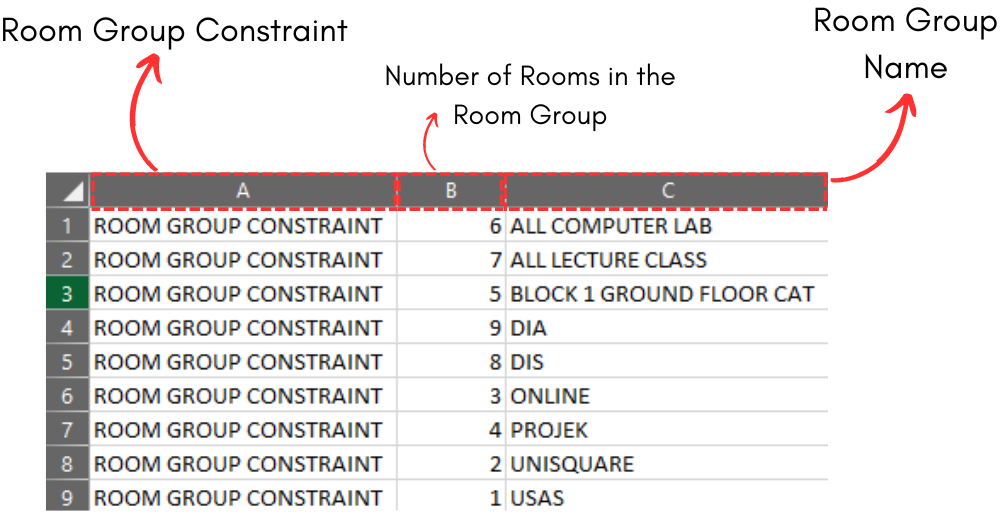
Diagram 2.1.6 Sample of the Room Group Excel Template
|
Room Group Constraint |
It is compulsory to write word "ROOM GROUP CONSTRAINT" all the way down in this column. Note that it is important to make sure the spelling is right. |
|
Number of Rooms in the Room Group |
Amount of the room in the room group. Default is 1. IMPORTANT: Do not put 0 or leave it blank in the excel sheet. |
|
Room Group Name |
The name of the room group. It is compulsory. IMPORTANT: Do not put 0 or leave it blank in the excel sheet. |
Table 2.1.6 Room Group Excel Explanation
To import using excel, open the Database in Database menu and click on your desired database.
For the location of Import in Course Management, Lecturer Management and Room Management, you may refer to the picture below
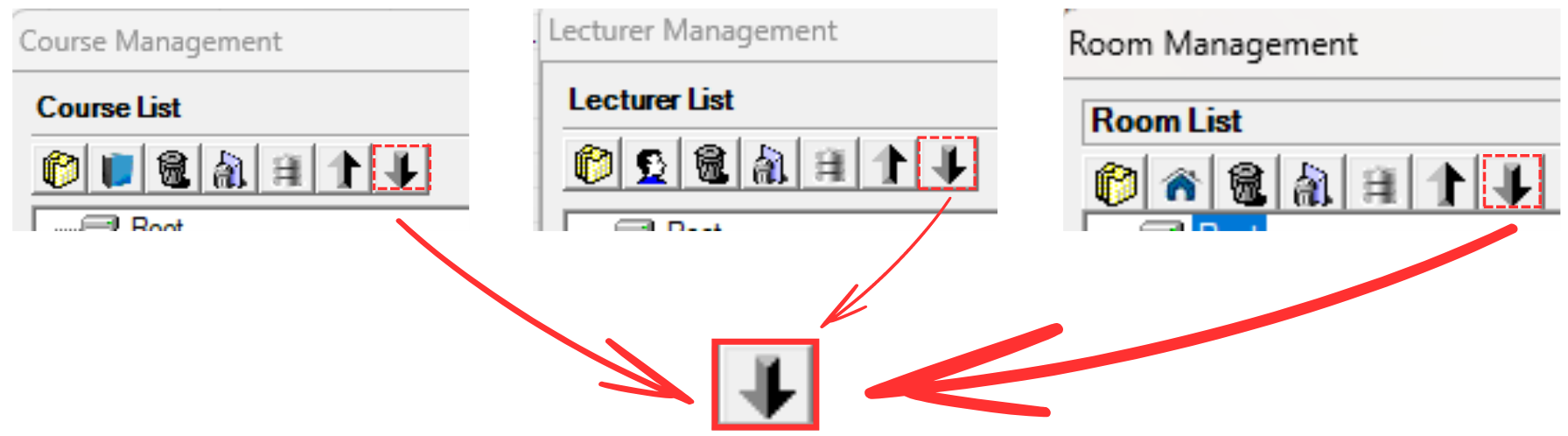
 icon after you opening up the database window.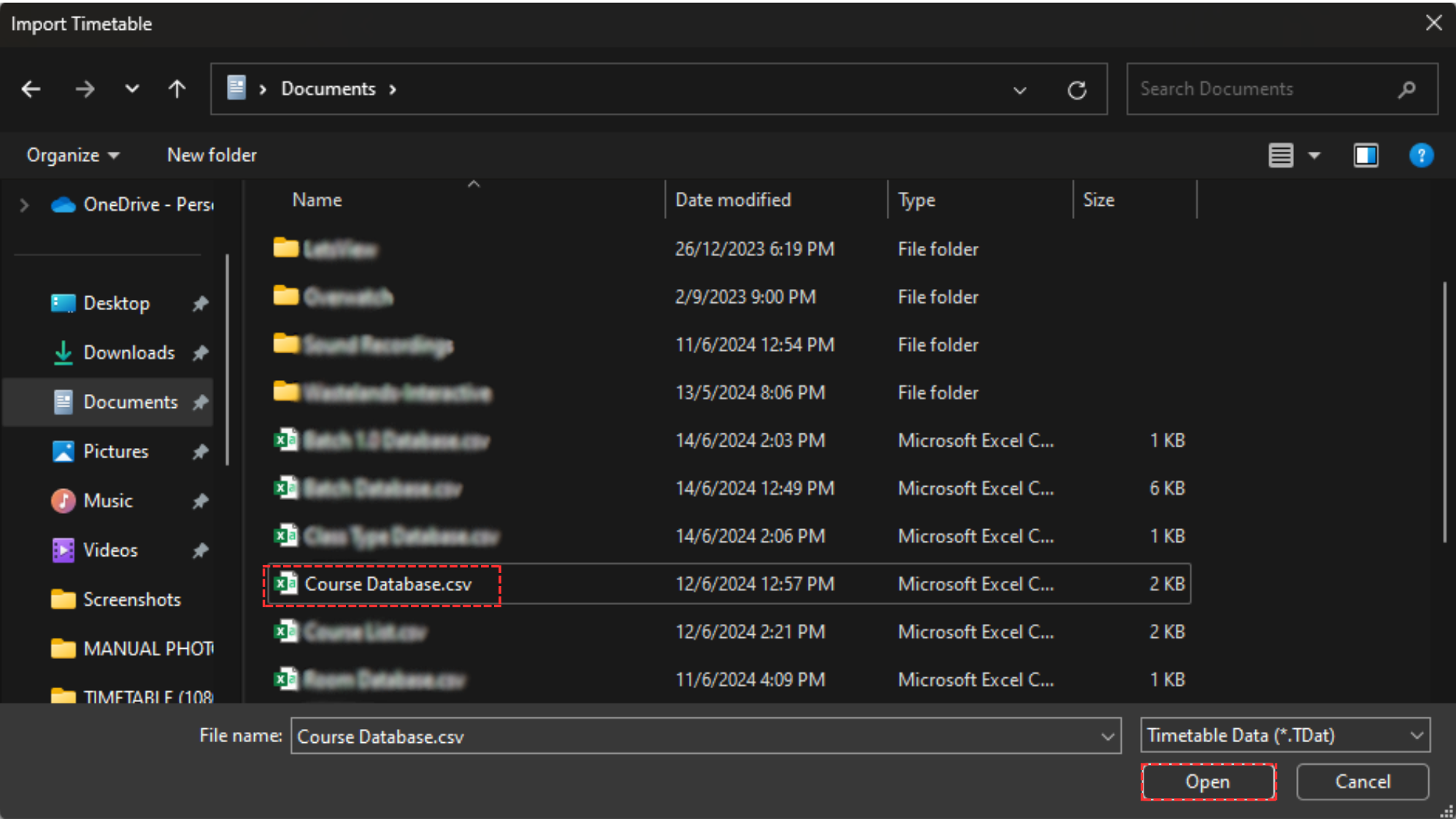
Another pop-up window will appear, showing it has been completed.

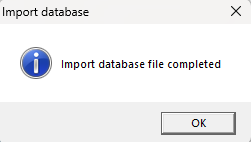
Diagram 2.1.9 Import Database Pop-Up Completed
After the database has been imported, you may view the database by clicking the Database Icons of your preferred. Below are the examples of database that has been imported.
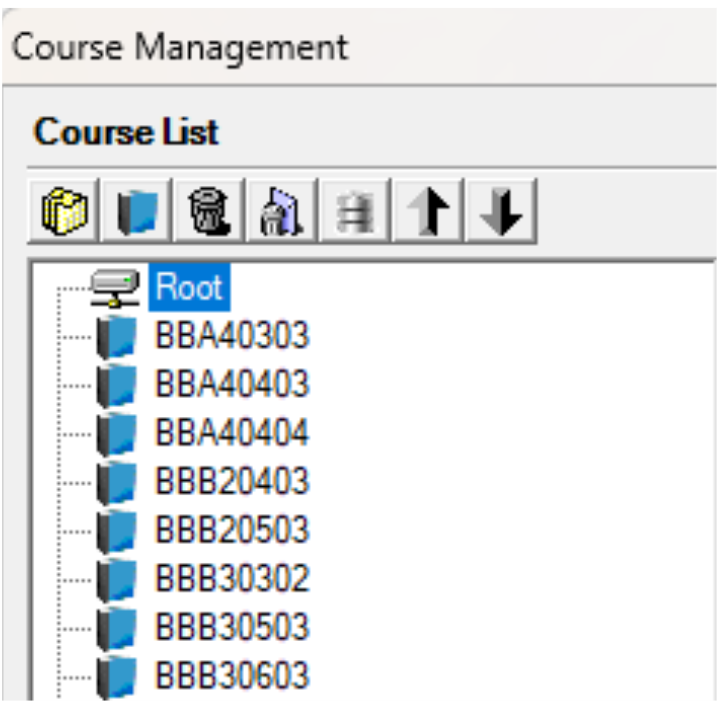
Diagram 2.1.10 Example of Imported Course Management Database
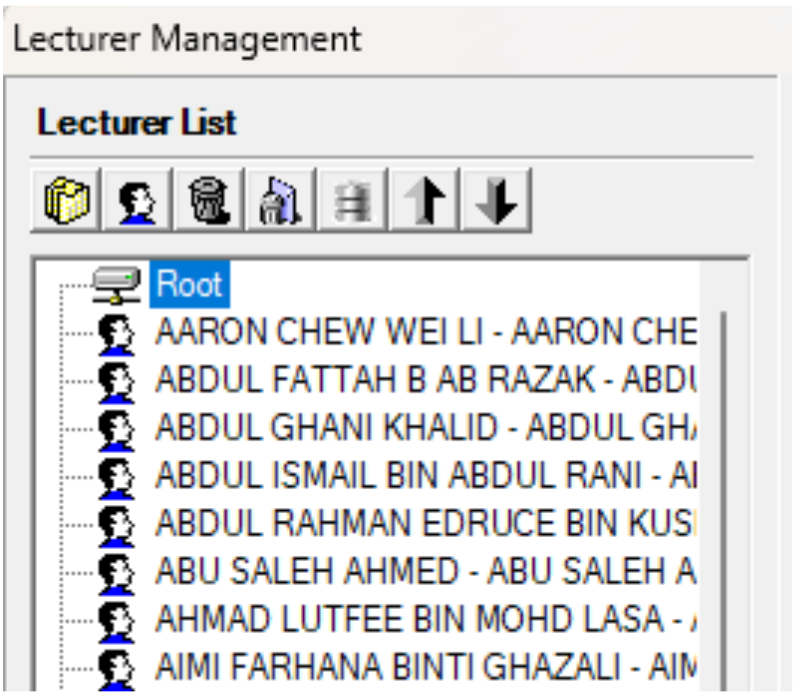
Diagram 2.1.11 Example of Imported Lecturer Management Database
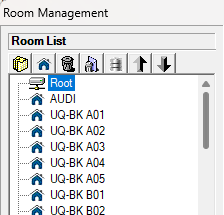
Diagram 2.1.12 Example of Imported Room Management Database

Diagram 2.1.13 Example of Imported Batch Database
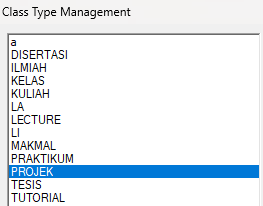
Diagram 2.1.14 Example of Imported Class Type Database
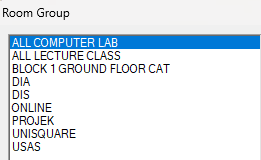
Diagram 2.1.15 Example of Imported Room Group Database