2. Timetable Output Structure
2.2. How To Add Room List In Timetable Output

Diagram 2.2.1: Location of Room List
Click Timetable Structure and click Room List to open up Room list window
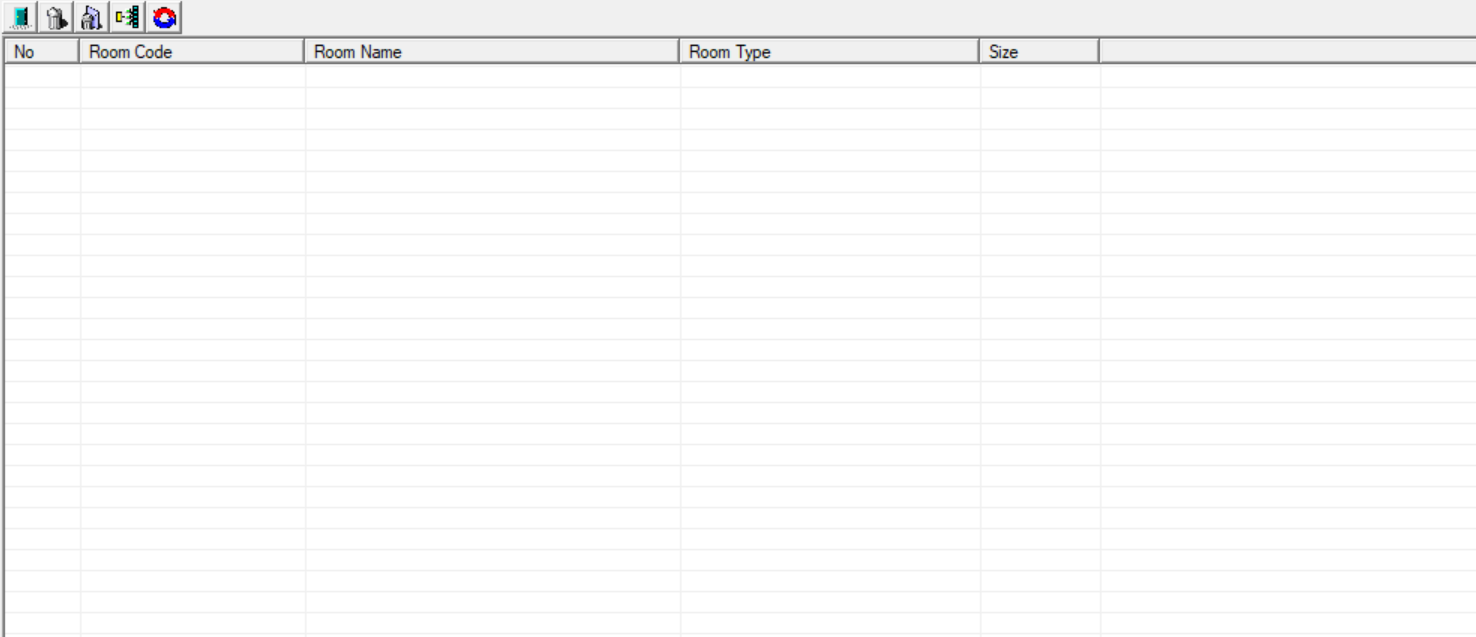
Diagram 2.2.2: Room List Window
Inside Room list window, you will be able to see icons on the top left side.
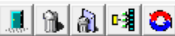
| Click this icon to add new room |
| Click this icon to delete the room. |
| Click this icon to delete all the rooms. |
| Click this icon to expand all constraint group |
| Click this icon to refresh view Room List. |


1. Adding Room List In Timetable Output
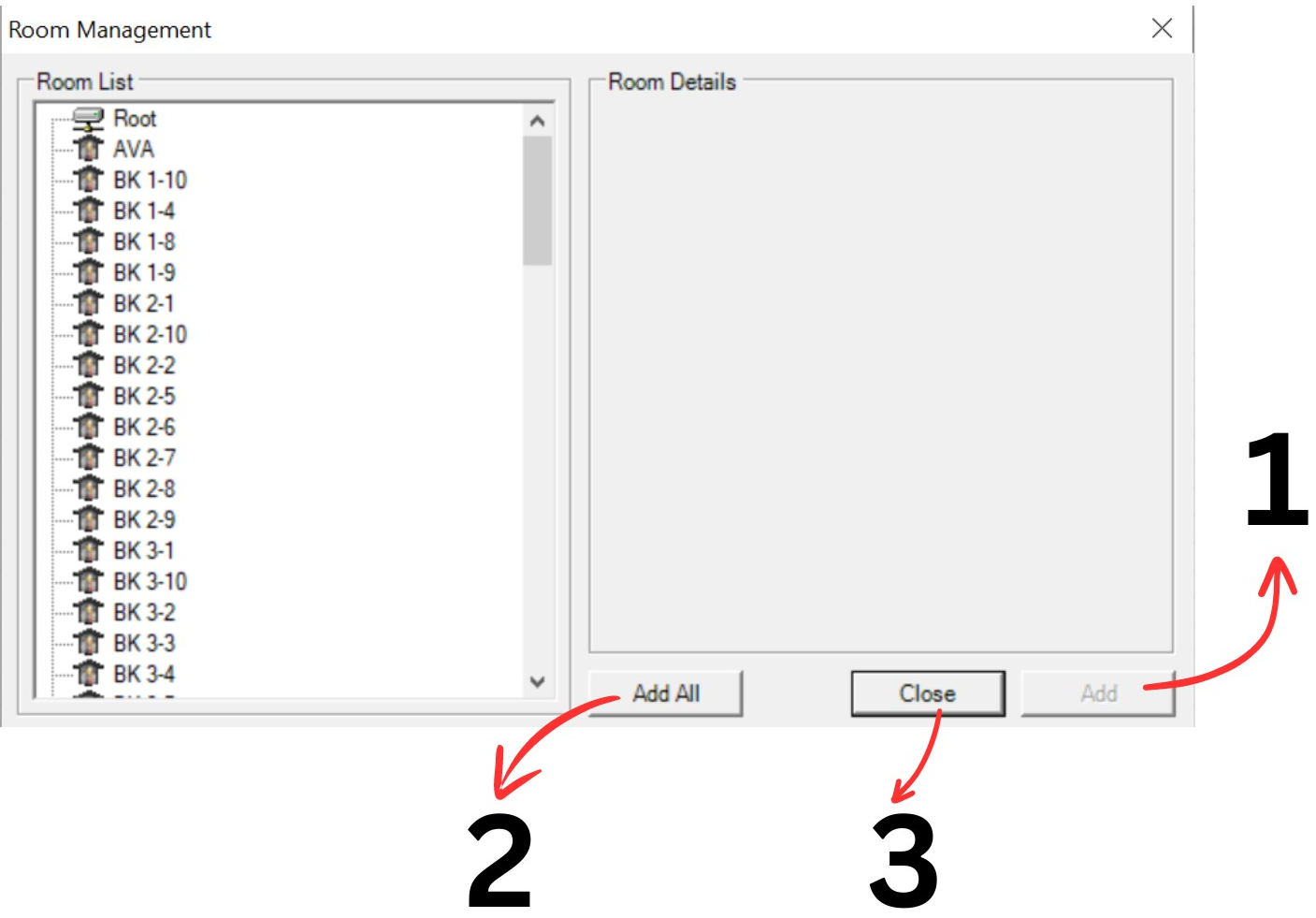
Diagram 2.2.3: Room Management Window Opened
1.Select room need to be added in and click Add
2. Click Add All to add all rooms in the list.
3. Click Close to close Room Management window
2. Deleting room list
There are 2 simple steps to Delete Room Only or Delete All:
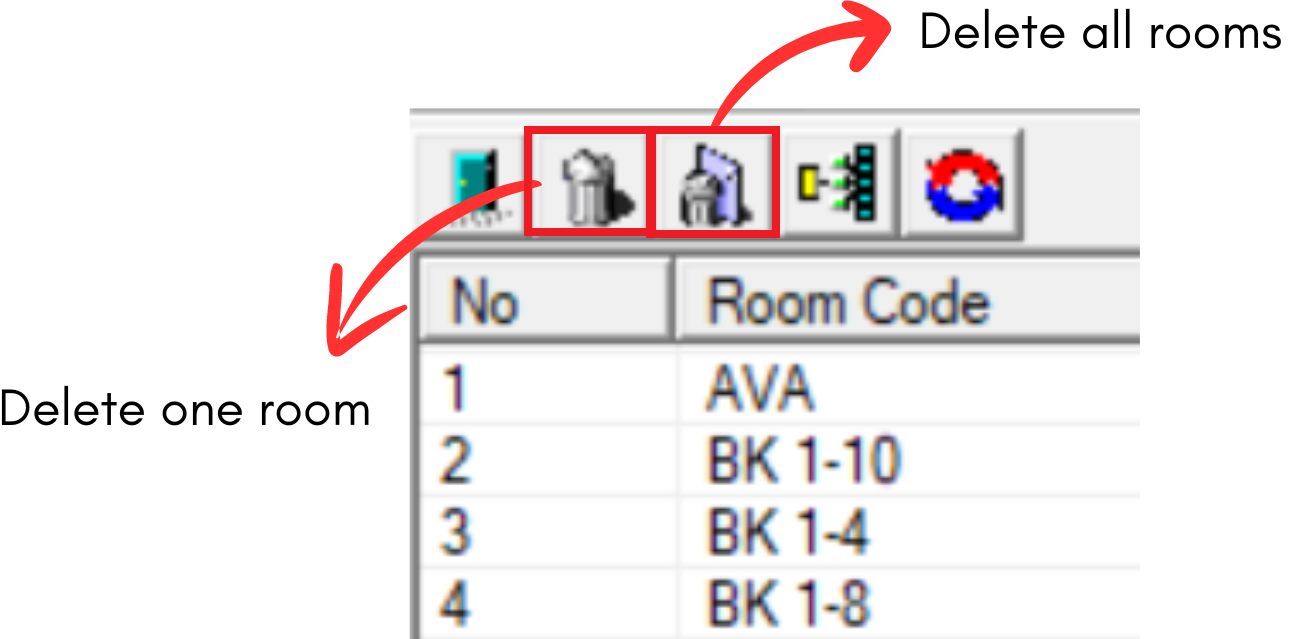
Diagram 1.2.4: Delete room and delete all rooms iconDelete Room Only
Step 1: Select the room and Click Delete Room Icon 
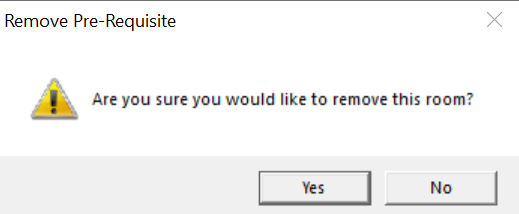
Diagram 2.2.5: Confirmation window to delete roomStep 2: Confirmation window will pop-up and click Yes to Delete
Delete All
Step 1: To delete all rooms, click the delete all icon 
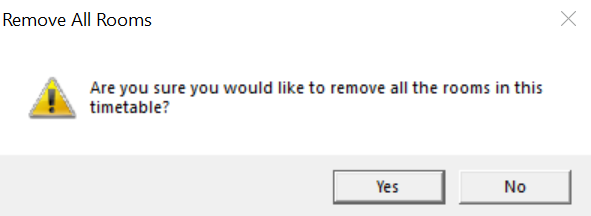
Diagram 2.2.6: Confirmation window to delete all roomsStep 2: Confirmation window will pop-up and click Yes to Delete.
Click REFRESH icon  to produce the General Timeline in Timetable Structure.
Reminder: Click  every time new changes need to be made