3. Lecture Constraint
Each Lecturer in the Lecturer List can set his/her own constraint according to:
- Timeslot Preference
- Time Slot Spread (Avoid Teaching Consecutively)
- Room Preference
STEP 1: Getting to Data Lecturer List
Step 1.a : Click Data Tab
Step 1.b : Click Lecturer List Tab to open up Data Lecturer List

Diagram 2.1 : Location of Lecturer List
Step 2 : Select any of lecturers (ADIB).
Double Click on Selected Lecturer.
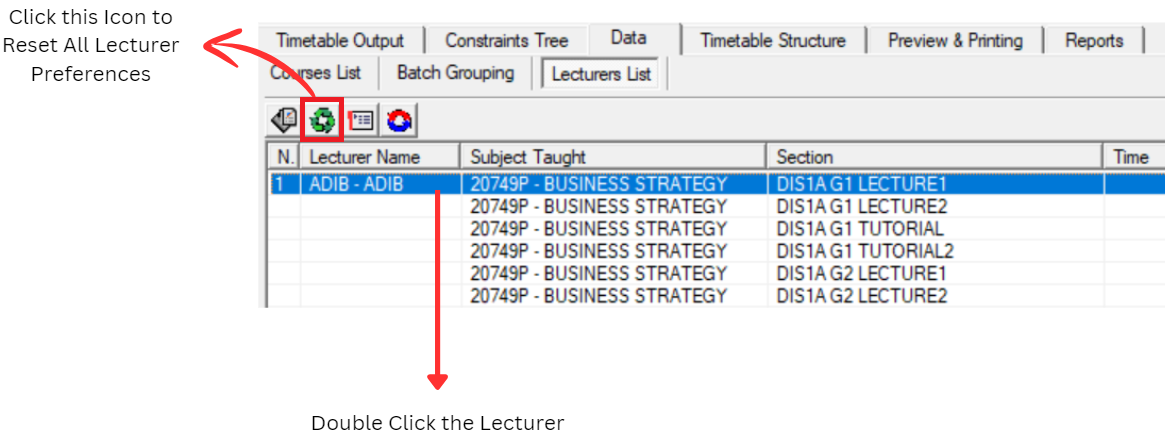
Diagram 2.2 : Double Click the Lecturer
Lecturer Constraints Window will appear.
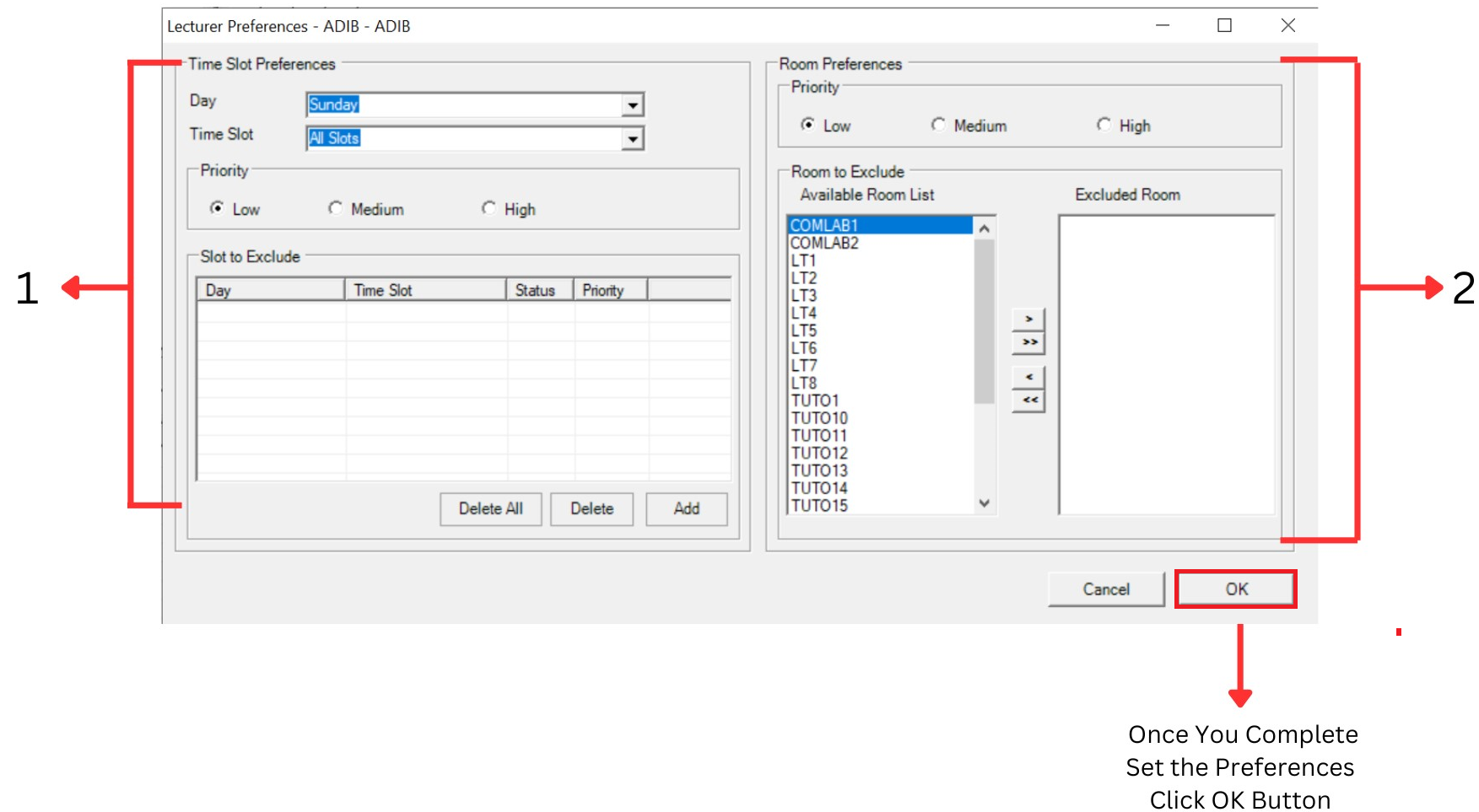
Diagram 2.3 : Lecturer Constraint Window
1. Time Slot Preferences
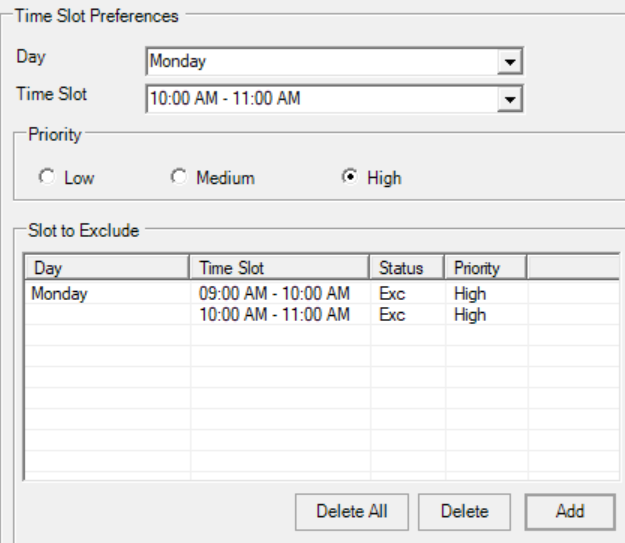
Diagram 2.4 : Time Slot Preferences Box
Lecturers can define the time slot or day to
Exclude by Adding to the Slot to Exclude Box.
Priority can also be set across from Low to High
(Those that is set to Low will lose out to those set
to High)
2. Room Preferences
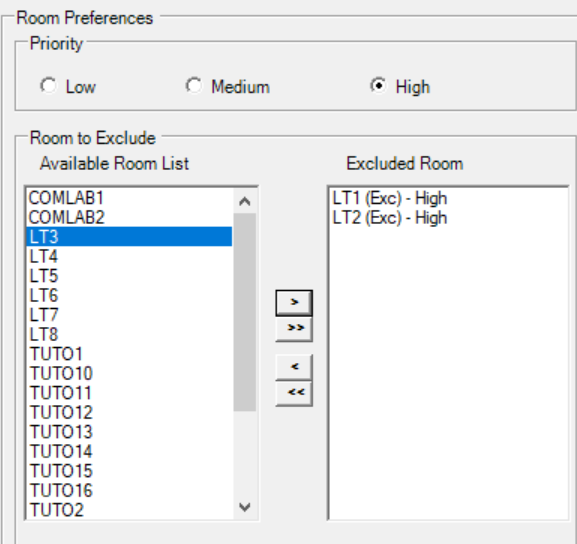
Diagram 2.5 : Room Preference Box
Lecturer can be specific to choose the room from Priority the Room list that he/she wants to Exclude b y moving those to be Excluded to the right box: Preferred Room. Lecturer can choose few rooms to be excluded. Normally this function is used for disable lecturer that preferred room to be in the lower level or access easily.
Once completed, click OK button.
Note :
 : Move selected Room to the Right
 : Move all Rooms to the Right
 : Move selected Room to the Left
 : Move all Rooms to the Left
EXTRA
Time Slot Spread
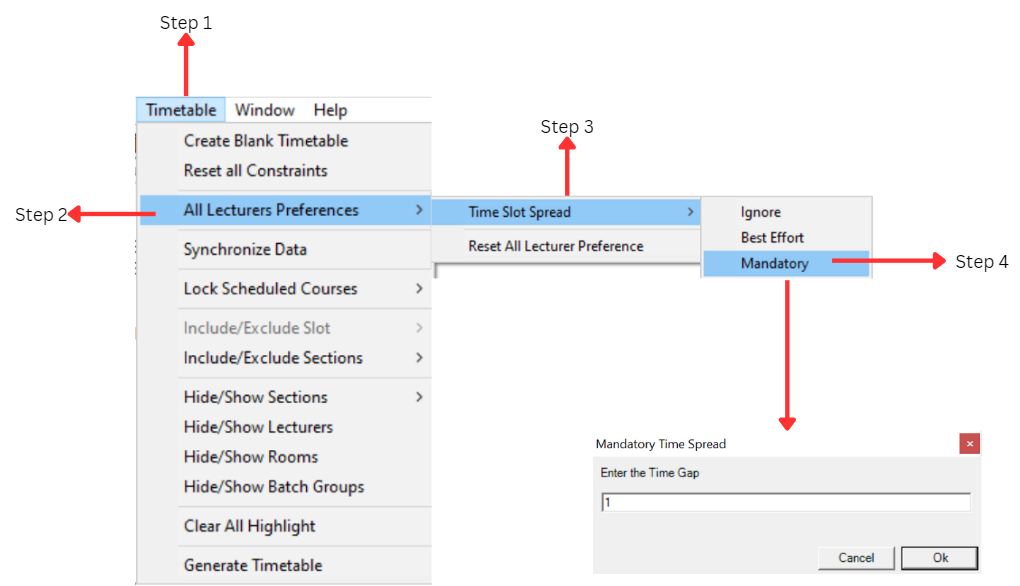
User can set Time Slot Spread constraint APPLY TO ALL LECTURERS by follow these steps:
Step 1: Click on Timetable menu
Step 2: Click on All lecturer Preference
Step 3: Select Timeslot Spread
Step 4: If Mandatory is selected, Enter the number of gaps (slots) needed to be free before the next class
User can use this function to make sure that the lecturers do not teach consecutively. User can use these options:
Ignore : No Setting applied
Best Effort : The system will try its best to Avoid Teaching Consecutively and No Guarantee assured
Mandatory : The system will Guaranteed that the lecturer will have at least 1 slot (Example : User can define 1 slot as 1 hour at the General Tab) free before the next class. The number of desired slot to be free can be set according at the Time Gap Box.