System
| Site: | Timetable Plus |
| Course: | Timetable Plus Campus (Ver 1) |
| Book: | System |
| Printed by: | Guest user |
| Date: | Thursday, 30 April 2026, 9:08 PM |
1. USERS
SYSTEM SECTION OVERVIEW
The System section, as seen in the image, allows administrators to manage key system settings, user access, and roles. This section is essential for controlling who has access to the system and what permissions they have.
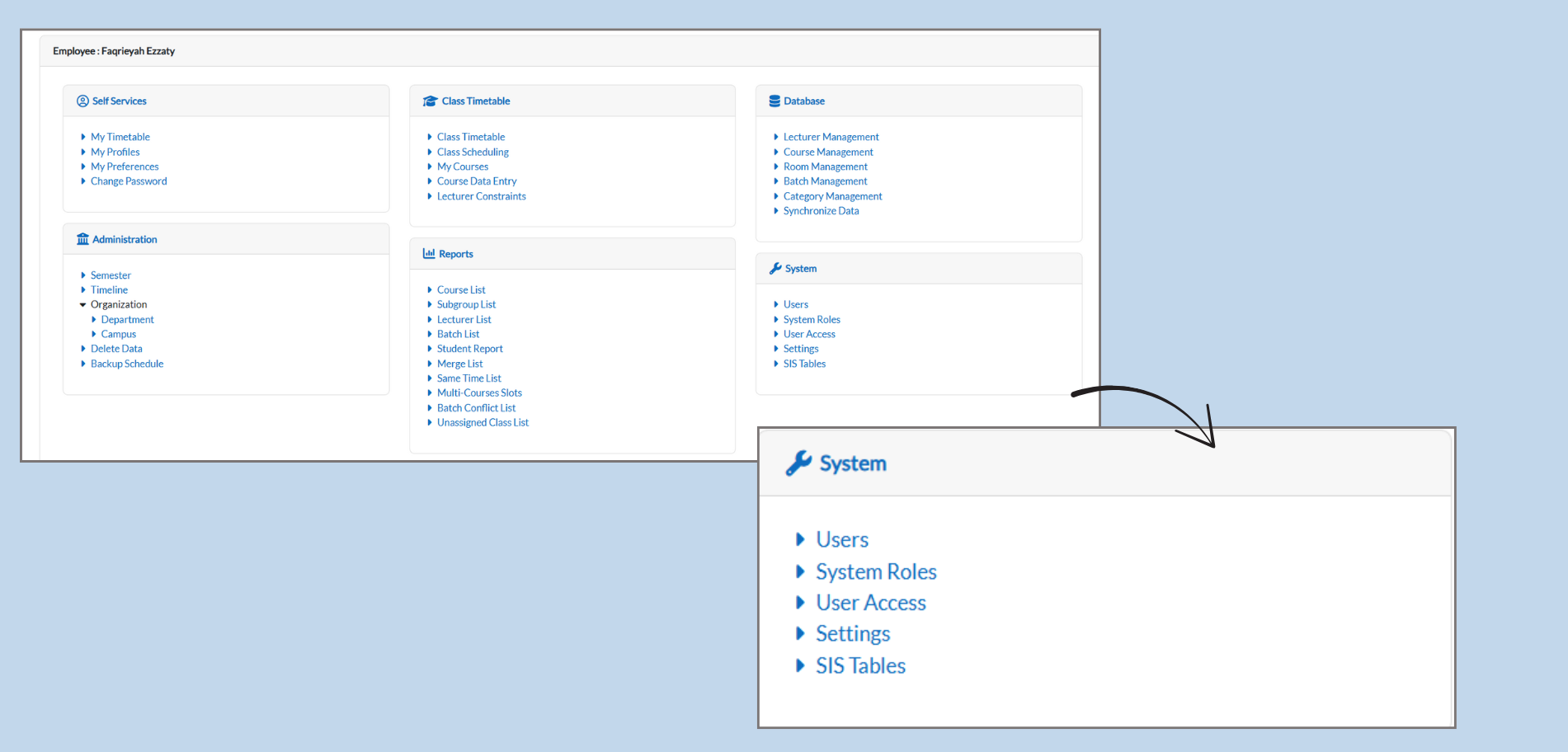
How to Use the System Section:
-
Users:
-
This is where you can manage and view all the users who have access to the system
-
You can add, edit, or remove users based on their roles and responsibilities.
-
-
System Roles:
-
Here, you can define the roles within the system, such as Admin.
-
You can assign specific permissions to each role, determining what each role can access or modify.
-
-
User Access:
-
In this section, you control what users can see and do within the system.
-
You can grant or restrict access to specific features based on the user’s role.
-
-
Settings:
-
This section lets you modify the system.
-
You can adjust configurations to customize how the system works for your institution’s needs.
-
-
SIS Tables:
-
This is where the system’s data tables related to the Student Information System (SIS) are managed.
-
It allows you to organize and structure data, such as lecturer list, rooms lists, and batch lists for smooth operation.
-
1. Users
1.1 How to Manage Users in the E-Campus System
-
Navigating to the Users Section:
-
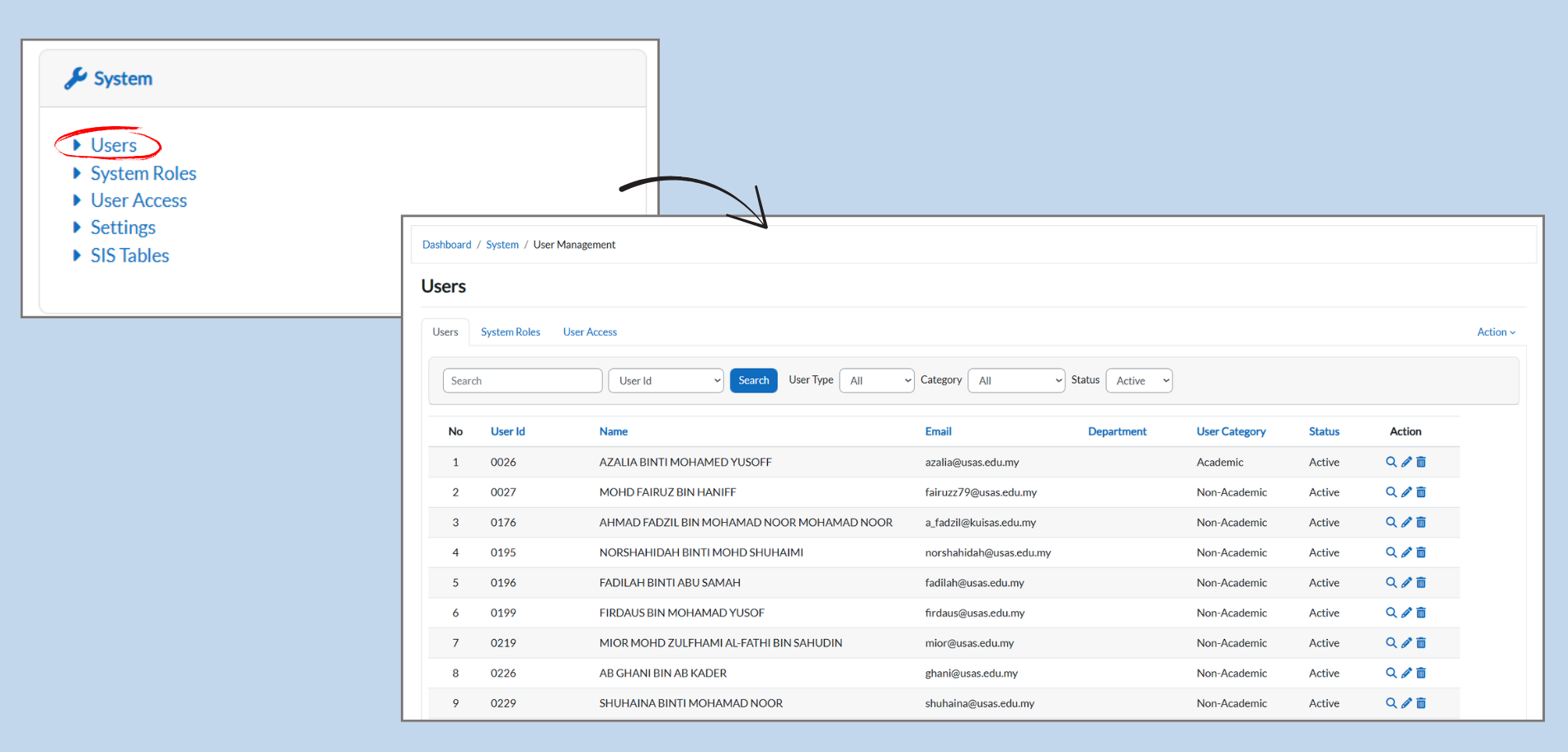
From the System menu, click on the Users. This will bring you to the user management page where you can view and manage user accounts.
-
-
Searching for Users:
-
In the Search bar at the top, you can type in the User ID or Name of the person you’re looking for.
-
You can filter by User Type, Category, or Status to narrow down the search results.
-
-
User Details:
-
Each user’s information is displayed in the table below:
-
No: The user’s number for easy reference.
-
User ID: Unique identifier for each user.
-
Name: The full name of the user.
-
Email: The user’s registered email address.
-
Department: The department the user belongs to (e.g., Academic or Non-Academic).
-
User Category: Categorizes the user as either Academic or Non-Academic.
-
Status: Displays if the user is Active or Inactive.
-
-
-
Action for Managing Users:
-
In the Action column, you have options to:
-
Edit: Click the pencil icon to edit user details.
-
Delete: Click the trash bin icon to delete the user.
-
-
1.2 Managing Users: Adding and Deleting Users
-
Adding a New User:
-
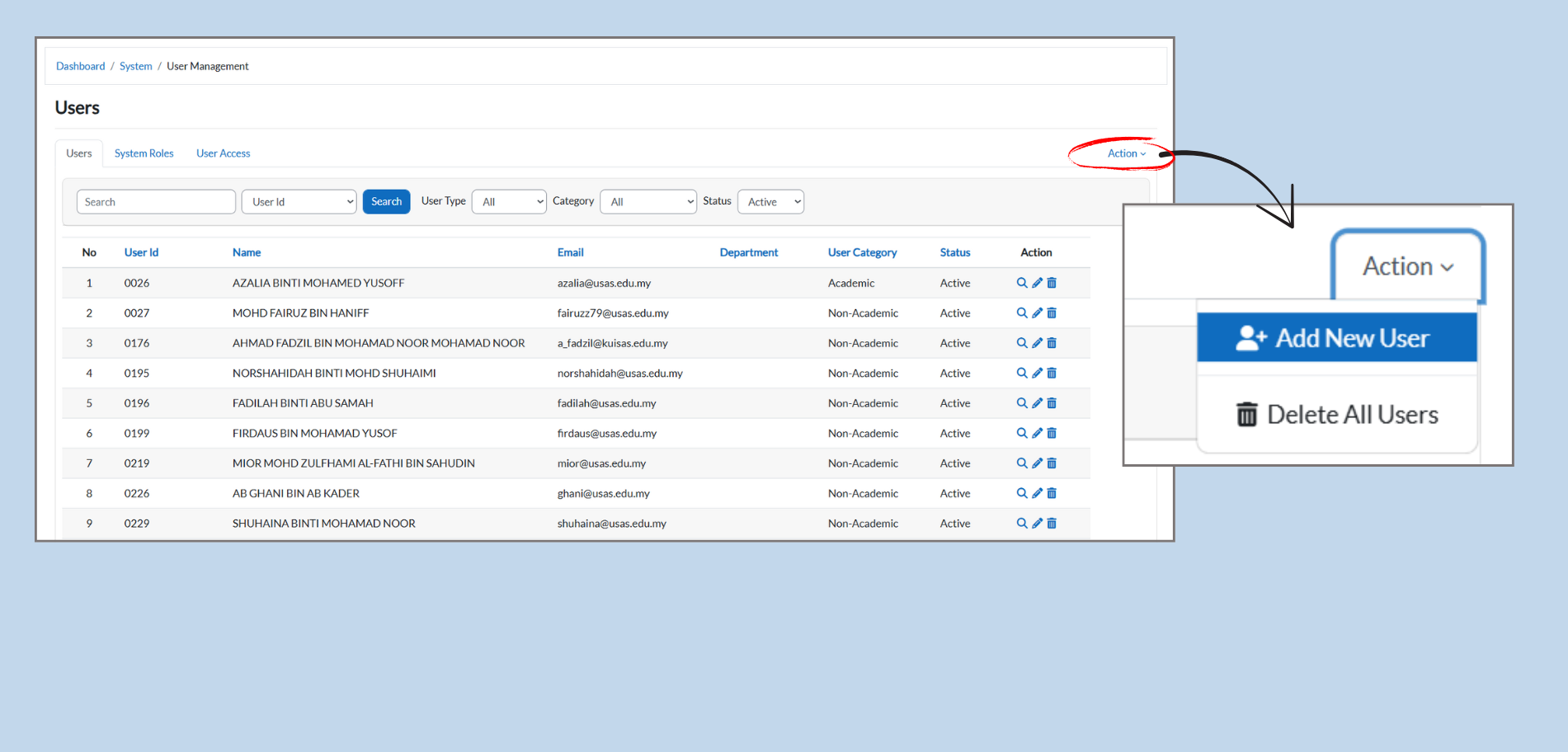
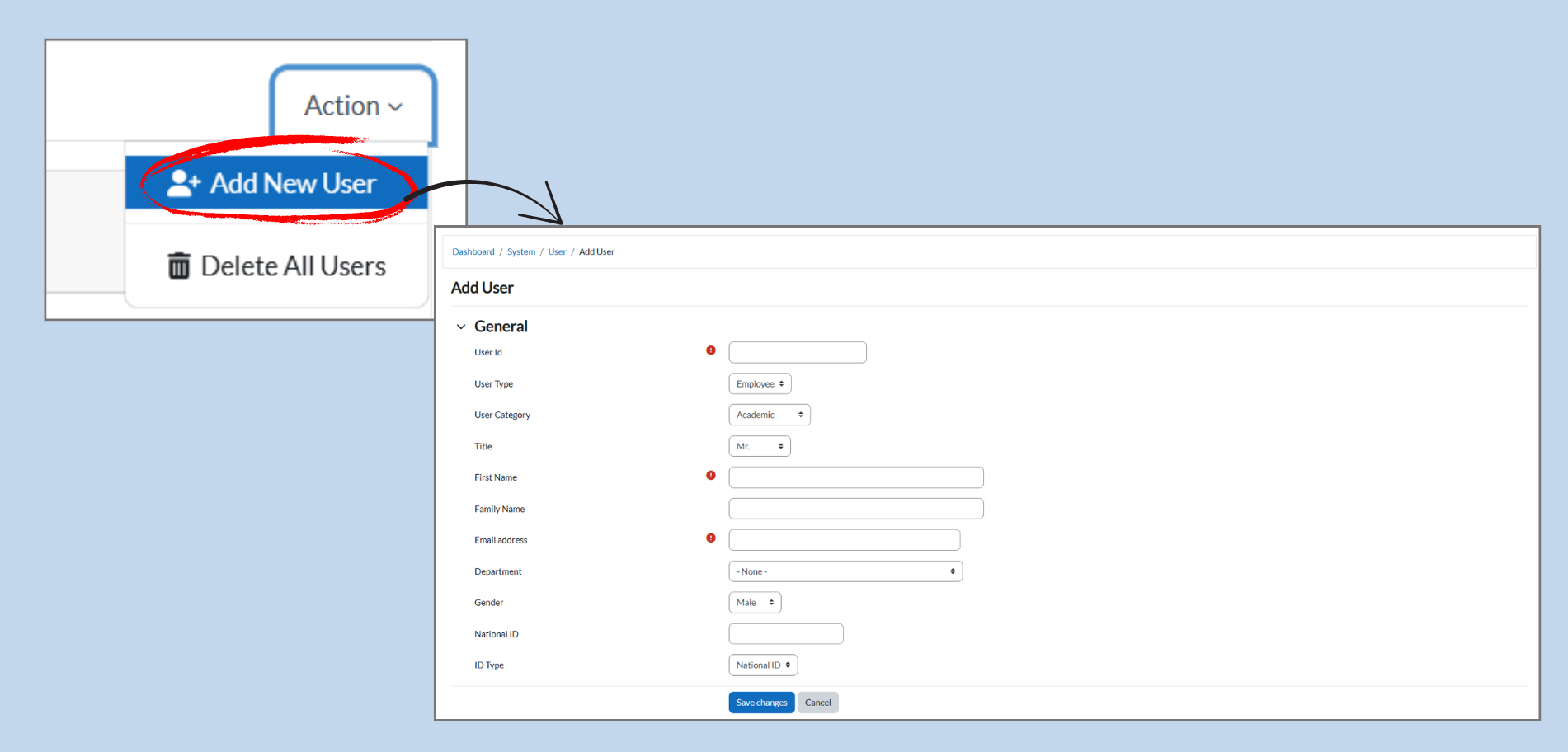
To add a new user, click the Action dropdown menu on the right.
-
Select Add New User from the options.
-
This will take you to a page where you can enter the new user’s details, such as their name, email, and deparment.
-
1.2.2 Adding a New User: Step-by-Step
-
Click on Add New User:
-
From the Action dropdown, select Add New User to open the user creation form.
-
- Fill in User Details:
-
User ID: Enter a unique indentifier for the user.
-
User Types: Select the type of user (e.g., Employee).
-
User Category: Choose whether the user is Academic or Non-Academic.
-
Title: Select the user’s title (e.g., Mr., Ms.).
-
First Name: Enter the user’s name.
-
Email Address: Provide the user’s gender (e.g., Male., Female).
-
National ID: Enter the user’s national ID number.
-
C-Types: Choose the applicable user category.
Save Changes:
-
Once all details are filled in, click Save Changes to add the new user to the system.
-
-
1.2.3 Deleting All Users: Step-by-Step
-
Select Delete All Users:
-
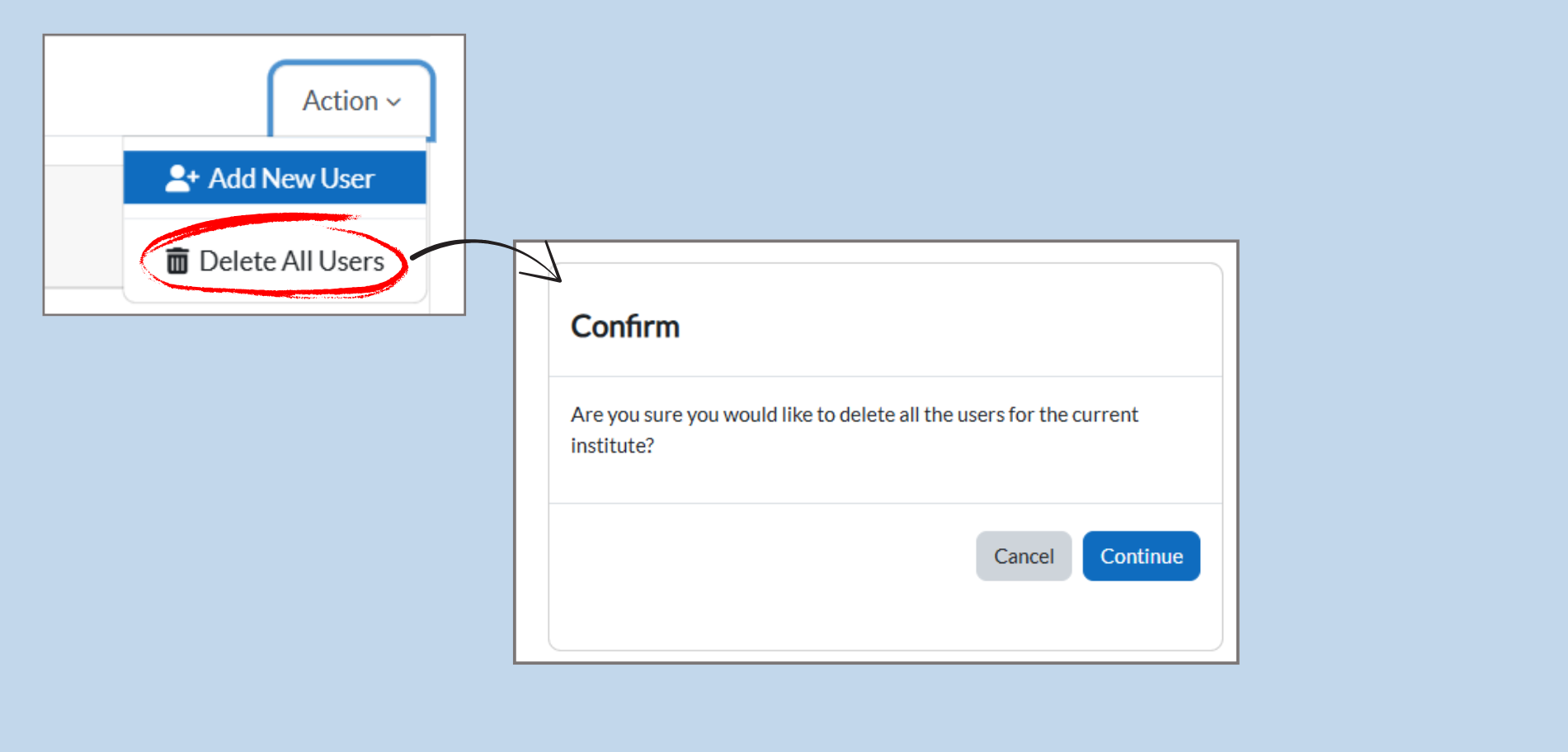
In the Action dropdown menu, click on Delete All Users to open the confirmation prompt.
-
-
Confirmation Prompt:
-
A pop-up window will appear asking, “Are you sure you would like to delete all the users for the current Institute?”
-
This is a permanent action, so make sure you are certain before proceeding.
-
-
Confirm Deletion:
-
If you wish to process, click the Continue button.
-
If you change your mind, click Cancel to exit without deleting any users.
-
1.2.3 Managing Users with Action Icons
-
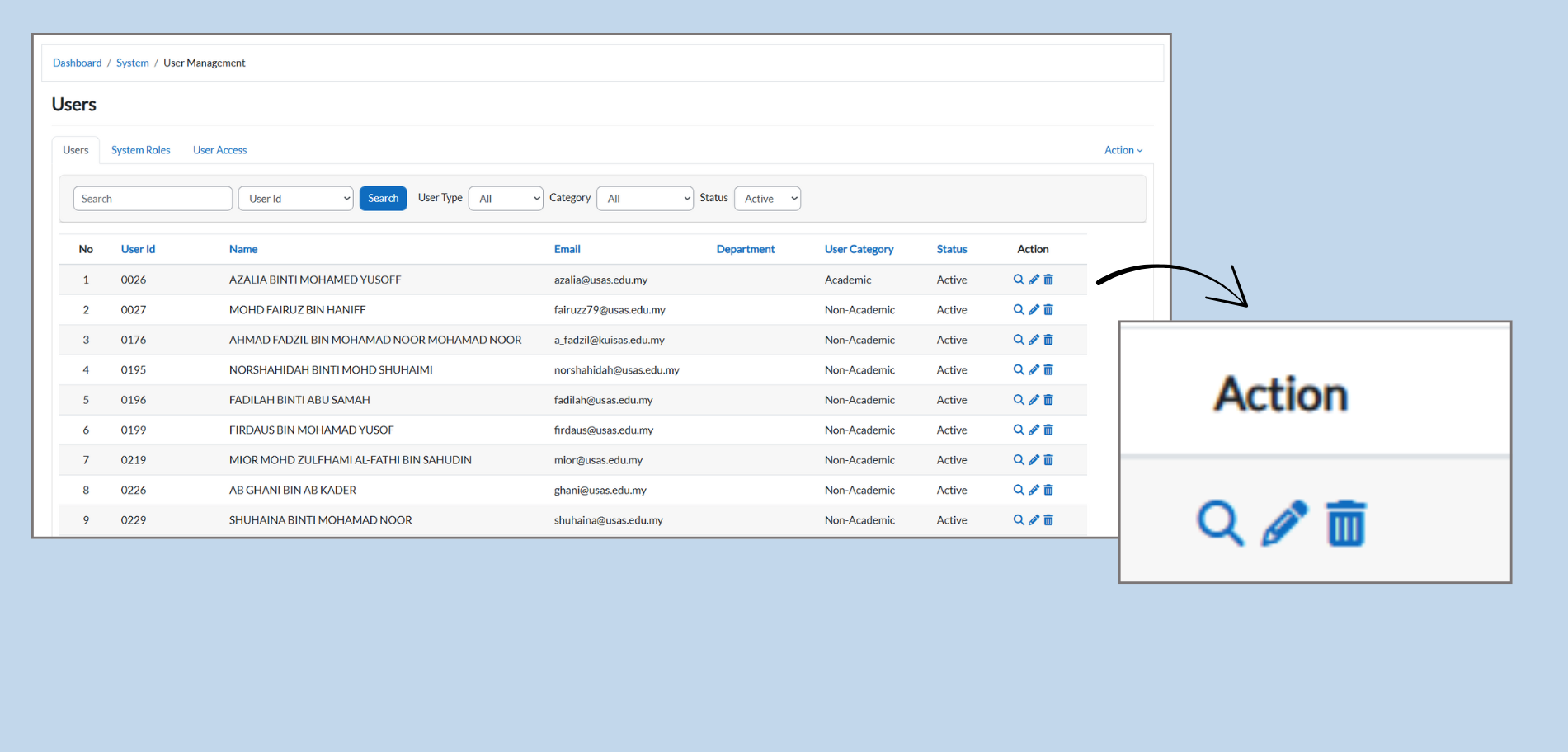
Action Icons:
-
In the Action column, you’ll see icons next to each user. These icons allow you to perform different actions for each user listed in the table.
-
-
View User Details:
-
Click the magnifying glass icon to view detailed information about the user, such as their personal details, assigned courses, and more.
-
-
Edit User Information:
-
Click the pencil icon to edit the user’s details. This includes updating their name, email, department, or other personal information. After making changes, make sure to save them.
-
-
Delete User:
-
Click the trash bin icon to delete the user from the system. Be careful with this option, as it permanently removes the user from the system.
-
1.2.4 Viewing and Editing User Details
-
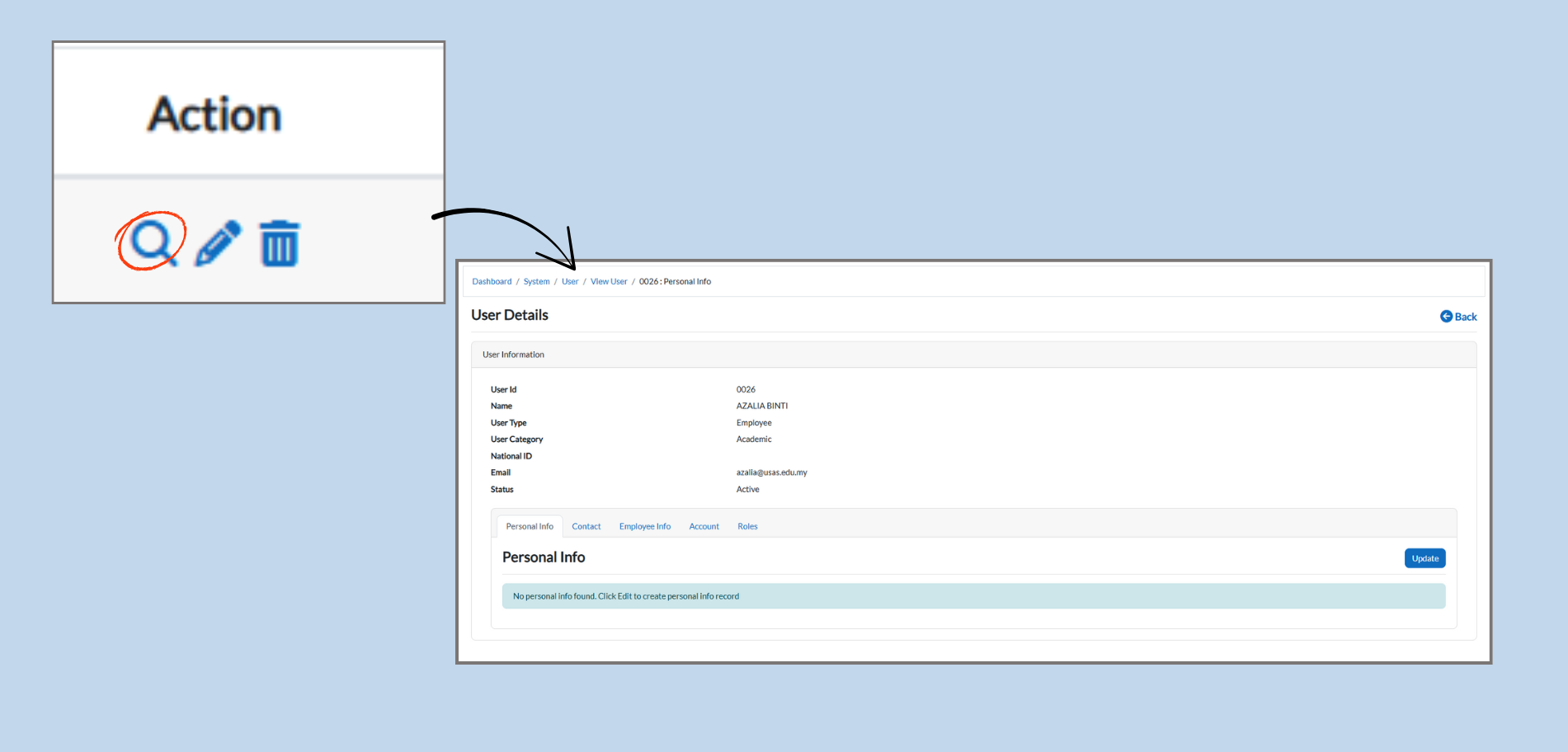
Accessing User Details:
-
Click the magnifying glass icon in the Action column to view the User Details page.
-
This page displays all the information related to the selected user.
-
-
User Information:
-
In the User Details section, you can see the following:
-
User ID: Unique identifier for the user.
-
Name: Full name of the user.
-
User Type: Whether the user is an employee or a different type.
-
User Category: Whether the user is academic or non-academic.
-
Status: Displays whether the user is active or inactive.
-
-
-
Personal Information:
-
In the Personal Info section, you can view and update the user’s personal details (e.g., address, phone number).
-
To make changes, click the Update button agter entering the new information.
-
-
Tabs for Further Information:
-
The page has several tabs like Contact, Employee Info, Account, and Roles.
-
1.2.5 Editing Personal Information
-
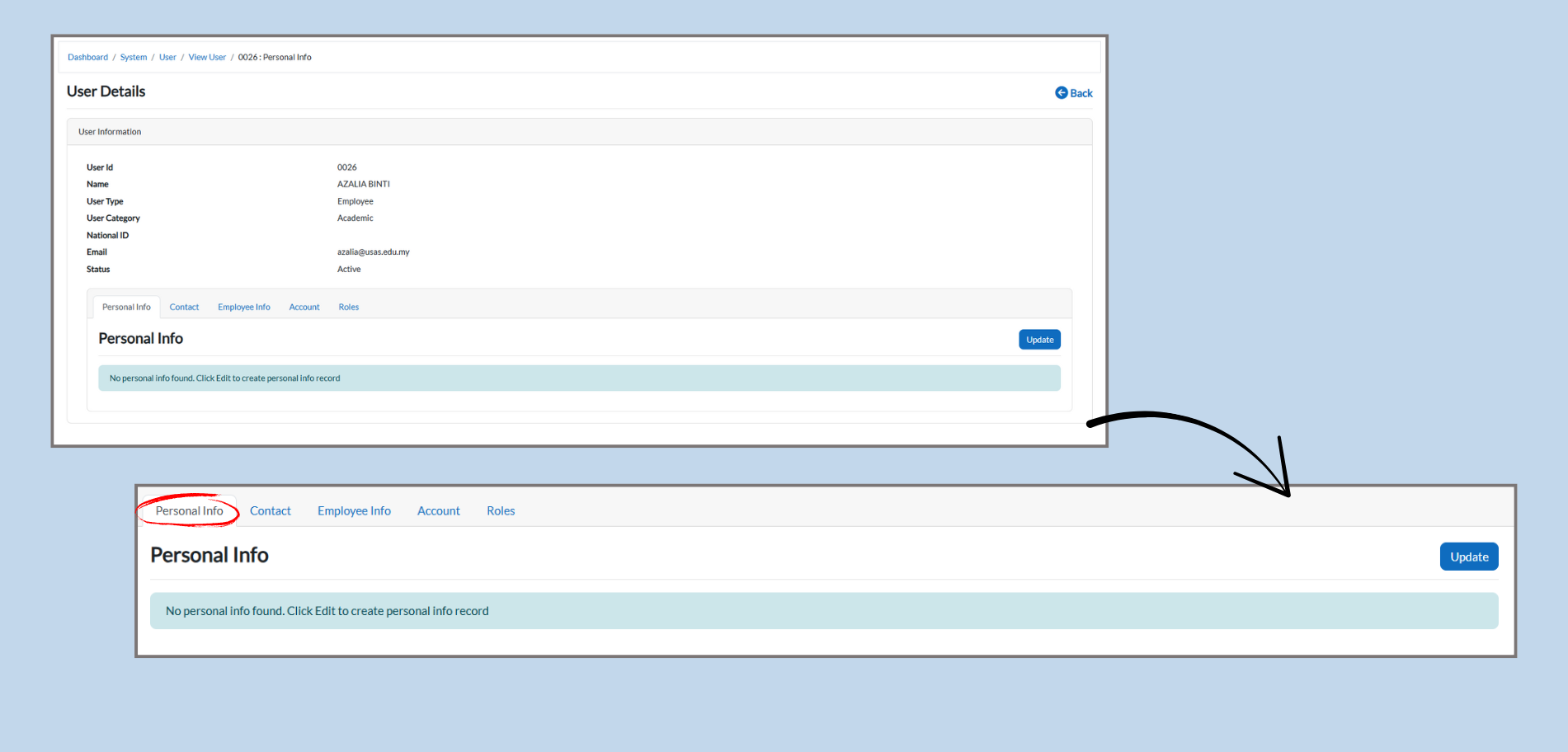
Accessing Personal Info:
-
After clicking the magnifying glass icon in the Action column to view User Details, you’ll see the Personal Info tab.
-
-
Adding Personal Info:
-
If no personal information is found, you will see the message “No personal info found. Click Edit to create personal info record.”
-
Click the Edit button to add or update the personal information for the user.
-
-
Saving Changes:
-
After entering or updating the personal information, click Update to save the changes.
-
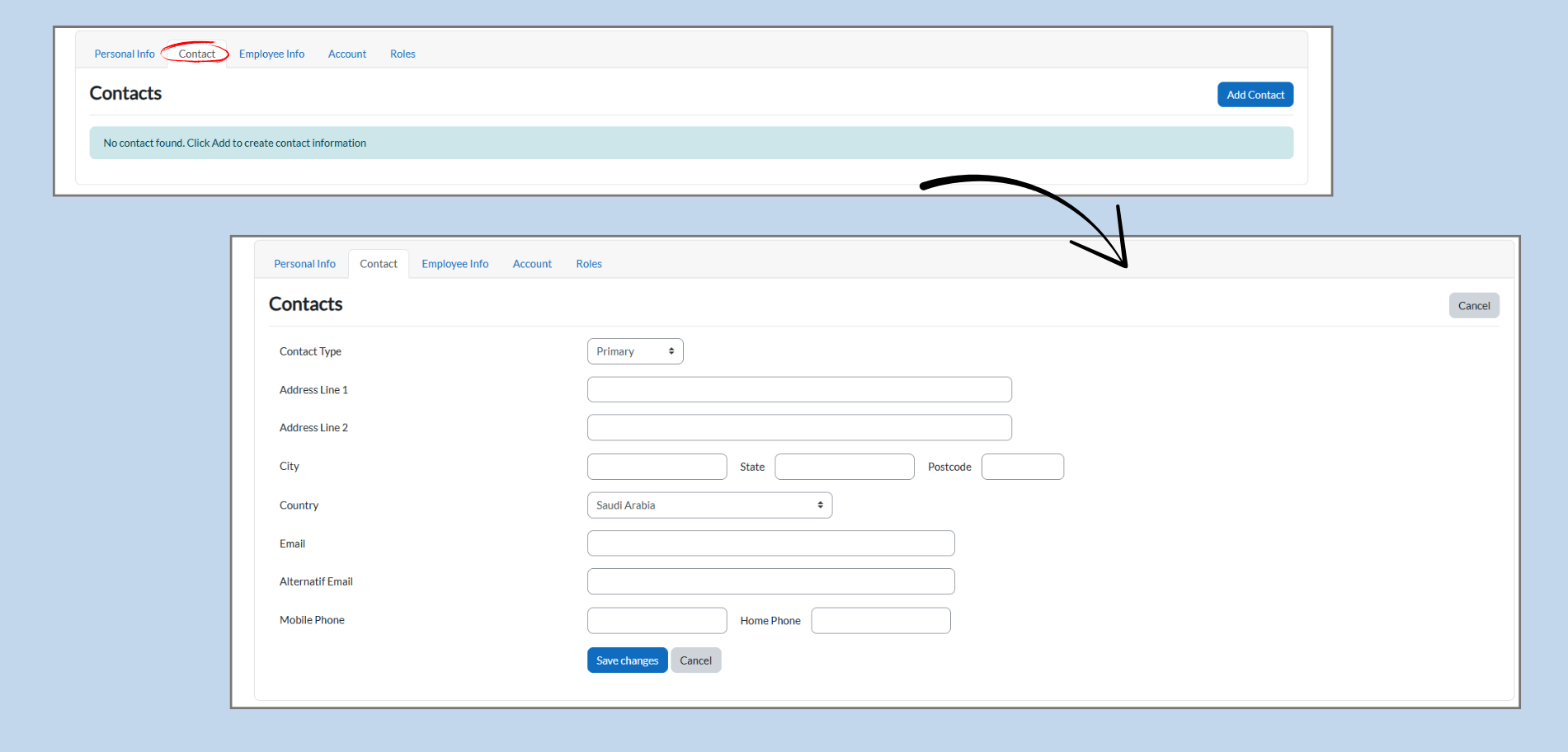
1.2.6 Editing Contact Information
-
Accessing Contacts:
-
Click on the Contact tab to view and edit the user’s contact information.
-
-
Adding Contact Info:
-
If no contact information is found, you’ll see the message “No contact found. Click Add to create contact information.”
-
Click the Add Contact button to enter the user’s contacts details.
-
-
Filling in Contact Information:
-
In the Contacts section, you can fill out the following fields:
-
Contact Type: Select whether this is the Primary or Secondary contact.
-
Address: Add the user’s address details, including address lines, city, state, postcode, and country.
-
Email: Add the user’s email address.
-
Alternate Email: Optionally, add a backup email address.
-
Mobile Phone & Home Phone: Add the user’s phone numbers.
-
-
-
Saving Changes:
-
After filling out or updating the contact details, click Save Changes to update the contact information for the user.
-
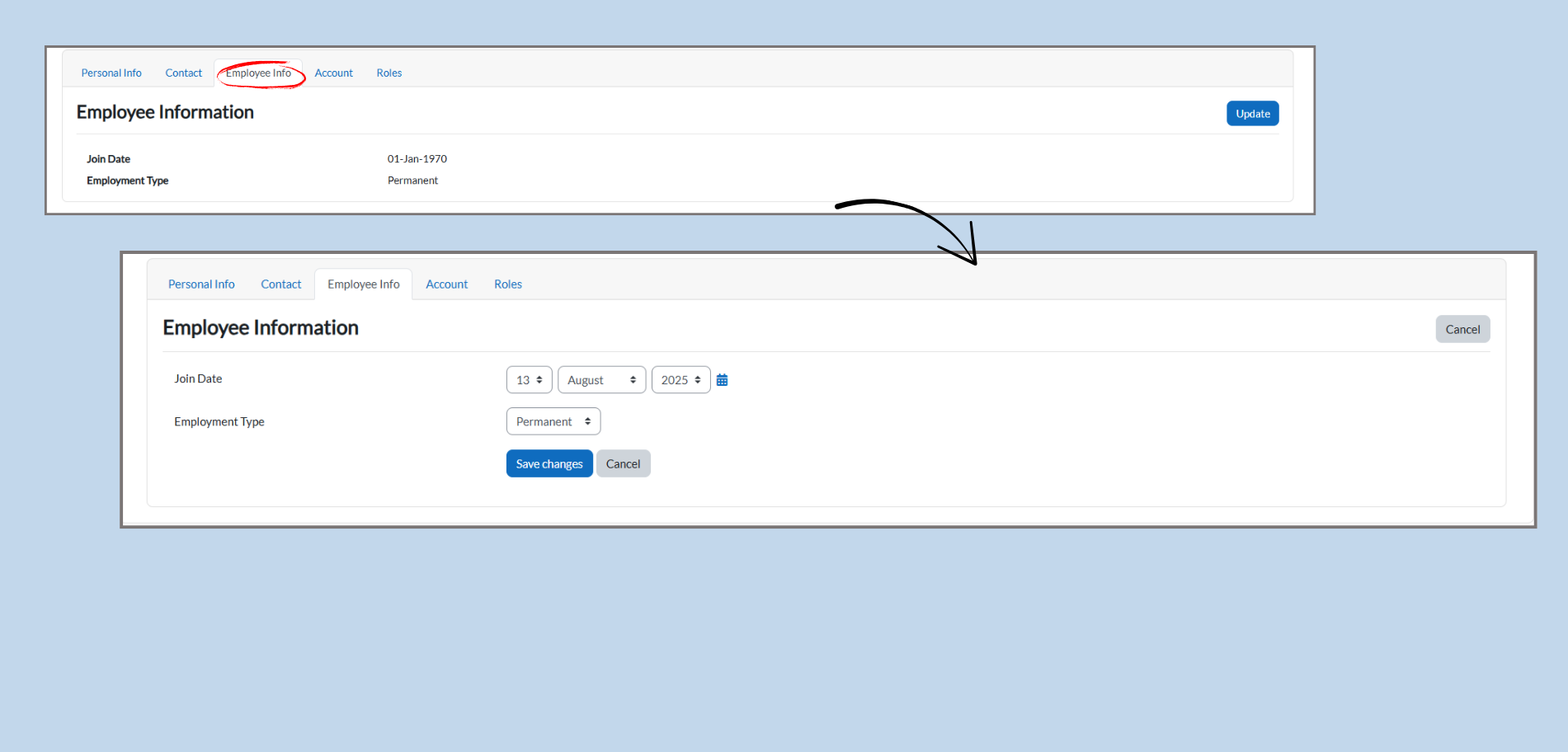
1.2.7 Editing Employee Information
-
Accessing Employee Information:
-
Click on the Employee Info tab to view and update the employee-related information.
-
-
Editing Employee Details:
-
The Employee Information section includes:
-
Join Date: Enter the employee’s start date (Day, Month, Year).
-
Employment Type: Choose whether the employee is Permanent or Contract.
-
-
-
Saving Changes:
-
After entering or modifying the employee details, click the Save Changes button to update the information.
-
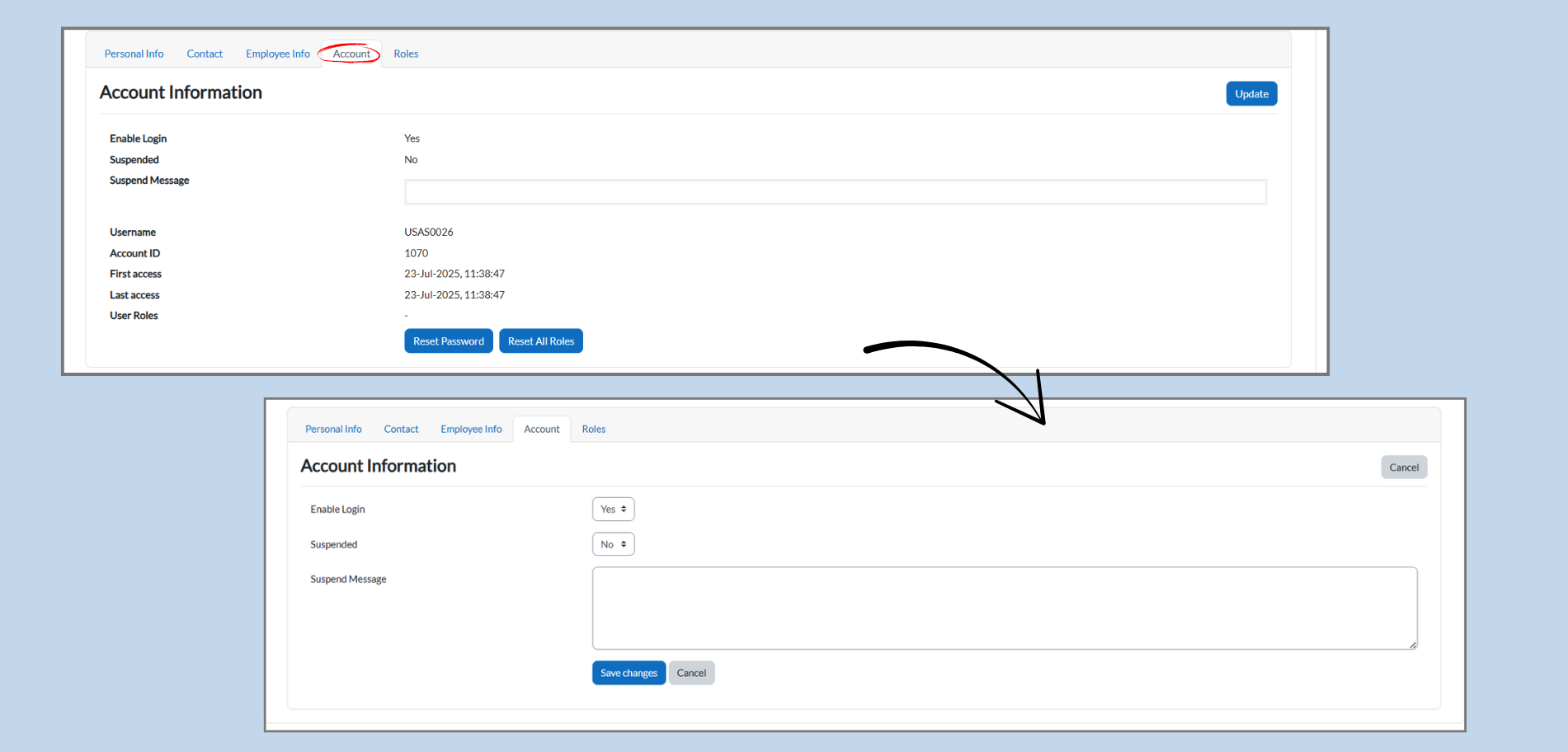
1.2.8 Editing Account Information
-
Accessing Account Information:
-
Click on the Account tab to view and manage the account-related settings.
-
-
Editing Account Details:
-
The Account Information section includes:
-
Enable Login: Choose whether the user is allowed to log in by selecting Yes or No.
-
Suspended: Select Yes if the user’s account is suspended, or No if it’s active.
-
Suspend Message: If the account is suspended, you can add a message to explain the suspension.
-
-
-
Account Information Details:
-
Username: The username for logging into the system.
-
Account ID: Unique identifier for the user’s account.
-
Last Access: Show when the user last accessed the system.
-
-
Saving Changes:
-
After making changes, click Save Changes to update the account information.
-
1.2.9 Editing Roles
Managing Access Roles:
Access roles allow you to define what actions a user can perform within the system. In the provided table, you can configure permissions for various modules. The modules are categorized under different sections such as Class Timetable, Database, Administration, and Reports, and they are listed alongside checkboxes for various actions that can be enabled or disabled.
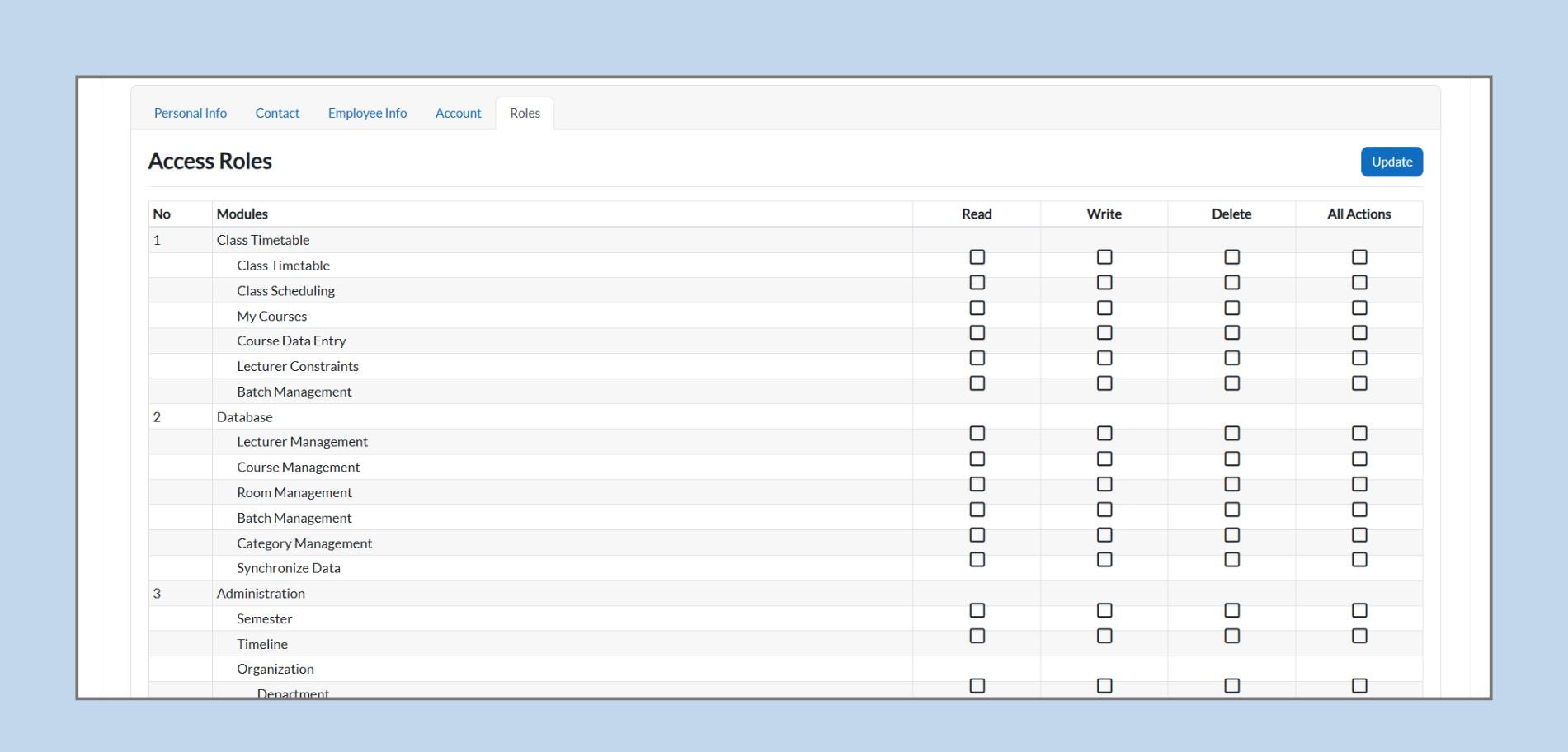
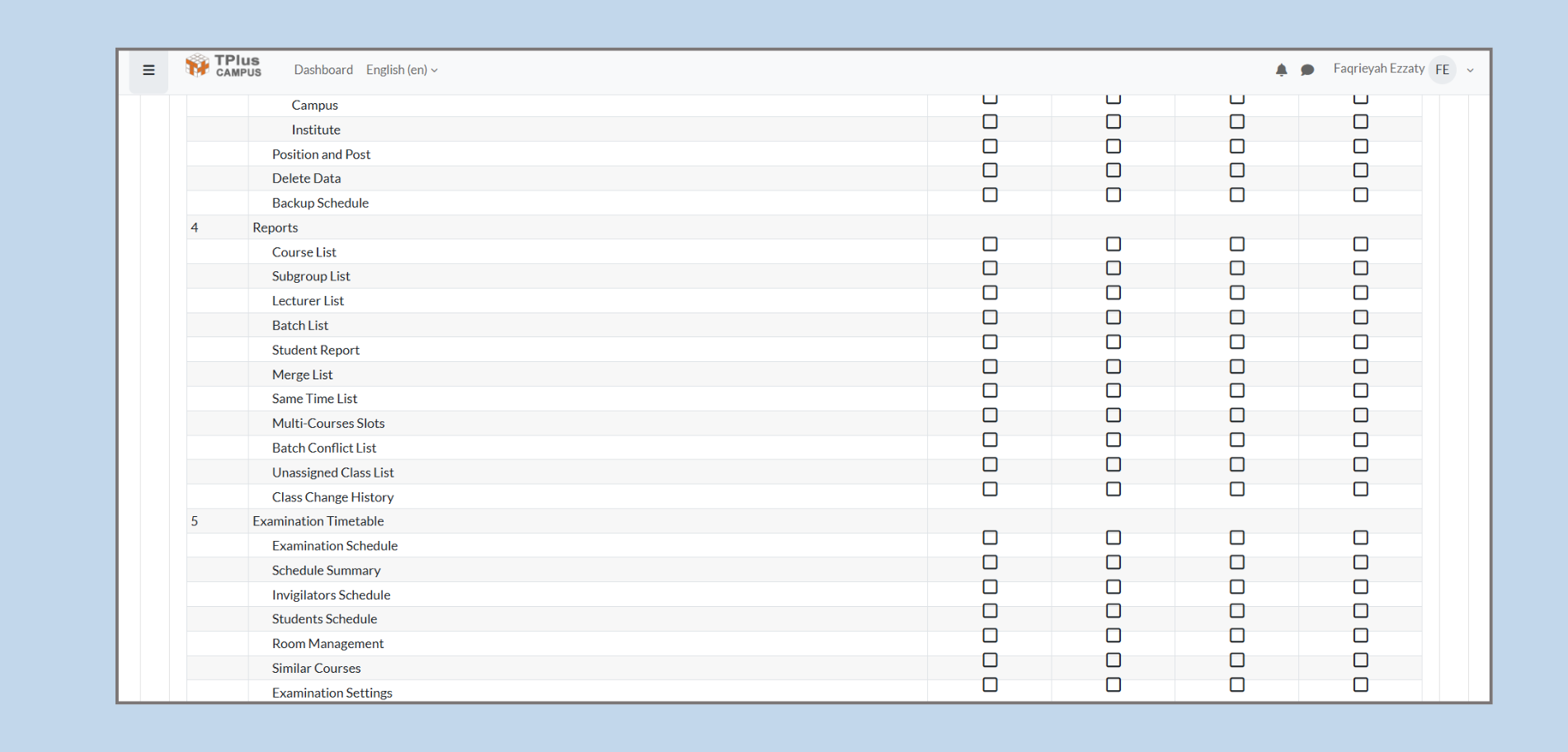
Role Configuration Details:
-
Read: This permission allows the user to view or read data within the module.
-
Write: This permission allows the user to modify or add new data within the module.
-
Delete: This permission enables the user to delete data from the system.
-
All Actions: This permission grants the user the ability to perform all available actions (read, write, delete) within the module.
Each module has specific actions that can be assigned to a user depending on their responsibilities or role within the system.
Example of Role Configuration:
For instance, under Class Timetable, you may have the following actions:
-
Class Timetable: The user can read, write, or delete timetables based on the permissions granted.
-
Class Scheduling: This permission allows for scheduling new classes and modifying existing ones.
-
My Courses: Gives access to the user's own course data, with permissions to edit or view it.
-
Course Data Entry: Allows the user to enter or update course information.
-
Lecturer Constraints: Manages lecturer availability and constraints during scheduling.
-
Batch Management: Allows for the management of student groups or batches.
Saving Role Settings:
Once you have configured the roles and assigned permissions to each module, you will need to click on the Update button to save the changes. These changes will immediately reflect the user’s access capabilities in the system.
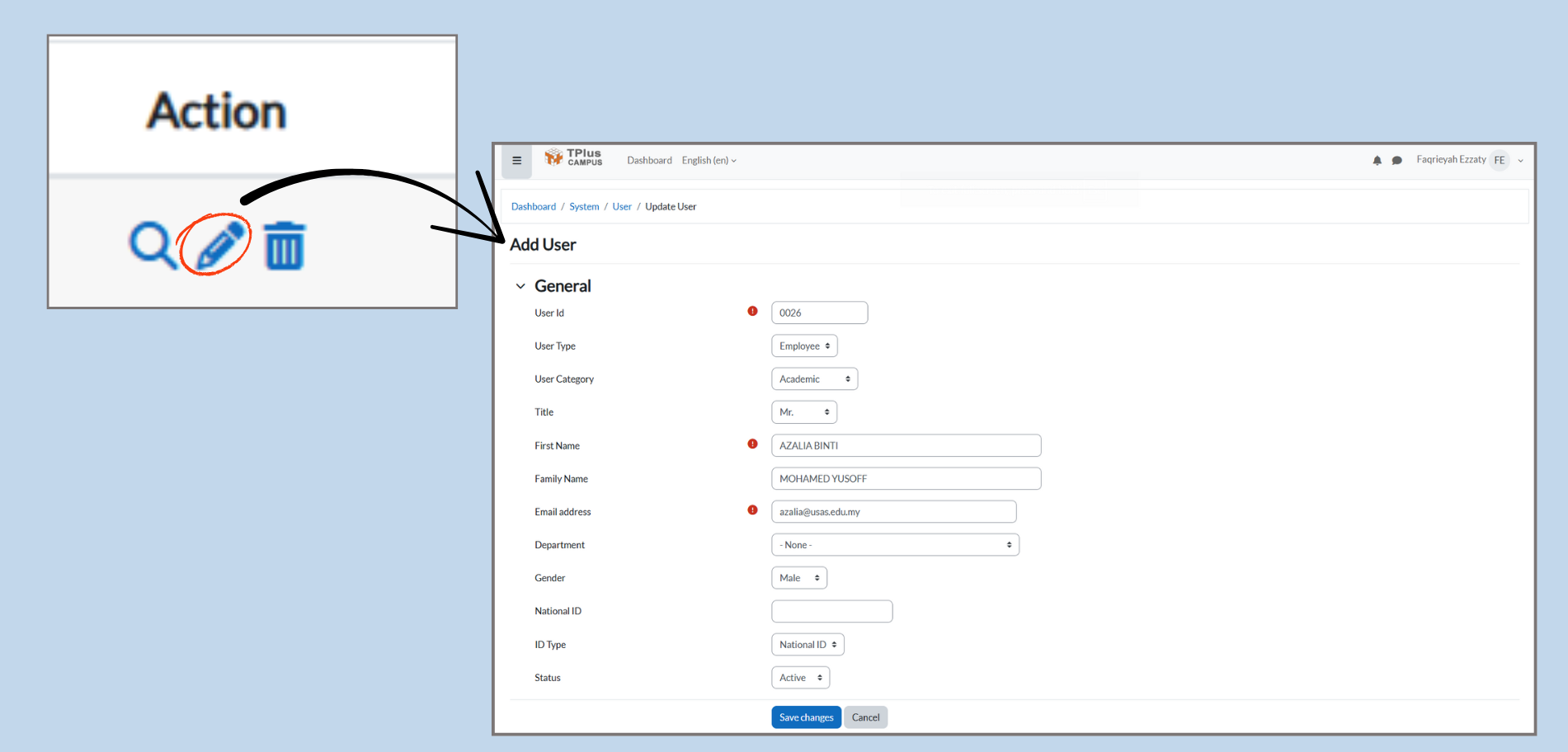
1.2.10 Editing User Details
-
Accessing User Edit Page:
-
Click the pencil icon in the Action column to enter the Edit User page, where you can modify user details.
-
-
Editing User Information:
-
User ID: A unique identifier for the user (can’t be changed).
-
User Type: Choose the type of user (e.g., Employee).
-
User Category: Select whether the user is Academic or Non-Academic.
-
Title: Choose the user’s title (e.g., Mr., Mrs.).
-
First Name & Family Name: Enter the user’s first and family names.
-
Email Address: Update the user’s email address.
-
Department: Assign the user to specific department.
-
Gender: Choose the user’s gender.
-
National ID: Enter the user’s national ID number.
-
Status: Set the user’s status to Active or Inactive.
-
-
Saving Changes:
-
After editing the details, click Save Changes to update the user information.
-
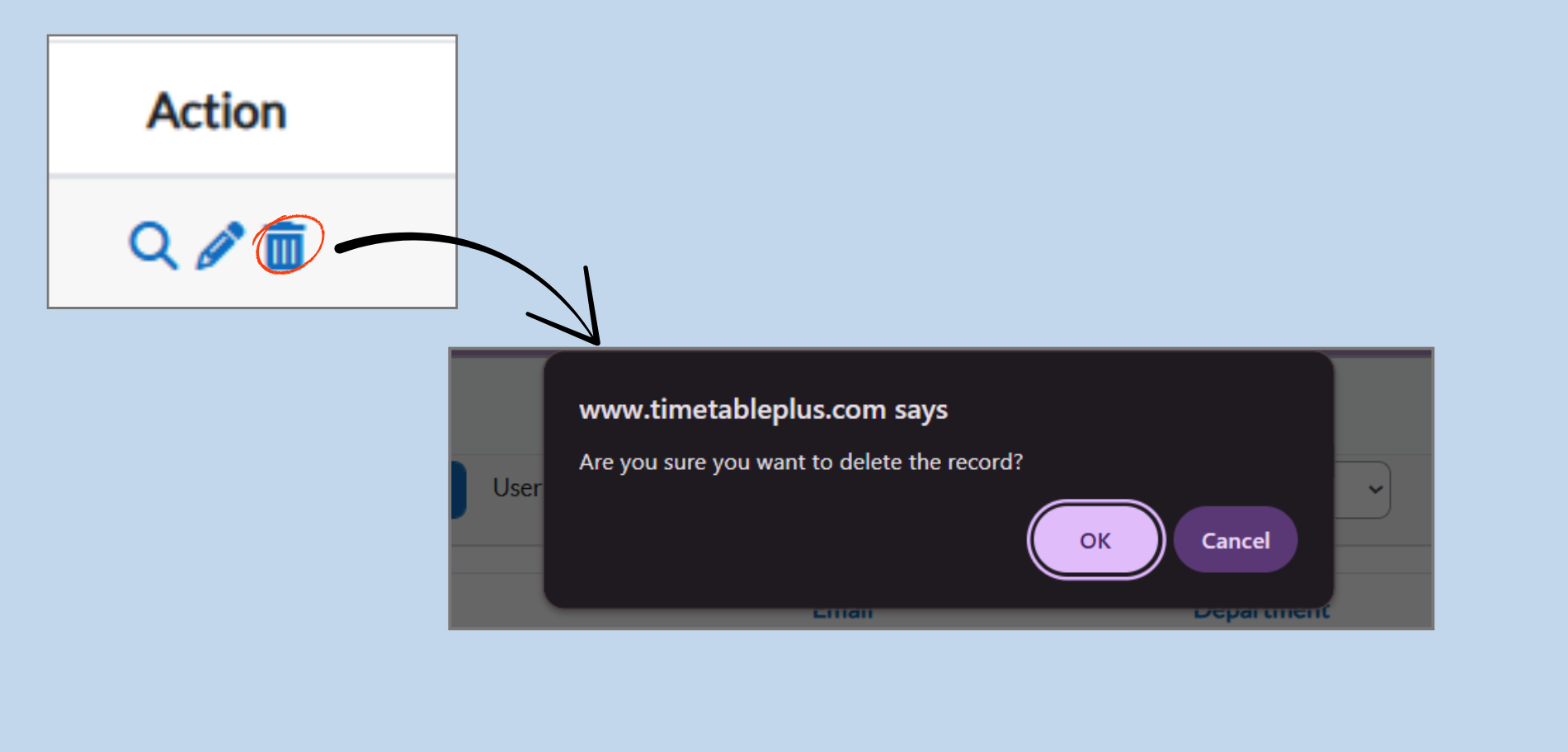
1.2.11 Delete User Records
-
Accessing Delete Function:
-
Click the trash bin icon in the Action column to delete a user record.
-
-
Delete Confirmation Prompt:
-
After clicking the trash bin icon, a confirmation dialog box will appear asking:
-
“Are you sure you want to delete the record?”
-
-
-
Options in the prompt:
-
OK - Confirms the deletion and permanently removes the users record from the system.
-
Cancel - Cancels the action and keeps the user record unchanged.
-
Important Note:
- Deleted user records cannot be recovered. Make sure to confirm before proceeding with deletion.
2. SYSTEM ROLES
2. Managing System Roles
Purpose:
The System Roles Management page allows you to assign and manage different roles for users within the system. Each role determine which features and operations a user can access. By assigning the correct roles, you ensure that users have appropriate access based on their responsibilities.
2.1 Navigation to the System Roles Page:
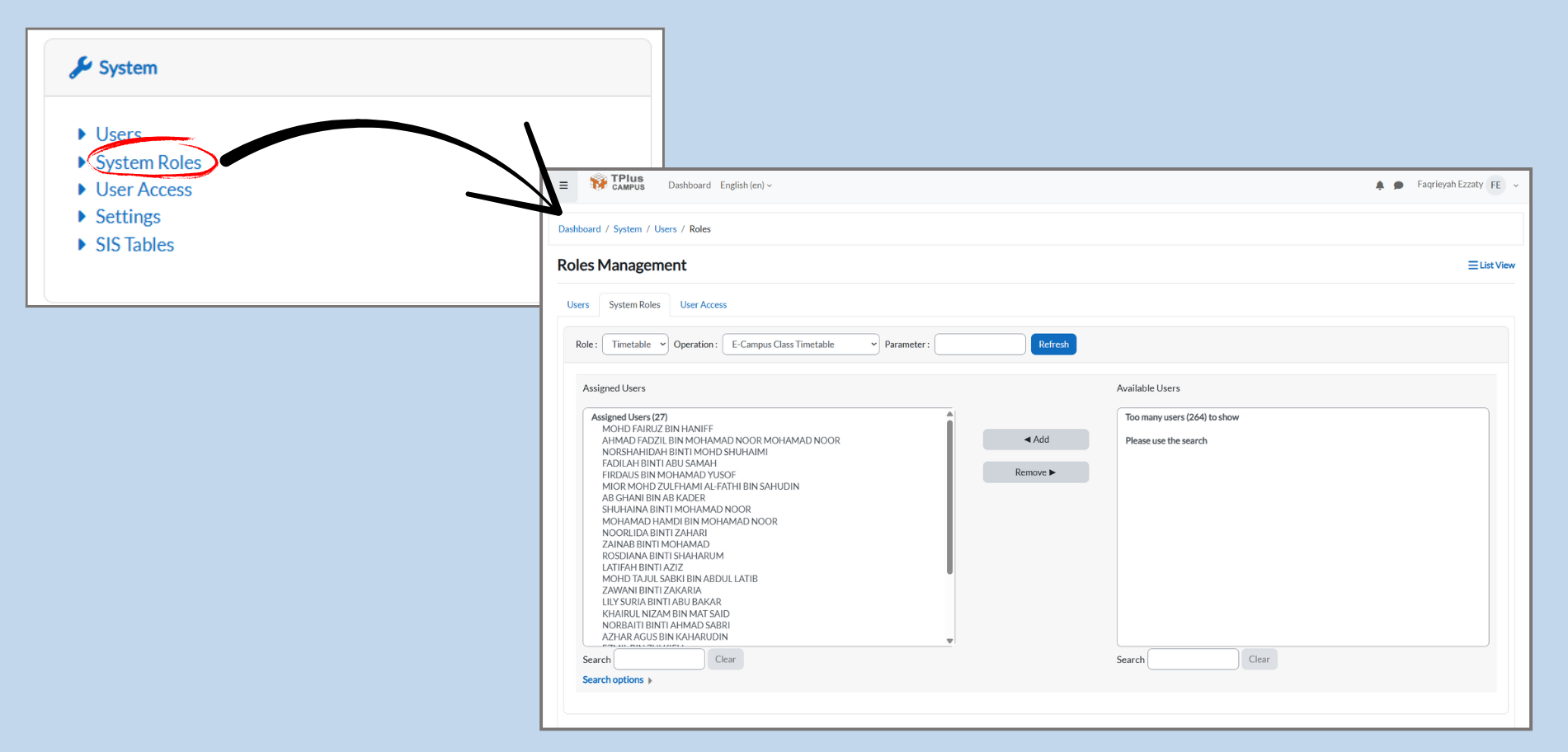
Part 1: Accessing the System Roles Section
-
Navigate to System Roles
-
From the dashboard, click on the System menu.
-
Under System, click System Roles to open the page where you can manage roles and user assignments.
-
2.2 Selecting the Role and Operation
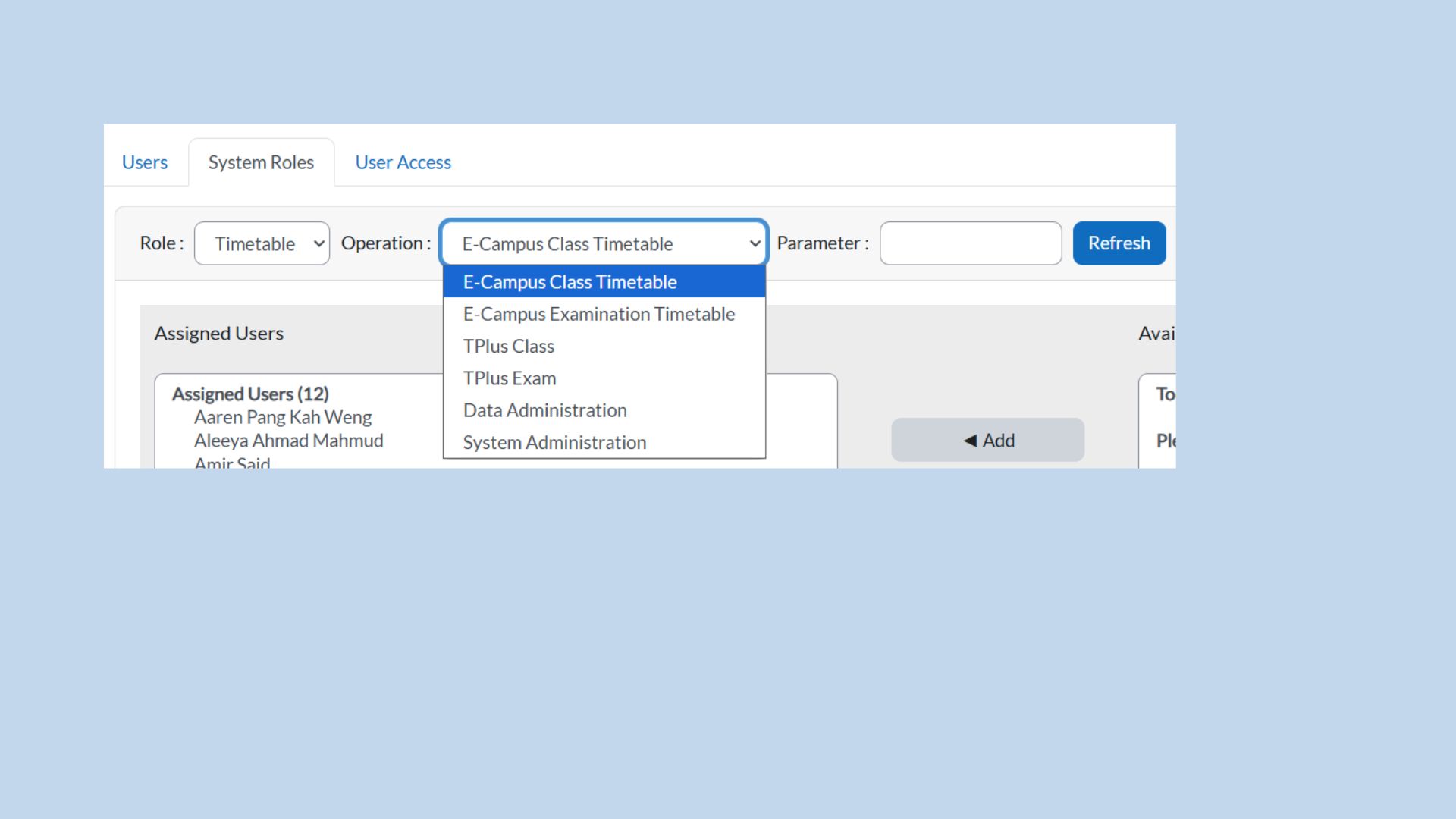
Part 2: Selecting a Role and Operation
-
Select Operation:
-
In the Operation dropdown, choose the operation associated with the selected role, such as:
-
E-Campus Class Timetable
-
E-Campus Examination Timetable
-
-
2.3 Managing Assigned Users
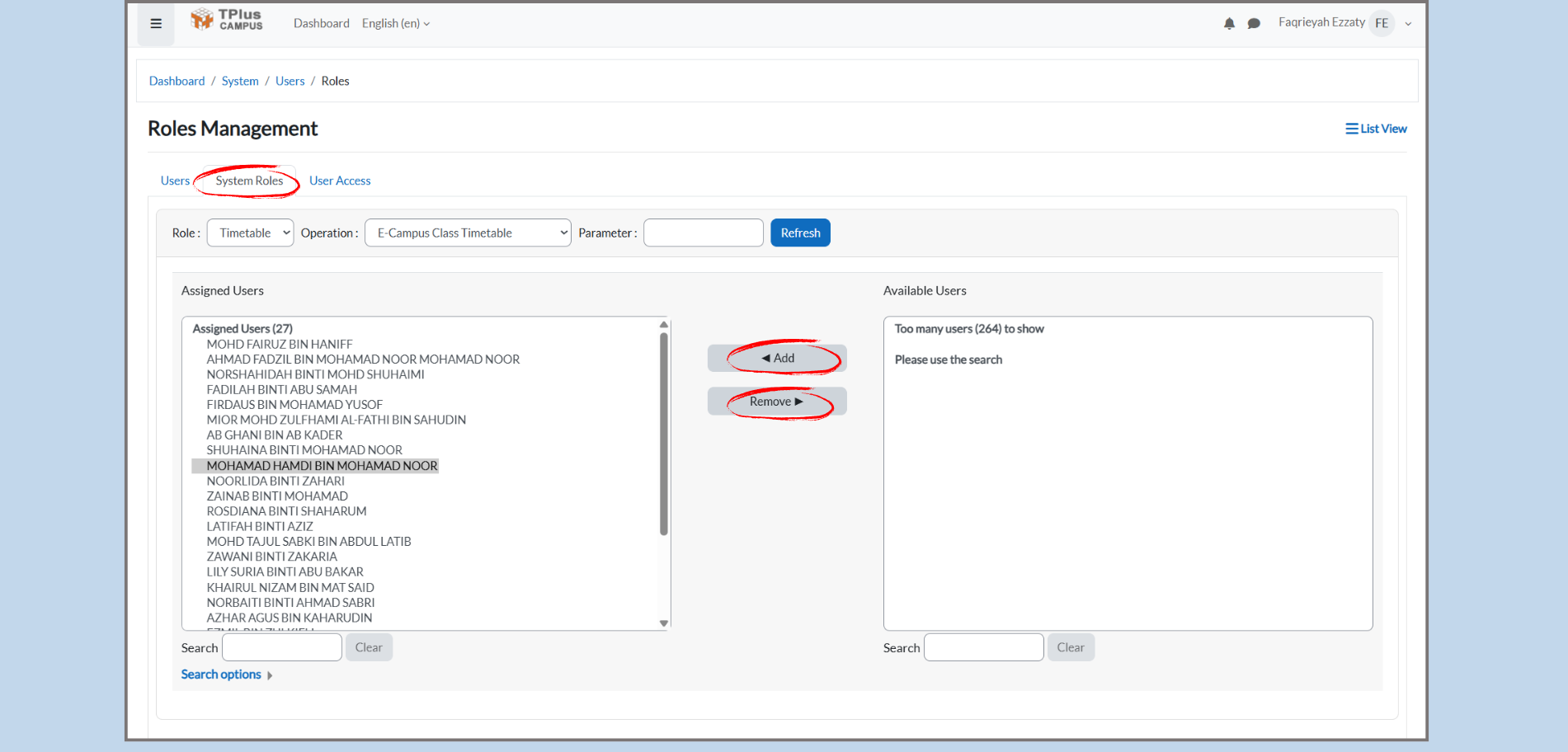
Part 3: Search and Manage Users
Step 1: Search for Users
-
Search Bar:
-
In both the Assigned Users and Available Users sections, there is a Search bar.
-
Admin Action: Before adding or removing users, you must search for the user’s name in the Search bar.
-
Why this is important:
-
If no search is performed, the Available Users list will be empty and show no names.
-
After typing the user’s name, it will appear in the Available User list.
Step 2: Understanding Assigned Users (left box)
-
Assigned Users:
-
The Assigned Users section shows all the users who are already assigned to the selecter role.
-
Admin Action: If a user is in the Assigned Users list, they already have access to the role you are managing.
-
Example:
-
If you selected the Timetable role, you might see users like MOHD FAIRUZ BIN HANIF, ROSIDAH BINTI SHAHARUM, etc.
Step 3: Understanding Available Users (right box)
-
Available Users:
-
The Available Users section shows all users who have not yet been assigned to the role.
-
Admin Action: You can search for a user’s name, if they are not yet assigned to the Timetable role, their name will appear in the Available Users list.
-
2.4 Refreshing and Searching for Users
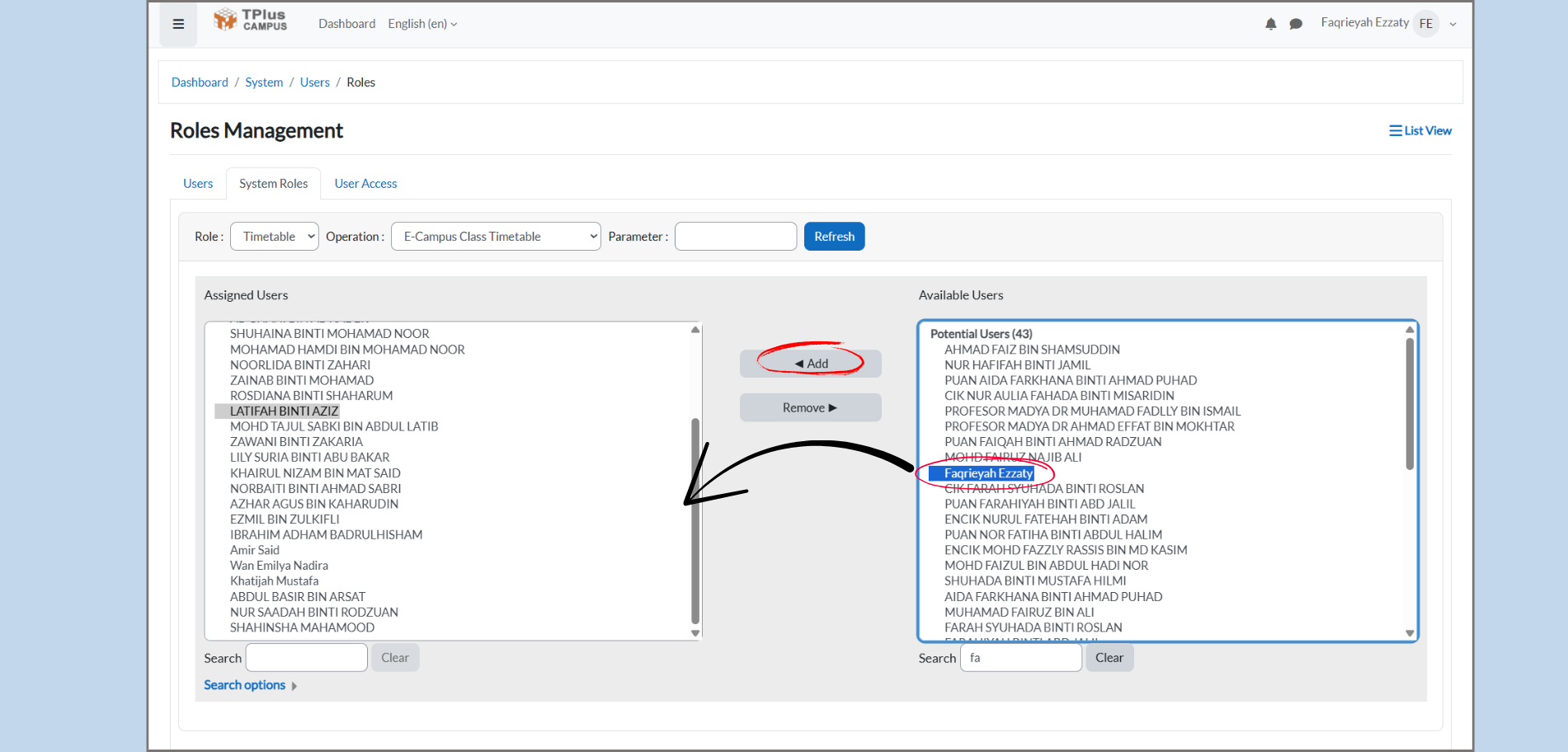
Part 4: Assigning Users to a Role
-
Assign Users:
-
First, search for the user by entering their name in the search field.
-
Once the user appears in the Available Users list, click on the user’s name to select them.
-
-
Assign the User:
-
After selecting the user, click the Add button to assign user to the selected role.
-
Important:
-
Once you click the Add button, the Assigned Users box will automatically refresh to include the newly added user. There is no need to manually click the Refresh button. The system will update the Assigned Users list automatically and place the user in the left box as soon as they are added.
Part 5: Removing Users from a Role
-
Remove Users:
-
In the Assigned Users list, if you need to remove a user, select their name.
-
Click Remove to move the user from the Assigned Users list back to the Available Users list.
-
3. USER ACCESS
3. User Access Management
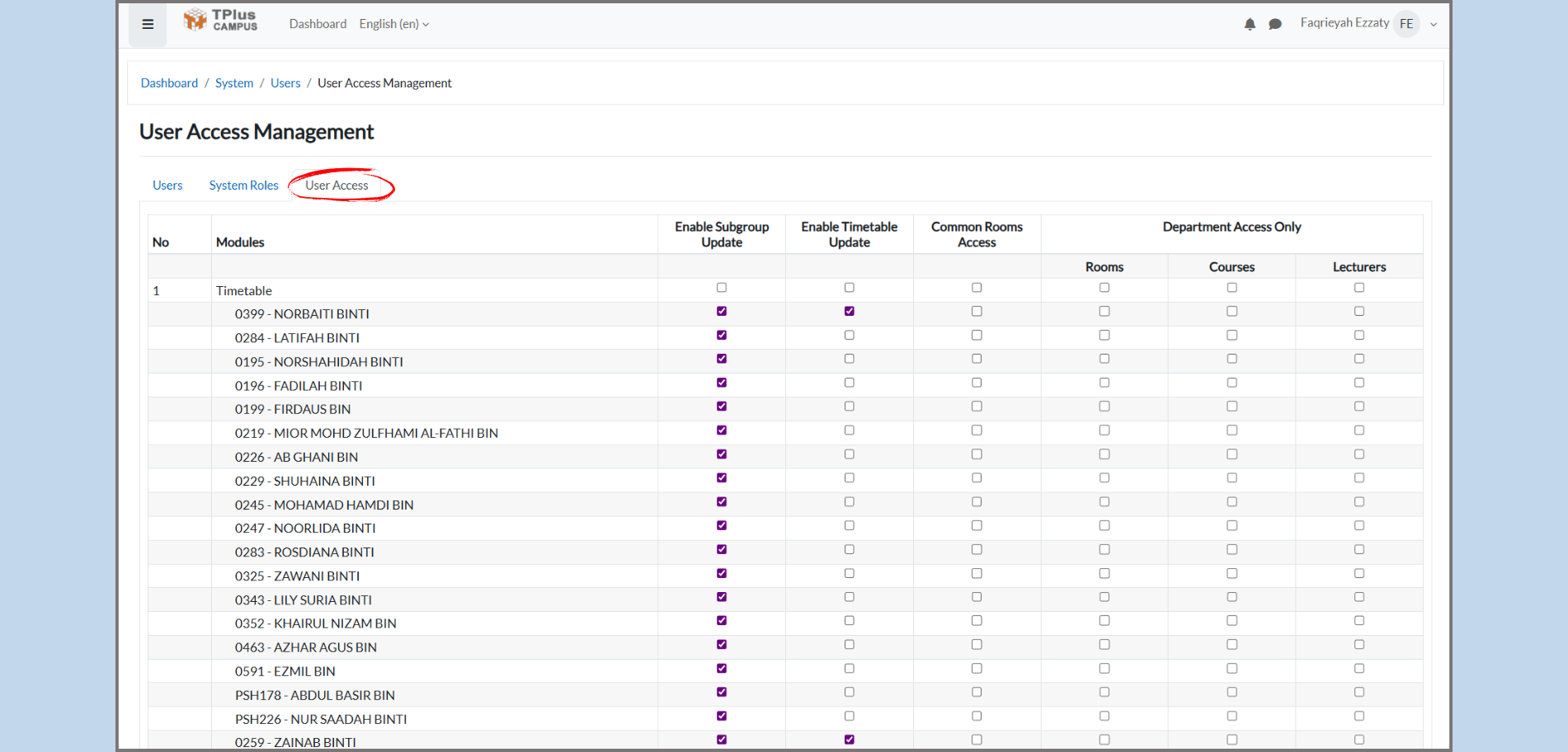
Part 1: Overview of User Access Management
The User Access Management page is used by administrators to control which users have access to different modules and features within the system. Here, administrators can update user access rights and grant permissions based on roles.
Purpose:
-
To manage user access to various system modules such as Timetable, Rooms, Course, etc.
-
To assign permission for each user, such as allowing them to update subgroups or edit timetables.
Part 2: Navigating to User Access Management
-
Step 1: Access the System Menu
-
From the dashboard, navigate to the System menu.
-
-
Step 2: Open User Access Management
-
Under the System menu, click on User Access. This will open the User Access Management page where you can manage users’ permissions.
-
Part 3: Understanding the User Access Table
In the User Access Management page, you will see a table with different users and their corresponding access settings. The table includes the following columns:
-
Modules:
-
This column shows the different modules (e.g., Timetable) to which the users have access.
-
Tip: You can scroll throught this list to find the module you want to manage.
-
-
User Names:
-
In this column, you will see the names of users (e.g., NORBAITI BINTI, LATIFAH BINTI). These are the users who have access to the system.
-
-
Enable Subgroup Update:
-
Checkbox: If the checkbox is checked, the user allowed to update subgroups in selected module.
-
-
Enable Timetable Update:
-
Checkbox: If the checkbox is checked, teh user is allowed to update the timetable in the selected module.
-
-
Common Rooms Access:
-
Checkbox: IF checked, the user has access to common rooms within the system.
-
-
Department Only:
-
Checkbox: If checked, the user is restricted to department-level access only. They will not be able to access broader system areas.
-
-
Rooms, Courses, Lecturers:
-
These column contain checkboxes for allowing users to access or manage Rooms, Courses, or Lecturers.
-
If checked, the user has permissions to interact with these entities within the system.
-
Part 4: Managing User Permissions
-
Step 1: Granting Permissions
-
To grant access, check the relevant boxes for each user. For example:
-
If you want a user to be able to update the timetable, check the Enable Timetable Update box for that user.
-
If you want the user to have department-level access only, check the Department Access Only box.
-
-
-
Step 2: Updating Permissions
-
To update the access rights for user, simply click the checkbox besides the feature you want to enable or disable.
-
Tip: Ensure to double-check the modules and permissions before saving changes to avoid giving unwanted access.
-
-
Step 3: Applying Changes
-
After updating the permissions, make sure to save the changes to apply the new access settings.
-
Tip: Regularly review the permissions to ensure users have only the necessary.
-
4. SETTINGS
4. Setting
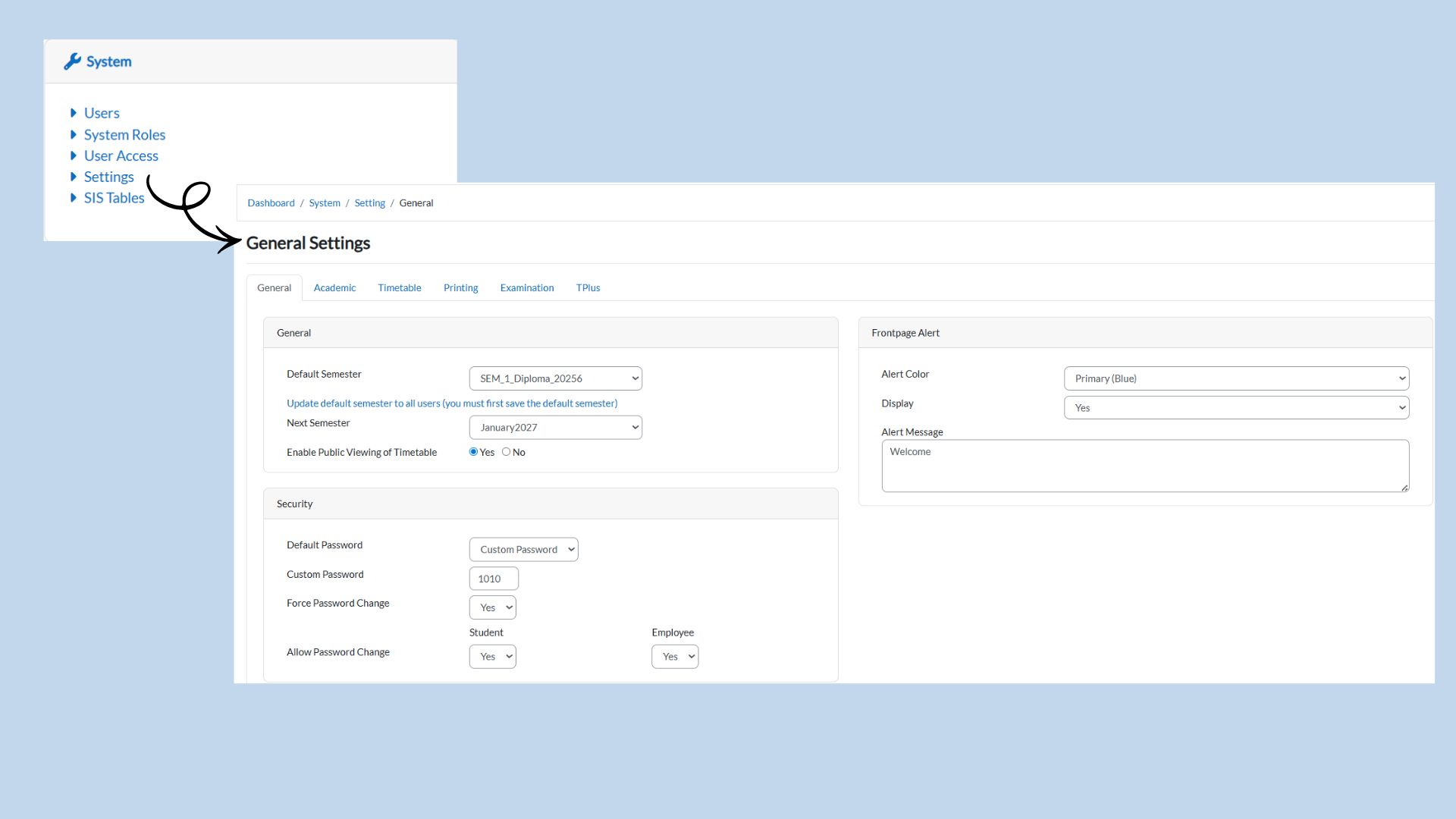
The Setting section allows system administrators to configure important settings related to the academic semester, security options, public timetable display, and front-page alerts. Below is a step-by-step guide to understand and use these settings.
-
General Setting Tab
-
Default Semester:
-
What It Does: This setting allows you to select the default semester for the system.
-
How to Use: From the drop-down list, choose the default semester (e.g., “BEATRISYIA”).
-
Why It’s Important: All users in the system will have this semester set as their default unless you update it.
-
-
Next Semester:
-
What It Does: Select the next semester from the list for upcoming terms.
-
How to Use: Choose from the dropdown list (e.g., “TRY-SEM2”).
-
Why It’s Important: This helps in preparing for the next academic session.
-
-
Security Settings
-
Default Password:
-
What It Does: Set a default password for new users.
-
How to Use: You can either keep the system’s default password or use a Custom Password option to create one.
-
Why It’s Important: This allows you control the initial access to the system for new users.
-
-
Custom Password:
-
What It Does: If you selected “Custom Password,” you can input the password manually (e.g., “1010”).
-
Why It’s Important: Allows the administrator to set a secure password for all new user.
-
-
Force Password Change:
-
What It Does: This forces users to change their default password upon first login.
-
How to Use: Choose “Yes” to require users to change their password when they log in.
-
Why It’s Important: Enhances security by ensuring users set their own unique password.
-
-
Allow Password Change:
-
What It Does: Allows users to change their password after initial login.
-
How to Use: Choose “Yes” to allow users (students and employees) to change their password if needed.
-
Why It’s Important: Ensures that users can update their password for security purposes.
-
-
-
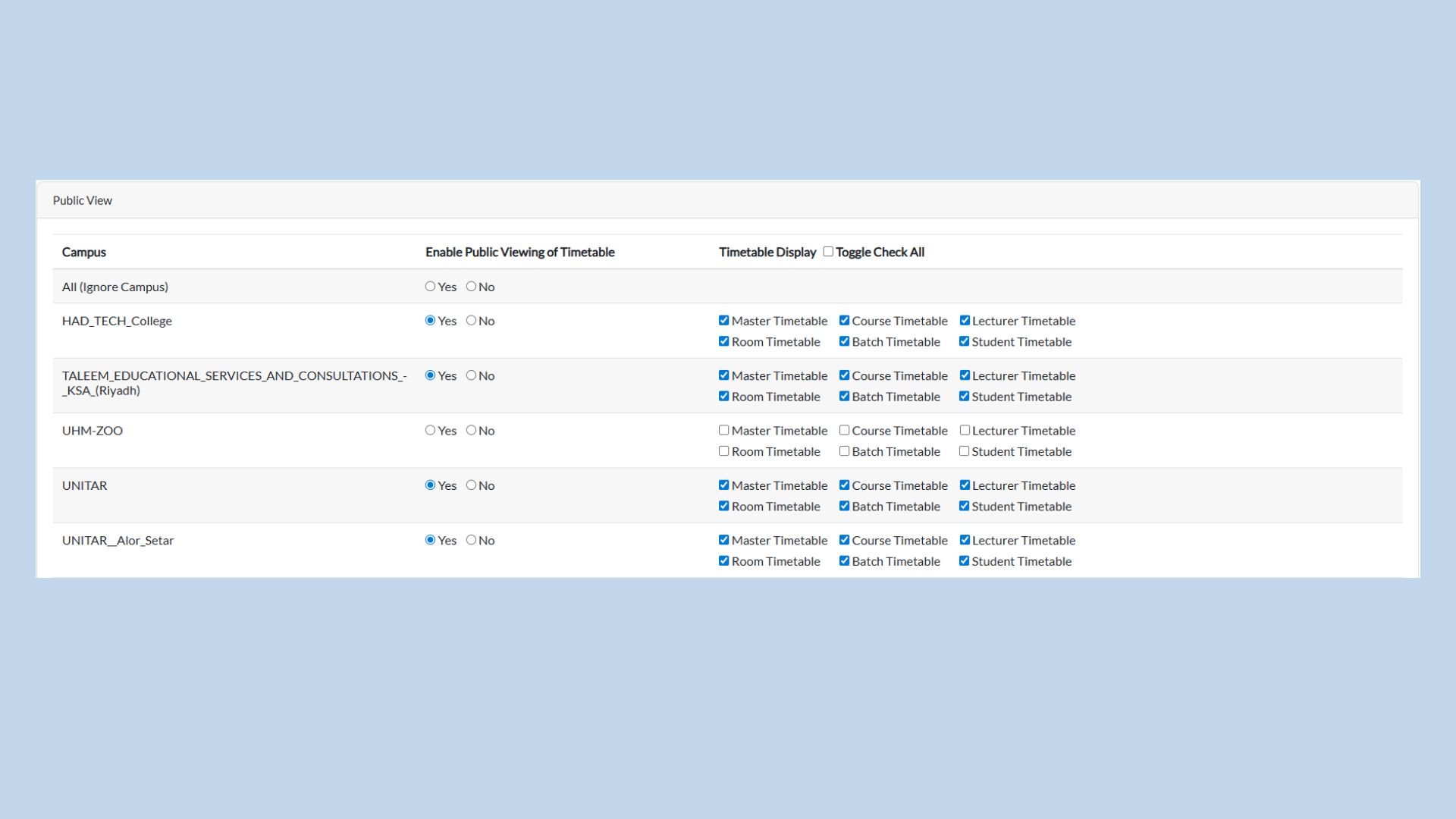
Public Timetable View Settings
-
Enable Public Viewing of Timetable:
-
What It Does: This setting controls whether the timetable is publicly visible on the website.
-
How to Use: Select Yes to allow public users to view the timetable, or No to restrict access to authorized system users only.
-
Why It’s Important: Prevents unauthorized access to incomplete or confidential timetable information.
-
-
Timetable Display Options:
-
What It Does: Determines which timetable views are available when public viewing is enabled.
-
How to Use: Tick the checkboxes to allow public access to selected timetable types.
Available Options:
- Master Timetable - Displays the overall timetable for all courses, lecturers and rooms.
- Course Timetable – Displays timetable based on individual courses.
- Lecturer Timetable – Displays timetable assigned to each lecturer.
- Room Timetable – Displays room usage schedules.
- Batch Timetable – Displays timetable according to student intake or batch.
- Student Timetable – Displays individual student schedules.
-
Why It’s Important: Ensures users only see relevant timetable information, improving clarity and preventing unnecessary data exposure.
-
-
-
Frontpage Alert Settings
-
Alert Color:
-
What It Does: Allows you to set the color of the alert messages displayed on the homepage.
-
How to Use: Select the desired color (e.g., Primary (Blue)).
-
Why It’s Important: Customizing the alert color helps highlight important messages or notices.
-
-
Display Alerts:
-
What It Does: This determines whether an alert message will be visible on the homepage.
-
How to Use: Choose “Yes” to display an alert on the front page or “No” to hide it.
-
Why It’s Important: Displaying alerts is crucial for notyfying users about important updates.
-
-
Alert Message:
-
What It Does: Allows you to enter a custom message that will be shown on the homepage.
-
How to Use: Type the alert message that you wish to display.
-
Why It’s Important: Use this to communicate important information, such as system updates, announcements, or deadlines.
-
-
Saving Your Settings: After configuring all necessary settings, click the “Save” button at the bottom of the page to apply the changes. This will ensure that the settings are updated and active for all users in the system.
4.2 Academic Settings
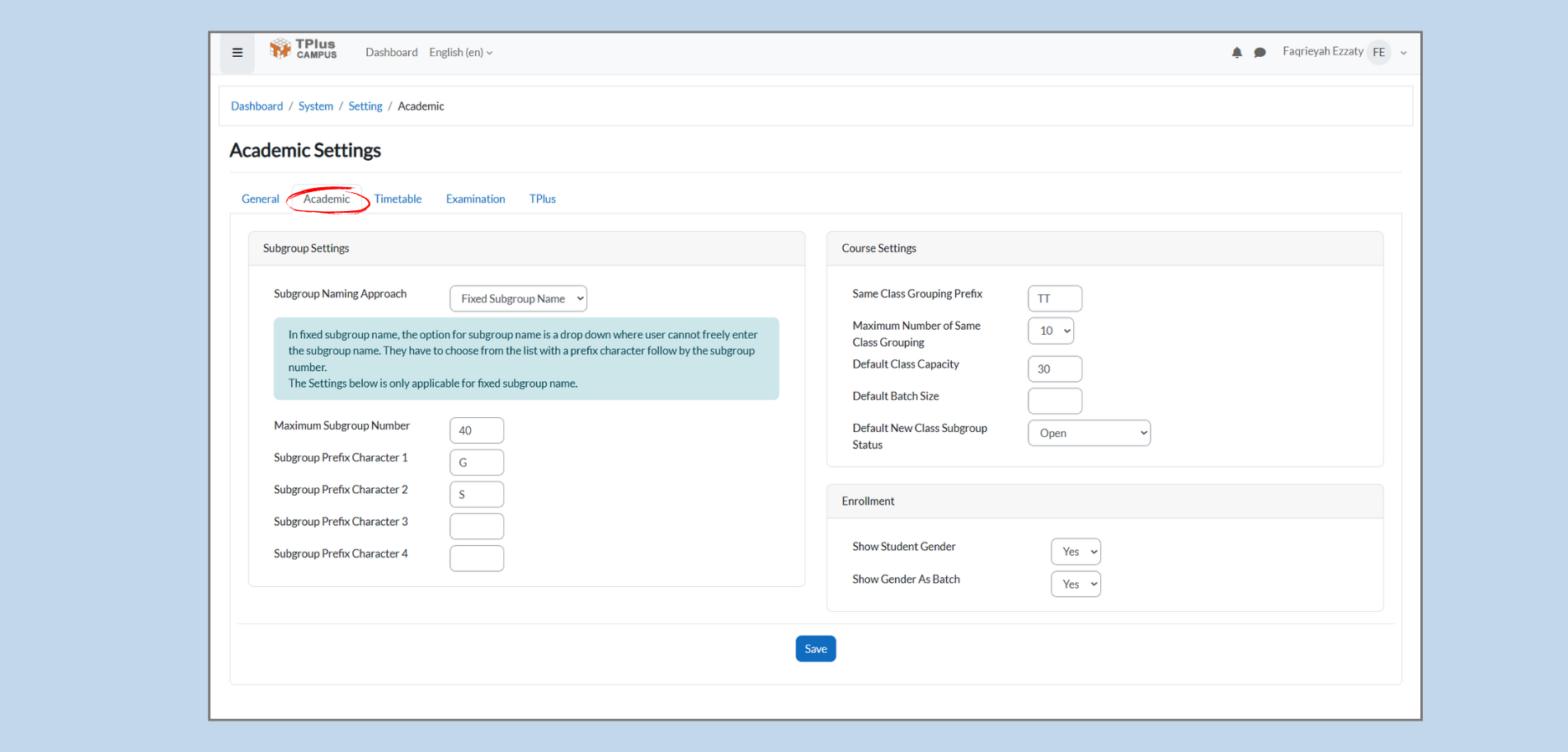
The Academic Settings section allows administrators to set up the subgroup naming conventions, course settings, and enrollment options. These settings help in organizing the academic structure and managing course related.
-
Subgroup Settings
-
Subgroup Naming Approach:
-
What It Does: This setting controls how subgroups are named within the system. With the Fixed Subgroup Name approach, users can only choose subgroup names from a predefined list with a prefix followed by the subgroup number.
- How to Use:
-
Select Fixed Subgroup Name from the dropdown menu.
-
You will then need to define the format of the subgroup name using the prefix characters.
-
-
Why It’s Important: It ensures that subgroup names are standardized, making it easier to manage and locate subgroups.
-
-
Maximum Subgroup Number:
-
What It Does: Defines the maximum number of subgroups that can be created.
-
How to Use: Set the desired number (e.g., 40). This number represents the maximum subgroups you can create under this naming system.
-
Why It’s Important: It prevents the creation of too many subgroups, keeping the system organized.
-
-
Subgroup Prefix Characters:
-
What It Does: Allows you to define up to four prefix characters for the subgroup name. These will appear before the subgroup number.
-
How to Use: Enter the prefix characters in the fields provided. For example, you can set:
-
Prefix 1: G
-
Prefix 2: S
-
Leave the other fileds blank if not needed.
-
-
Why It’s Important: Prefix characters help to categorize subgroups by subject, department, or class.
-
-
-
Course Setting
-
Same Class Grouping Prefix:
-
What It Does: Sets the prefix for the same class groupings, helping to categorize groups that belong to the same class.
-
How to Use: Set a prefix, for example, TT, to signify groups that belong to the same class.
-
Why It’s Important: This keeps similar groups together, making it easier to manage them.
-
-
Maximum Number of Same Class Grouping:
-
What It Does: Defines the maximum number of groupings that can be created for the same class.
-
How to Use: Set the number (e.g., 10) to limit the number of groups you can have for a single class.
-
Why It’s Important: It prevents too many groupings from being created for a class, which helps maintain clarity in scheduling.
-
-
Default Class Capacity:
-
What It Does: Specifies the default number of students that can be enrolled in a class.
-
How to Use: Set the default capacity (e.g., 30). You can adjust this per class as needed.
-
Why It’s Important: It helps to maintain consistency in class sizes and ensures that courses are not overcrowded.
-
-
Default Batch Size:
-
What It Does: This setting defines the default batch size for courses, which refers to the number of students in a batch.
-
How to Use: Set the batch size (e.g., 25 or any number depending on your institution’s requirements). This can be adjusted for individual courses if needed.
-
Why It’s Important: It ensures that batches are efficiently sized, promoting a balanced student-teacher ratio for better learning management.
-
-
Default New Class Subgroup Status:
-
What It Does: Sets the default status for any newly created subgroups. This helps in controlling the operational flow of new subgroups.
-
How to Use: Choose from options like “Open,” “Closed,” or any relevant status for your system.
-
Why It’s Important: It automatically sets the operational status of subgroups as soon as they created, ensuring clarity in class management.
-
-
-
Enrollment
-
Show Student Gender:
-
What It Does: This setting determines whether or not the student’s gender will be displayed in the system.
-
How to Use: Toggle the option to “Yes” or “No,” depending on your institution’s policy regarding gender visibility.
-
Why It’s Important: It can be essential for statistical or organizational purposes, but privacy concerns may lead to it being set to “No” in some institutions.
-
-
Show Gender as Batch:
-
What It Does: Controls whether gender information is grouped or displayed in batch reports.
-
How to Use: Set the option to “Yes” or “No” based on whether you want to display gender groupings for students in reports.
-
Why It’s Important: It may be required for specific reporting purposes, but it also involves privacy considerations.
-
-
4.3 Timetable Settings
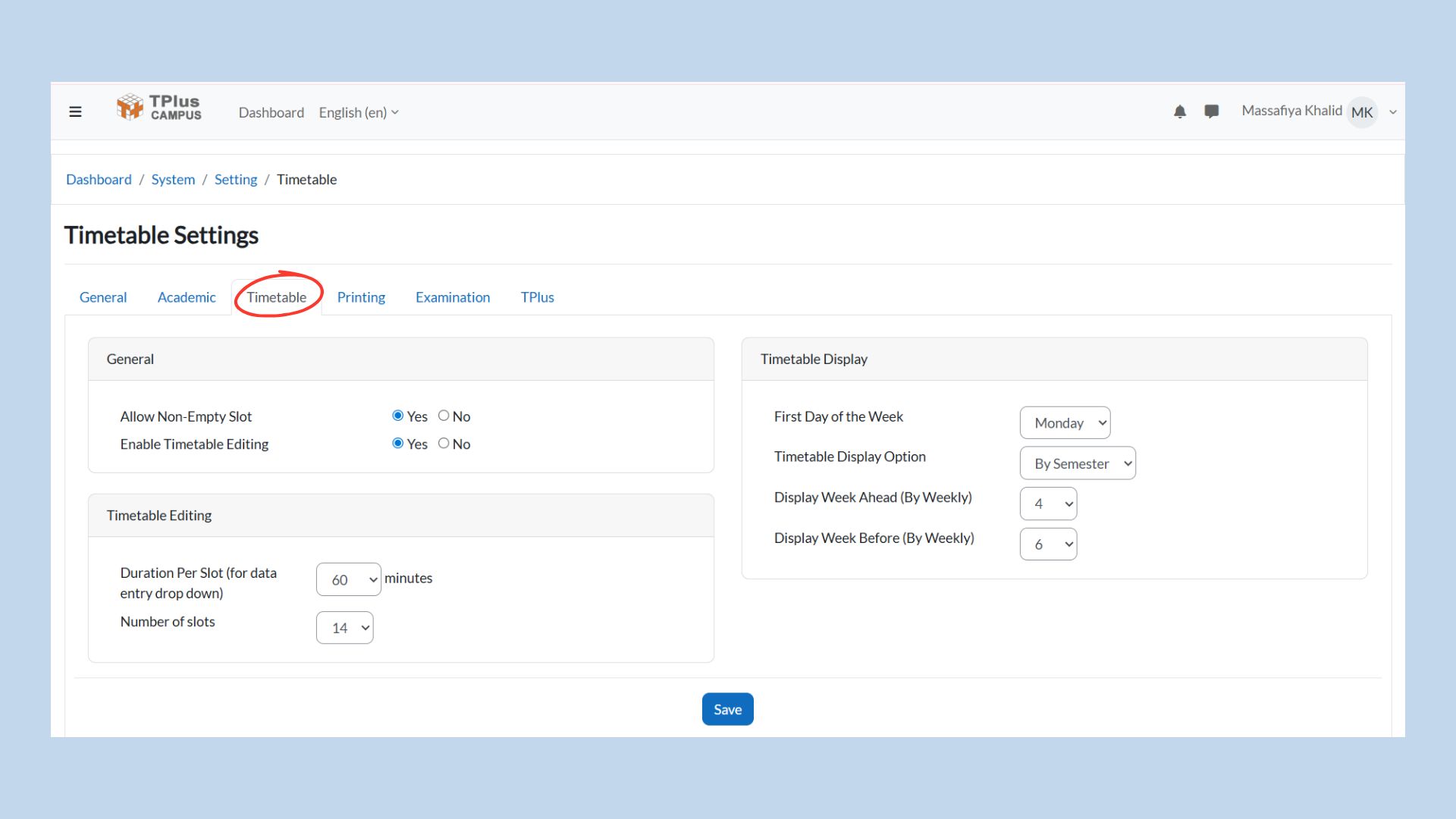
The Timetable Settings section allows administrators to configure how the timetable is edited and displayed within the system. This includes controlling timetable edit permissions, defining time slot structure, and setting timetable display preferences to ensure accurate scheduling and clear timetable visualization.
-
General Settings
-
Allow Non-Empty Slot:
-
What It Does: Allows the system to accept timetable slots that already contain data.
-
How to Use: Select Yes to allow scheduling on non-empty slots, or No to prevent overlaps.
-
Why It’s Important: Helps control timetable conflicts and ensures scheduling accuracy.
-
-
Enable Timetable Editing:
-
What It Does: This setting determines whether users are allowed to make changes to timetable.
-
How to Use: Toggle the option between Yes or No.
-
Why It’s Important: When enabled, authorized users can modify class schedules. When disabled, the timetable is locked to prevent changes.
-
-
-
Timetable Editing
-
Duration Per Slot:
-
What It Does: Defines the duration (in minutes) for each timetable slot.
-
How to Use: Select the desired duration from the dropdown list (e.g., 60 minutes).
-
Why It’s Important: Ensures consistency in timetable structure and accurate time allocation for classes.
-
-
Number of Slots:
-
What It Does: Specifies the total number of timetable slots available per day.
-
How to Use: Choose the number of slots from the dropdown list (e.g., 14 slots).
-
Why It’s Important: Defines the daily timetable layout and ensures sufficient slots for scheduling all classes.
-
-
-
Timetable Display
-
First Day of the Week:
-
What It Does: Sets the starting day of the timetable week.
-
How to Use: Select the preferred day (e.g., Monday) from the dropdown.
-
Why It’s Important: Aligns timetable display with institutional scheduling practices.
-
-
Timetable Display Option:
-
What It Does: Determines how the timetable is displayed to users.
-
How to Use: Choose By Semester to view the full semester timetable or By Weekly to view schedules week by week.
-
Why It’s Important: Allows flexible timetable viewing based on user preference.
-
-
Display Week Ahead / Before:
-
What It Does: Controls how many weeks before and after the current week are displayed in weekly view.
-
How to Use: Set the number of weeks for Week Ahead and Week Before using the dropdown menus.
-
Why It’s Important: Helps users plan schedules in advance and review previous weeks efficiently.
-
-
4.4 Timetable Printing
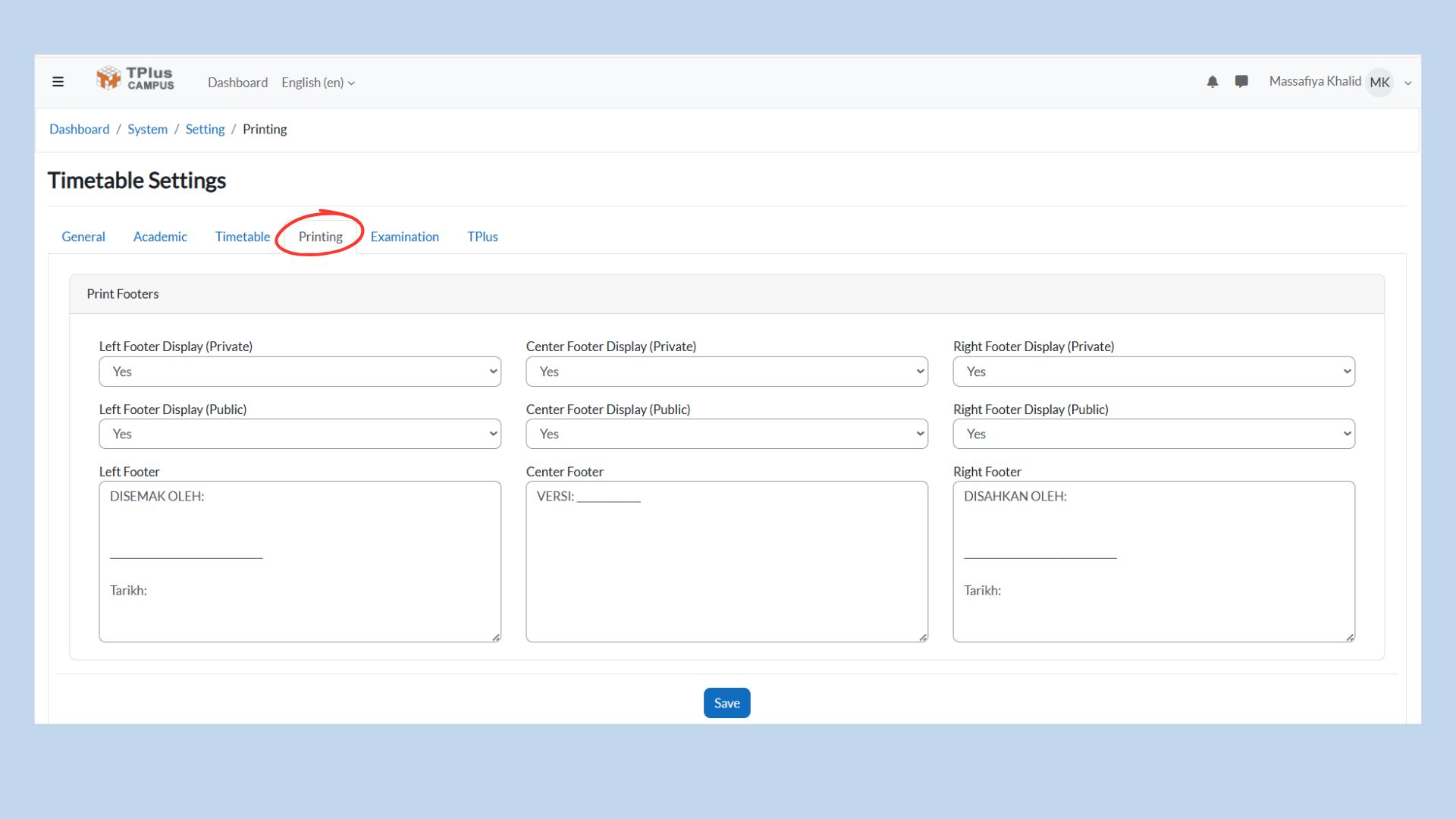
The Timetable Printing section allows administrators to configure how timetables appear when printed. This includes setting footer information, controlling footer visibility for private and public views, and selecting the type of timetable to be printed.
-
Print Footer Settings
-
Footer Display (Private & Public):
-
What It Does: Controls whether the left, center, and right footers are displayed on printed timetables.
-
How to Use: Select Yes to display the footer or No to hide it for both private and public views.
-
Why It’s Important: Ensures printed timetables include necessary administrative or verification information.
-
-
Footer Content:
-
What It Does: Allows administrators to customize the text displayed in the left, center, and right footer sections.
-
How to Use: Enter the required information such as prepared by, version number, approval details, and date.
-
Why It’s Important: Provides official documentation details on printed timetables for reference and approval purposes.
-
-
-
Timetable Print Preview
This section allows users to preview how the timetable will appear when printed, based on the selected timetable type and footer settings.
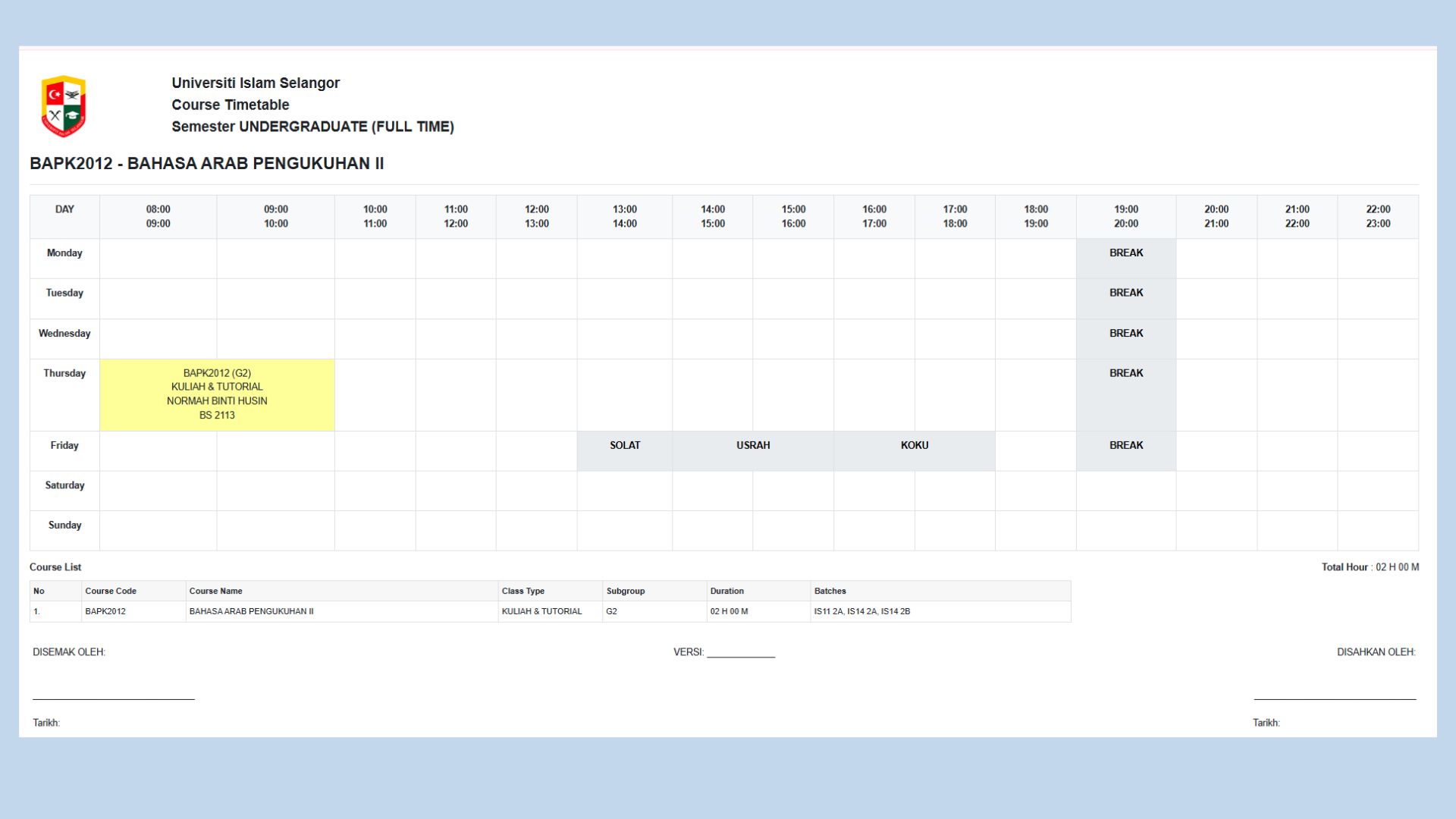
Example: Course Timetable (Print View)
-
Select Timetable Type:
-
What It Does: Allows users to choose which type of timetable to preview and print.
-
How to Use: Select the required timetable view before printing.
Available Options:
- Master Timetable – Prints the complete timetable for all courses, lecturers, and rooms.
- Lecturer Timetable – Prints timetable based on selected lecturer.
- Course Timetable – Prints timetable for a specific course.
- Room Timetable – Prints timetable based on room usage.
- Batch Timetable – Prints timetable according to student intake or batch.
- Student Timetable – Prints individual student schedules.
-
Why It’s Important: Ensures users generate accurate and relevant timetable outputs for printing.
-
-
4.5 Examination Settings:
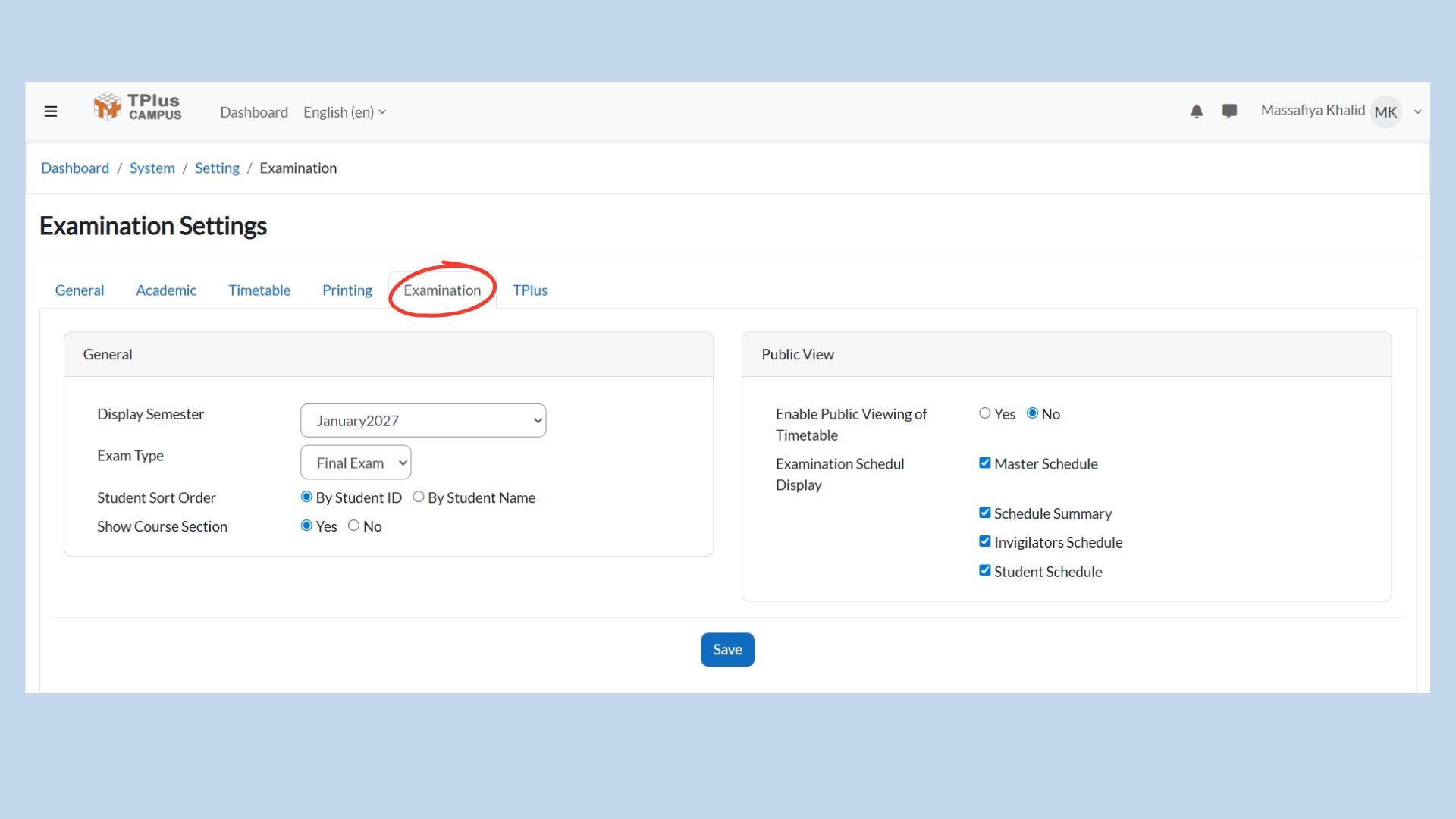
The Examination Settings section allows administrators to configure how examination schedules are displayed and accessed within the system. These settings control the examination semester, exam type, display preferences, and public visibility of examination schedules.
-
General Examination Settings
-
Display Semester:
-
What It Does: Determines which academic semester's examination schedule is displayed.
-
How to Use: Select a semester from the dropdown list. The displayed examination timetable will follow the selected or default semester.
-
Why It's Important: Ensures examination schedules are shown according to the correct academic period.
-
-
Exam Type:
-
What It Does: Specifies the type of examination to be displayed, such as Final Examination.
-
How to Use: Select the required exam type from the dropdown list.
-
Why It's Important: Allows administrators to manage and display different examination schedules accurately.
-
-
Student Sort Order:
-
What It Does: Controls how students are sorted in the examination schedule.
-
How to Use: Choose to sort by Student ID or Student Name.
-
Why It's Important: Improves readability and organization of student examination lists.
-
-
Show Course Section:
-
What It Does: Determines whether course section information is displayed in the examination schedule.
-
How to Use: Select Yes to display course section details or No to hide them.
-
Why It's Important: Provides clearer examination information when multiple course section exist.
-
-
-
Public View Settings
-
Enable Public Viewing of Examination Schedule:
-
What It Does: Controls whether examination schedules can be accessed publicly without login.
-
How to Use: Select Yes to allow public access or No to restrict access to authorized users only.
-
Why It's Important: Protects examination information while allowing controlled public visibility when required.
-
-
Examination Schedule Display:
-
What It Does: Defines which types of examination schedules are available for viewing.
-
How to Use: Select the schedule types to be displayed.
Available Options:
- Master Schedule - Displays the complete examination schedule.
- Schedule Summary - Displays a summarized overview of examination schedules.
- Invigilators Schedule - Displays examination schedules assigned to invigilators.
- Student Schedule - Displays individual student examination schedules.
-
Why It's Important: Ensures users can access only relevant examination schedule information.
-
-
4.6 TPlus Settings:
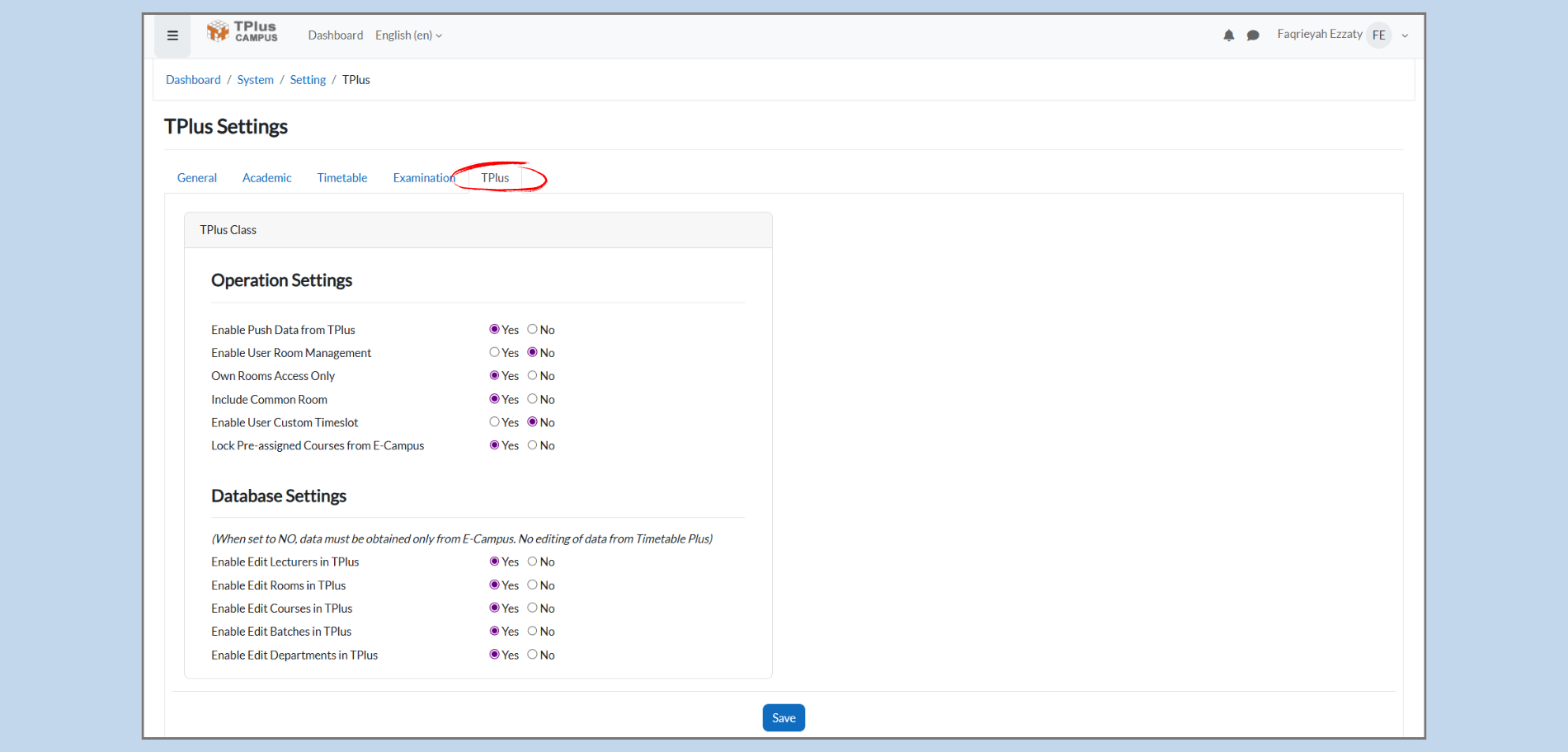
Operation Settings
These settings govern how TPlus operates in terms of user access, timetable management, and integration with other systems.
-
Enable Push Data from TPlus:
-
Purpose: Controls whether TPlus will push data to external systems or platforms.
-
How to Use: Set to Yes if you want TPlus to share its data with other systems automatically.
-
Why It’s Important: Enabling this ensures that updates and data from TPlus are synces across multiple platforms, maintaining consistency and reducing manual updates.
-
-
Enable User Room Management:
-
Purpose: Determines whether user can manage room assignments within TPlus.
-
How to Use: Set “Yes” if you want users to have the ability to assign and manage rooms.
-
Why It’s Important: This provides flexibility in room management for events or classes, giving users more control over their scheduling process.
-
-
Own Rooms Access only:
-
Purpose: Controls whether users can access only their assigned rooms or if they can access all rooms in the system.
-
How to Use: Set to Yes if you want users to access only their rooms, or No if all users should have access to all rooms.
-
Why It’s Important: It maintains security and privacy by limiting room access to authorized users only.
-
-
Include Common Room:
-
Purpose: Allow users to access common rooms in addition to their assigned rooms.
-
How to Use: Set to Yes to include common areas like lounges or shared spaces in the schedule.
-
Why It’s Important: It provides clarity by ensuring that common spaces are available for bookings and visible in the timetable system.
-
-
Enable User Custom Timeslot:
-
Purpose: Allows users to create their own custom time slots.
-
How to Use: Set to Yes if users need flexibility in setting non-standard time slots for their activities.
-
Why It’s Important: This adds flexibility for personalized schedules, allowing users to adjust timings based on specific needs or constraints.
-
-
Lock Pre-assigned Courses from E-Campus:
-
Purpose: Prevents changes to courses that have been pre-assigned via E-Campus.
-
How to Use: Set to Yes if you want to lock these courses and prevent further edits.
-
Why It’s Important: This ensures that pre-assigned courses are not accidentally modified, maintaining the integrity of the course schedule.
-
-
5. SIS TABLE
5. SIS Tables
Purpose:
The SIS Tables section allows administrators to manage various data sets by importing, viewing, and exporting table data. To ensure accurate data management, administrators must follow specific steps, such as using the correct Excel template and selecting the approriate view before importing.
Part 1: Navigating to SIS Tables
-
Accessing the System Tables Section:
-
From the dashboard, click on the System Menu.
-
Under System, click SIS Tables to open the data management page where you can view and manage various tables.
-
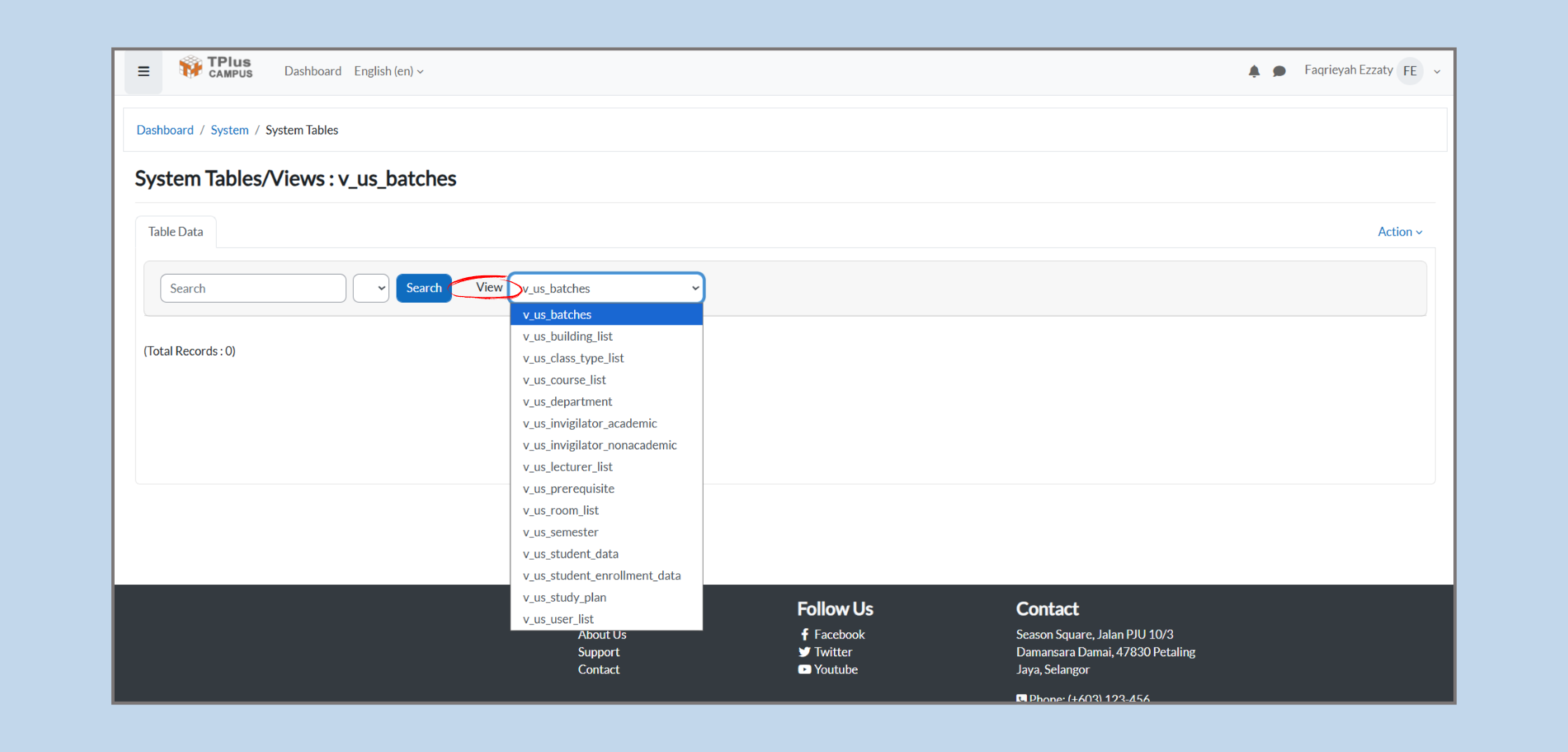
Part 2: Selecting the Correct View
-
View Dropdown
-
Step 1: In the View dropdown, select the relevent table to work with (e.g., v_us_batches, v_us_lecturer_list, v_us_course_list).
-
Step 2: After selecting the view, the system will display the corresponding data for that table.
-
Tip: Always ensure that the correct view is selected, as this will filter the data shown for management or export. The views available include:
-
v_us_batches: View batch information.
-
v_us_lecturer_list: View lecturer data (e.g., lecturer names, departments).
-
v_us_course_list: View course data (e.g., course codes, names).
Part 3: Importing Data
-
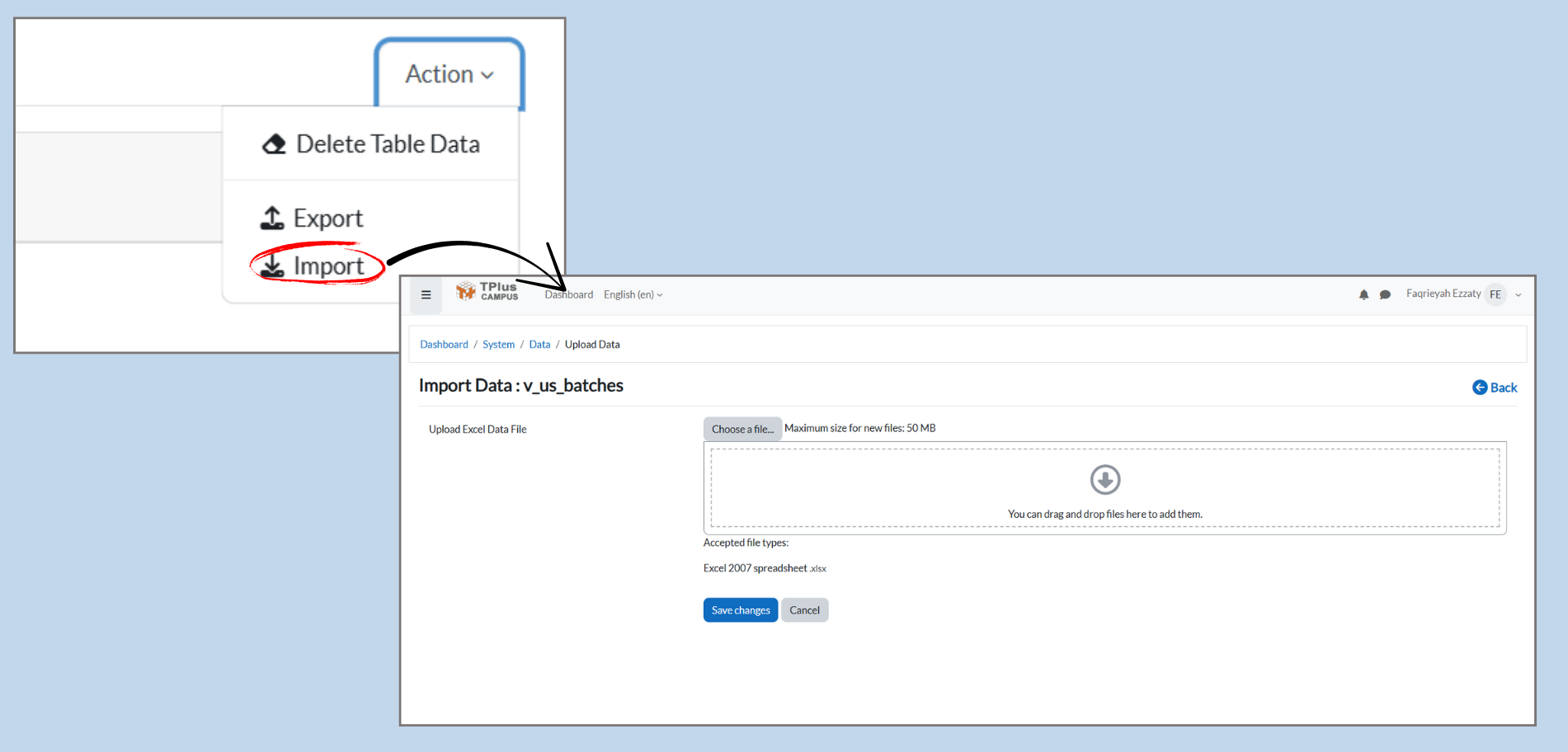
Importing Excel Data:
-
Step 1: After selecting the appropriate view, click on the Action dropdown menu.
-
Step 2: From the dropdown, choose Import.
-
Step 3: The system will take you to the Import Data page, where you can upload your Excel file.
- Important: Before importing, administrators must use the Excel template provided by the system. This template will be given to the admin to ensure that all information entered follows the correct format and structure.
-
-
Upload the Excel File:
-
Step 1: Click Choose a file to browse and select your file .
-
Step 2: After selecting the file, click Save Changes to import the data into the system.
-
Part 4: Exporting Data
-
Exporting Excel Data:
- Step 1: In the View dropdown, select the table containing the data you want to export (e.g., batches, lecturers, or courses).
- Step 2: Once the data is displayed, click on the Action dropdown menu.
- Step 3: From the dropdown, choose Export.
- Step 4: The system will generate an Excel file based on the selected data, and a download option will appear.