Opening Up and Getting Used to Timetable Plus Exam
4. SIS Settings (To Import Database)
To import database using SIS or known as Student Information System, first you need to know about SIS Setting.
Go to the Database Menu and select SIS. 

Diagram 4.1 Location of SIS
You will see a drop-down menu under SIS. Click on SIS Setting.
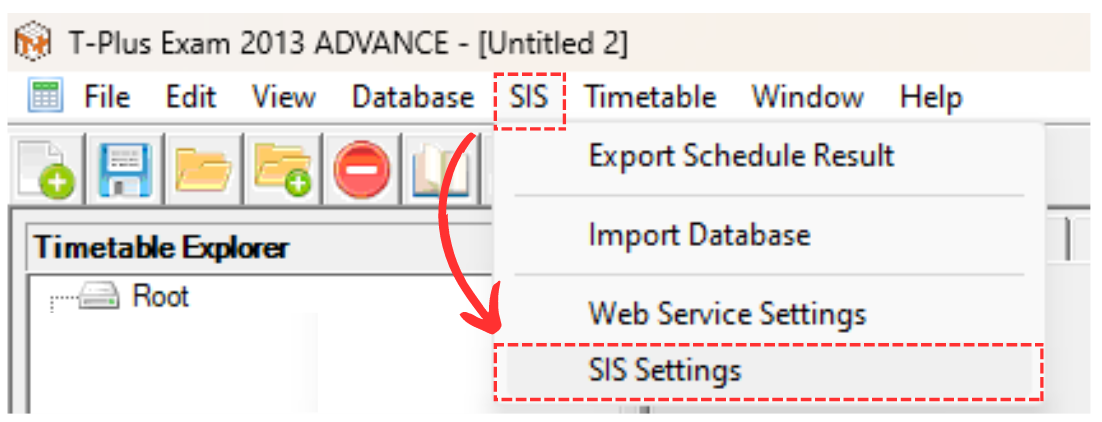
Diagram 4.2 Location of SIS Setting
SIS Settings Window will pop-up.

Diagram 4.3 SIS Settings Window
1. Connection
First you need to connect your T-Plus Class with your T-Plus Campus Student Information System.

Diagram 4.4 SIS Settings Connection WIndow
To know on how to fill in the empty slots, refer to the table below.
|
SIS URL |
Always fixed to the website where it containt the online database. Default is https//www.timetableplus.com/timetable. |
|
SIS User ID |
User ID used in online database. Example : Admin99 |
|
Password |
Password used in online database |
|
Institute |
Your institute. You may click the drop down menu to choose your institure. If there is none, you can click add sign  to add your institure. to add your institure. |
Table 4.1 Fill In Information in Connection
After done filling the slots, click Test Connection
 button.
 A pop-up message will appear, stating that it has been successful.

Diagram 4.5 Pop-up Success
Warning! If you fill the slots incorrectly, an error connection pop-up will appear.

Diagram 4.6 Pop-up Error Connection
2. Settings

Diagram 4.7 Settings
You may select the preferred semester of the data that will be imported from SIS.
Once everything has been filled and connected, you may click Save  .
.