Stage 1: Database
3. Add, Edit and Delete in Database
3.4. Room Type
In this subchapter, we will learn on how to Add, Edit and Delete Room Type in Room Type Management.

Diagram 3.4.1 Room Type Management
1. Add Room Type
To add room type, simply fill in value on empty slot and click Add.

Diagram 3.4.2 Add Room Type
Note that new room type you created will automatically appear at the bottom list of room type. When you reopening the Room Type Management, the room type can be found in the list of room type according to alphabetical order.

Diagram 3.4.3 Location of the newly added room type
Noted that there is No Save Button. You may close it and it will be automatically added into the Room Type Management.
2. Edit Room Type
To edit room type in Room Type Management, there are 4 simple steps.
STEPS 1: To edit room type, you may open the Room Type Management.
STEPS 2: Choose the room type that you want to edit.

Diagram 3.4.4 Selected Room Type
STEPS 3: Click Edit.  You may edit the room type name only. For example, the room type name can be changed from MAC STUDIO to APPLE MAC STUDIO.
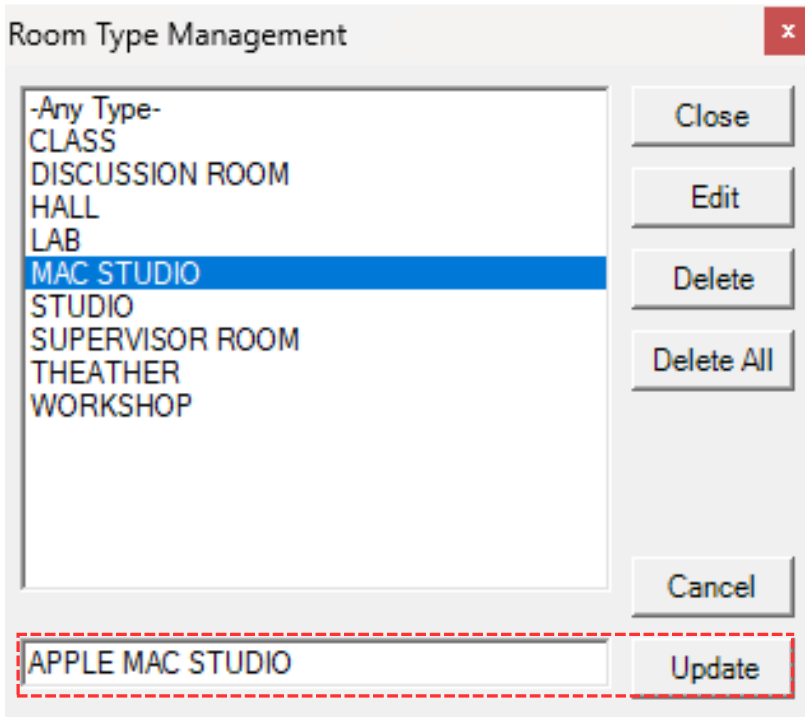
Diagram 3.4.5 Details that can be edited
STEPS 4: Once edited, click Update. 
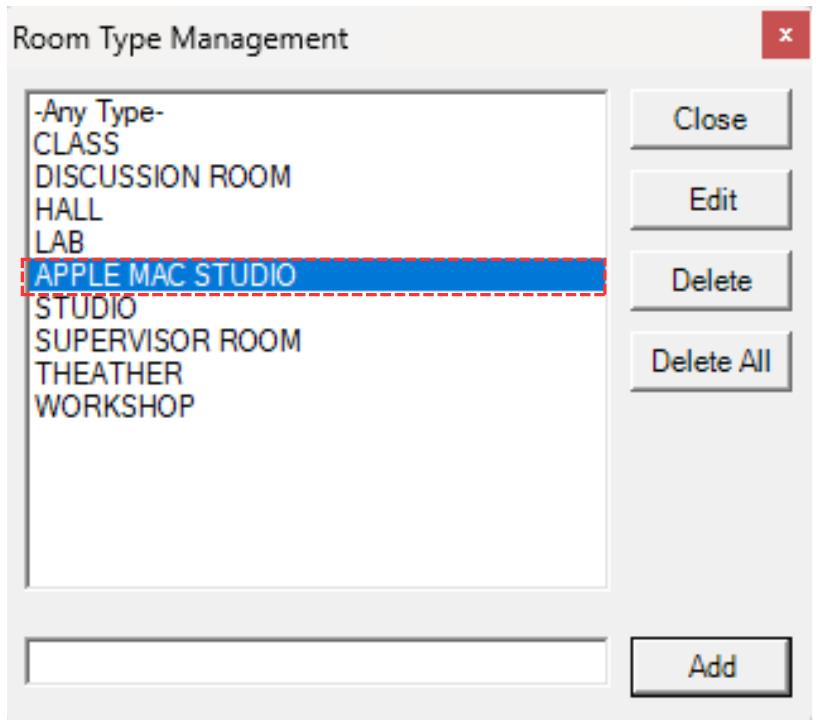
Diagram 3.4.6 Updated Room Type Name
3. Delete Room Type
To delete, you can simply refer to the picture below.

Diagram 3.4.7 Steps on How to Delete Room Type