1. First Login Process
Getting Started
This section will guide you through your first login process as a Timetable Plus Campus Admin.
Step 1: Log In
-
Open your web browser and navigate to the Timetable Plus Campus.
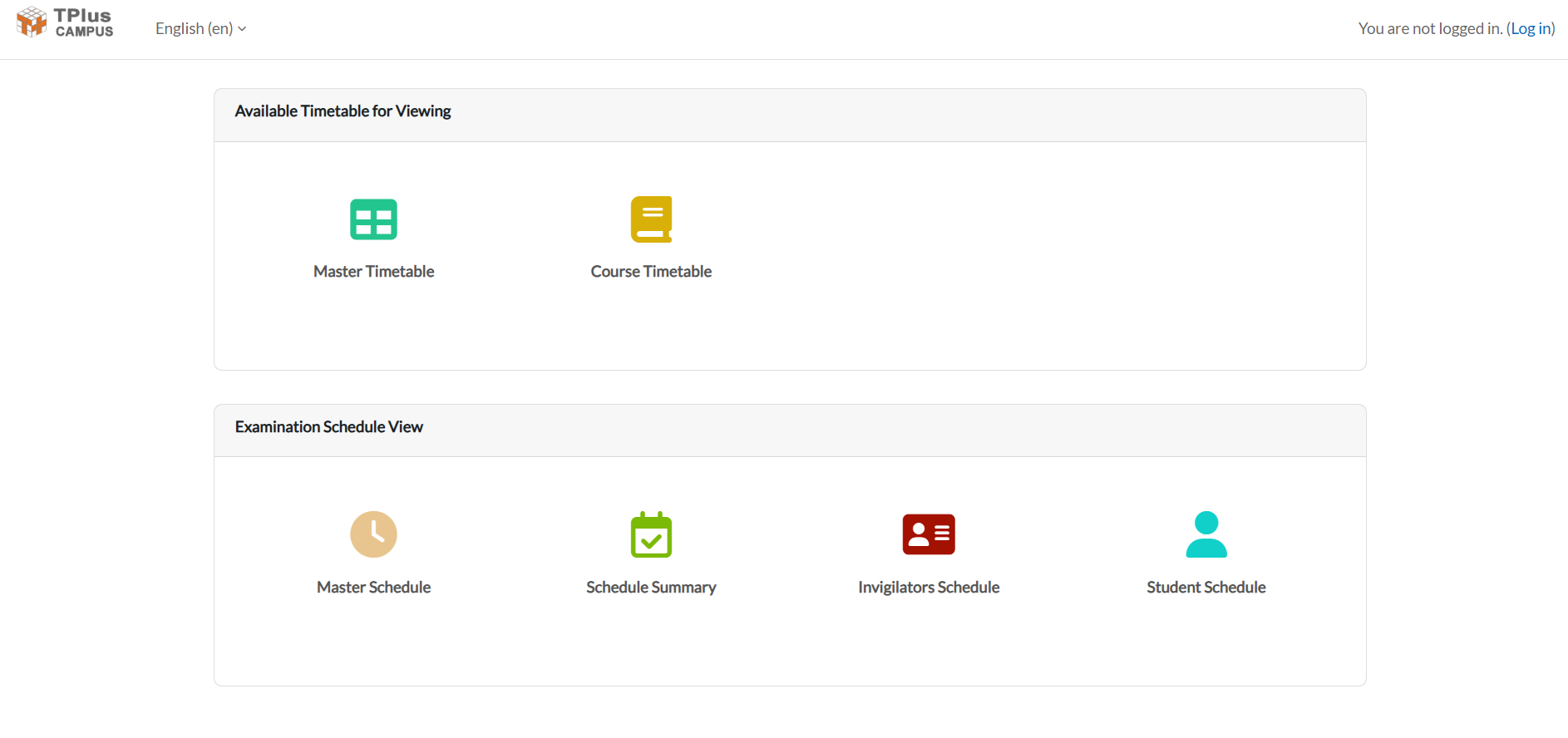
- Navigate to login page.
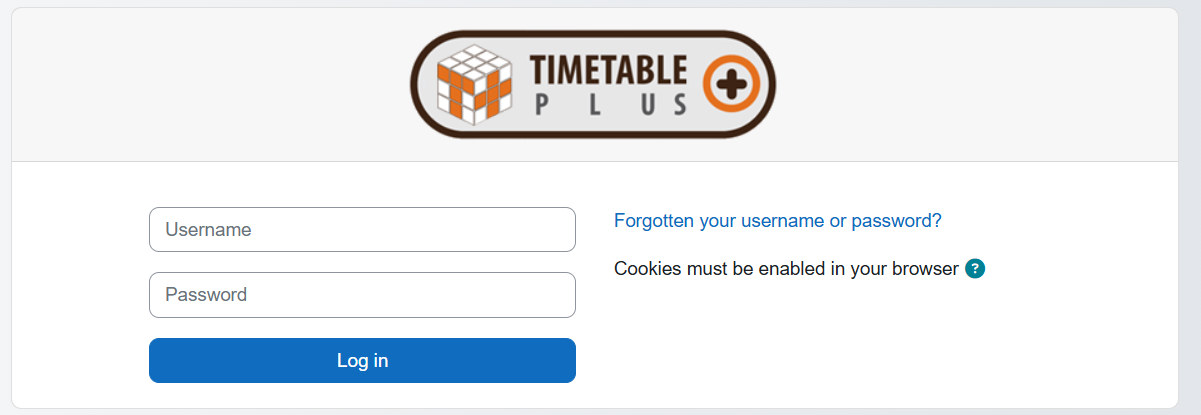
- Enter your Admin Username and Default Password provided by the system administrator.
- Click Login.
Step 2: Reset Your Password
- On your first login, the system will automatically prompt you to change your password.
- Enter your current (default) password, followed by your new password, and confirm it.
- Click Save to update your credentials.
Step 3: Access the Dashboard
- After resetting your password, you will be redirected to the Dashboard.
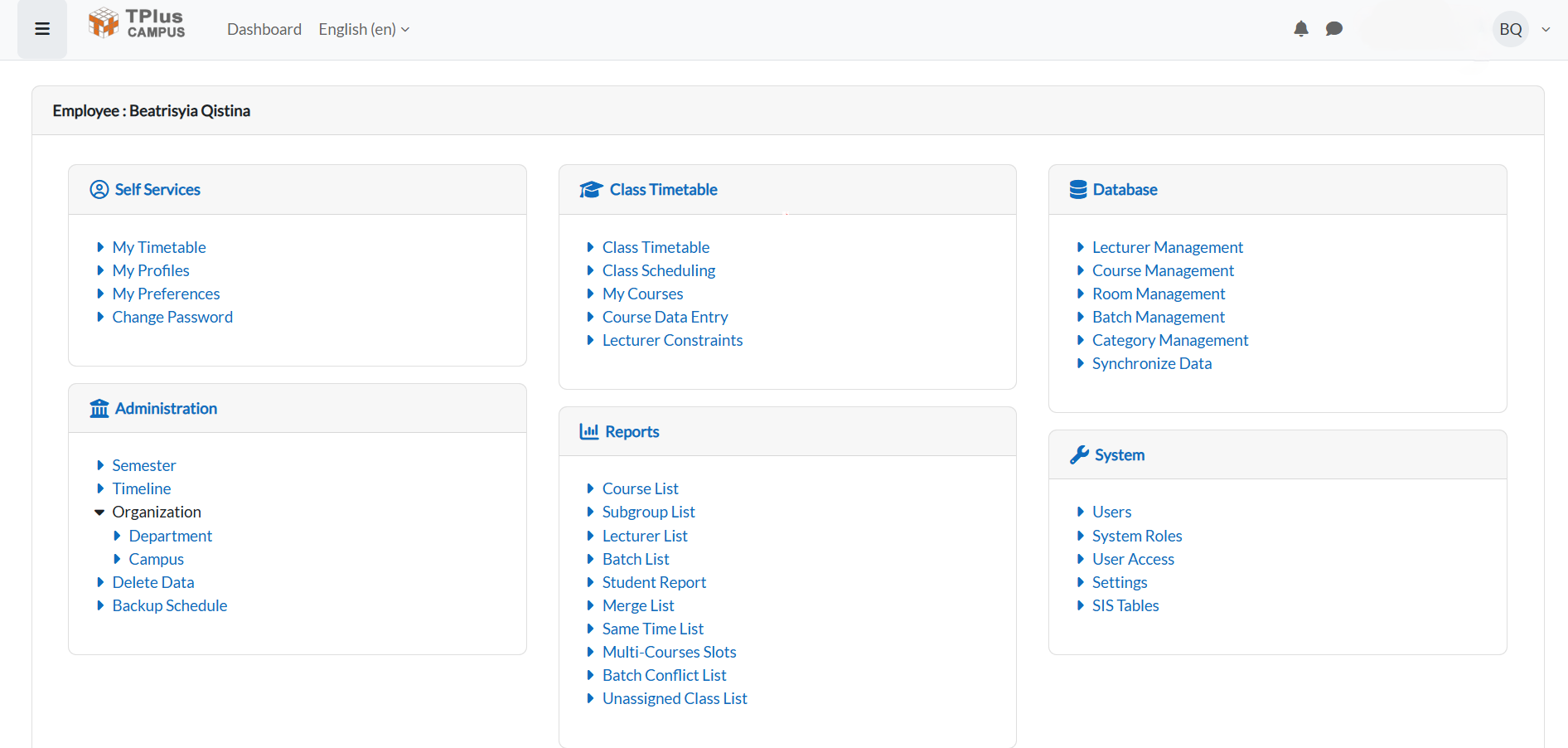
-
From here, you can access all admin features including user management, timetable settings, and system configurations.