1. Export
1.3. Export to T-Plus Class
The Data Entry Result can be exported and import to T-Plus Class SIS & Infiniti.
There are 5 simple steps to export Data Entry Result to T-Plus Class.
STEPS 1: On T-Plus Class SIS OR Infiniti, Click New Timetable Icon. 
STEPS 2: Once done, go to Tree Structure and right click on the Timetable Name under it.
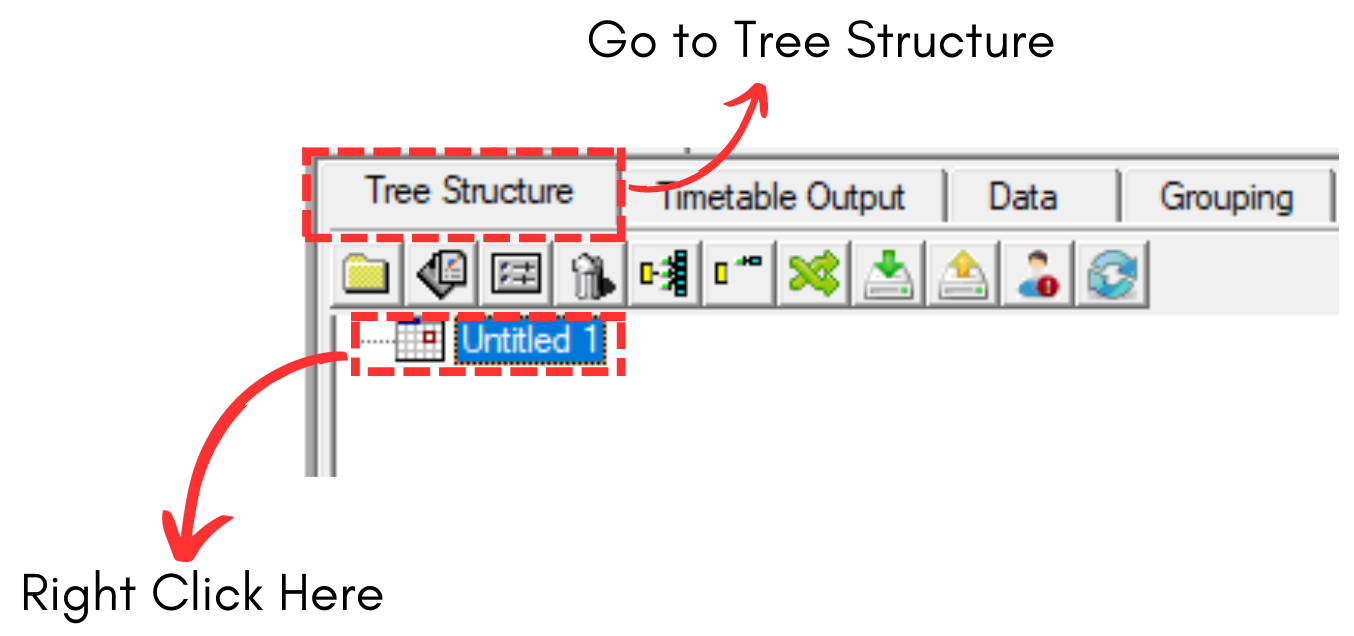
Diagram 1.3.1 Right Click Under Tree Structure
STEPS 3: In T-Plus Class SIS, select Data Entry and a drop down menu will appear. Select Import From Data Entry afterward.
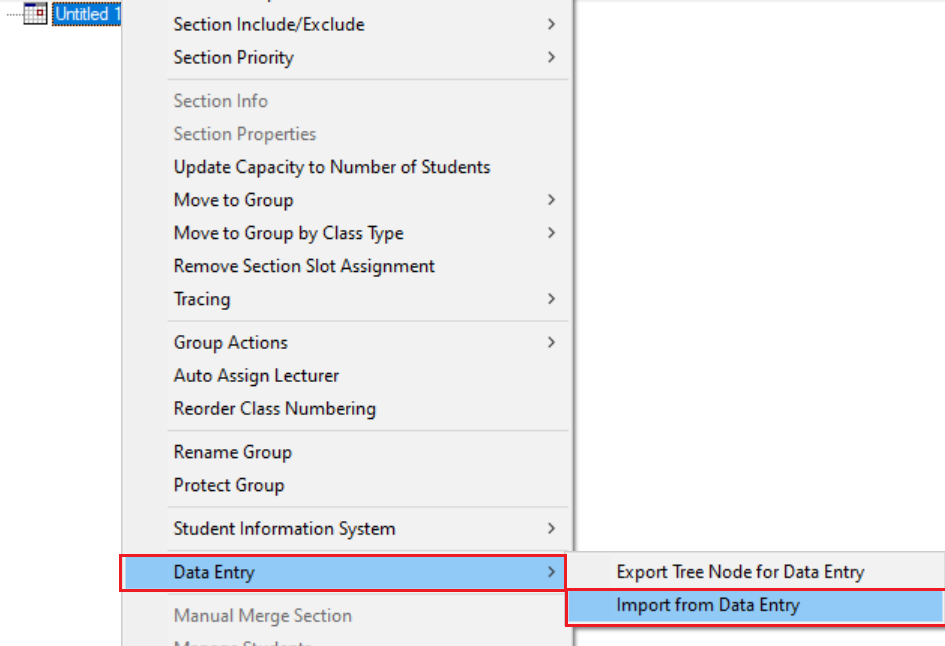
Diagram 1.3.2 Location of Import from Data Entry in T-Plus Class SIS
In T-Plus Class Infiniti, you can simply select Import from Data Entry.
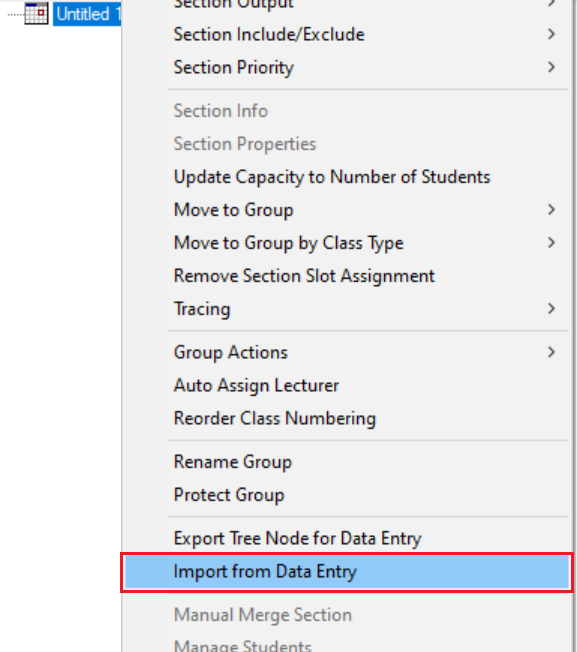
Diagram 1.3.4 Location of Import from Data Entry in T-Plus Class Infiniti
A Popup will appear afterward.
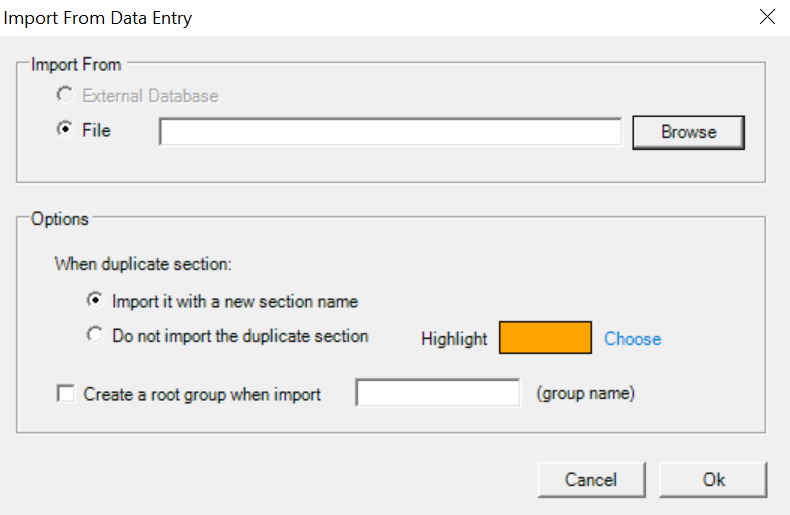
Diagram 1.3.5 Import From Data Entry Popup
STEPS 3: Click Browse. A popup will appear and select the .TDER file. And then click Open.
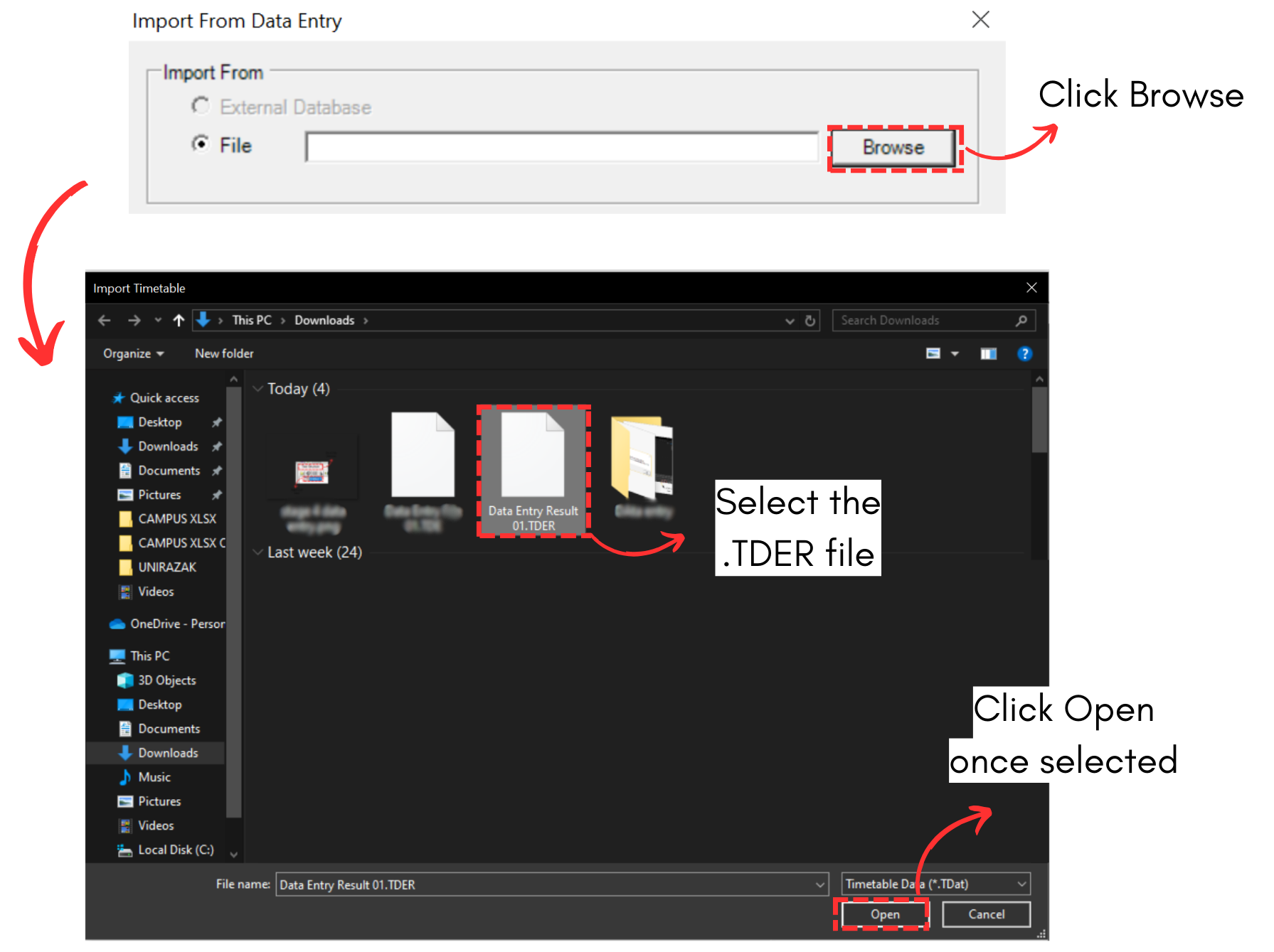
Diagram 1.3.6 Select Data Entry Result File
STEPS 4: Choose the preferred Options. Click Ok once done.
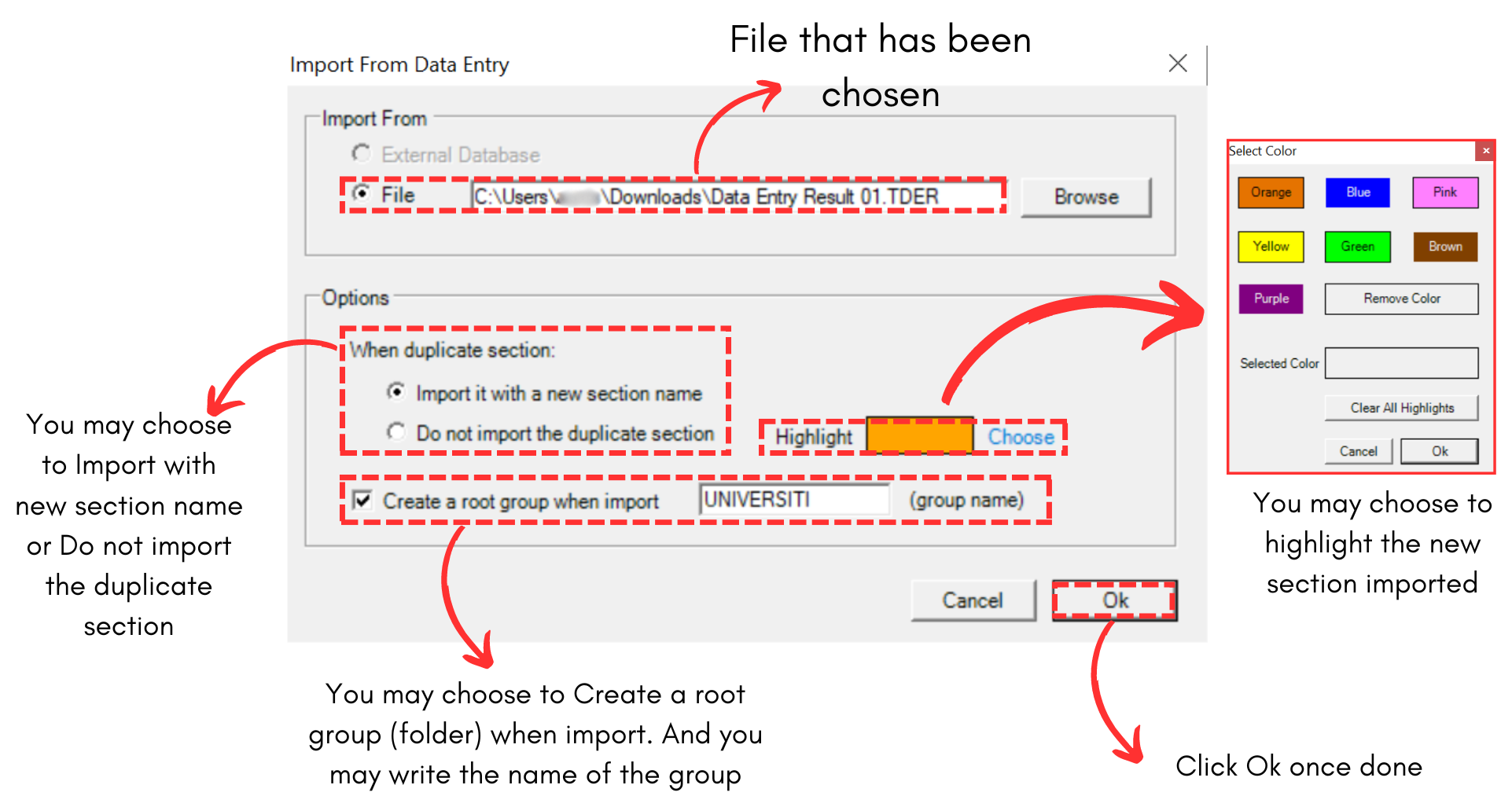
Diagram 1.3.7 Import From Data Entry Popup Explanation
A Syncrhonize Data Popup will appear.
STEPS 5: Choose the data to be synchronize. The best one is All. Click Ok afterwards.
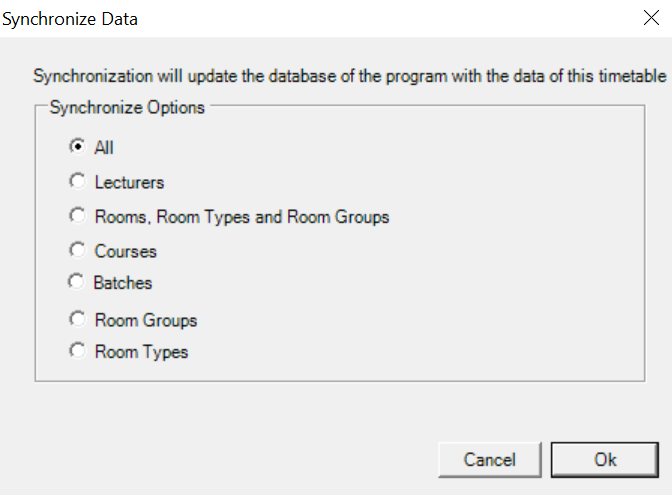
Diagram 1.3.8 Synchronize Data Popup
Synchronize Data Completed Popup appears afterwards.
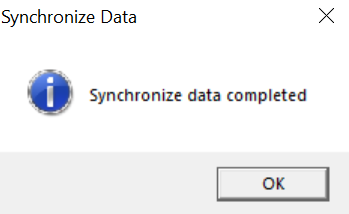
Diagram 1.3.9 Synchronize Data Completed Popup
You will be able to see the Data Entry Result file is appearing on the Tree Structure of T-Plus Class.
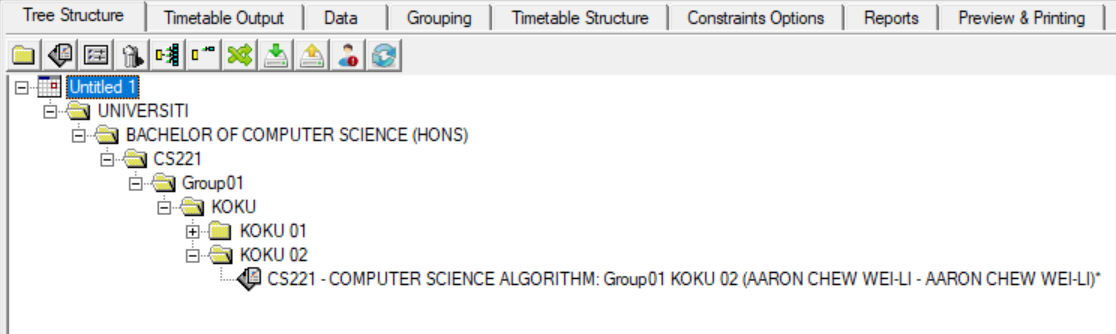
Diagram 1.3.10 Tree Structure in T-Plus Class
IMPORTANT NOTE: Make sure to save the file to avoid losing the data.