Stage 4: Merge Group & Same Time Group
| Site: | Timetable Plus |
| Course: | Timetable Plus Data Entry |
| Book: | Stage 4: Merge Group & Same Time Group |
| Printed by: | Guest user |
| Date: | Friday, 5 June 2026, 8:45 PM |
Description
w
1. Adding the Merge Group & Same Time Group

1.1. Merge Groups
To do merge group, you need to go to Data and select Merge Group List.

Diagram 1.1.1 Location of Merge Groups List
Before creating a merge group, you need to study the icons inside the Merge Group List.

 | Click this icon to add section to merge group. |
 | Click this icon to manually add new merge group. |
 | Click this icon to manage merge group. |
 | Click this icon to view merge group properties. |
 | Click this icon to remove section from merge group. |
 | Click this icon to delete merge group. |
 | Click this icon to delete All merge group. |
 | Click this icon to refresh merge group. |
There are 2 ways of creating the merge group.
ALTERNATIVE 1: Click icon to add directly section to the merge group.
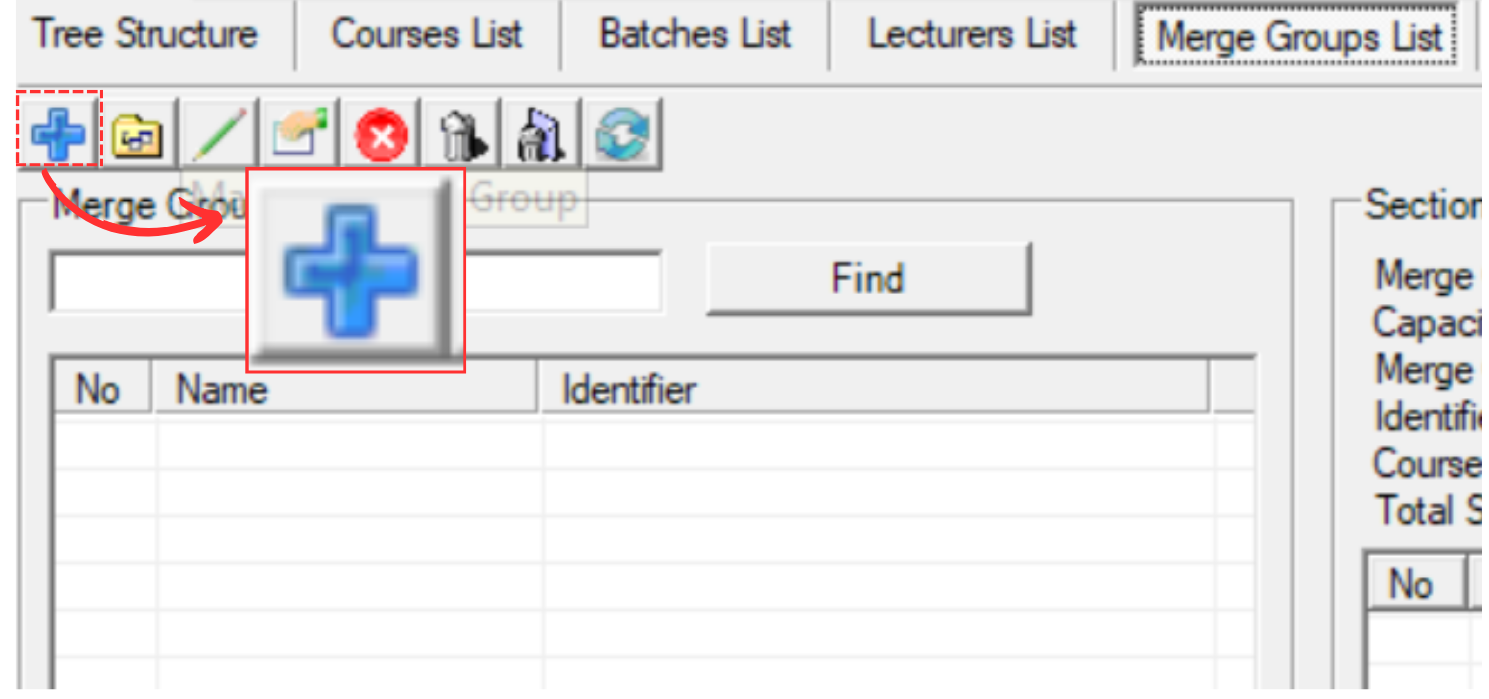
Diagram 1.1.2 Location of Add Directly Section to the Merge Group Icon
Once click, a new window will appear.
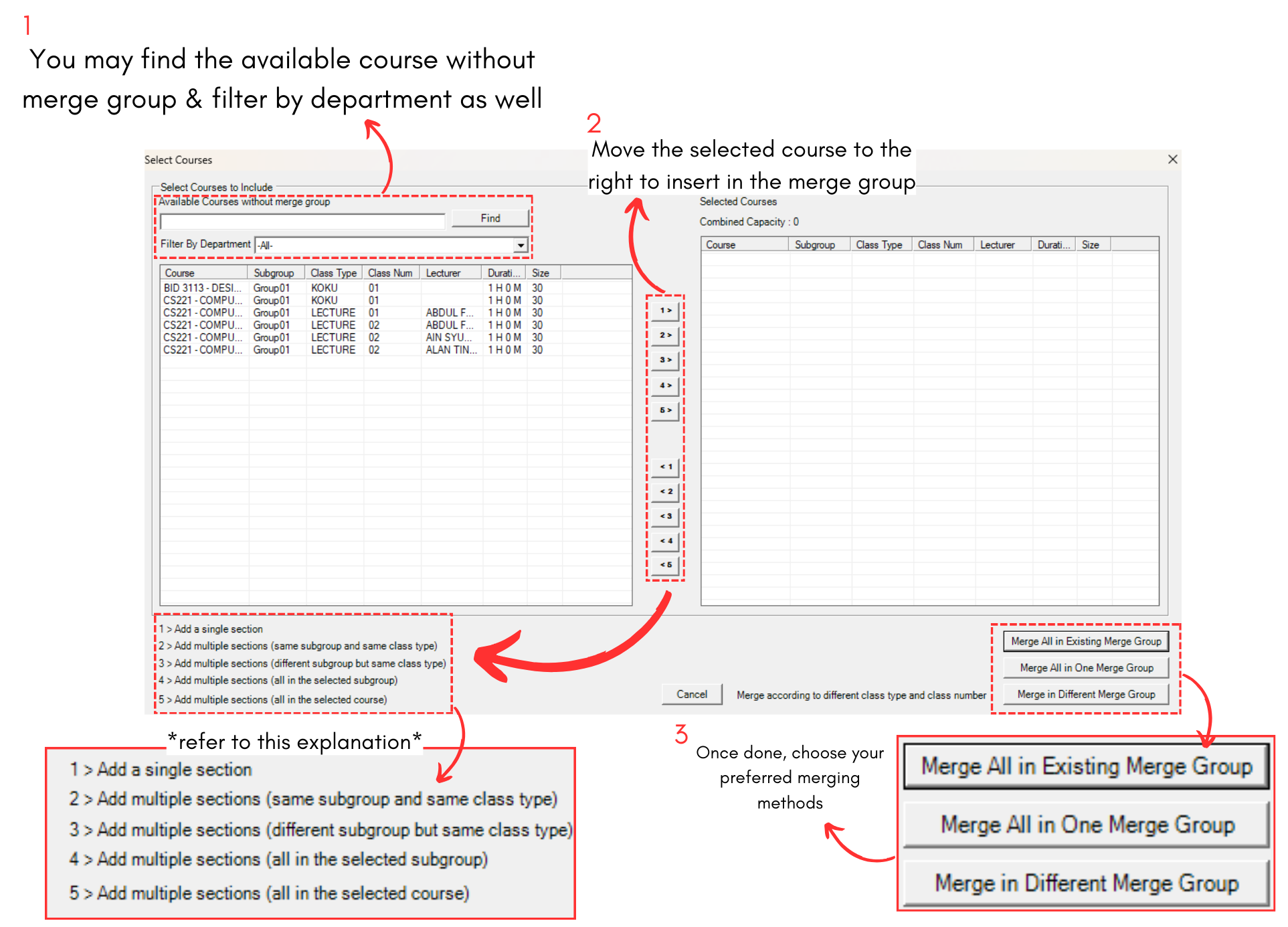
Diagram 1.1.3 Add Directly Section to the Merge Group
ALTERNATIVE 2: Click icon to manually add new group.
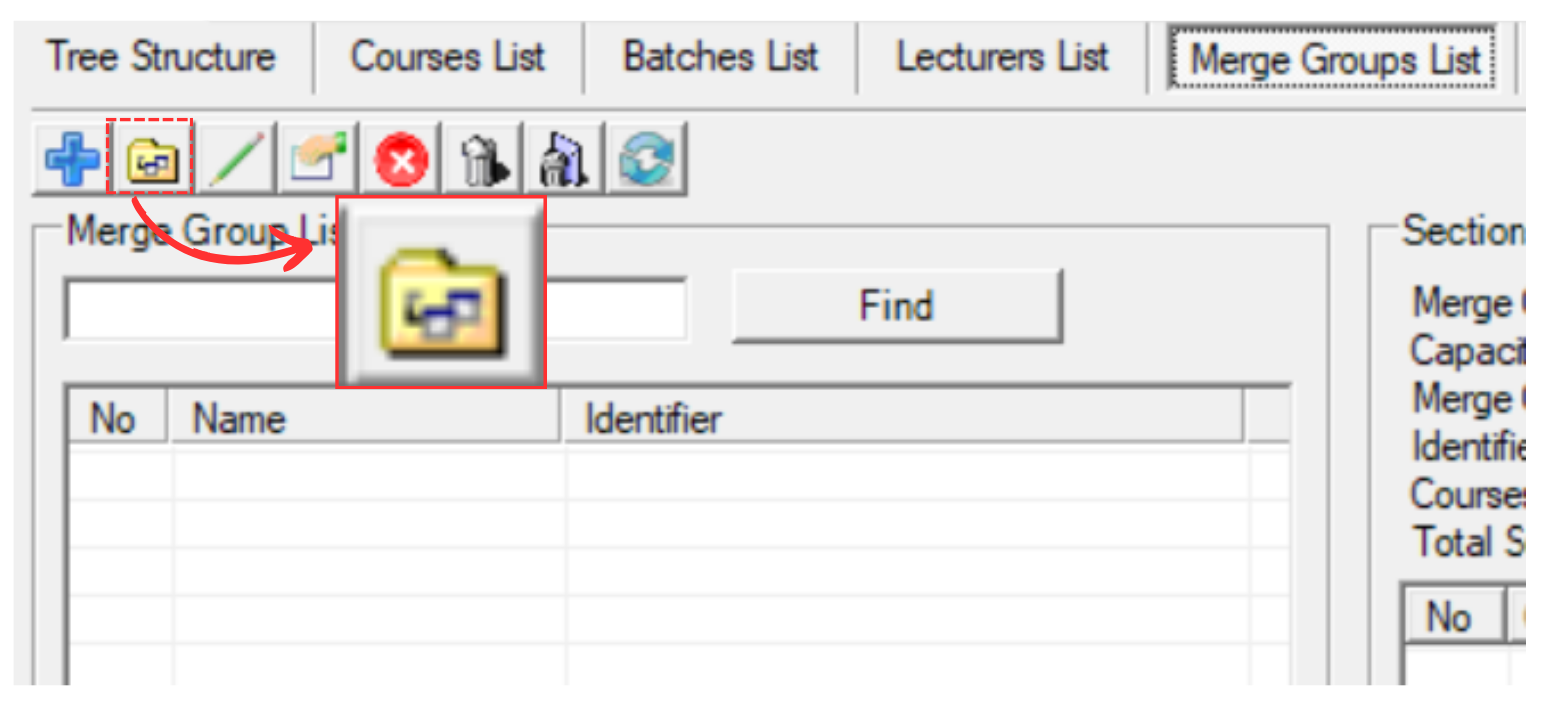
Diagram 1.1.4 Location of Manually Add New Group Icon
A popup will appear, asking you to write the Merge Group name. Once done, click Ok.
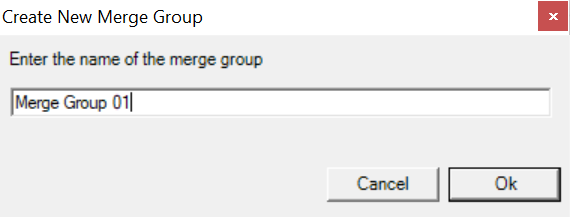
Diagram 1.1.5 Create New Merge Group
Once you have created the merge group, select the merge group and click manage merge group  icon to add sections inside it.
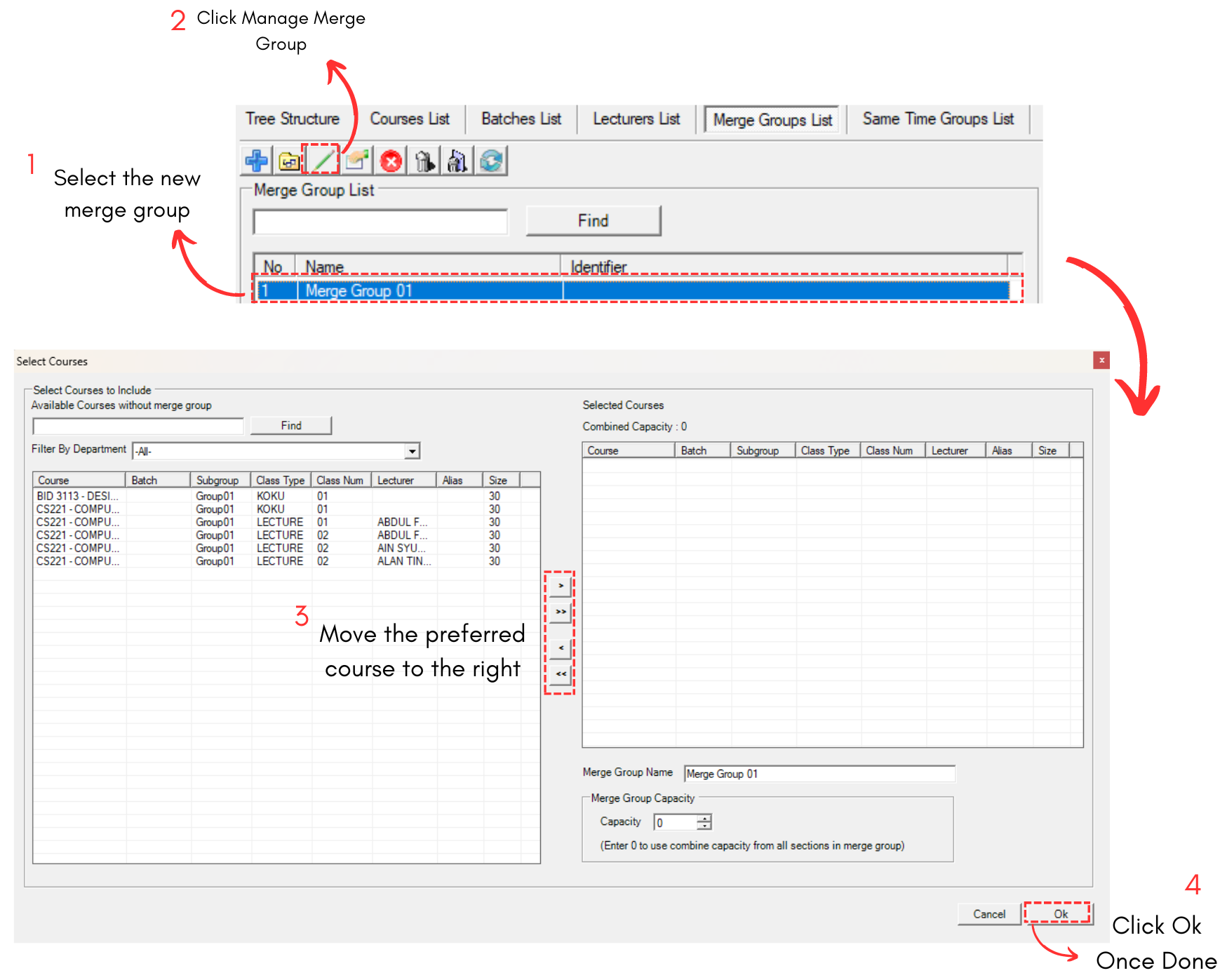
Diagram 1.1.6 Add Section Manually into the Merge Group
This is how it will looks like when you move courses to the right.
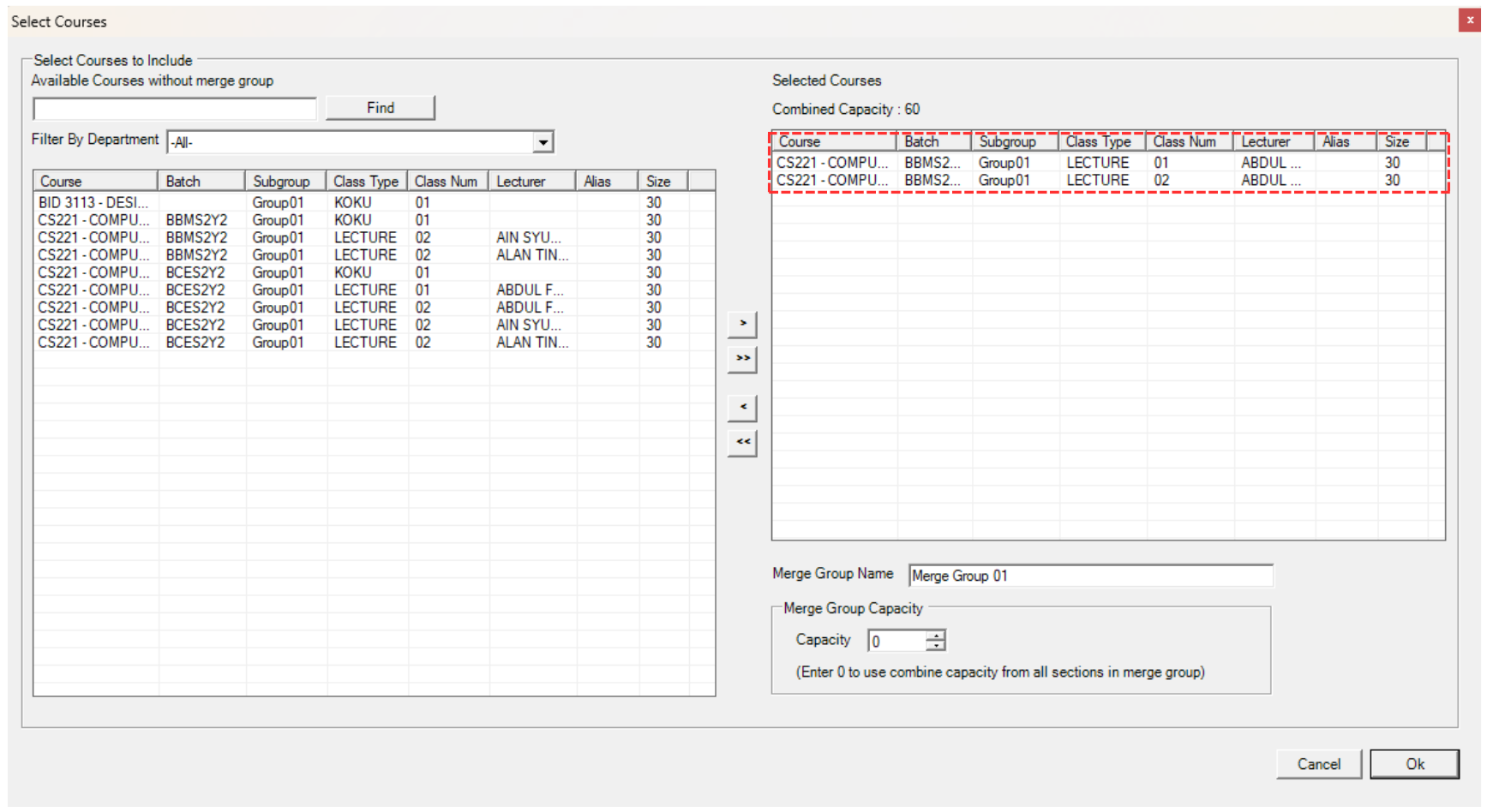
Diagram 1.1.7 Courses moved to the right
After you click Ok, the courses will appear under the selected merge group.
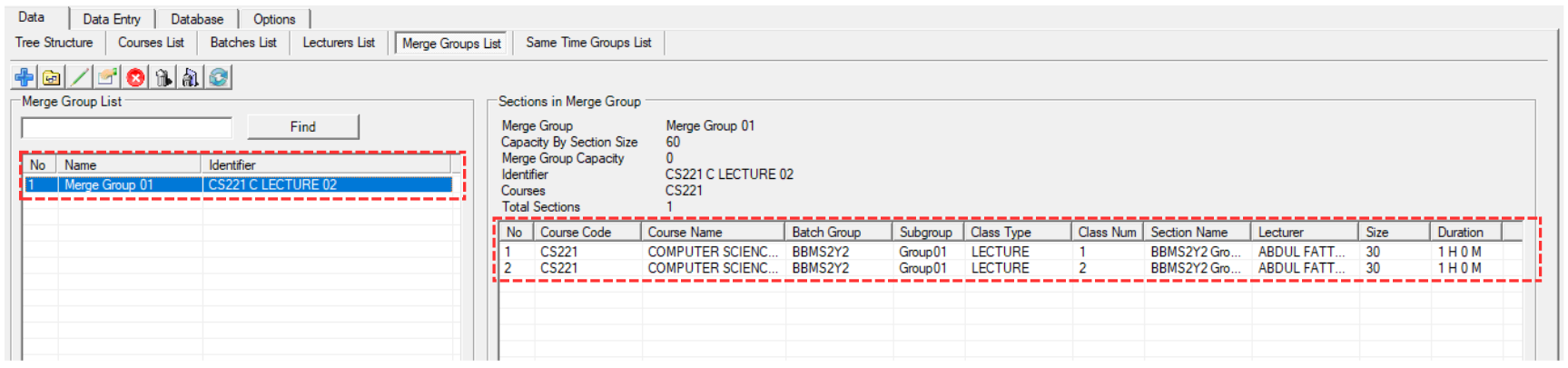
Diagram 1.1.8 Courses under a Merge Group
1.2. Same Time Group
To do same time group, you need to go to Data and select Same Time Groups List.

Diagram 1.2.1 Location of Same Time Groups List
Before creating a same time group, you need to study the icons inside the Same Time Groups Group List.

 | Click this icon to add new same time group. |
 | Click this icon to add section to same time group. |
 | Click this icon to remove section from same time group. |
 | Click this icon to delete selected group. |
 | Click this icon to delete All group. |
 | Click this icon to pre-requisite data file. |
 | Click this icon to refresh list. |
Click icon to add new same time group.
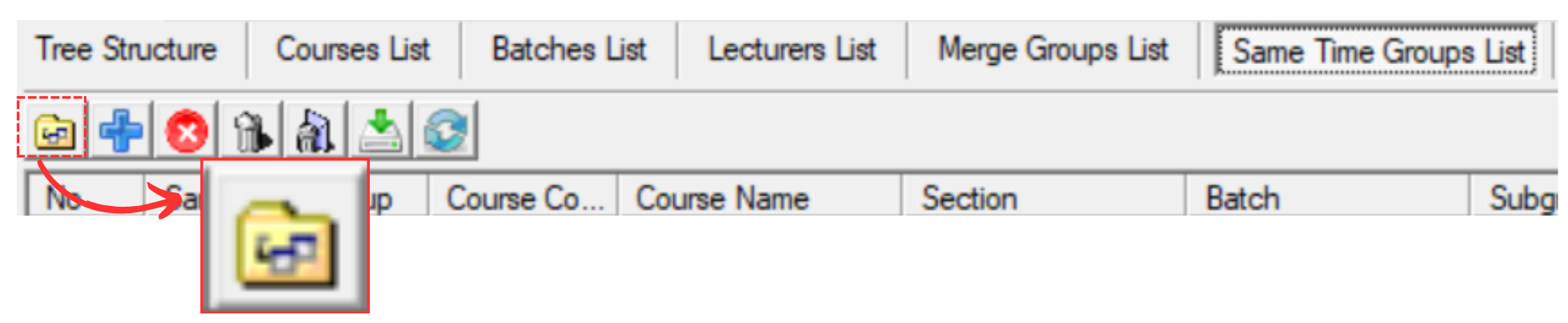
Diagram 1.2.2 Location of Add New Same Time Group Icon
A popup will appear, asking you to write the Same Time Group name. Once done, click Ok.
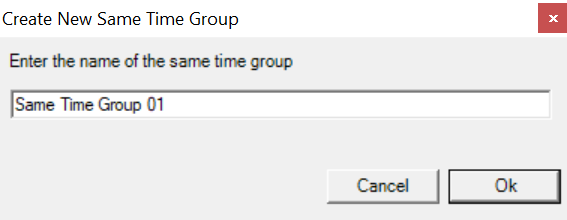
Diagram 1.2.3 Create New Same Time Group
Once you have created the same time group, select the same time group and click add section to same time group
icon to add sections inside it.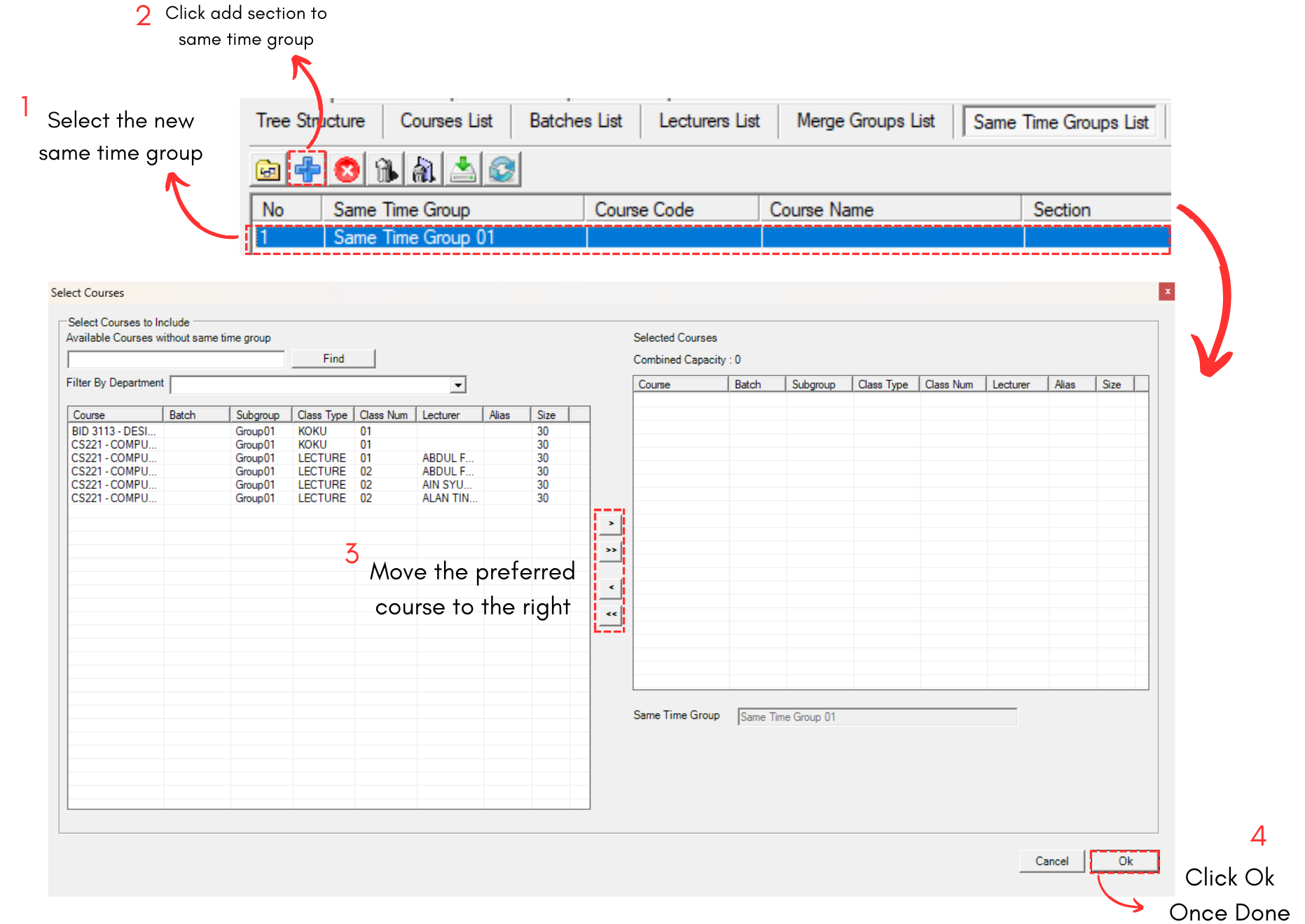
Diagram 1.2.4 Add Section into the Same Time Group
This is how it will looks like when you move courses to the right.
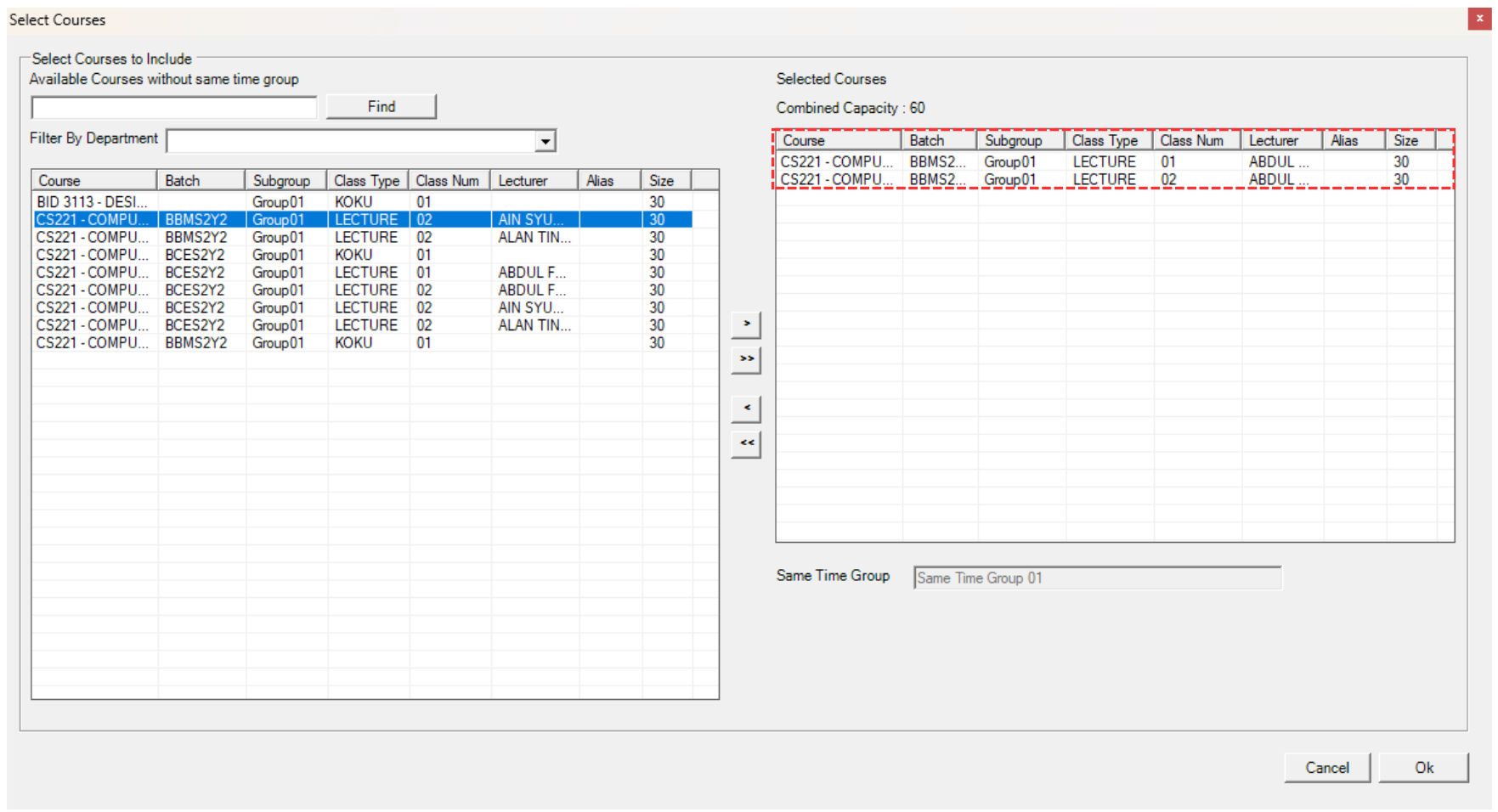
Diagram 1.2.5 Courses moved to the right
After you click Ok, the courses will appear under the selected same time group.

Diagram 1.2.6 Courses under a Same Time Group
2. Analyzing the Merge Group & Same Time Group
2.1. Merge Groups List
In Merge Group List, there are few things you can analyze under the merge group which is:
- Lecturer
- Subject Taught
- Section
- Workload
- Batch
- Subgroup
- Class Type
- Merge Group
- Preference
To locate the Merge GroupList, you may go to Data and select Merge Group List.

2.1.1 Location of Merge Group List in Data
Analyze Merge Group List
It is important to analyze the data that has been input typed in to avoid any further mistakes happening. Refer to the diagram below to know on how to analyze the merge group list data.
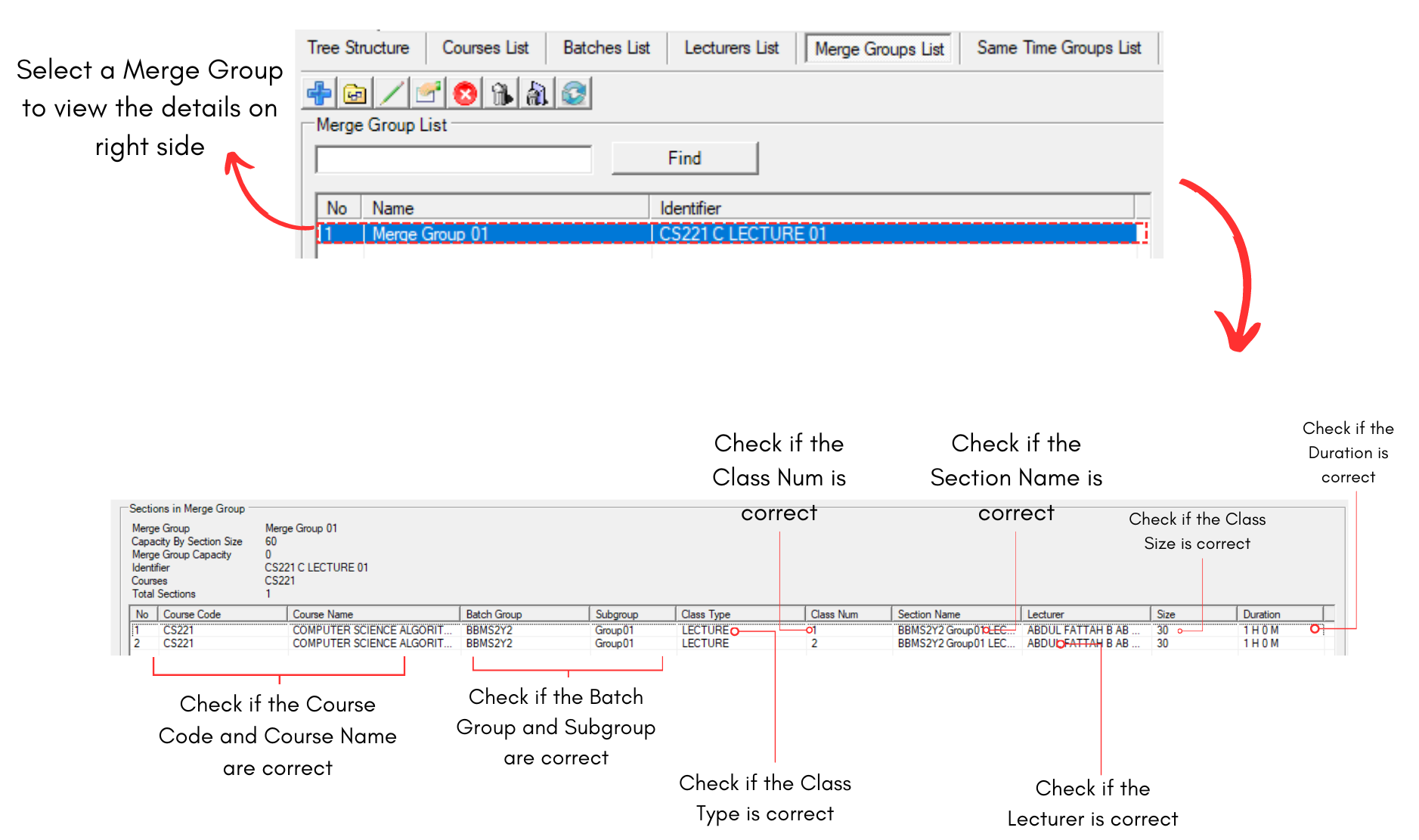
Diagram 2.1.2 Merge Group Analyzation
Editing The Merge Group List
To edit, you can simply edit it from the Merge Group List Tab under Data.
You may refer to the Stage 4: Adding the Merge Groups and Same Time Group (Merge Groups)
2.2. Same Time Group List
In Same Time Group List, there are few things you can analyze under the same time group which is:
- Course
- Section
- Batch
- Subgroup
- Class Duration
- Room
- Lecturer
To locate the Same Time Group List, you may go to Data and select Same Time Group List.

2.2.1 Location of Same Time Group List in Data
Analyze Same Time Group List
It is important to analyze the data that has been input typed in to avoid any further mistakes happening. Refer to the diagram below to know on how to analyze the same time group list data.
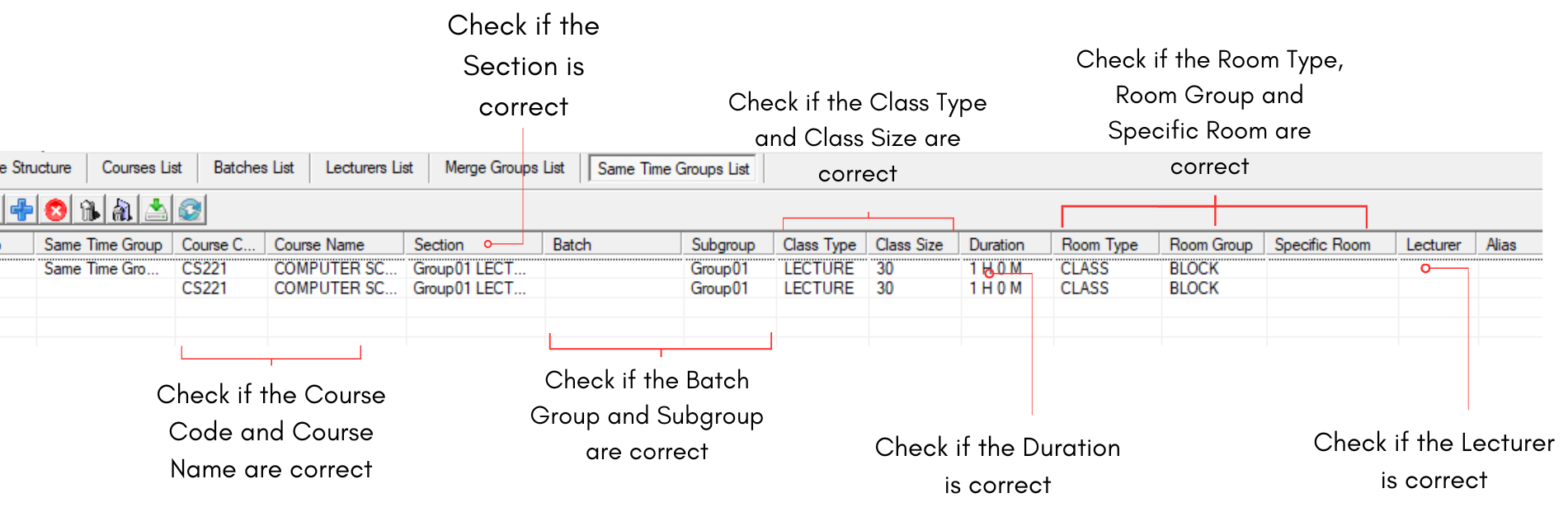
Diagram 2.2.2 Same Time Group Analyzation
Editing The Same Time Group List
To edit, you can simply edit it from the Same Time List Tab under Data.
You may refer to the Stage 4: Adding the Merge Groups and Same Time Group (Same Time Groups)