Stage 8: Print Preview & Export
| Site: | Timetable Plus |
| Course: | Timetable Plus Exam |
| Book: | Stage 8: Print Preview & Export |
| Printed by: | Guest user |
| Date: | Sunday, 31 May 2026, 8:10 AM |
1. Print Formats
To access Print Formats, you may go to General Options.
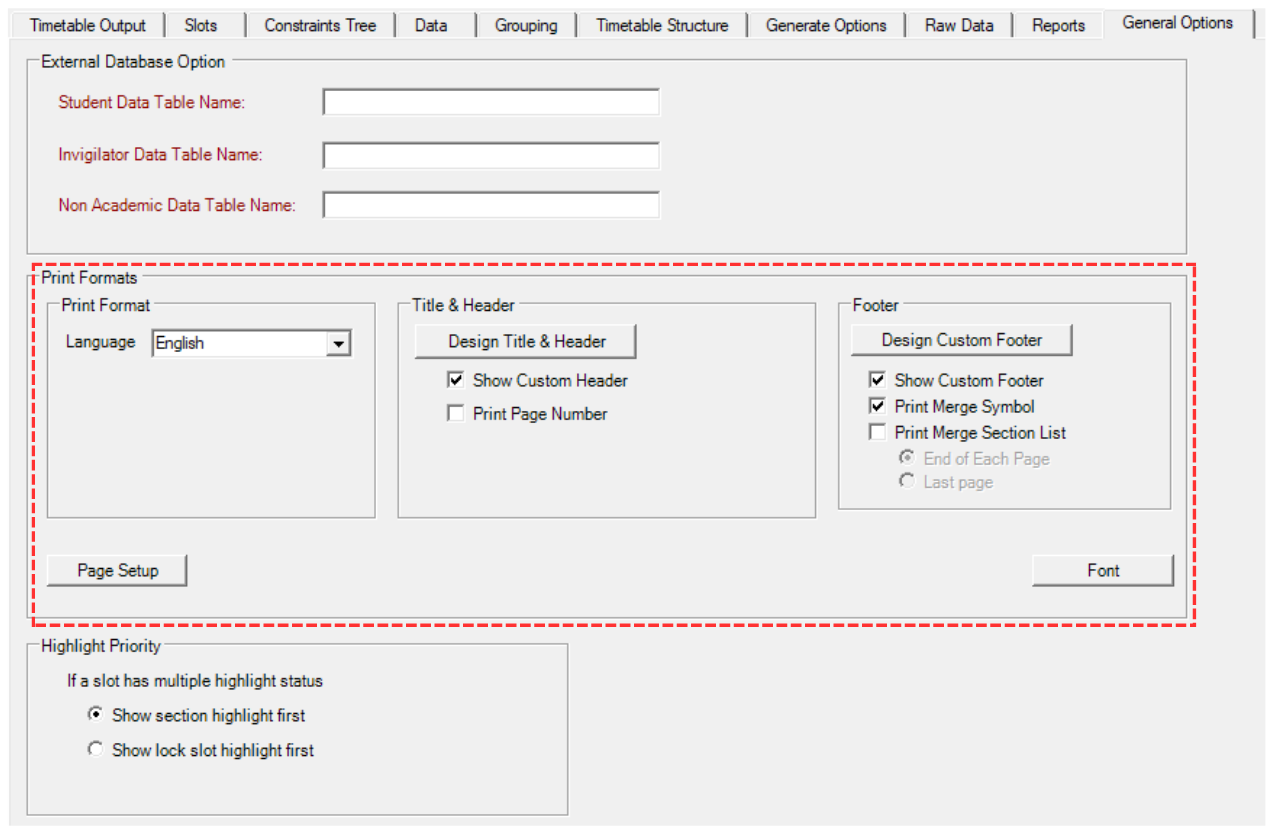
Diagram 1.1 Location of Print Formats
1. Print Formats

Diagram 1.2 Print Formats
You may choose available languages according to your preferences.
2. Title & Header

Diagram 1.3 Title & Header
You may include Title & Header at the top of your printed content. And if you want to customize it, you may click the button Design Title & Header. 

Diagram 1.4 Header Design
3. Footer

Diagram 1.5 Footer
Footer is located at the bottom of your printed content page. You may tick your preferred option and if you want to write text on footer, click Design Custom Footer. 

Diagram 1.6 Custom Footer Design
2. Print Preview
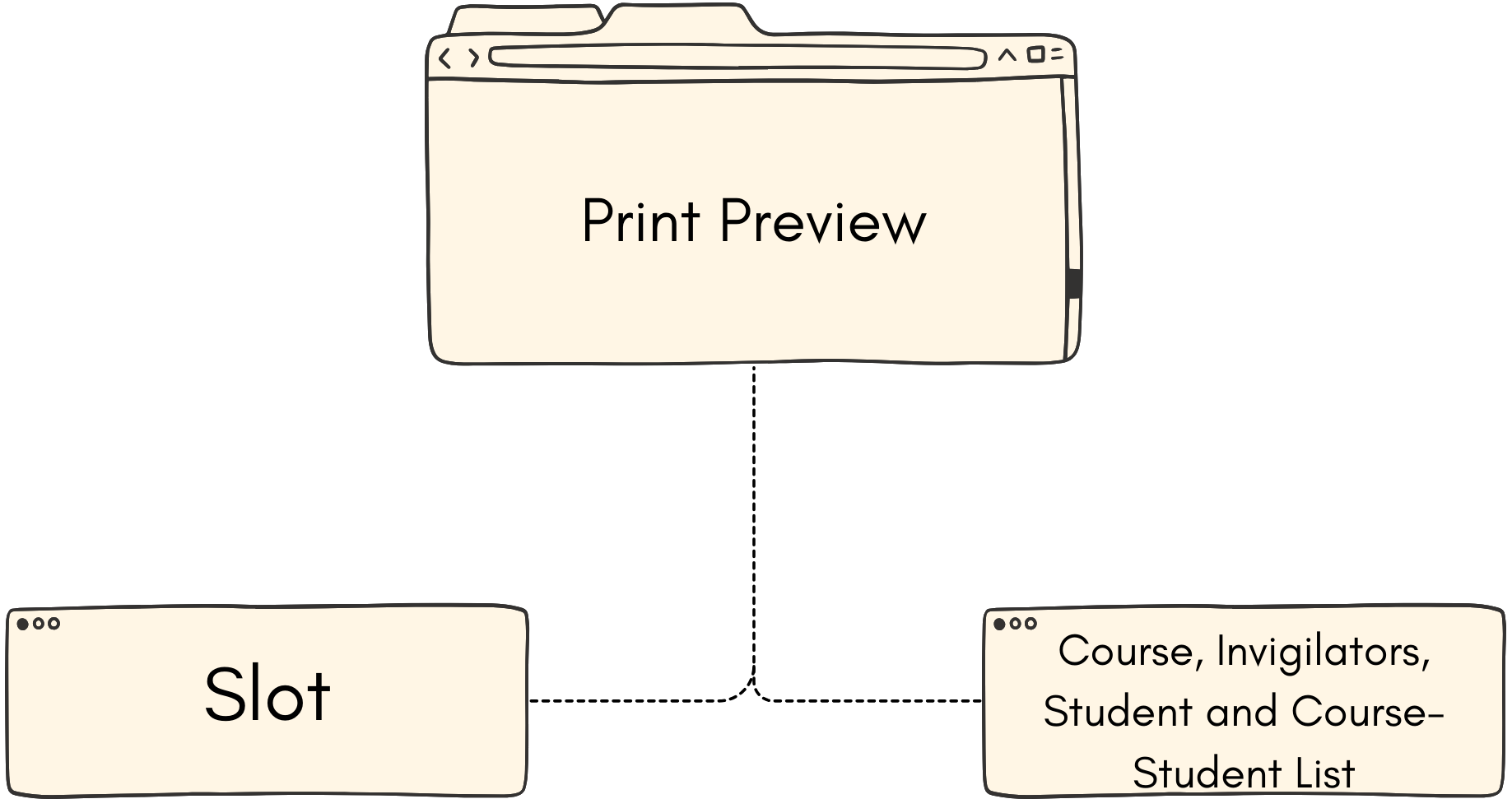
2.1. Slot
To print preview at slot, you may design the print list first.
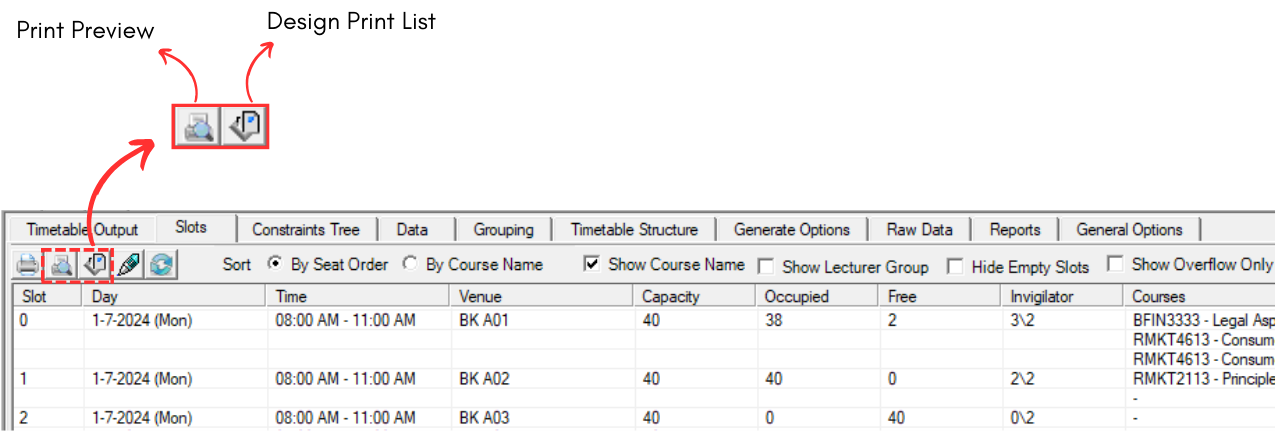
Diagram 2.1.1 Location of Print Preview and Design Print List at Slot
To design print list, click on Design Print List icon. 
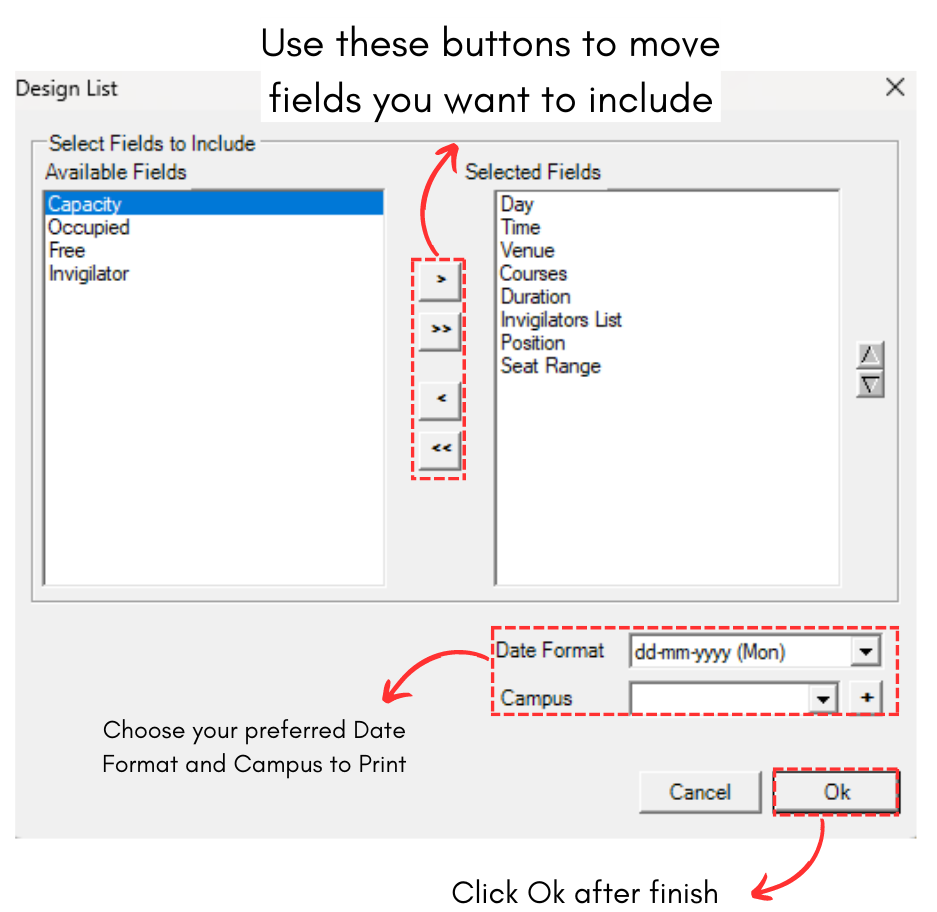
Diagram 2.1.2 Design Print List
To Print Preview, click on Print Preview Icon. 
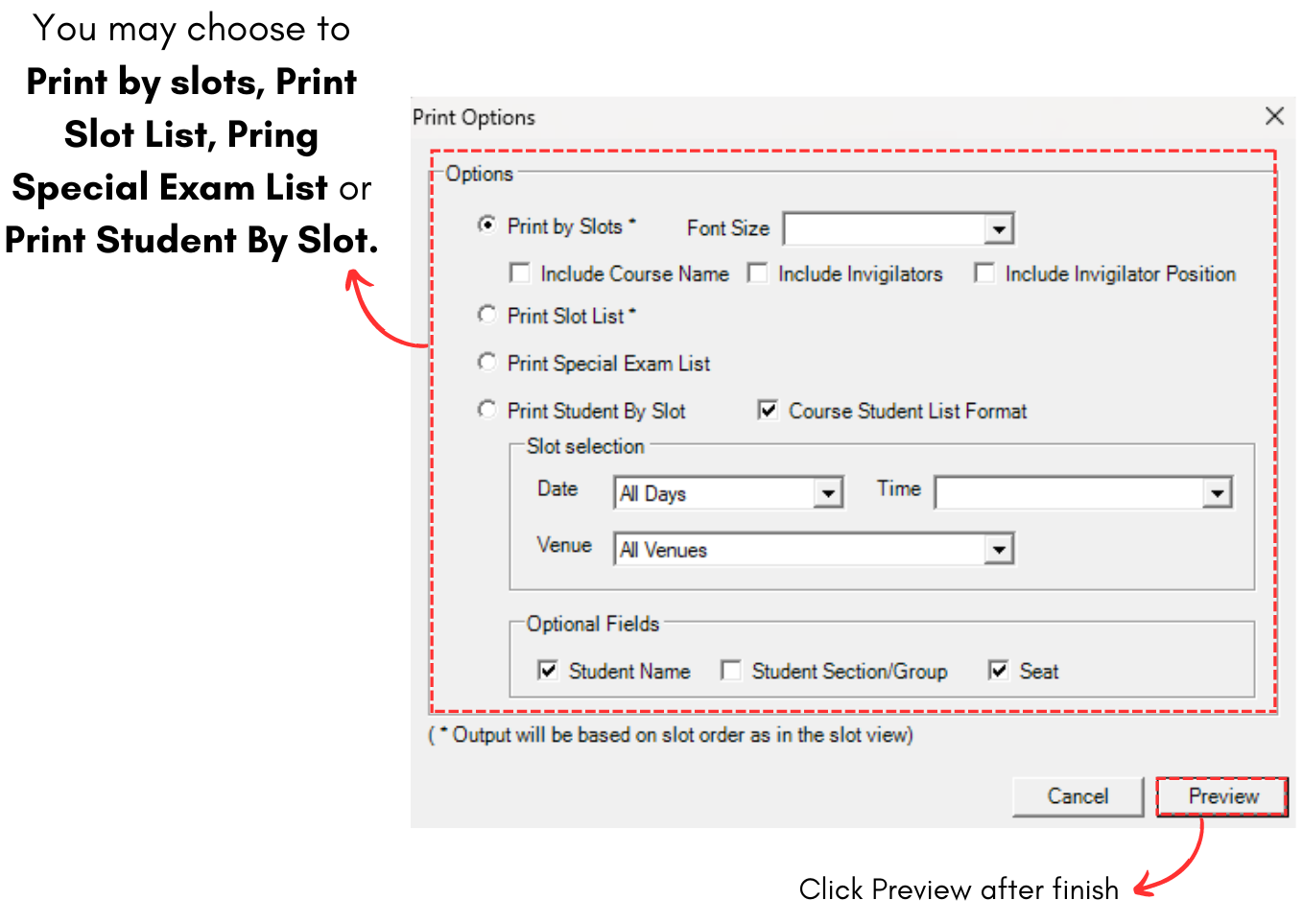
Diagram 2.1.3 Print Preview Options
2.2. Course, Invigilators, Students and Course-Student List
For Course List, Invigilators List and Students List, you can simply click on Print Preview Icons  to preview.
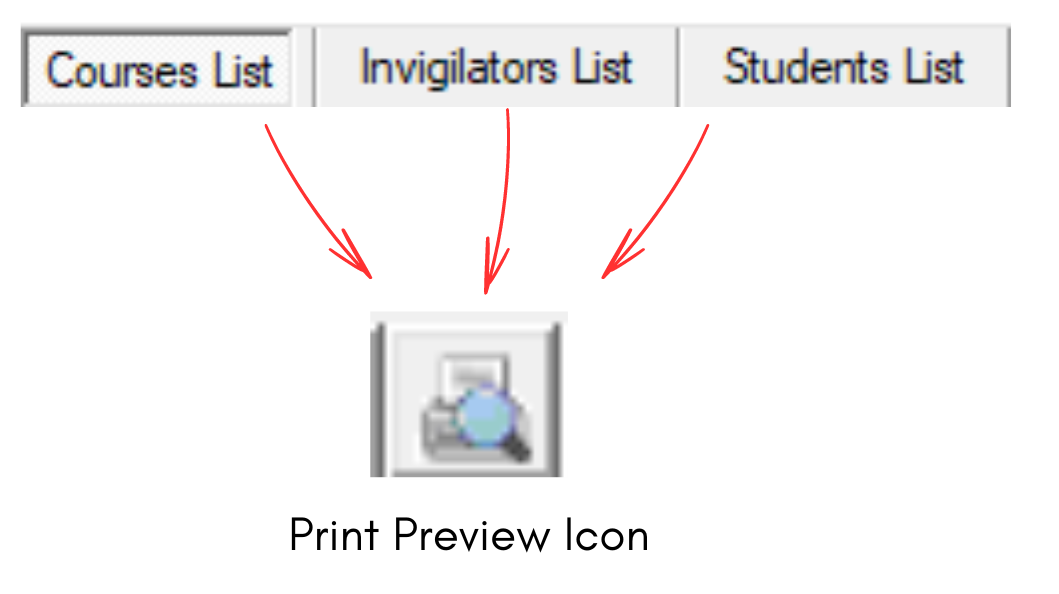
Diagram 2.2.1 Print Preview Icon at Course, Invigilators and Students List
To print preview at Course-Student List, you need to click on Print Button. You can also Print Slot at Course-Student List.

Diagram 2.2.1 Print and Print Slot at Course-Student List
3. Export File
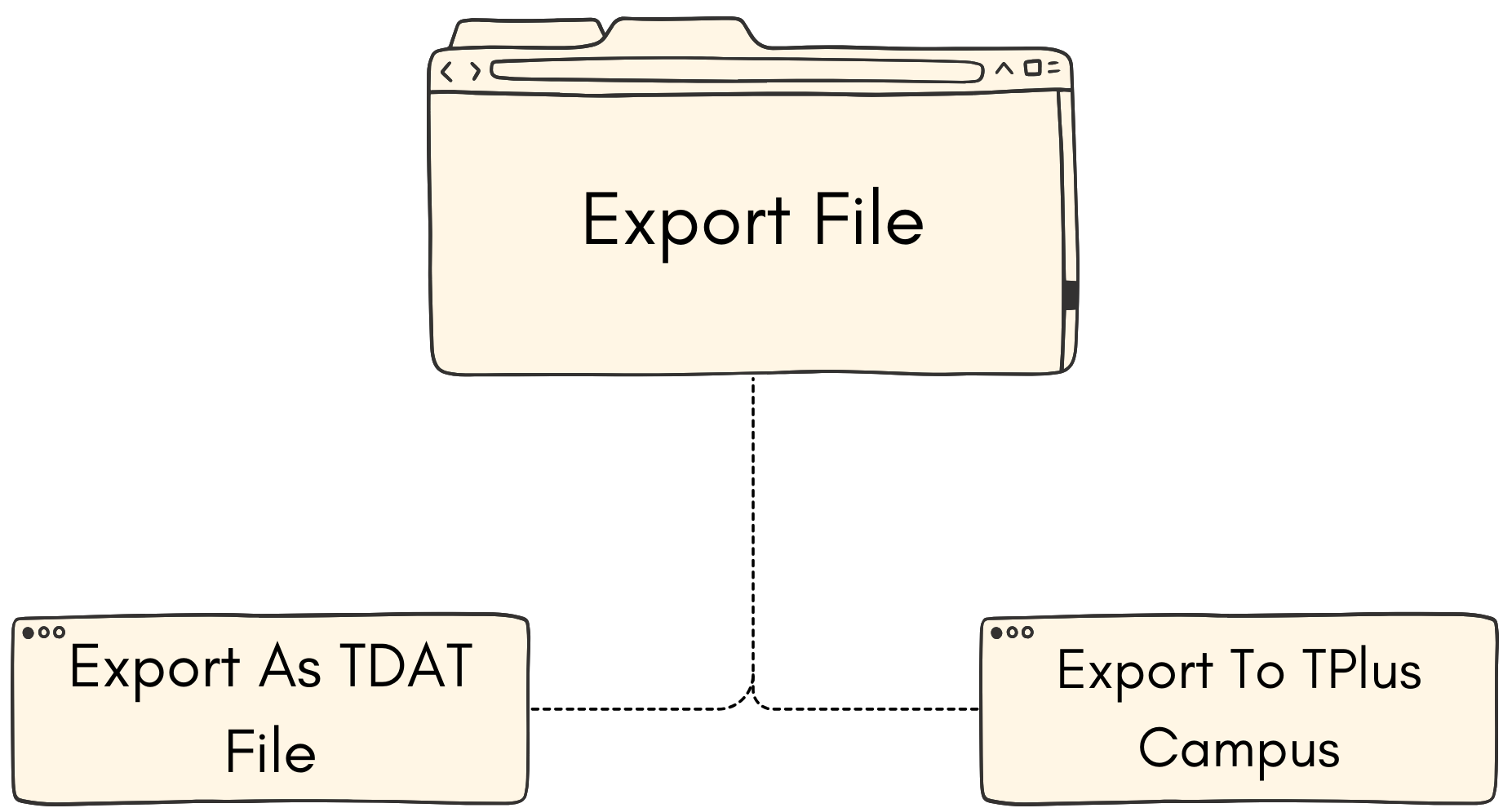
3.1. Export as TDAT File
You can Export Timetable Plus Exam file which has the extension of .TDat and can be open in another Timetable Plus Exam software using the Import function.
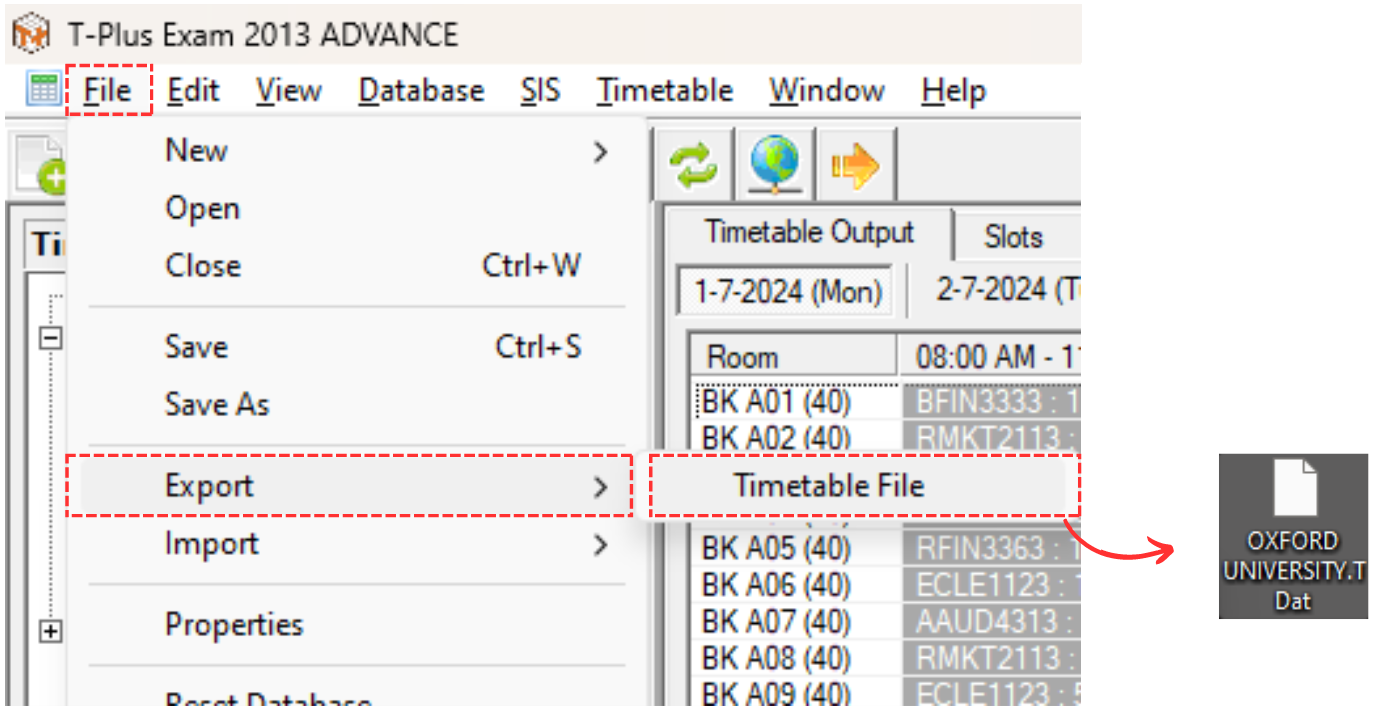
Diagram 3.1 Location of Exporting Timetable File in TDat Extension
3.2. Export to TPlus Campus
To Export to TPlus Campus, first you need to connect to SIS.
Refer to Opening Up and Getting Used to Timetable Plus Exam (SIS Settings)
To export to TPlus Campus, there are 3 simple steps to do so.
STEPS 1: Once connected, click on SIS and select Export Schedule Result.
STEPS 2: Choose your preferred options.
STEPS 3: Click Ok to export.
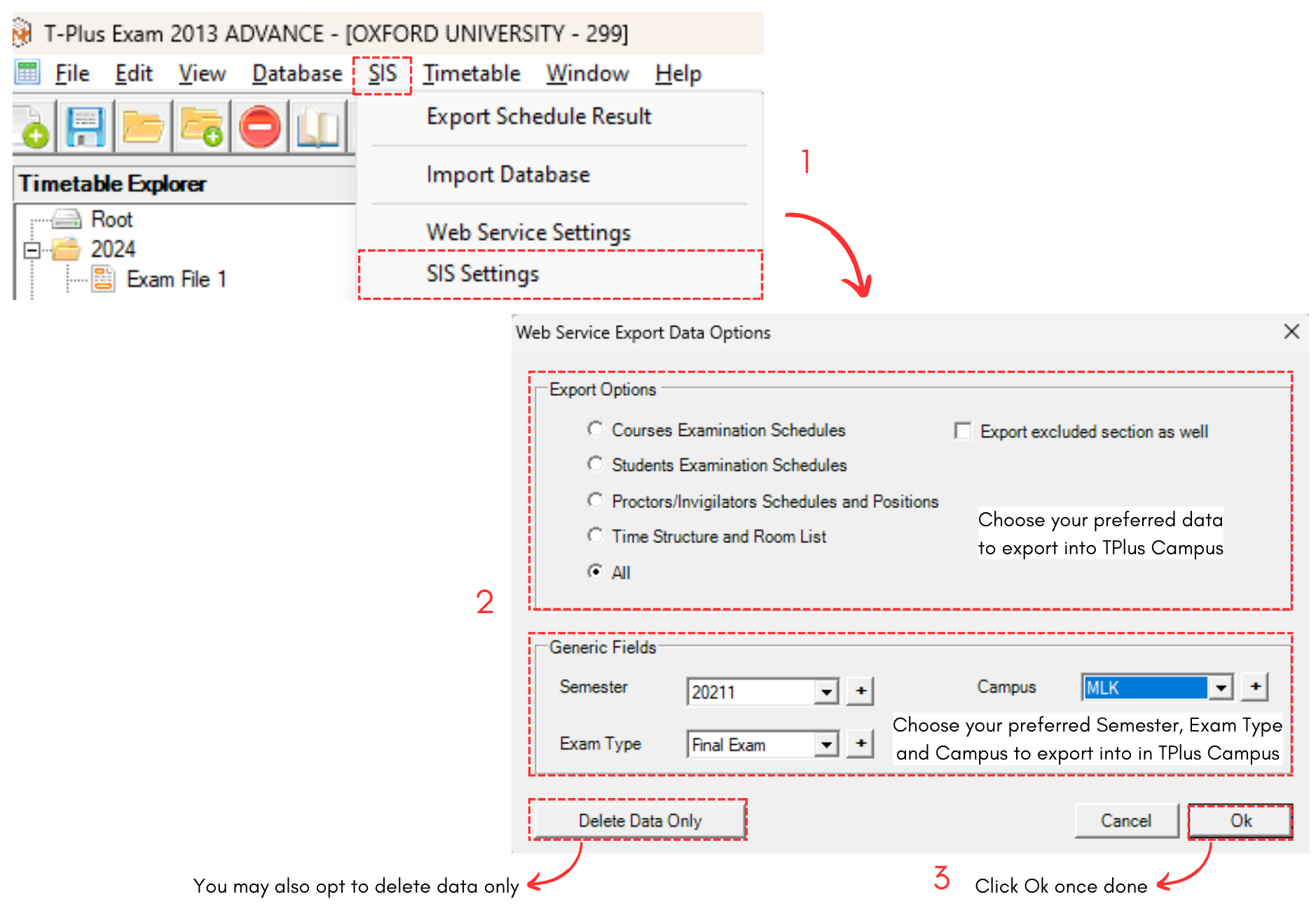
Diagram 3.2.1 Export Examination into TPlus Campus
To view the timetable on TPlus Campus, go to TPlus Campus and select Examination under Examination Timetable.
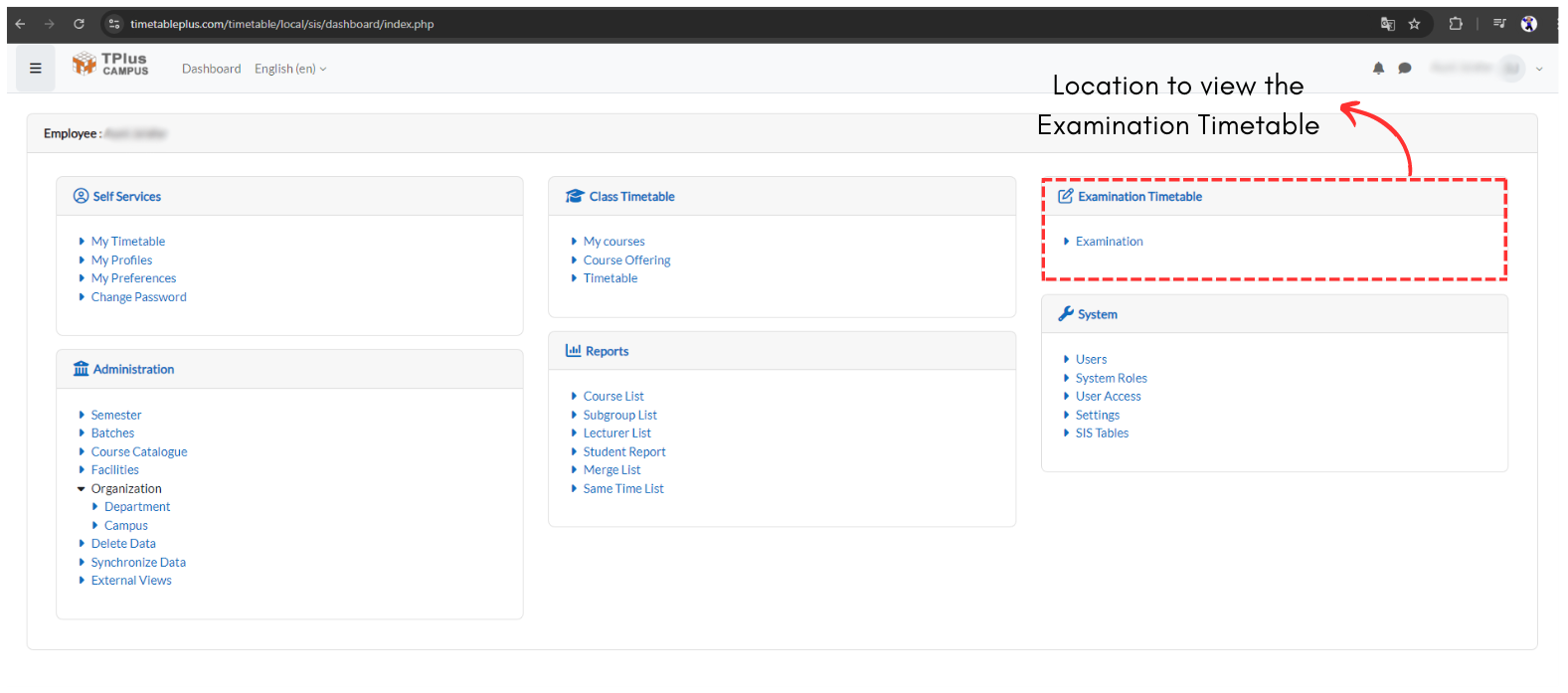
Diagram 3.2.2 Location of Examination Timetable