Stage 6: Invigilator Position
| Site: | Timetable Plus |
| Course: | Timetable Plus Exam |
| Book: | Stage 6: Invigilator Position |
| Printed by: | Guest user |
| Date: | Sunday, 31 May 2026, 3:45 AM |
1. Set Constraint at Generate Options

Diagram 1.1 Location of Invigilator Position in Generate options
Click Generate Option tab and then click Invigilator Position to set Invigilator Position Constraint.

Diagram 1.2 Invigilator Position Window
1. Invigilator Positions

Diagram 1.3 Invigilator Positions
2. Defined Positions
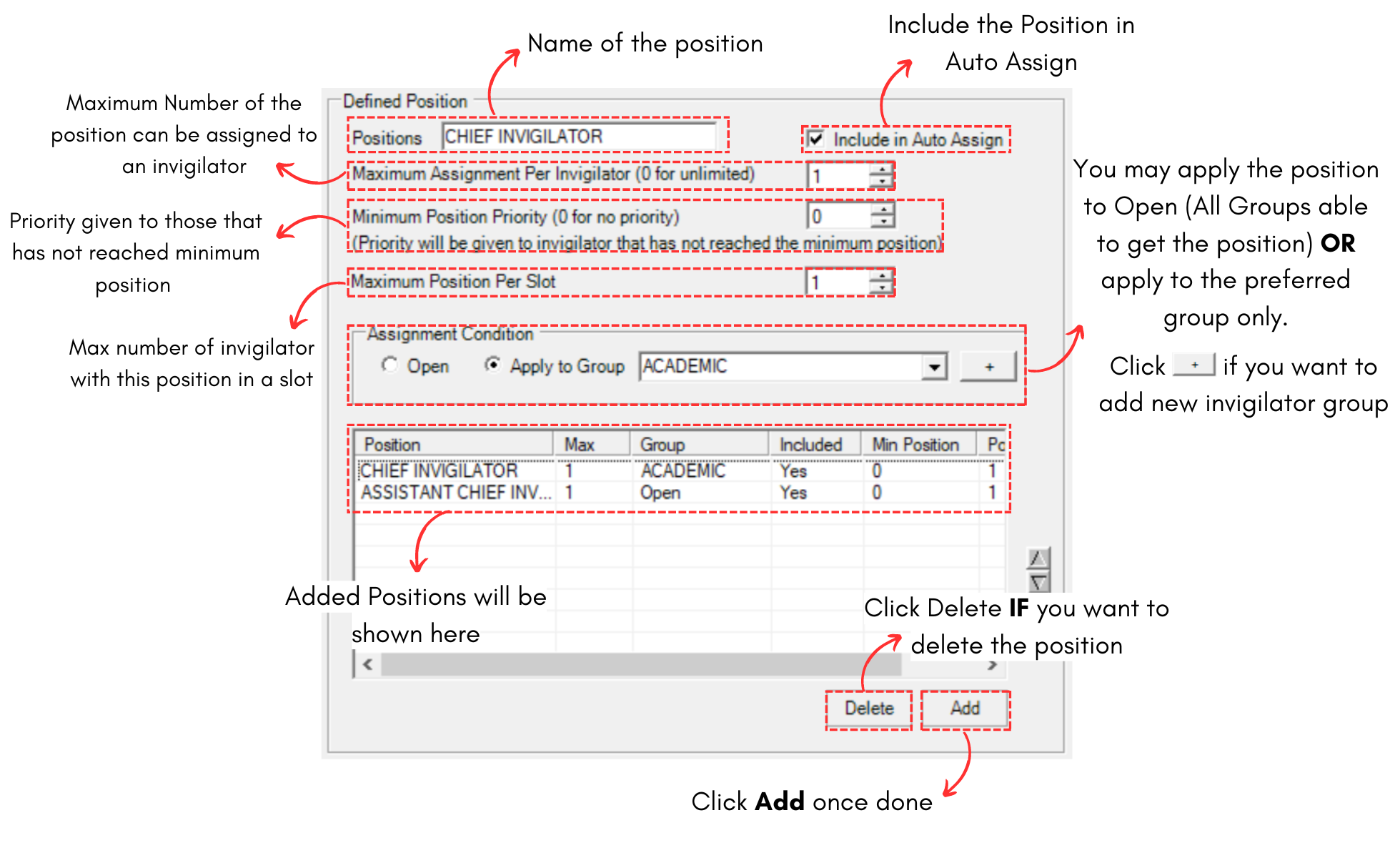
Diagram 1.4 Defined Positions
3. Auto Assign Position

Diagram 1.5 Auto Assign Position
IMPORTANT NOTE: Invigilator that are already locked usually the ones that are confirm to be invigilating the examinations.
2. Auto Assign Position
To auto assign invigilator position, click Auto Assign Position icon at Invigilator Position under Generate Options Tab.
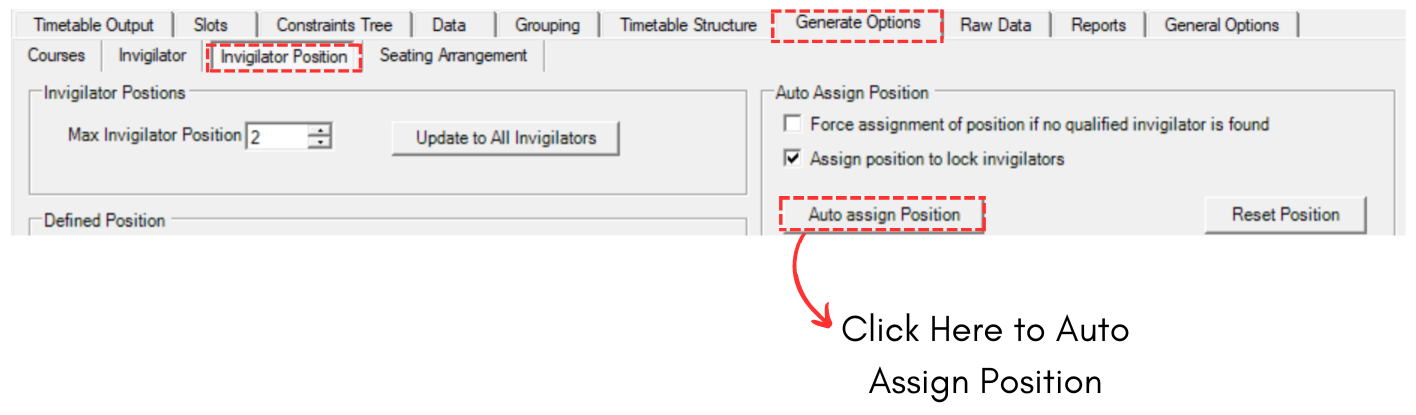
Diagram 2.1 Auto Assign Position Location
IMPORTANT: Make sure to set all constraints under Generate Option first. Refer to Set Constraints at Generate Option.
A confirmation popup will appear. Click Yes.
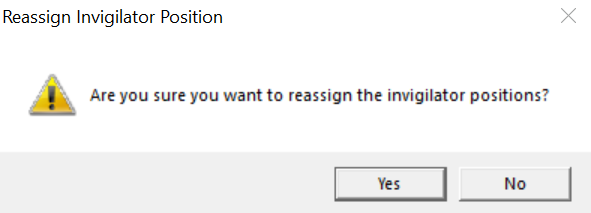
Diagram 2.2 Confirmation Popup
Another popup will appear. Saying it has been completed.
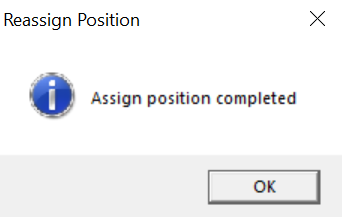
Diagram 2.3 Completed Popup
Once done, you can go to Slots to view Invigilator Position.
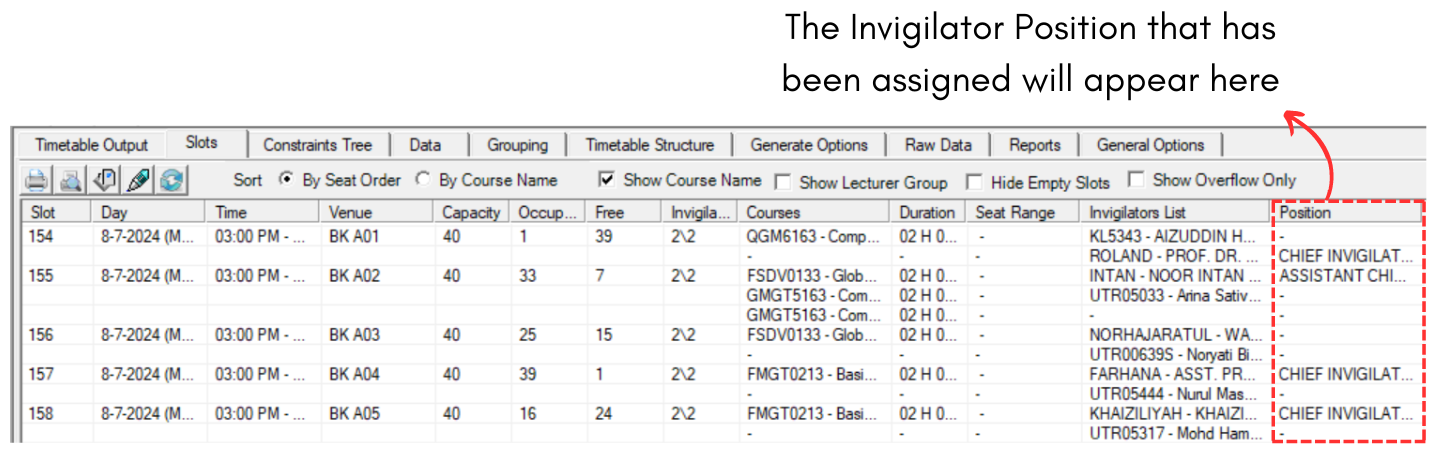
Diagram 2.4 Invigilator Position at Slots
3. Analysis
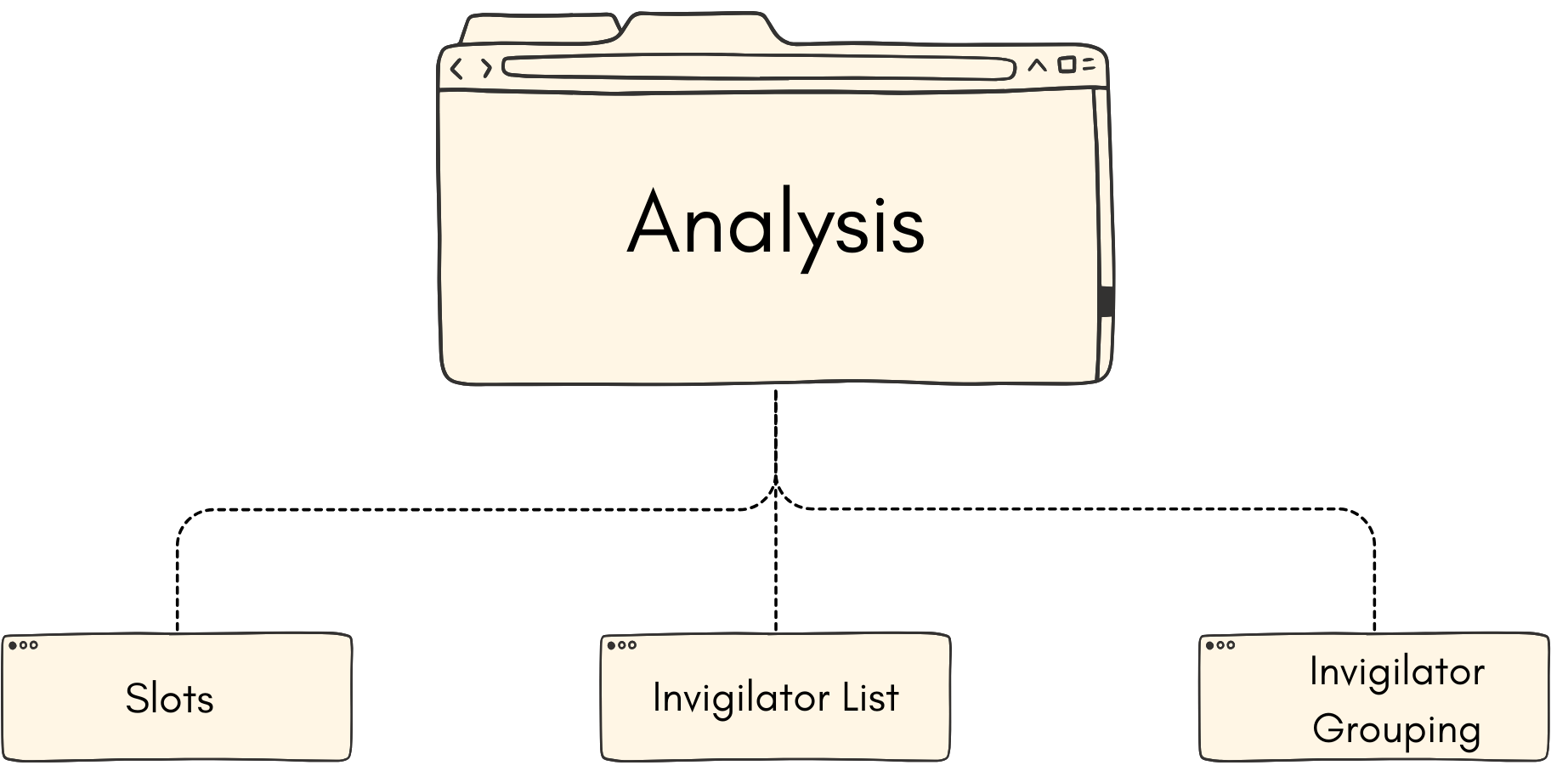
3.1. Slot
You may analyze the Invigilator Position to know if the invigilator has been placed in the right slot.
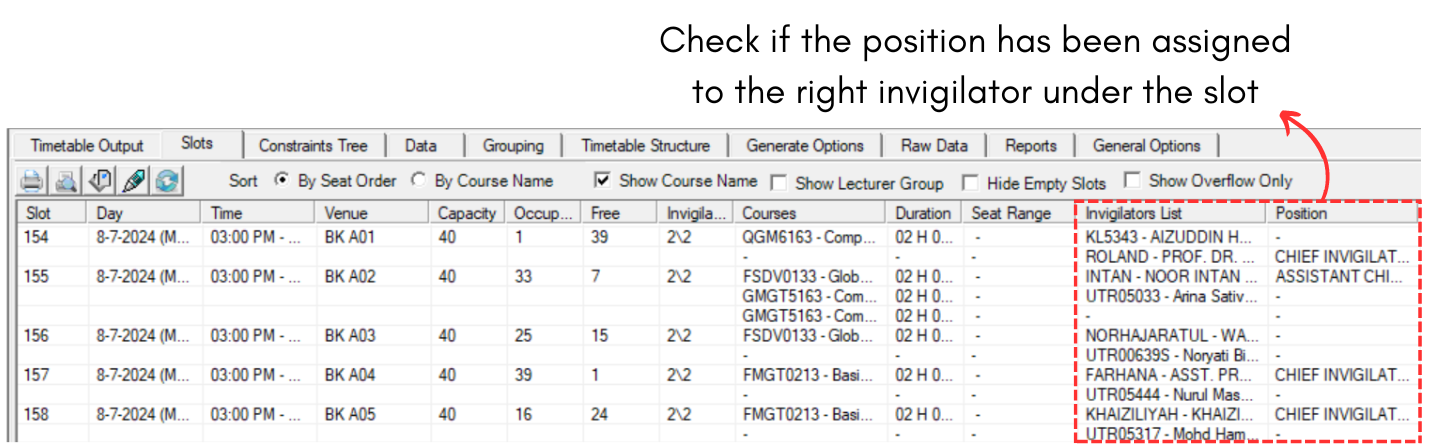
Diagram 3.1.1 Slots Analyzation
To edit, you may refer to the Stage 6: Invigilator Position (Editing Invigilator)
3.2. Invigilator List
To access Invigilator List, you need to go to Data and select Invigilators List.
You may analyze the Invigilator List to know if the invigilator position has been placed in the right slot.

Diagram 3.2.1 Invigilator List Analyzation
To Locate the invigilator, you may right click and select Locate.
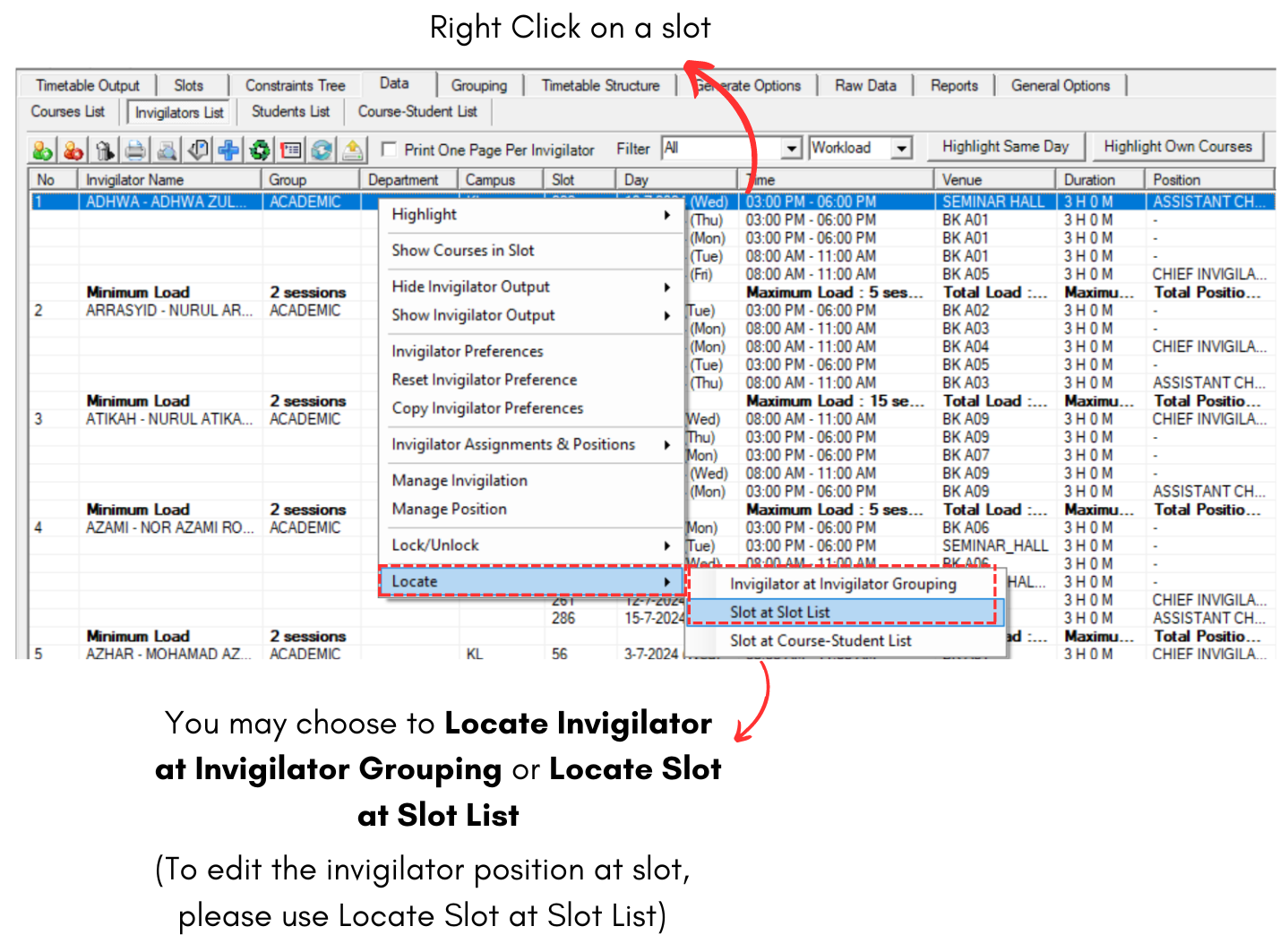
Diagram 3.2.2 Locate Invigilator
To edit, you may refer to the Stage 6: Invigilator Position (Editing Invigilator)
3.3. Lecturer Grouping
To access Invigilator Grouping, you need to go to Grouping and select Invigilators Grouping.
You may analyze the Invigilator Grouping to know if the invigilator position has been placed in the right slot.
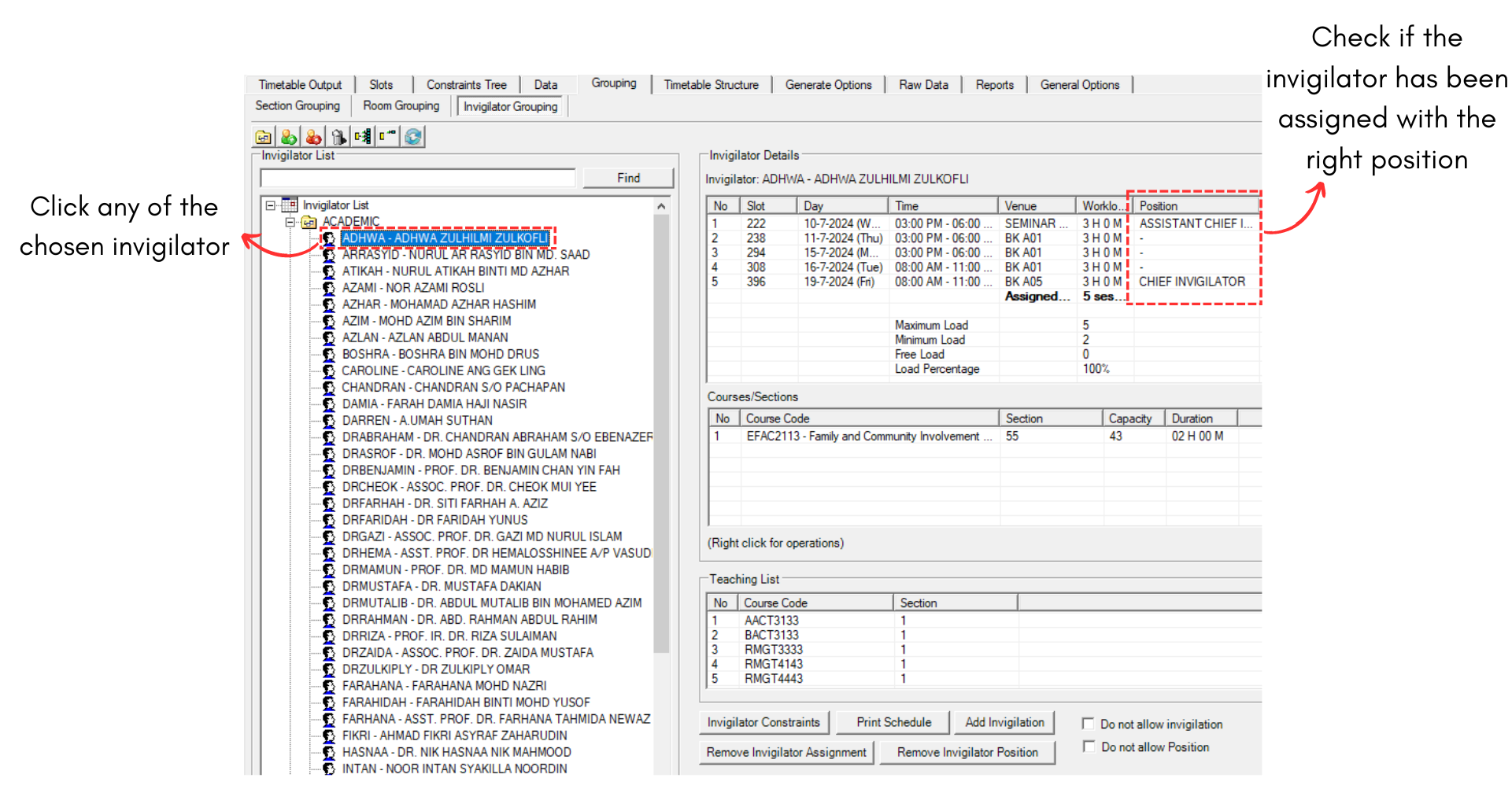
Diagram 3.3.1 Invigilator Grouping Analyzation
To Locate the invigilator, you may right click and select Locate.
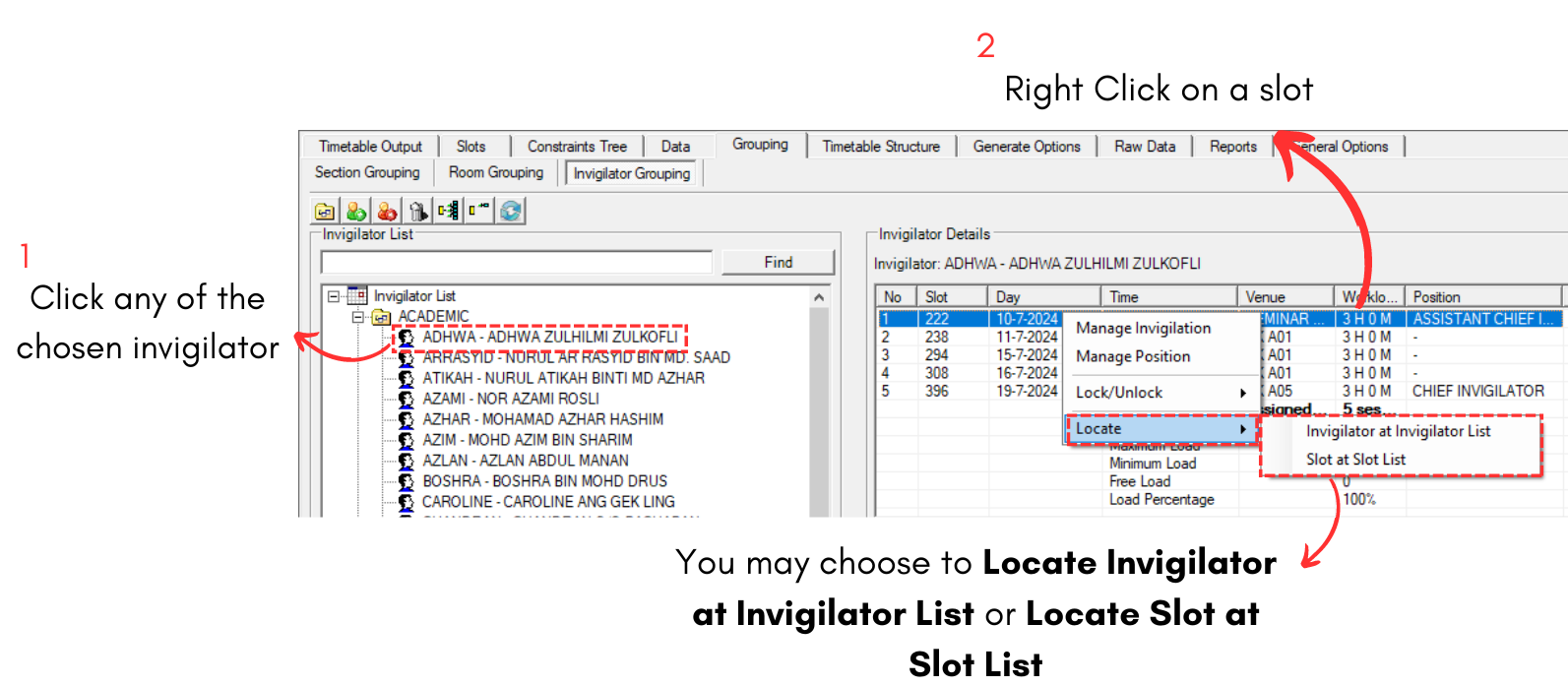
Diagram 3.3.2 Locate Invigilator
To edit, you may refer to the Stage 6: Invigilator Position (Editing Invigilator)
4. Editing Invigilator Position
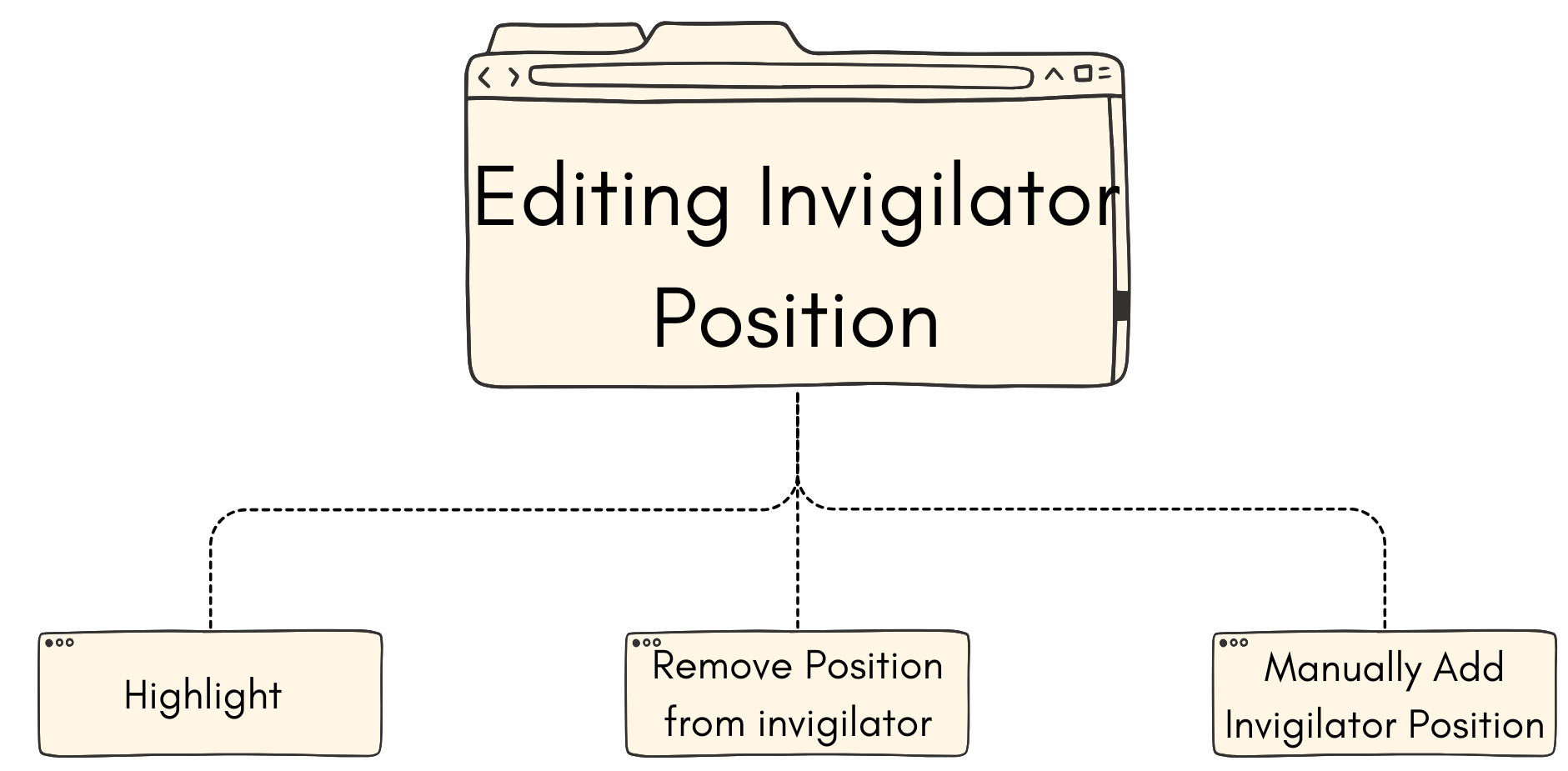
4.1. Highlight
There are only one things you able to highlight to edit Invigilator Position which is Highlight Incomplete Positon.
To Highlight, go to Slot and Click Highlights Icons.
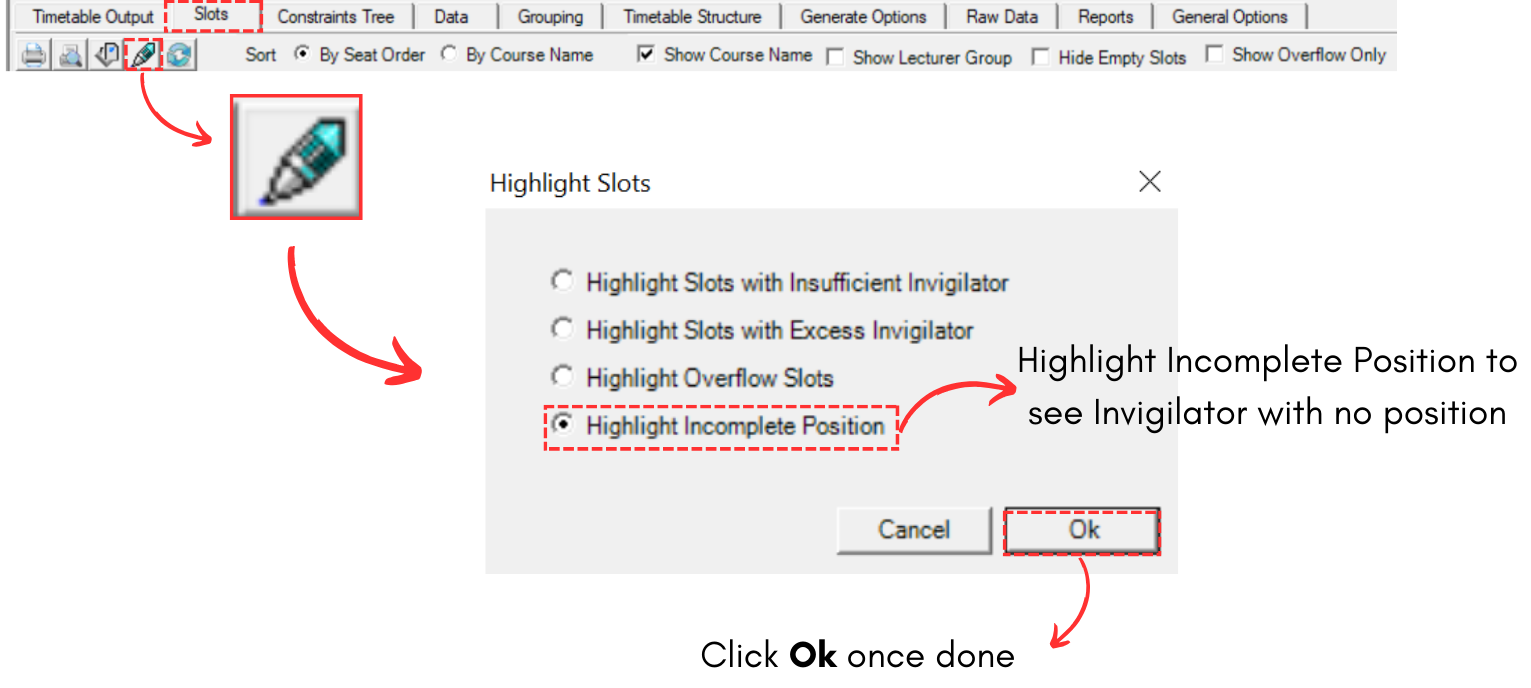
Diagram 4.1.1 Location of Highlight in Slots
Once you clicked Ok, you will see slot with incomplete position will be highlighted in colour.
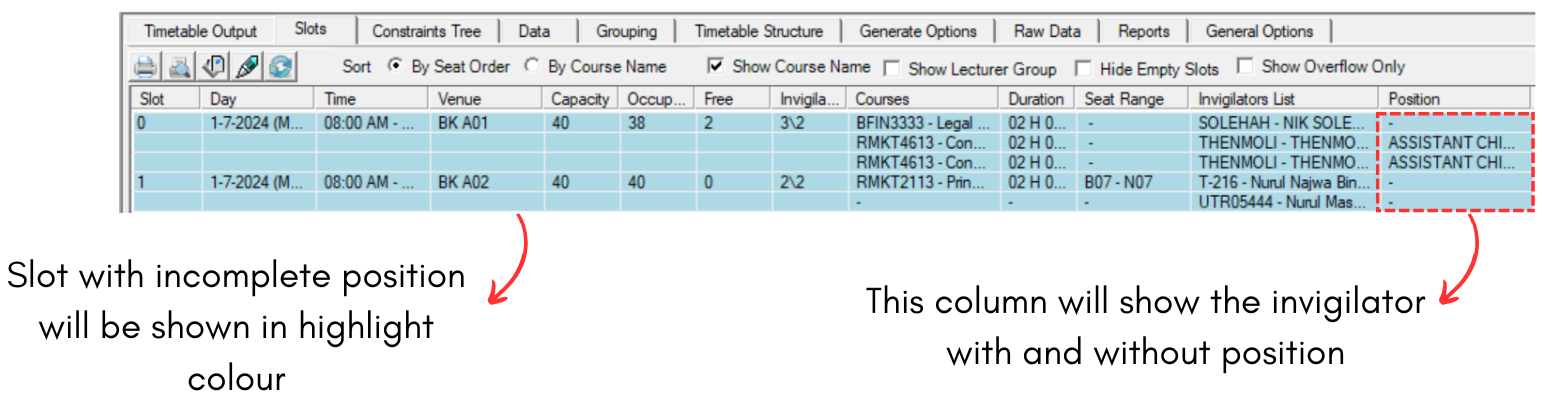
Diagram 4.1.2 Incomplete Position
4.2. Remove Position from the Invigilator at Slot
There are few places you can remove invigilator position from invigilator:
- Slots
- Invigilator Grouping
- Generate Options
Remove Invigilator Position at Slots
To remove invigilator position from invigilator, you may refer to the diagram below.
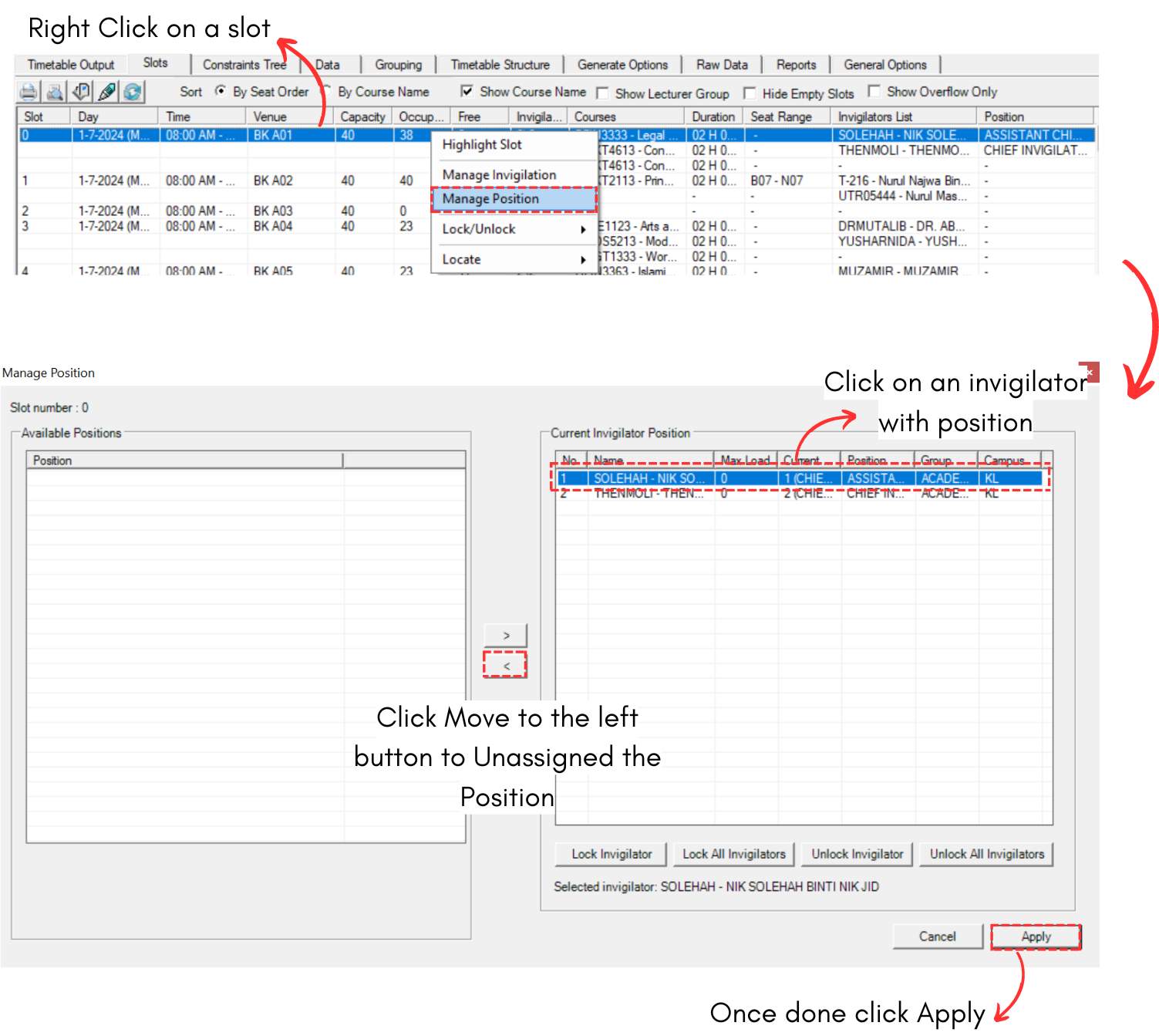
Diagram 4.2.1 Remove Position from Invigilator
Remove Invigilator Position at Invigilator Grouping
To remove Invigilator Position at Invigilator Grouping, refer to the diagram below.
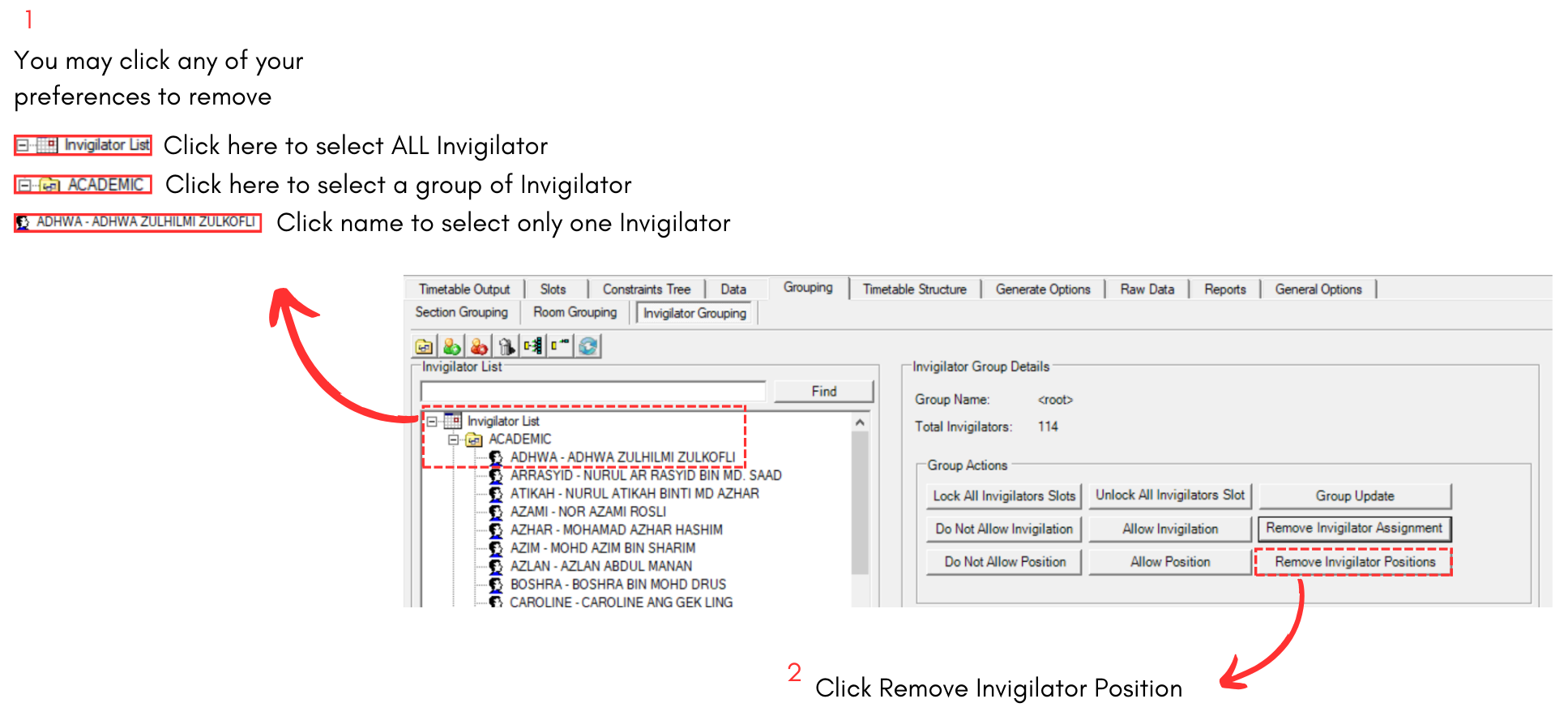
Diagram 4.2.2 Remove Position from Invigilator at Invigilator Grouping
Remove Invigilators Position at Generate Options
To remove Invigilator Position at Generate Options, refer to the diagram below.
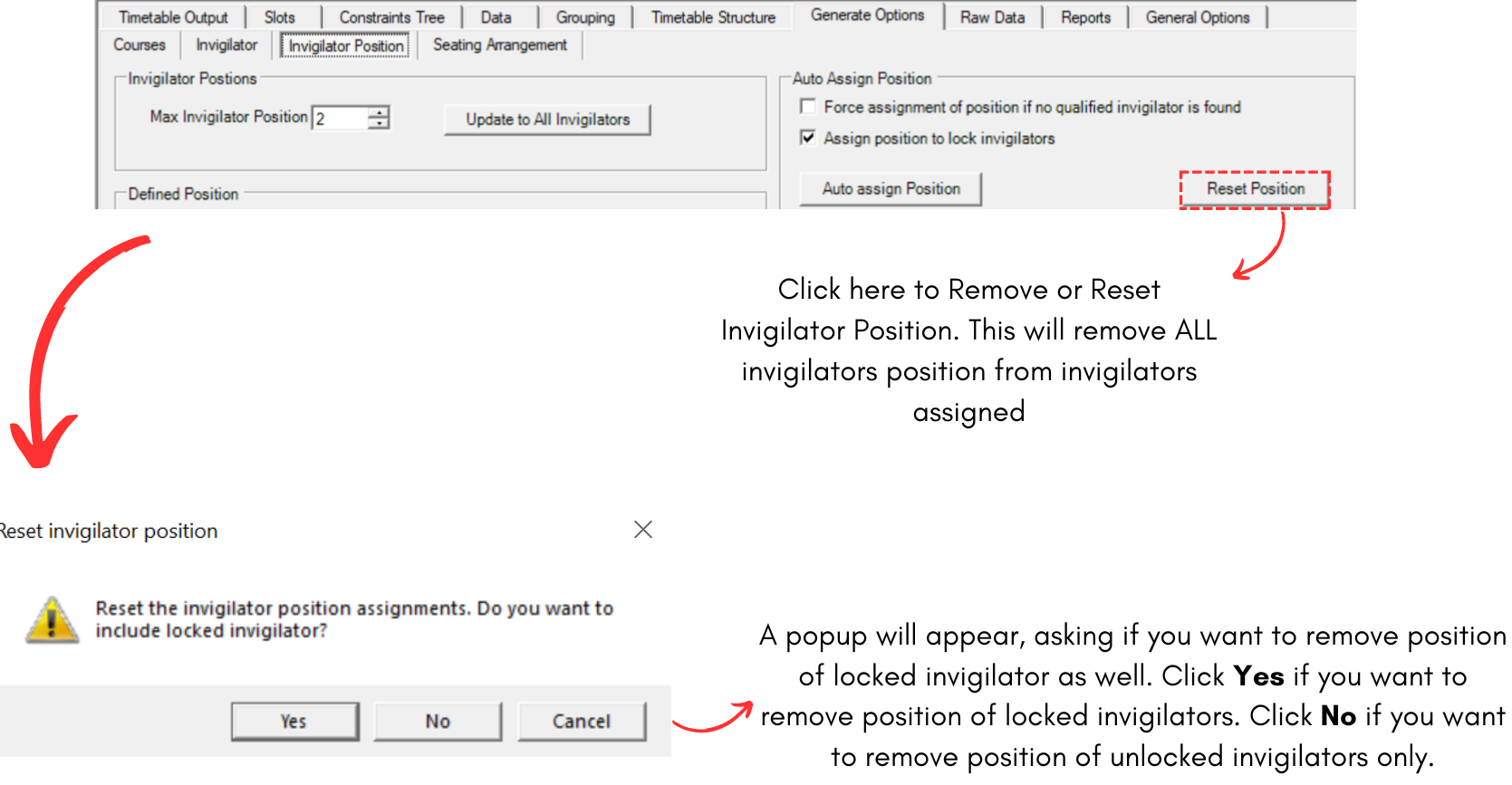
Diagram 4.2.3 Remove Position from Invigilator at Generate Option
4.3. Manually Add Position to Invigilator at the Slot
To manually insert Invigilator Position into invigilator, you can refer to the diagrams below.
For example, we will add invigilator position into slot with insufficient invigilator position now.
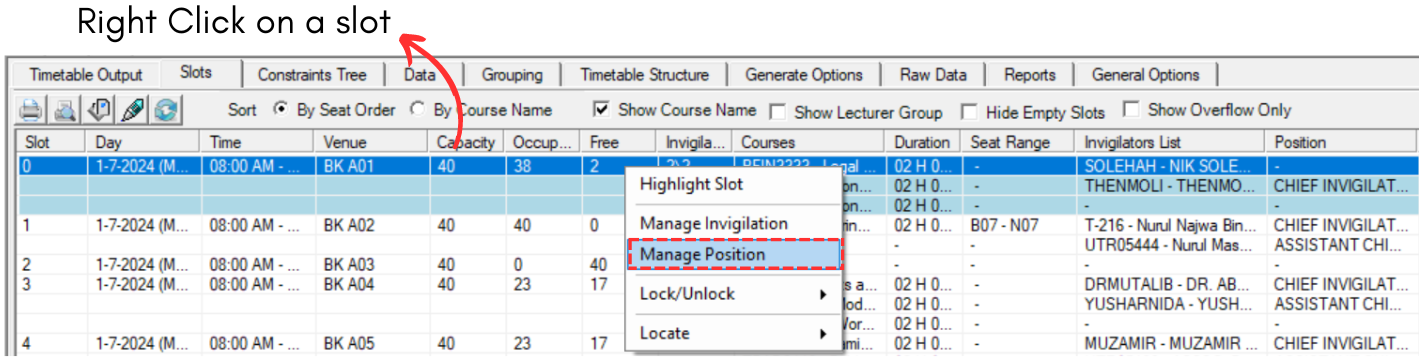
Diagram 4.3.1 Location of Manage Position
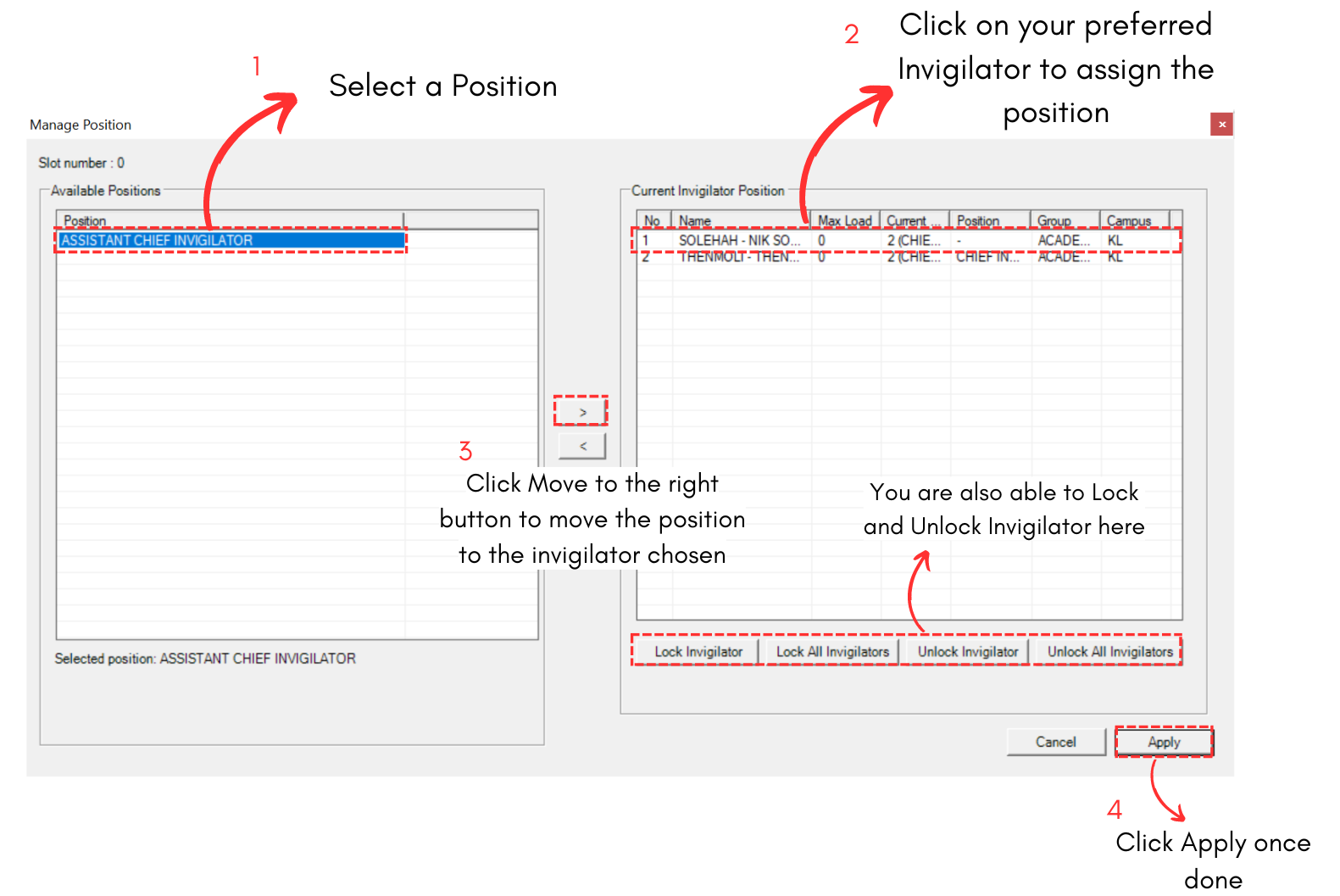
Diagram 4.3.2 Allocate Position into Invigilator