Opening Up and Getting Used to Timetable Plus Data Entry
| Site: | Timetable Plus |
| Course: | Timetable Plus Data Entry |
| Book: | Opening Up and Getting Used to Timetable Plus Data Entry |
| Printed by: | Guest user |
| Date: | Friday, 17 April 2026, 6:22 PM |
Description
-
1. Opening the Timetable Plus Data Entry

Diagram 1.1 Timetable Plus Data Entry Folder
Steps 1: Open the Timetable Plus Data Entry Folder.

Diagram 1.2 Timetable Plus EXE Location
Steps 2: Double click the Timetable Plus.exe.
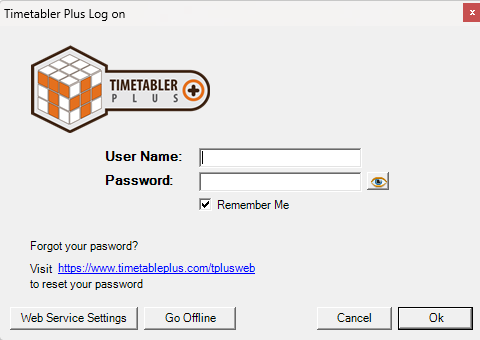
Diagram 1.3 Timetable Plus Data Entry Login Window
A window will pop-up and required user to login. Below is the explanation on buttons of login window.

Diagram 1.4 Login Window explanation
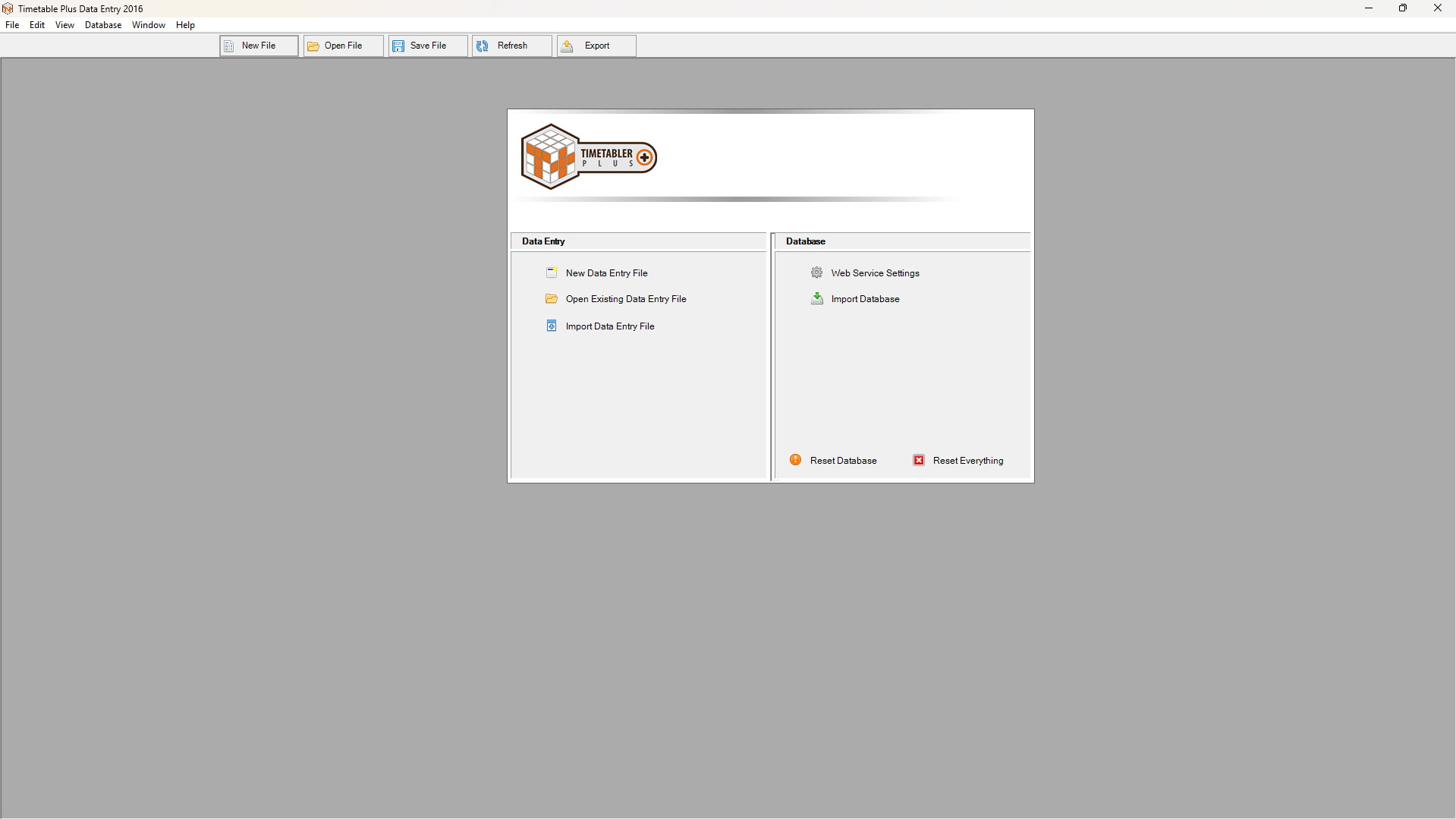
Diagram 1.5 Timetable Plus Data Entry Application
This is how it will looks like when you open the Timetable Plus Data Entry.
2. Opening Data Entry File
There are 3 ways of opening data entry file:1. Click on New Data Entry File to create a new data entry.

2. Click on Open Existing Data Entry File if you are not the first time user.

3. Click Import Data Entry file if you have existing file in your device.

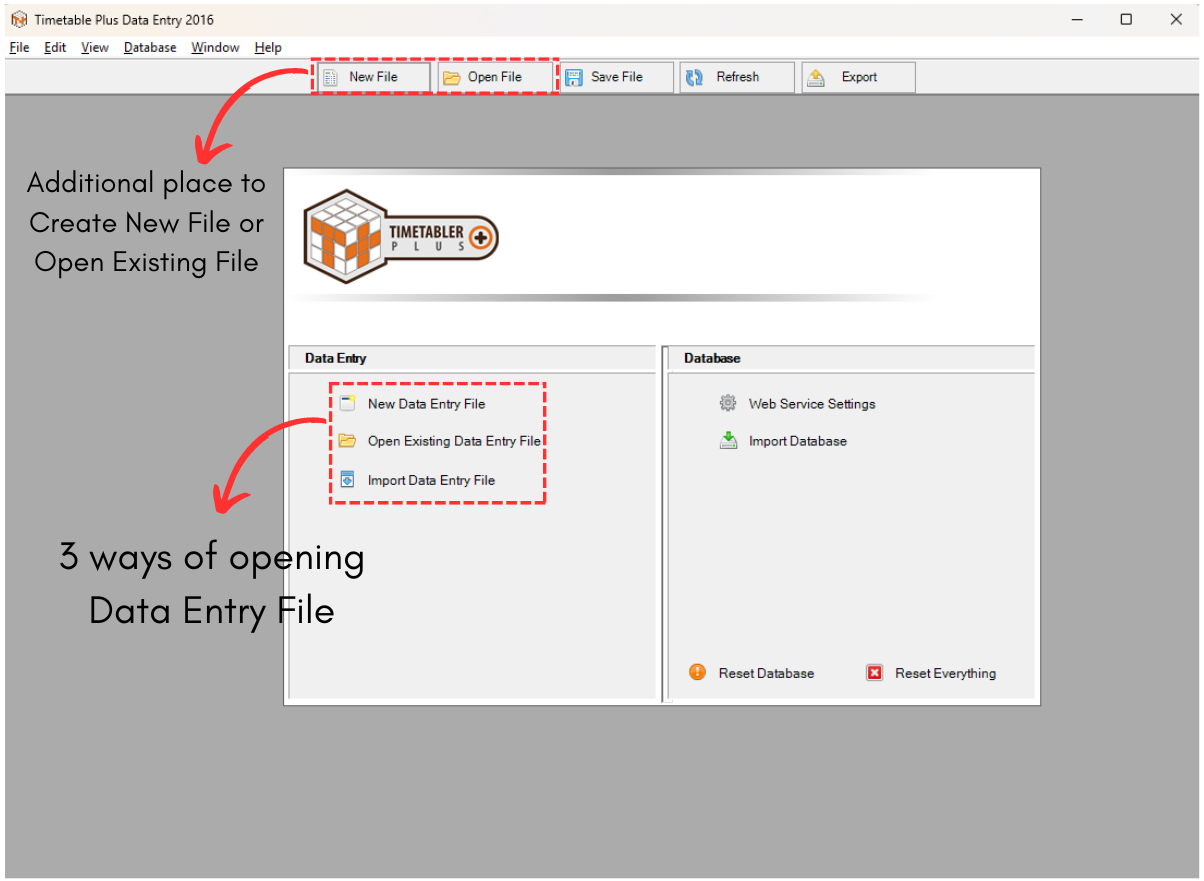
Diagram 2.1 3 ways of opening Data Entry File
As for now, we will be opening new data entry file for the first time user. Click on New Data Entry File.
Once you clicked, a pop-up will appear asking if you would like to save the newly created data entry file. Click Yes.
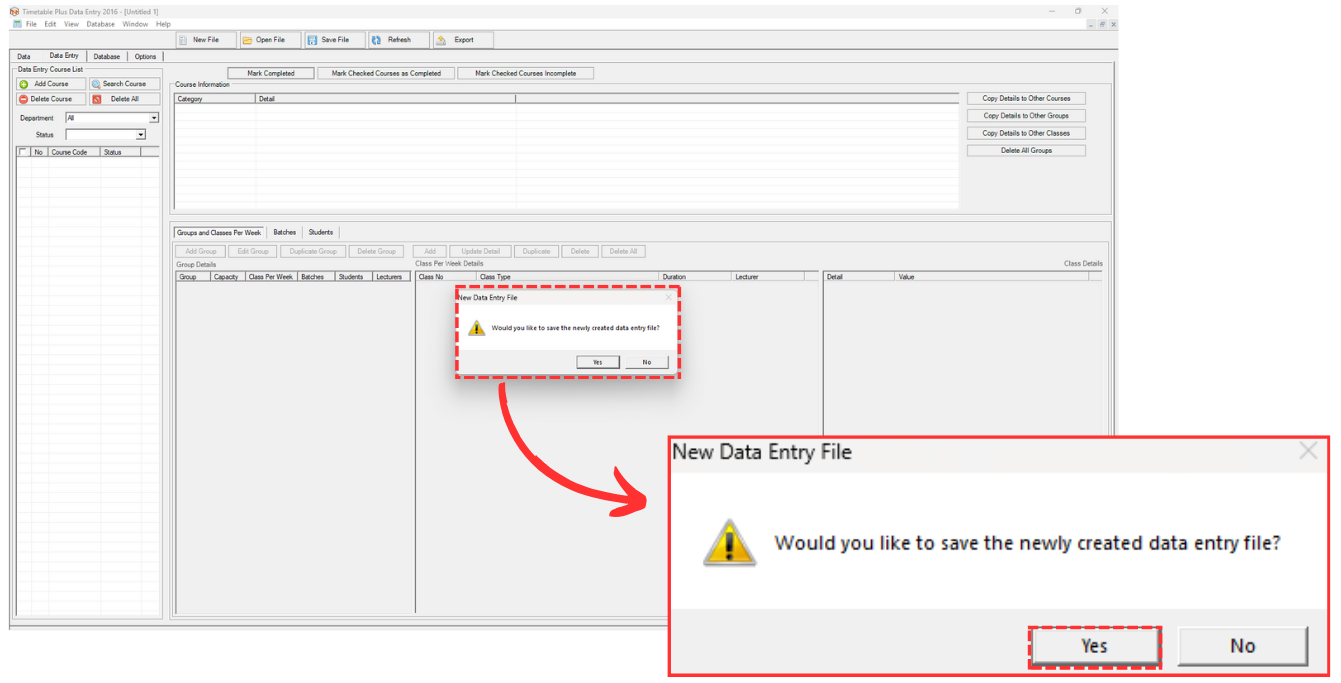
Diagram 2.2 Save New Data Entry File Popup
Note that it is IMPORTANT to click Save after opening a new timetable to avoid losing the file.
A pop up will appear, rename the file as desired and click Save.
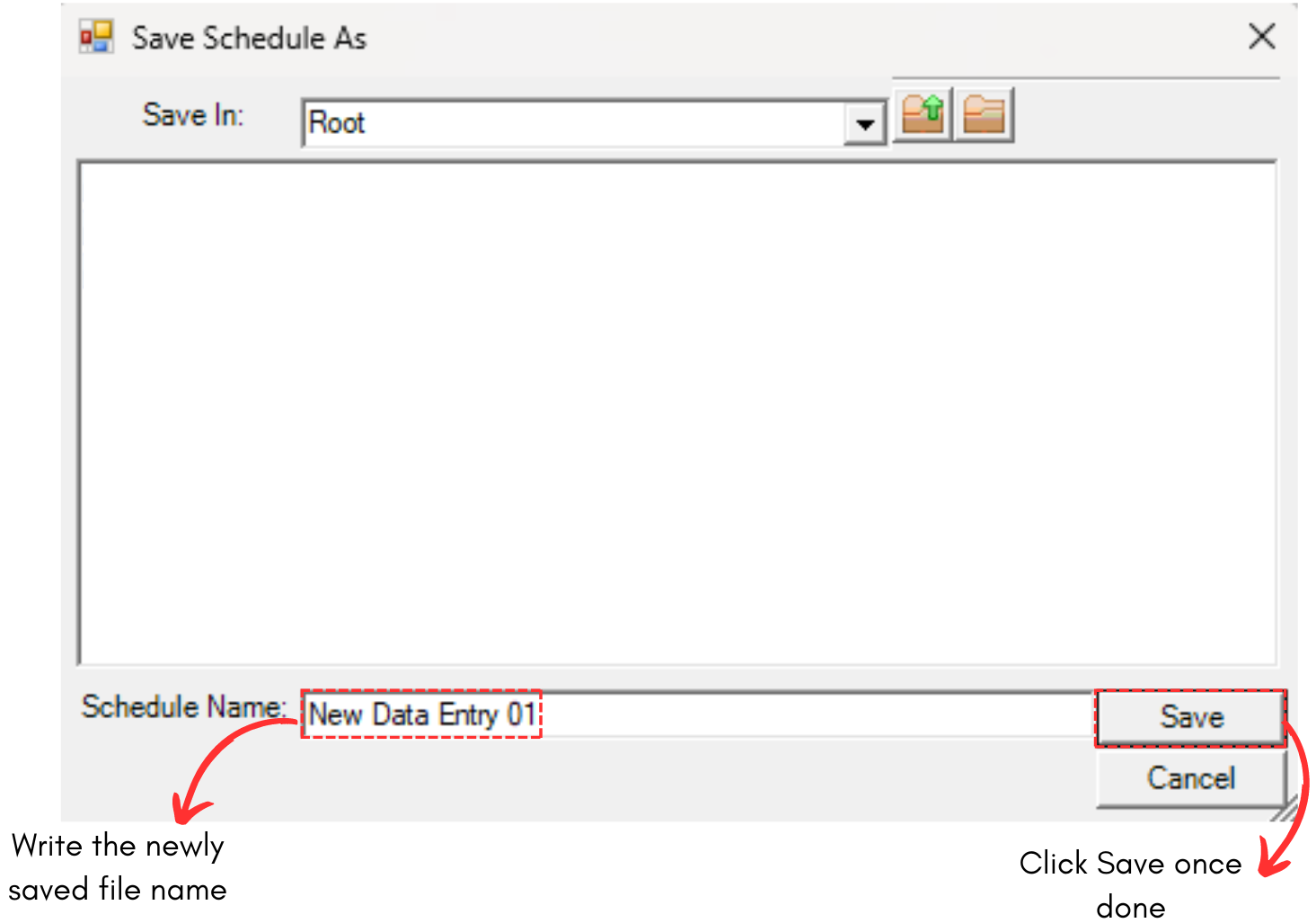
Diagram 2.3 Rename & Save New Data Entry File Popup
Here's how the new data entry file interface will looks like.
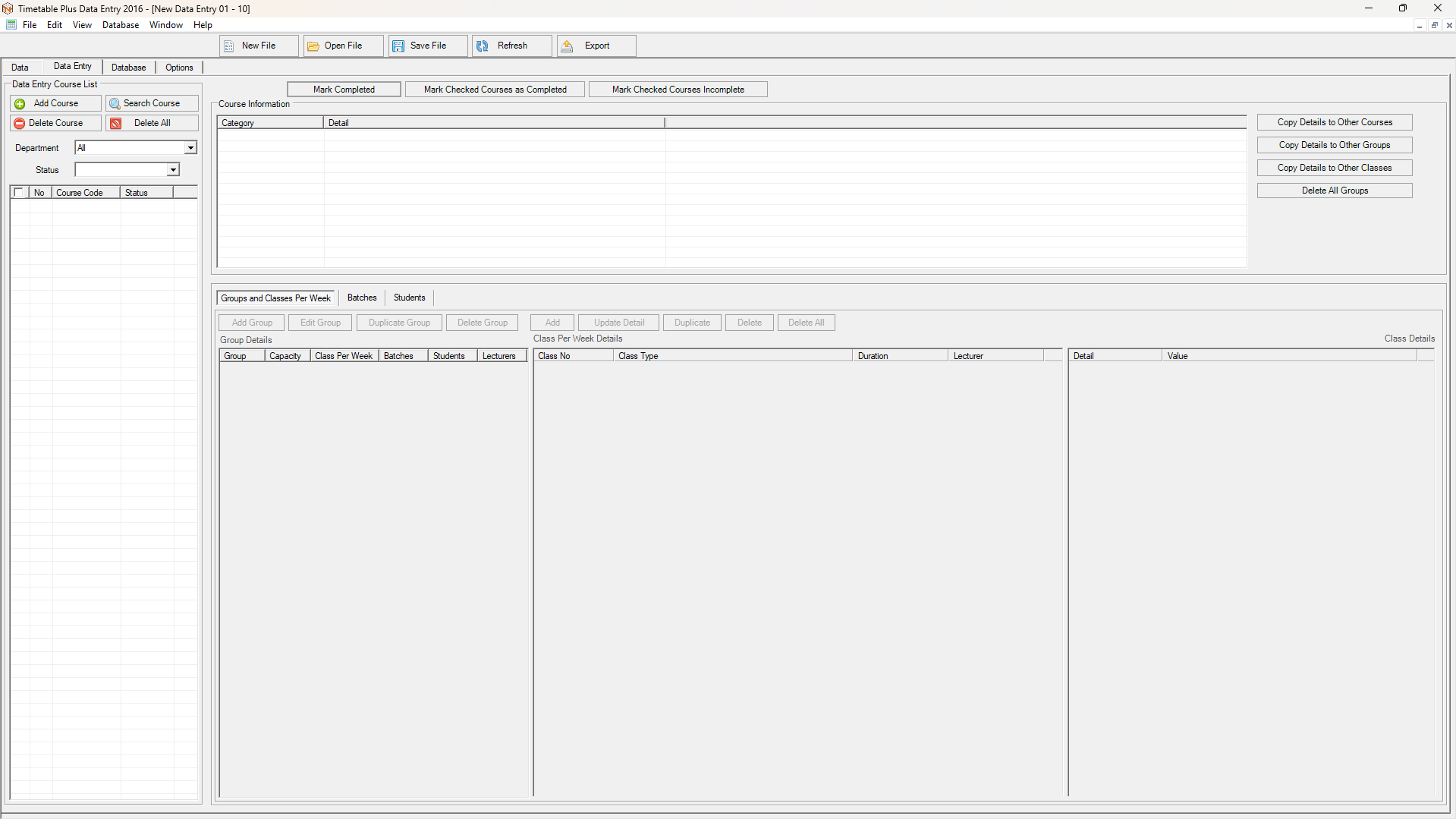
Diagram 2.4 New Data Entry File Interface