Stage 3: Data Entry Analysis
| Site: | Timetable Plus |
| Course: | Timetable Plus Data Entry |
| Book: | Stage 3: Data Entry Analysis |
| Printed by: | Guest user |
| Date: | Friday, 5 June 2026, 11:47 PM |
Description
-
1. Mark Courses Complete and Incomplete
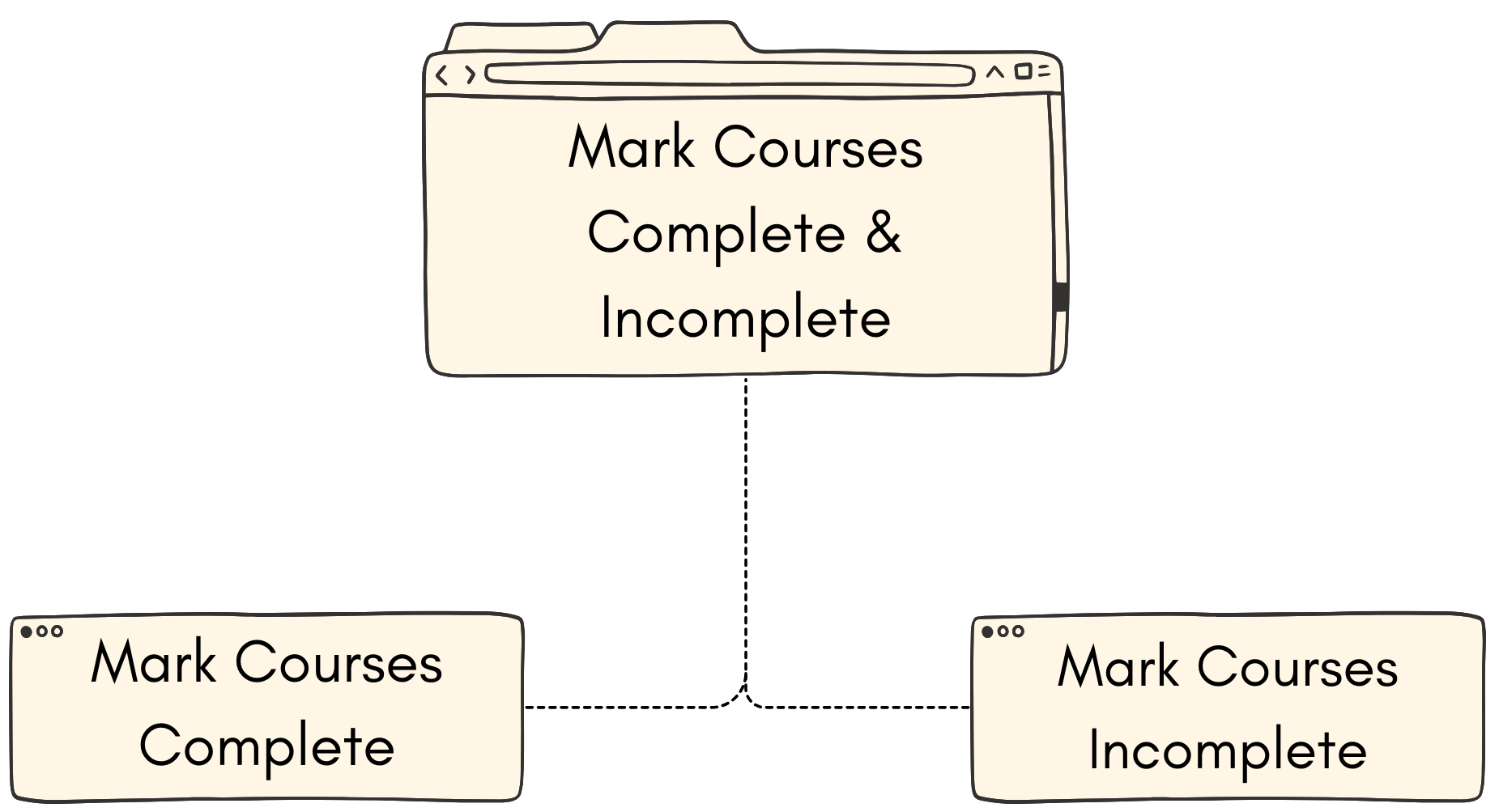
1.1. Mark Courses Complete
Courses will be placed in Incomplete Status. To view the the results at Tree Structure, Courses List, Batches List and Lecturers List, you need to mark courses as complete.
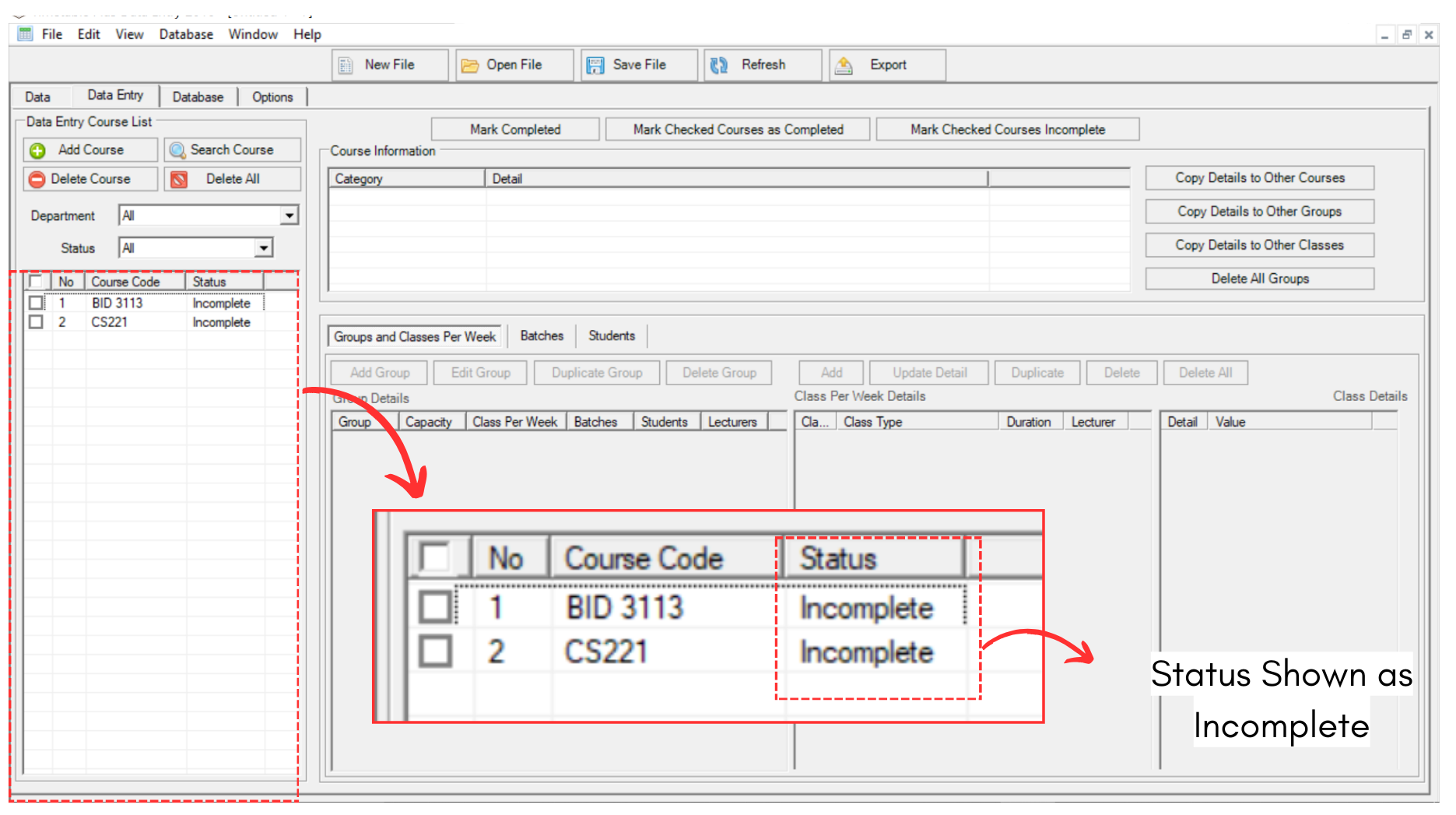
Diagram 1.1.1 Incomplete Status in Course
There are two ways of marking courses as complete.
1. Mark Completed
If you are done with all of the Data Entry in Data Entry tab, you may click on the preferred course and click Mark Completed.
Note that this can only be done with one course at one time.
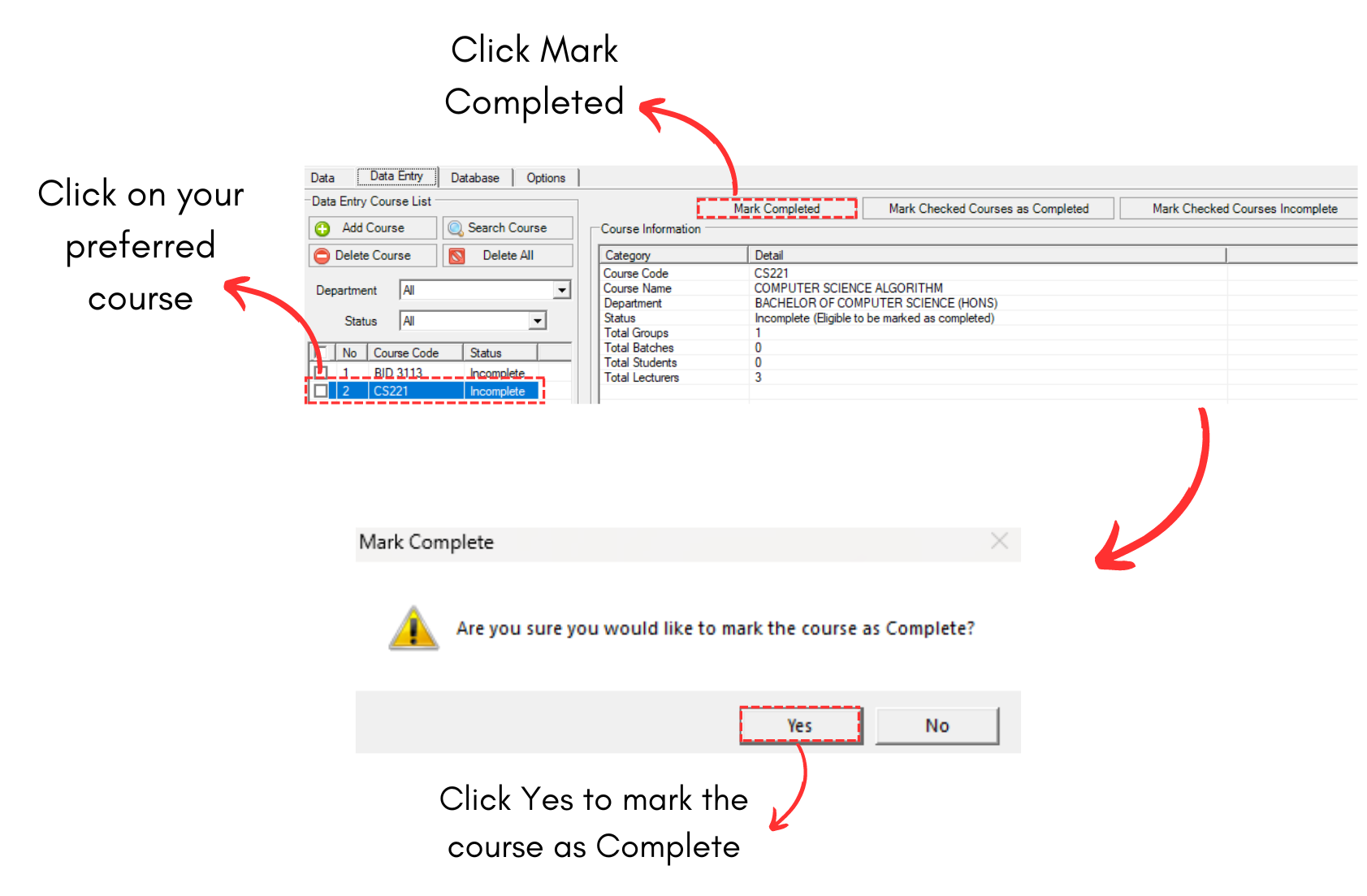
Diagram 1.1.2 Mark Completed
A popup will appear saying it has been completed.
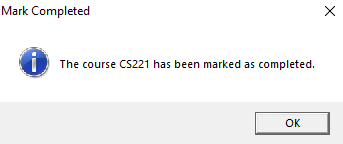
Diagram 1.1.3 Popup course been marked as completed
Once done, you may go to Data  to see the results at Tree Structure, Courses List, Batches List and Lecturers List.
2. Mark Checked Course as Completed
If you are done with all of the Data Entry in Data Entry tab, you may check on the boxes on the preferred courses and click Mark Checked Course as Completed.
Note that this will help you to select multiple courses to mark them as completed.
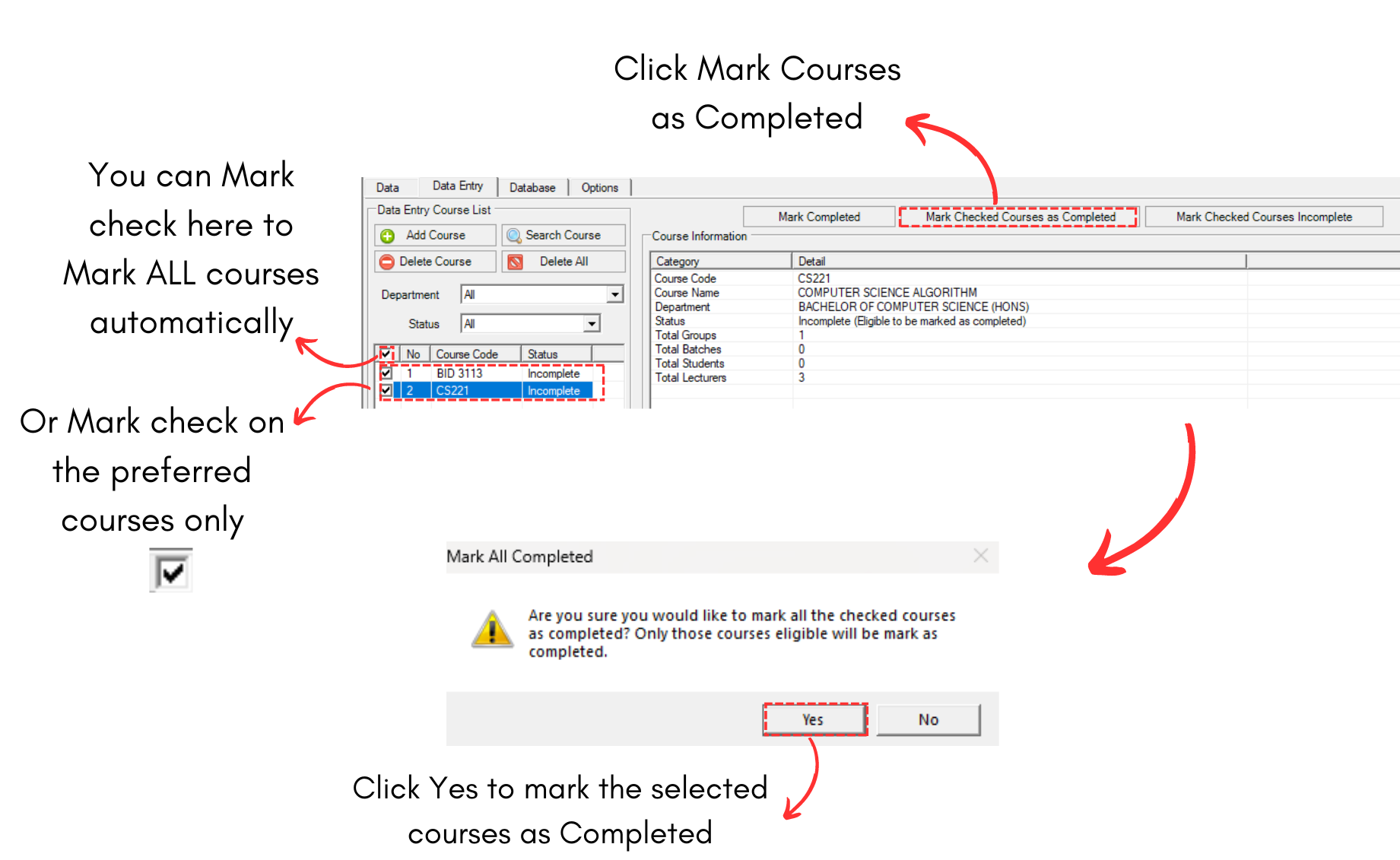
Diagram 1.1.4 Mark Checked Course as Completed
You may see that the Status will be shown as complete at the end.
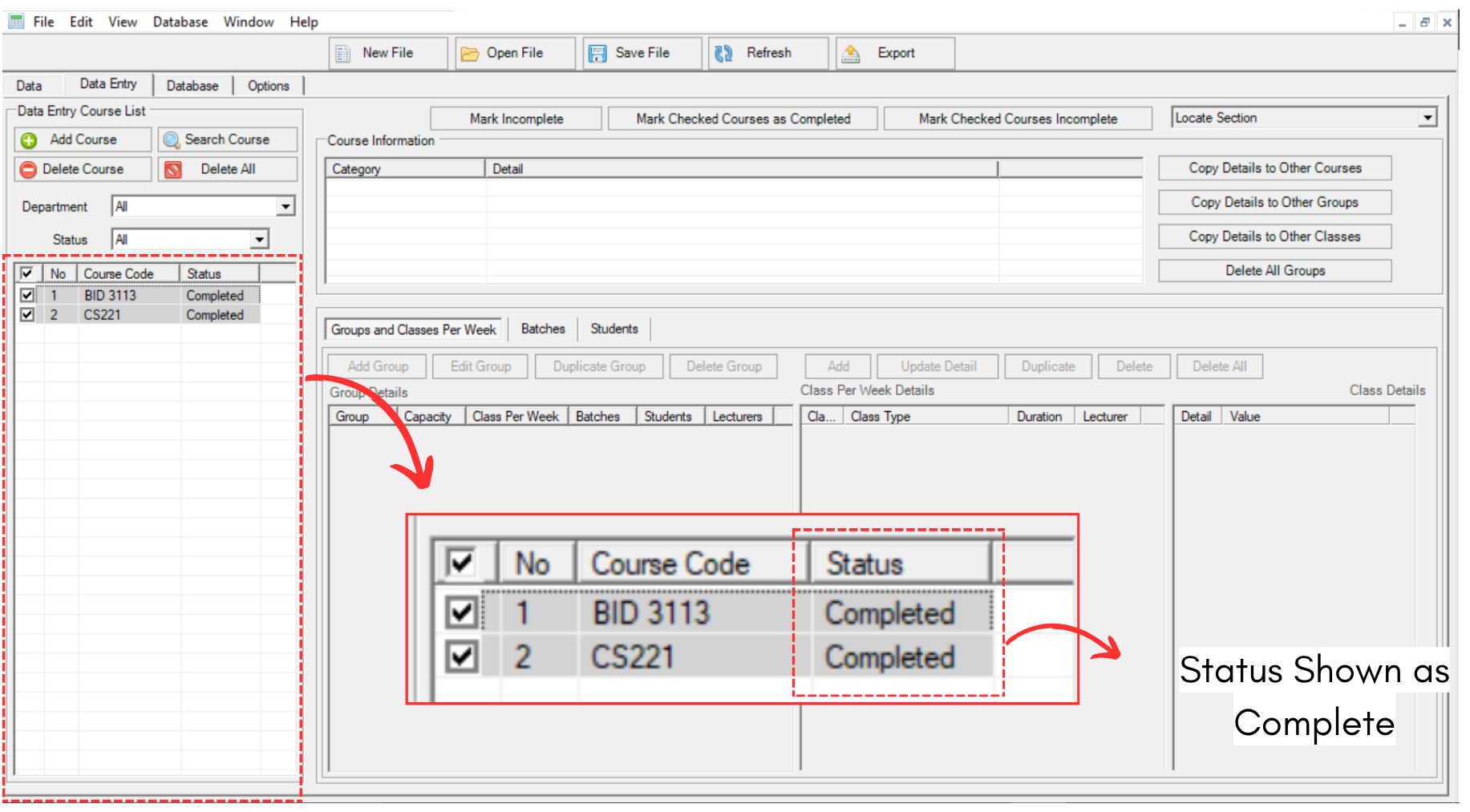
Diagram 1.1.5 Complete Status in Courses
Once done, you may go to Data to see the results at Tree Structure, Courses List, Batches List and Lecturers List.
1.2. Mark Courses Incomplete
IMPORTANT NOTE: Once you have mark the courses as completed, you are not able to edit the data at Data Tab. You NEED to Mark the Checked Course Incomplete to edit at Data Entry.
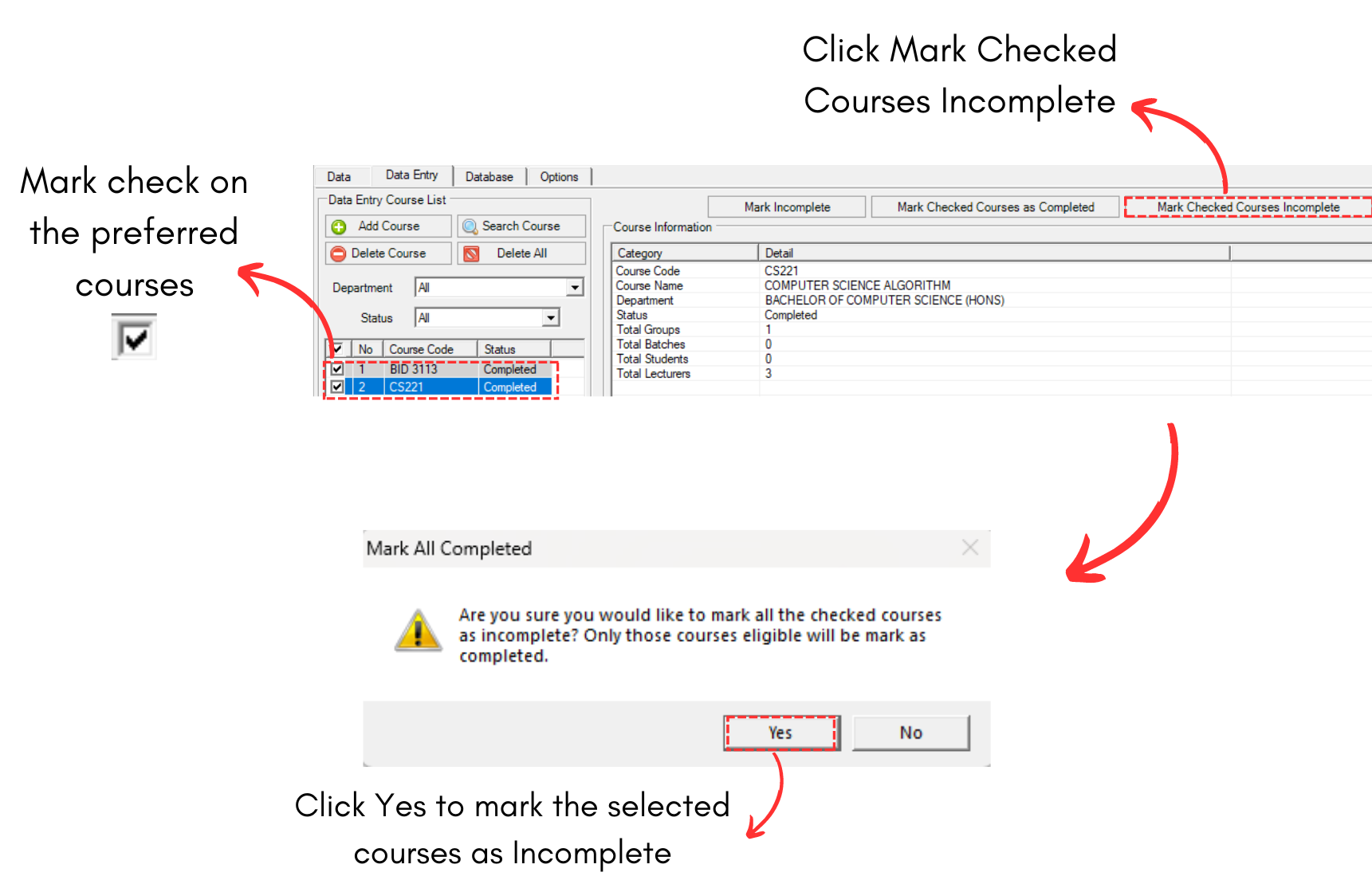
Diagram 1.2.1 Mark Checked Courses Incomplete
2. Data Entry Analysis & Editing
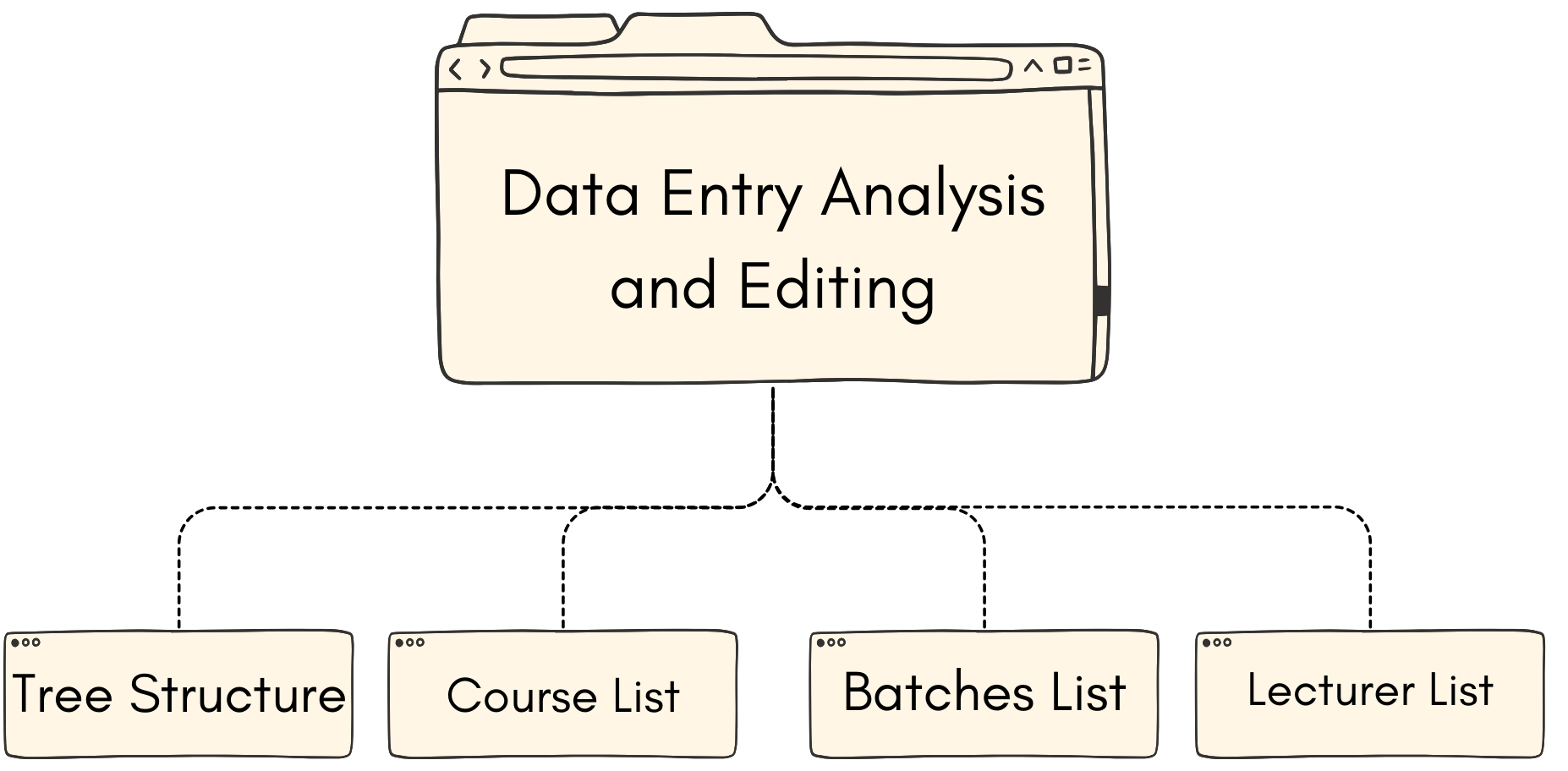
Here we will discuss on how to analysis the data that has been inserted and edit the data.
Why do we need to do analysis?
We need to do analysis and editing to ensure everything is correct and accurate so there will be no error or mistake in near future.
2.1. Tree Structure
To access Tree Structure, you may go to Data and select Tree Structure.
In Tree Structure, there are few things you can analyze which is:
- Department
- Courses
- Groups
- Class Type
- Sections
Analyze Tree Structure
It is important to analyze the data that has been mark as completed and shown on Tree Structure.
If you haven't mark the courses as complete, the tree structure will be empty as the diagram below.
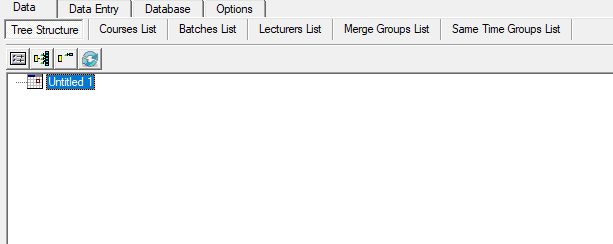
Diagram 2.1.1 Empty Tree Structure
Once you mark courses as completed, the tree structure will appear. Refer to the diagram below to know on how to analyze the Tree Structure.
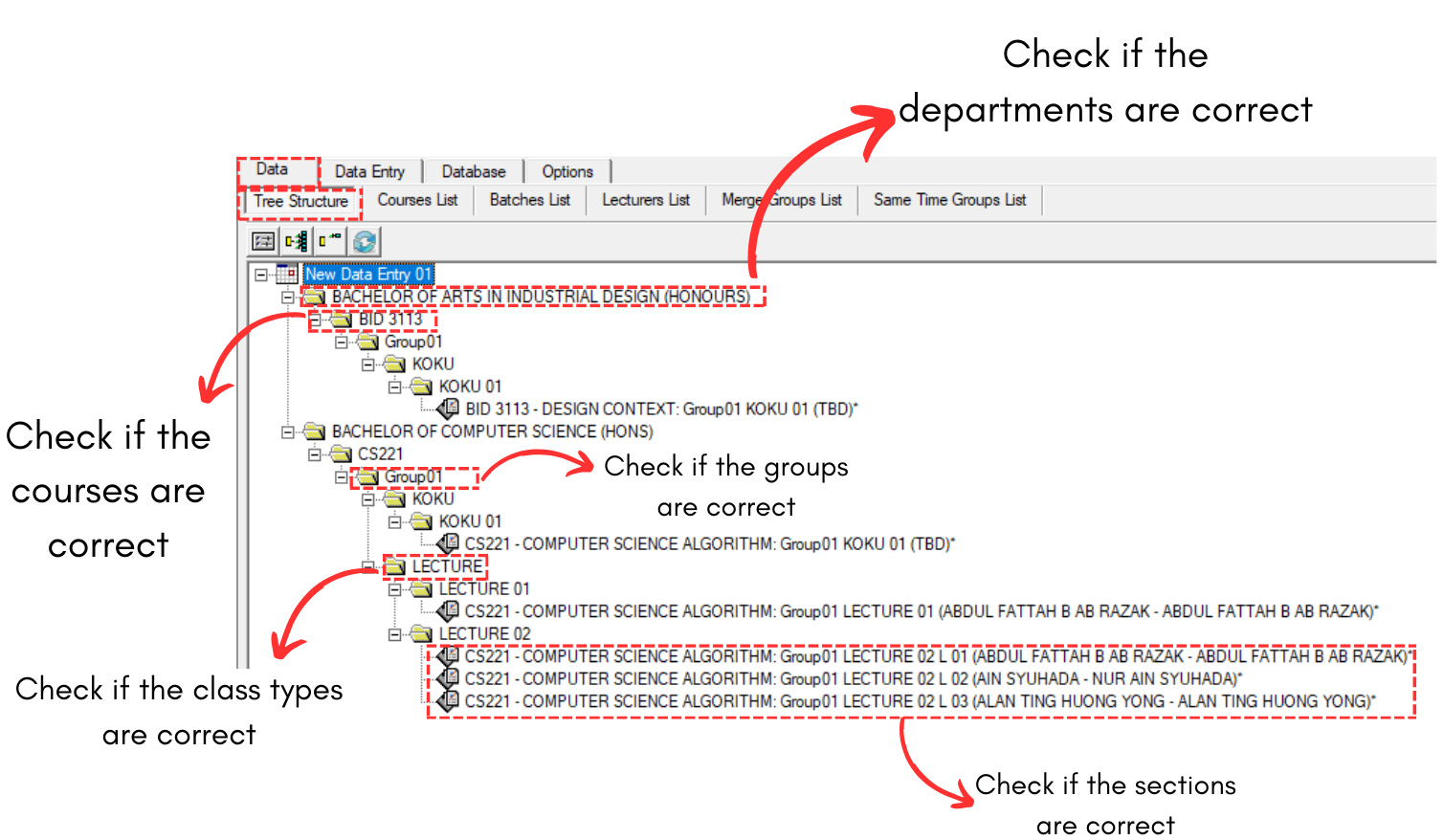
Diagram 2.1.2 Tree Structure Analyzation
Editing The Tree Structure
If there are incorrect data input in Tree Structure, you may right click the section and choose Locate at your preferred place. As for now, we will locate at Data Entry so that we able to edit.
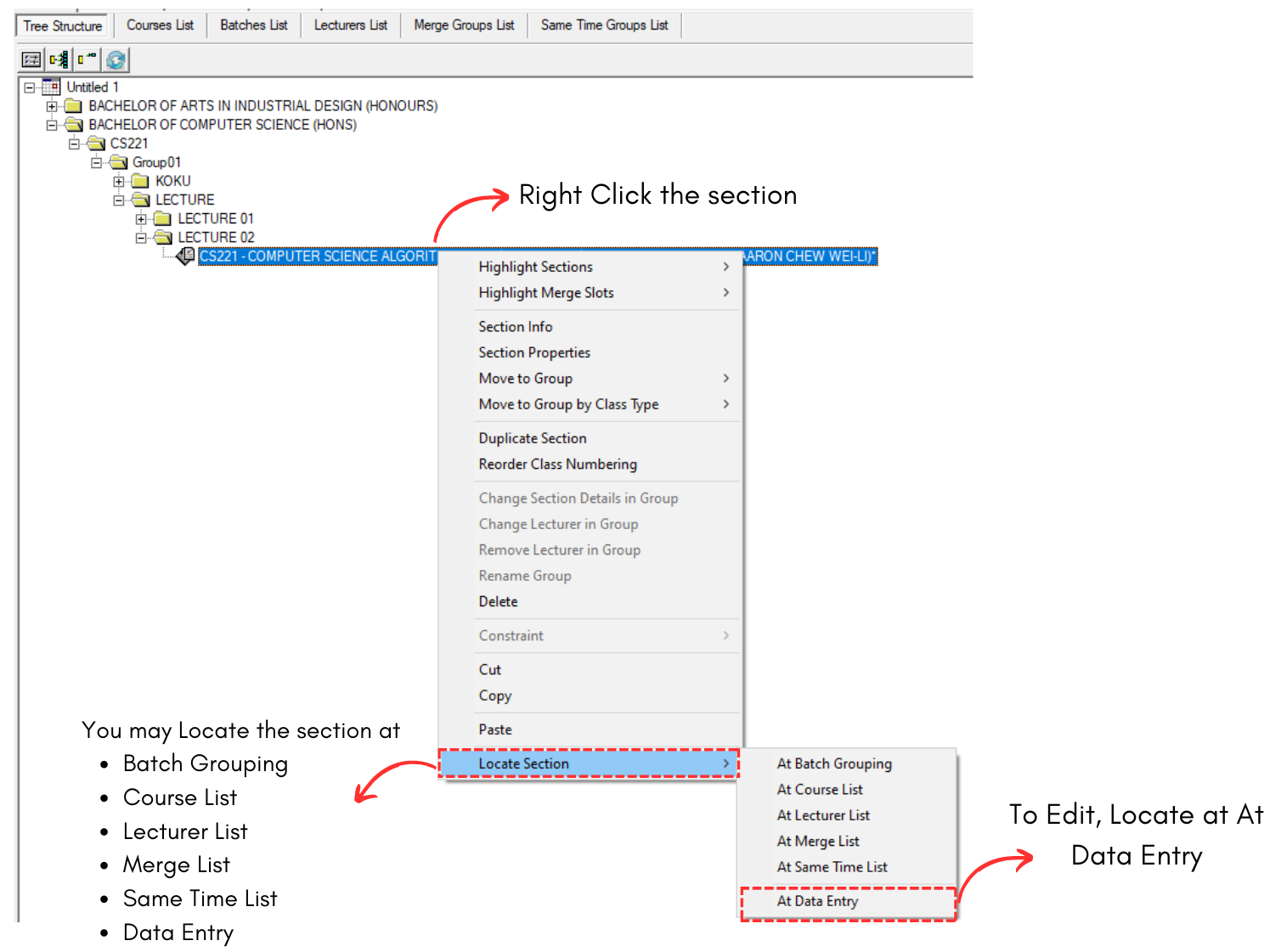
Diagram 2.1.3 Locate at Data Entry
Select the course that you want to edit and click Mark Checked Course Incomplete.
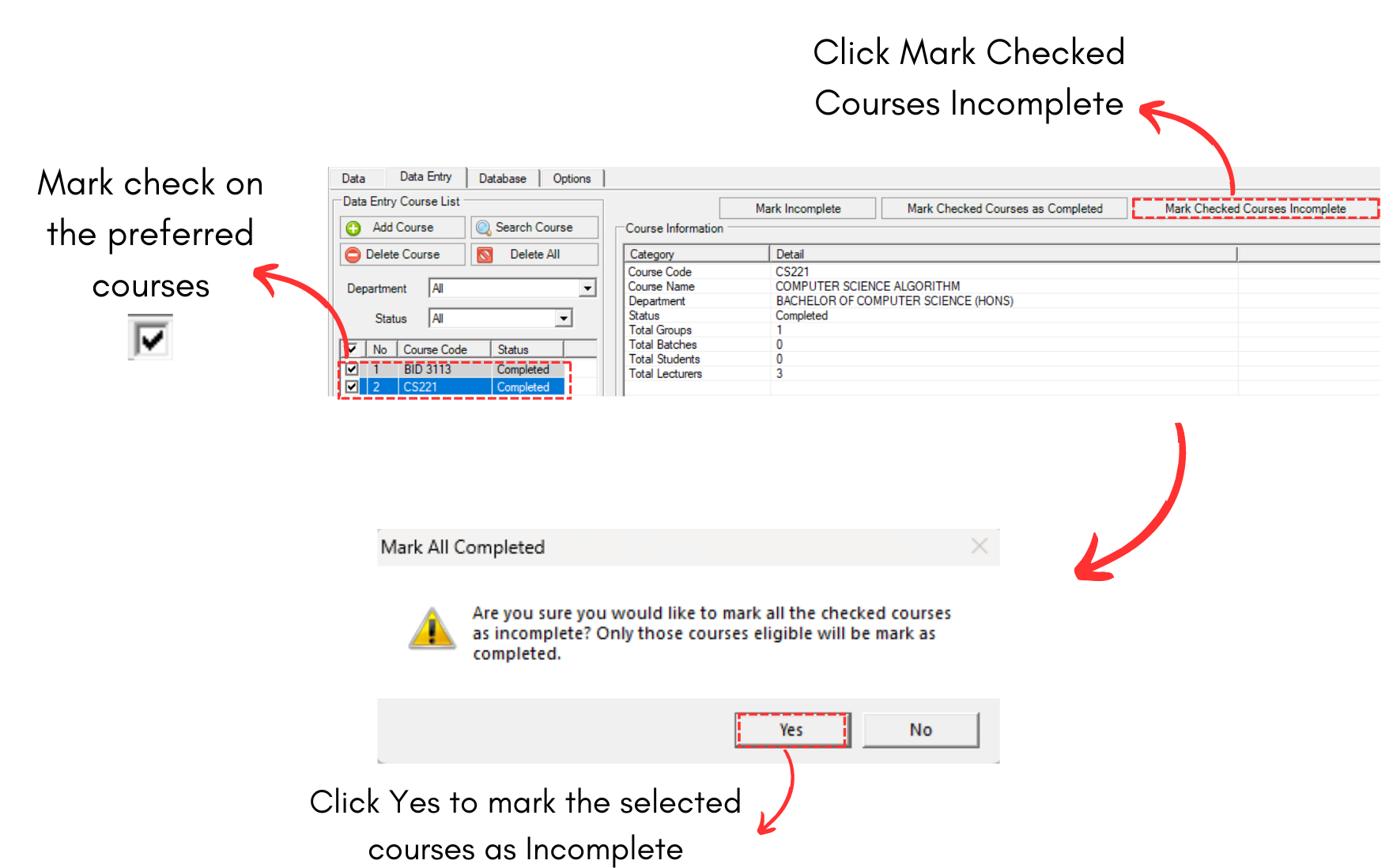
Diagram 2.1.4 Mark Checked Course Incomplete
After that, you may edit the course again. It is IMPORTANT to mark the course COMPLETE again after you are done with editing.
To edit, you may refer to the Stage 5: Editing & Delete Process in Data Entry
2.2. Course List
In Course List, there are few things you can analyze under the course which is:
- Course
- Batch Group
- Subgroup
- Class
- Section Name
- Room
- Groups
To locate the Course List, you may go to Data and select Course List.

2.2.1 Location of Course List in Data
Analyze Course List Data
It is important to analyze the data that has been input typed in to avoid any further mistakes happening. Refer to the diagram below to know on how to analyze the course list data.
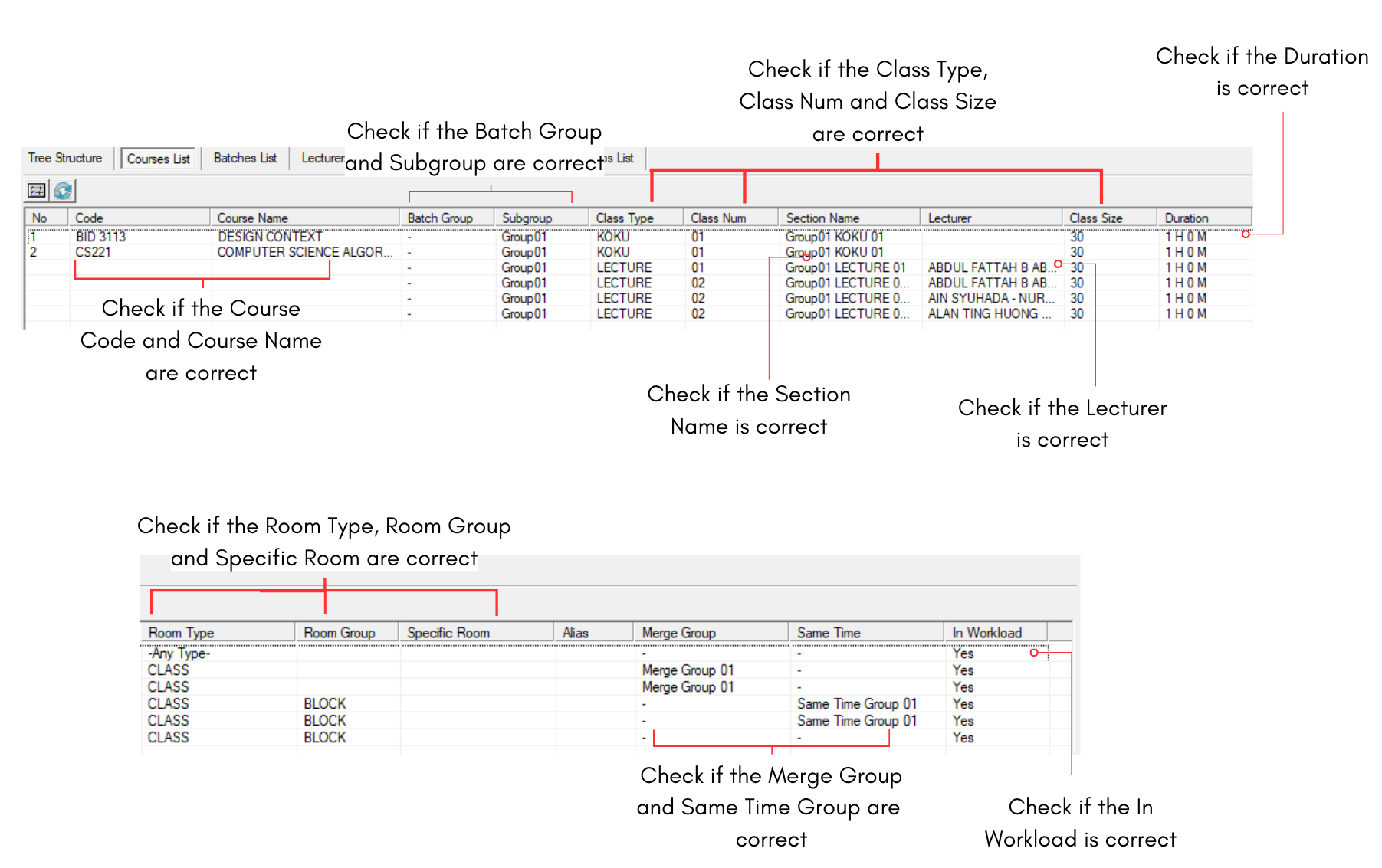
Diagram 2.2.2 Course List Data Analyzation
Editing The Course List Data
If there are incorrect data input in Course List, you may right click the section and choose Locate at your preferred place. As for now, we will locate at Data Entry so that we able to edit.
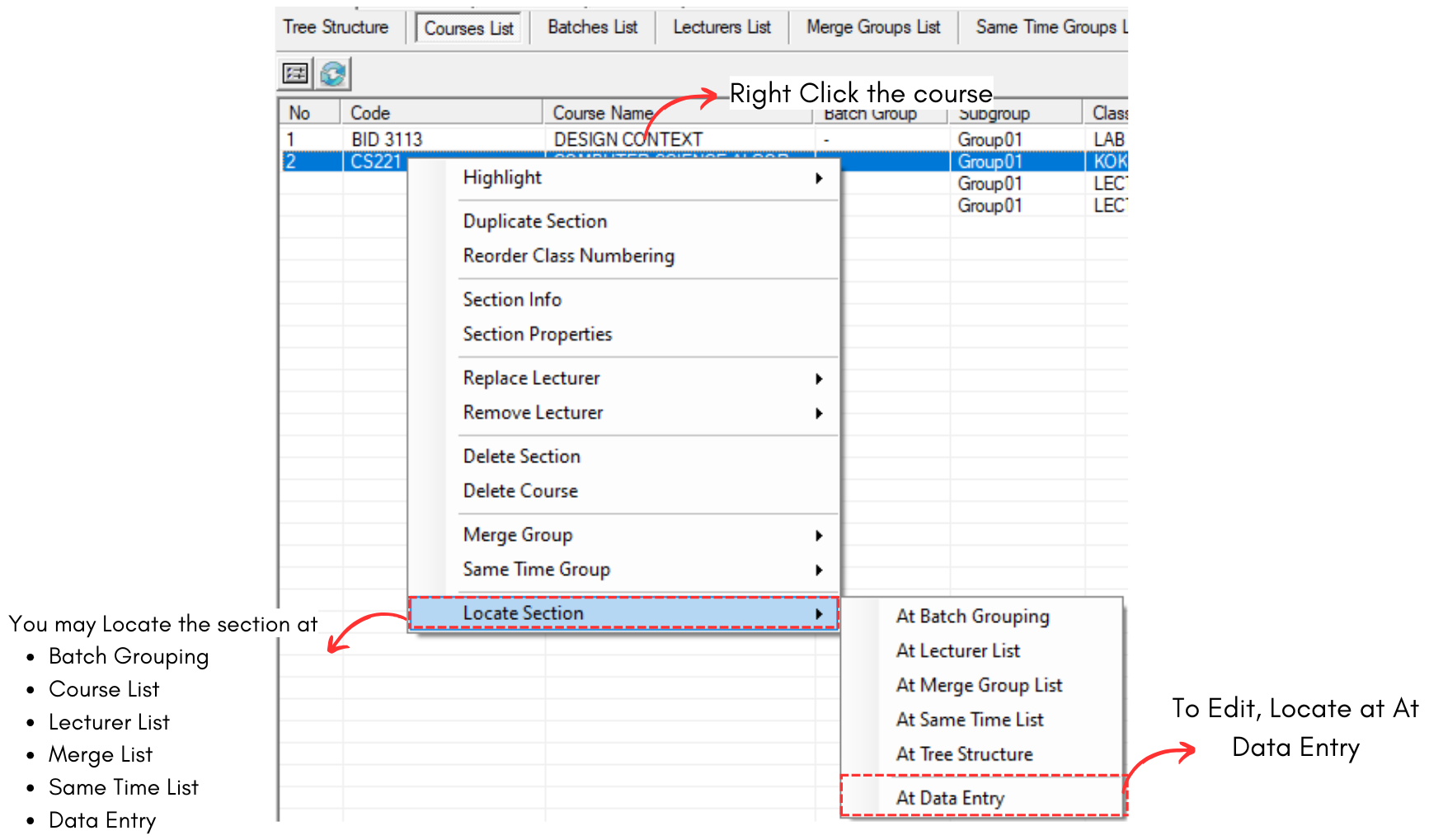
Diagram 2.2.3 Locate Course
Select the course that you want to edit and click Mark Checked Course Incomplete.

Diagram 2.2.4 Mark Checked Course Incomplete
After that, you may edit the course again. It is IMPORTANT to mark the course COMPLETE again after you are done with editing.
To edit, you may refer to the Stage 5: Editing & Delete Process in Data Entry
2.3. Batches List
In Batches List, there are few things you can analyze under the batch which is:
- Batches
- Sections
To locate the Batches List, you may go to Data and select Batches List.

2.3.1 Location of Batches List in Data
Analyze Batches List
It is important to analyze the data that has been input typed in to avoid any further mistakes happening. Refer to the diagram below to know on how to analyze the batches list data.
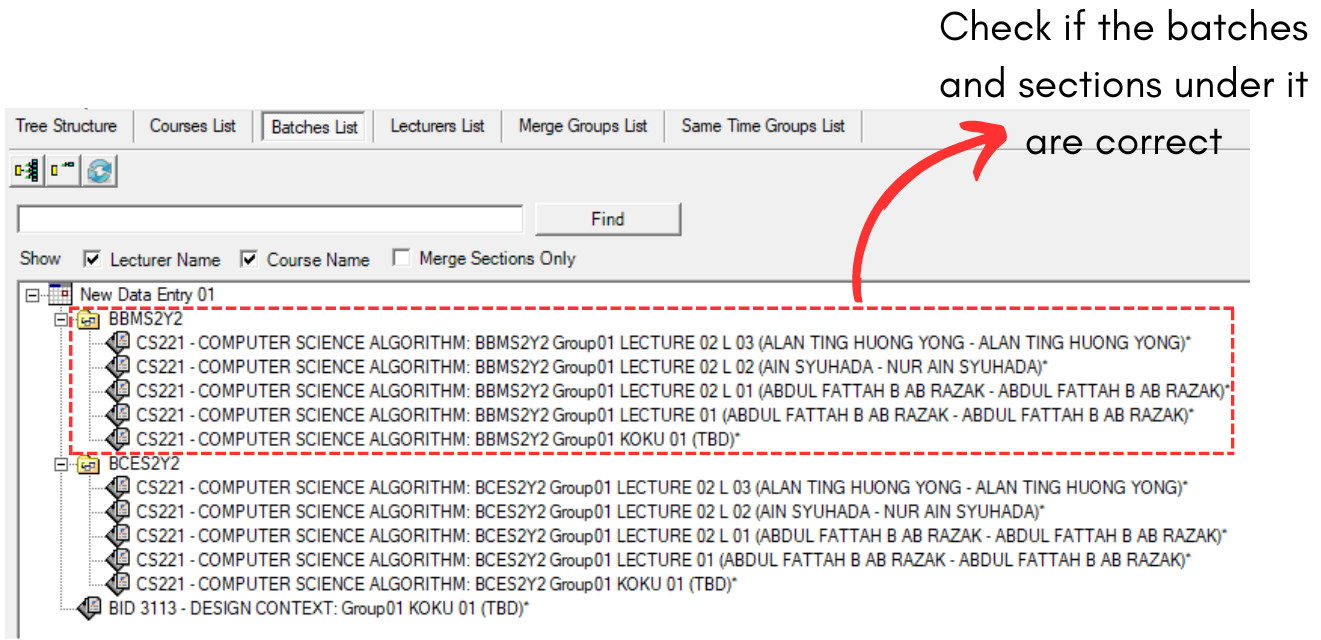
2.3.2 Batches Analyzation
Editing the Batches List
If there are incorrect data input in Batches List, you may right click the section under the batch and choose Locate at your preferred place. As for now, we will locate at Data Entry so that we able to edit.
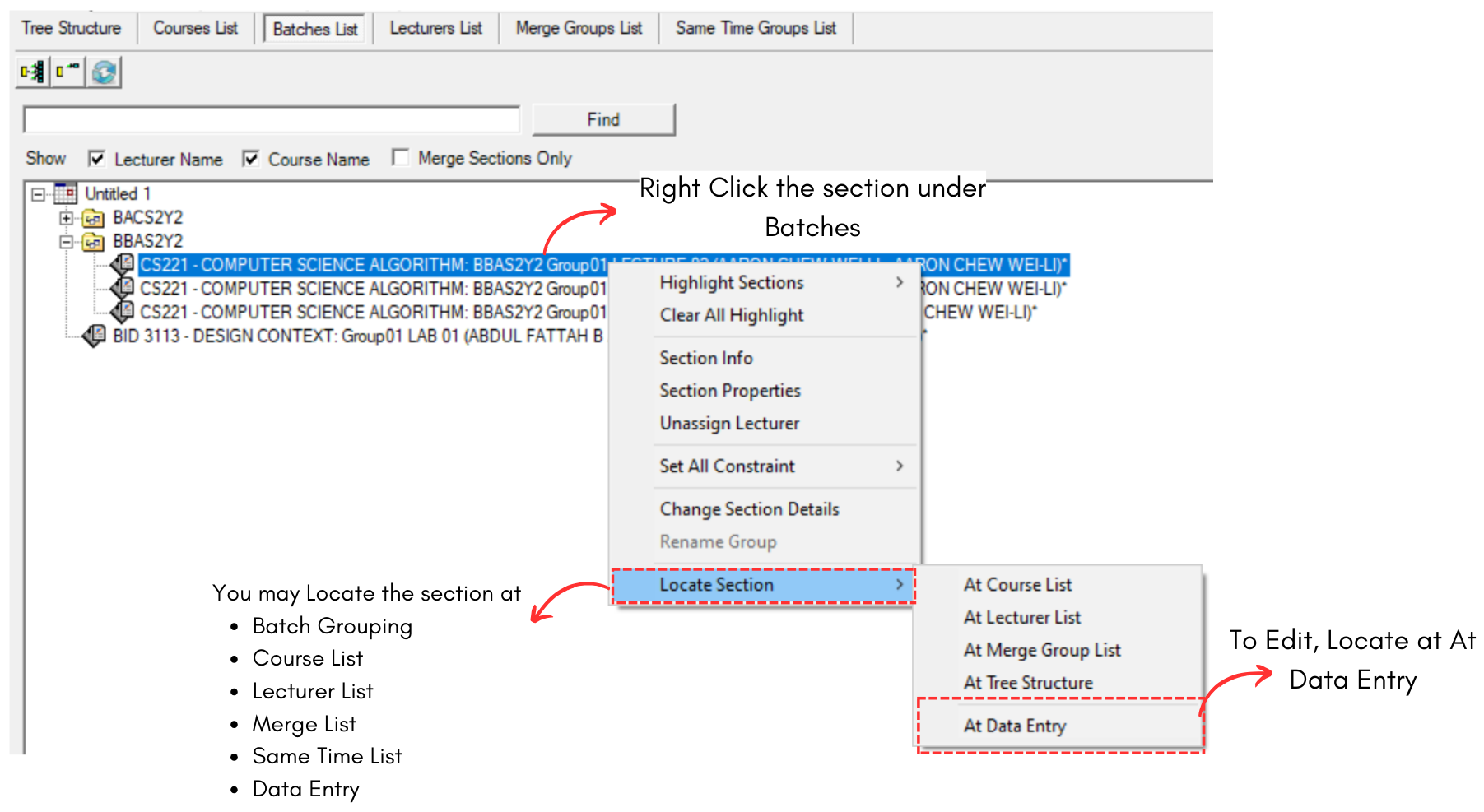
Diagram 2.3.3 Locate Section
Select the course that you want to edit and click Mark Checked Course Incomplete.
Diagram 2.3.4 Mark Checked Course Incomplete
After that, you may edit the course again. It is IMPORTANT to mark the course COMPLETE again after you are done with editing.
To edit, you may refer to the Stage 2: Data Entry (Batches)
2.4. Lecturer List
In Lecturer List, there are few things you can analyze under the lecturer which is:
- Lecturer
- Subject Taught
- Section
- Workload
- Batch
- Subgroup
- Class Type
- Merge Group
- Preference
To locate the Lecturer List, you may go to Data and select Lecturer List.

2.4.1 Location of Batches List in Data
Analyze Lecturer List
It is important to analyze the data that has been input typed in to avoid any further mistakes happening. Refer to the diagram below to know on how to analyze the lecturer list data.
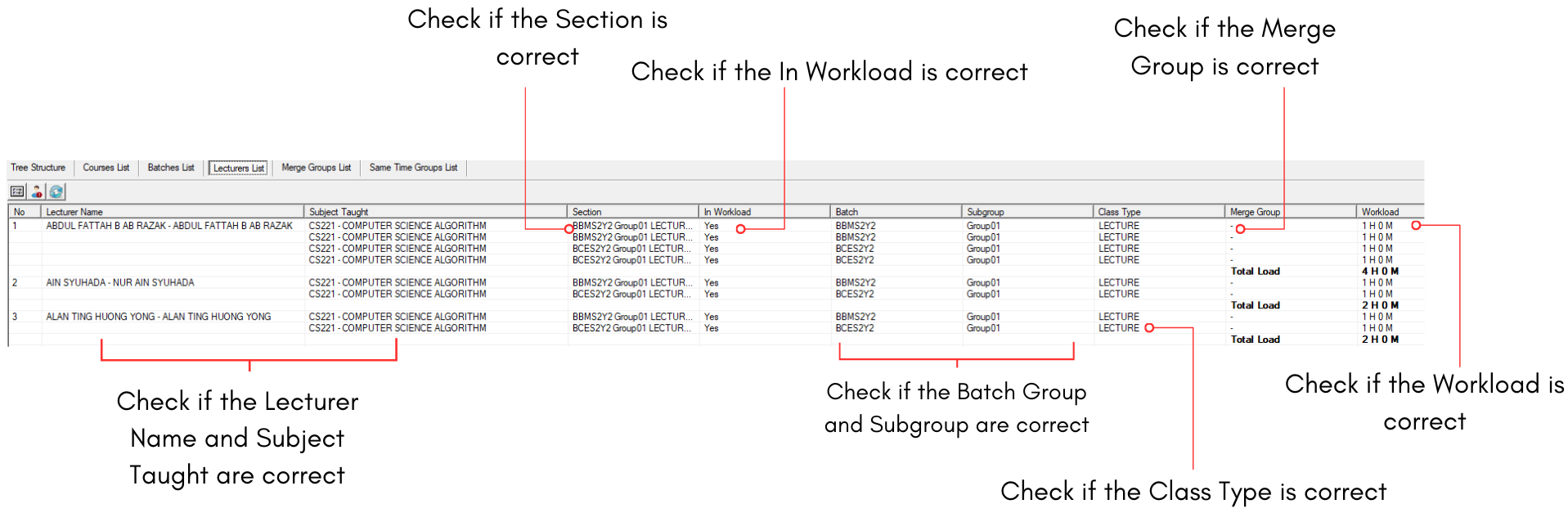
Diagram 2.4.2 Lecturer List Analyzation
Editing The Lecturer List
If there are incorrect data input in Lecturer List, you may right click the lecturer or section under the lecturer and choose Locate at your preferred place. As for now, we will locate at Data Entry so that we able to edit.
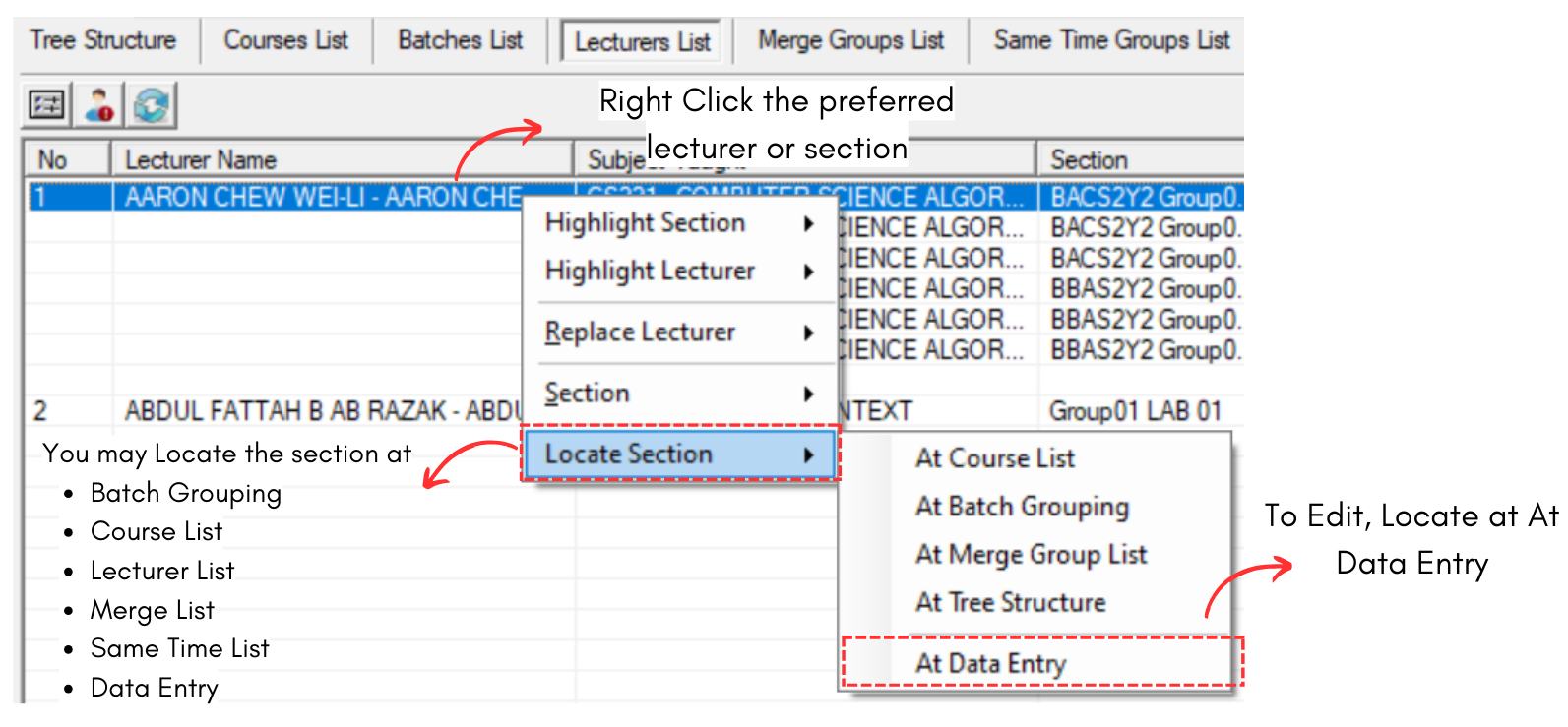
Diagram 2.4.3 Locate Lecturer
Select the course that you want to edit and click Mark Checked Course Incomplete.
Diagram 2.4.3 Mark Checked Course Incomplete
After that, you may edit the course again. It is IMPORTANT to mark the course COMPLETE again after you are done with editing.
To edit, you may refer to the Stage 5: Editing & Delete Process in Data Entry