Stage 4: Data Entry Analysis & Editing
| Site: | Timetable Plus |
| Course: | Timetable Plus Class Infinity |
| Book: | Stage 4: Data Entry Analysis & Editing |
| Printed by: | Guest user |
| Date: | Sunday, 31 May 2026, 4:38 AM |
Description
Here we will learn on about Analysis on Data Entry and Editing.
1. Data Entry Analysis & Editing
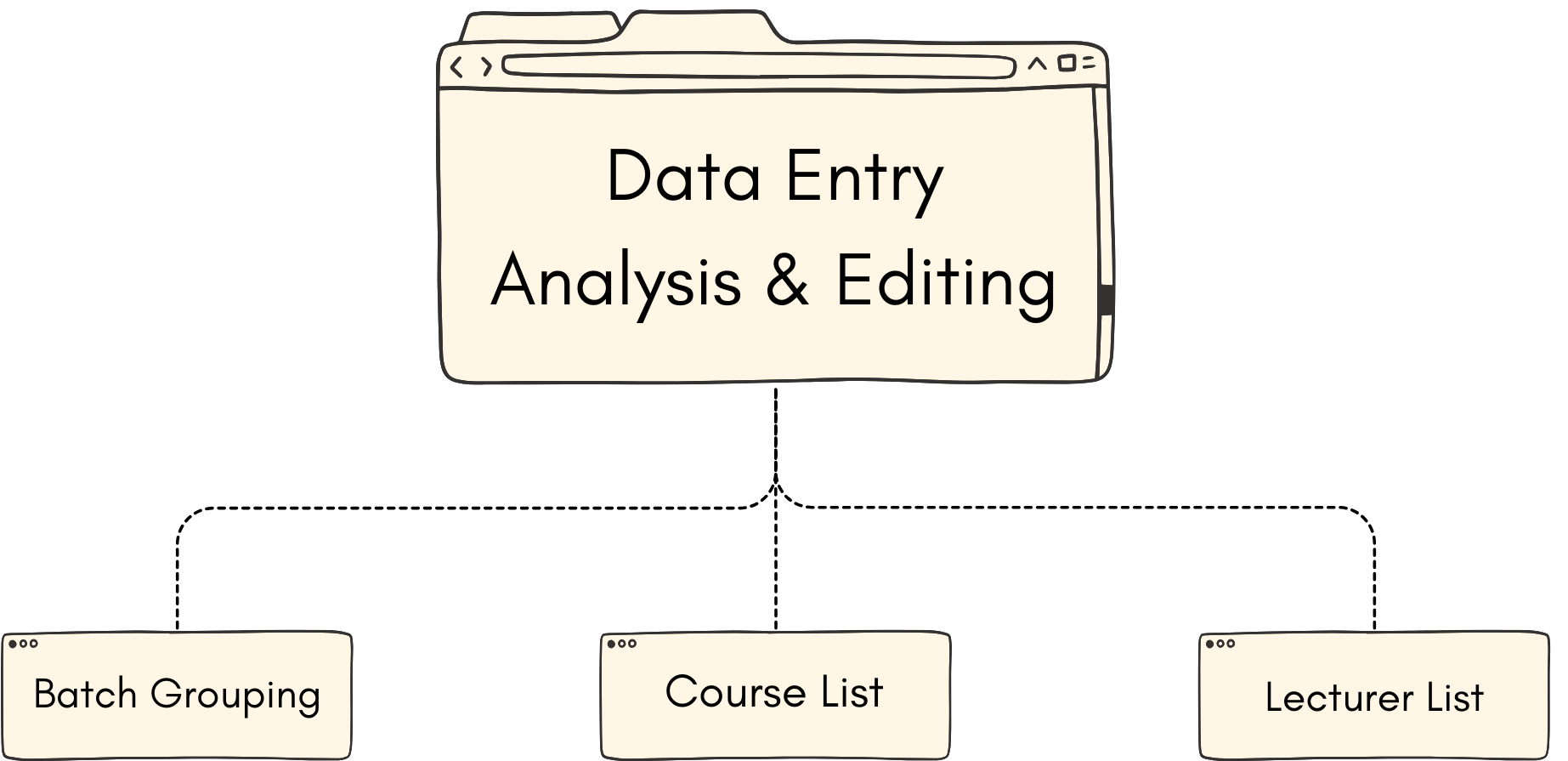
Here we will discuss on how to analysis the data that has been inserted to make sure everything is correct and how to edit the data.
1.1. Batch Grouping
In Batch Grouping, there are few things you can analyze under the batch which is:
- Batch Group Name
- Sections Under Batch
- Section Information

Diagram 1.1.1 Location of Batch Grouping

1.2.2 Batch Grouping Window
Analyze Batch Grouping
It is important to analyze the data that has been input typed in to avoid any further mistakes happening with the timetable output. Refer to the table and diagram below to know on how to analyze the batch grouping.
|
Batch Grouping Name |
Check if the name for Batch Grouping is correct. |
|
Sections Under Batch Grouping |
Check if the sections are placed under the correct Batch Grouping. |
|
Section Details |
Check if the details of the section is correct. |
Table 1.1.1 Batch Grouping Analyze
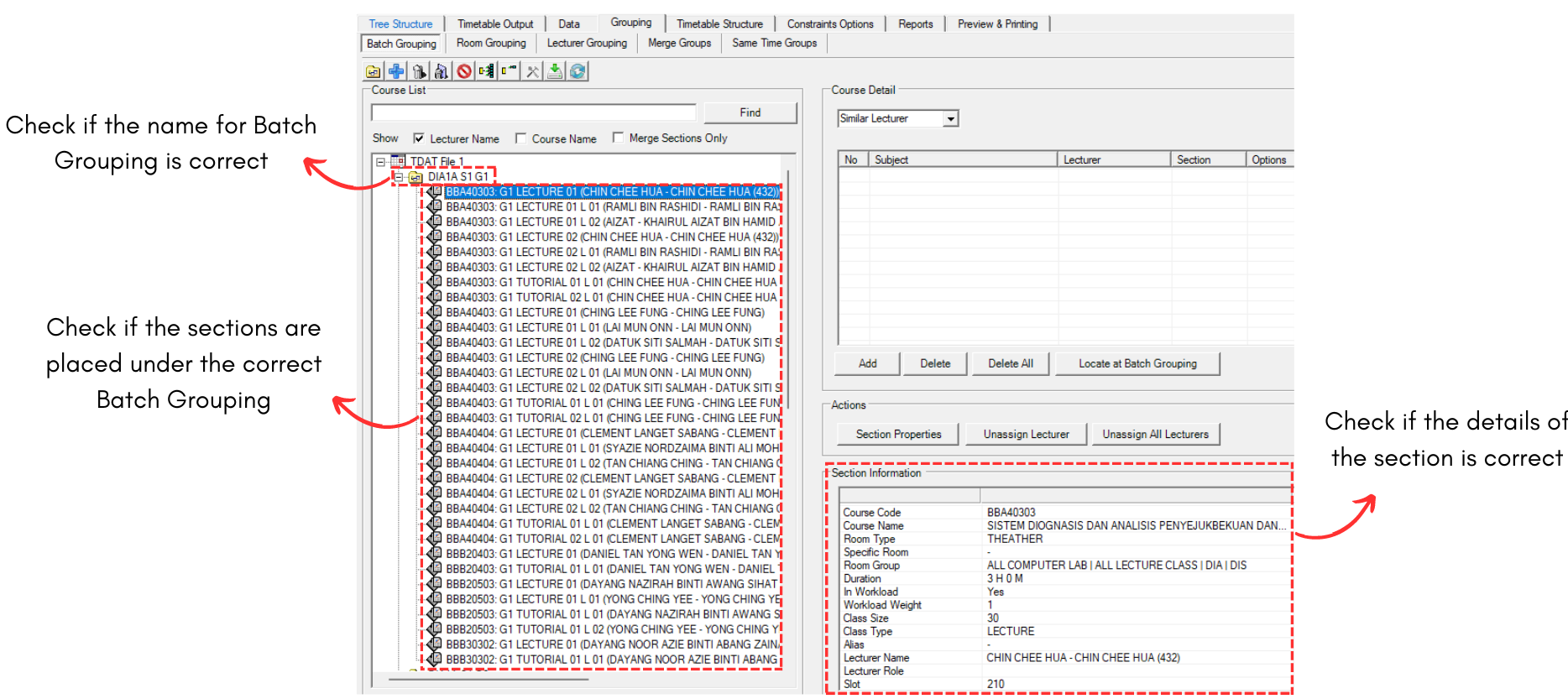
Diagram 1.1.3 Batch Grouping Analyzation
Editing The Batch Grouping
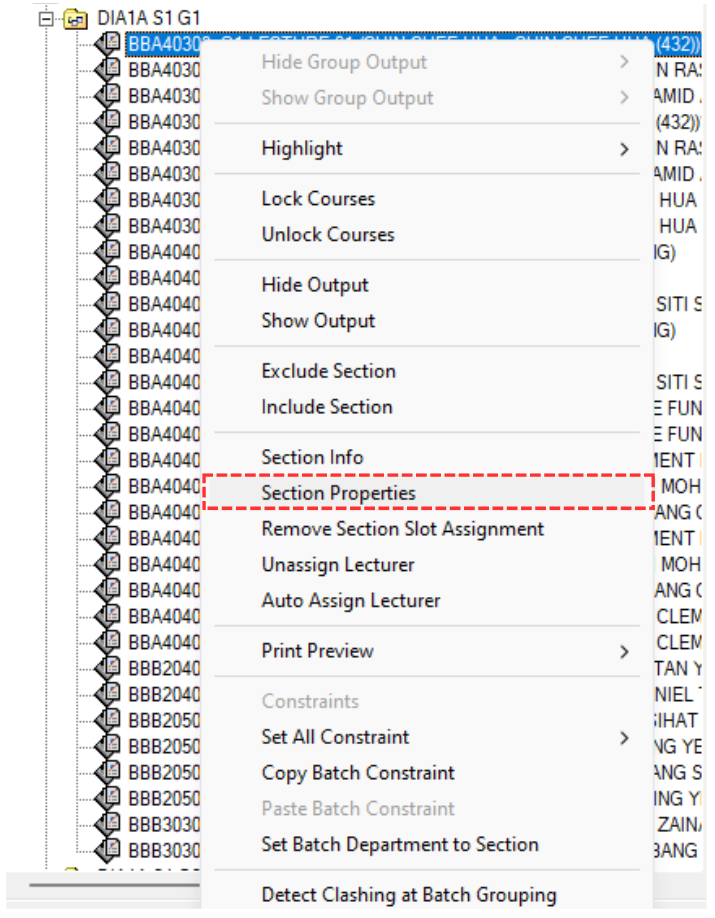
Diagram 1.1.4 Opening Section Properties
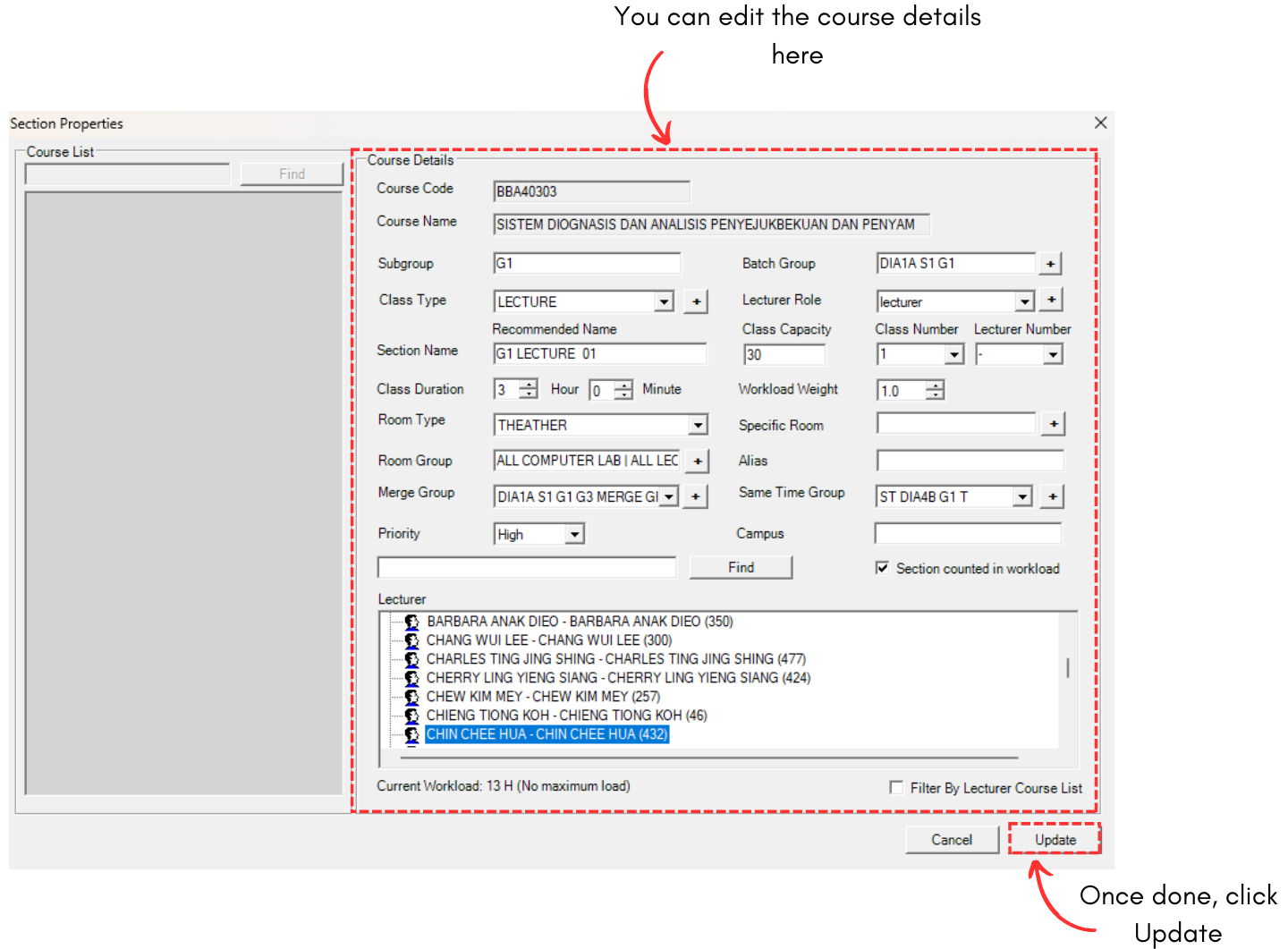
Diagram 1.1.5 Section Properties
1.2. Course List
In Course List, there are few things you can analyze under the course which is:
- Section Name
- Room
- Lecturer
- Class
- Duration
- Slot, Day and Time
- Group
To locate the Course List, you may go to Data and select Course List.

1.2.1 Location of Course List in Data
1.2.2 Data Course List Window
There are few icons that need to be studied in Course List Data.


  |
Click this icon to add new section. |
  |
Click this icon to open properties. |
  |
Click this icon to manage students. |
  |
Click this icon to delete section. |
  |
Click this icon to change to section cluster view. |
  |
Click this icon to change to section list view. |
Analyze Course List Data
It is important to analyze the data that has been input typed in to avoid any further mistakes happening with the timetable output. Refer to the table and diagram below to know on how to analyze the course list data.
|
Section Name |
Check if the section name is right and no typographical error. |
|
Room |
Check if the room type and the room group is placed according to the preferences. |
|
Lecturer |
Check if the lecturer's name is correct and if it placed under the right course. Check if the lecturer has been assigned to the course as well. |
|
Class |
Check if the class type for the course and class capacity is correct. |
|
Duration |
Check if the class duration is set on the right hours. |
|
Slot, Day and Time |
Check if the course is placed under the right slot, day and time. |
|
Group |
Check if the course is placed under the right batch group, subgroup, merge group and same time group. |
Table 1.2.1 Course List Data Analyze
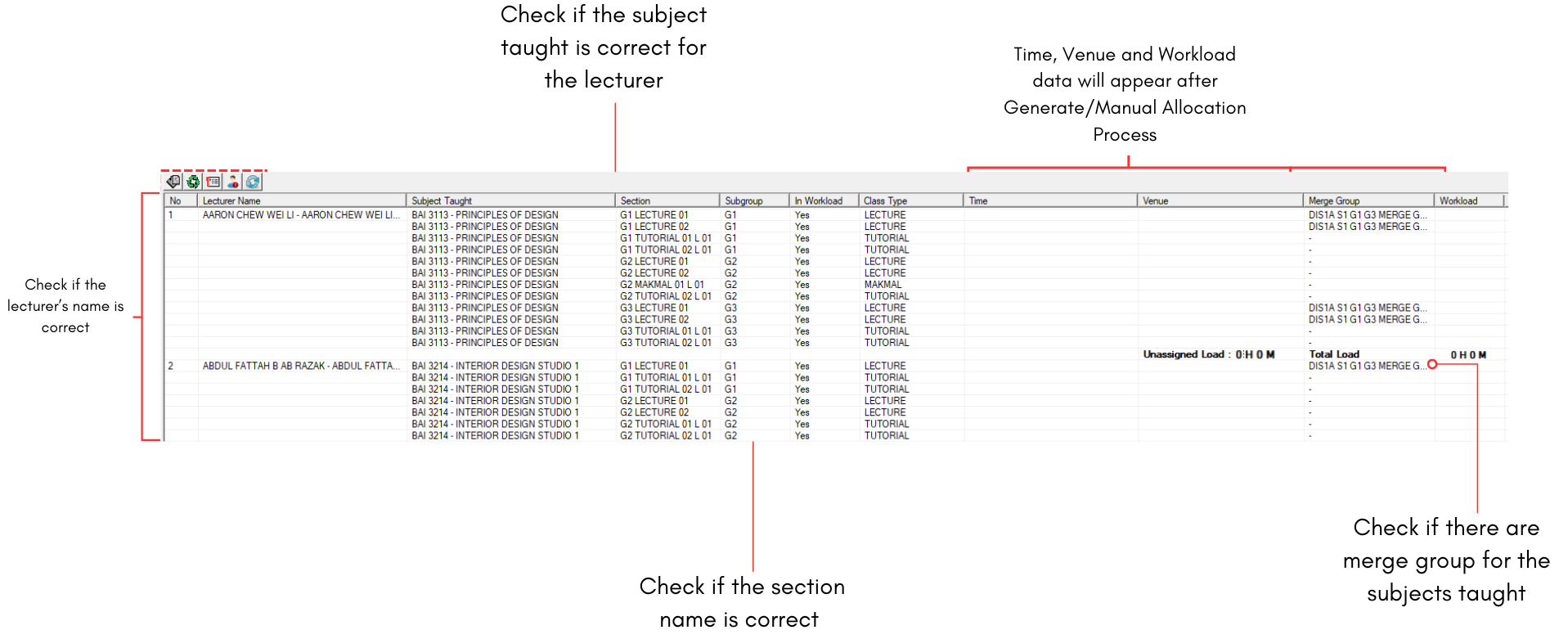
Diagram 1.2.3 Course List Data Analyzation
Editing The Course List Data
If there are incorrect input data in course list, you can easily double click the section to edit OR you can click on the Properties icon
.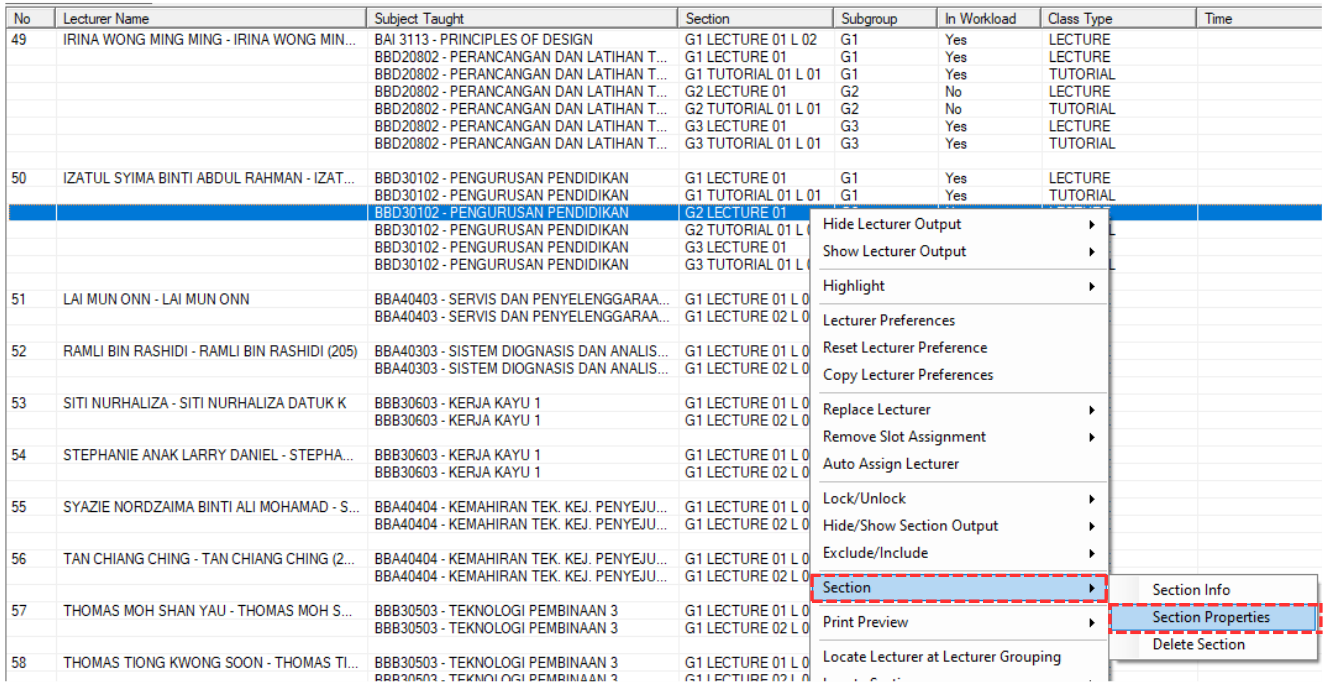
Diagram 1.2.4 Opening Section Properties
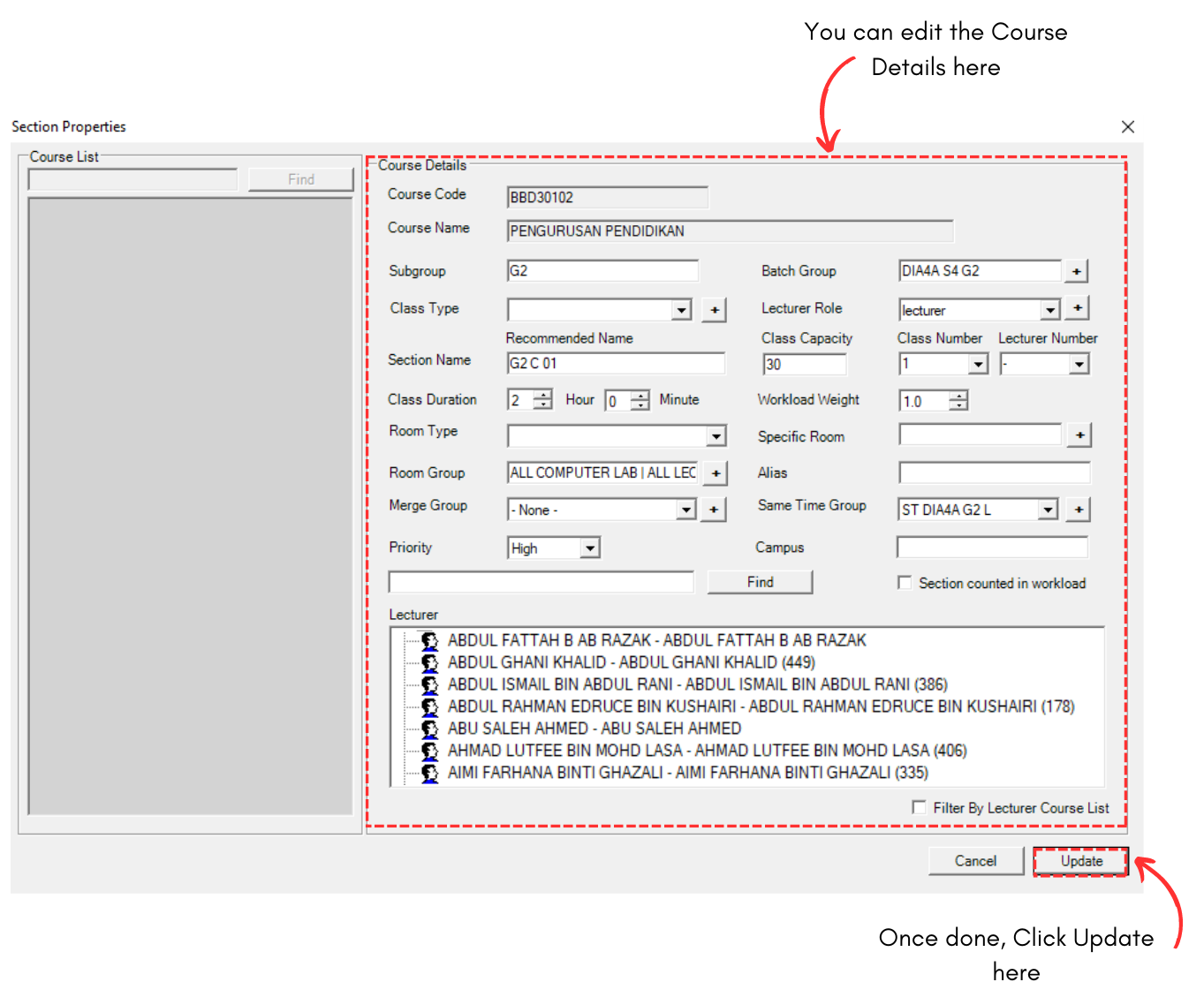
Diagram 1.2.5 Section Properties
1.3. Lecturer List
- Lecturer
- Subject Taught
- Section Assigned
- In Workload
- Preference
To locate the Lecturer List, you may go to Data and select Lecturer List.

1.3.1 Location of Lecturer List in Data
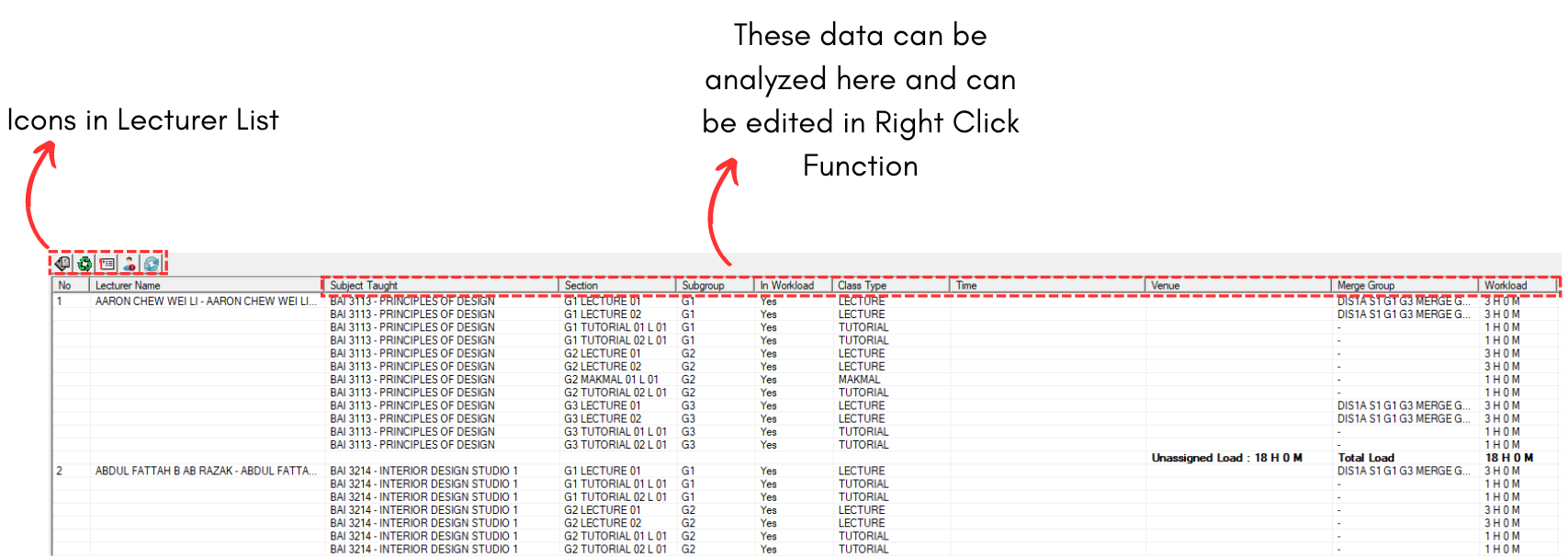
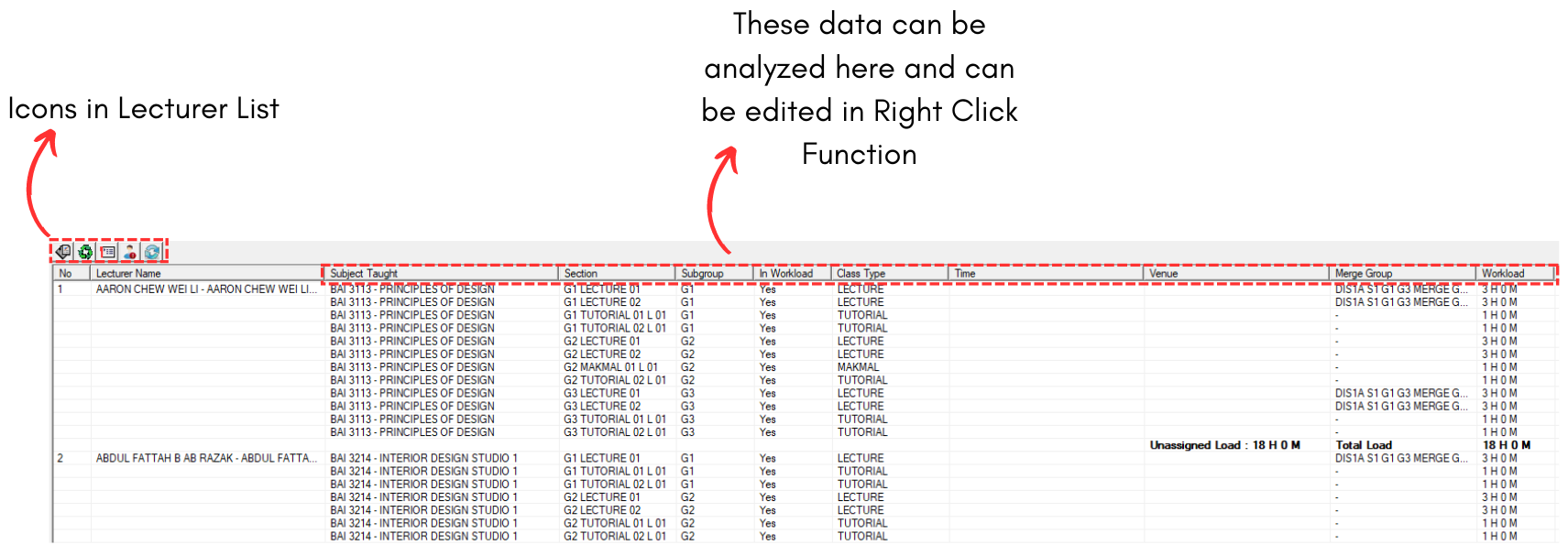
1.3.2 Data Lecturer List Window
There are few icons that need to be studied in Lecturer List Data.

 |
Click this icon to add new section. |
 |
Click this icon to reset all lecturer preferences. |
 |
Click this icon to set preferences. |
 |
Click this icon to check lecturer conflict. |
 |
Click this icon to refresh lecturer list. |
Analyze Lecturer List Data
It is important to analyze the data that has been input typed in to avoid any further mistakes happening with the timetable output. Refer to the table and diagram below to know on how to analyze the lecturer list data.
|
Lecturer |
Check if the lecturer name is right and no typographical error. |
|
Subject Taught |
Check if the subject taught is correct for the lecturer. |
|
Section Assigned |
Check if the section assigned to the lecturer is correct. |
|
In Workload |
Check if the lecturer in workload or not. |
|
Preference |
Check the lecturer preferences. |
Table 1.3.1 Lecturer List Data Analyze
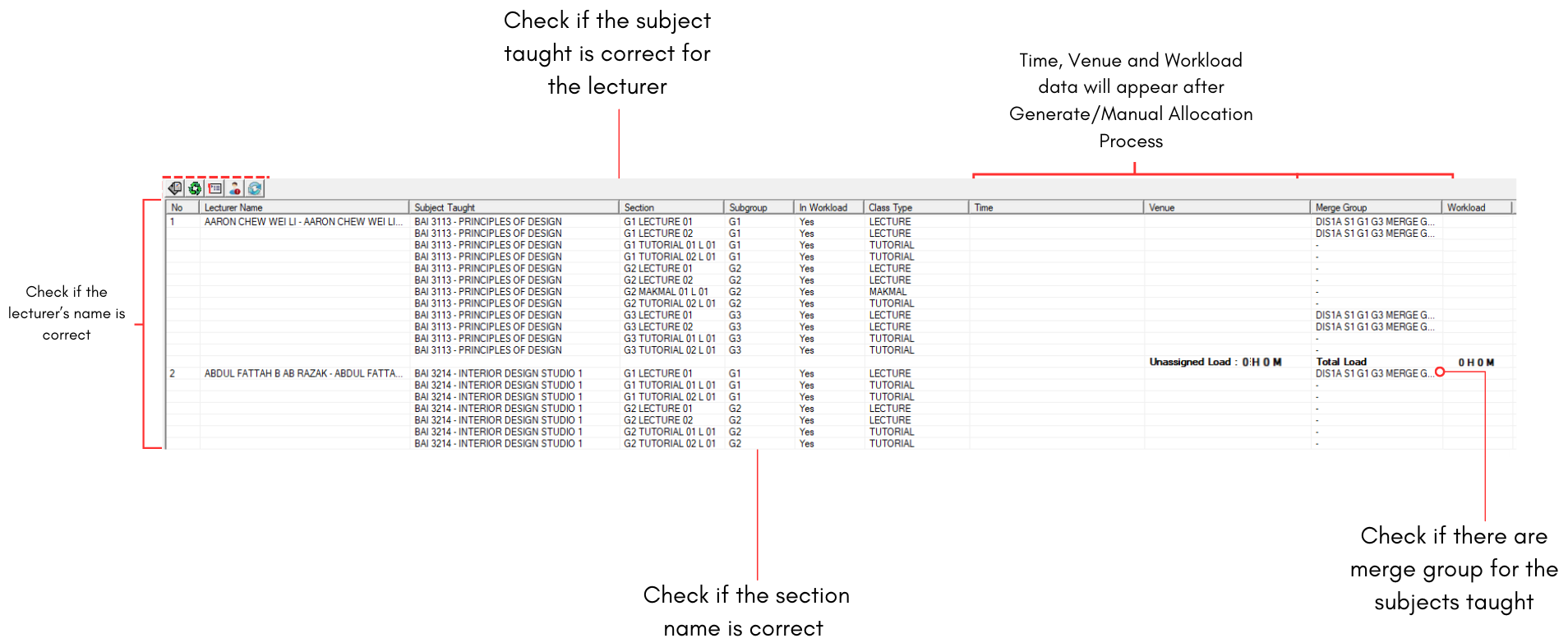
Diagram 1.3.3 Lecturer List Data Analyzation
Editing The Lecturer List Data
If there are incorrect input data in lecturer list, use right click function on the section and select Section and then Section Properties.
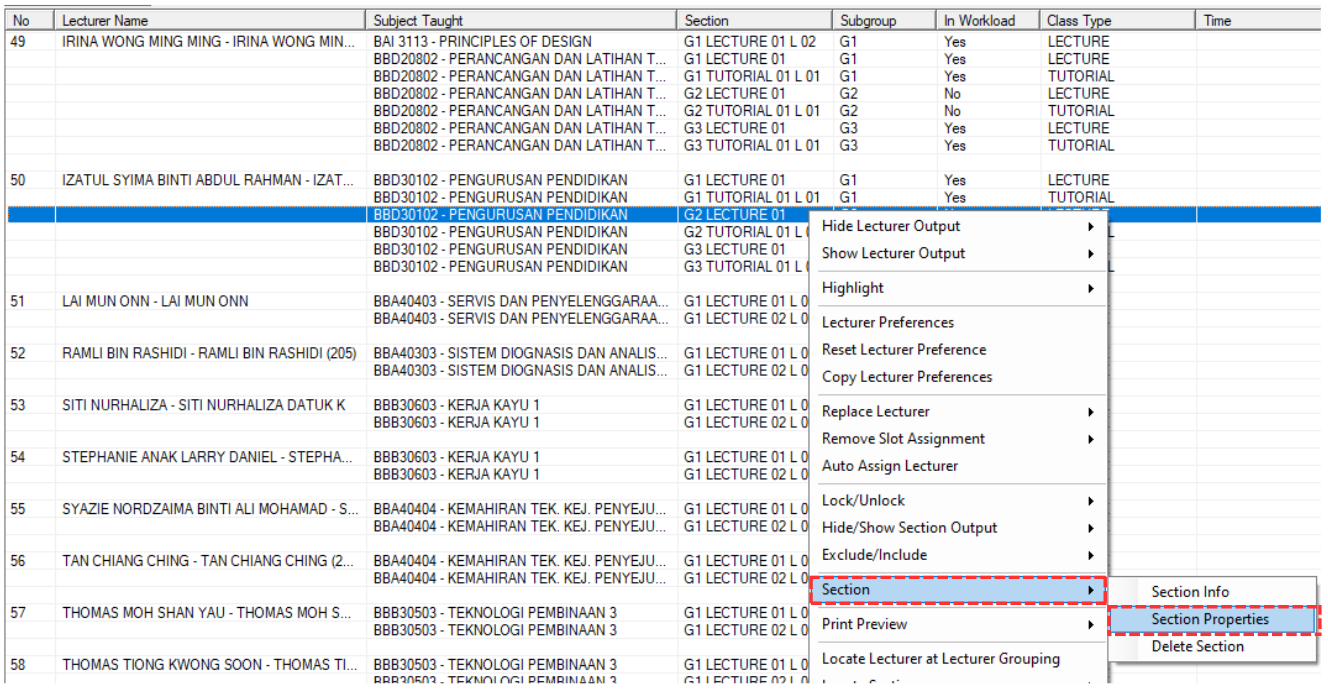
Diagram 1.3.4 Opening Section Properties
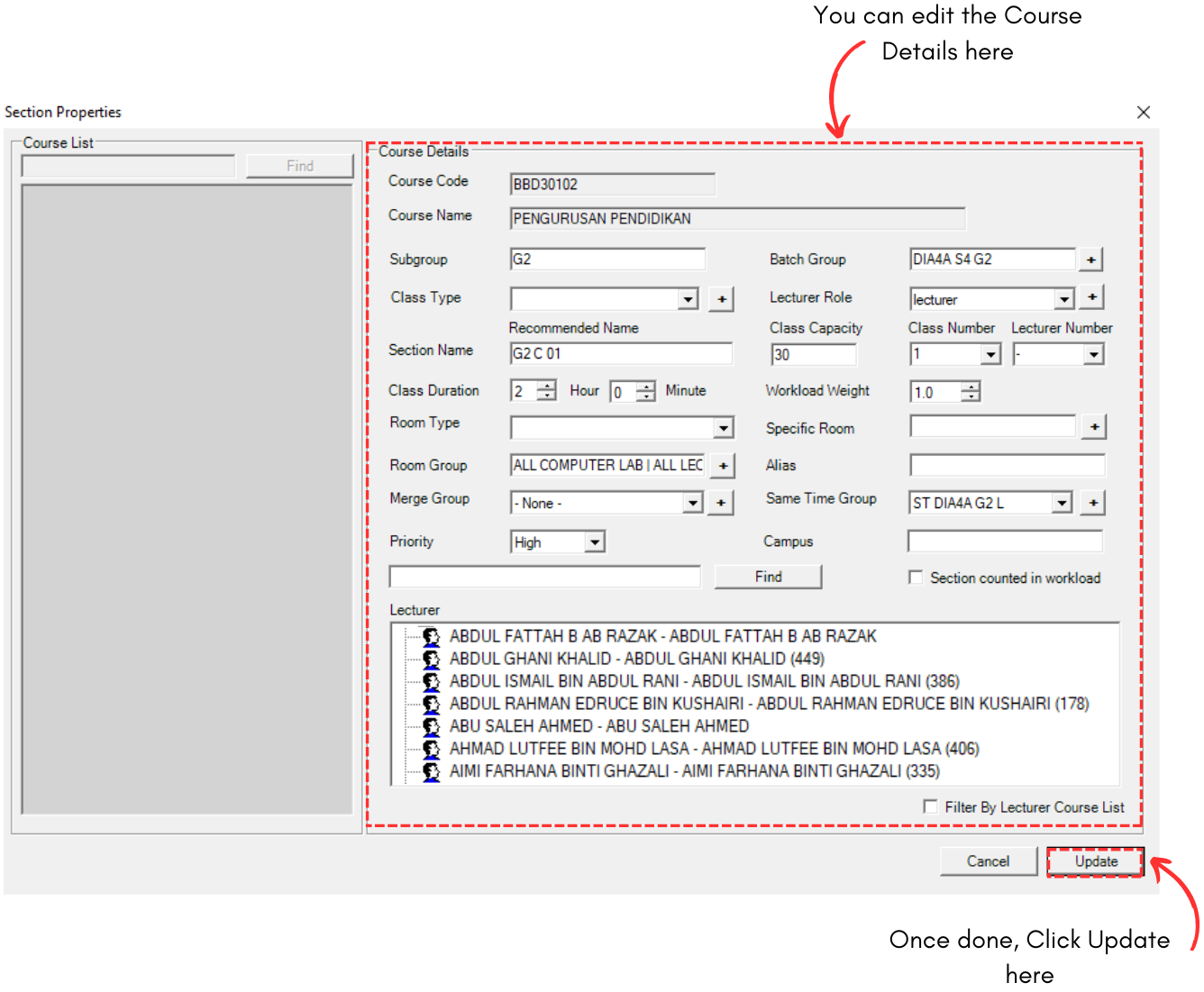
Diagram 1.3.5 Section Properties