Opening Up And Getting Used to Timetable Plus Class
| Site: | Timetable Plus |
| Course: | Timetable Plus Class Infinity |
| Book: | Opening Up And Getting Used to Timetable Plus Class |
| Printed by: | Guest user |
| Date: | Sunday, 31 May 2026, 4:26 AM |
1. What's in the Timetable Plus Class Folder
When you open the Timetable Plus Class folder, you will see a lot of files inside it. Here we will learn about important files inside the folder.
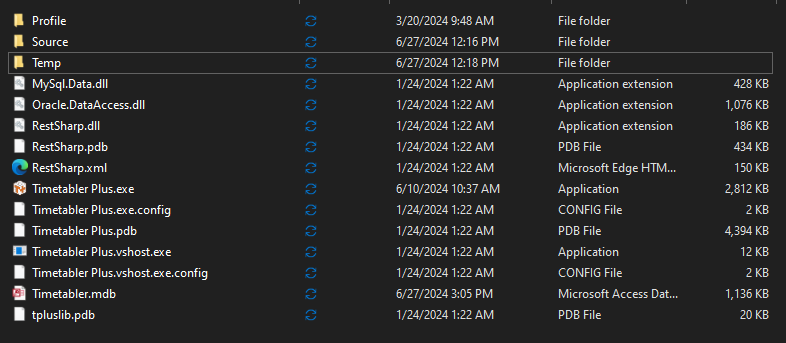
Diagram 2.1 Files In the Timetable Folder
1. Timetabler Plus.exe
Timetabler Plus.exe  is where you will be doing your timetable. It is the main software for the timetable.
IMPORTANT: When there is a new update for the software, you will only be required to change the .exe file only, not the entire folder.
2. Timetabler.mdb
Timetabler.mdb  is where your database is being kept.
3. Source Folder
All timetable files that you created will be located in Source Folder  . When you open the Source Folder, you will see all file's name is in digit value. You may refer to the file properties in the Timetable Plus Class software.
4. Profile Folder
In Profile folder  , you may see the profile of your database.
2. Opening T-Plus Class
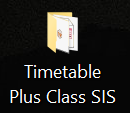
Diagram 2.1 Timetable Plus Class Folder
Steps 1: Open the T-Plus Class SIS Folder.
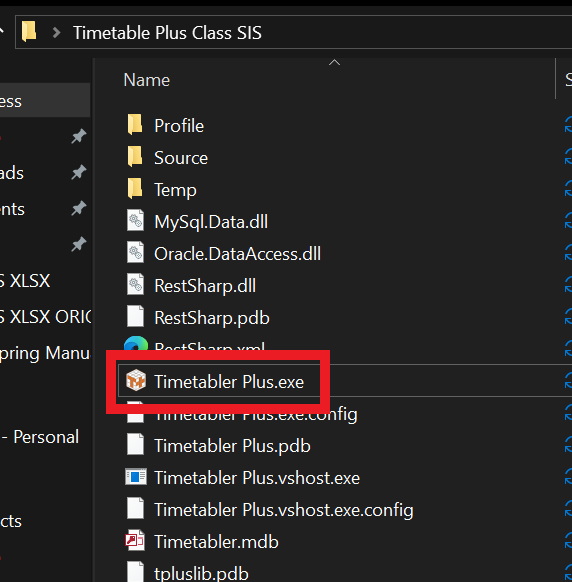
Diagram 2.2 Timetable Plus EXE Location
Steps 2: Double click the Timetable Plus.exe.
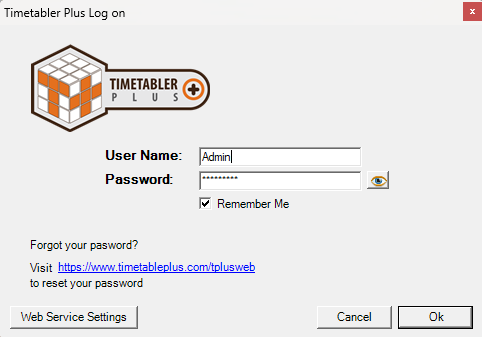
Diagram 2.3 Timetable Plus Login Window
A window will pop-up and required user to login. Below is the explanation on buttons of login window.
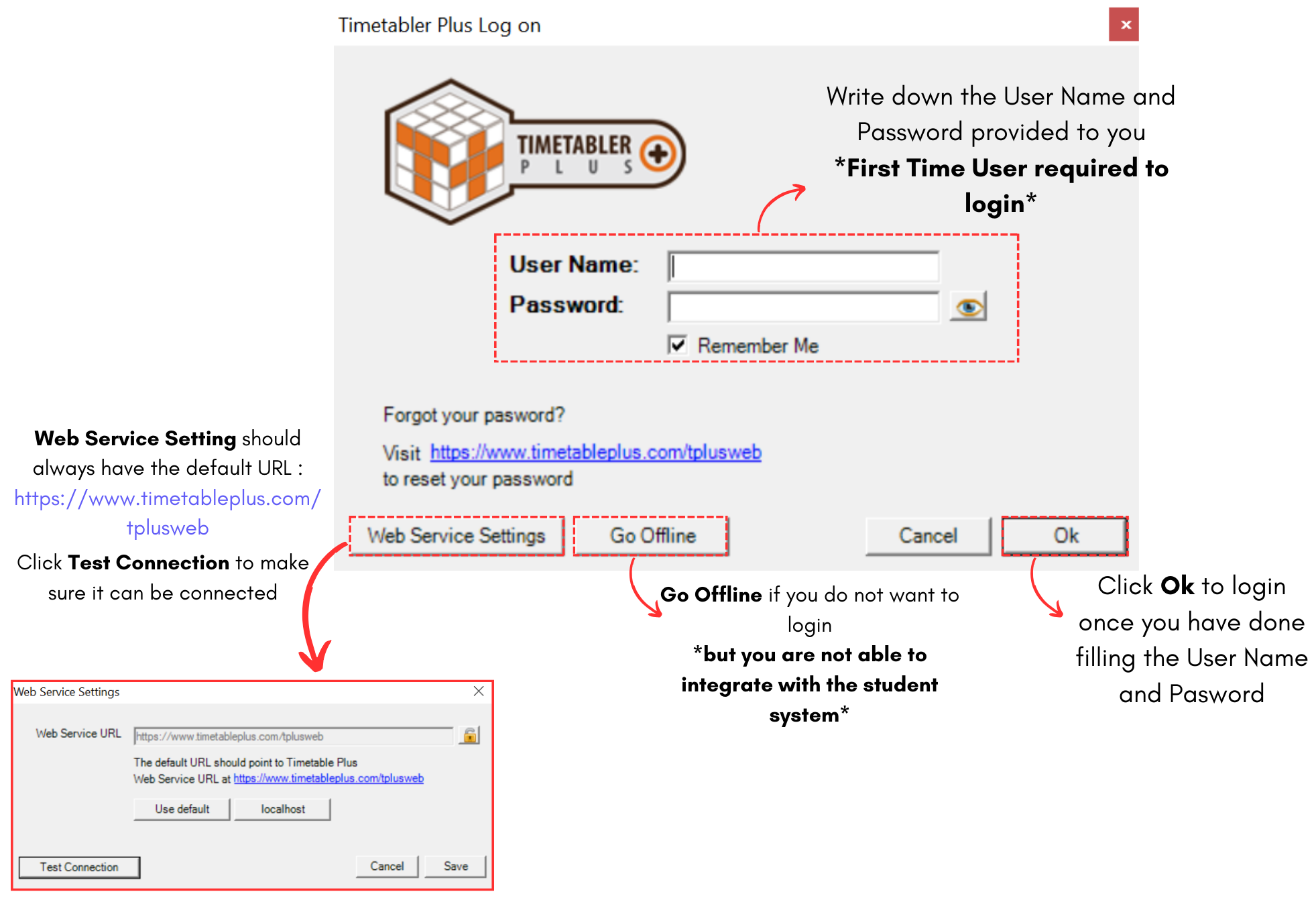
Diagram 2.4 Login Window explanation
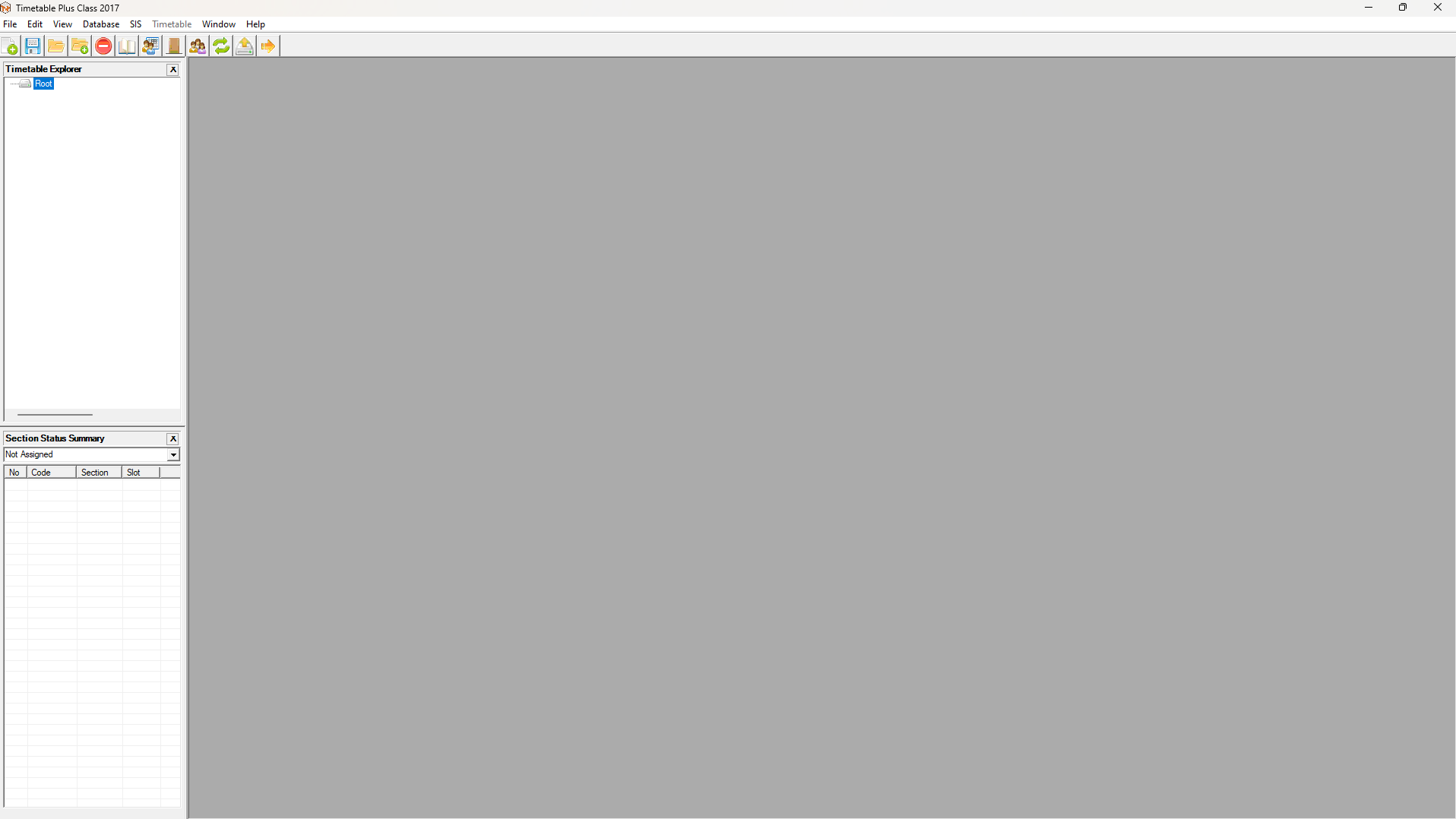
Diagram 2.5 Timetable Plus Application
This is how it will looks like when you open the Timetable Plus Class SIS.
3. Opening New Timetable and Folder
To open New Timetable, select New Timetable icon
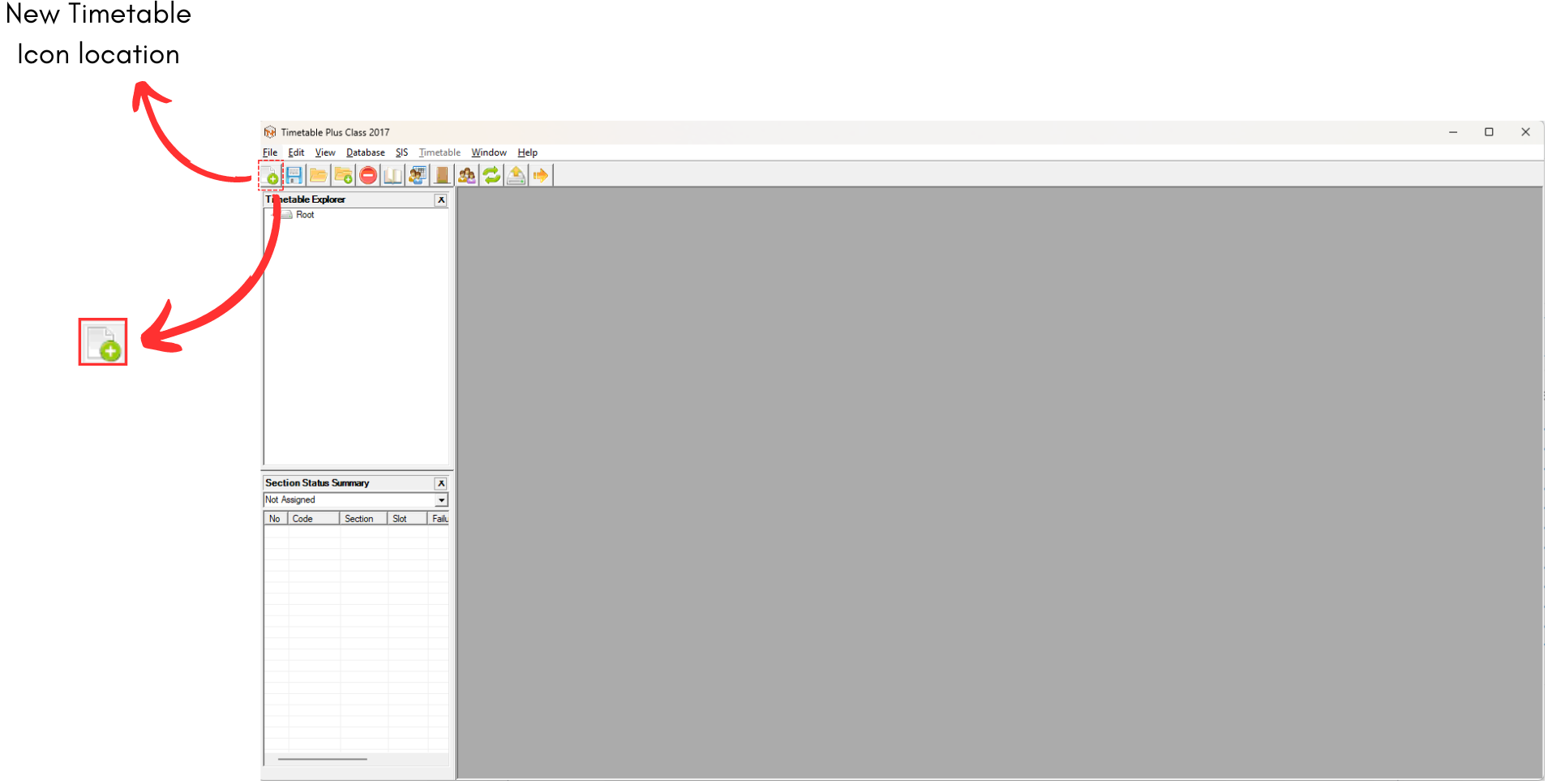
Diagram 3.1 Location of New Timetable
Once clicked, an untitled file appear on the screen.
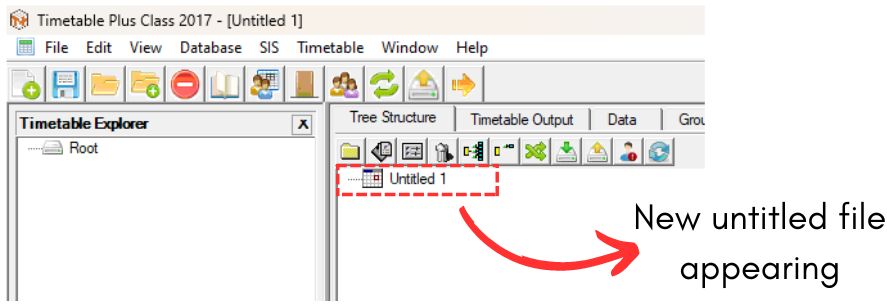
Diagram 3.2 New Untitled File
Note that it is IMPORTANT to click Save after opening a new timetable to avoid losing the file.
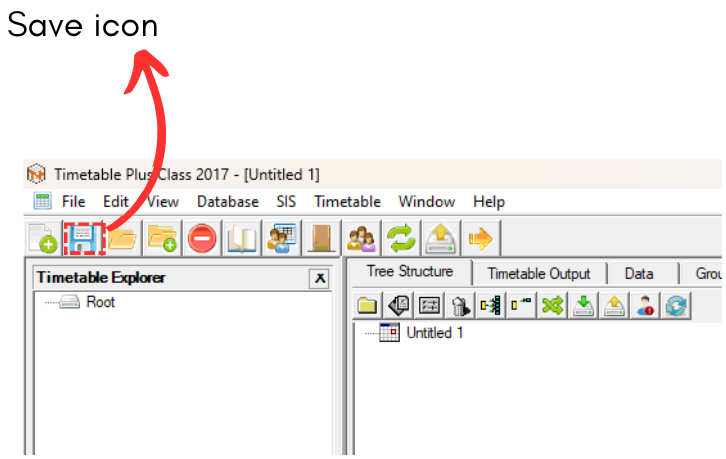
Diagram 3.3 Location for Save Icon
A pop up will appear, rename the file as desired and click Save.
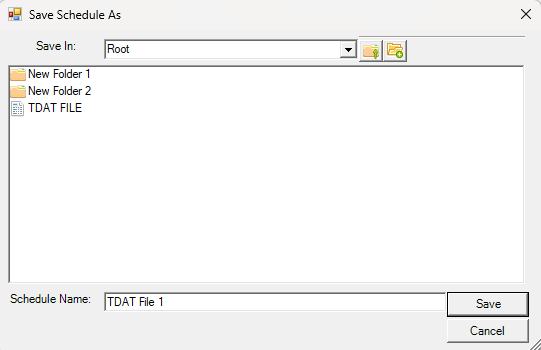
Diagram 3.4 Save File Pop Up
Optional: Organize your file into respective folder (Non-Compulsory)
Once you have multiple files, you may want to organize them into folders. For example, folder is organized by year.
To open new folder, select New Folder icon
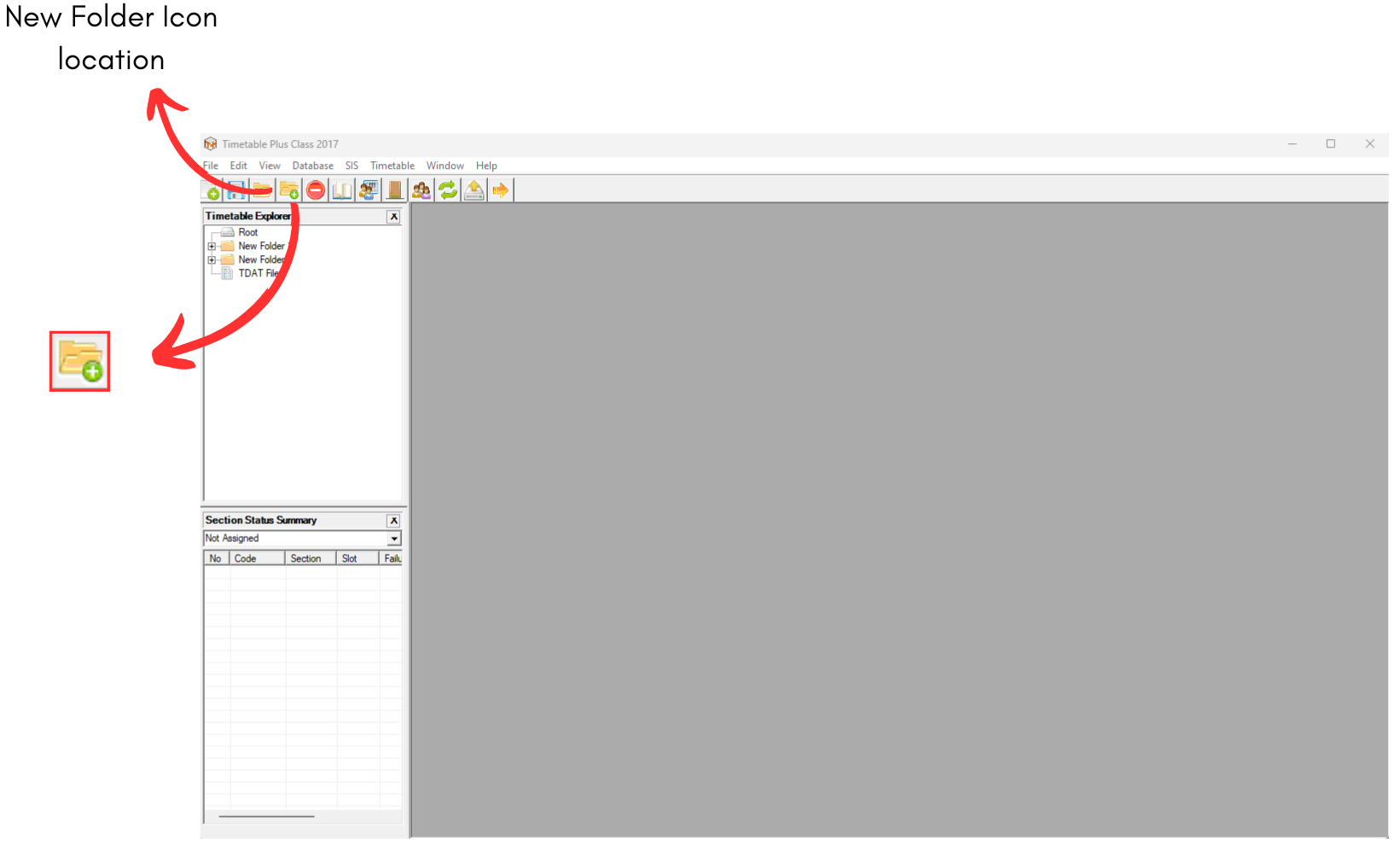
Diagram 3.5 Location of New Folder
A new folder will appear on Timetable Explorer.
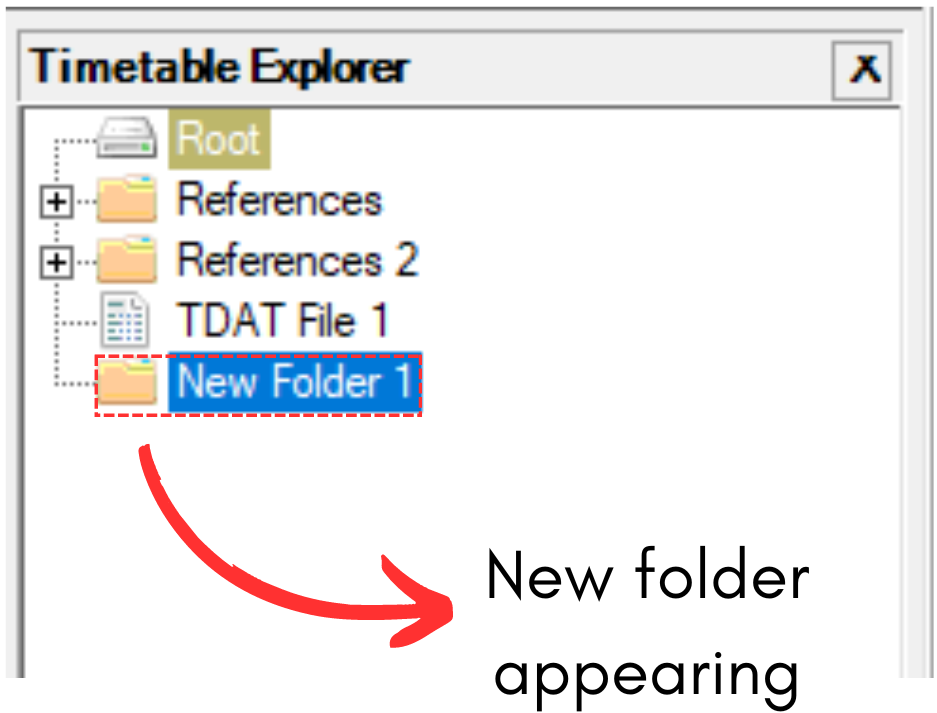
Diagram 3.6 New Folder
You can rename the folder as desired. For Example, "2024".
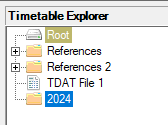
Diagram 3.7 Renamed Folder
Select a file and drag into the folder and drop.
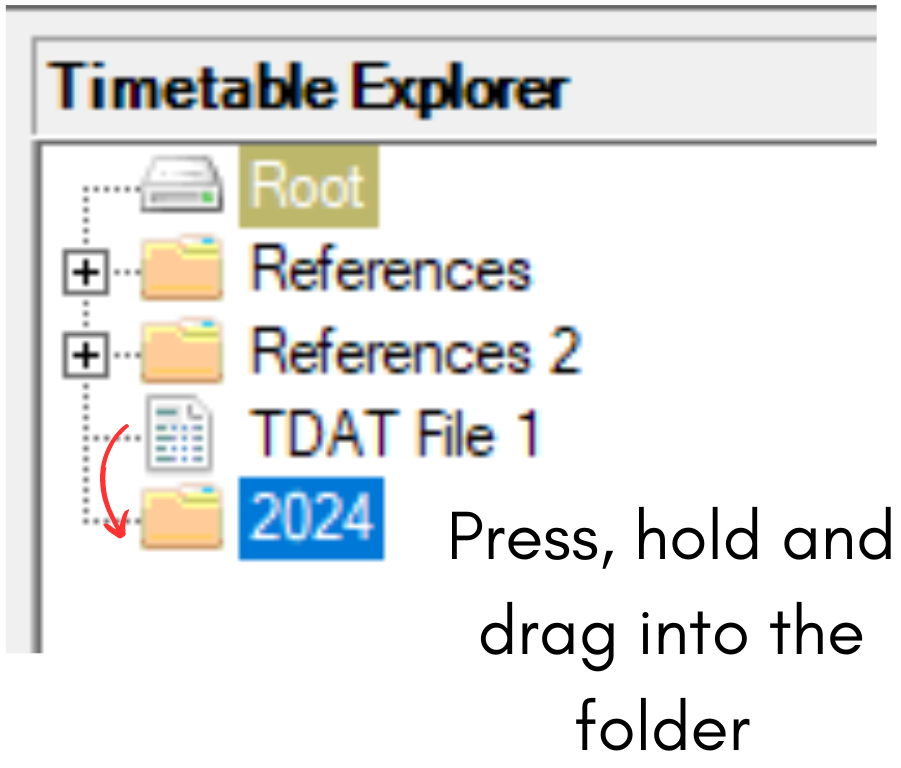
Diagram 3.8 Selected File
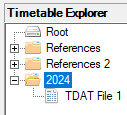
Diagram 3.9 File dragged inside the folder
4. Icons & Menu
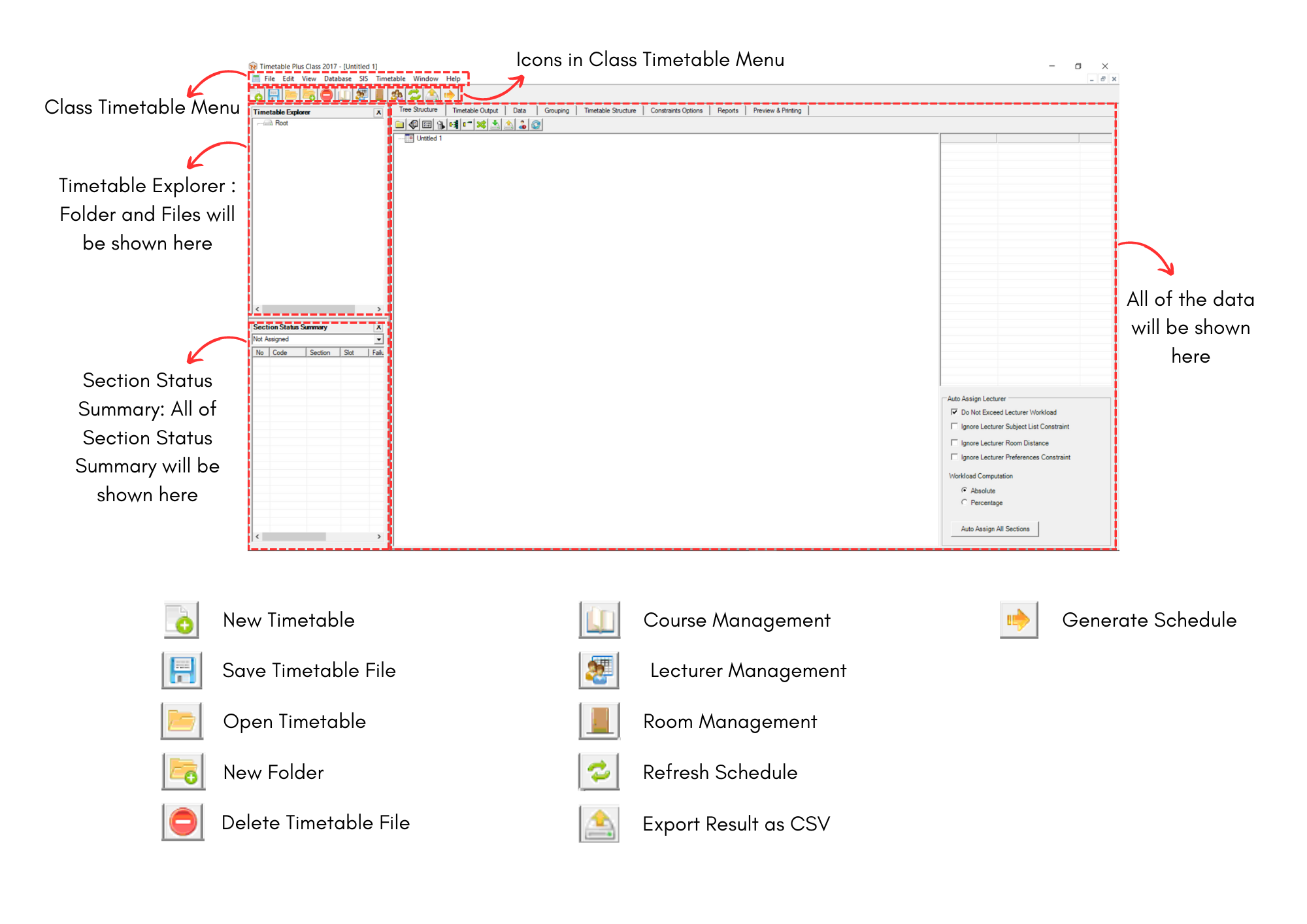
Below is the Icons and Menu in Timetable Plus Class.