Class Timetable
5. Lecturer Constraints
The Lecturer Constraints tool allows administrators to set restrictions on lecturer availability (time slots) and room usage. This ensures that class scheduling does not conflict with a lecturer’s working hours or room assignments.
Step-by-Step Guide for Lecturer Constraints
1. Accessing Lecturer Constraints
Steps:
-
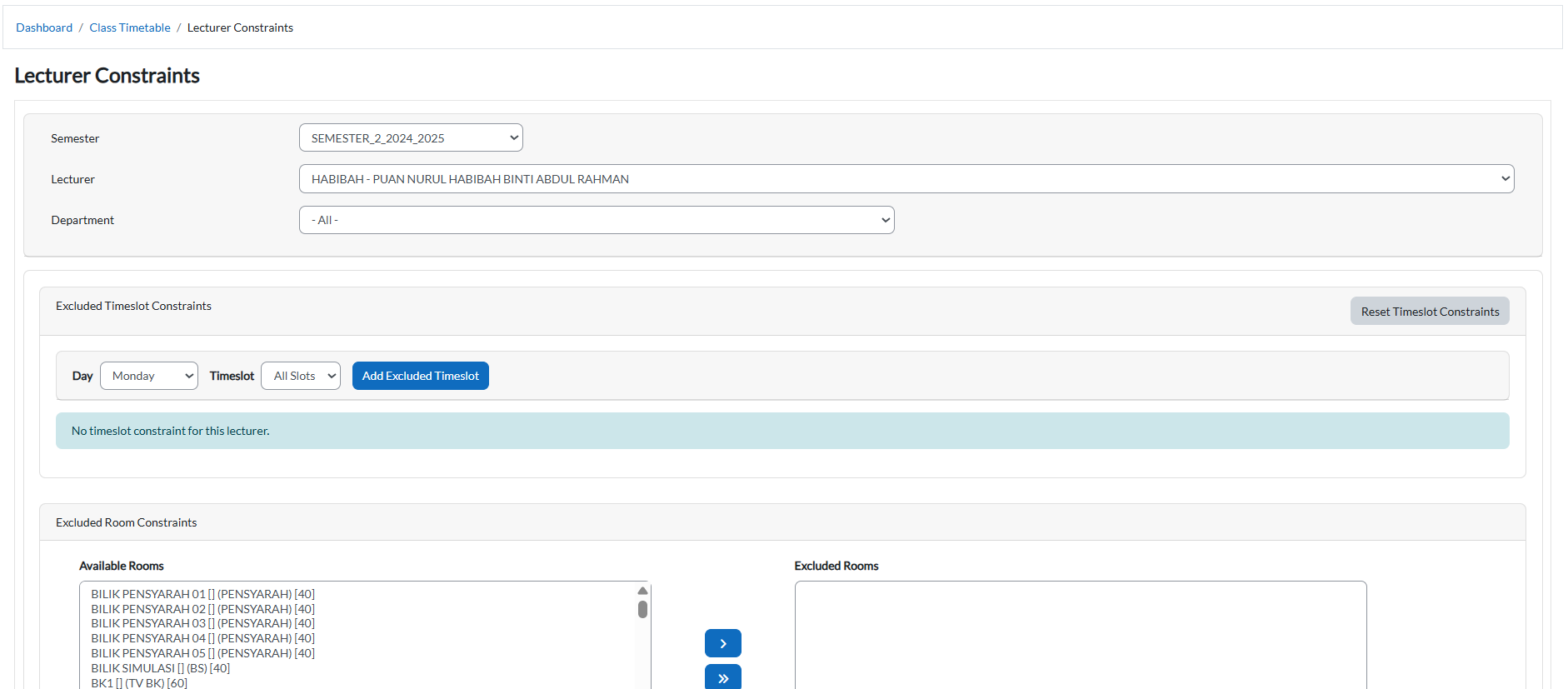
From the Dashboard, click Class Timetable > Lecturer Constraints.
-
The page will display options to select Semester, Department, and Lecturer, as well as panels for Available Timeslots and Available Rooms.
2. Selecting Lecturer and Semester
-
Semester Dropdown: Choose the semester to apply constraints.
-
Department Dropdown: Helps filter lecturers by department for easy search.
-
Lecturer Dropdown: Select the lecturer whose availability you want to configure.

3. Adding Excluded Timeslots
Purpose: Block certain time periods where the lecturer cannot teach.
Steps:
-
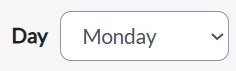
Select a Day (e.g., Monday).
-
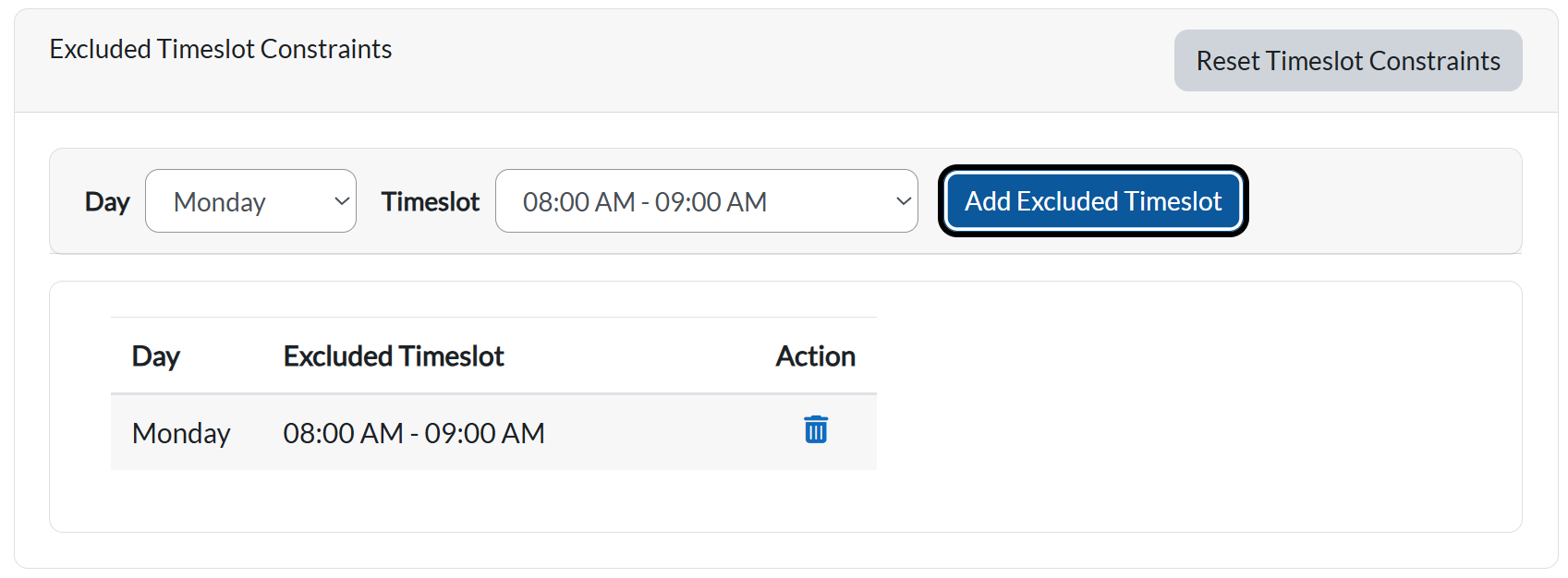
Select a Timeslot (e.g., 8:00 AM – 9:00 AM).

-
Click Add Excluded Timeslot (Blue button).
-
Function: Adds the selected time to the lecturer’s excluded list.
-
Once added, the timeslot will appear in the Excluded Timeslot Table below.
-
4. Resetting Timeslot Constraints
-
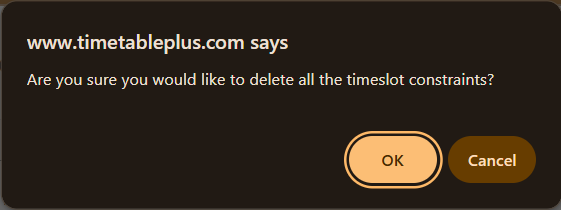
Reset Timeslot Constraints (Grey button):

-
Function: Clears all excluded timeslots for the selected lecturer, restoring their full availability.
-
Use this if you want to start fresh or remove restrictions.
-
5. Excluding Rooms
Purpose: Prevent a lecturer from being assigned to specific rooms.
Steps:
-
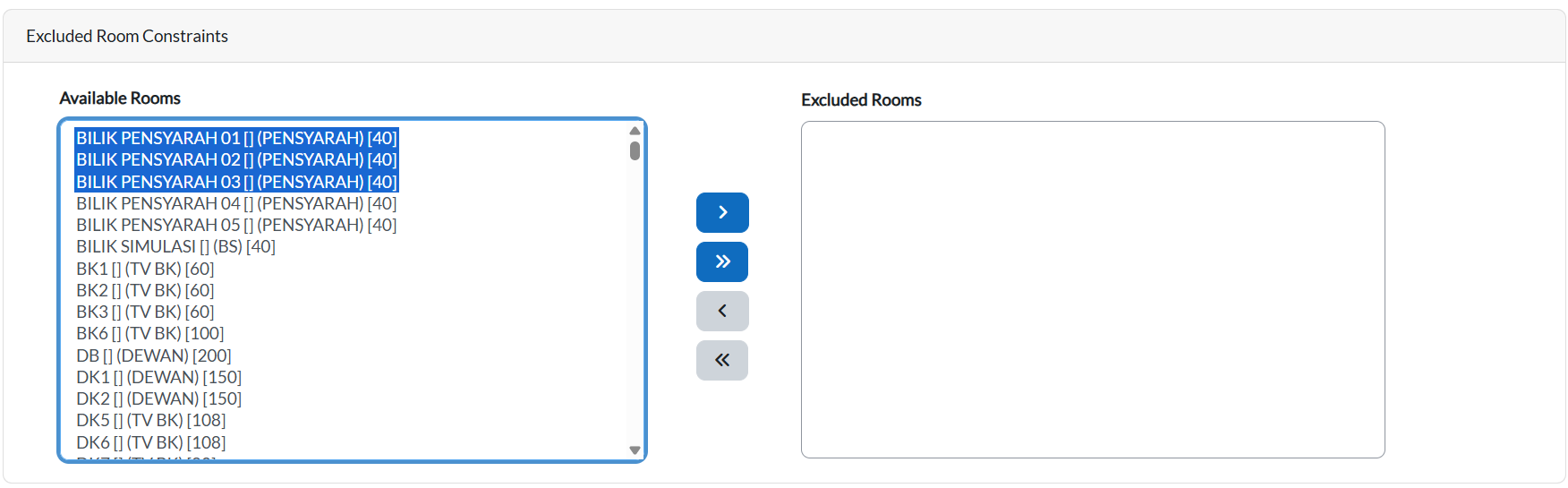
In the Available Rooms list (Left panel), select the room(s) to be excluded.
-
Highlight turns blue when selected.
-
-
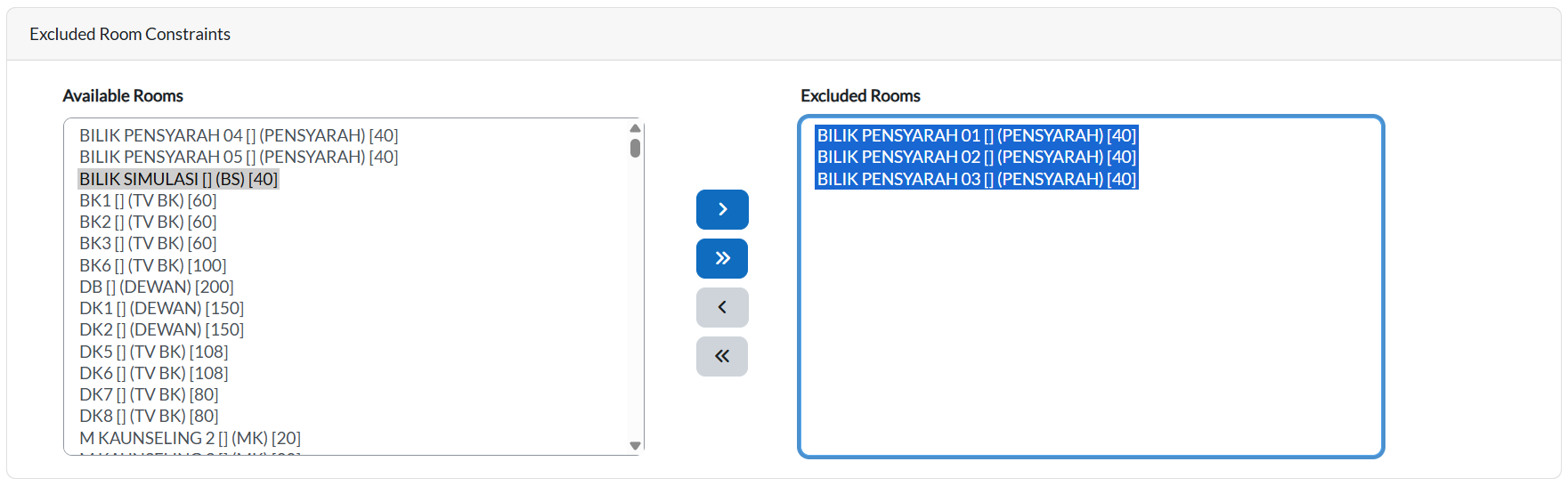
Use the Single Arrow Blue Button ( > ) to move the selected room to Excluded Rooms (Right panel).
-
Function: Excludes the chosen room from being scheduled for this lecturer.
-
-
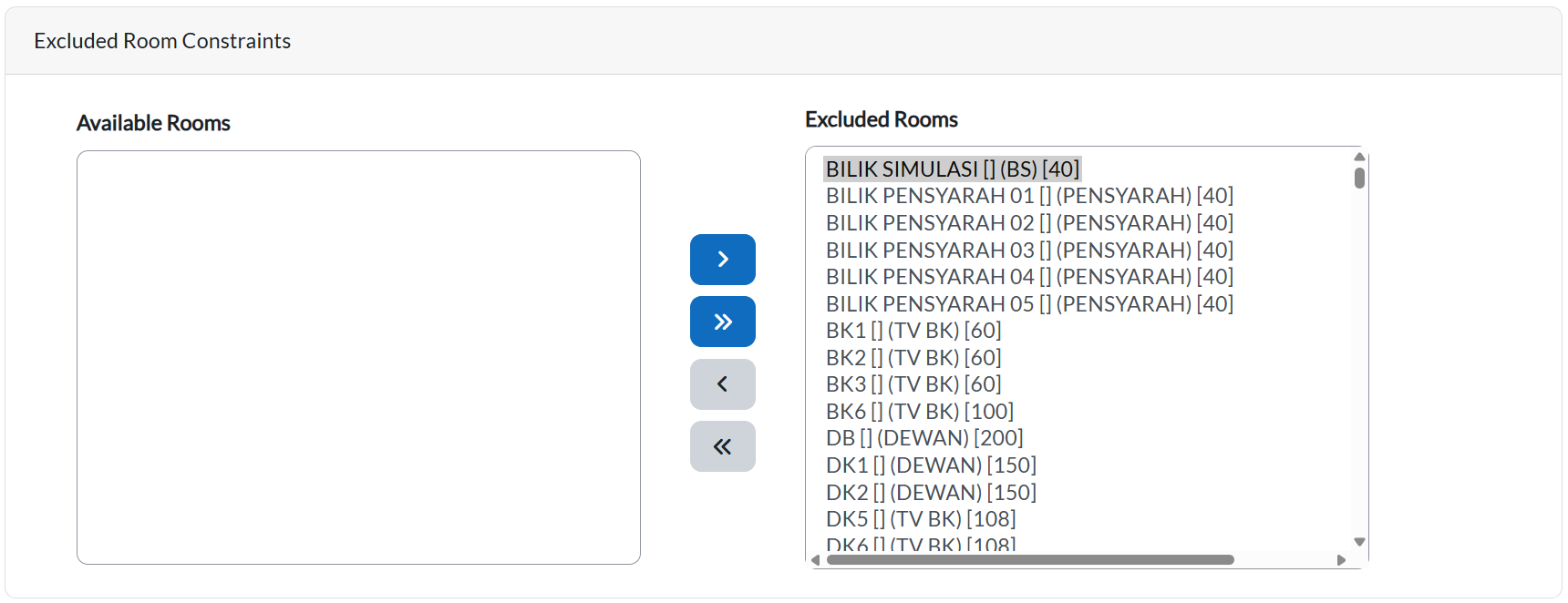
Use the Double Arrow Blue Button ( >> ) to move all rooms at once.
-
Function: Excludes every room for that lecturer.
-
-
To remove exclusions:
-
Single Arrow Grey Button ( < ): Moves one room back from Excluded Rooms to Available Rooms.
-
Double Arrow Grey Button ( << ): Moves all rooms back at once.
-