Managing Data in the Admin Portal
3. How to Input Data?
3.7. Step 7
Add Manually (Course Timetable)
Purpose: To manually create and assign class schedules by linking courses, lecturers, rooms, and timeslots into the timetable. This ensures that all teaching activities are properly scheduled without conflicts.
Note: In e-Campus, timetables can only be added manually. Automatic timetable generation is available only in T Plus Class.
Accessing Manual Timetable Entry
-
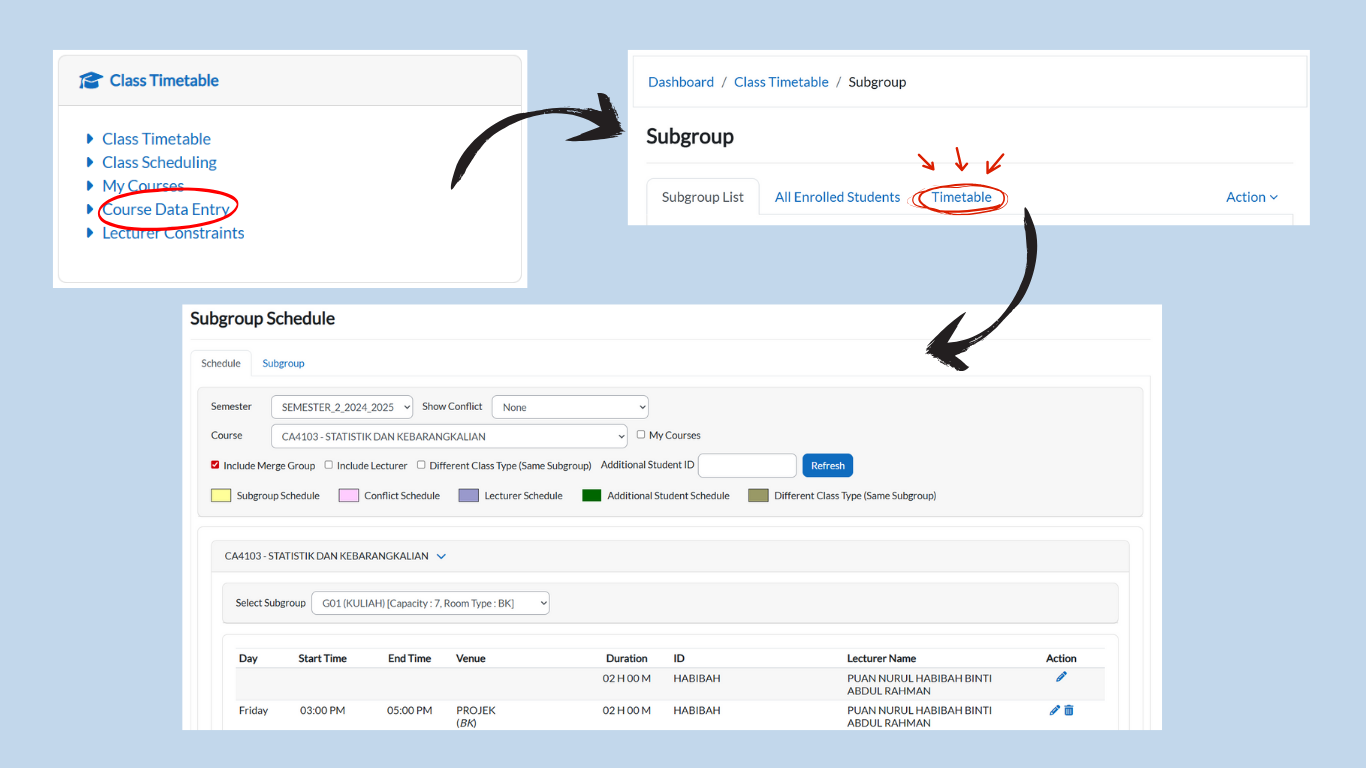
Go to the Class Timetable card → click Course Data Entry.
-
Three tabs will be displayed:
-
Subgroup List
-
All Enrolled Students
-
Timetable
-
-
Select the Timetable tab.
Setting Up a Timetable Entry
-
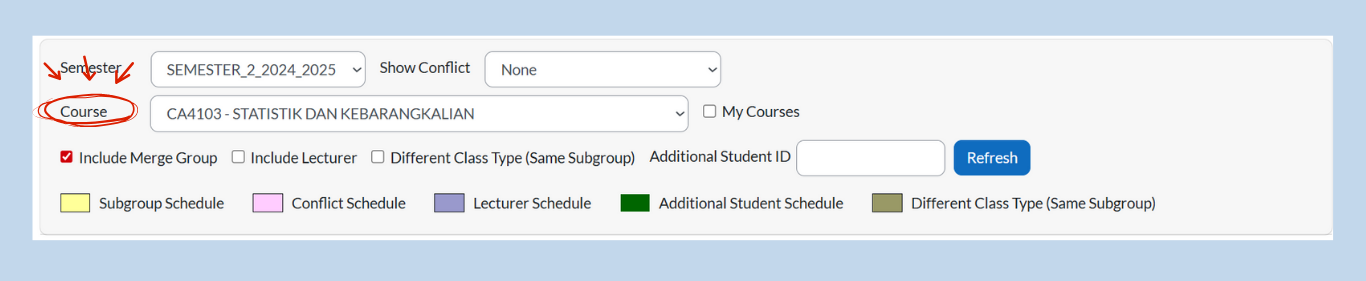
Check the Semester:
-
Ensure the correct semester is selected from the dropdown menu.
-
If not, click the dropdown and choose the right semester.

-
-
Choose the Course:
-
Select the course from the course dropdown menu.
-
The page will auto-refresh.
-
If the course has not yet been added, the timetable will appear empty.
-
-
View Timetable Fields
If no records exist yet (meaning the course has not been assigned in the timetable), the following fields will be empty:
-
-
Day, Start Time, End Time, Venue
The following fields will still be available:
-
-
-
Duration, ID, Lecturer, Name, Action
Under Action, a pencil icon will be available to update the schedule.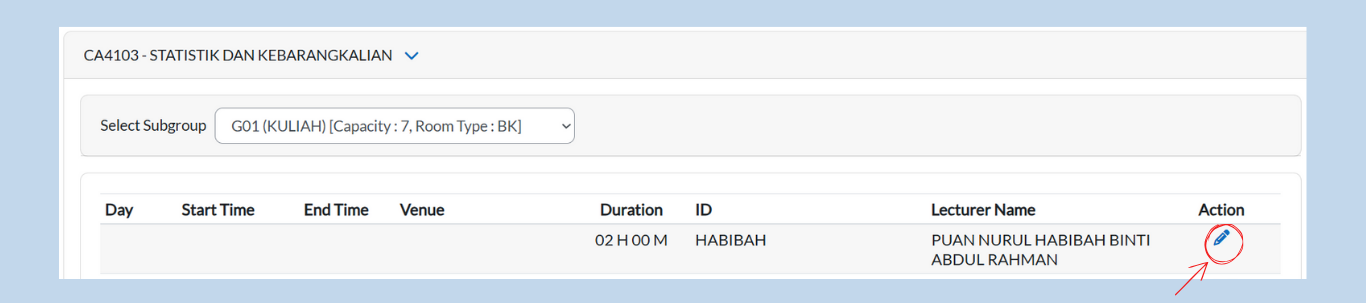
-
Updating the Schedule
-
Click the pencil icon under Action.
-
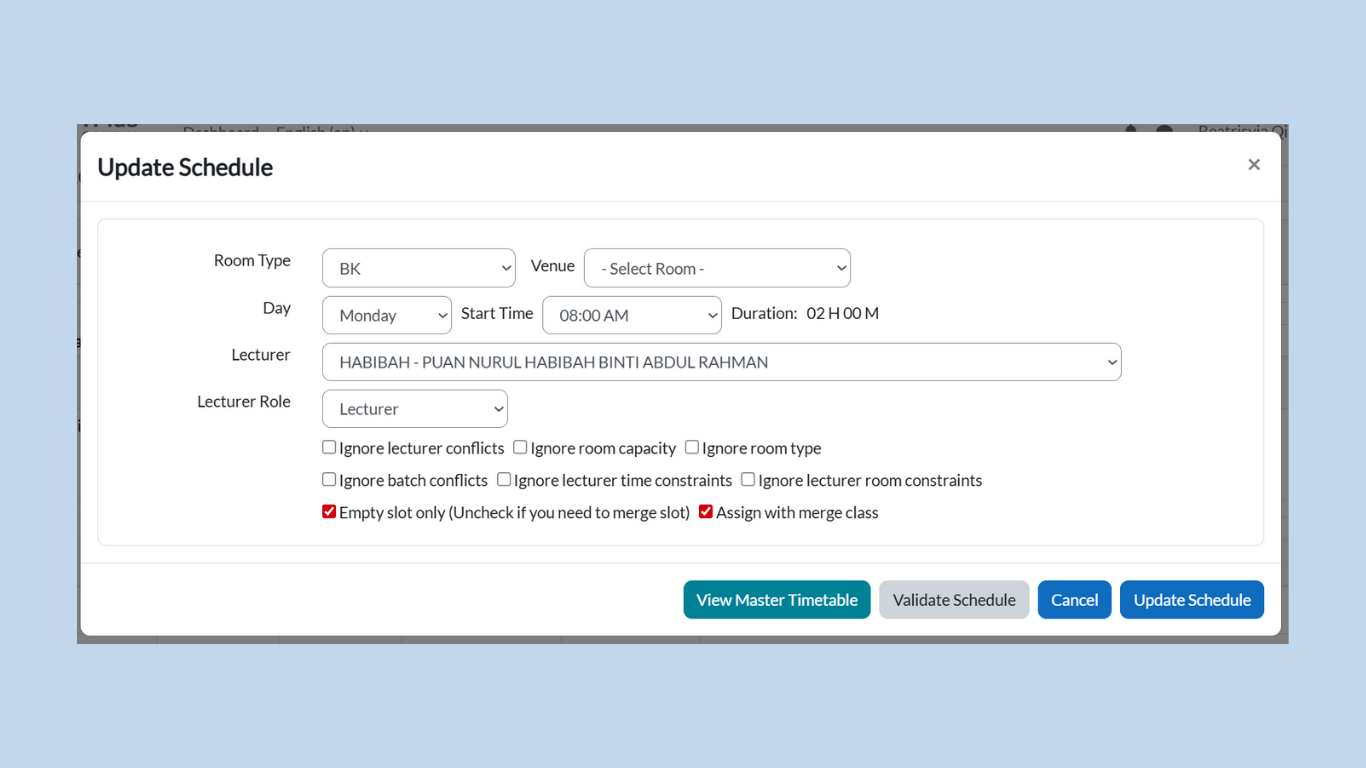
A box will appear titled Update Schedule.
-
In this box, you can fill in the following details using dropdown menus:
-
Room Type
-
Venue
-
Day
-
Start Time
-
Duration (cannot be changed — it is fixed based on Subgroup Data Entry)
-
Lecturer
-
Lecturer Role
-
Filter Options
While updating the schedule, you can apply filters to adjust validation:
-
Ignore lecturer conflicts
-
Ignore room capacity
-
Ignore room type
-
Ignore batch conflicts
-
Ignore lecturer time constraints
-
Ignore lecturer room constraints
-
Empty slot only (uncheck if you need to merge slot)
-
Assign with merge class
Validating & Saving the Schedule
At the bottom, you will find four buttons:
-
View Master Timetable
-
Validate Schedule
-
Cancel
-
Update Schedule
Process:
-
Click Validate Schedule to check for conflicts.
-
If successful, a message will display:
“Validation passed. No conflict found in the schedule validation.”
-
-
If validation passes, click Update Schedule to save.
-
The course will now appear in the timetable view.
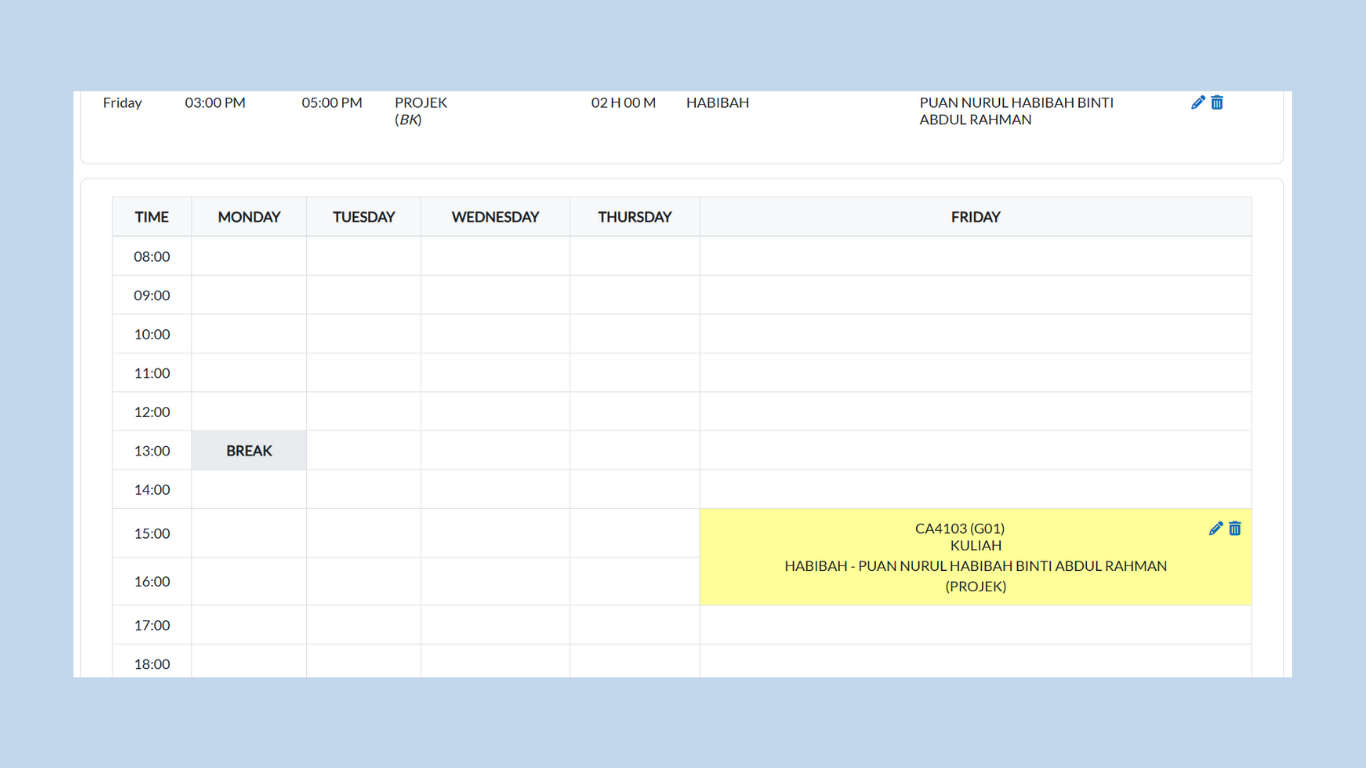
Note: With this step, you have manually added courses into the timetable for the semester.