Managing Data in the Admin Portal
3. How to Input Data?
3.1. Step 1
This step allows you to view, import, and export data within the system.
Most Required Data in the Database
The database should contain various data such as batches, students, class types, buildings, and more.
However, the most required data for the system to work effectively are:
- Lecturer
- Courses
- Room
- Batch
Without these, the timetable cannot function properly. Make sure these are entered first before proceeding.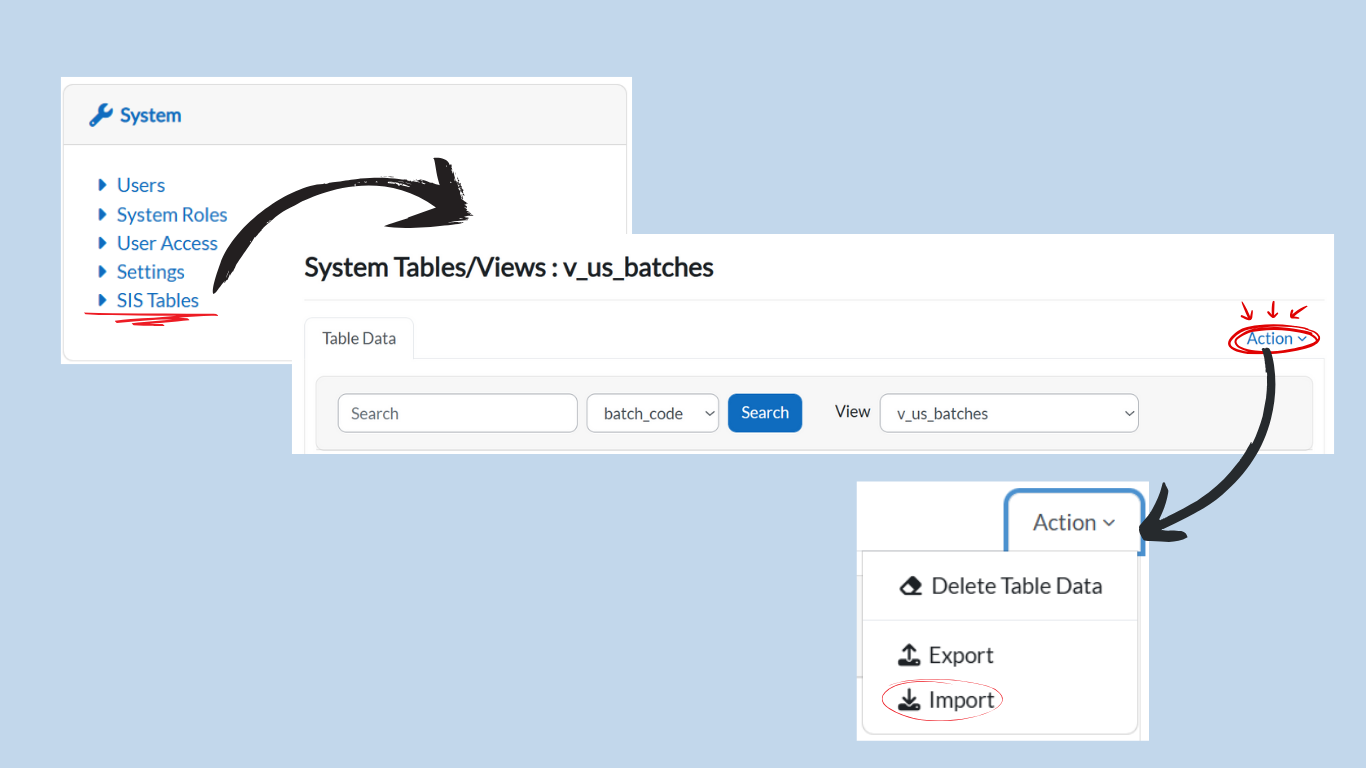
Viewing Data
-
Under the System card, click on SIS Table.
-
From the dropdown menu under View, select your preferred view.
-
Example: Select v_us_batches to view batch information.
-
Importing Data
-
Before importing, ensure your data is in the provided Excel template.
Note: The Excel templates will be provided by the system administrators. Please use only the official templates to avoid errors.-
Example: To add batches, your Excel file must contain the following columns:
-
batch_code
-
batch_name
-
-
-
In the Action dropdown, select Import.
-
Upload your Excel file using the system’s upload option.
-
After import, the system will display all the information from your Excel file in the table.
Exporting Data
-
To export existing data, click Export in the Action dropdown.
-
The system will download the file in Excel format.
Tip: Always double-check your Excel template formatting before importing to avoid errors.