Database
1. Lecturer Management
1. View Lecturer List
-
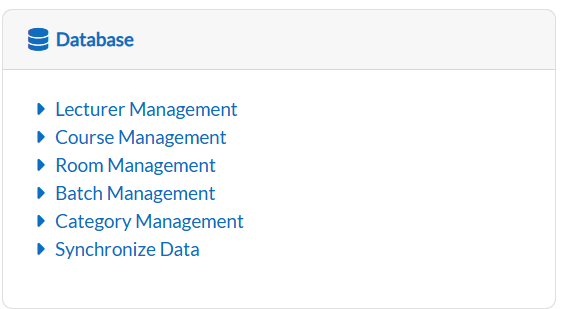
Navigate to the Lecturer Management section.
-
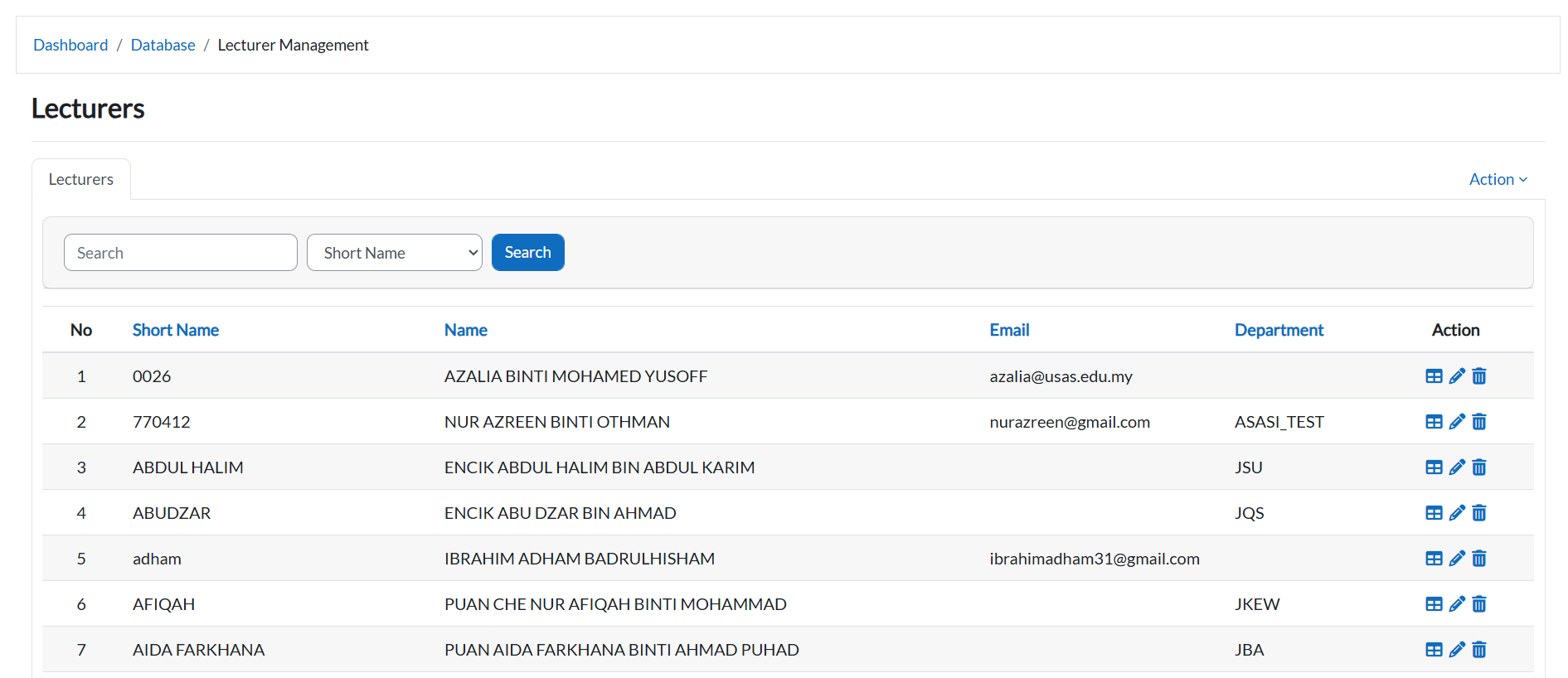
The system will display a table of all lecturer records.
-
To view a lecturer’s timetable:
-
Click the "Table Icon" next to their name.

-
2. Print Lecturer Timetable
-
From the timetable view (after clicking the table icon), click the Printer Icon (top-right).

-
The system will redirect you to a PDF preview page.
-
To download/save:
-
Press Ctrl + P (Windows) or Cmd + P (Mac).
-
Select "Save as PDF" as the destination.
-
Click "Print/Save".
-
3. Edit Lecturer Information
-
Locate the lecturer in the main table.
-
Click the Pencil Icon in their row.

-
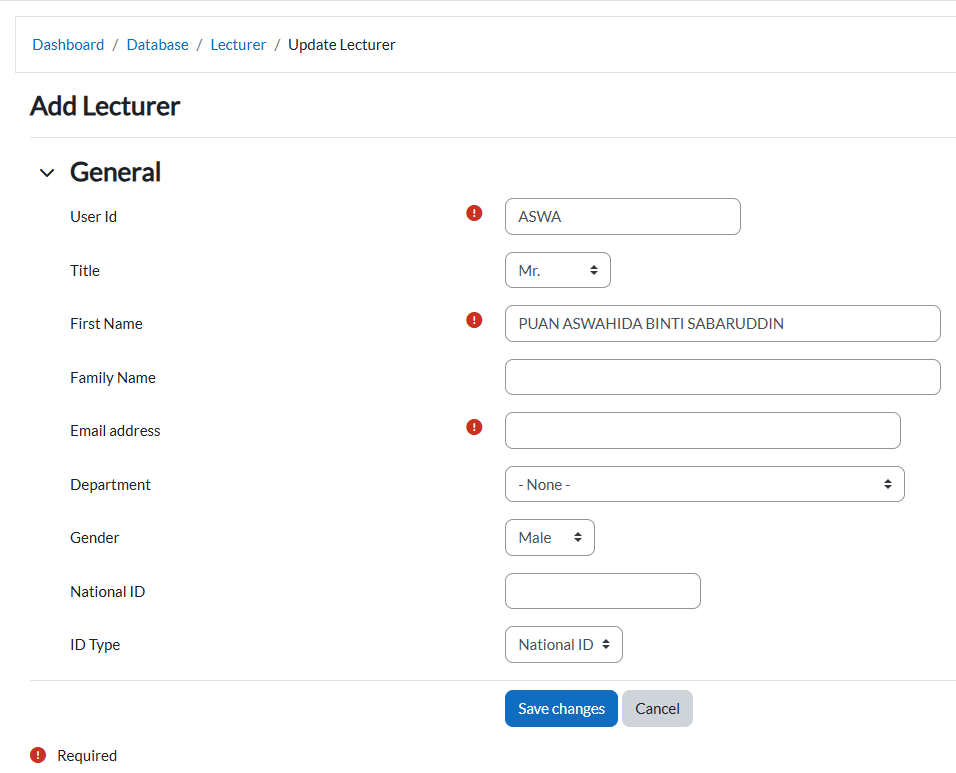
Update the details in the form.
-
Click:
-
"Save Changes" to confirm changes.
-
"Cancel" to discard.
-
4. Add a New Lecturer
-
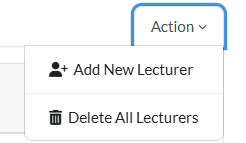
Click the "Add New Lecturer" button.
-
Fill in all required fields (marked with *).
-
Click:
-
"Save Changes" to add the lecturer.
-
"Cancel" to abort.
-
Key Notes
-
Timetable Access: Always click the Table Icon to view/edit a lecturer’s schedule.
-
PDF Export: The print feature generates a PDF layout; use browser controls (Ctrl + P) to save/print.